

A funny thing happens when you use an iPhone, which doesn't seem to happen as much if you're using an Android: you start paying more for apps and various subscriptions, often to Apple directly.
This happened to me. But thanks to new features built into iOS, Apple has made it easier to avoid paying for apps and tools I used to subscribe to. Apple Passwords now mostly replaces a paid password-syncing service, the Files and Notes apps can handle scan-to-PDF tasks for free, and while Apple would prefer you upgrade to iCloud+ for photo backup, Google Photos offers a free alternative.
Here's how I dropped three subscriptions for free alternatives, and how you can too.

I Ran Out of iCloud Storage—Here’s the Cheap Backup Trick That Replaced It
Stop fighting iCloud for more storage space.
You don't need iCloud for photo backup
Use Google Photos for free instead

You can avoid paying for iCloud+ entirely if you shift your photo backup to Google Photos.
For example, right now, I have around 10GB of photos and videos that live on my iPhone that are backed up to iCloud, for which I'm paying $2.99 per month for iCloud+ for 200GB of storage (I have other files in iCloud, like backups, so I need more storage than the base 50GB plan for $0.99 per month).
If you just shift your photo backup to Google Photos, where you get 15GB for free (this space is shared across all Google services, not just Photos), plus it has the best widget on my phone, then you can avoid having to pay Apple every month for extra storage space just to keep your photos and videos backed up.
Apple gives everyone 5GB of free iCloud space, which for most people might not enough to back up a large library of photos. So you'll either need to pay more to Apple to increase your storage space, or you'll have to reduce your iCloud footprint by deleting backups and other files from the cloud while moving to another photo backup solution, like Google Photos. A single iPhone device backup is 2–4 GB, which will leave you little space for anything else if you are relying on the 5GB of free iCloud storage, so you'll really need to consider increasing iCloud storage or move to another service to handle your photo backup.
To reduce your iCloud footprint and shift your photos backup to Google, just download Google Photos on your iPhone and turn on photo backup (Google Photos settings > Backup). You can pick if you want Google Photos to use more storage space to back up the original files for your photos and video (if you don't have a huge library that exceeds the storage space), or you can pick "Storage saver" to save space and only keep mobile-optimized files on your device. To change your backup quality to save additional space, go to Google Photos settings > Backup > Backup quality > pick Storage Saver.
If you do this and log into any device with Google Photos (whether web, Android app, or other iOS apps), you should see your entire photo library once your phone has enough time to fully back up your photos to Google Photos. Before turning off Photo backup from iCloud, to avoid data loss, first ensure that Google Photos has fully backed up your photo library. This is important to prevent data loss.
Then, to delete your photos from iCloud (and a warning: before deleting your photos from iCloud, make sure you do a full Google Photos backup and confirm from another device that your photos were successfully backed up to Google), go to Settings > [your name] > iCloud > Storage > iCloud Photos > Turn Off and Delete Photos. Note: Apple gives you a 30-day grace period to undo the deletion of your photos in iCloud if you make a mistake. After 30 days, the deletion is permanent.
Doing this will shift your photo/video backup away from iCloud, where you have to pay a monthly fee for any appreciable amount of storage, and put it on Google Photos, where you get a lot of free storage for free. Also, turning off iCloud sync will mean that if you take a photo on your iPhone, it won't show up on your other Apple devices, so choose accordingly.
Before deleting your photos from iCloud, make sure you do a full Google Photos backup and confirm from another device that your photos were successfully backed up to Google
 Quiz
QuizPaid iPhone apps that are now obsolete
Trivia challenge
Remember paying for apps that Apple or the internet eventually made irrelevant? Test how well you recall these forgotten downloads.
Copilot, Navigon, and TomTom were popular paid iPhone navigation apps before which free Apple feature made them largely redundant?
Twitterrific was one of the very first paid third-party Twitter clients on the iPhone. What historic distinction does it hold in App Store history?
Before iCloud Keychain and built-in password management, many iPhone users paid for a standalone app called 1Password. What originally made it a must-buy paid app?
Flashlight apps were once among the most downloaded paid apps on the App Store. Why did they become completely obsolete almost overnight?
Which paid photo-editing app, famous for its filters, was so influential that Instagram reportedly modeled its own filters after it before eventually making it obsolete?
Apps like Cycorder and Knobs were paid tools that gave iPhones basic video recording capability. What made them obsolete?
Angry Birds was once a chart-topping paid iPhone game. Rovio eventually made it free-to-play. What year did the original paid version launch on the App Store?
Voice Memo apps like Griffin iTalk were paid purchases before becoming irrelevant. What built-in Apple app eliminated the need for them?
Your Score
Thanks for playing!
You don't need a PDF scanner
Your iPhone does it for free now
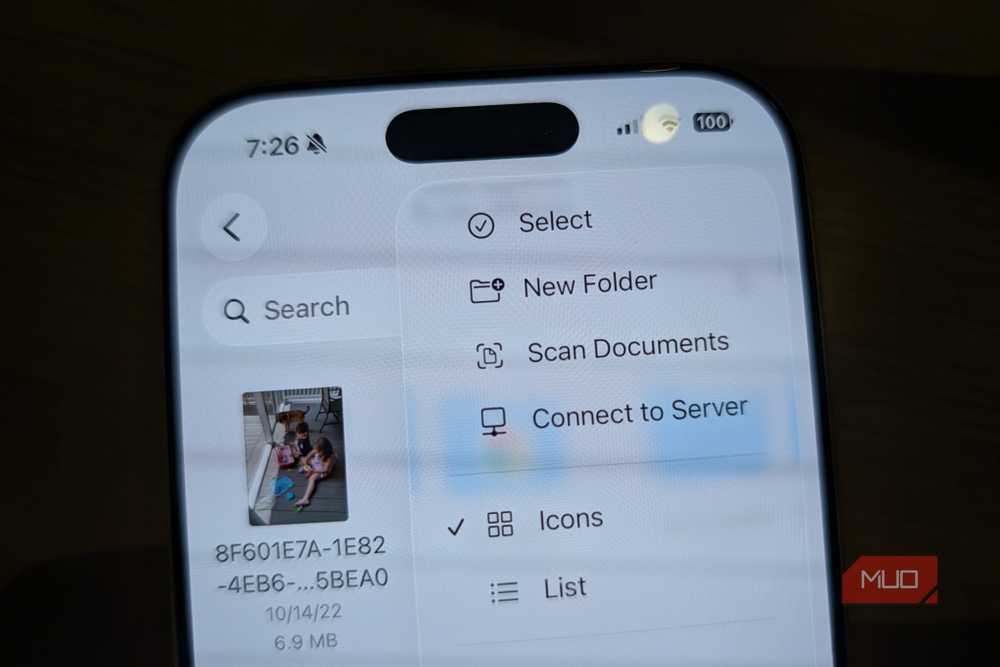
Not long ago, I paid $9.99 to buy a lifetime license for Genius Scan Plus, which is an iPhone app that lets you use your phone camera to turn any documents into a PDF. Genius Scan automatically detects the edges of your document, fixes perspective, and sharpens text such that the resulting PDF looks like it came from a professional scanner. It was worth paying for because it solved a huge problem and was very useful.
But this functionality is now built into iOS in two places, so you never need to pay for a camera-to-PDF scanner ever again.
You can turn your iPhone camera into a PDF scanner in one of two ways. First, open the Files app > tap the three dots > scan documents. The second way you can use the free PDF scanner in iOS is via Notes. To do that, open Notes app > paperclip > scan documents.
If you do it from Notes, you can mark up the PDF with editing tools, whereas if you scan from the Files app, you are just saving the PDF for sharing later. Also, Apple Notes has 5 hidden features that can make you more organized that you might want to check out.
Stop paying a subscription for LastPass
Apple's Passwords app is cross-device and actually good now
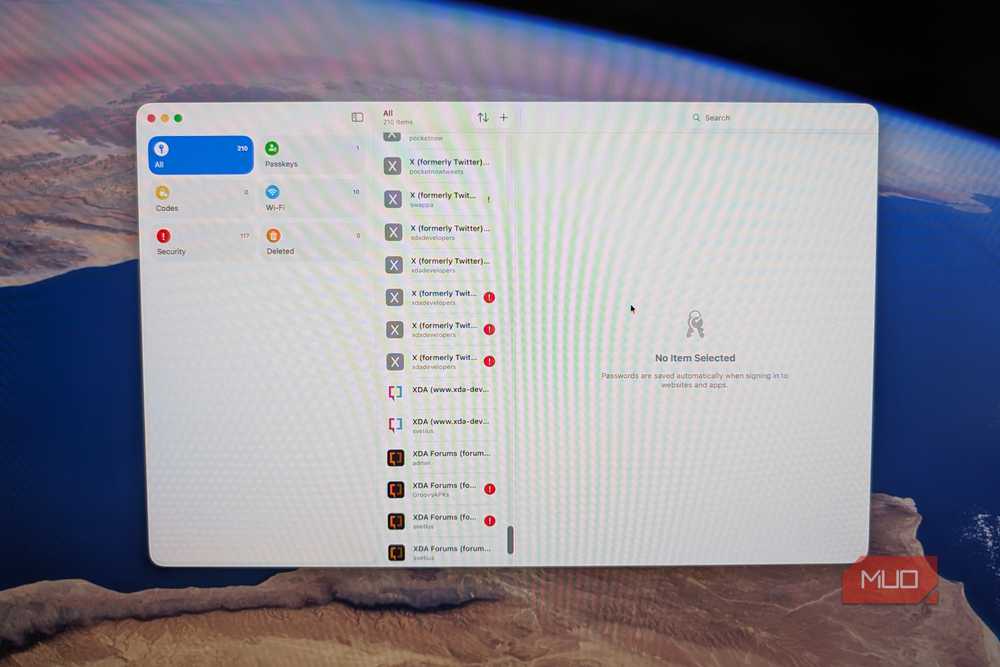
I paid for LastPass for years before realizing that for the way I actually use a password manager, Apple Passwords does nearly the same job for free.
Many people use a password manager like LastPass to securely save and synchronize passwords across multiple devices and platforms. But LastPass Premium costs $3 per month. That's worth it, especially if you have a mix of devices and platforms. However, many are using Bitwarden because it's open source and has perhaps the widest platform support.
But if you primarily use Apple devices, and all you need is secure password syncing, you'll probably be fine using Apple's free Passwords tool that does all the key things LastPass does, but for free. And there's even basic support for Apple Passwords on Windows if you use the iCloud for Windows app. There is also now an iCloud password extension for Chrome.
If you decide to make the move from LastPass to Apple Passwords, you can import all of your logins to Apple Passwords after first exporting them from LastPass.
You don't always need to pay Apple more
You have alternatives

As time goes on, a lot of what used to be a premium feature or service that you had to pay for is now built in to the operating systems you use every day, and in most cases, are offered for free with Apple's built-in apps and services. Things like photo syncing, password management, and document scanning are all things you no longer have to pay for, especially if you use an iPhone.
