


Whenever I buy a new smartphone, I instantly open the Settings menu, go to the About Phone section, and tap Build Number repeatedly to unlock Developer Options. This newly unlocked section gives me access to features that not only make my phone feel faster but also hide some that improve the overall usage experience. The best part is that your smart TV, especially if it runs Android OS or Google TV, also hides a secret menu with features that should’ve been enabled by default.
Here’s how to unlock this secret menu and enable these settings to make your smart TV even smarter.
Unlock the secret menu
The simple seven-tap trick works on your TV as well


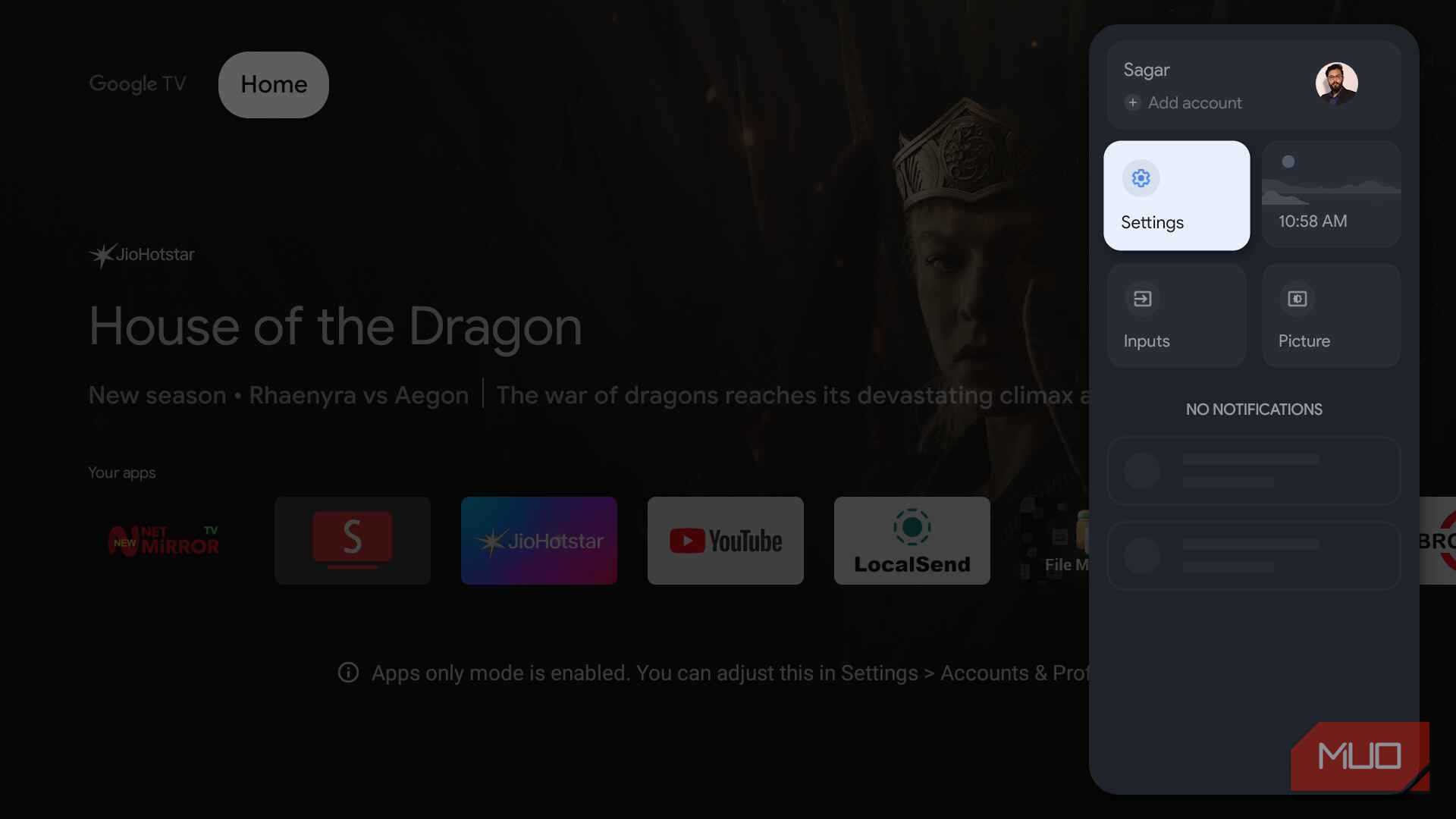
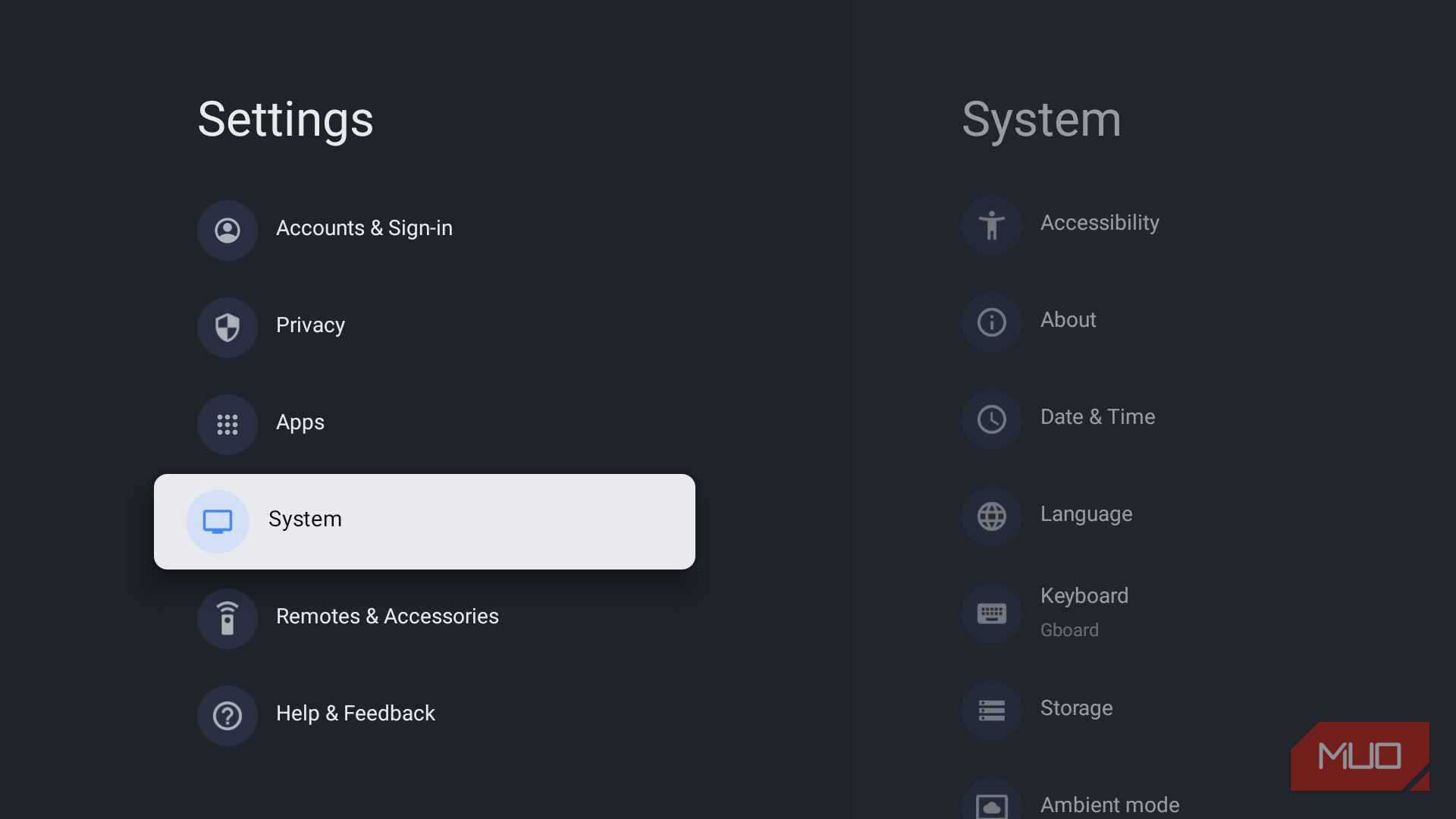
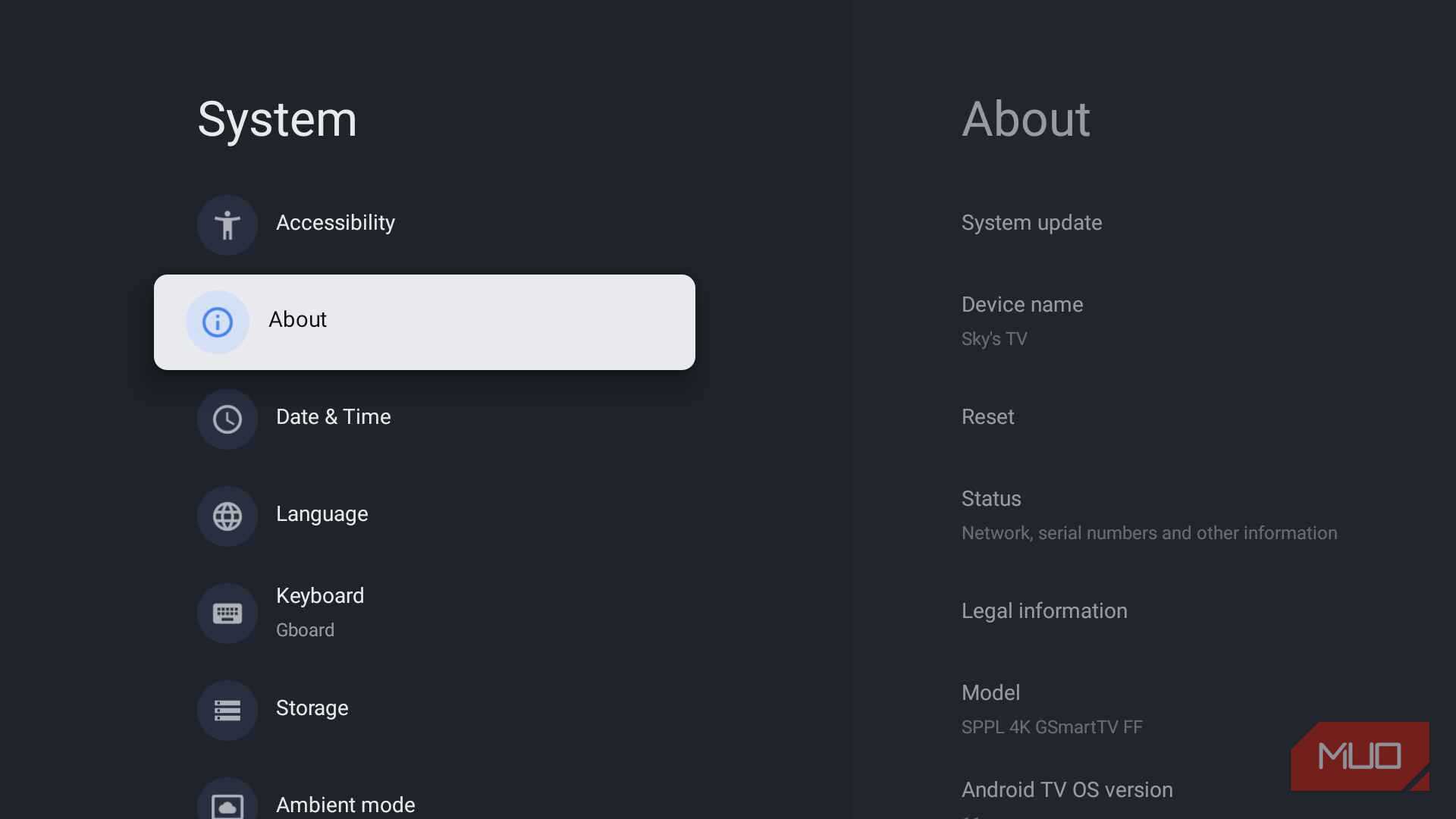
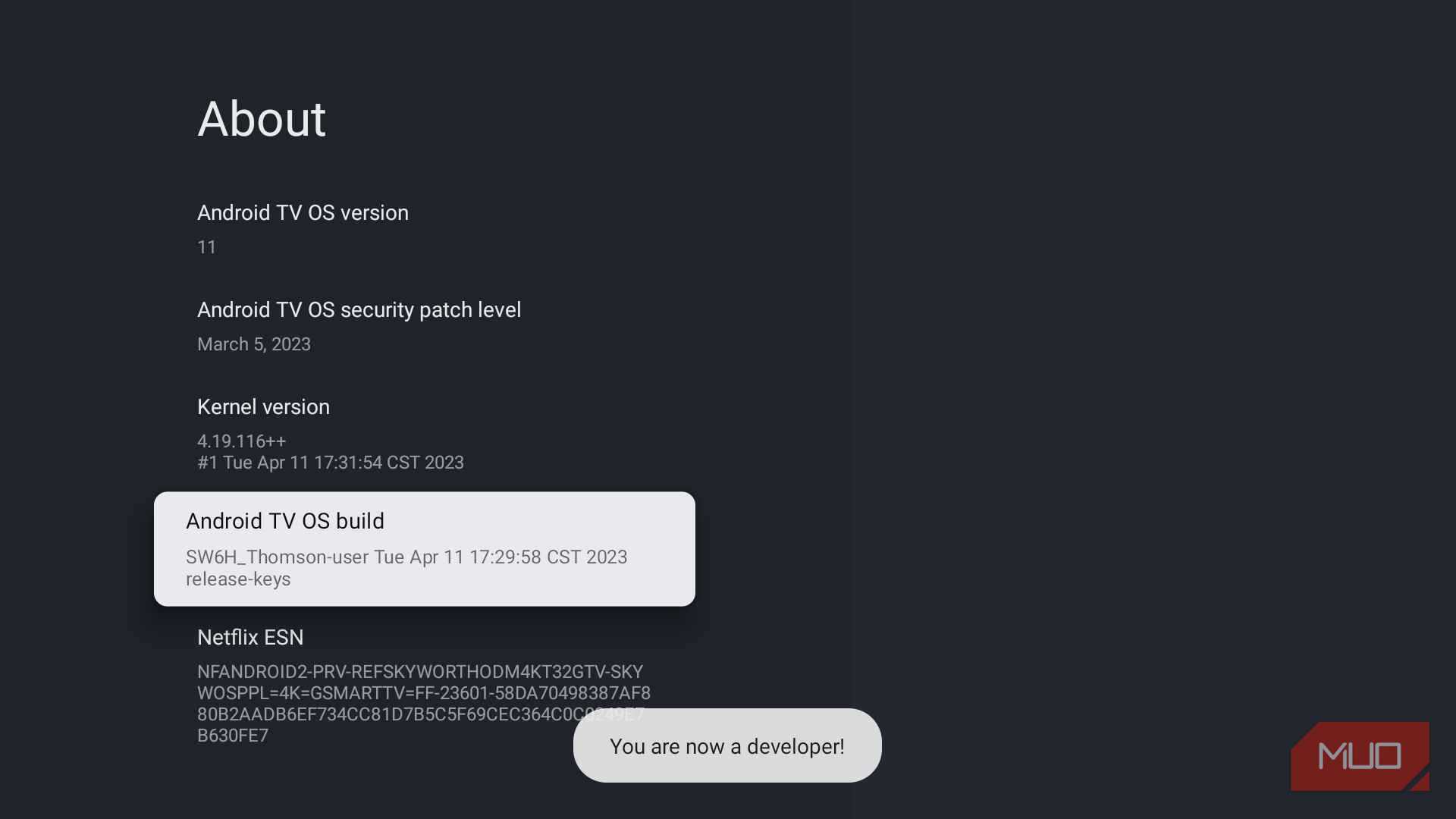
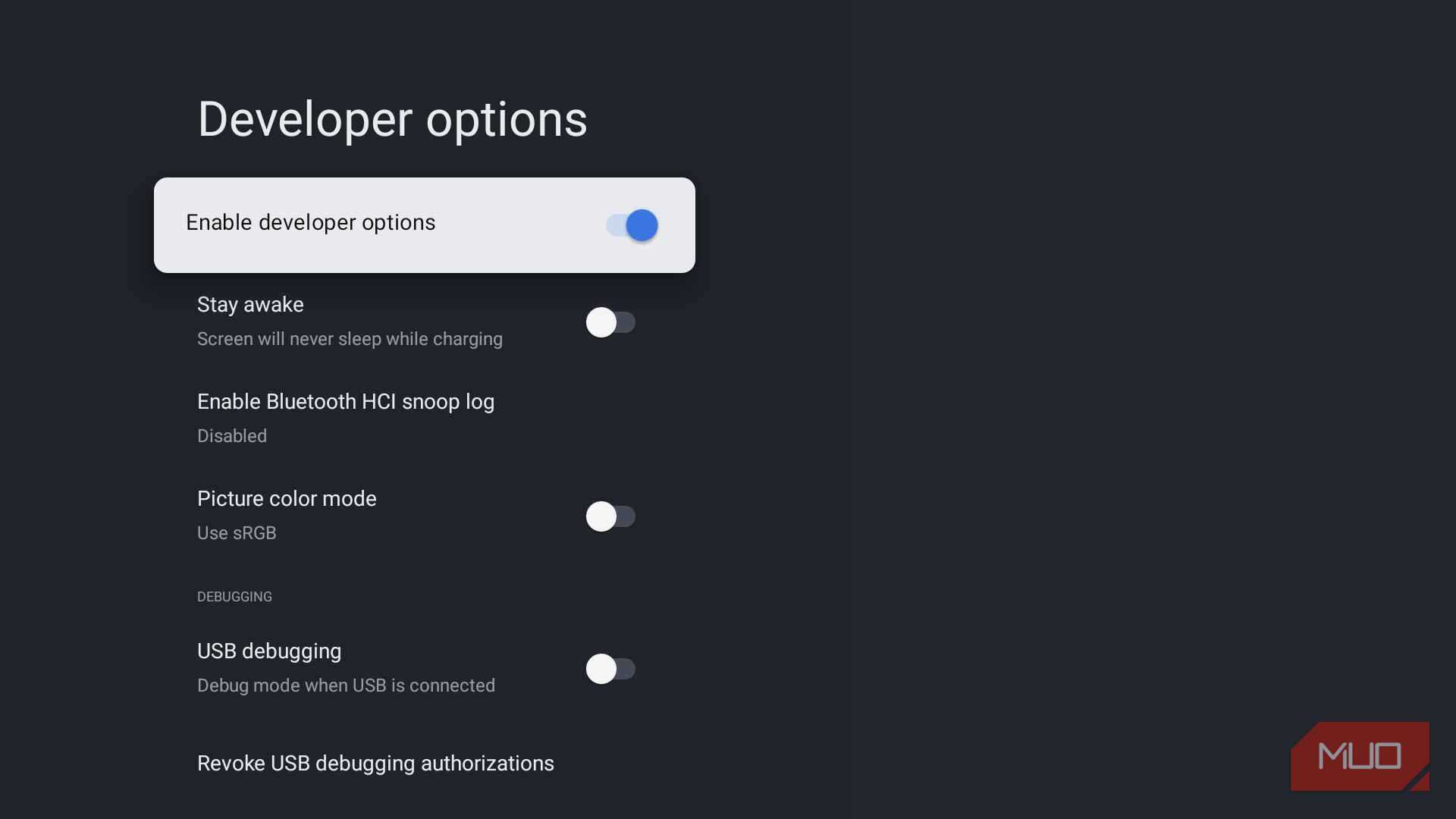
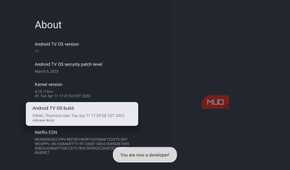
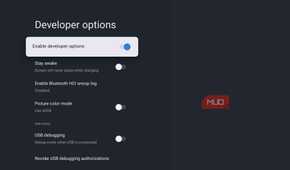
The secret menu that we are talking about is Developer Options. This isn’t an unofficial hack; it is the same hidden list of settings available on an Android phone or tablet. The best part is that enabling it isn’t like cracking a safe.
Instead, once you are inside Developer Options and turn on a few settings, you will feel for yourself not to know or try any such thing on your smart TV to turn on some important features for your smart TV.
Here’s how you can enable Developer Options on your smart TV:
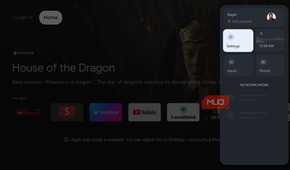
- Open the Settings menu on your Google TV/Android TV. If your TV remote has a dedicated button for it, simply press it.
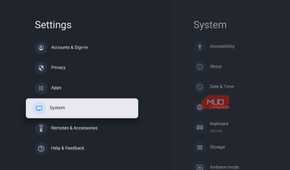
- Scroll down and choose System.
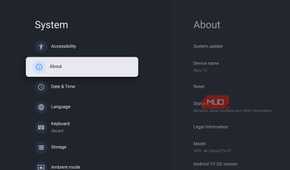
- Choose About.
- Select Android TV OS build.
- Press the OK button on your remote seven times (you will see a countdown after a press).
- Head back to the System menu, and you will see a new Developer Options entry at the bottom.
Do not worry if this is the first time you are turning this menu on your TV. It isn’t risky. It is just that, since this is the Developer Options menu, it is meant for someone who knows what they’re doing. This is the reason why it is buried so deeply than it needs to be.
The settings that you should tweak on your TV
Your smart TV will feel snappier

You will see a plethora of toggles to turn on or off inside the Developer Options. The thing is, this menu is called Developer Options for a reason. So, you should not tinker with any of the options in this menu.
There are some options you can tweak, and your TV will not only feel snappier but also elevate your Android TV/Google TV experience. For instance, the animation speed. The moment you dial down the animation speed number, your TV will feel fast and responsive.
Simply open the Developer Options, scroll down to find the Windows animation scale, Transition animation scale, and Animator duration scale. One by one, set each option to 0.5x for a noticeably snappier feel. If you are fine with no animation at all, you can turn it off to get maximum speed.
By default, these three options are set to 1x. This gives you that animation when you switch between apps, choose options in the menu, or press the Home button on your remote. But the animations aren’t always smooth; most of the time they are jittery, causing the entire UI to lag or freeze. I’ve dropped all three sliders to 0.5x on my own TV, and the half-second lag now feels almost instant.
Apps-only mode deserves to be the default home screen
Strip your home screen of those unwanted movie ads

I believe that if there is one feature that should’ve been shipped enabled out of the box, it is the apps-only mode. Or at least we should be given an option when setting up the TV.
Google TV’s home screen is, by default, a wall of movies and TV show ads. You get autoplaying trailers, top picks from various streaming platforms, and recommendations you didn't even ask for.
The good thing is that you can disable this even without heading to the Developer Options menu. But the problem is that Google has hidden this setting so well that it seems they didn’t want anyone to find it.
To switch to apps-only mode, navigate to Settings -> Accounts & Sign in -> choose your profile -> Apps only mode. Turn this option on, and you will see that your home screen doesn’t feature personalized recommendations. You will be left with a clean list of installed apps. The downside, the Play Store, for some reason, isn’t accessible from this app's list, and you have to dig through the Settings menu to access it.
Game mode shouldn’t need a manual toggle
A smart TV should be, well, smart!

I am not a gamer. I call myself an occasional gamer who plays a lot of games. The fact that smart TVs come with a Gaming mode feature is appreciated, but it is funny that this mode needs to be turned on manually.
According to Google, game mode reduces latency and allows for a faster game response time. That’s not a marketing buzzword; it is real, and it shows when you are actually playing on your smart TV.
The funny thing is that this toggle doesn’t automatically turn on when you are gaming. You have to remember to switch it on before you fire up your console. Then you also have to remember to switch it back off once you are done gaming, since leaving it on can result in a slightly flatter, less cinematic picture profile for your movies and shows.
This is another option that you can turn on without heading over to Developer Options. You need to head over to Settings -> Display and Sound -> Advanced Display Settings and turn on Allow game mode.
Uninstall bloatware from your TV
USB Debugging + ADB TV is the secret sauce

Even when you turn on your Google TV/Android TV for the first time, you will see a lot of pre-installed apps. There will be a bunch of movie streaming apps like Netflix, Amazon Prime Video, and several TV-branded apps.
This bloatware not only clutters your home screen but also eats up your limited storage space on a smart TV. Filling up your storage space with unwanted apps only slows down your TV, and you will start experiencing stutters and jittery UI.
Once you have enabled Developer Options, look for the USB Debugging option in the Developer Options menu and toggle it on. After that, open the Play Store and download the ADB TV app on your TV.
Open the app and grant all permissions and complete any other prompts. Once ADB TV is connected to your TV, you will see a list of apps. You can easily uninstall unwanted apps from your TV and remove bloatware you don’t need. ADB TV can be paired with your phone to sideload trustworthy third-party apps on your TV.
Stop everything from running in the background
Manage apps on your TV as you do on your smartphone

Your smartphone has a powerful processor and a lot of RAM to handle a bunch of tasks simultaneously. Even if a dozen apps are opened, your phone doesn’t act up easily, and everything remains smooth. However, that is not the case with your TV.
With limited resources and a mediocre processor, your smart TV needs a breather. Thankfully, you can limit the number of background processes that run, which can eventually slow down the system.
After you have enabled Developer Options, locate the Background process limit option. Inside the option, you can choose between Standard limit, No background processes, At most 1 process, At most 2 processes, At most 3 processes, and At most 4 processes.
My recommendation would be to limit to one or at max two. This will force your system to limit background activity, and the TV will start feeling responsive.
Your smart TV is smarter than you think
Truth to be told, none of these features is exotic. Neither will they introduce a day-and-night change in the overall system behavior. But the thing is, since these features aren’t jailbreak-tier hacks and are either hidden in a menu or buried deep in Settings, it feels like they were never meant to be found. For instance, after doing all the above on my smart TV, I noticed it has become less laggy and freezes much less often, which was a regular issue. You can also use these tricks on your old smart TV and convert it into something useful aside from watching TV.

Sony BRAVIA TV X85K
The Sony BRAVIA TV X85K is a mid-range 4K smart TV with a native 120Hz refresh rate, HDMI 2.1 ports, and Dolby Vision.