


For something that’s visible almost all the time, the Windows 11 taskbar feels pretty barebones. I’ve always felt that Microsoft is missing out on a chance to make that space better. Sure, there are third-party tools like Windhawk that can fix all the shortcomings of the taskbar, but setting them up can be too much work. Thankfully, there’s a better solution.
WindowSill is a free app that adds another taskbar-like panel, right above the Windows taskbar. It gives you shortcuts to useful tools like clipboard history, file conversion, calendar events, music controls, system usage, AI tools, and much more. And the best part is, it’s completely customizable. You can hide features you don’t use, add new extensions, change its appearance, and even move it to different parts of the screen.
WindowSill gave me the taskbar setup Windows should’ve offered
It fixed every complaint I had about the taskbar


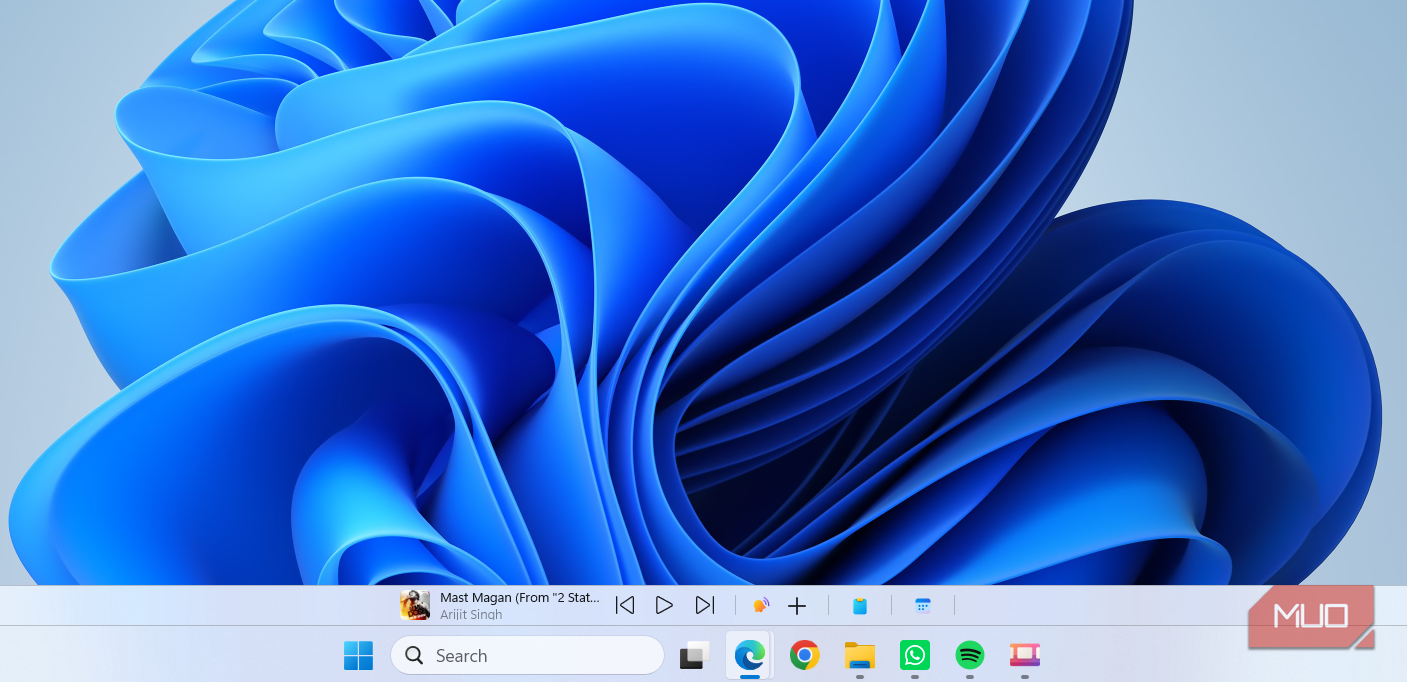
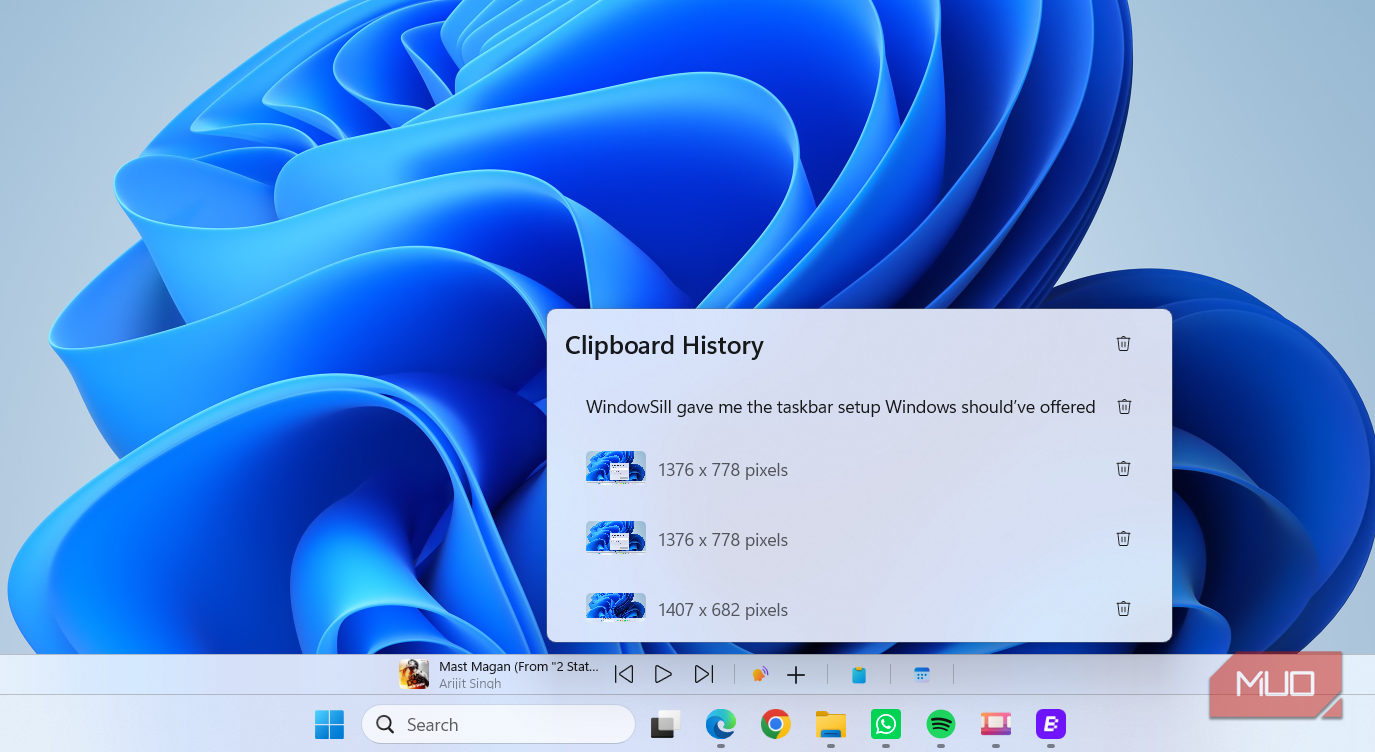
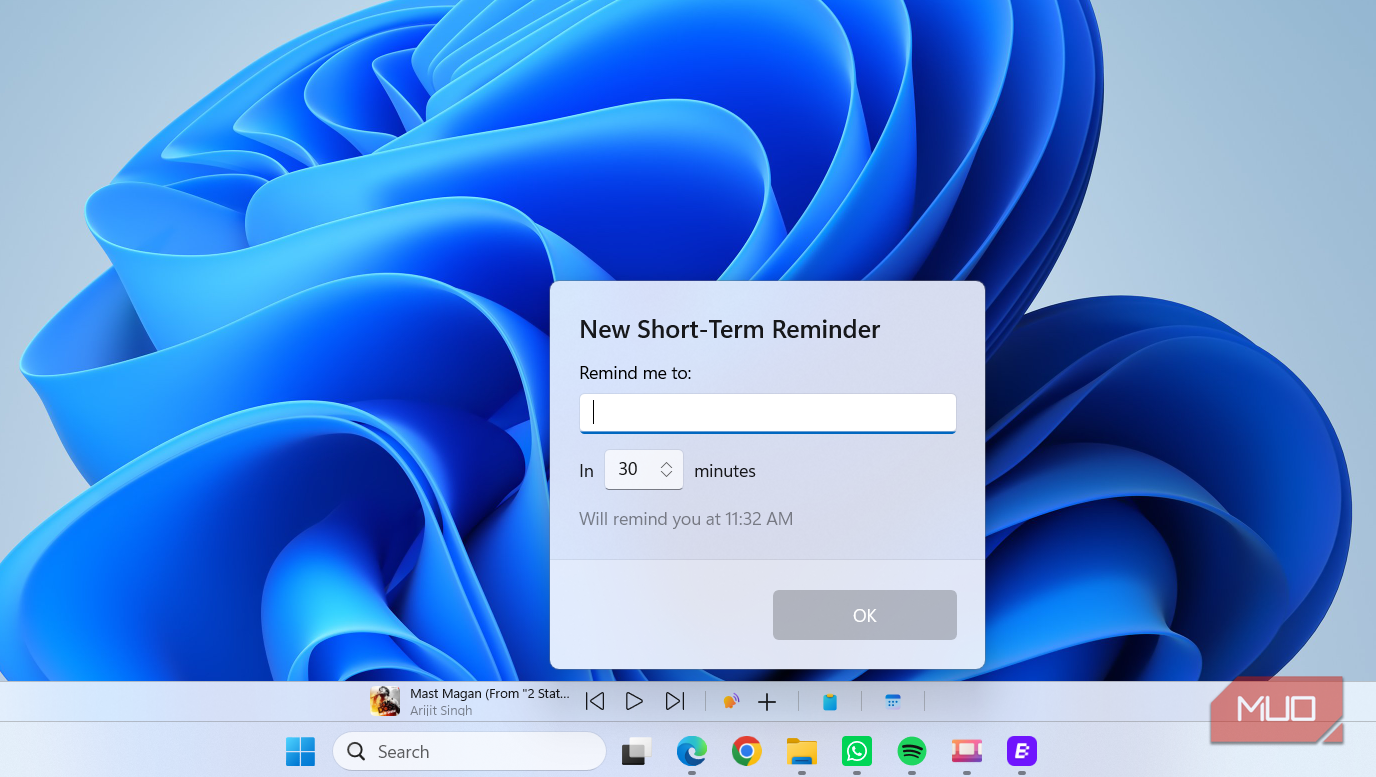
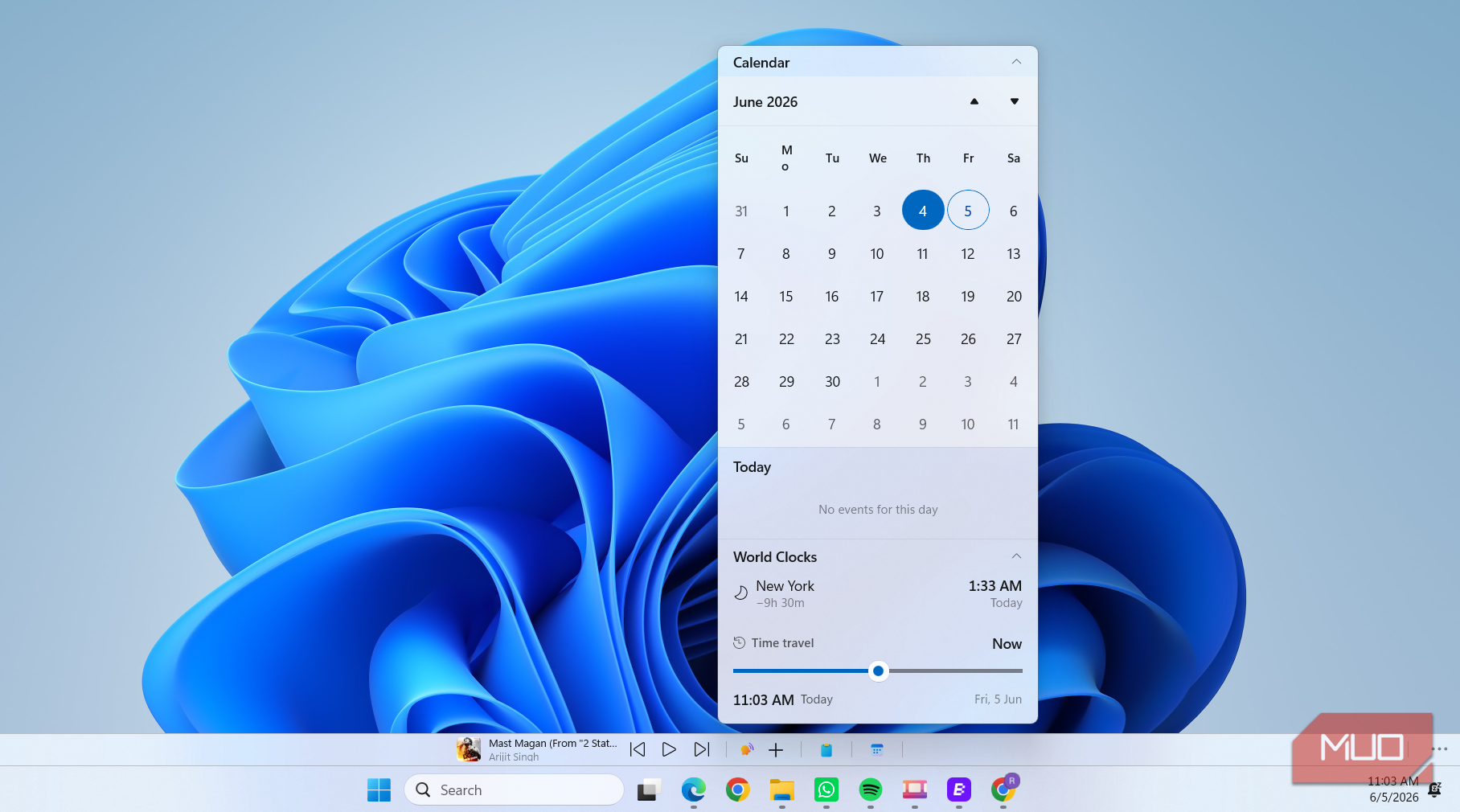
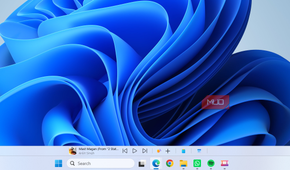
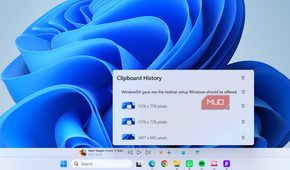
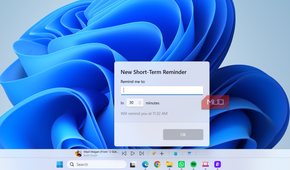
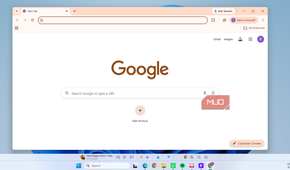
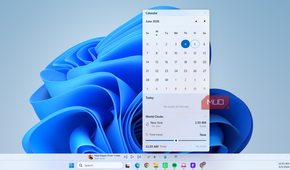
WindowSill is a simple utility that adds a fully customizable command bar to your Windows PC. Out of the box, it keeps things simple and only offers two options: reminder and clipboard history. The reminder option is handy for setting up a reminder without actually opening the Clock app. I also like how it shows a full-screen alert when a reminder is due instead of a standard notification.
The clipboard history is equally handy. In fact, since installing WindowSill, I’ve found myself pressing Win + V far less often. Instead, I can simply click its clipboard history icon and choose the item I want to paste.
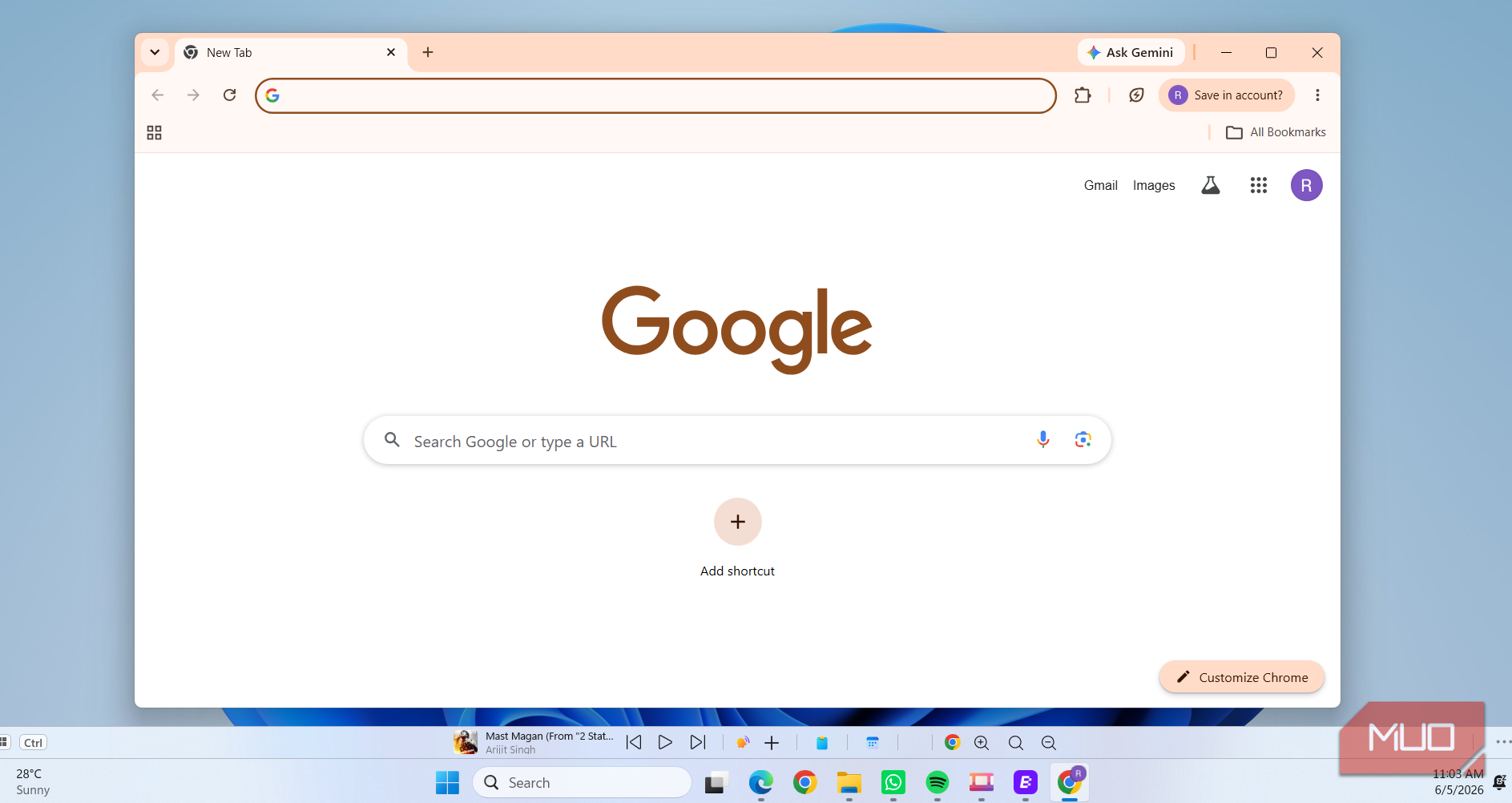
WindowSill also shows different shortcuts depending on the app that’s open. For instance, when a browser is open, it’ll show buttons for adjusting the zoom level. Similarly, if you’re listening to Spotify, it adds a music player so you can control the playback. And if you’re in a meeting on Teams, Zoom, and Discord, it’ll show meeting controls like mute, react, and end calls.
Extensions make WindowSill even more useful
I didn’t realize how much I needed these options

Beyond the basics, WindowSill includes plenty of extensions that add even more features to the panel. One of my favorites is the currency converter. Instead of opening a browser tab and searching for exchange rates, I can see all the currency rates I care about directly on the panel. Another handy extension shows my upcoming calendar events. I find this particularly handy, as I no longer need to reach for my phone just to check upcoming meetings.
WindowSill also has a few context-aware extensions that show only when they’re relevant. If you select an image file, for instance, and WindowSill shows options to resize, convert, and compress it. It does the same for video files too. It’s incredibly convenient, as I no longer have to rely on other apps or web-based tools for simple tasks like these.
All the extensions I’ve talked about so far come built-in and enabled by default. That said, you’re not limited to those. Head to WindowSill Settings > Manage Extensions > Find more extensions online, and you’ll see options to download even more add-ons. The one I added is called Perf Counter. It’s a simple extension that shows CPU, RAM, and GPU usage in real time on the WindowSill panel.
Customization, shortcuts, AI, and more
The extras I love

What makes WindowSill special is the sheer number of extensions it offers. Better yet, it doesn’t force any of them on you. Every extension it offers can be customized or disabled from the settings menu. So if you’re not interested in seeing things like the clipboard history or calendar events, you can simply hide them.
Even the WindowSill panel itself is fully customizable. Unlike the stubborn Windows 11 taskbar, you can freely move the panel to either side of the screen or even at the top. You can also resize it or apply acrylic or transparent effects to match your taskbar’s look.
And if you love keyboard shortcuts, WindowSill supports those too. Holding Win + Ctrl will show you numbers on the panel. Pressing the corresponding number while holding Win + Ctrl launches that extension.
And there’s more…
Finally, because it’s 2026, WindowSill has some AI features too. These include an AI-powered text analyzer, a rewriter, a translator, and a grammar checker. They’re all integrated into the panel and show up any time you’re working with text. It’s handy for anyone for refining your emails, messages, or even documents.
WindowSill even lets you add your custom AI prompts and Local LLMs directly to the panel. Honestly, it’d take an entire article to talk about these AI add-ons. The catch is that none of these AI features are included in the free version of the app. You’ll need to upgrade to WindowSill+, which is $5 a month or $48 for a lifetime license.

WindowSill
- OS
- Windows
- Price model
- Free, subscription available
WindowSill adds a taskbar-like control panel to your Windows PC and gives you quick access to tools like clipboard history, music player, reminder, file conversion, and more.

Lenovo Yoga 9i
- Operating System
- Windows 11 Home
- CPU
- Intel Core i7 11th Gen i7-1195G7
- GPU
- Intel Iris Xe Graphics
- Storage
- 512GB