


A new software update can completely change how you use your phone. Sure, there are always new features to play around with, but every once in a while, you come across something that actually helps you understand your phone a little better.
That’s exactly what happened to me with Android 17. One of its new features finally showed me why my phone kept slowing down every afternoon, and if you’ve noticed something similar happening on yours, it's definitely worth checking out.
Android finally caught my RAM thief
Now I know exactly who to blame

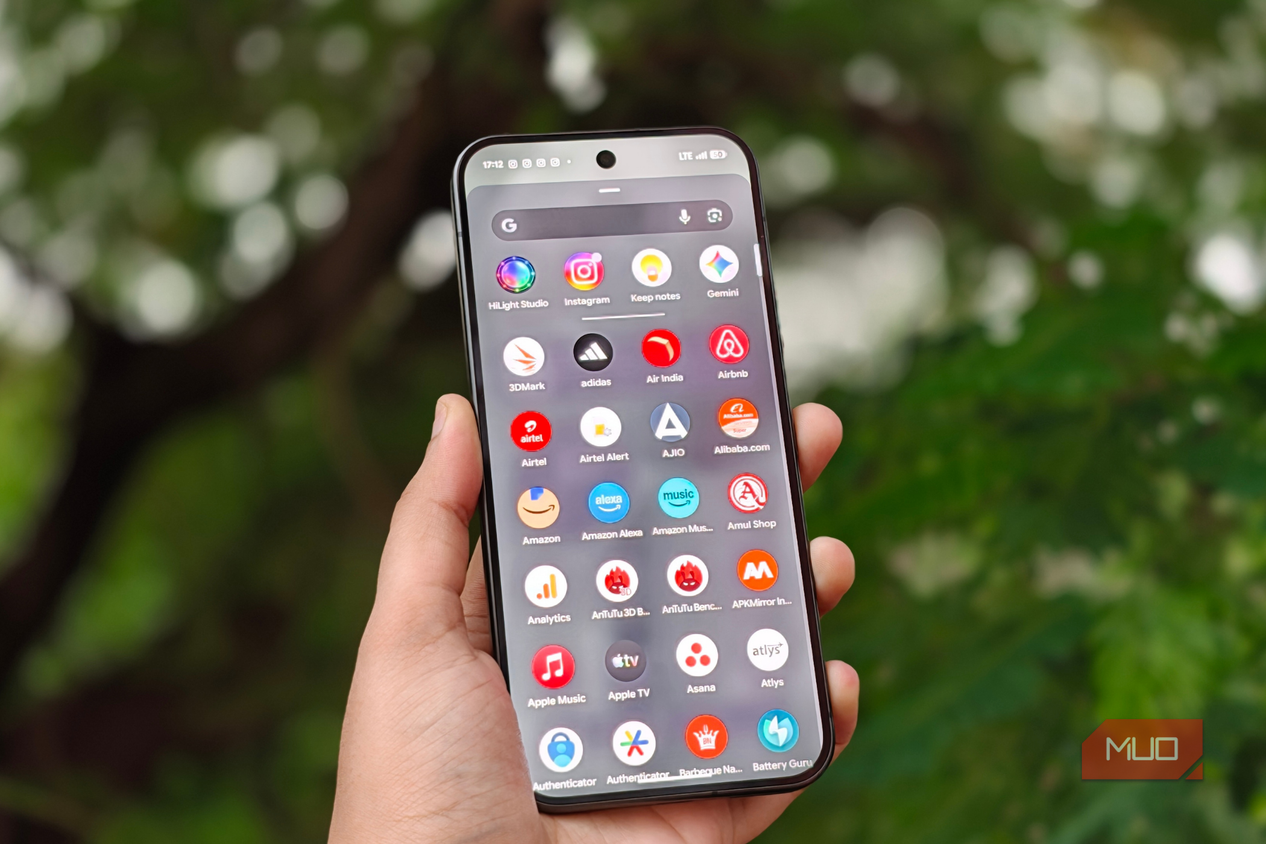


 Credit: Shimul Sood / MakeUseOf
 Credit: Shimul Sood / MakeUseOf
 Credit: Shimul Sood / MakeUseOf
 Credit: Shimul Sood / MakeUseOf
 Credit: Shimul Sood / MakeUseOf


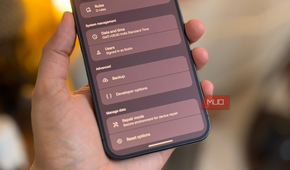
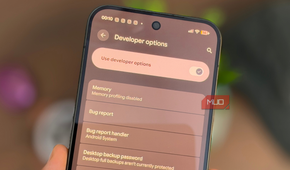
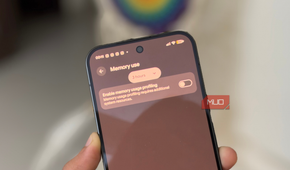
Over the years, I’ve learned that when my phone suddenly starts feeling sluggish, the problem isn’t always the phone itself. Sometimes, one app runs in the background and uses more memory than it has any business using. The annoying part was figuring out which app was responsible. Until now, Android didn’t really give me an easy way to see what was happening and deal with it.
That’s what makes Android 17’s new Memory Use feature so useful. Instead of letting one badly behaved app hog RAM and potentially slow everything else down, Android can limit how much memory that app gets to use. Think of it like giving every app its own RAM allowance. If one gets a little too greedy, Android deals with that app rather than immediately pressuring everything else running on your phone.
There are two levels to this. If an app starts crossing its memory limit, Android first tries to reclaim some of the RAM it’s using. If the app continues gobbling up more memory, Android could eventually kill that process altogether.
These limits aren’t identical for every situation either. An app you’re actively using gets more breathing room, while something running in the background has to play by stricter rules. And importantly, Google’s own apps don’t get special treatment here.

But the part I find most useful is seeing all this information for myself. Memory Use shows how much RAM my phone has, how much is currently available, the average amount being used, and whether memory usage is affecting overall performance. I can then dig into individual apps and see their average and peak RAM usage over the last three, six, or 12 hours, or even across an entire day.
That makes troubleshooting a slow phone surprisingly straightforward. Say my phone feels perfectly fine in the morning but starts getting noticeably sluggish by 4 PM every day. Instead of restarting it and hoping for the best, I can open Memory Use, switch to the 12-hour view, and look for an app with an unusually high memory spike. If Instagram, for example, has been sitting in the background and using far more RAM than everything else, I have a clear place to start.
From there, I can tap the app to take a closer look at its memory usage and decide what to do. Maybe force-stopping it fixes the problem, or perhaps it’s an app I barely use, and I’m better off uninstalling it altogether. Either way, I’m no longer guessing why my phone suddenly feels slow.
Time to catch your RAM hog red-handed
Give Android 24 hours to spill the beans

If you want to try this on your own phone, you’ll first need to dive into Developer Options. It sounds a little intimidating if you’ve never been there before, but turning this feature on takes only a couple of minutes. Here’s how I did it on my Pixel 11 Pro XL:
- Open Settings and head to About phone.
- Find Build number under Device Identifiers and tap it seven times.
- After a few taps, Android will start counting down, and once you’re done, you should see a message confirming that you’re now a developer.
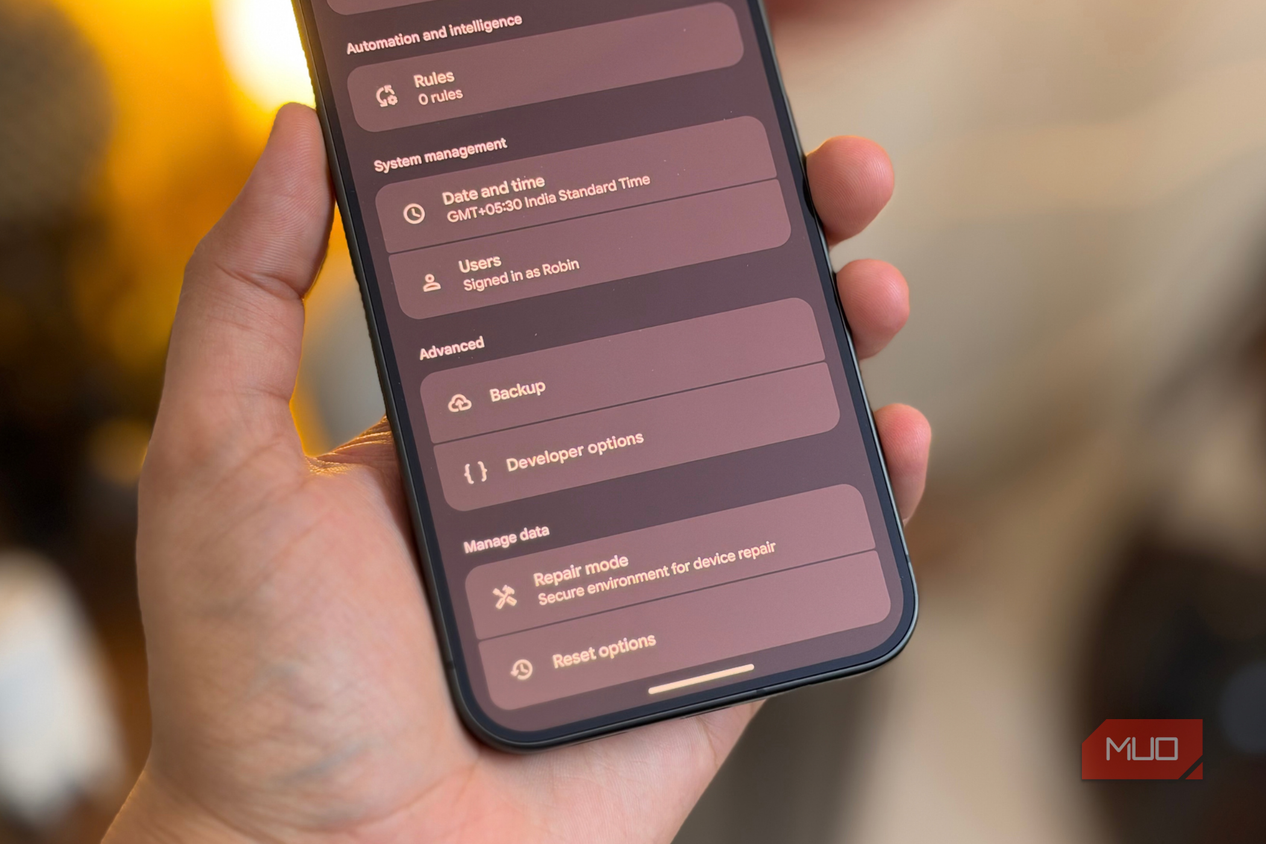
- Head back to Settings and open System.
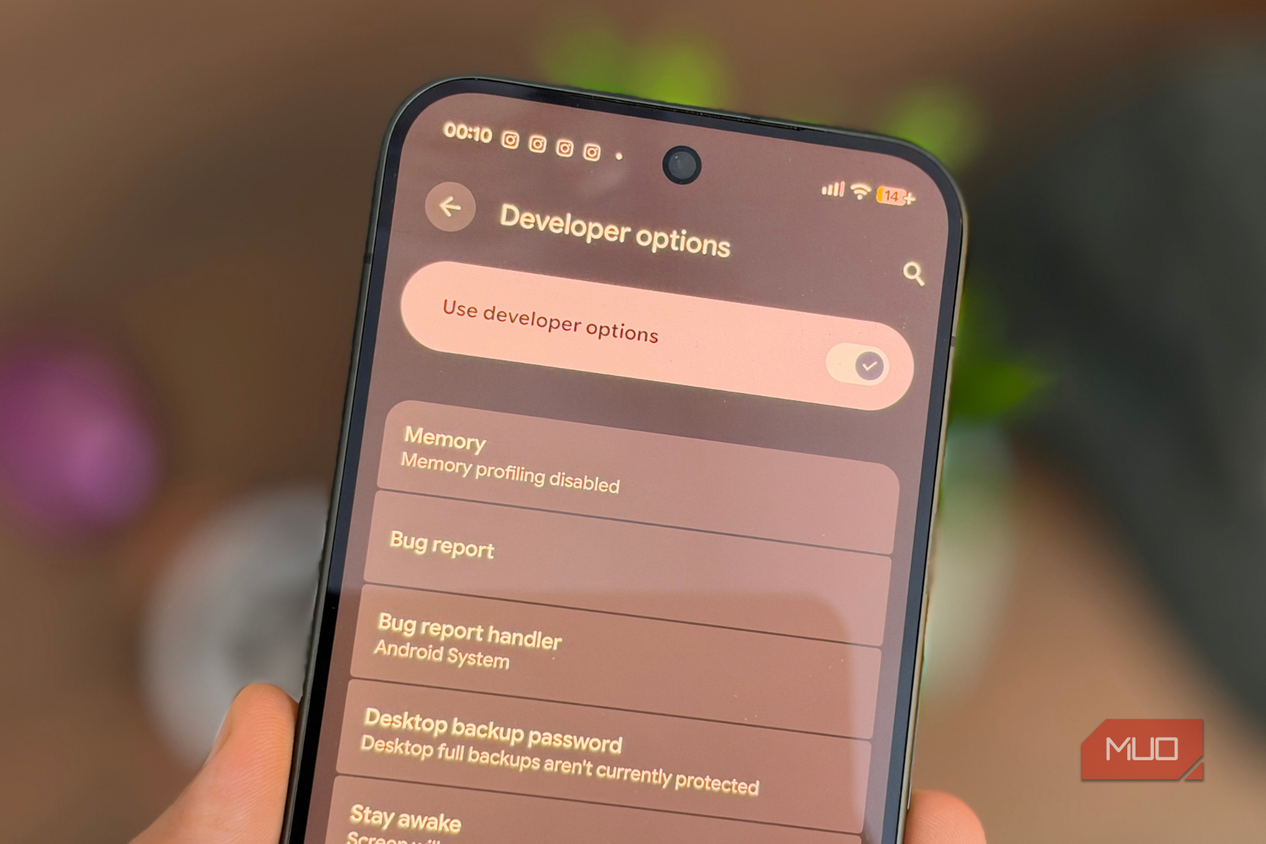
- Tap Developer options under Advanced.
- Find Memory, which should be near the top.
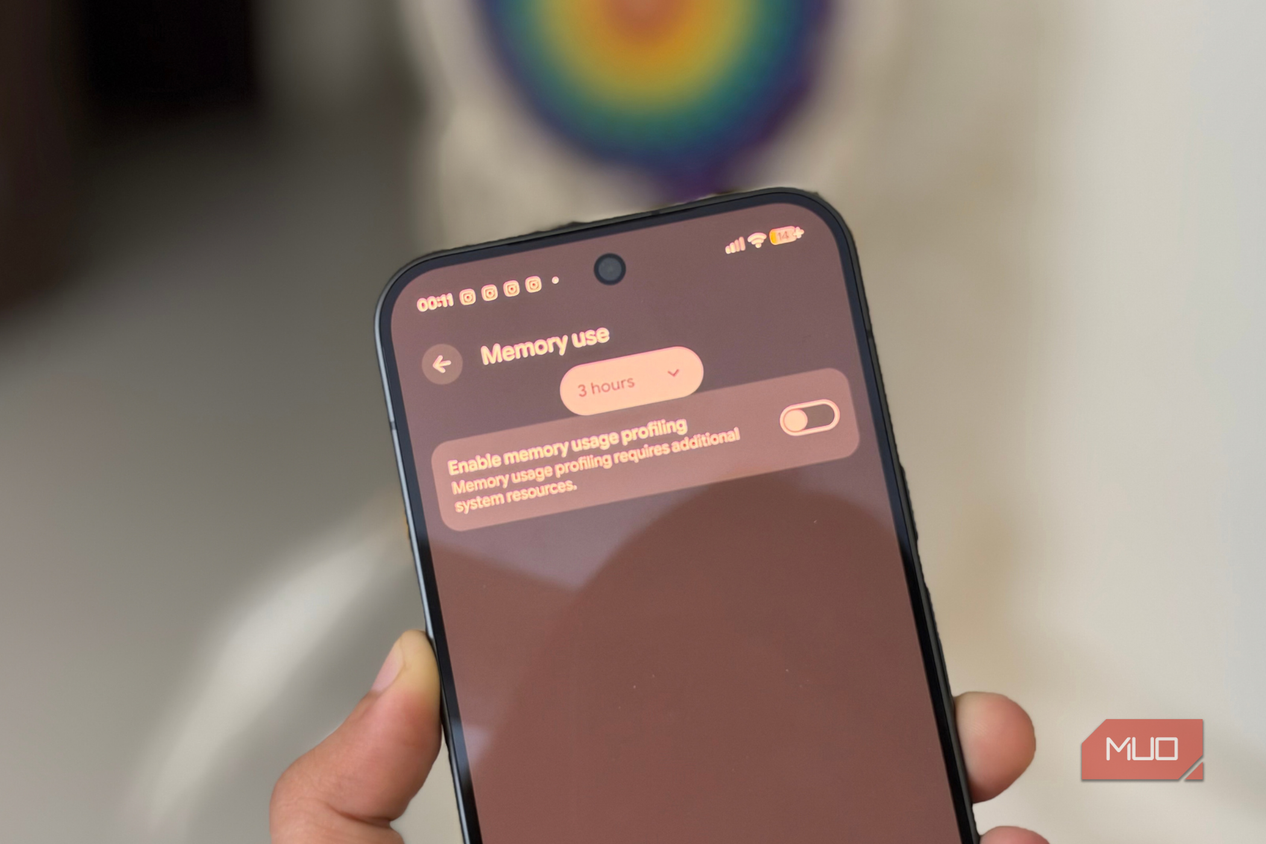
- Tap the toggle next to Enable Memory Usage Profiling.
- Android will ask you to restart your phone, so tap Restart and let it finish.
- Once your phone boots back up, return to the Memory section. You’ll now be able to dig into your RAM usage and switch between the 3-hour, 6-hour, 12-hour, and 1-day views.
I wouldn’t start judging apps immediately, though. I’d recommend turning the feature on and then using your phone normally for about a day. Scroll through Instagram, watch YouTube, play a game, jump between apps, and basically do whatever you’d usually do. Come back after 24 hours, and you’ll have a much better picture of which apps are behaving themselves and which ones might be eating into your memory.
Of course, your phone needs to be running Android 17 for this feature to work. I also followed these steps on my Pixel 11 Pro XL, so the names and locations of some settings may look slightly different if you’re using a Samsung or another Android phone.
Now I know what's eating my RAM
What I like about this feature is that it shows me something I never really paid much attention to before. I knew my phone had a certain amount of RAM, but I rarely thought about where all of it was actually going throughout the day. Android 17 gives me a much clearer picture, without making things unnecessarily complicated.
If you’re already running Android 17, turn it on, forget about it for a day, and come back later. You might learn something interesting about what your phone has been doing while you weren’t looking.