


I’ve been using Android 17 on my Google Pixel 10a for more than a month now, since joining the public beta. That early access gave me plenty of time to explore the update, get familiar with its quirks, and see how the new features fit into my routine long before the stable release arrived.
I’ve already written about how Android 17 made my Pixel feel surprisingly fresh again. But after updating to the stable version and living with it for a while, a few features have clearly risen above the rest. No matter how many new additions I try, I keep finding myself coming back to these four features almost every single day.
Mom, I’m inside my screen recording
Android 17 makes reaction videos almost effortless

One of the Android 17 features I keep coming back to is Screen Reactions. As someone who regularly creates content for YouTube and Instagram, this has quickly become part of my daily workflow. The feature lets me record my screen while simultaneously capturing myself through the selfie camera. What’s particularly useful is that Android does all the work for you, offering either a picture-in-picture view or a green-screen-style effect right from the recording interface. In the past, I’d have to jump into a separate editing app to achieve something similar. Now, it’s built directly into the phone.
This helps a lot if you’re constantly creating tutorials, app demos, reactions, or walkthrough videos; it can save a surprising amount of time. I’ve found myself using it almost every day simply because it’s so convenient. The best part is how easy it is to use:
- Swipe down from the top of your screen to open the Quick Settings panel.
- Tap Screen Record.
- Under Recording Options, select Entire Screen.
- Choose Selfie Camera/Reactions.
That’s it. Within a few taps, you’re ready to create videos with your face on screen, without opening another app or spending extra time editing later. Even if you’re not a content creator, it’s a feature that’s surprisingly useful once you start using it.
Claude finally got its own volume knob
A dedicated volume slider keeps the peace on my Pixel

This might be one of the simplest additions to Android 17, but it’s also one I’ve appreciated the most. Google has finally given AI assistants their own dedicated volume control, which means I can manage Claude’s voice independently of everything else playing on my phone.
I spend a lot of time listening to music, watching YouTube videos, and generally keeping some form of media playing in the background. At the same time, I regularly ask Claude questions throughout the day. Before Android 17, balancing the two could be really annoying. If I wanted Claude to speak more quietly, I’d often end up adjusting my phone’s overall media volume, which wasn’t ideal when I was in the middle of a song or video.
Now there’s a dedicated Assistant Volume slider tucked away in the Sound & Vibration section of Settings. I can keep my music exactly where I want it while lowering Claude’s voice to a more comfortable level.
Some apps fear the dark, and I took that personally
Android 17 finally lets me decide who joins the dark side


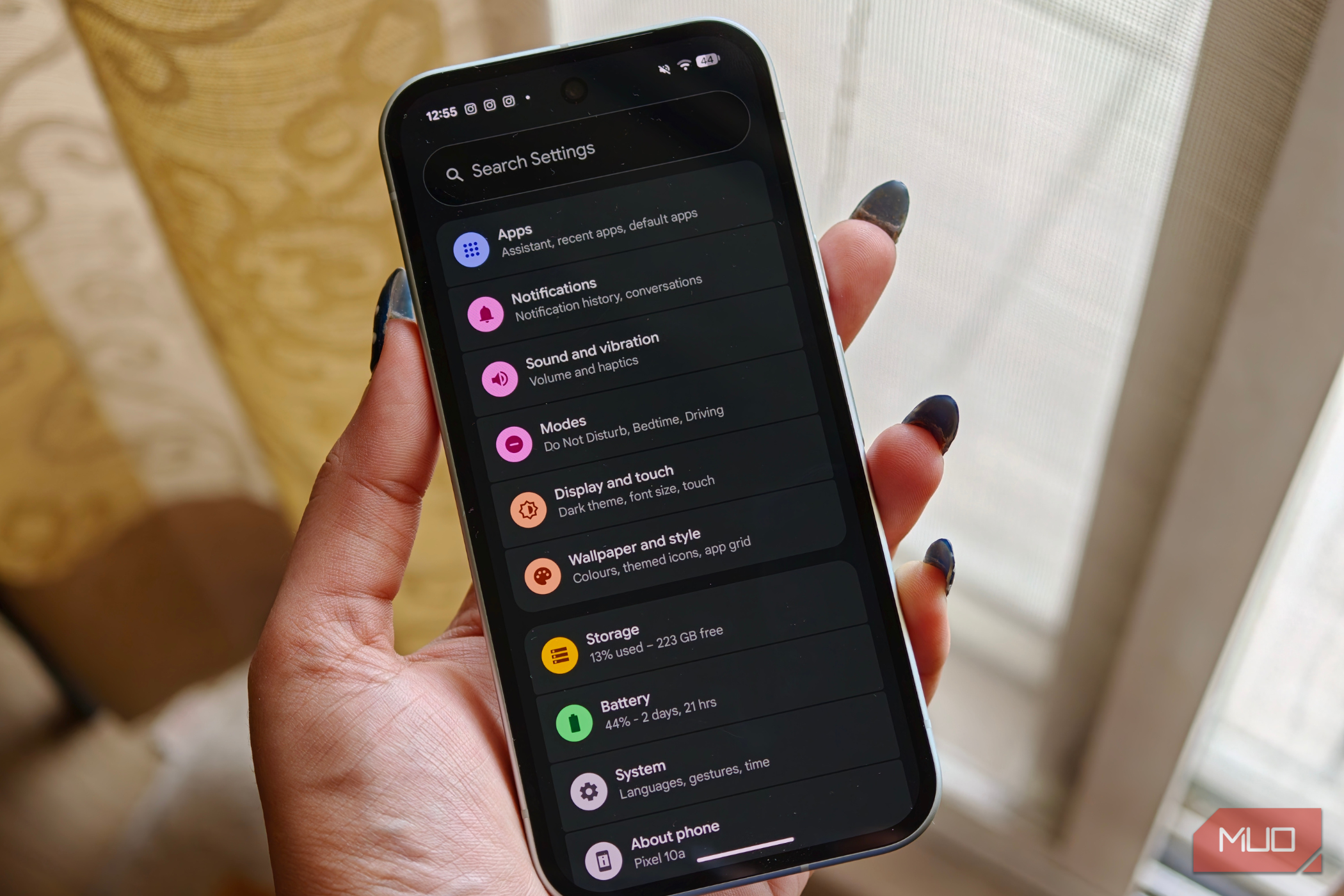
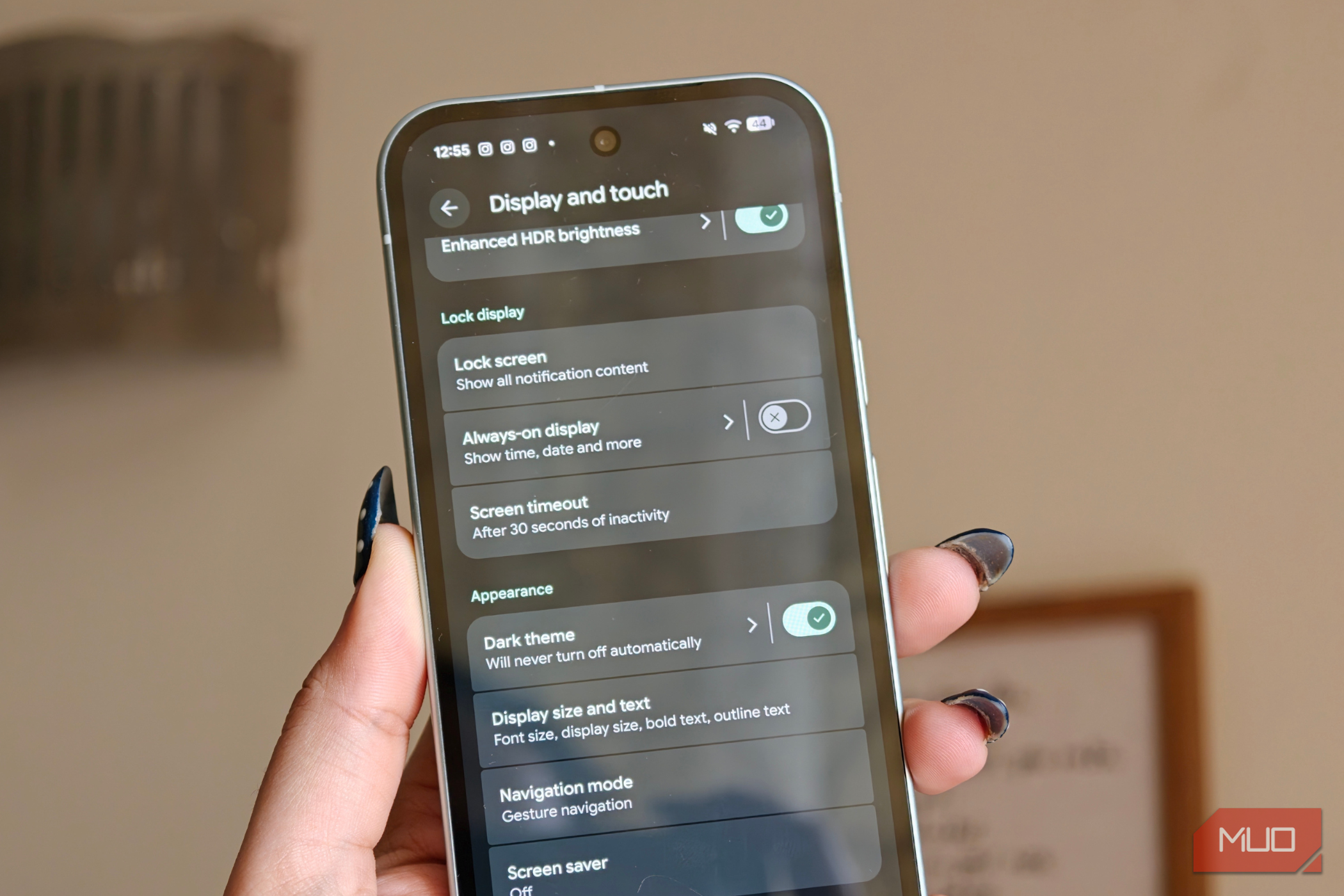
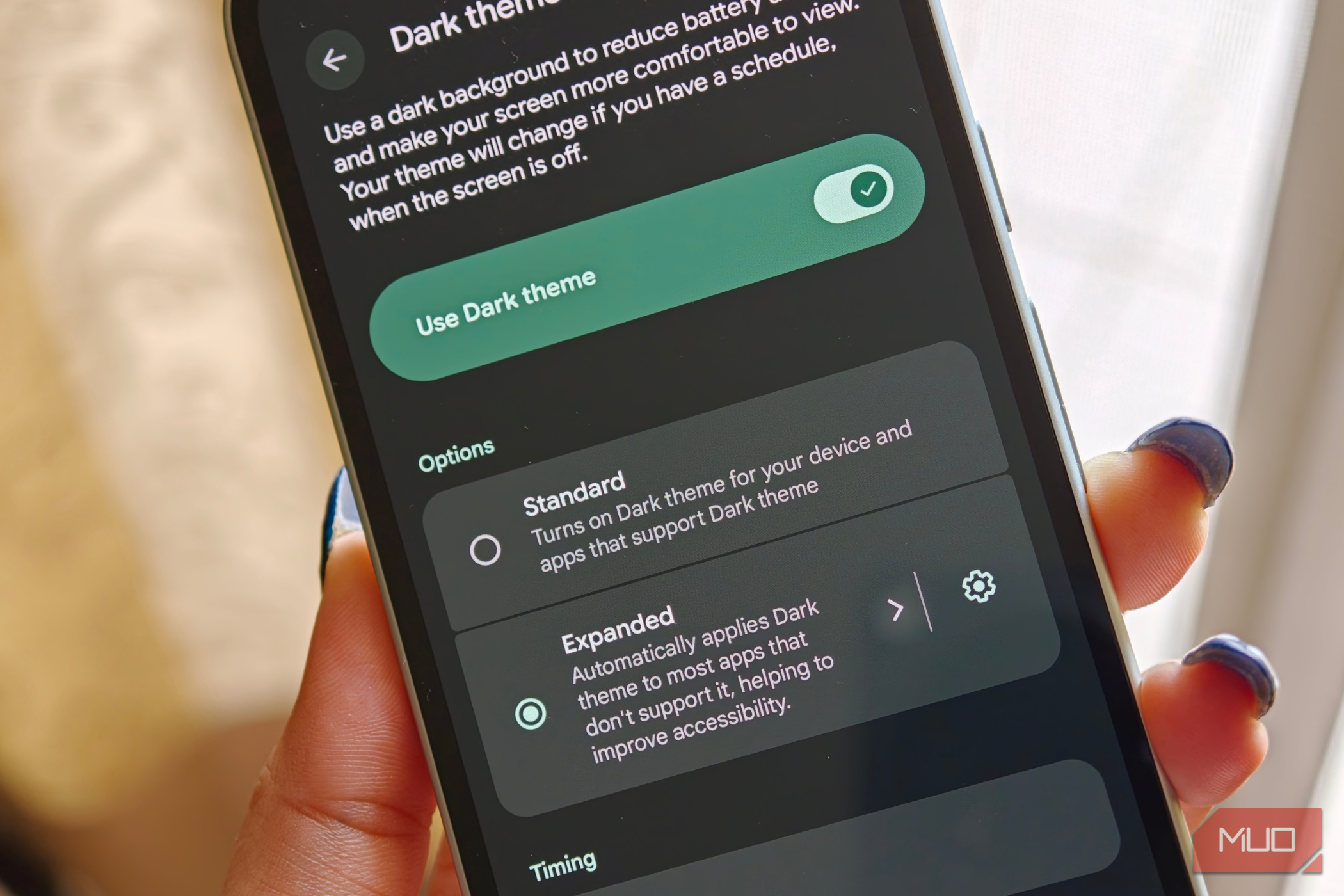
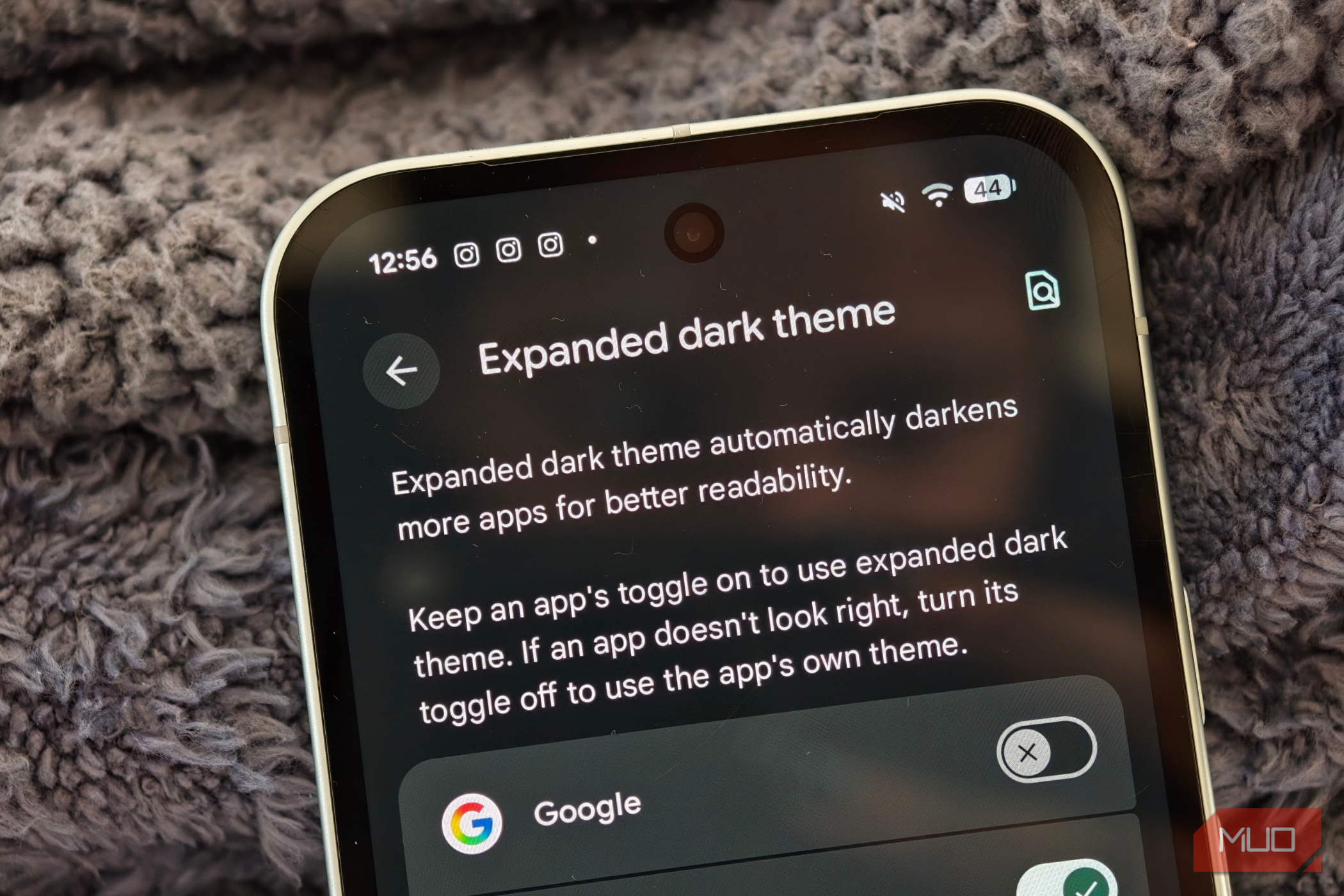
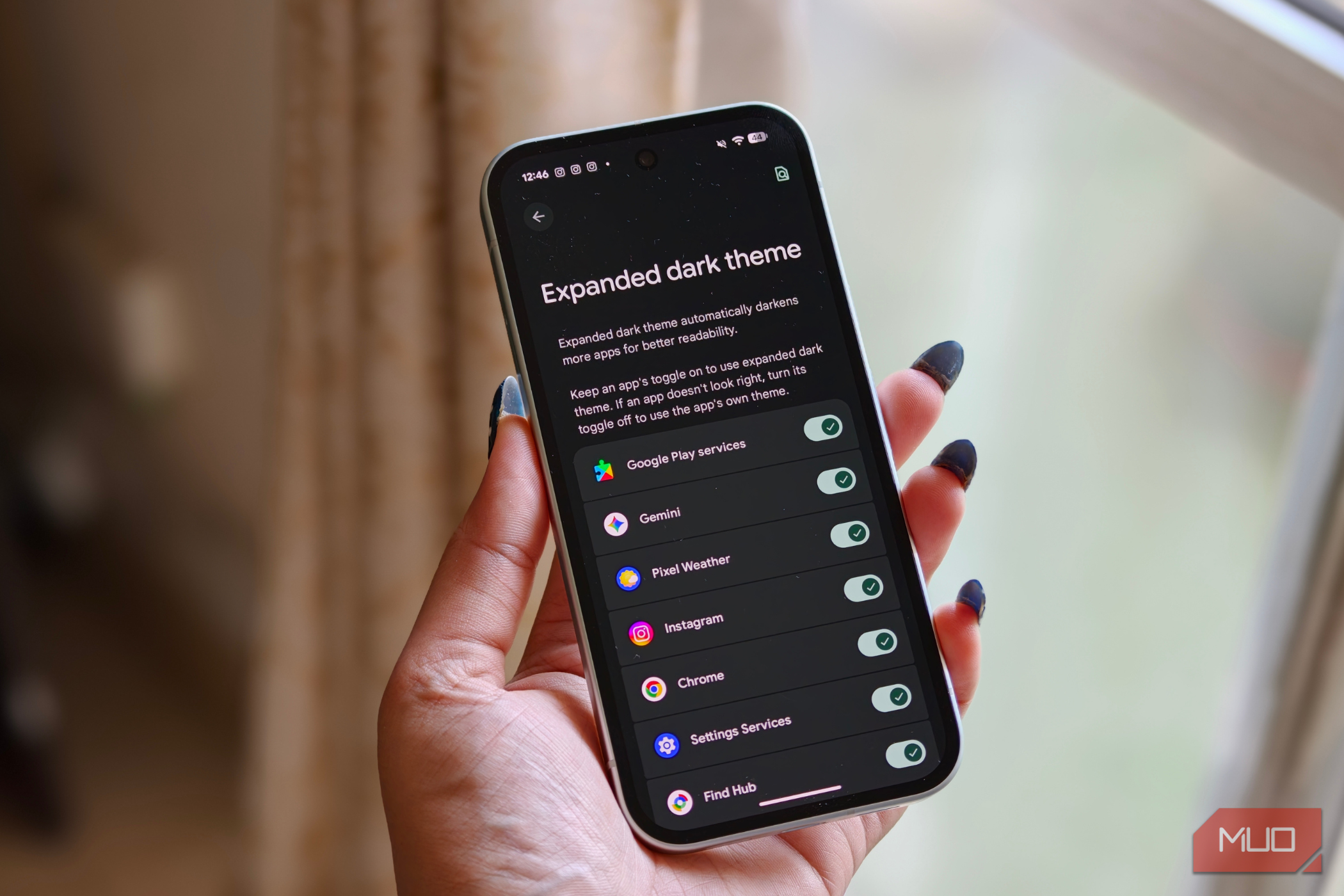
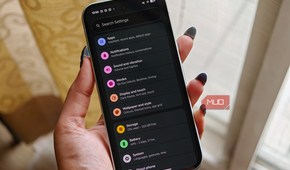
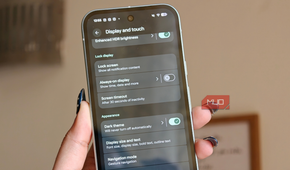
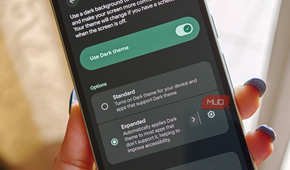
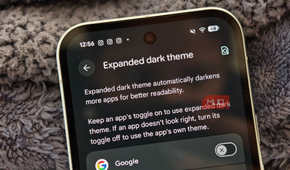
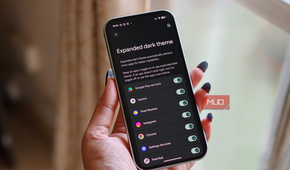
I've always been a little particular about how my phone looks, and dark mode is non-negotiable for me. The problem is that not every app gets the memo. Even in 2026, there are still apps that either don't support a dark theme at all or do a pretty poor job of implementing one. That's why I've grown surprisingly fond of Android 17's expanded dark theme controls. Instead of applying the feature across the board, Android now lets me decide which apps should use the expanded dark theme and which ones should be left alone.
Some apps look great when Android forces a darker appearance, while others can look a little odd. Having the option to make that decision on an app-by-app basis gives me far more control over my Pixel's overall look and feel. Will this feature change your life? Probably not. But if you're as committed to dark mode as I am, it's one of those small quality-of-life improvements that makes your phone feel a little more personal every time you unlock it.
My Pixel got a little more paranoid — and I love it
You barely notice it until it saves the day

Advanced Protection isn't really a feature you'll interact with every day, but it's one of the Android 17 additions I've come to appreciate the most. The feature itself isn't entirely new. Google first introduced Advanced Protection last year, but Android 17 expands on it with a handful of new safeguards that further strengthen your phone's privacy and security. The setup was incredibly simple. I just enabled Advanced Protection from the Settings app and let it do its thing.
Since then, it has added several extra layers of protection to my Pixel. It helps filter spam in Google Messages, warns me about potentially suspicious links from unknown senders, and prevents apps that aren't genuine accessibility tools from accessing accessibility services. These may sound like subtle improvements, but they make a noticeable difference.
What I like most is that Advanced Protection doesn't demand your attention. It simply works in the background, stepping in when needed and staying out of the way when it isn't. Also, I've noticed that my phone feels more secure and private than before. It's one of those improvements that you only think about when it saves you from a bad link, a spam message, or a potentially risky app. And that's exactly why it's become one of my favorite parts of Android 17.

Google Pixel 10a
- SoC
- Google Tensor G4
- Display
- 6.3-inch Actua pOLED display, 1080 x 2424 resolution, 60-120Hz, 3000 nits peak brightness
- RAM
- 8GB
- Storage
- 128GB, 256GB
The little things ended up mattering the most
After using Android 17 for more than a month, I've come to appreciate it for what it is: an update focused on improving the everyday experience. It may not introduce a major new feature that completely changes how you use your phone, but that's exactly why I've enjoyed living with it. That's also what I want from a software update. It's easy to get excited about a new feature, only to stop using it a few days later. The changes that matter are the ones that become part of your routine. Android 17 hasn't transformed my Pixel into a completely different device, but it has improved many of the small interactions that add up throughout the day.