


I've been carrying a free desktop OS in my pocket for a while without even knowing about it. When Google shipped Android 16 QPR3 as part of the March Pixel Drop, it turned every Pixel 8 and newer into something that can be used like a desktop computer: mouse, keyboard, and all.
I tested this on my Pixel 9 running the May 2026 security patch. To get there, I had to enable Developer options and turn on Force desktop mode — then plug into my Thunderbolt dock and pick Desktop from the prompt.
It's more capable than the coverage suggests, but less finished than Google's announcement implies.
Setup is genuinely effortless
Getting connected took about ten seconds

First, I made sure my Pixel was in Developer mode (Settings > About Phone > Android version > tap Build number 7 times), then chose Enable desktop experience features in the Developer options panel in Settings. Then I made sure my keyboard and mouse were connected via Bluetooth. Once I plugged my Pixel 9 into my OWC Thunderbolt dock, a prompt appeared on the phone: Desktop or Mirror. I tapped Desktop and there it was: a taskbar/dock across the bottom, the three-button Android navigation in the bottom right corner, and floating windows ready to go.
Still, there were some tweaks I needed to manage — my widescreen monitor is a little too high resolution for this Desktop mode and I needed to mess with those settings. I had to slow down the mouse tracking a bit in Settings, too.
All said, though, the first couple of moments with the mode were pretty great, once I was able to tweak it a little.

OWC Thunderbolt Go Dock
The OWC Thunderbolt 4 Dock turns one port into a full workstation. Delivers up to 90W host charging via built-in power supply — no brick required. Drive up to two 4K displays at 60Hz or one 8K at 60Hz. Connects Thunderbolt 4, USB-C, USB-A, HDMI, 2.5GbE, SD 4.0, and 3.5mm audio in a single hub. Includes Intel Thunderbolt Share license for seamless multi-PC workflows. Compatible with Mac, PC, iPad, Chromebook, and Android devices with Thunderbolt 4, Thunderbolt 3, or USB4. Certified Thunderbolt 4 cable included. 2-year OWC limited warranty.
The app layer works better than you'd expect
Window management surprised me
Apps opened in resizeable floating windows, and I was able to put several on screen at the same time — multitasking is a breeze. I was able to maximize and minimize those windows, too. The taskbar behaves the way it should: right-clicking an app icon gives you pin, unpin, and close options. Alt+Tab opens an app switcher in the upper left corner. These are the basics, and they work.
What I didn't expect: Command+Tab (or Win+Tab on a standard keyboard) opens virtual desktop spaces. As in, multiple independent desktops you can flip between. That's a genuine power-user feature that I wasn't planning on seeing here.
Google Docs in its native Android app opens in a resizable window and the editing toolbar expands as you grow the window. Keyboard input works naturally, so for basic document work, it holds up. Opening Google Drive in Chrome let me browse my files there, but the minute I wanted to create a Doc file, it pushed me to the native Android app.
Chrome handles general browsing fine. Web pages load, text is readable, even at this lower resolution, images look good. The experience is closer to a Chromebook than I expected, which makes sense: Google's desktop mode was built in collaboration with Samsung, drawing on years of DeX development.
The OS layer is where things get unfinished
Missing features you'll notice immediately


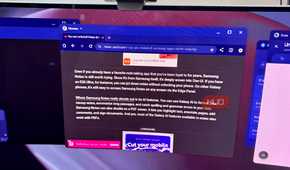


Right-clicking the desktop wallpaper does nothing. It doesn't give that expected context menu to change wallpaper or display settings. The Settings page for personalization shows a placeholder that reads "New theme packs are coming," and that's it. I wasn't able to change the wallpaper or adjust colors, just live with the look and feel it already gave me.
The resolution situation took a moment to get used to, as well. My Philips 49-inch ultrawide runs natively at 5120x1440. My Pixel's Desktop mode capped output at 2711x763. The numbers look alarming on paper, but in practice — web browsing at normal viewing distance — text and images were readable. Someone with a standard 1080p monitor may actually have a better experience than someone with a premium panel, which is a weird position for a power feature to be in.
Chrome didn't offer a "Request desktop site" option in its menu, and (as above), you'll be shunted to native apps instead of their web versions, which isn't a deal-breaker for me. Trying to take screenshots was frustrating, since there's no screenshot button in the system tray. Hitting the typical Up volume and Power button on the phone just gave me a screenshot of the Pixel mobile device screen. I had to work around that with my camera to take photos of the monitor, which isn't ideal. The Mac keyboard tax
The Mac keyboard tax
You'll need to use Ctrl, not Command

This is specific to anyone using a Mac-layout keyboard with Android desktop mode; my K380 keyboard is for MAc, so it has a Command key, which on a Mac will let you access keyboard shortcuts. Android desktop mode uses Windows-standard Ctrl shortcuts, so every time I reached for Command, I got nothing. There's no key remapping available within desktop mode that I could find. I had to pretend I was using a Windows (or Linux, to be honest) machine to copy/paste with my keyboard.
Stability: what Pixel desktop mode clearly delivers
Zero crashes across a full session

Early beta coverage described the desktop experience as mostly broken — rough enough that real work wasn't realistic. That's not what I saw. I ran a full working session with Chrome, Docs, Drive, multiple windows open, and switching virtual desktops and nothing crashed. Google has apparently addressed the stability problems. That's important, because no one wants to uyse an unstable desktop, no matter how cool it is as a concept.
It seems as if Google built desktop mode from the apps inward, not from the OS outward, which means that the features that touch apps directly, like window management, taskbar, keyboard shortcuts, virtual desktop, and app behavior, are more capable than you might expect. The things that belong to the OS layer, like wallpapers, right-clicking on the desktop, resolution scaling, screenshots, and personalization, are missing or stubbed out with "coming soon" placeholders.
Ultimately, if you need a quick working session with Chrome and a Google Workspace app on a monitor you already own, this is free and functional. If you're hoping to replace a laptop, you'll run into enough rough edges that Samsung DeX might be a more complete experience.
But would you use it?
Honestly, I'm not replacing my MacBook Air anytime soon with a Pixel desktop experience. It's got the foundation of a desktop OS, but there's still a ways to go before I can get a lot of work done on it. That said, taking a quick dip into desktop mode if I'm out and about and don't have a laptop could be a quick way to access a more non-mobile phone way of working.
For a feature that costs nothing beyond the mobile phone you already have, it might be worth checking out, and maybe even revisiting in time as Google improves things.