


I spend a lot of time and effort automating tasks that don't need manual attention. It's the reason why I've spent months wiring up ESP32 boards and bussing over Home Assistant automations, and the reason why my LED strips do things even Philips Hue can't. But when it comes to Windows, the automations have been severely lacking, at least until now.
Turns out, a 20-year-old tool built into Windows is quite the powerhouse at automating tasks on your PC. It has been sitting inside Windows, mostly ignored, but now doing the unglamorous work nobody wants to do.
The Windows automation tool hiding in plain sight
Why Task Scheduler remains one of the OS's most underrated built-in features
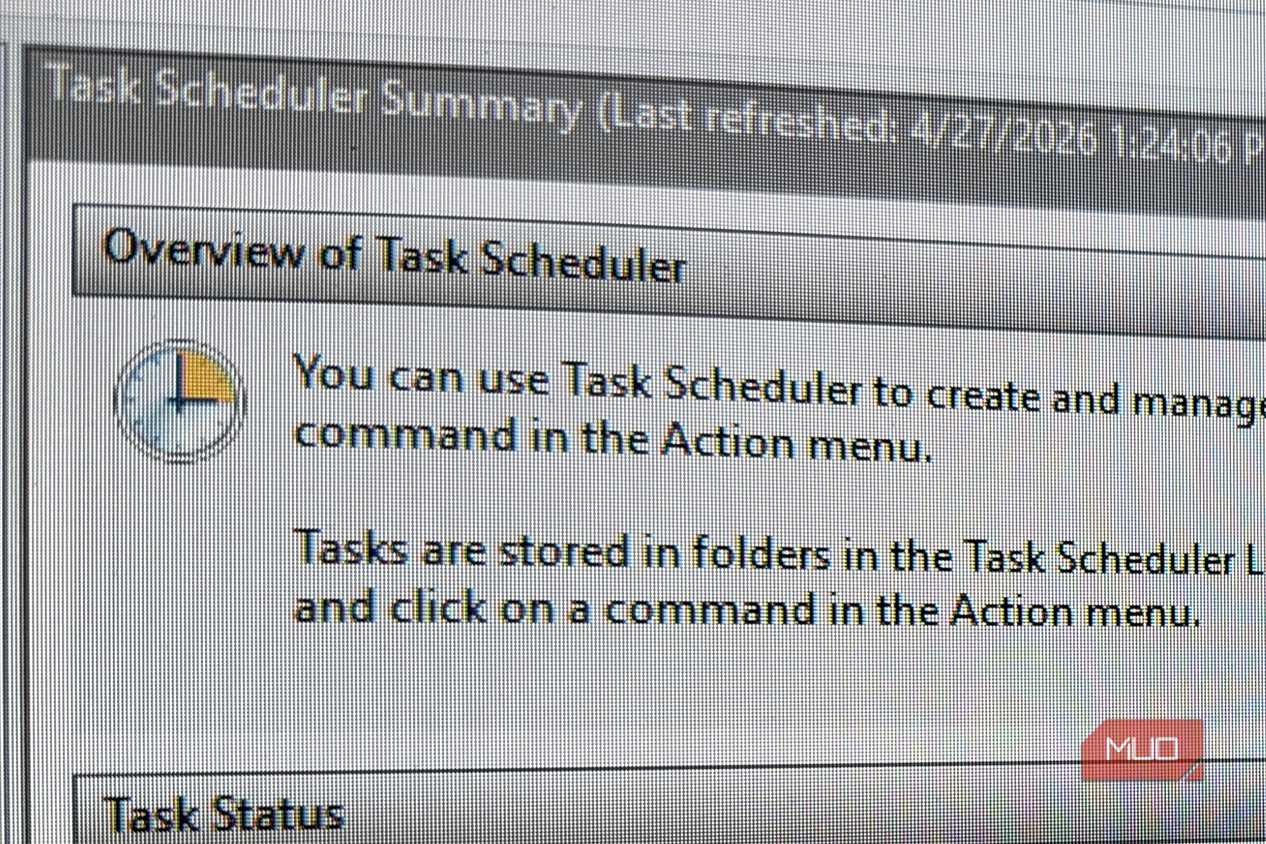


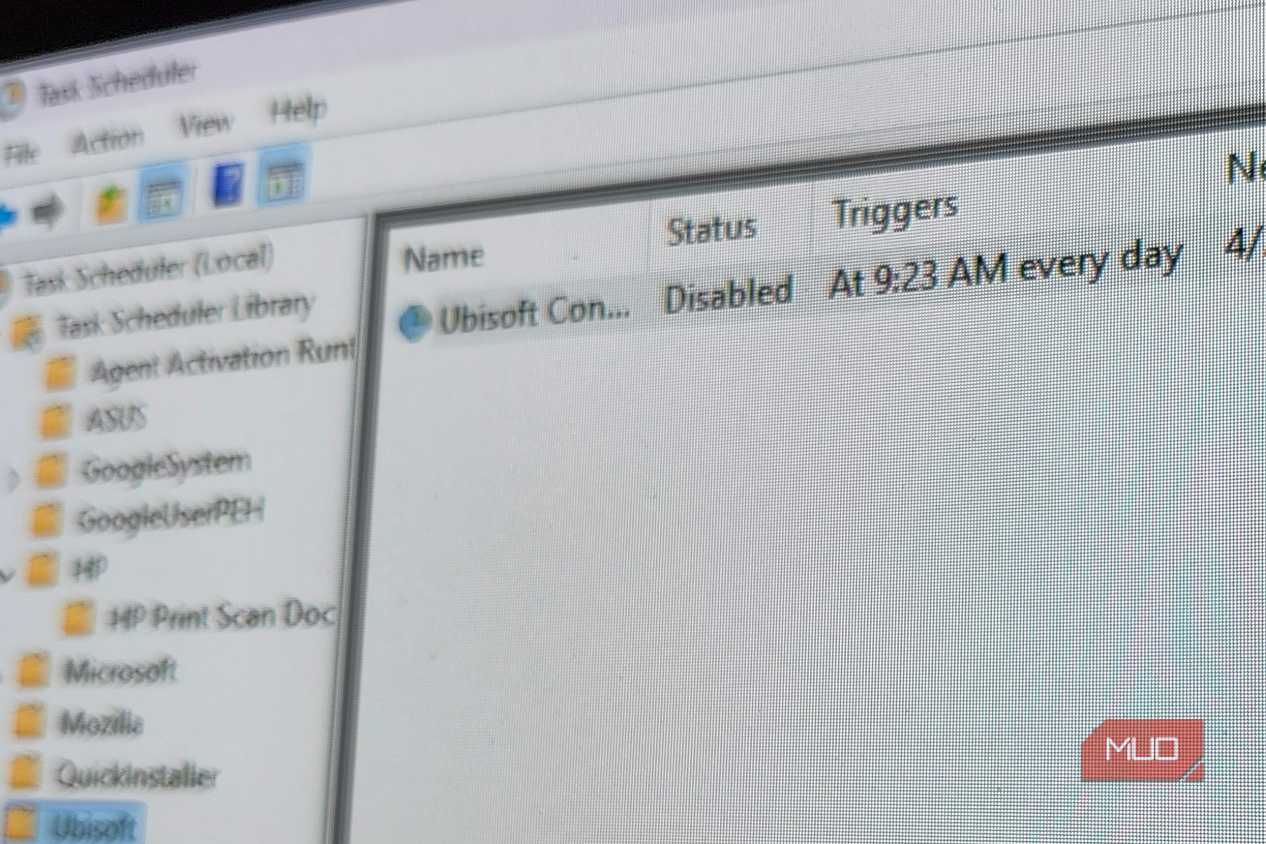
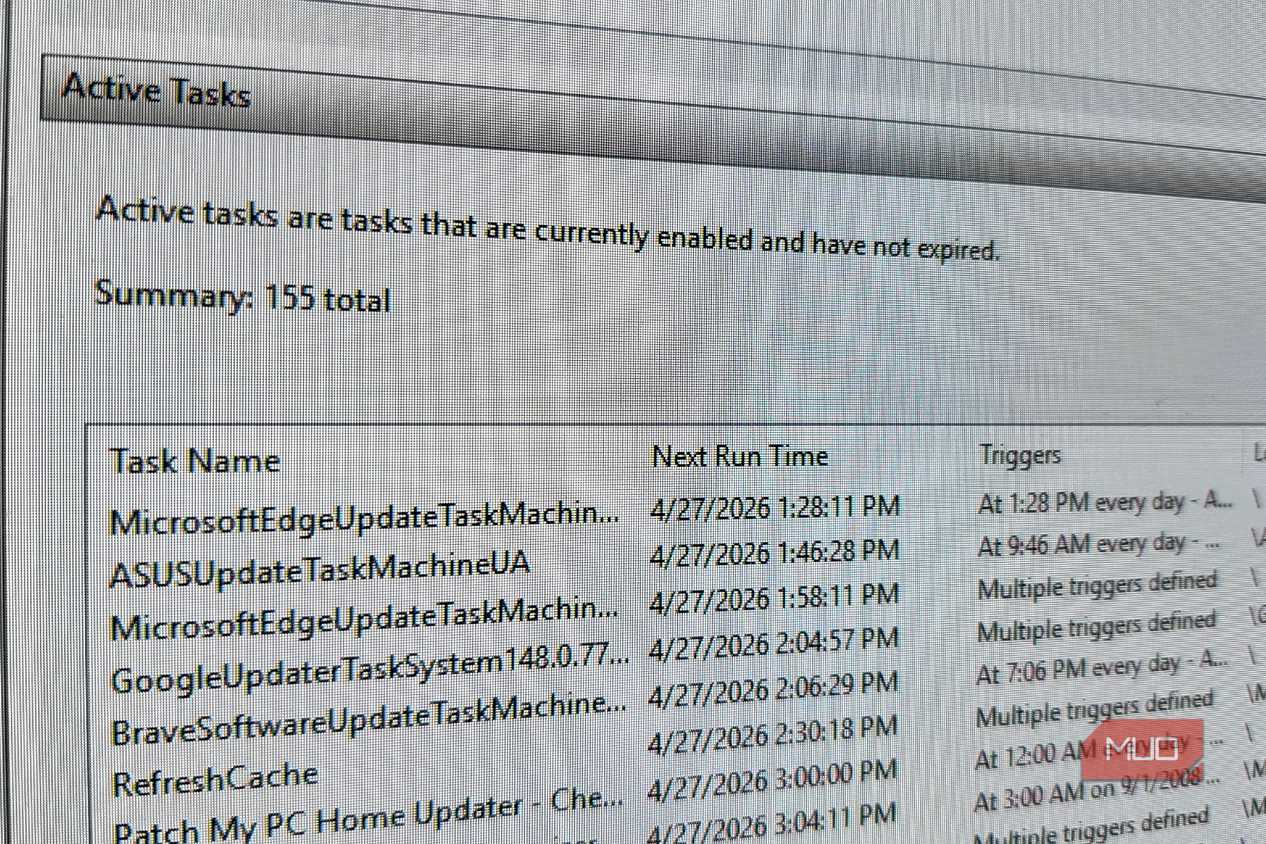


 Credit: Shaun Cichacki/MUO

 Credit: Shaun Cichacki/MUO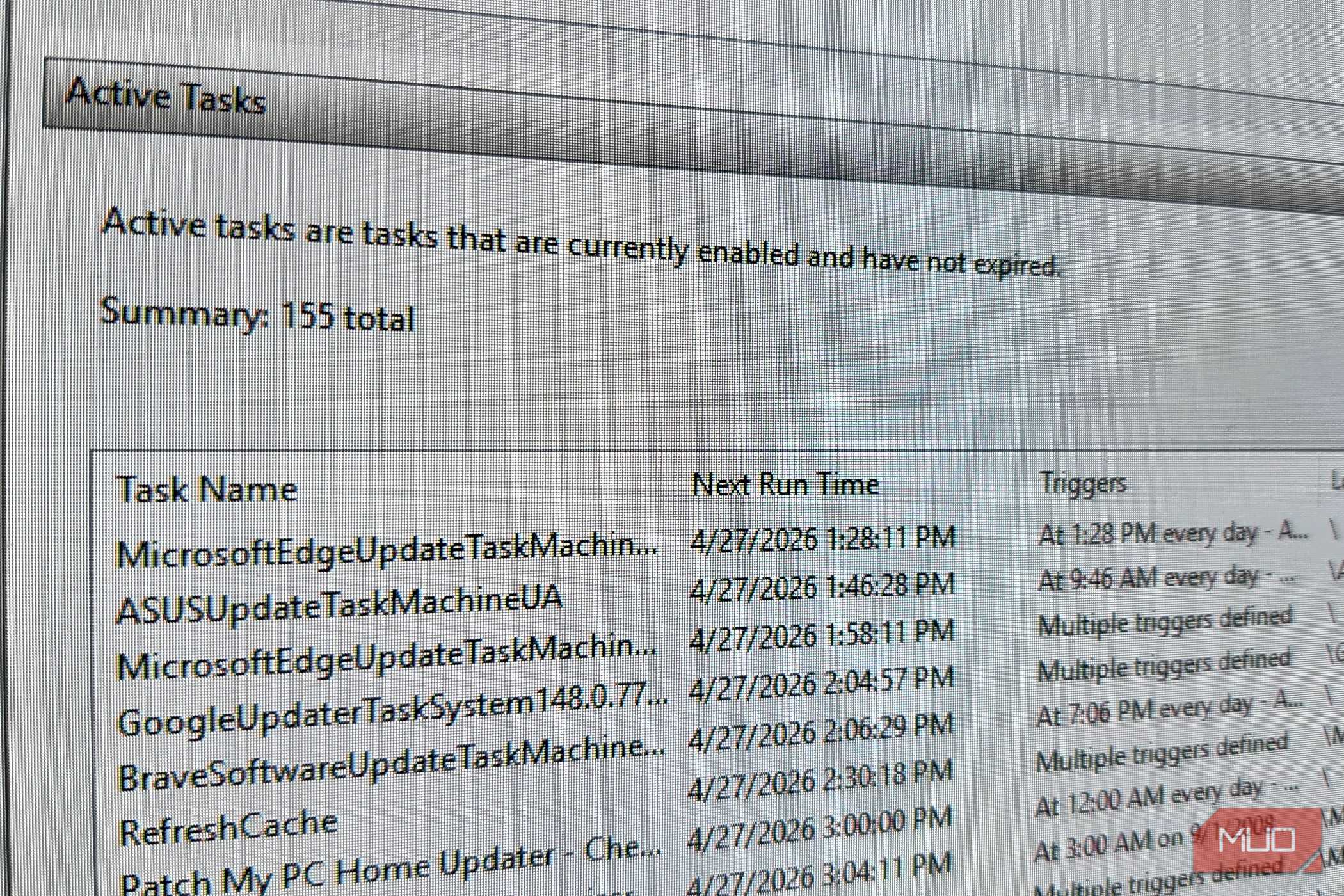
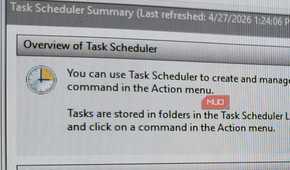


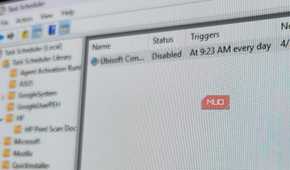
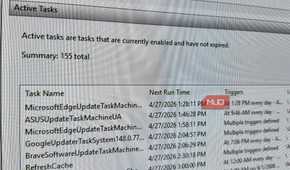
The Task Scheduler traces its roots back to the System Agent in Windows 95 Plus. It got renamed in Windows 98 and became a proper Windows tool starting with Windows 2000. Microsoft has quietly been building and upgrading it ever since.
The version you'll now see in Windows 11 is described in Microsoft's own documentation as the way to automatically perform routine tasks by monitoring specific conditions and executing predetermined tasks when they're met. That's basically an automation engine, built directly into the OS, for free, and it works with zero setup.
I had used the Task Scheduler in passing before, mostly for backups, but never for routine Windows chores. However, as it turns out, there are a lot of boring tasks you can automate with the Task Scheduler that would otherwise eat up the perfect Sunday afternoon.
My PC starts the day before I do
Launching apps, syncing files, and preparing my workspace automatically every morning

One of the simpler automations you can create using the Task Scheduler is your morning routine. Task Scheduler lets you create a basic task with a log-on trigger, meaning you can run a set of tasks as soon as you log into your PC. For example, you can use the log on trigger to point the action at your browser with the URLs you want opened added into the arguments field.
I did the same and added Outlook to the mix. Now, the moment I log in, my whole workspace is sitting there waiting for me instead of me hunting for icons and shortcuts. It sounds trivial, but once you implement it and see it as an action, you'll quickly realize that it saves a genuinely annoying five minutes that you face the first thing when you start your work day, and those minutes add up.
Windows can clean up after itself
Scheduling backups, temporary file cleanup, and maintenance without lifting a finger

Disk cleanup is another thing that Task Scheduler can fix for you. Windows has a habit of accumulating digital junk over time as you use your PC more and more. You could always manually clean up your disk, but this is a repetitive task that needs to be run frequently, not an annual ritual that can keep your Windows machine running like new.
So instead of remembering to run Disk Cleanup in Windows, I set up a recurring task pointing at cleanmgr.exe with the /sagerun:1 argument, scheduled weekly, so the drive gets swept without me lifting a finger. Later, I went a step further and pulled in some batch scripts to purge old installers, temporary files, and downloads. If a task is predictable, it shouldn't need a human to remember it, especially when you've got a built-in tool that can take care of it.
Task Scheduler goes far beyond simple timers
Trigger actions based on events, logins, idle time, and almost anything else Windows can detect

While running experiments with the Task Scheduler, I figured out that you could run anything runnable from a command line and started treating it less like a tool and more like an automation platform. I tested this with a task that zips and archives my project logs weekly, another that reboots my PC on a schedule so updates don't pile up, and one that checks whether a shared folder has new files and opens it automatically.
None of these tasks requires third-party software. It's all native Task Scheduler triggers combined with batch or PowerShell scripts to replace manual tasks that I would often forget to do.
Small automations make a big difference
Notifications, reminders, and quality-of-life tweaks that quietly save time every day

Among its many uses, Task Scheduler can also trigger the msg command with a custom string, which lets you fire desktop notifications when a specific trigger runs, at a specific time, or on login. I often use this for reminders that don't belong in my calendar app and nudges about specific, one-off events rather than recurring ones. It's a small feature, but it's the kind of thing that makes you realize how much of automation is really just remembering to trigger the right action at the right time.
The best part is how granular the triggers can get. For example, you can have a simple welcome notification show up on login with a short checklist for the day, almost like an OS-level version of a kanban board. You can also set a reminder to fire when your PC has been idle for a specific period of time, nudging you to lock the machine, save your work, start a backup job, or just get back to work in case you got distracted and started doomscrolling your phone.
The best automation is the one you forget exists
Task Scheduler has been saving Windows users time for two decades, most people just never realized it
As mentioned before, none of this requires installing anything, paying for a subscription, or reaching for a self-hosted stack. As someone who defaults to open-source tools and DIY infrastructure for almost everything, it was great to find that a built-in, decades-old Windows utility handles a majority of my annoyances better than anything I could have spun up myself.
The interface isn't the greatest, and it does take some time to figure out how to navigate the tool and use it to full effect. However, with a little bit of time and attention combined with the thousands, if not more, of tutorials on how to use Task Scheduler effectively, you can get rid of a ton of other boring chores that need to be done but eat up your free time for no reason other than that you forgot to automate them, and that too on your own criteria.