


When was the last time you actually backed up your data? Most people would say never, and they're not worried about data loss because all their photos, videos, and documents get automatically uploaded to Google Drive, OneDrive, or another cloud storage provider. Some just copy what's important to a USB drive and call it a day.
I've learned the hard way that cloud sync isn't a backup, and it's not a reliable way to protect your files either. The best way to keep your data safe is to follow the two-decade-old 3-2-1 rule, and that's how I've protected my data through more than one instance of theft and damage.
Why "just one copy" is a trap
All storage fails eventually, and a single copy guarantees loss

"Two is one, one is none." That old survival saying applies perfectly to data storage. If you only have one copy of your files on one device, you don't have a backup. You have a ticking clock.
Every type of storage fails. Hard drives have mechanical parts that wear out, and SSDs and flash drives have a limited number of write cycles before the cells degrade. Optical discs can rot over time, and even tape storage, which archivists love, eventually deteriorates. USB sticks are especially risky for long-term storage because they use cheap flash memory that can lose data if left unplugged for extended periods.
I am not saying that any one medium is terrible. It's that trusting a single device with your only copy of anything important is the same as accepting you might lose it. A dropped laptop, a stolen bag, a power surge, or ransomware that encrypts your drive can wipe years of photos, documents, and work in seconds. And if your backup was just a synced cloud folder, that deletion propagates everywhere before you even notice.
What's the 3-2-1 backup rule?
The decades-old framework that keeps your data safe from almost anything
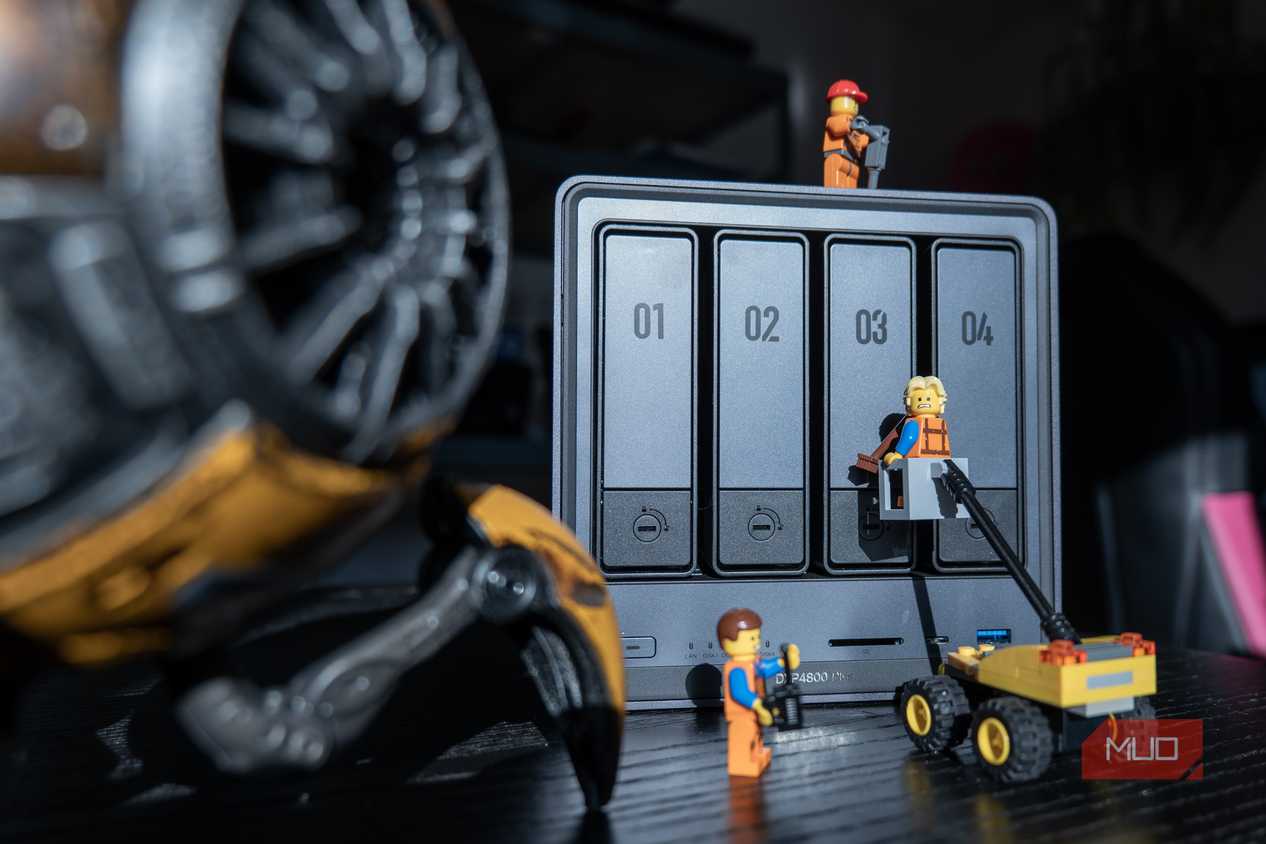
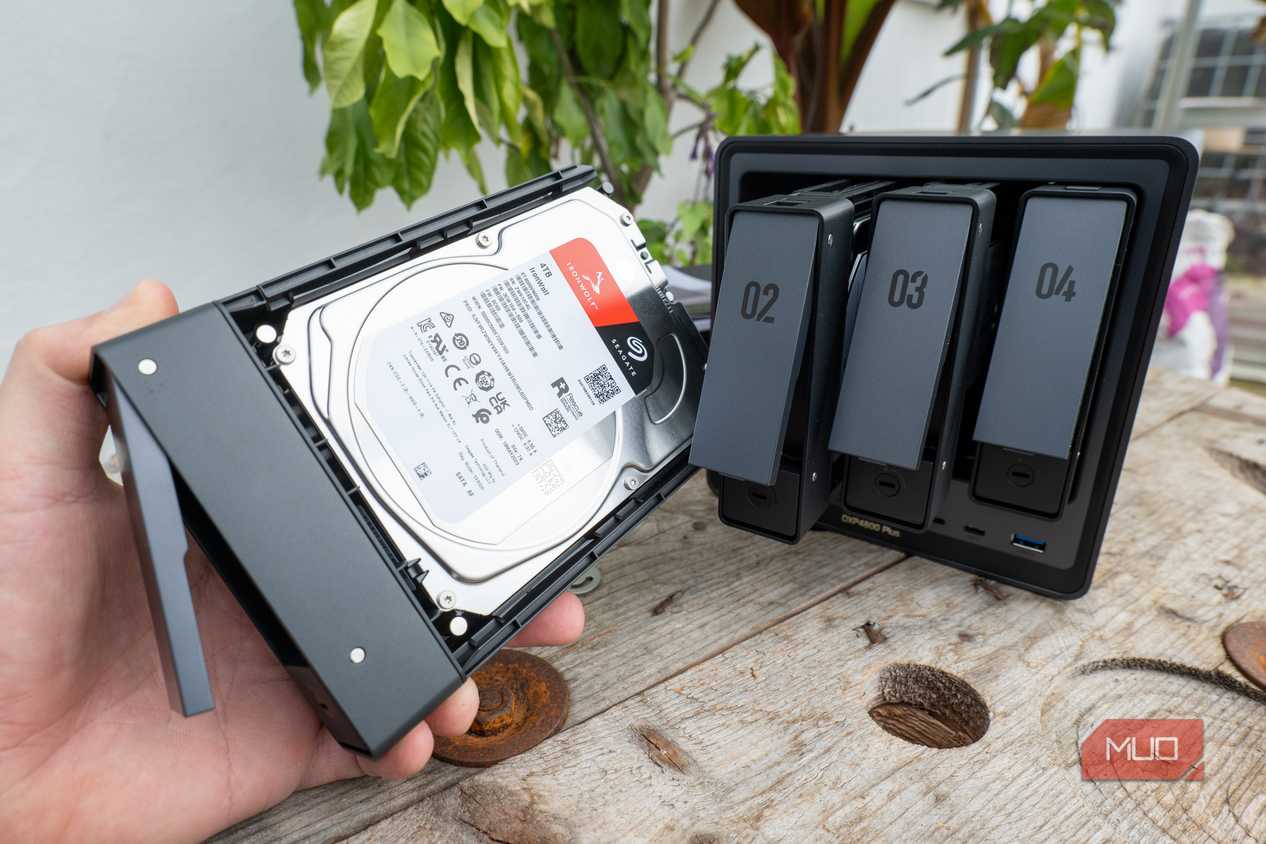
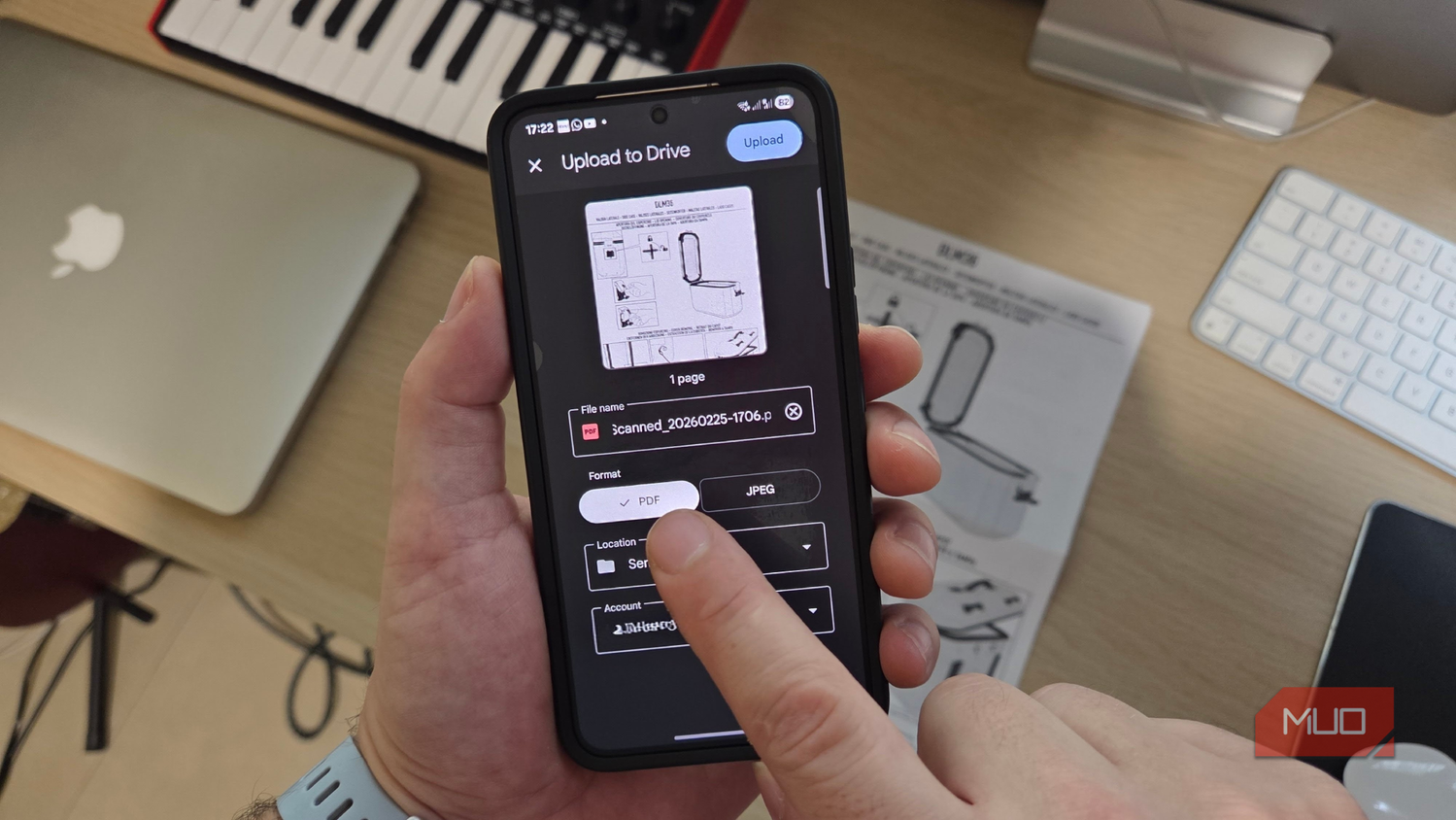



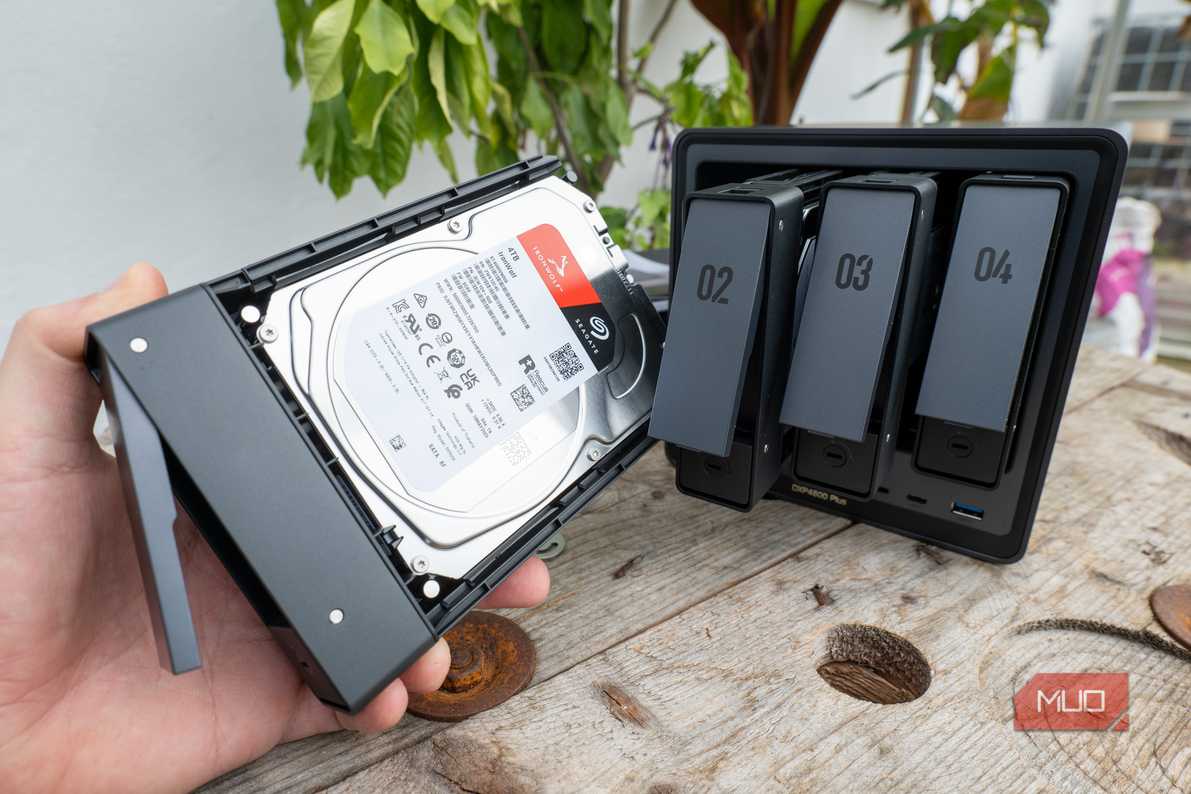


 Credit: Jack Mitchell/MakeUseOf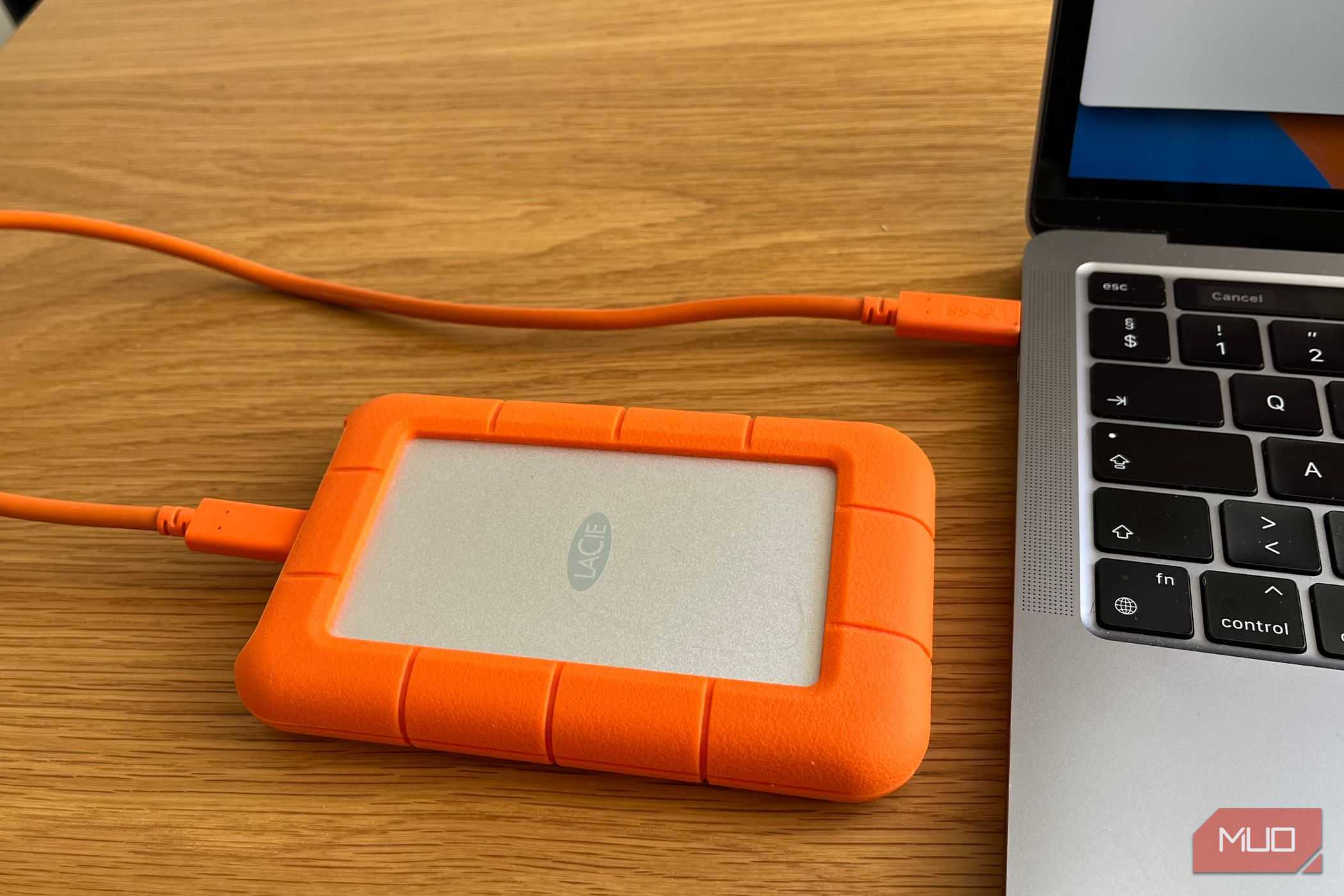




The 3-2-1 backup rule is rather simple, though people often interpret it differently. According to the rule, you should keep three copies of your data, store them on two different types of storage, and keep at least one copy offsite. It's been around for over twenty years, and it's still the clearest backup framework because it addresses every common way people lose data.
Three copies (3)
You maintain three copies of your data in total. Your primary working copy, the files on your laptop or phone, counts as one. Then you create two additional backups. This way, even if one backup fails or gets corrupted, you still have another copy to fall back on. One bad drive doesn't become catastrophic when there are two more copies elsewhere.
Two different storage types (2)
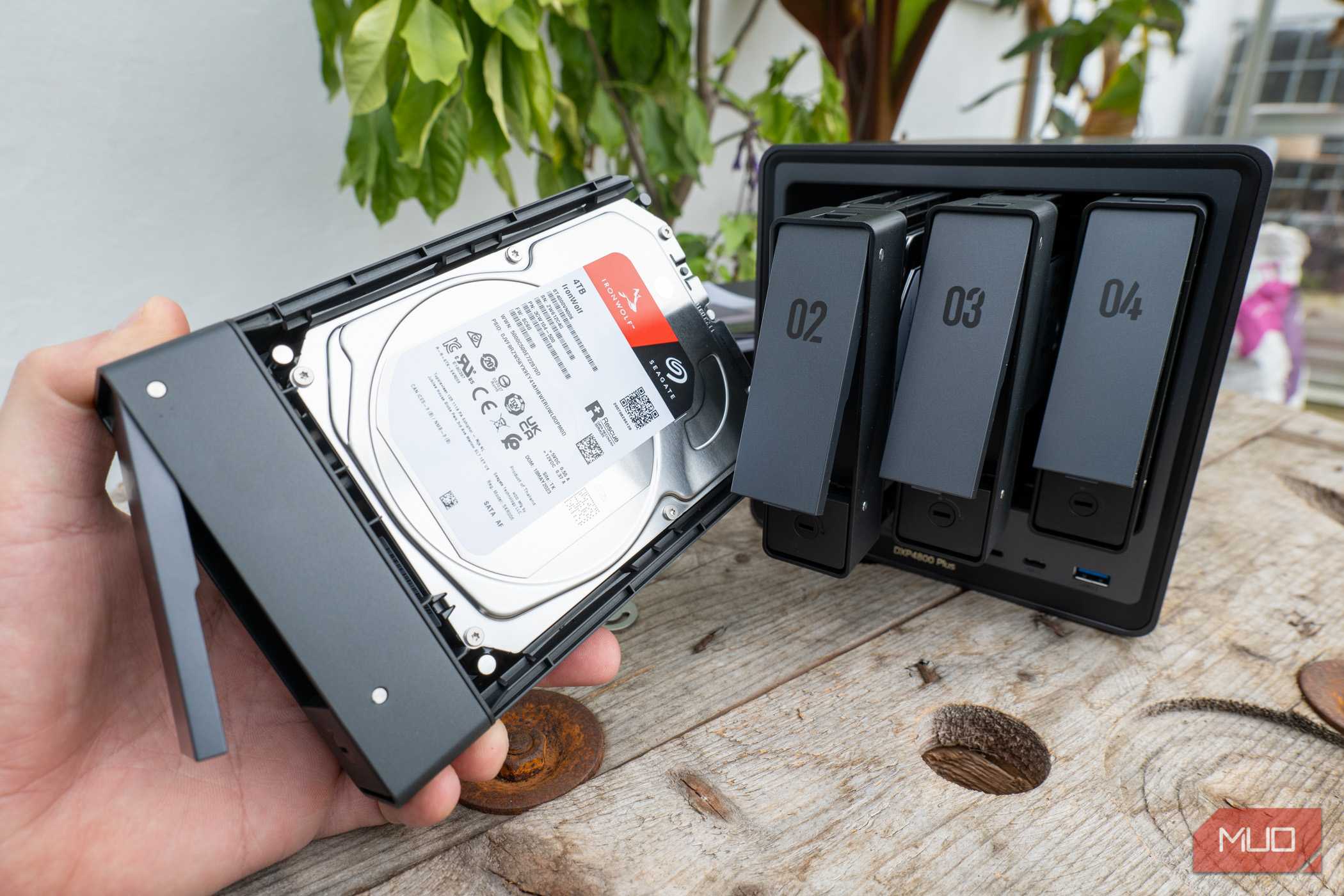
Now the three copies of backups need to live on at least two different kinds of storage media. If both your backups sit on identical external hard drives stored on the same shelf, a single manufacturing defect, a fire, or even a power surge through a shared power strip could take them both out. A common setup is one backup on a local physical device like an external SSD or a NAS, and the other on a cloud service or a different type of drive.
One offsite copy (1)
For the final rule, at least one of your backups should be stored away from your home or office. This is often the part most people skip, but it's the one that protects you from the worst scenarios: theft, fire, flooding, or any localized disaster that could destroy everything in one location. Cloud storage works as an offsite copy, or you could keep a drive at a relative's place if you prefer physical media.
There's also a stricter version called the 3-2-1-1-0 rule that adds an immutable copy that ransomware can't encrypt and a requirement for zero errors on restore testing. That's mostly a business concern, but it's worth knowing about.
How to back up your files
Building a backup system that satisfies the 3-2-1 rule

Knowing the rule is one thing, but setting up a system that follows it without requiring you to remember a weekly ritual is another. The key is automation, because a backup you have to remember to run manually is a backup you'll eventually forget.
For Windows, the simplest starting point is the built-in Windows Backup for your settings and app list, combined with a proper file backup tool for everything else. I use a multi-step process to properly back up my Windows 11 PC that covers both version history and full system images. For the versioned file backup side, Duplicati is my go-to recommendation because it's free, open-source, supports encryption, and can back up to local drives, network storage, or virtually any cloud service, including Google Drive, OneDrive, and Backblaze B2. It handles scheduling and incremental backups on its own, so once it's configured, you don't have to think about it.
Your local backup could be an external SSD or a NAS on your home network. Your offsite copy could be a cloud destination through Duplicati or a separate cloud backup service. This combination satisfies the 3-2-1 rule where your PC holds the primary copy, the external drive holds a local backup, and the cloud holds an offsite backup.
When talking about backups, smartphones are easy to overlook, but the photos and messages on your phone are often the hardest things to replace. Most people rely on Google Photos or iCloud, and that's a decent start for the offsite copy. But for a proper local backup, consider using a tool like Syncthing to sync your phone's data directly to your PC over your home network. Once those files land on your computer, they get picked up by your existing backup system and protected alongside everything else. That way, your phone data isn't living in the cloud alone.

Restoring is as important as backing up
Your backups are only as good as your last successful restore. It's tempting to set up a backup system and forget about it, but backup files can get corrupted, drives can fail silently, and scheduled jobs can stop running without warning. Every few months, pick a random file or folder from your backup and try to restore it. Open the files, make sure they're intact, and confirm your backup tool can find and retrieve them without errors.
Follow the 3-2-1 rule, automate your backups, but also verify that the safety net you've built can hold weight when you need it. A backup you've never tested is a false safety net that you should never rely on.