


Your smartphone could be the weakest link in your online security portfolio. We all know that phones hold some of our most personal and sensitive information, like messages, notes, photos, or videos. However, they're also the gateway to much more crucial data — online banking systems, government accounts, or mobile ID cards. This is the kind of information that, if compromised, could have life-altering effects, such as identity theft and fraud.
A simple device passcode or biometric isn't enough to protect your online banking apps. To fortify your Android phone, you should keep your banking apps completely partitioned in a location bad actors can't even see. Using Android 15 or newer, you can set up Private space to create a separate home screen environment that's isolated from the rest of your phone. Take it one step further by hiding the private space entirely, and your banking apps will finally feel secure on your smartphone.
Your phone probably holds sensitive banking info
If it doesn't, your online security is already ahead of the curve

Setting weak passwords or shared devices aside for a moment, your banking app's icon living on an Android home screen is a security risk in itself. There are many ways an online account can become compromised, but a common one is credential stuffing. You use a username and password combination with one site, and a data breach or leak makes it public. By now, a login credential you've used in the past has almost certainly been leaked, and websites like HaveIBeenPwned help you prove it.
Here's where things get tricky. If that username and password combination is for, say, a fast food chain's app, you might not be too concerned about the credential leak. However, bad actors use credential stuffing to try these same login credentials on other, more important sites. If you use the same password for multiple accounts, that's a huge problem. If you use identical usernames or email addresses across multiple sites, that's not as big of an issue, but it still could be a cause for concern.
For anyone with malicious intentions, finding out which apps and services you use is half the battle. If you place your banking app's icon on your home screen, you're broadcasting where a hacker needs to focus their attention to steal your identity or their cash. On the flip side, if you don't put your banking app front and center on your smartphone, it could be harder to figure out which institution you use. I do want to emphasize that most of this is theoretical, since it's unlikely the average person will be targeted by a specific hack — but it's not unprecedented, either.
The more worrying situation is having your most important apps, like online banking software, secured by only a four- or six-digit device passcode. If you use your phone's biometrics or password manager to store your online banking credentials, these are only as secure as the passcode that locks your device. In other words, not secure enough to safeguard your life savings.
Private space completely siloes your personal info
Bad actors can't break into apps if they can't even see them

Private space doesn't just lock or hide your sensitive apps from the rest of your device — it's like a digital safe that exists separately from the rest of your Android phone. Unless you've manually set it up in the Settings app on your Android device, you probably didn't know it's there. To get started, open Settings → Settings & privacy → Private space. Then, enter your device's passcode to open the page.
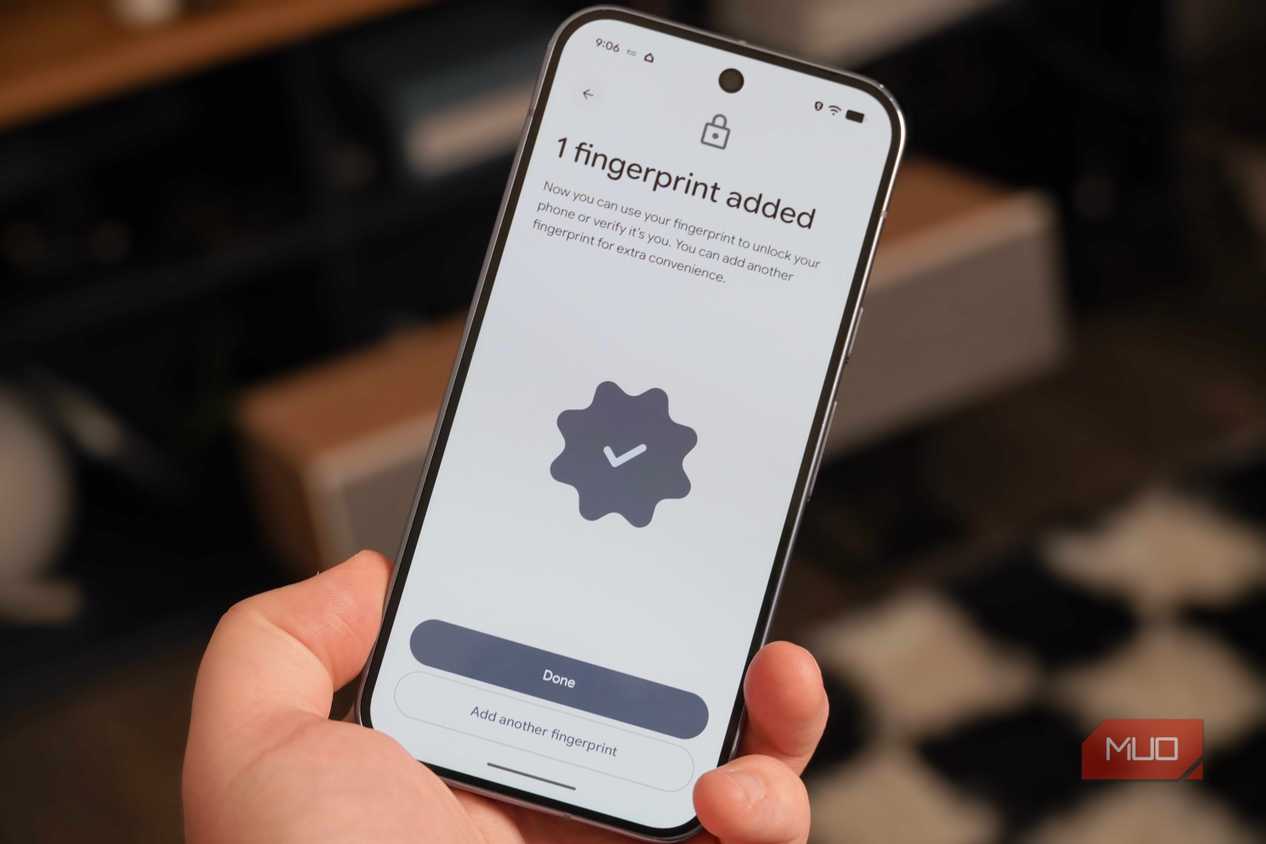
Tap Set Up at the bottom of the Private space page, and sign in to a Google account. You can use the same one as your main Android environment, but it's more secure if you create a new one. Finally, lock down your Private space by setting a passcode and optionally using biometrics. You can also use your device's passcode to unlock your Private space, but again, it's better if you create something new from scratch. Then, if someone wants to get into your Private space, they have to crack two codes.
After that, press Done to finish. You can start adding apps to your Private space in the app drawer. Scroll to the bottom, and use the + icon to install apps on the Play Store. Because it isn't just a folder, you can't move apps between your main Android environment and the Private space.
To simplify matters, you can hold down on an app on your main Android screen and tap Install in private space. Remember, you'll need to delete the other app from your regular Android environment, and any data you had stored on-device won't be moved over.
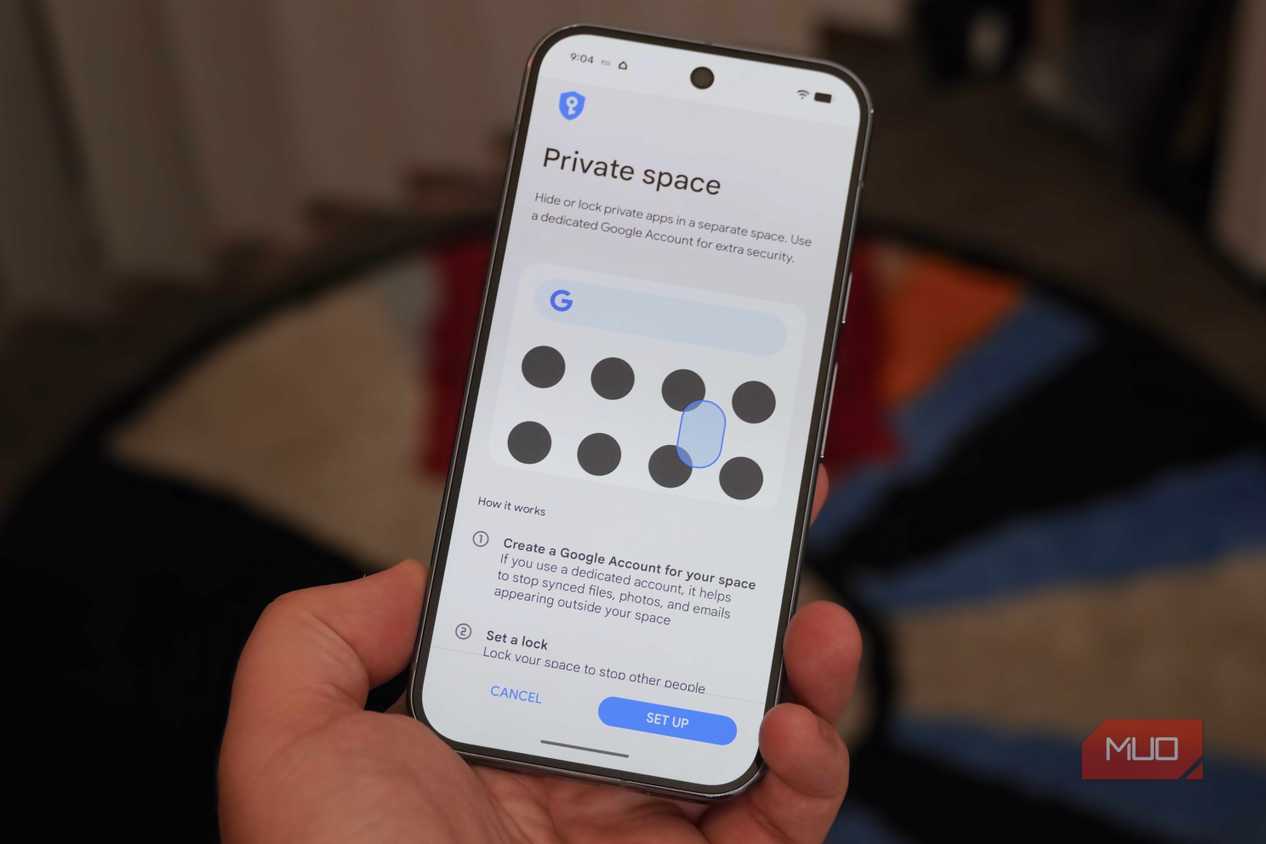
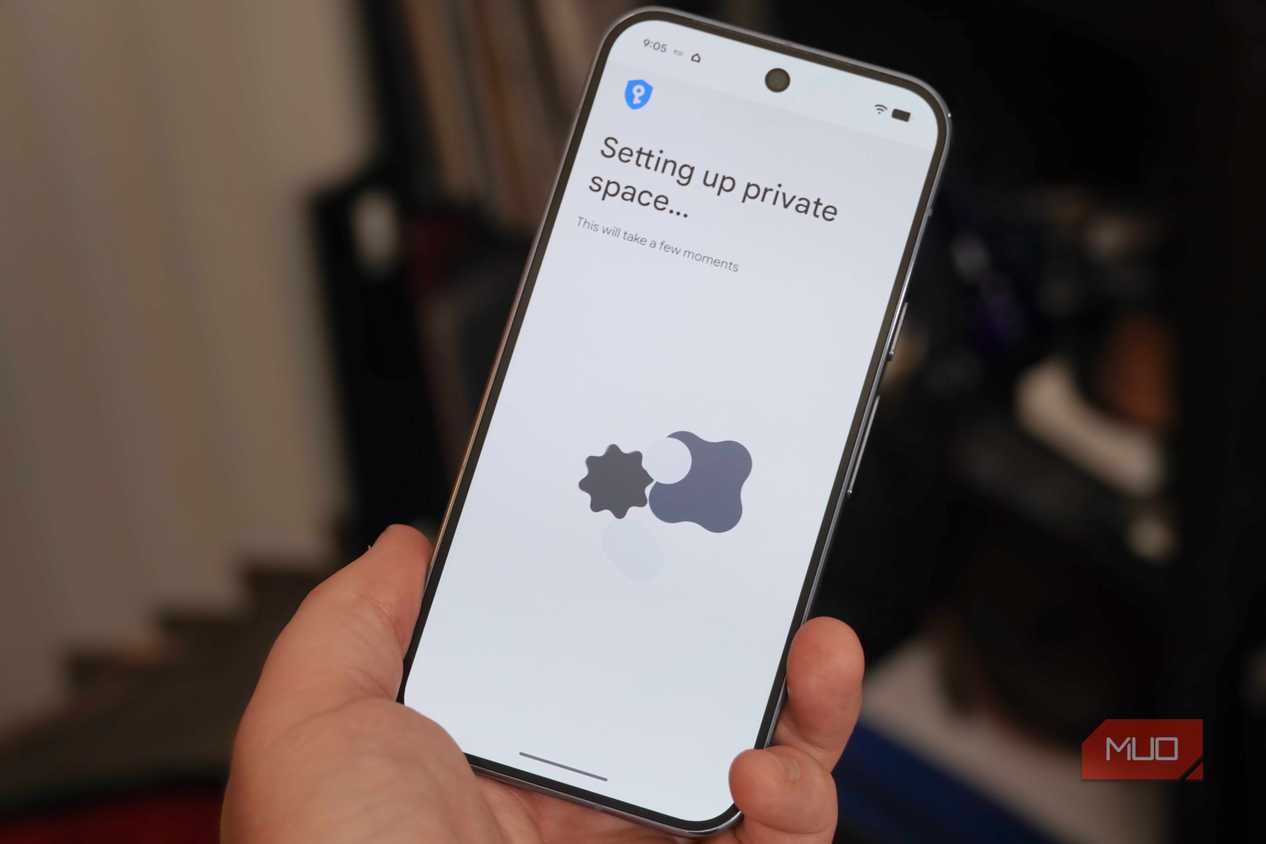
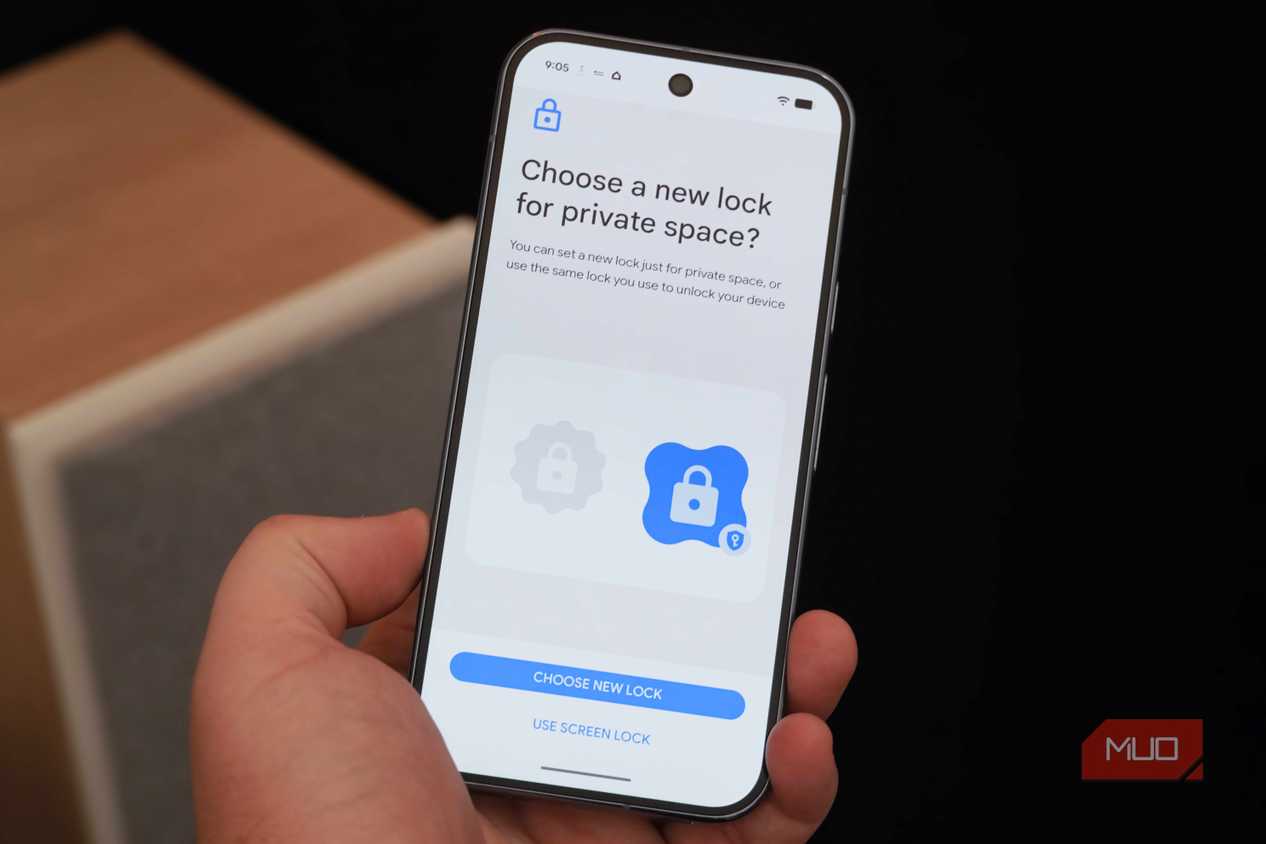
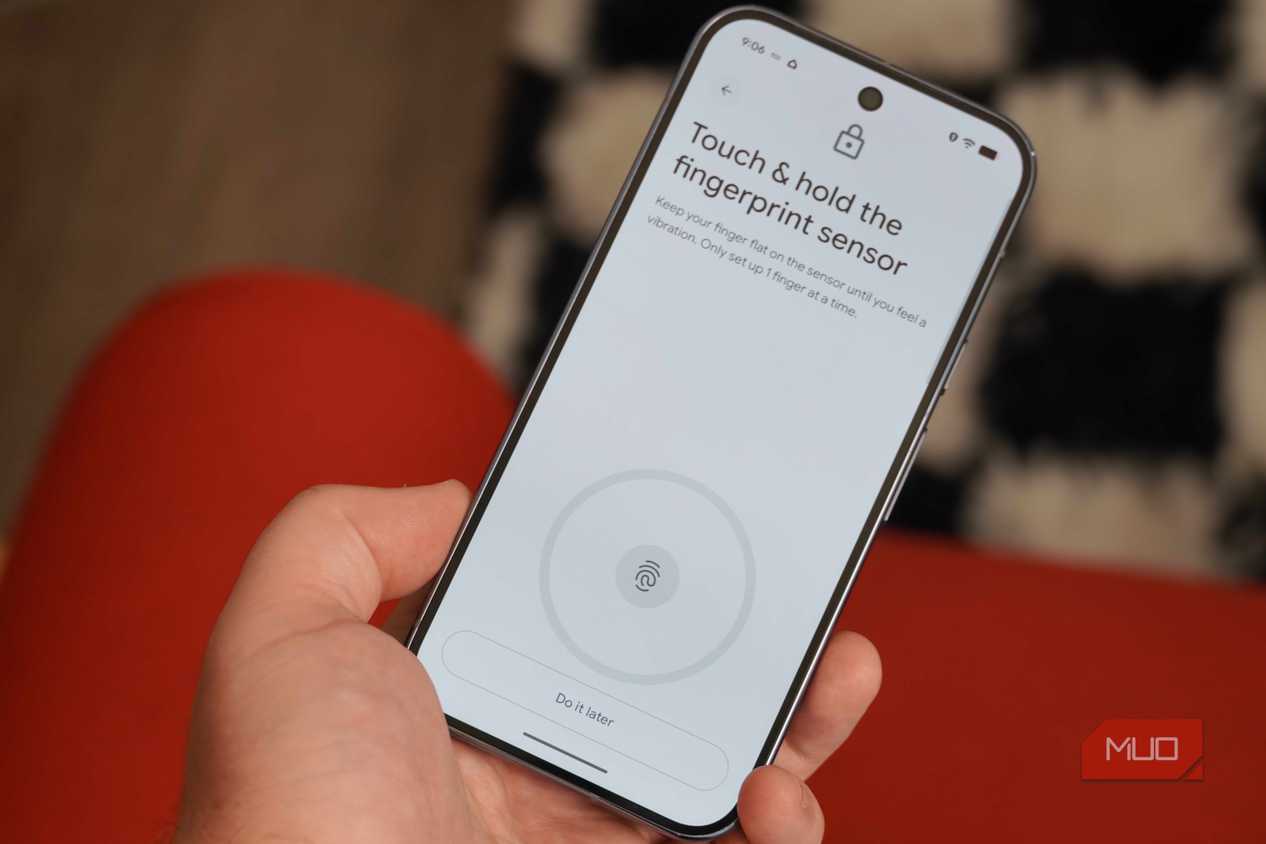


 Credit: Brady Snyder / MakeUseOf
 Credit: Brady Snyder / MakeUseOf
 Credit: Brady Snyder / MakeUseOf
 Credit: Brady Snyder / MakeUseOf
 Credit: Brady Snyder / MakeUseOf
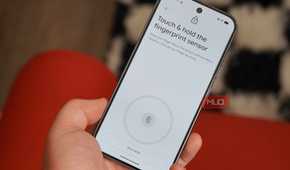
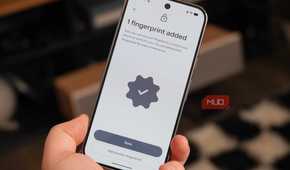
Apps stored in a Private space can't run in the background, and aren't visible in any way when they are locked. With a Private space unlocked, apps stored within are visible and accessible from your main Android environment. By default, you can see a Private space exists at the bottom of the app drawer.
You can hide it entirely by unlocking the space, tapping the Settings gear, and pressing Hide private space when it's locked. Flip the toggle to hide Private space, starting the next time you lock it.
Why your banking apps belong in Private space
They are fully protected and hidden after setting up Private space

The best way to keep your Android apps secure and hidden is to hide them in a Private space. It's not necessary for all apps, but those that contain particularly sensitive info should be extra secure. I use Private space on my Pixel 10 Pro to hide my banking apps. It never sat right with me that they were visible right on my home screen, even if I appreciated the convenience.
Now, I get the best of both worlds. It only takes an extra second or two to unlock my Private space and access online banking apps. They're now twice as secure. I use a separate passcode and a fresh Google account in my Private space, ensuring my eight-digit device passcode isn't the only thing keeping my bank apps safe.

Google Pixel 10 Pro
- Brand
- SoC
- Tensor G5
- Display
- 6.3" Super Actua display
- RAM
- 16 GB
- Storage
- 128 GB, 256 GB, 512 GB, 1 TB
The Pixel 10 Pro is Google's highest-end flagship smartphone. It features an improved rear camera system, the Tensor G5 chip, seven years of software updates, and a 6.3" Super Actua display.
- Battery
- 4870 or