


I was helping someone who had been using an older version of Adobe Acrobat Pro for over a decade. Recently, none of their merged PDFs were working with Chrome or Edge, which meant none of their clients could see the changes made.
Since they didn't want to pay $29.99 a month for Adobe Acrobat Pro just to view, merge, and split PDF files, I needed a free PDF solution that wouldn't require a commercial license either, since many free tools restrict business use. After a bit of research, I landed on PDF24, a rather outdated-looking but functional PDF app that's completely free for both personal and commercial use.
Merging and splitting PDFs with PDF24
A free toolbox that's been quietly around since 2006


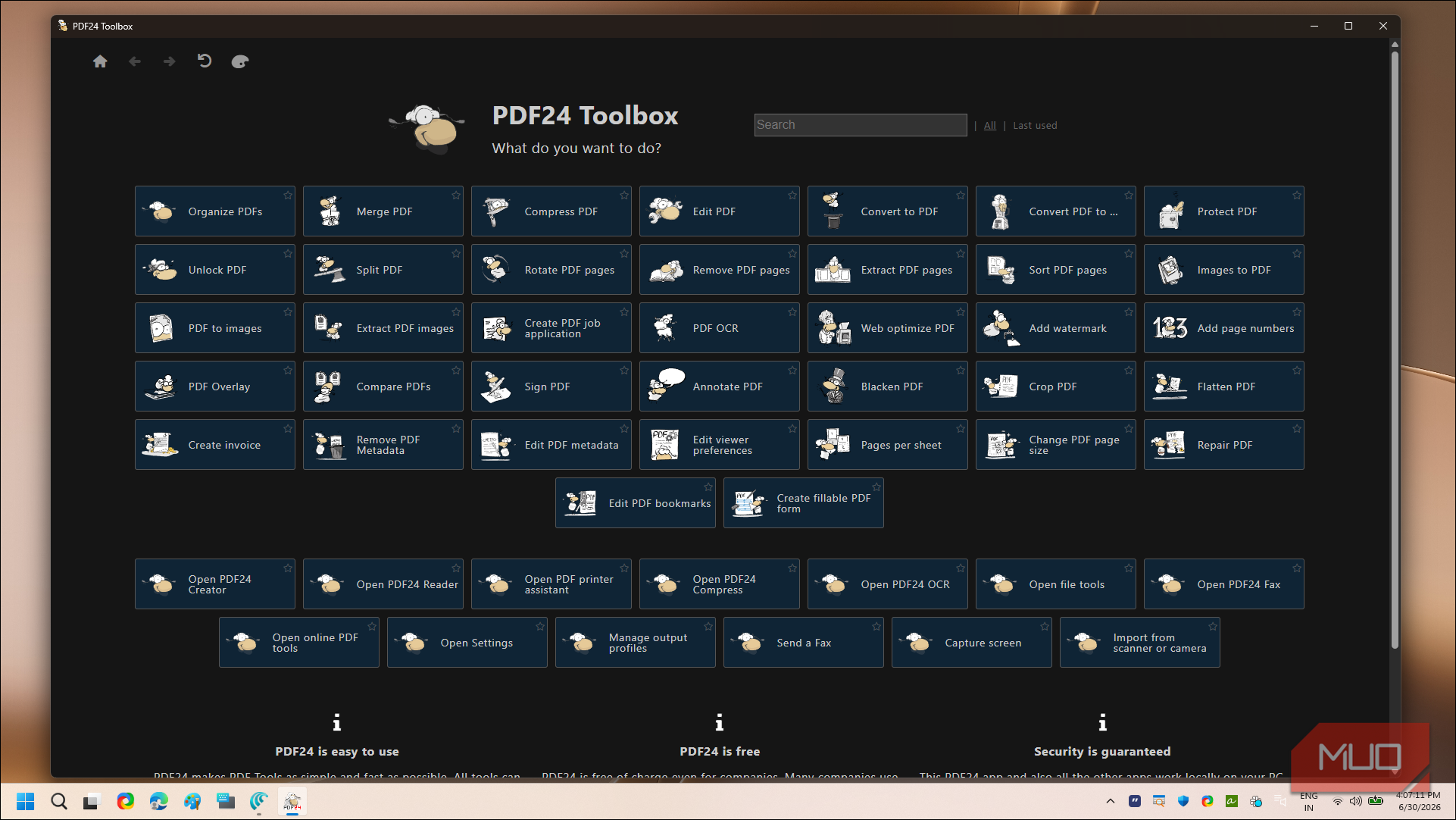
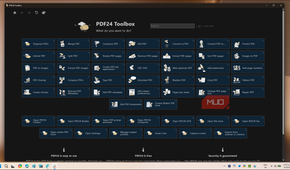
PDF24 has been in development since 2006, and to be honest, I'd never heard of it before. It never made it into our best open-source PDF editors list either. That's mostly because PDF24 is not a PDF editor in the traditional sense. It's a collection of PDF tools, each handling a specific task. It's Windows-only and offers over two dozen tools, including merging and splitting. You can download the app from the PDF24 website or the Microsoft Store. I'd recommend the .exe offline installer from its website, since it lets you choose a custom install directory. The app takes about a gigabyte of space on your drive, so picking a secondary drive saves room on your C: drive.
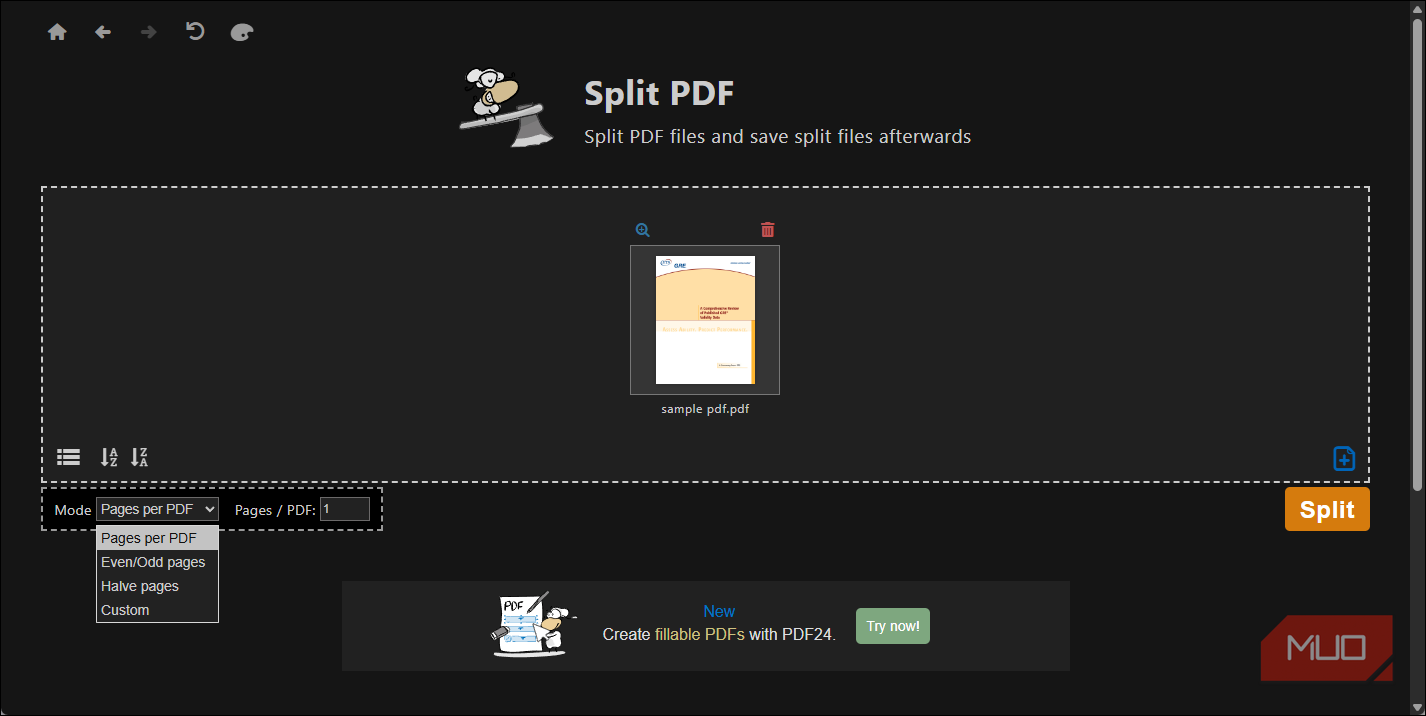
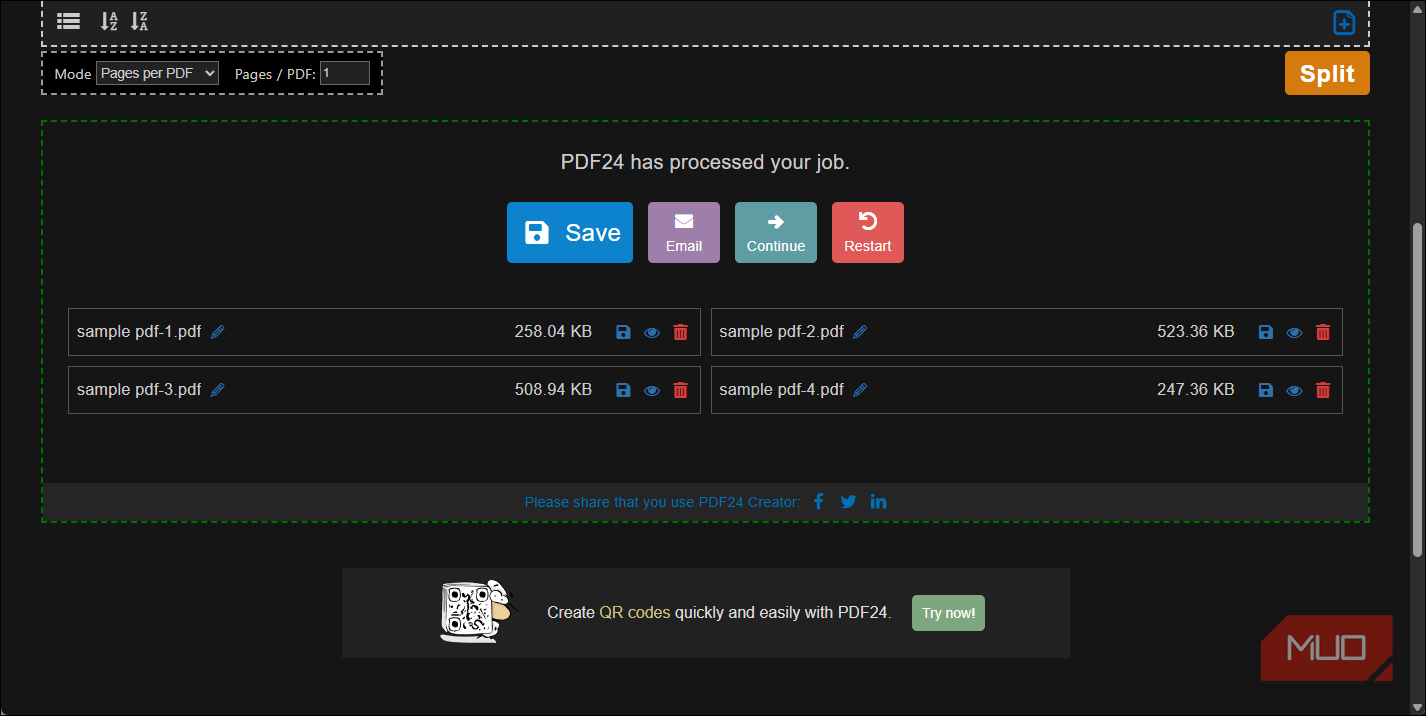
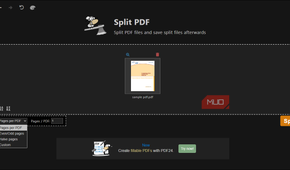
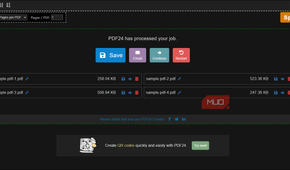
The home screen lists every tool PDF24 offers, which can feel overwhelming at first. The quickest way to get started is to type "Split" in the search bar and select Split PDF. Drag and drop your PDF document into the Choose files section, then pick a split mode. You get four options: Pages per PDF, Even/Odd pages, Halve pages, and Custom. Set your preference, click Split, and PDF24 processes the document. Once done, click Save to save the split files to your local drive.
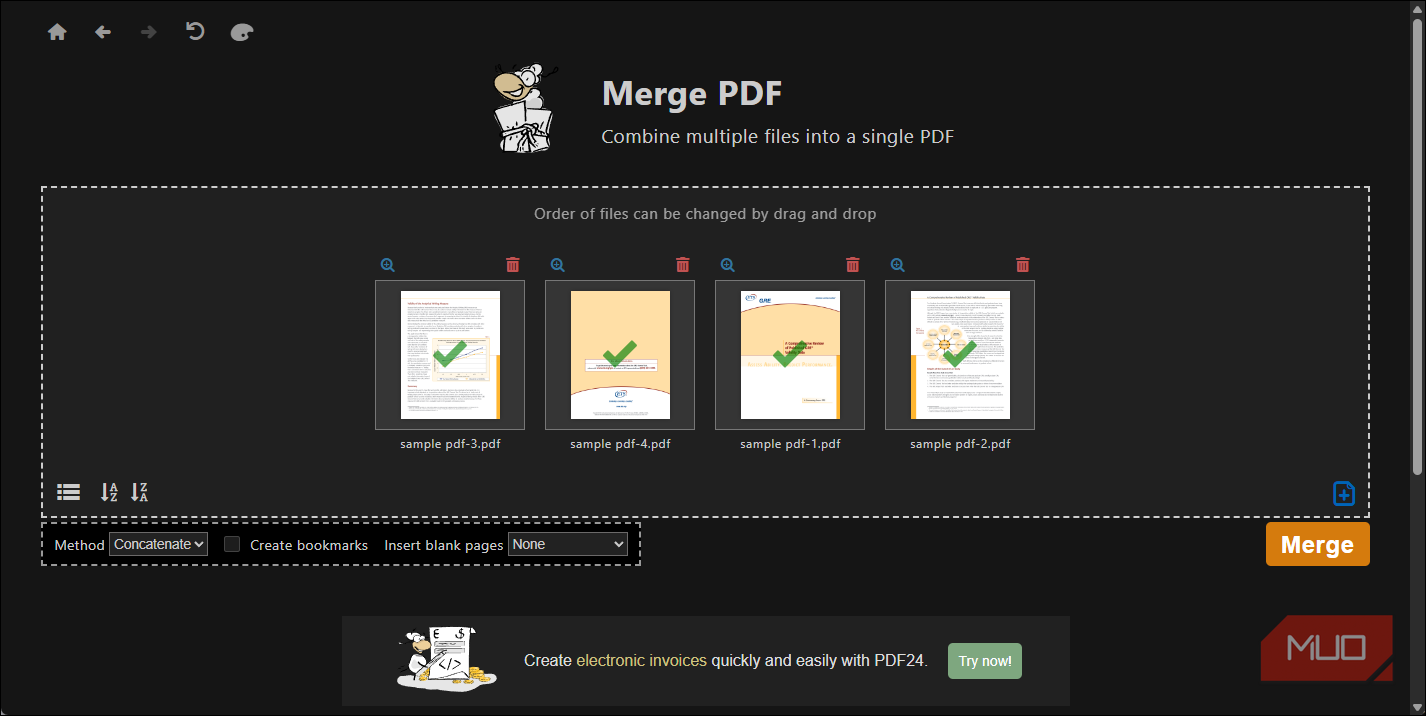
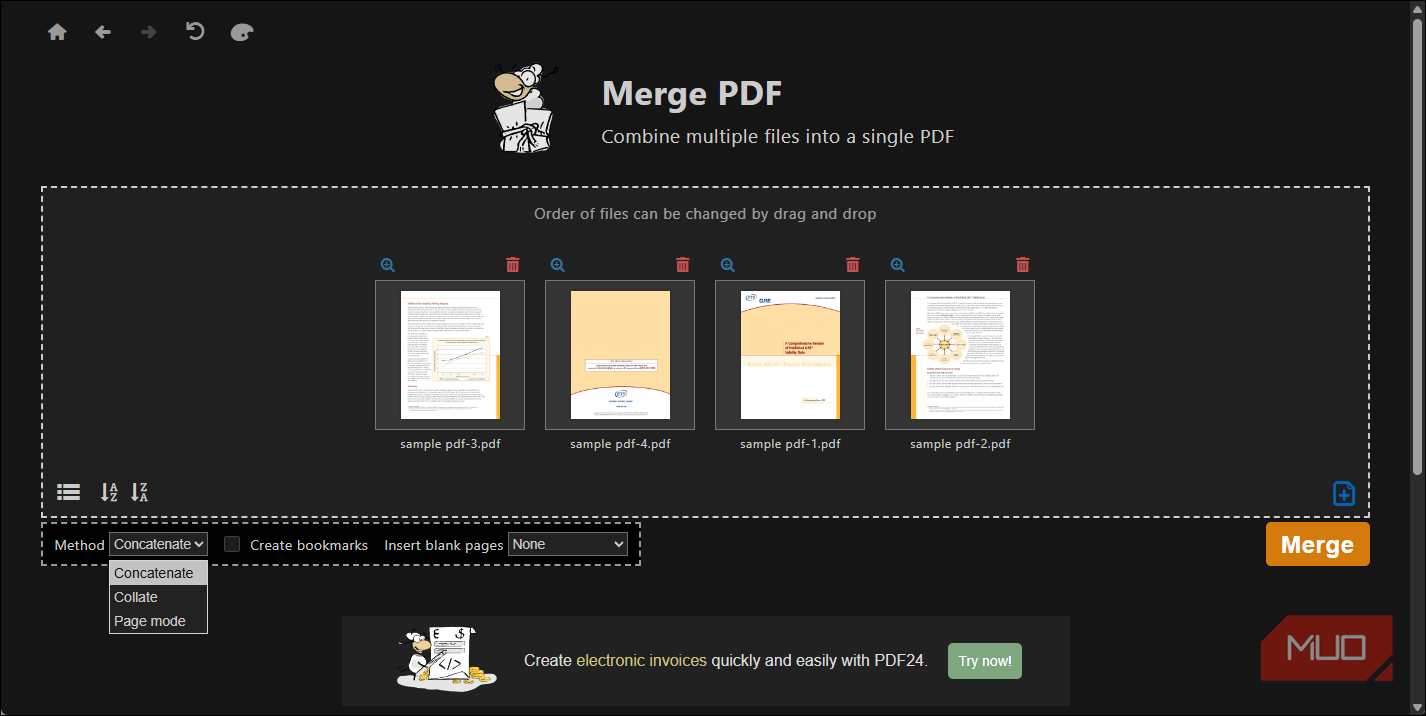
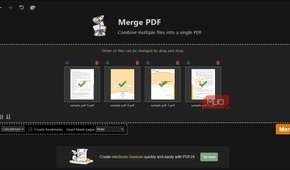
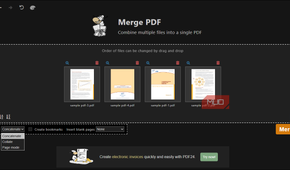
Merging follows the same pattern. Select Merge PDF, add all the PDF files you want to combine, and rearrange them by dragging the thumbnails into the right order. You can choose the merge method, with options like Concatenate, Collate, and Page mode, and decide whether you want bookmarks or blank pages inserted between files. Click Merge and save the result.
PDF24 has all the PDF features you'd expect
And a few you wouldn't

Apart from Split and Merge, PDF24 can do almost everything you'd expect from a full-featured PDF tool. You can compress PDFs to shrink file sizes, convert documents to and from PDF, add watermarks, insert page numbers, rotate pages, add password protection, and even run OCR on scanned documents to make them searchable. There's a Sign PDF tool that lets you draw or upload your signature and drop it onto a document without paying a cent in subscription fees. PDF24 also includes a virtual printer so that you can print any document from any application directly to PDF.
Another handy feature is Compare PDFs, which highlights the differences between two versions of a document side by side. If you've ever had to manually spot changes between contract revisions, you know how tedious that gets, so the compare feature is always handy to have.
That said, PDF24 is not a full-fledged PDF editor. The PDF24 Creator lets you create new documents and modify existing ones, but it's limited to basic actions like rotating, adding, or removing pages. You can drag pages between documents in the editor view, which is handy for quick reorganization. But if you need to edit text within a PDF, annotate with sticky notes, or do detailed markup work, you'd still want a proper editor like PDFGear or Sejda for those tasks.
You don't need a tool to rename files
Windows can batch-rename if you know where to look

While PDF24 solved my PDF problem, the same project also involved renaming dozens of poorly named files. You'd think you need a separate app for that, but Windows has a built-in batch-rename feature, which is also my go-to for batch renaming files.
Select all the files you want to rename in File Explorer, right-click the first file, choose Rename, type a new name, and press Enter. Windows renames every selected file using that name and adds a sequential number in parentheses. So if you type "Invoice", you get Invoice (1), Invoice (2), and so on.
If you need anything beyond basic sequential naming, Windows' built-in option falls short. That's where PowerToys' PowerRename comes in. It integrates right into File Explorer's context menu and gives you powerful batch-renaming with search and replace, regular expressions, and live preview. After you enable the feature in PowerToys, select your files, right-click, choose PowerRename, and you can strip prefixes, insert dates, change cases, or swap extensions in seconds. The preview pane shows exactly what each file will look like before you commit, so there's no guessing.

PDF24
- OS
- Windows
- Price model
- Free
PDF24 is a free, offline PDF toolkit for Windows that lets you merge, split, compress, convert, and edit PDFs without subscriptions or watermarks. A no-nonsense Adobe alternative.
A free PDF toolbox that replaced a paid app
PDF24 is not the fanciest PDF tool out there, and it won't rival Adobe's flagship app. The interface looks like it hasn't been redesigned since its 2006 debut, and the lack of a tabbed workflow means every tool opens in its own window. If you need to split a document, then compress it, then add a watermark, you're reopening the same file three times.
But for a tool that costs nothing, not even for commercial use, it handles merging, splitting, compressing, converting, and signing PDFs without asking you to create an account or hand over a credit card.