


PDF apps are a dime a dozen, and unlike a decade ago, you can find a full-fledged PDF editor like PDFGear completely for free. However, I had a very specific requirement: I couldn't use an online PDF editor due to the sensitivity of the documents, but still needed it to be accessible for every employee in an organization, so desktop PDF apps weren't going to cut it.
While looking for some open-source or self-hosted solutions, I found BentoPDF. A versatile PDF tool that I could self-host via Docker, and completely free to use.
What's BentoPDF?
An open-source, self-hosted PDF toolkit that processes everything in your browser

BentoPDF is an open-source PDF toolkit that you can either use through its hosted web version or self-host on your own server using Docker. Since my whole reason for looking at it was keeping sensitive documents off third-party servers, the self-hosted route was the obvious pick. All processing happens client-side in your browser, so even when you're running it on a server, the files never leave your machine.
The feature list is broad enough that it replaced most of what I used Adobe Acrobat for. You get fillable form creation, which was the main draw for me, along with a redaction and annotation editor, PDF compression, format conversion to and from over a dozen file types, metadata stripping, and a multi-tool page manager that handles merging, splitting, rotating, and reordering. There are other free PDF tools that cover some of these tasks, but few bundle everything into a single self-hosted package with no upload limits and no subscription.
For someone deciding whether BentoPDF is worth their time, the short answer is yes, if your workflow revolves around form filling, annotations, and document management rather than direct text editing. More on that limitation later.
Self-hosting BentoPDF via Docker
A Docker Compose stack that takes minutes to deploy


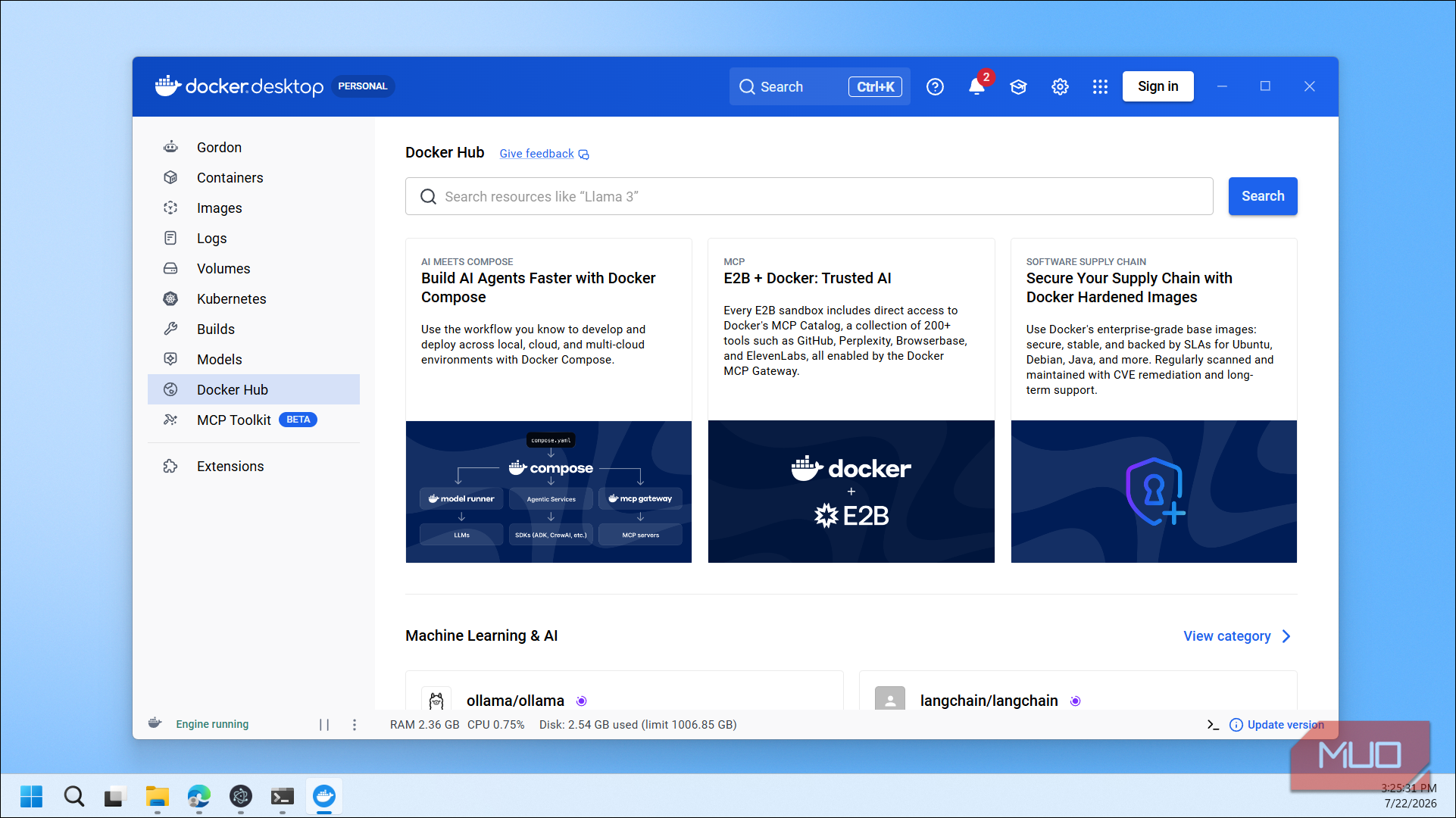
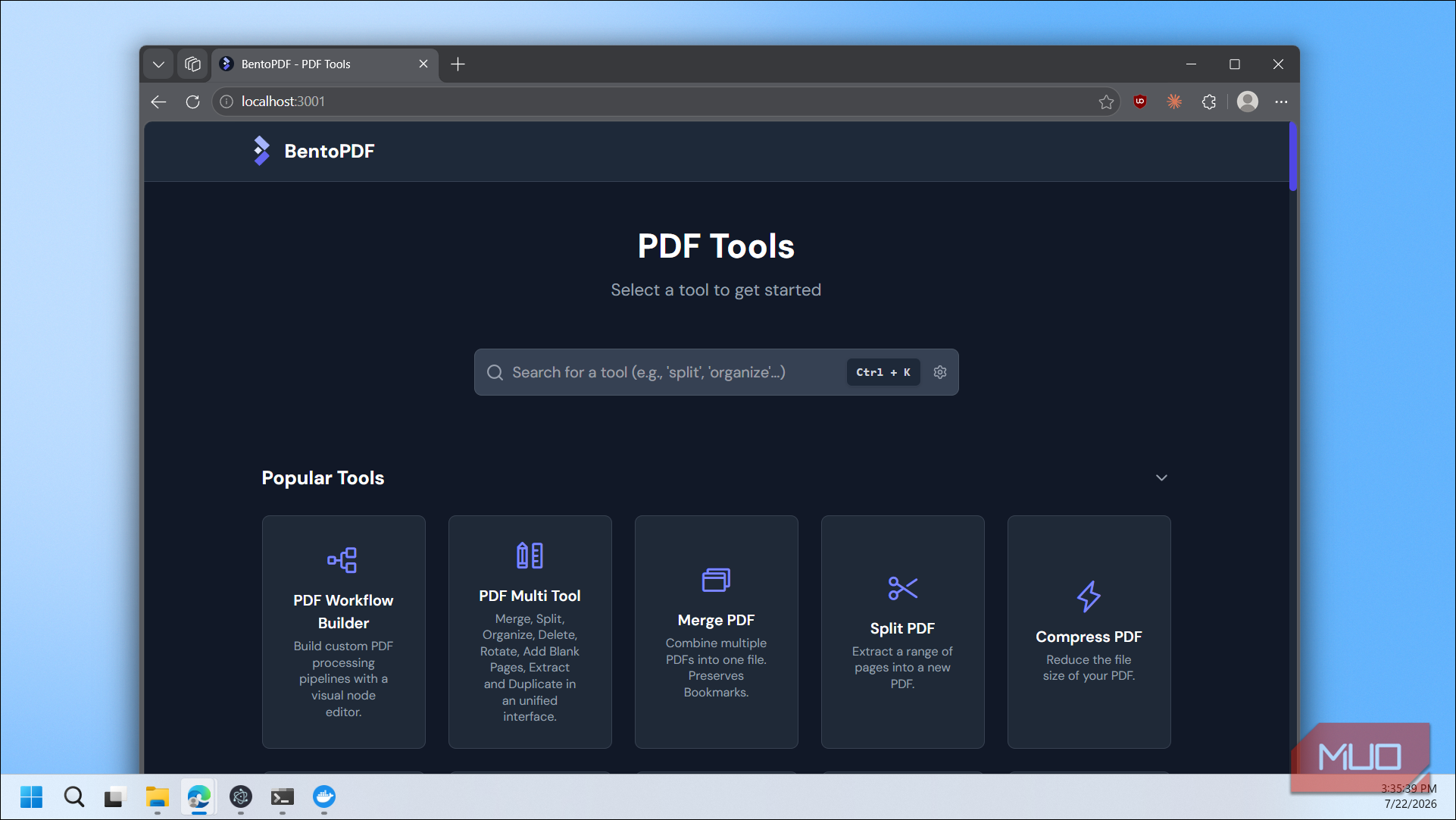
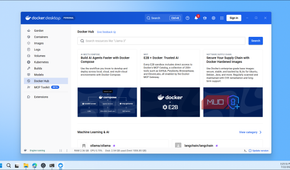
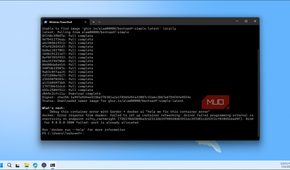
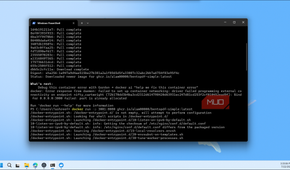
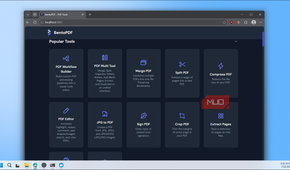
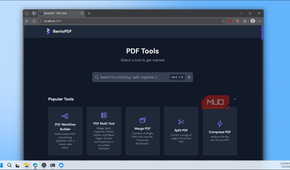
BentoPDF offers a few installation options, including a bare-metal install, but the recommended and fastest route is Docker Compose. To set up BentoPDF, you need Docker installed before anything else. If you don't have it, download Docker Desktop, run the installer, and wait until the system tray icon shows Docker Desktop is running. On Windows, Docker will ask you to enable WSL 2 during setup. Accept that, restart if prompted, and you're good.
Once Docker is ready, open a terminal. On Windows, use PowerShell. On macOS or Linux, the default terminal works. BentoPDF ships in two image variants: the standard version includes BentoPDF's marketing pages alongside the tools, while the "Simple Mode" image strips those out and shows only the tools. For internal or company use, Simple Mode is the cleaner option. The install steps are the same for both; you just use a different image tag.
The fastest way to get BentoPDF running is a single command:
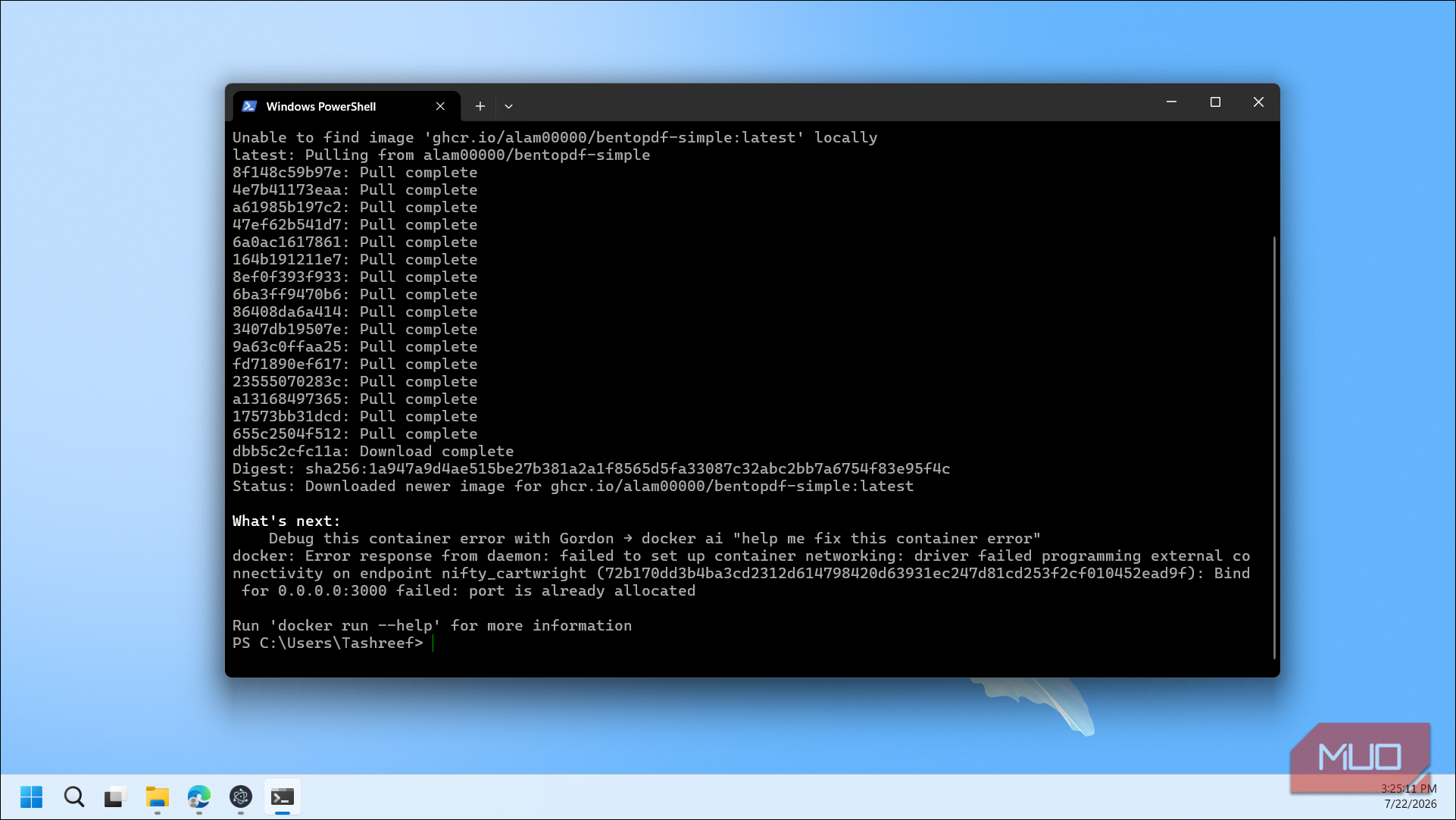
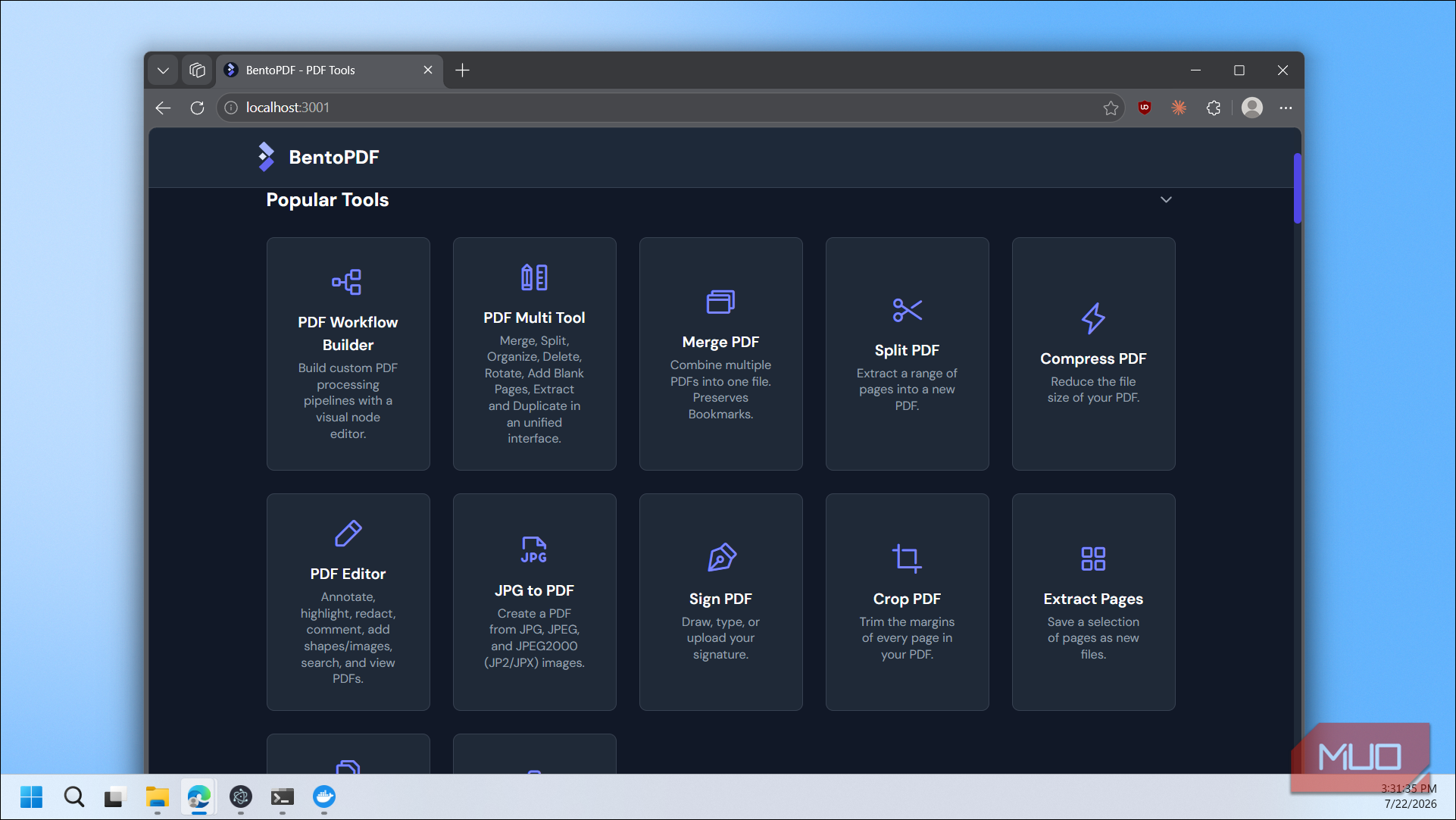
docker run -p 3000:8080 ghcr.io/alam00000/bentopdf-simple:latestDocker will download the image (this only happens the first time) and start the container. Once it finishes, open your browser and go to http://localhost:3000. You should see the BentoPDF tools interface ready to use. That's the entire setup if you're the only one using it.
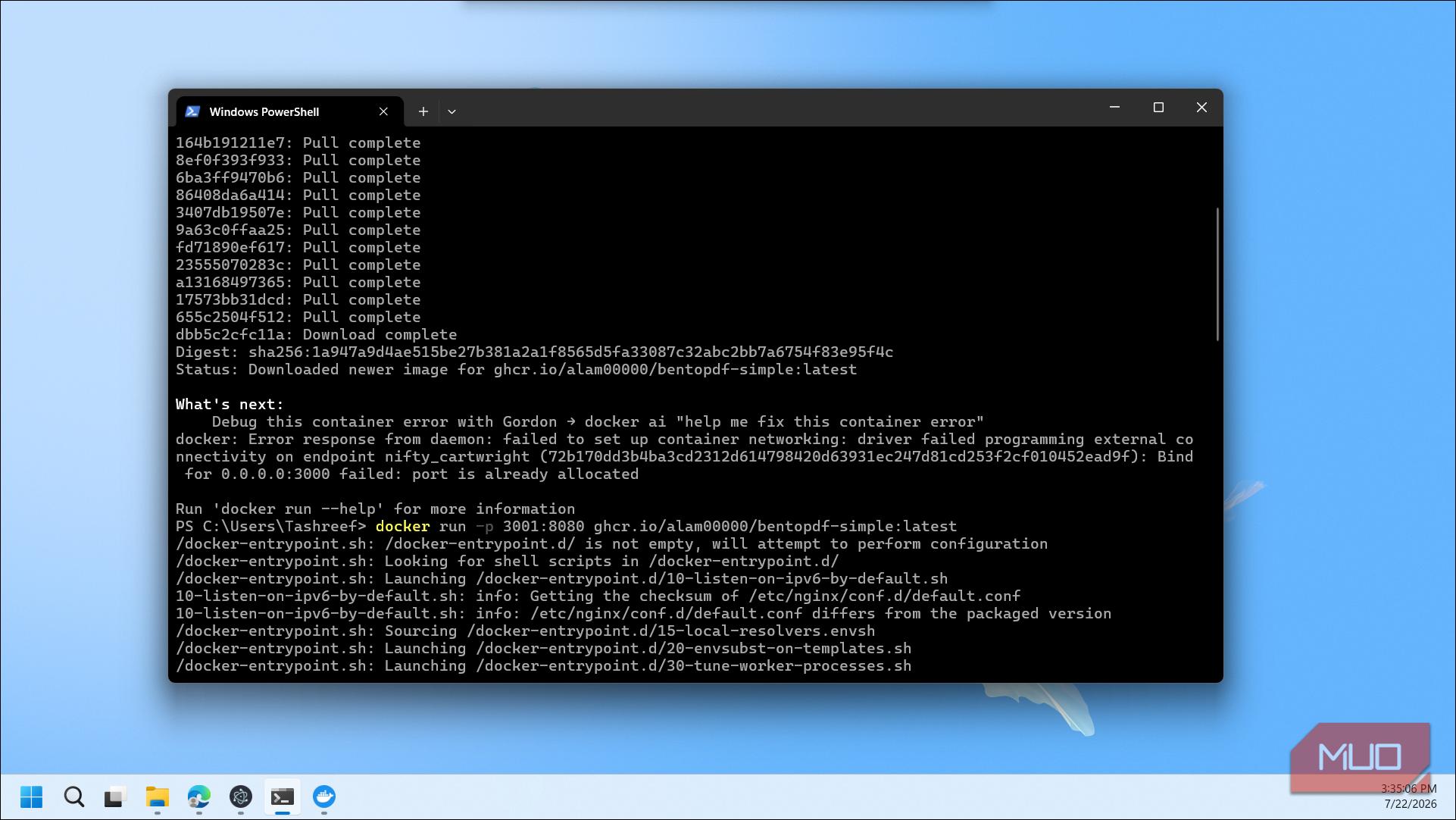
If another app or container is already listening on port 3000, run this command docker run -p 3001:8080 ghcr.io/alam00000/bentopdf-simple:latest, then open http://localhost:3001 in your browser.
For a more reliable setup that restarts automatically if your machine reboots, use Docker Compose instead. Create a new folder anywhere on your drive, open it in your terminal, and create a file called docker-compose.yml with the following content:
`services:
bentopdf:
image: ghcr.io/alam00000/bentopdf-simple:latest
container_name: bentopdf
ports:
- '3000:8080'
restart: unless-stopped`
Then run Docker compose up -d in the same folder. The -d flag runs it in the background so you can close the terminal without stopping BentoPDF. It will now survive reboots and start itself back up whenever Docker launches.
If you want other people on your local network to access it, say coworkers or family members, replace localhost with your computer's local IP address (find it by running ipconfig on Windows or hostname -I on Linux). They can open http://your-ip:3000 in their browser and use BentoPDF the same way you do. For anyone who has self-hosted apps over a weekend before, this setup will feel familiar.
If you eventually want BentoPDF accessible over the internet with a custom domain like pdf.yourdomain.com, you would pair it with a reverse proxy such as Nginx Proxy Manager or Caddy, point a DNS record at your server's public IP, and request an SSL certificate so the connection is encrypted. That's a separate project and not strictly necessary for local or LAN use, but worth exploring once you're comfortable with the basics.

Docker Desktop
- OS
- Windows, macOS, Linux
Docker Desktop is a one-click application for Windows, macOS, and Linux for easily building, running, and managing containerized applications.
What's still missing?
A few gaps that keep it from being a full Adobe Acrobat replacement
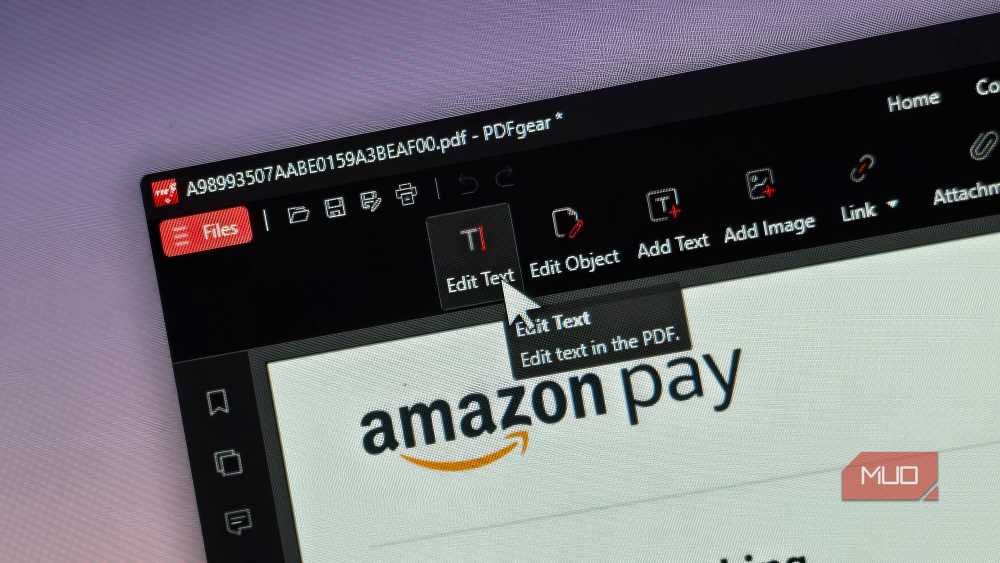
The biggest limitation is direct text editing. Adobe Acrobat and even free desktop apps like PDFGear let you click into existing paragraphs and edit the text like a word processor. BentoPDF can't do that. Its own roadmap lists direct PDF content editing as a planned feature, but right now, you're limited to annotating, redacting, and adding new form fields or stamps on top of a document. If you need to rewrite body text, you'll still need a separate PDF editor.
There's also no native desktop or mobile app. BentoPDF is entirely browser-based, whether you're using the hosted version or self-hosting it. That's part of its privacy appeal, but it means no offline experience and no app store install. And unlike Acrobat or PDFGear, there's no AI-powered summarization, which is consistent with its privacy-first stance, but worth noting if that's something you rely on.
For my use case, though, none of these were deal-breakers. I didn't need a full-fledged editor. I needed a way to fill forms, annotate documents, and make all of that accessible to a team without uploading anything to a third-party service. And BentoPDF does exactly that.

BentoPDF
- OS
- Windows, macOS, Linux
- Price model
- Free
BentoPDF is a free, open-source, privacy-first PDF toolkit that runs entirely in your browser (or self-hosted), merging, splitting, compressing, converting, and editing PDFs with zero uploads or tracking.
Privacy and control over convenience
BentoPDF is a strong choice if you care more about privacy and control over where your PDFs are processed than having every feature under one roof. Yes, it doesn't have direct text editing, and a few other things like native apps, AI features, and enterprise-grade signing workflows might still be part of the roadmap and could take a while to land.
But for form filling, annotations, compression, and format conversion on a server you own, it already does enough to replace a paid subscription. If anything, the fact that all processing stays client-side, even on a self-hosted instance, makes it one of the more privacy-respecting PDF tools I've tested.