


The thing about storage is that it’s never enough. It’s only a matter of time before you fill it up — that’s just how it goes. This was happening with my Google Photos account almost every other week. It kept asking me to free up storage, and mind you, I was only backing up photos and videos captured on my phone.
Instead of falling into the trap of buying a paid plan and upgrading every time I ran out, I decided to try something else. I changed Google Photos’ default backup quality setting, and it solved my problem for good.
Backing up in original quality comes at a steep storage cost
15 GB sounds like a lot, until it isn’t

Google Photos is pretty generous. I mean, 15 GB is more than what most other cloud storage services offer on a free account. But somehow, it still wasn’t enough for me. And the main issue was that my phone was shooting photos and videos at the highest quality. On average, any photo was around 4 MB, and a one-minute video was easily 500–600 MB.
The thing is, not every photo or video I capture is equally important. For instance, my work requires me to take a lot of photos for articles, and I often forget to delete them once I’m done. That meant all those temporary photos and videos were also getting backed up to Google Photos.
Because of this, I was getting those annoying storage warnings quite often. And that’s after I’d already disabled backups for folders I didn’t care about, like Screenshots, WhatsApp Images, Instagram, and Downloads. So it’s not like I hadn’t already done the obvious things to keep my cloud storage under control.
Changing the backup quality solved my biggest problem
I wonder why Google keeps it buried


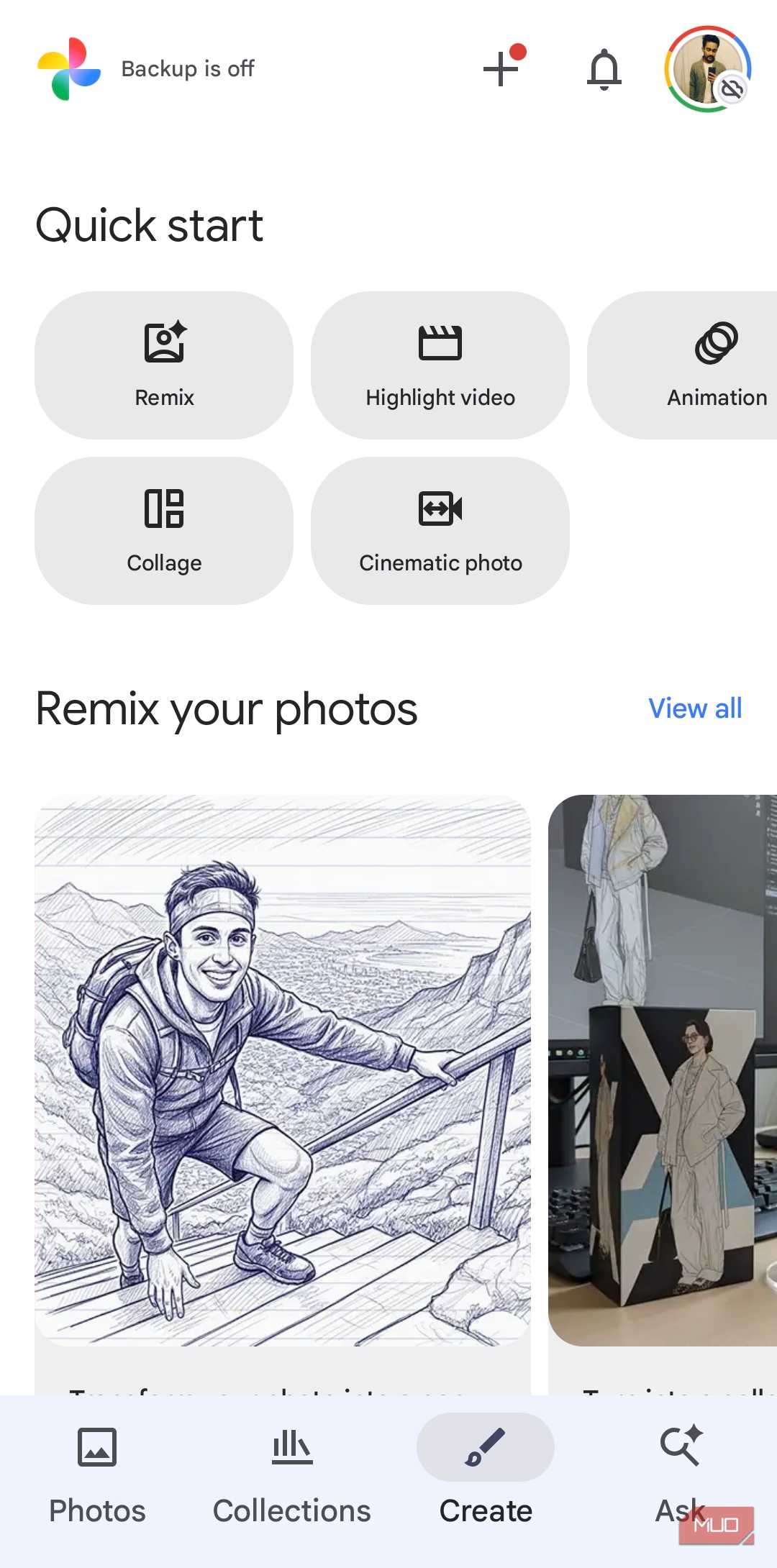
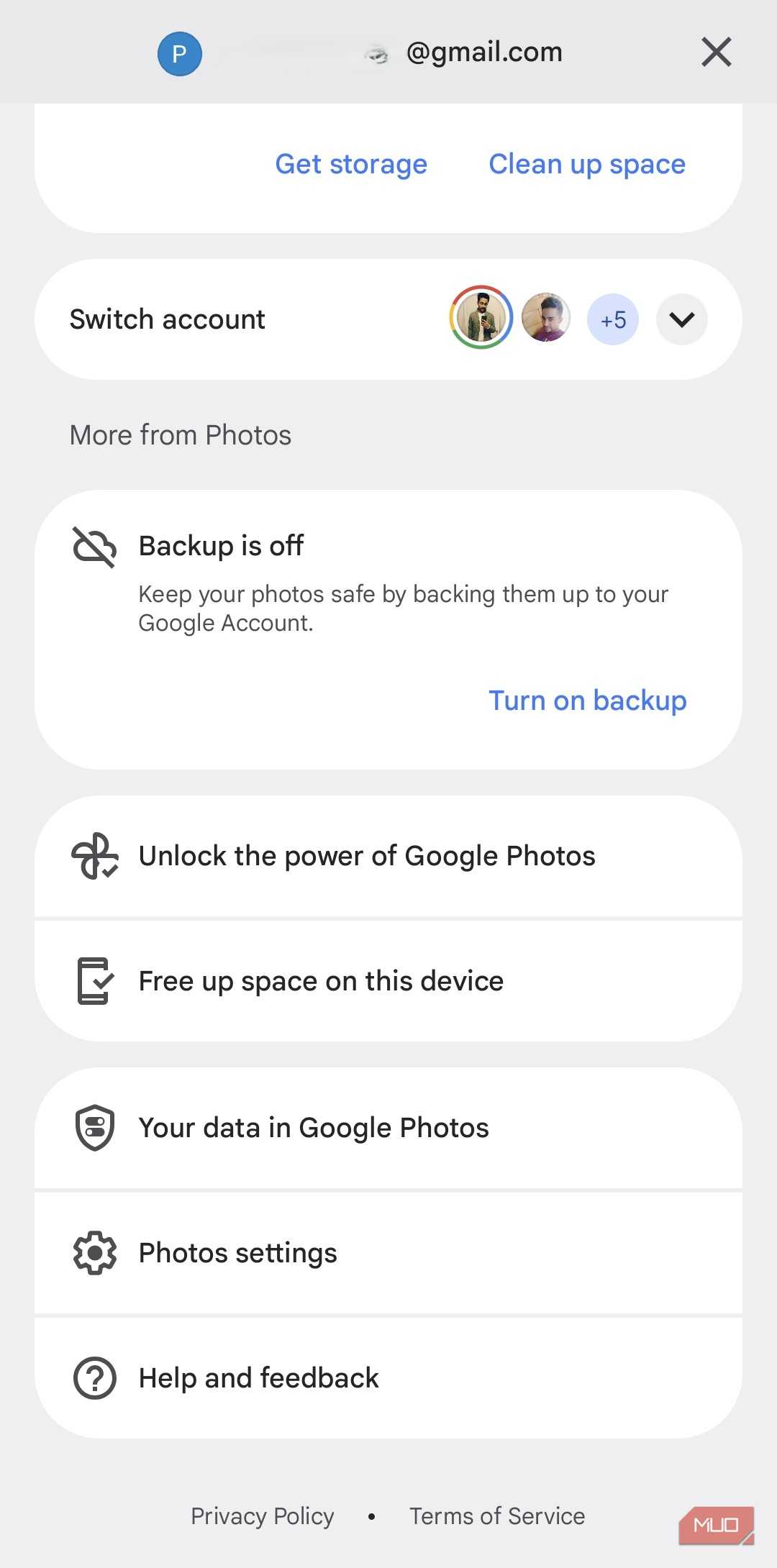
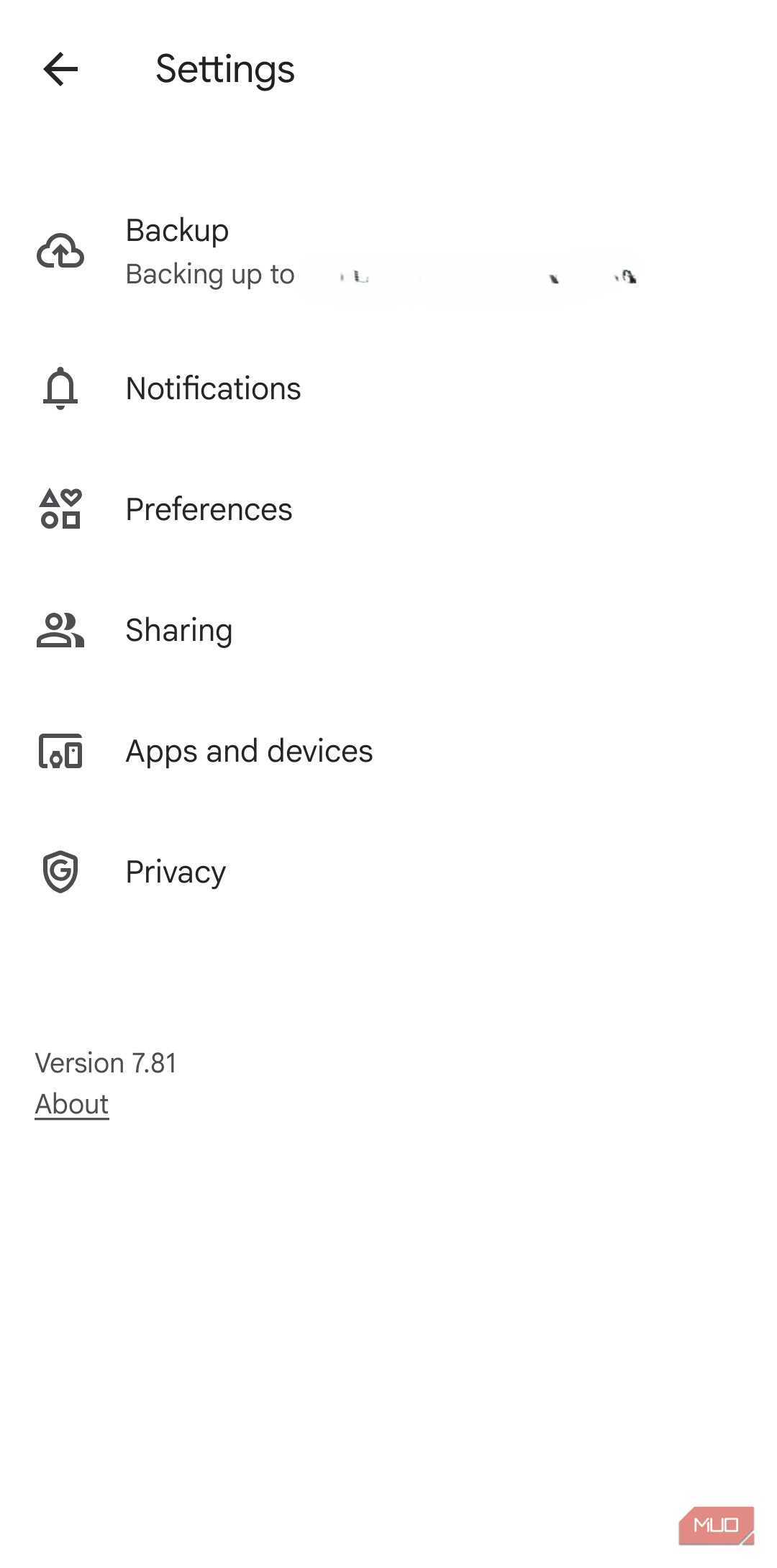
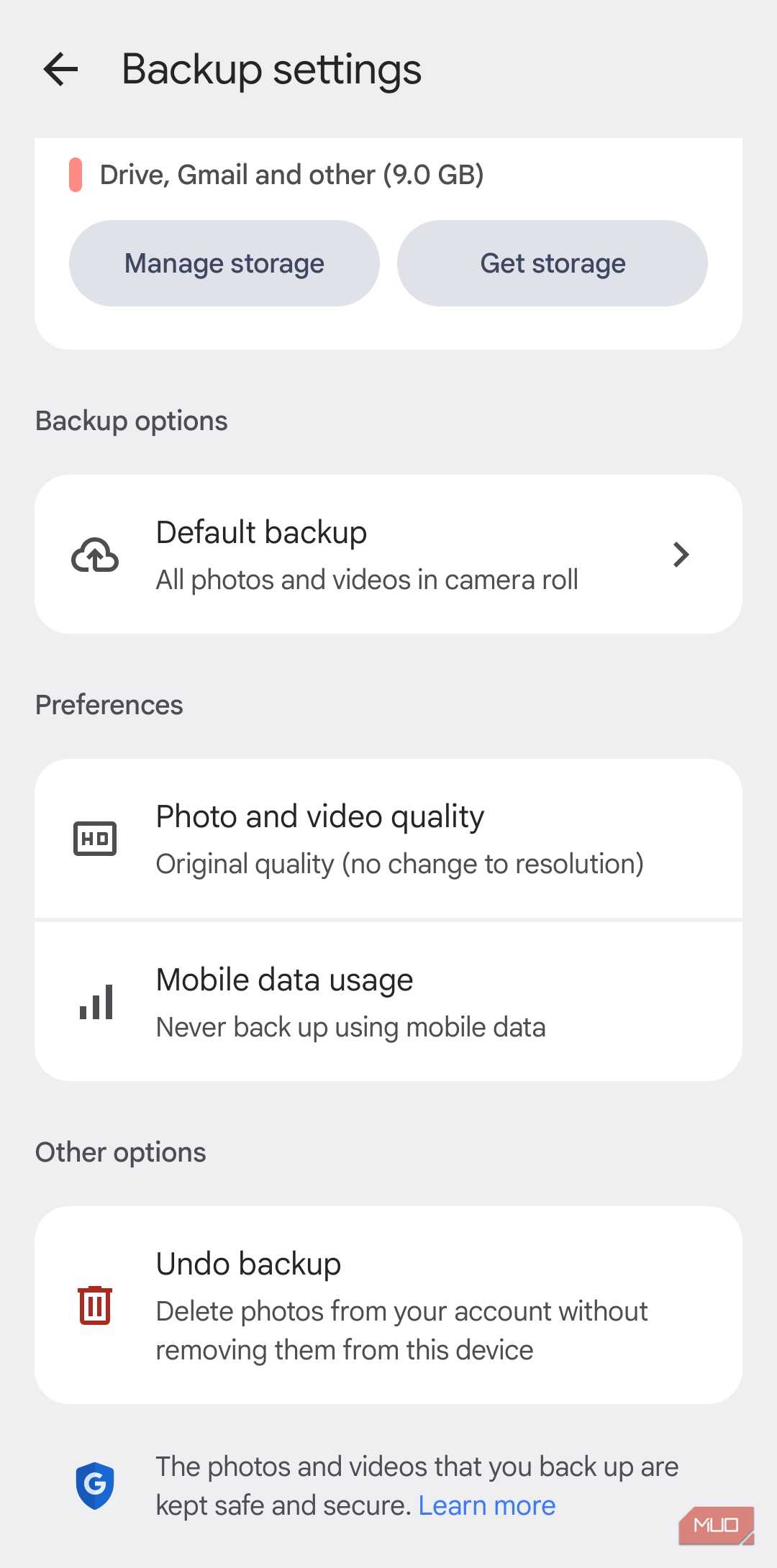
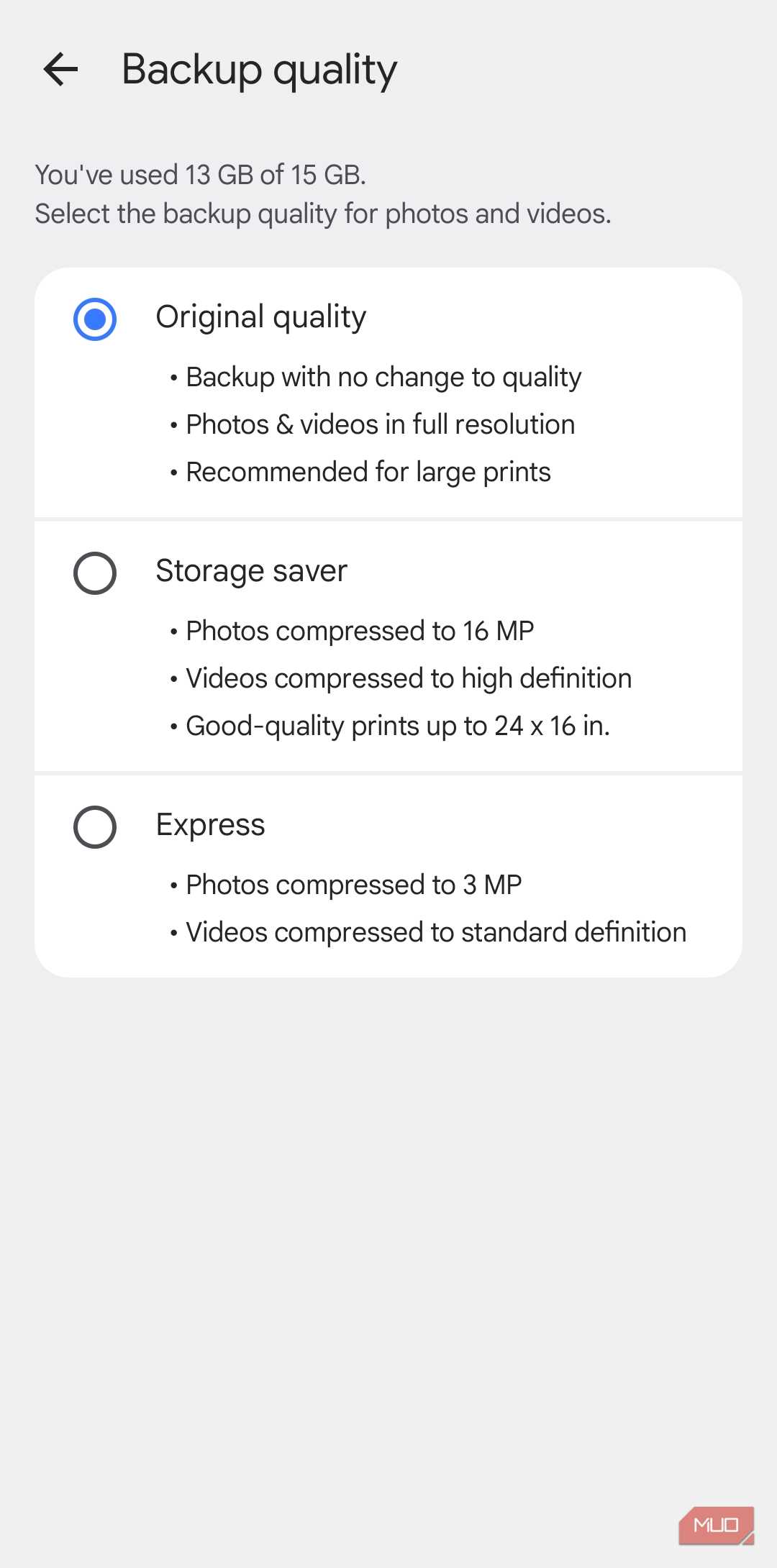

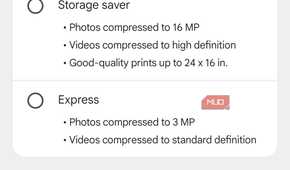
By default, Google Photos backs up every photo and video in the original quality, which is understandable — most people don’t want to lose any detail. But there’s an option called Backup quality, which can dramatically reduce how much storage your photos and videos use. I don’t blame you for not knowing about this because it’s buried deep in the settings. It’s also not something Google pushes you to try, even when you’re getting storage warnings left and right.
There are two options here: Storage saver and Express. Storage saver compresses photos down to 16MP and caps video at 1080p. For me, that’s a non-issue, because 16MP still captures plenty of detail. In fact, Google even mentions that a 16MP photo can be printed nicely at sizes up to 24 inches x 16 inches. And if a photo is already smaller than that, it isn’t compressed any further, although Google Photos may convert it to a space-saving format like JPG.
The Express option is much more aggressive. It squishes photos down to 3MP and videos to 480p. That’s a tough sell for most people, but if you’re trying to stretch free storage as far as it’ll go, it’s there.
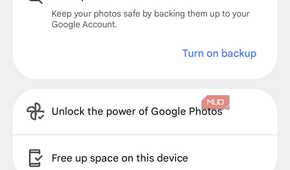
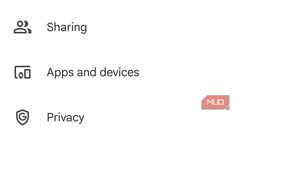
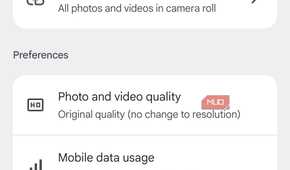
I went with Storage saver, and it was an easy call. My photos still look great, my videos are also watchable, and I’m no longer burning through storage like it’s nothing. To do this, tap the profile icon in Google Photos and choose Photos Settings > Backup > Photo and video quality and choose Storage saver or Express.
My important photos still stay in original quality, just not on the cloud
Full resolution where it matters, compressed where it doesn’t

Switching to Storage saver stopped my photos and videos from eating through my cloud storage like crazy. But of course, there are still photos and videos I want to keep in full resolution. After all, what's the point of buying an expensive phone if the memories that matter end up stored at a lower quality?
Here’s the best part. Choosing the Storage saver quality doesn’t mean I’m compromising on my favorite shots. Every photo and video I take still lives on my phone in original quality.
For everything that genuinely matters to me — like family moments, travel shots, anything I’d be upset about losing — I periodically back it up to my external hard drive. It takes maybe fifteen minutes every few weeks, but I think it’s worth it for the money I’m saving on cloud storage.
Of course, this isn’t the most elegant solution in the world. I’d love for Google Photos to use AI to automatically choose the backup quality based on how important a photo actually is. But until that happens, or until I find a better alternative, this is the routine I’m sticking with.

SAMSUNG SSD T7
- Storage Capacity
- 1TB
- Compatible Devices
- PC, Mac
- Dimensions
- 3.3 x 2.2 x 0.3 inches
- Brand
- SAMSUNG
Google Photos is quite flexible about this
What I like the most about this setting is that you can even use it for photos and videos you’ve already backed up. This isn’t possible via the mobile app, though. You need to open Google Photos on a PC or Mac and head to Settings > Manage storage > Convert existing photos and videos to Storage saver.