


Most people connect to public Wi-Fi without thinking twice about what they're handing over in the process. You're not logged into anything sensitive, the site shows a padlock, and that feels like enough. However, you are not as safe as you think you are, especially on a default DNS. Luckily, there is a way to be safer without much effort.
Your DNS requests are an open book on public networks
The coffee shop router you're using knows every site you visit, and anyone else on it could find out

When you connect to public Wi-Fi at a coffee shop, airport, or hotel, your device quietly adopts whatever Domain Name System (DNS) settings the router is running. DNS is basically the Internet's address book. You type in a website name, and DNS translates it into the numerical address your device uses to connect.
The problem is that, by default, those lookups are sent completely unencrypted. Anyone else on the network can see exactly which domains you're trying to reach, even if the sites themselves use HTTPS. That same lack of encryption also makes you a sitting duck for man-in-the-middle attacks.
Someone on the same network can intercept your DNS requests and silently redirect you to a fake version of a legitimate site. This could be a convincing login page designed to steal your password, or a site that tries to push malware onto your device. These pages look legitimate if you don't know what to look for. Using a public router's default DNS broadcasts your browsing activity to everyone sharing that connection, which means trusting a system you know nothing about to send you where you want to go.
You should manually change your DNS settings to use an encrypted protocol. It can be DNS over HTTPS (DoH) or DNS over TLS (DoT). Make sure it is through a provider you actually trust. DoH wraps your lookups inside ordinary HTTPS traffic on port 443, making them look identical to regular web browsing and very hard for anyone to single out or block.
DoT works the same way over a dedicated encrypted port. Either way, once you point your device to a provider like Cloudflare or Google, your queries are encrypted from your device to the resolver.
In other words, other people on the network can no longer see what you're looking up, and there's nothing left to harvest, which is what you want.
How to switch to encrypted DNS on any device
You don't need an app or a subscription, just a minute to change a setting


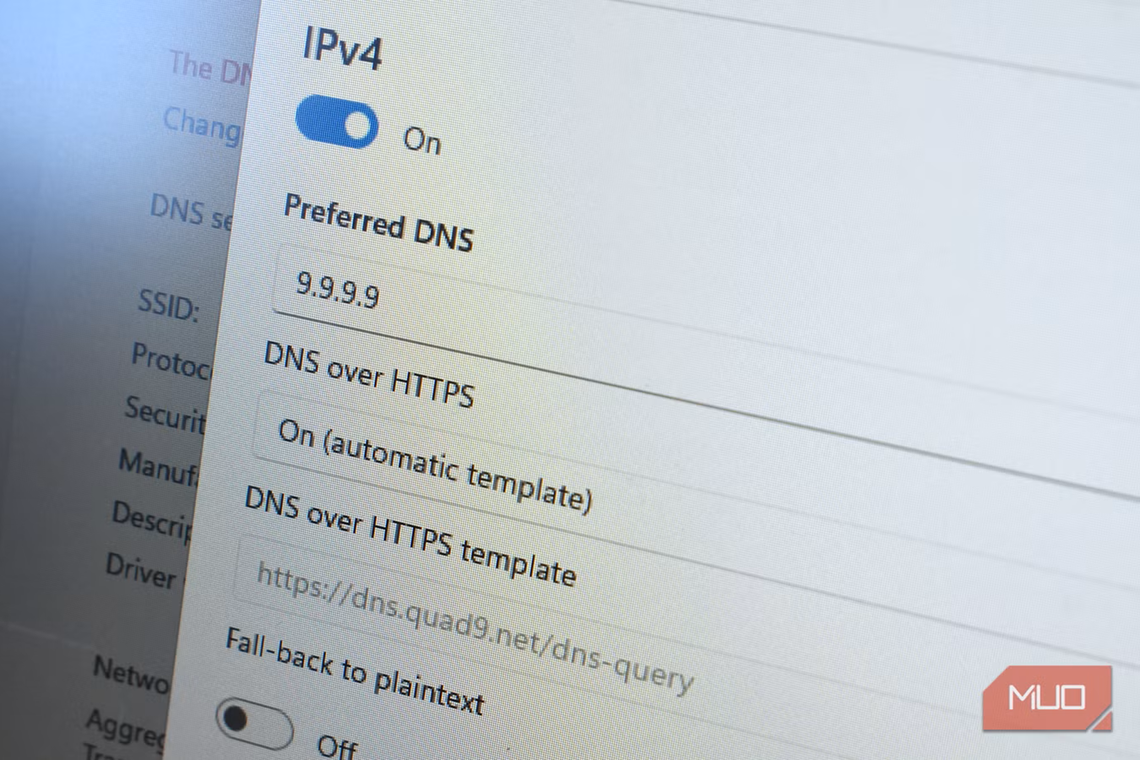


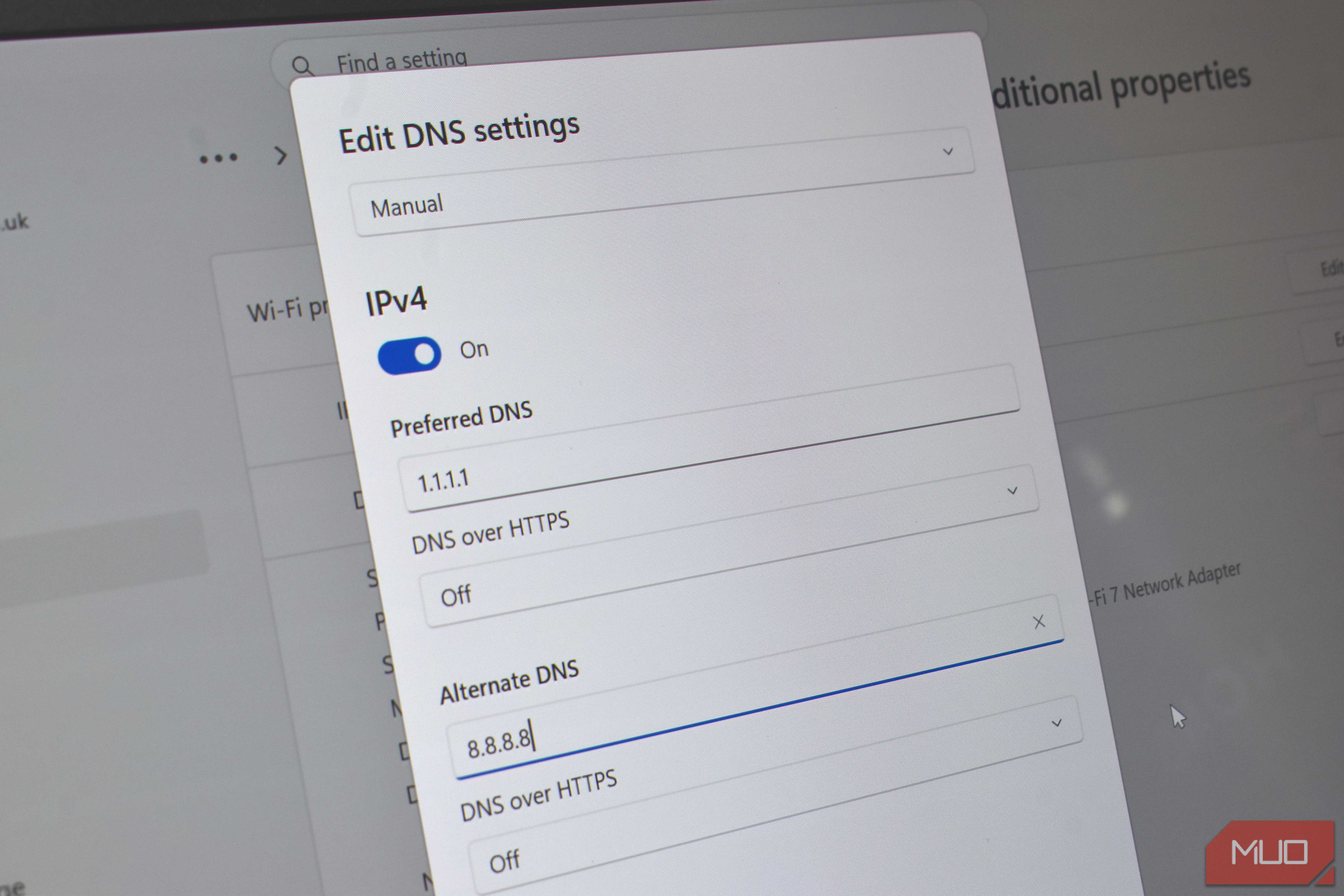
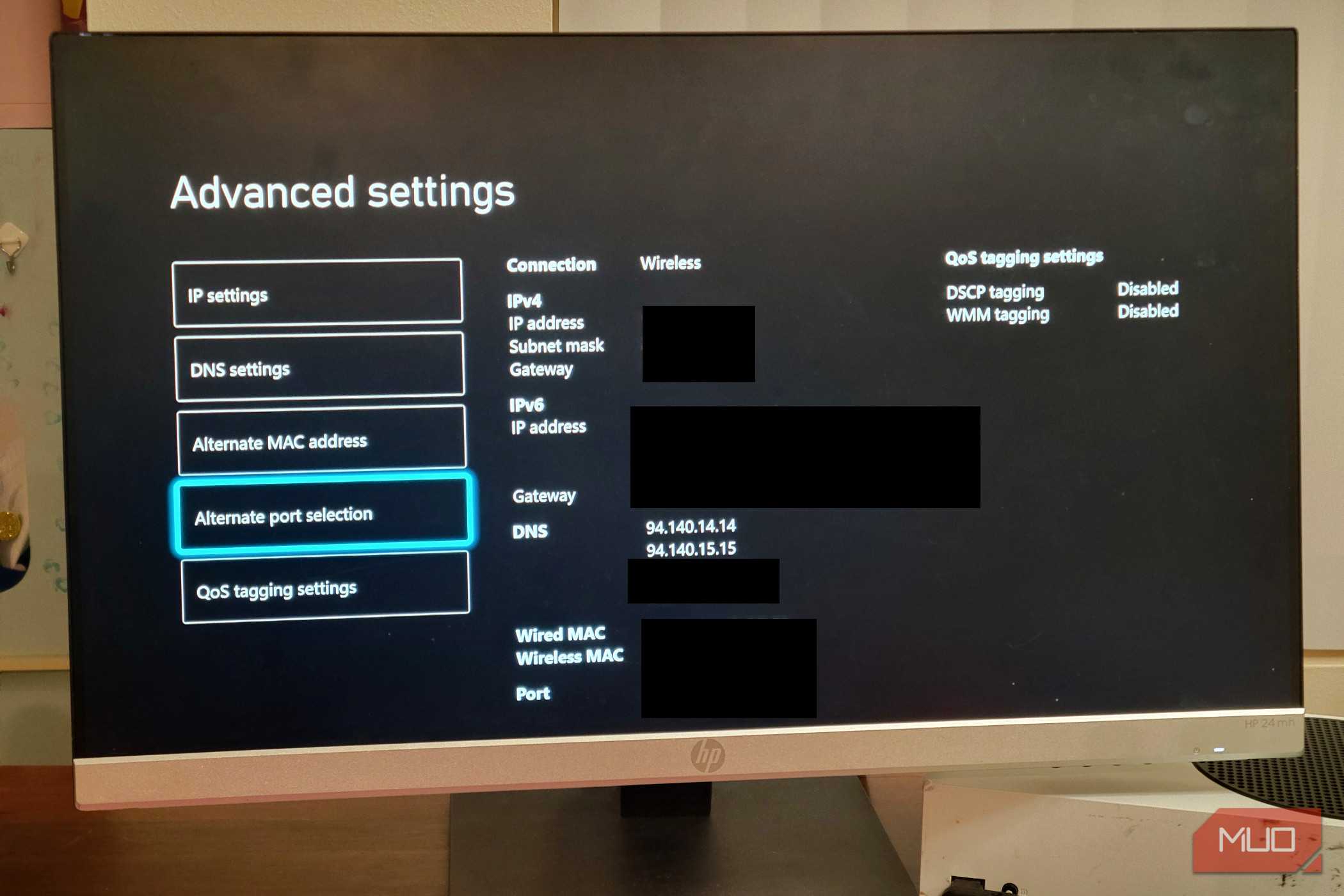
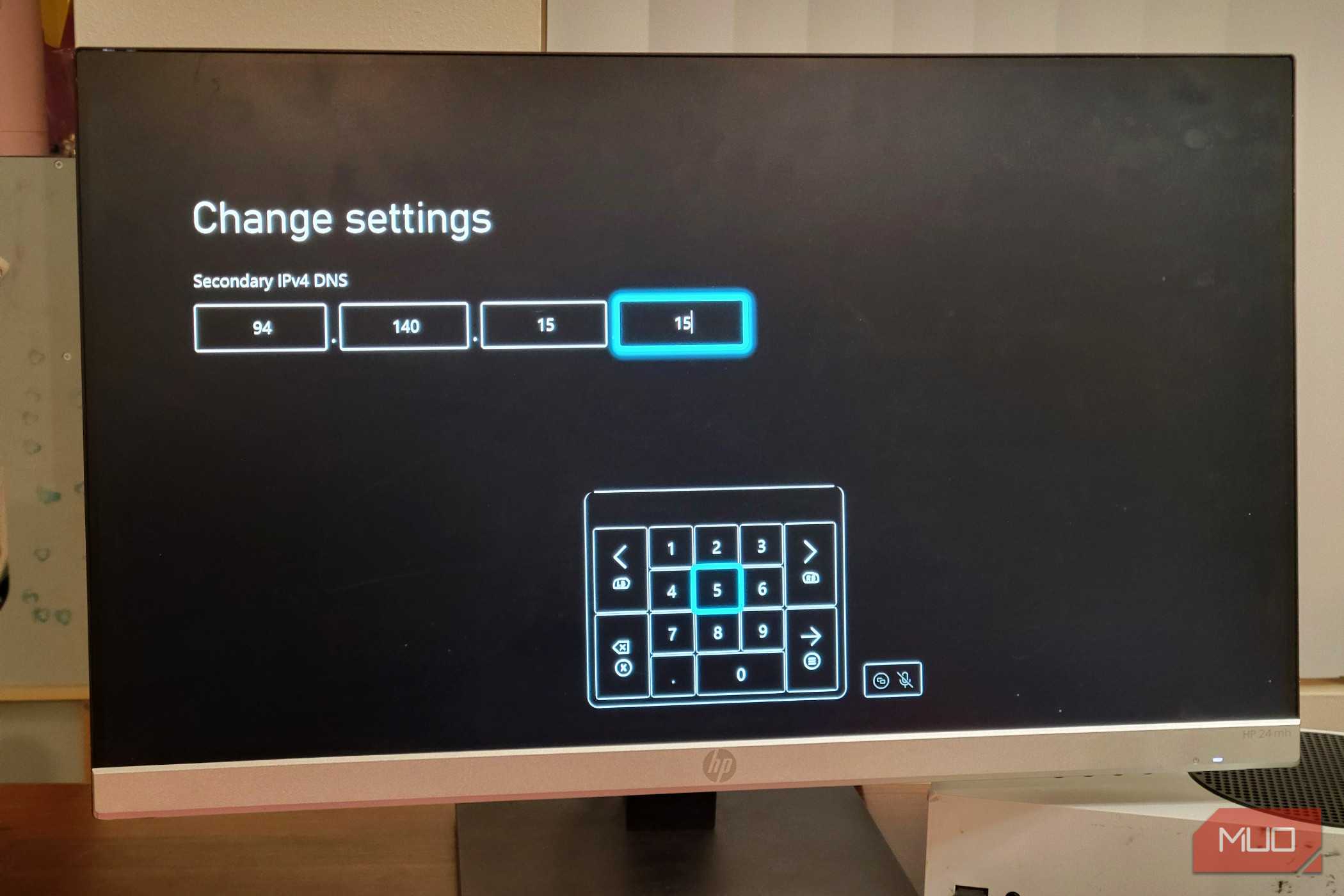
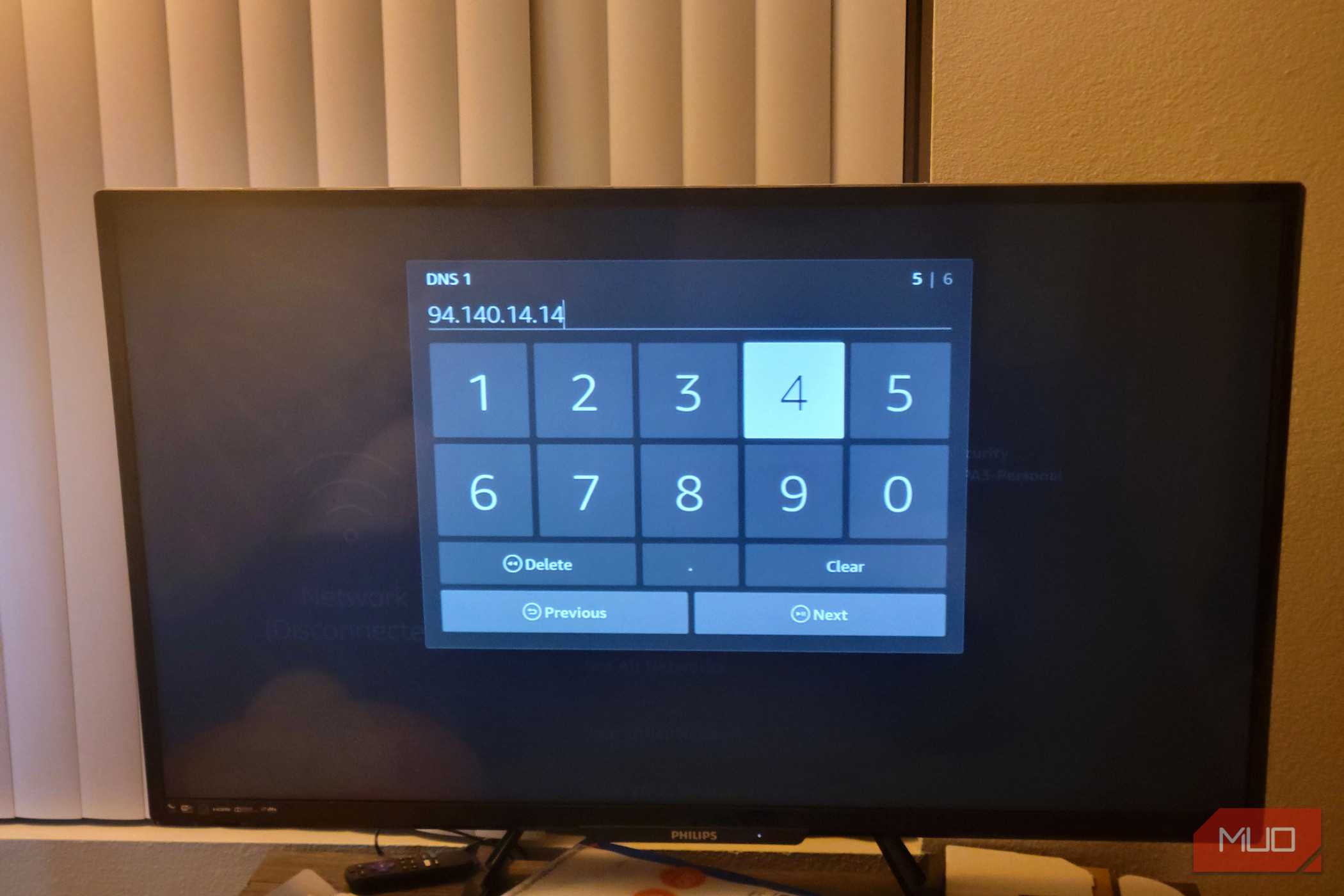
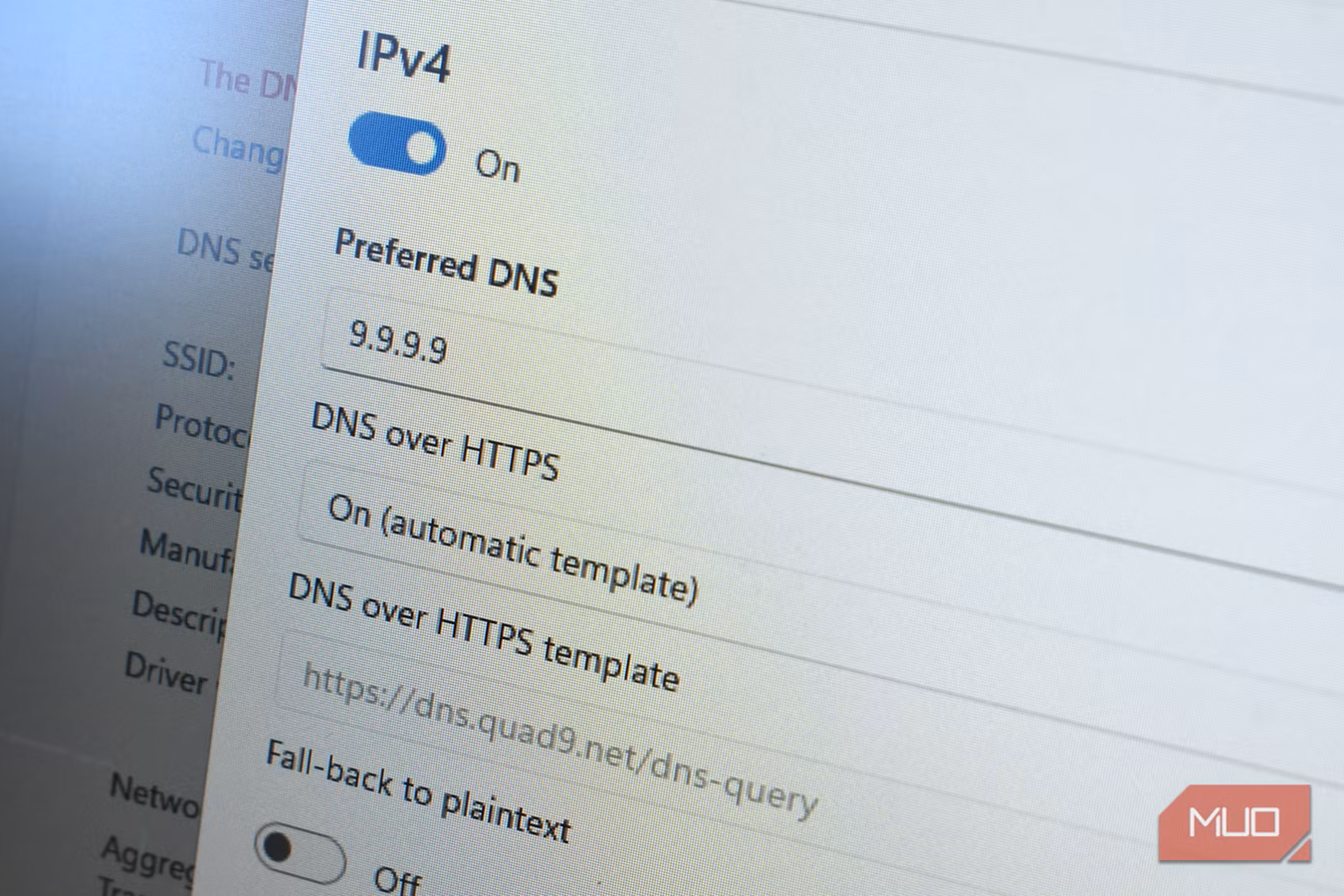

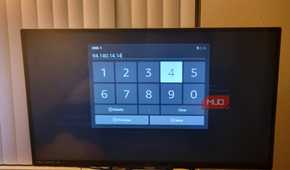
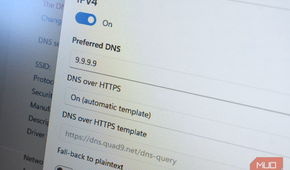
Securing your internet traffic on public Wi-Fi is simpler than it sounds, and you can do it across all your devices pretty quickly. Just keep in mind it's better not to access public Wi-Fi at all, but in a pinch, be safe.
On every device, you'll want to set your DNS to 1.1.1.1 and 1.0.0.1 as your alternate DNS servers. There are other DNS settings you can pick, but this one is easy to remember and gets the job done. I used to be afraid of touching this stuff too, but you won't break your PC by doing this, even if you put in the wrong numbers.
If you're on a Mac, go to System Settings (System Preferences on older Macs) and select Network. Pick your active connection, click Details (Advanced on older models), then open the DNS tab. You can enter the numbers (1.1.1.1 and 1.0.0.1), but make sure to click Apply or OK before you leave this menu.
On iPhone or iPad, go to Settings and then Wi-Fi. Then tap the "i" next to your network, scroll to Configure DNS, and switch it from Automatic to Manual. If you'd rather have a permanent fix that covers every network, including cellular, download a configuration profile like NextDNS. Go to Settings on your mobile device, then tap the Profile Downloaded banner under Apple ID. After that, all DNS queries run through an encrypted tunnel automatically on your Apple devices.
Android users arguably have the easiest setup of all. Go to Settings -> Network & Internet -> Advanced -> Private DNS. Instead of entering an IP address, Android wants a hostname. You can type in "one.one.one.one" for Cloudflare or "dns.google" for Google. Tap Save, and every DNS query on your phone is now encrypted.
That's it. No third-party apps, no subscriptions, just a quick settings change that keeps your browsing history away from anyone else on the network.
Encrypted DNS can't protect you from everything
This fix is real, but it's not bulletproof

Switching your DNS to a secure protocol like DoH or DoT is a good way to stay safe, but it's not bulletproof. Encrypted DNS only secures the lookup that converts a website name into the numerical address your device actually connects to. That stops someone on the same network from watching or messing with those initial requests.
Once that lookup is done and your device starts actually talking to a website, encrypted DNS is out of the picture. The security of everything after that depends on other things, mainly HTTPS.
Also, even HTTPS isn't airtight on a public network. When your browser first connects to a secure site, it goes through a TLS handshake and sends a Server Name Indication (SNI) in plain text. That's essentially your browser announcing the site it wants to reach before encryption kicks in. Anyone watching the network can see it.
So even if someone else can't read what you're doing on a site, they can still see which sites you're visiting. There's a newer standard called Encrypted Client Hello (ECH) that would fix this, but it's not widely supported yet.
Secure DNS isn't a substitute for a VPN, and a paid VPN will always win out over a more secure DNS. Even with that, no tool covers everything. The safest habit on any public network is to avoid sensitive information. Don't log in to your bank, use work systems, or anything else where a breach would actually hurt. If you can do that, you're good.
Make the switch today
Switching to encrypted DNS is one of the cheapest wins you can get on a public network, and it usually takes less than a minute. If you want to do more, go ahead and find a good VPN, but the best way to stay safe online is to only access private information on your own Wi-Fi.

TP-Link Tri-Band BE9300 WiFi 7 Router
- Brand
- TP-Link
- Wi-Fi Bands
- 2.4GHz, 5GHz, 6GHz
- Ethernet Ports
- 5
- USB Ports
- 1
- MU-MIMO
- Yes
The TP-Link Tri-Band BE9300 is a powerful WiFi 7 router built for ultra-fast internet. It uses three wireless bands to deliver speeds up to 9.3 Gbps. With advanced technology, it cuts down lag and connects dozens of smart home devices easily. It is perfect for smooth 4K streaming and gaming.