


I drive at night a lot, and for months, I assumed Google Maps on the very useful Android Auto just handled night mode on its own. Technically, it does. The catch is that "on its own" means something different depending on which of three separate settings actually wins the argument. And until recently, the wrong one kept winning for me.
If you have ever plugged into your phone after sunset and found the feature-packed Google Maps still shining at you in full daylight mode, you know the frustration. You are not imagining it. The map is not broken. It is just caught in the middle of a settings conflict that Google has never bothered to make obvious.
Android Auto night mode is not one setting; it is three
Your phone's dark mode schedule
Here is the catch: Android Auto night mode is not a single setting, even on its relatively new UI. It is at least three, and they do not always agree with each other.
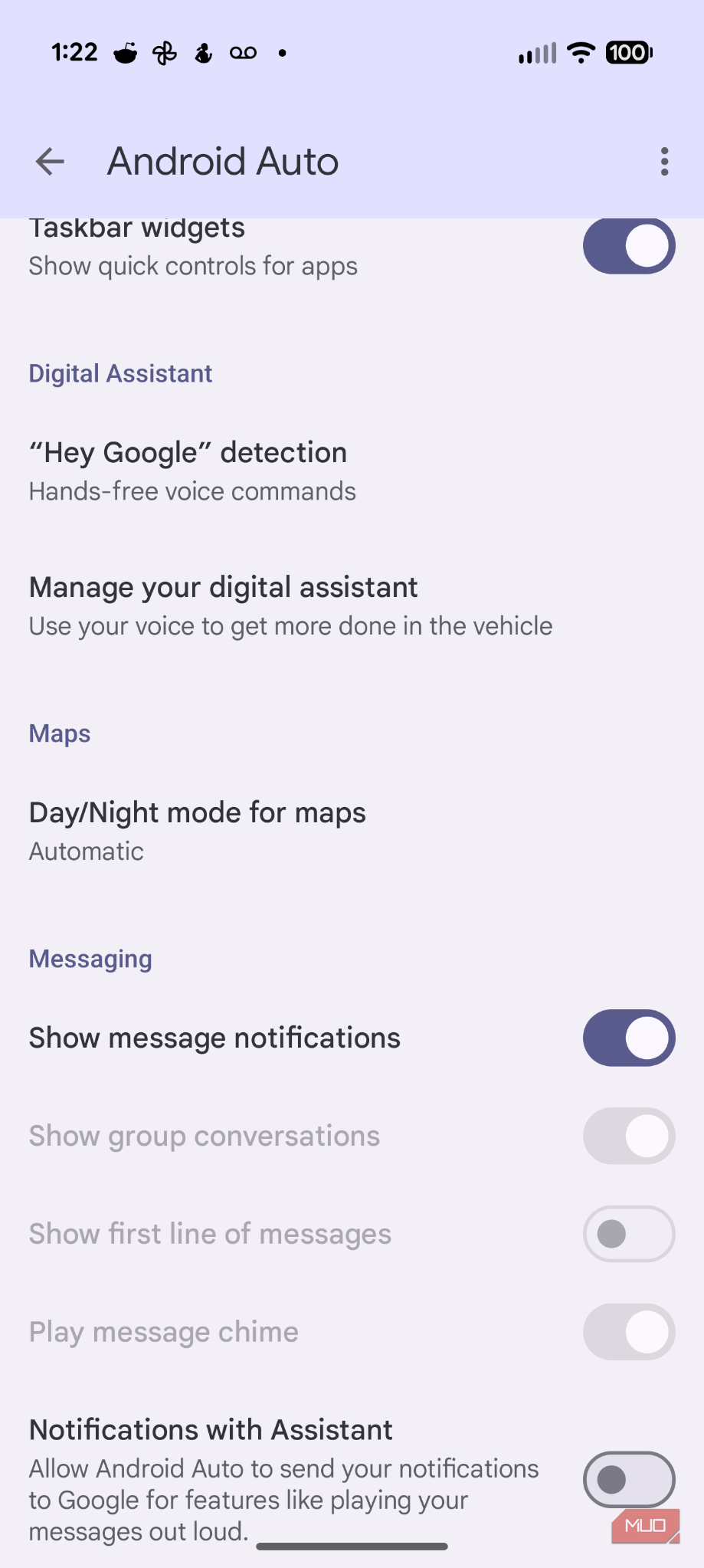
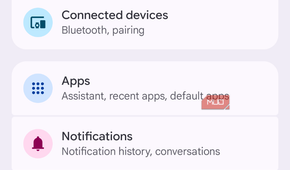
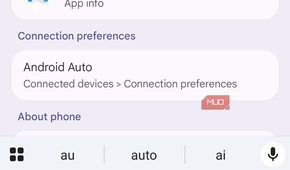
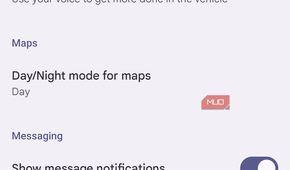
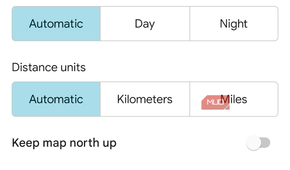
First, there is the display mode inside Android Auto itself. On your phone, open your main Settings menu, search for Android Auto, and open its settings panel. Here, look for Day/Night mode for maps, where you’ll see choices like Day, Night, or Automatic. If you leave it on Day because you set it up during daylight and never went back, you have already found your culprit.
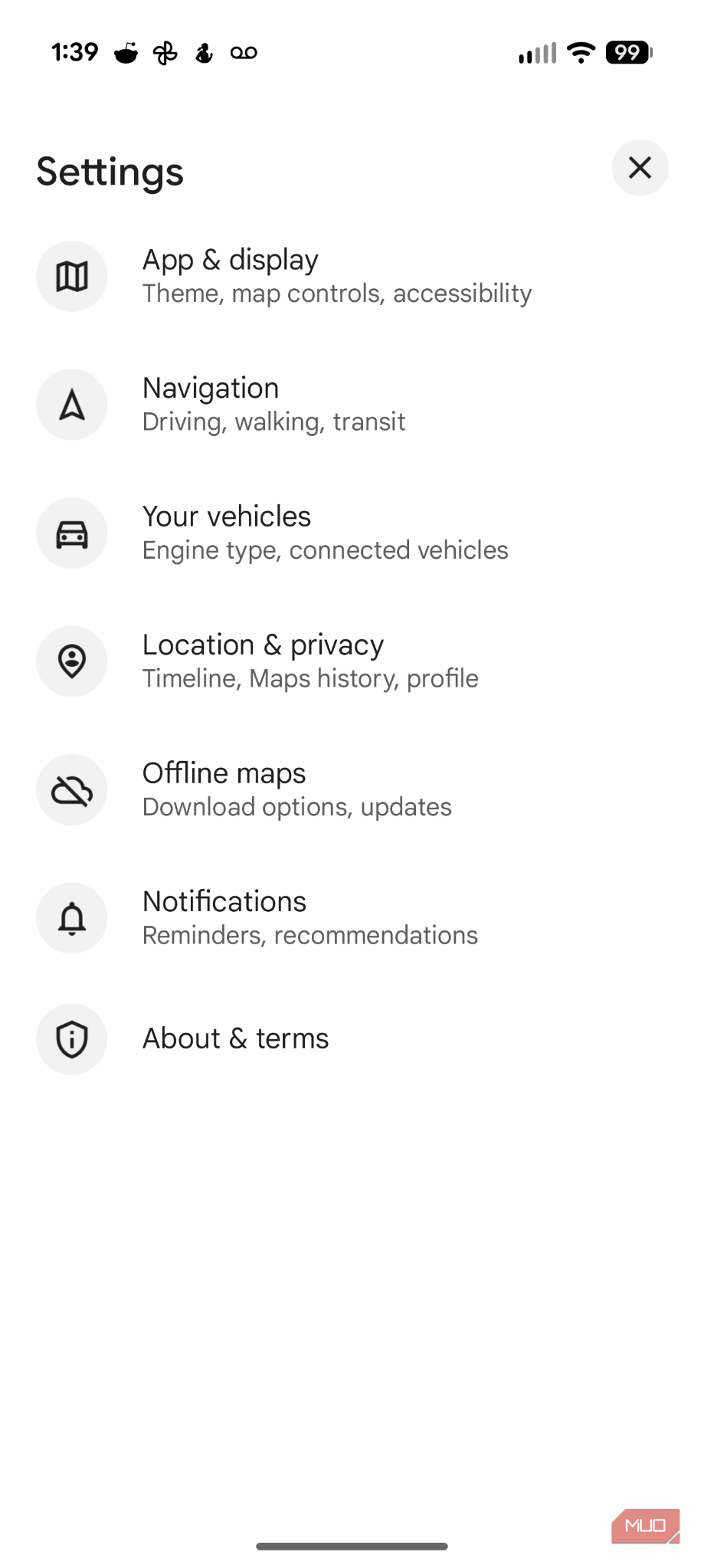
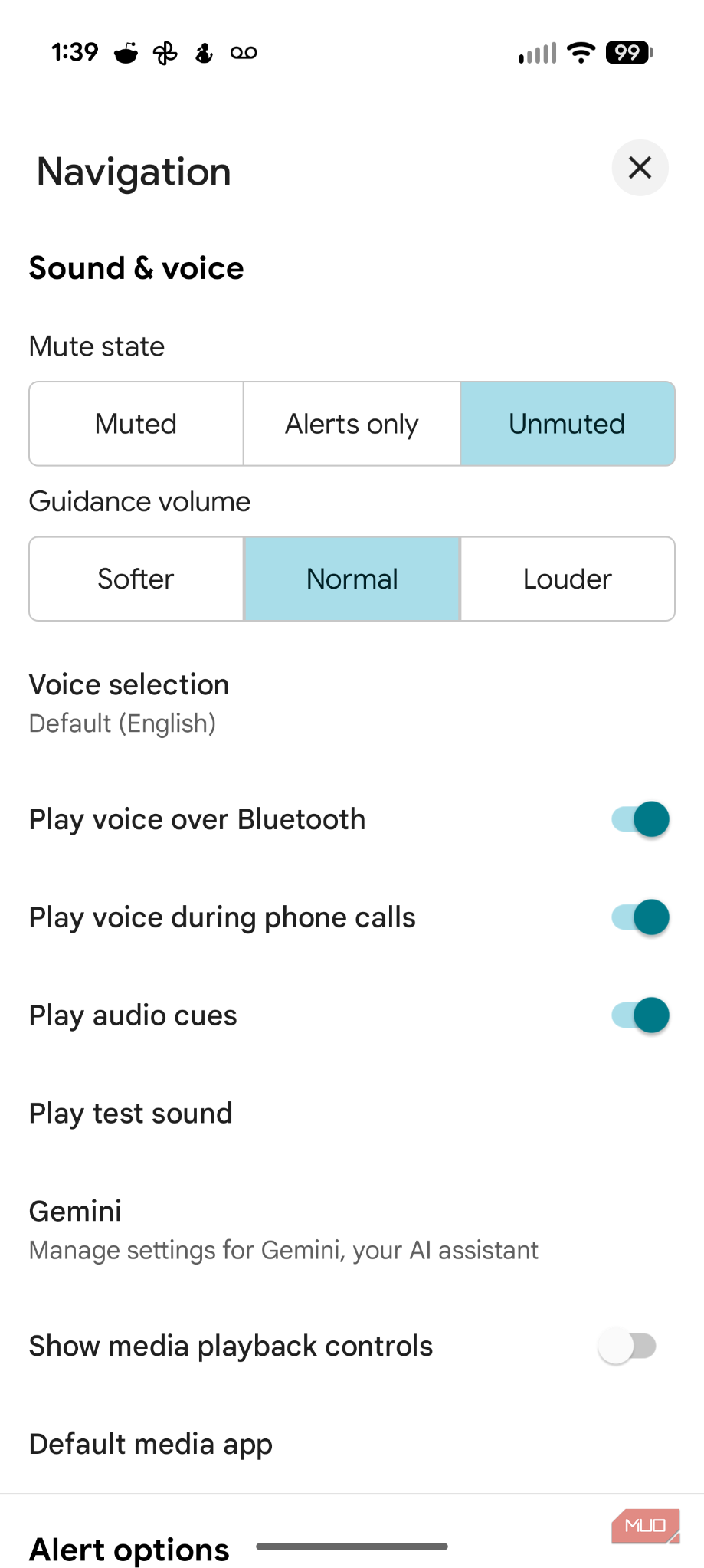
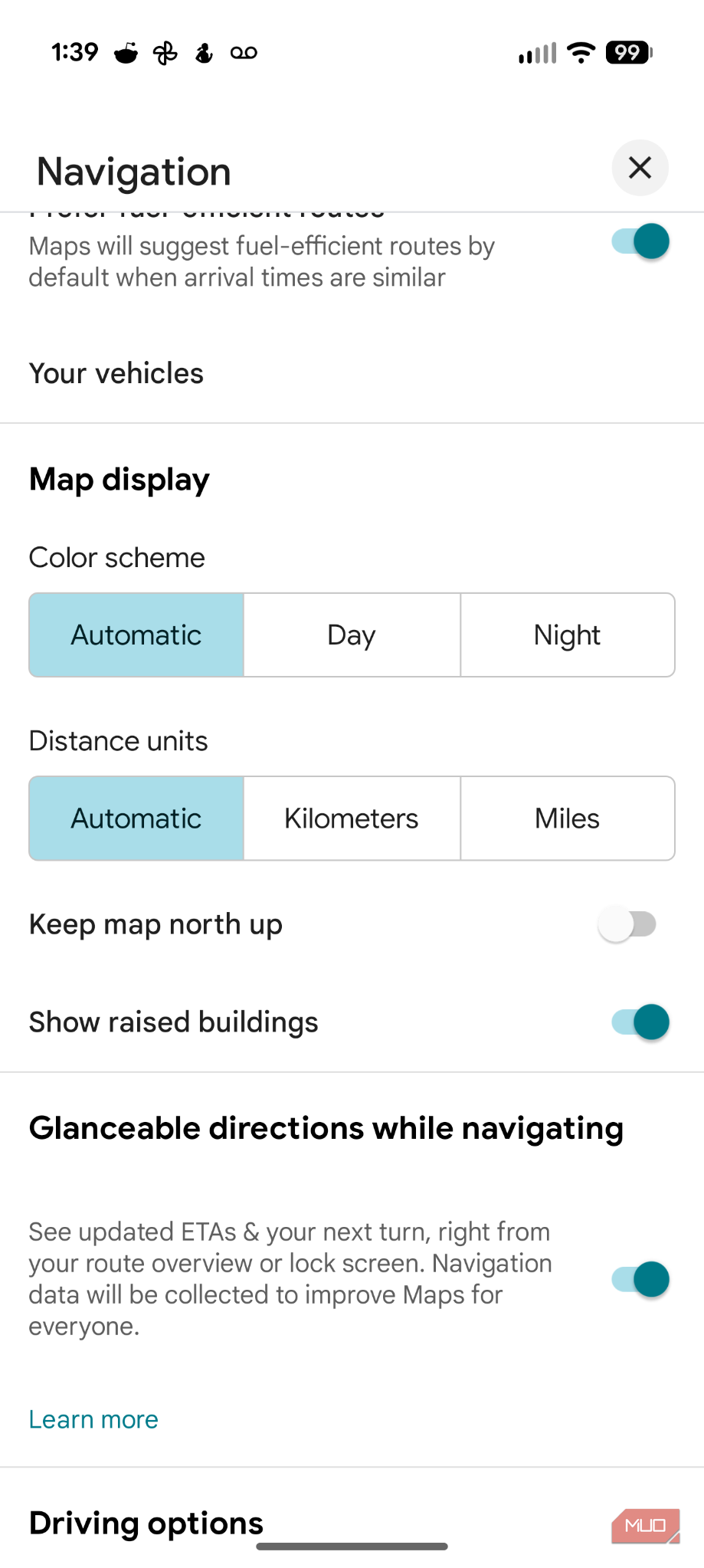
Second, there is Google Maps' own color scheme setting. Inside the Maps app, buried under Settings -> Navigation settings, you will find a Color scheme option with its own Day, Night, and Auto choices. This setting controls how Maps looks on your phone, but it also affects how Android Auto renders the map in certain situations.
Third, there is your phone's system-level dark mode schedule. Android Auto will sometimes reference this when deciding what to display. So even if you think you have the right settings dialed in, your phone's broader display behavior can override them.
The result is a mess of settings in which three different controls are theoretically pointing toward the same outcome, but in practice, they constantly step on each other. It is one of those situations where having options creates more confusion than having none at all.
How to fix Android Auto night mode for good
Set Android Auto to follow your phone's dark mode schedule


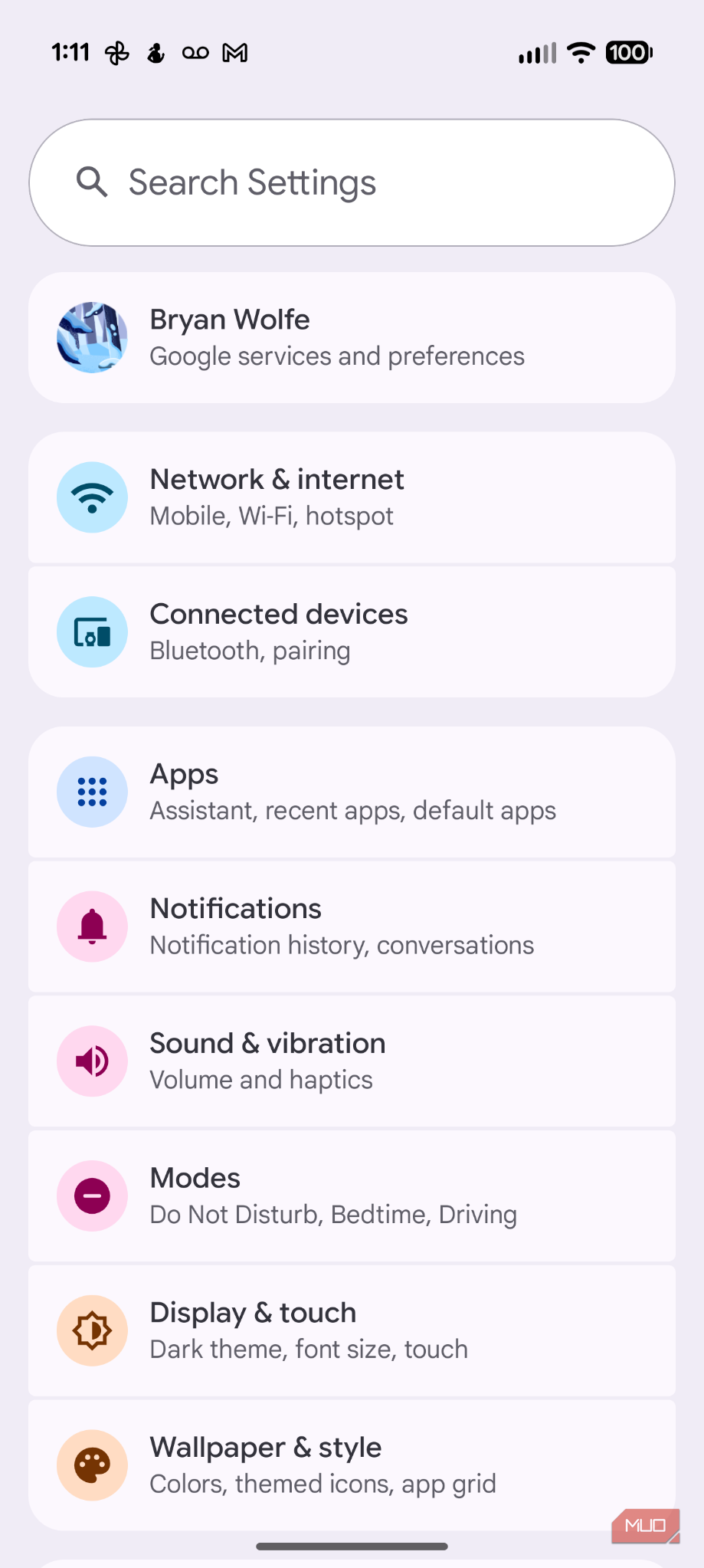
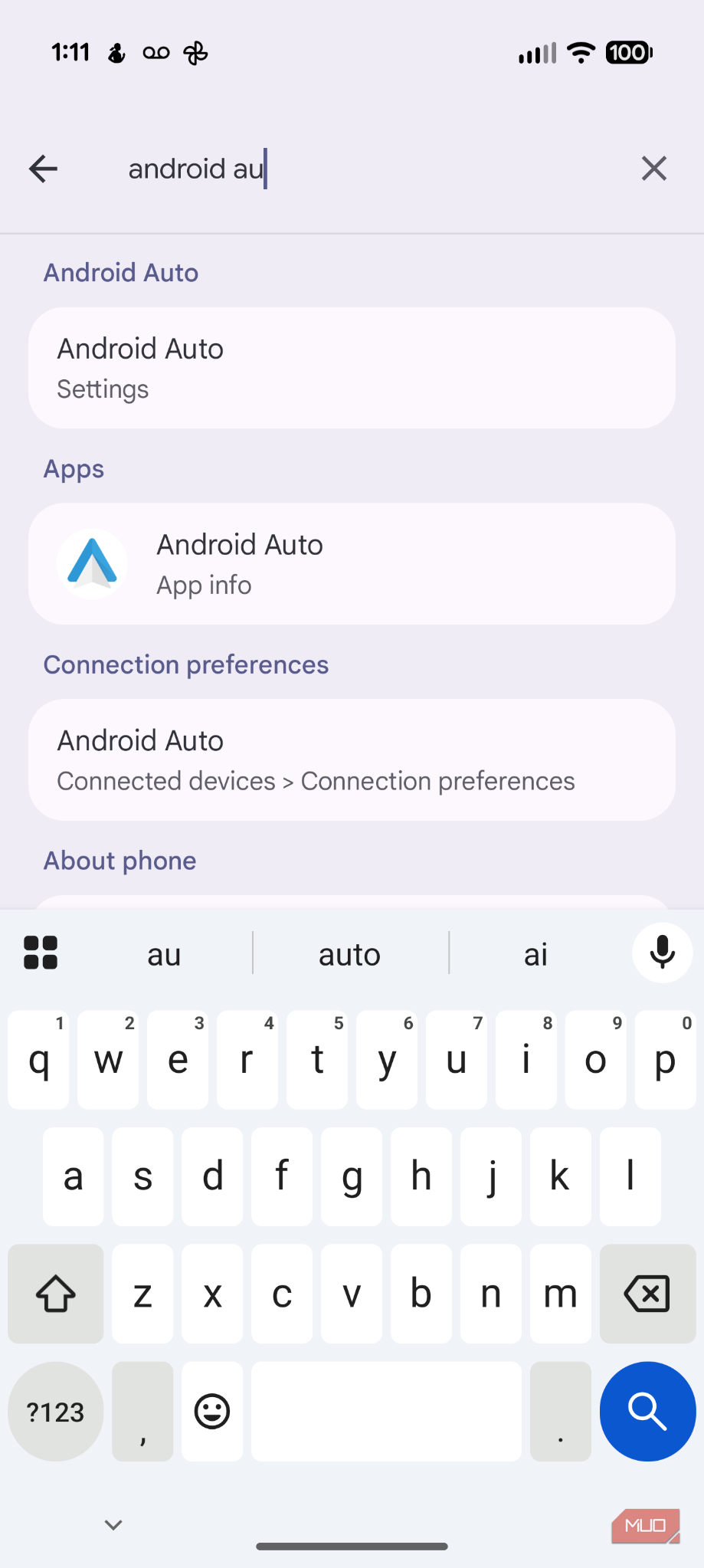
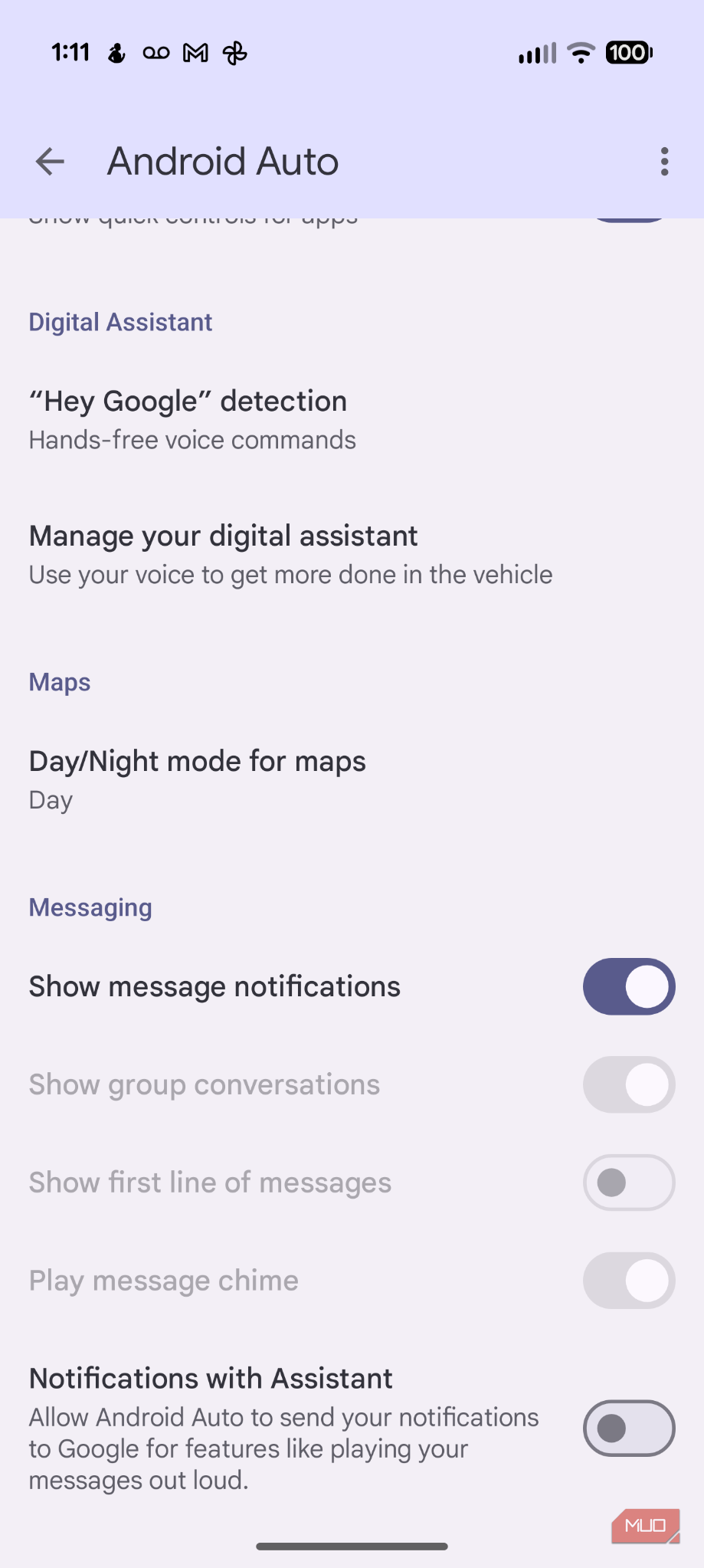
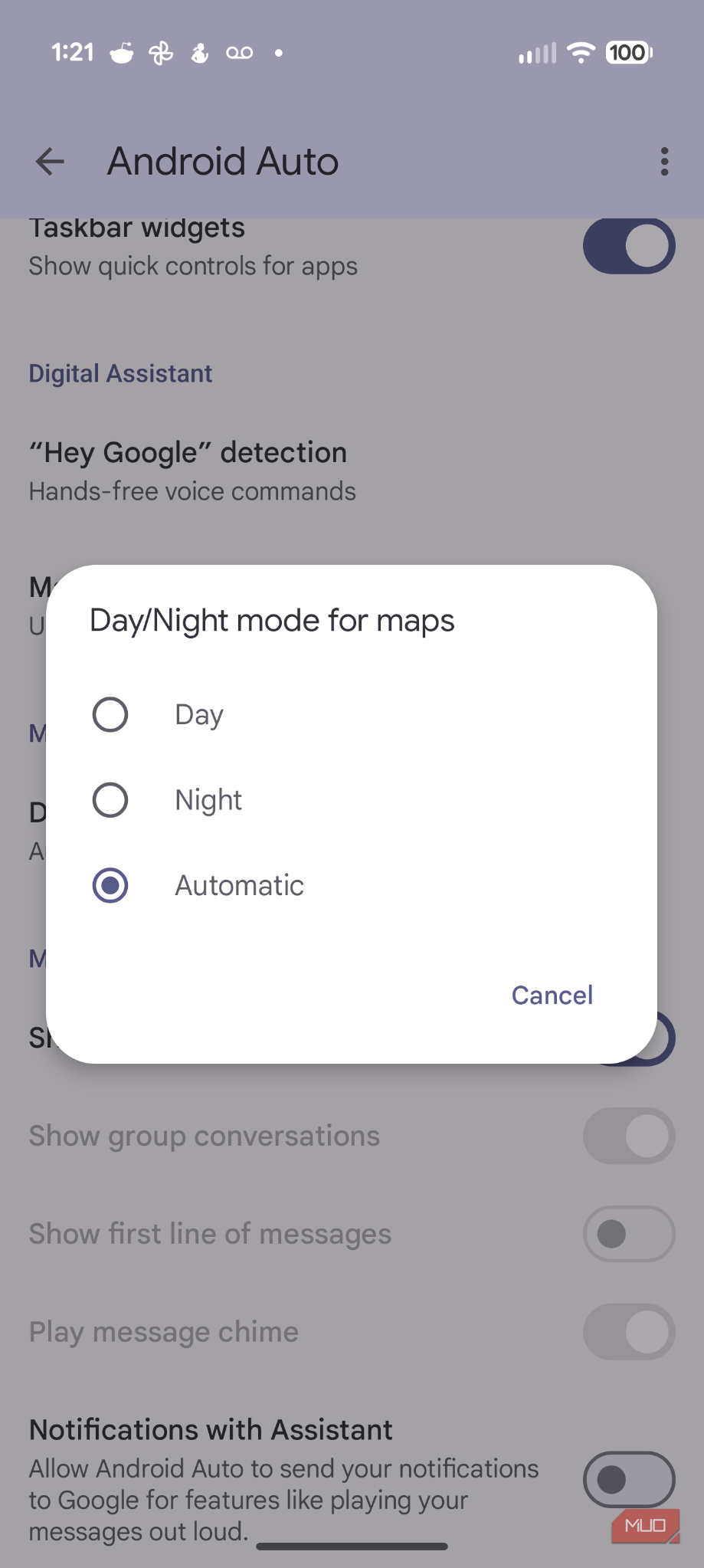
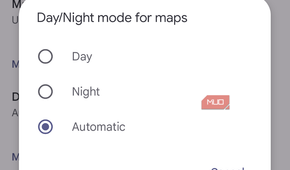
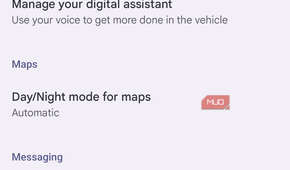
After some digging, the fix for me came down to Android Auto's own display mode. I had it set to Auto, which sounds like the right choice, and in theory it is. Auto is supposed to switch between day and night based on the time, your location, and ambient light conditions. In practice, it was inconsistent enough that I was regularly arriving at night destinations still staring at a white map.
The real fix was switching Android Auto's display mode to a schedule-based approach and enabling Force Dark as a fallback.
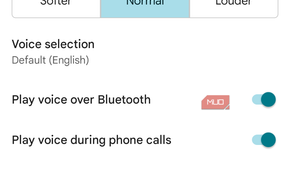
Here is the play: Open Settings on your phone, then search for Android Auto. On the Android Auto menu, choose Day/Night mode for maps. In the pop-up, you will find the Day, Night, or Automatic mode option. Set this to Auto if it is not already there, but the key additional step is to make sure your phone's system dark mode schedule is configured with a time range. Android Auto's Auto mode borrows this schedule, so if your phone's dark mode is set to "Sunrise to Sunset" or a specific time window you defined, Android Auto will follow it reliably rather than guessing on ambient sensors that may not respond quickly enough in a moving vehicle.
You'll find this in the Settings app under Display & touch -> Dark Theme. On the next page, make sure Turns on from sunset to sunrise is set under the Schedule.
Next, open Google Maps on your phone, choose Settings, then Navigation, and make sure Color scheme is set to Auto. This ensures Maps is not independently fighting the Android Auto display decision.
If you want a more aggressive fix, some Android phones also offer a Force Dark option inside Developer Options. Enabling it forces dark rendering across apps system-wide, so even when Android Auto’s auto-detection lags behind, everything defaults to a dark look. This isn't a perfect fix, and it can occasionally create visual quirks in apps that have their own dark mode implementation, but for drivers who primarily care about not being blinded at 10 PM, it gets the job done.
Which Android Auto night mode setting is right for you
If your phone already has a dark mode schedule


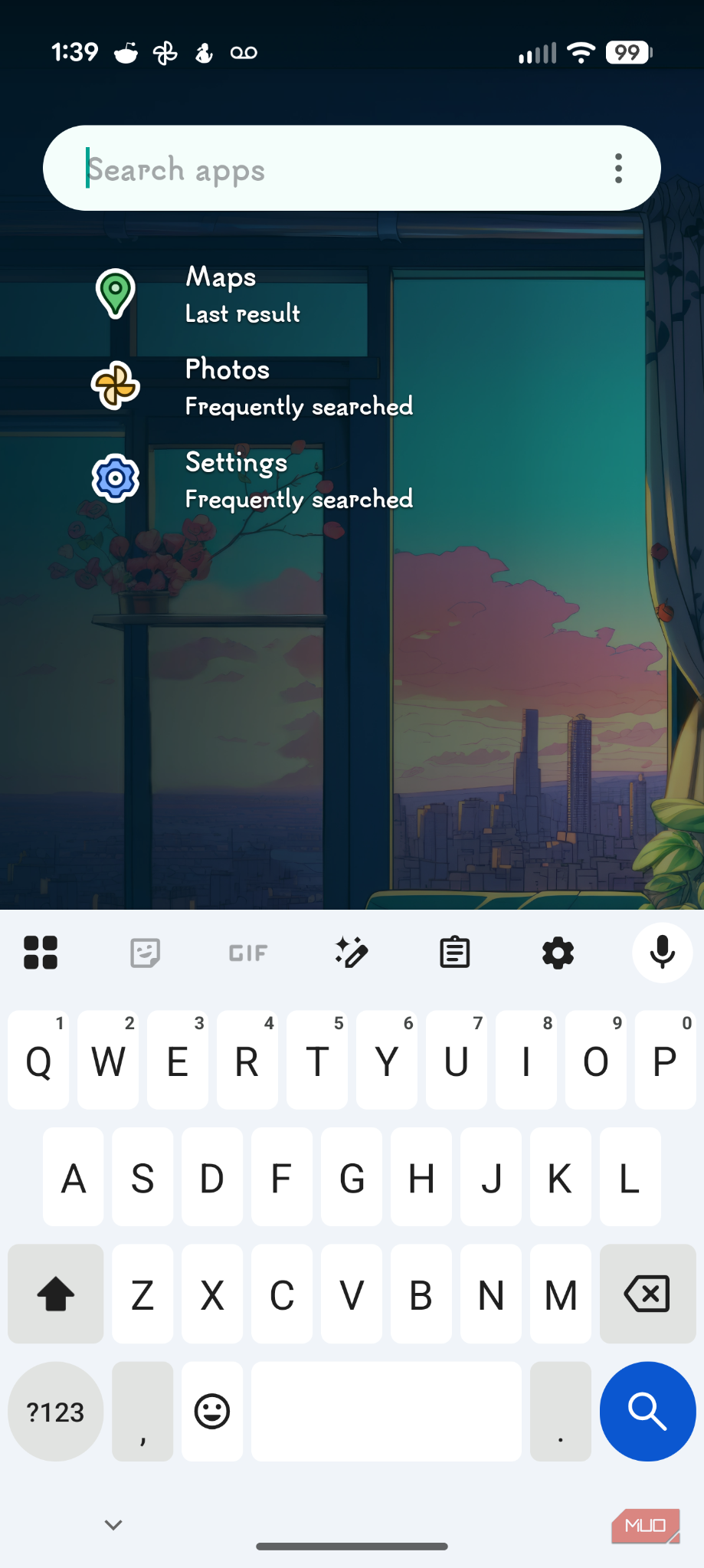
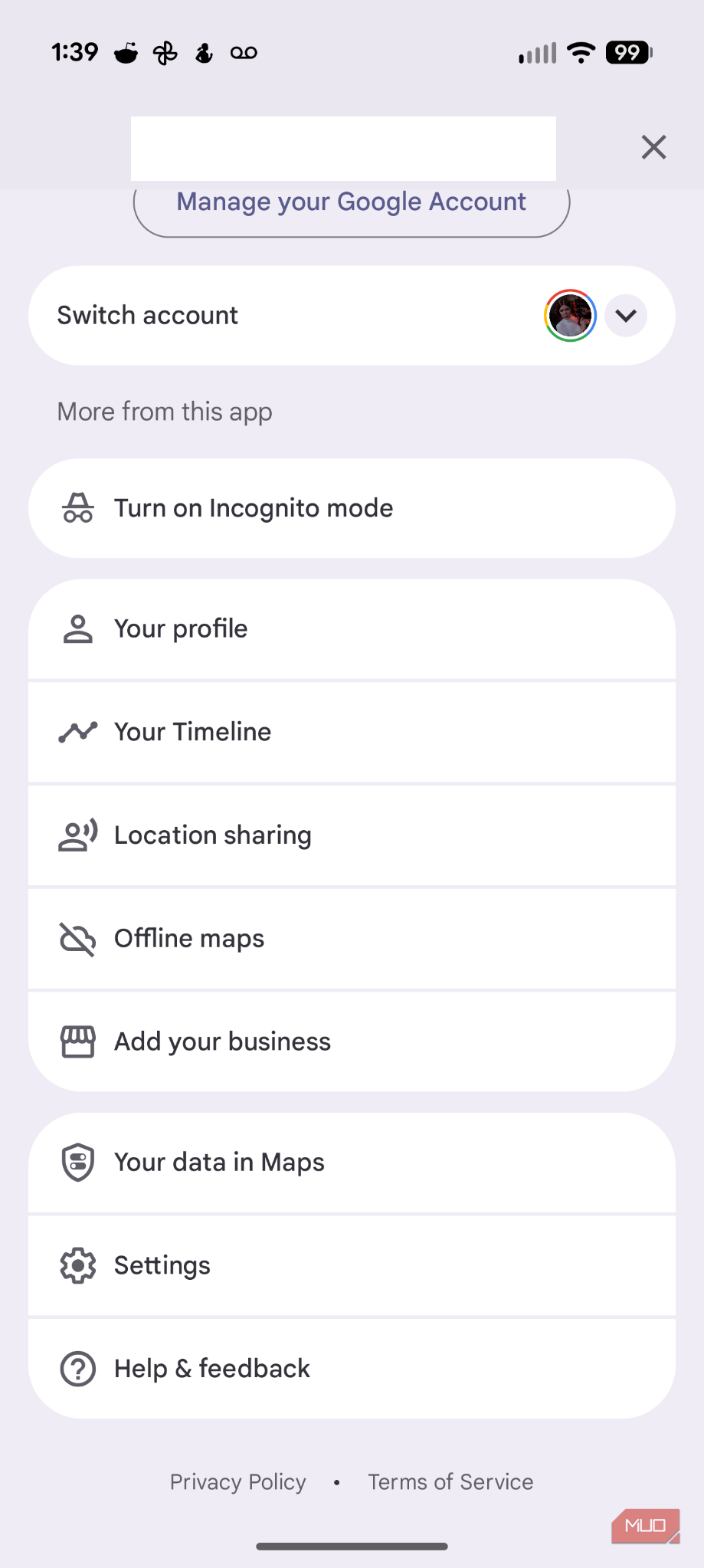
If your phone's system dark mode schedule is already configured with a time range, start there. Set Android Auto to Auto, set Google Maps Color scheme to Auto, and test it over a few nights. That combination works reliably for most people once the schedule is actually in place.
If your phone does not have a dark mode schedule set, or you want a belt-and-suspenders approach, combining a manual schedule with Force Dark gives you the most consistent results, especially on longer drives that cross the day-to-night threshold.
The bottom line is simple
Google has put too many hands on the same wheel here. Night mode on Android Auto should be a single toggle in a single place. Instead, it's a constant conflict between the Android Auto app, Google Maps, and your phone's system settings, with no clear sign of which one really wins out. Until Google makes this simpler, knowing the full picture is the only way to actually get it working the way you expected it to all along.

- OS
- Android
- Price model
- Free
Android Auto is an Android-only app that mirrors your phone onto your car's infotainment display with a simplified, driving-optimised interface. Supports Google Maps, Waze, music and podcast apps, hands-free calls, messaging, and Google Assistant voice control. Requires a compatible vehicle and Android 8.0 or later.