


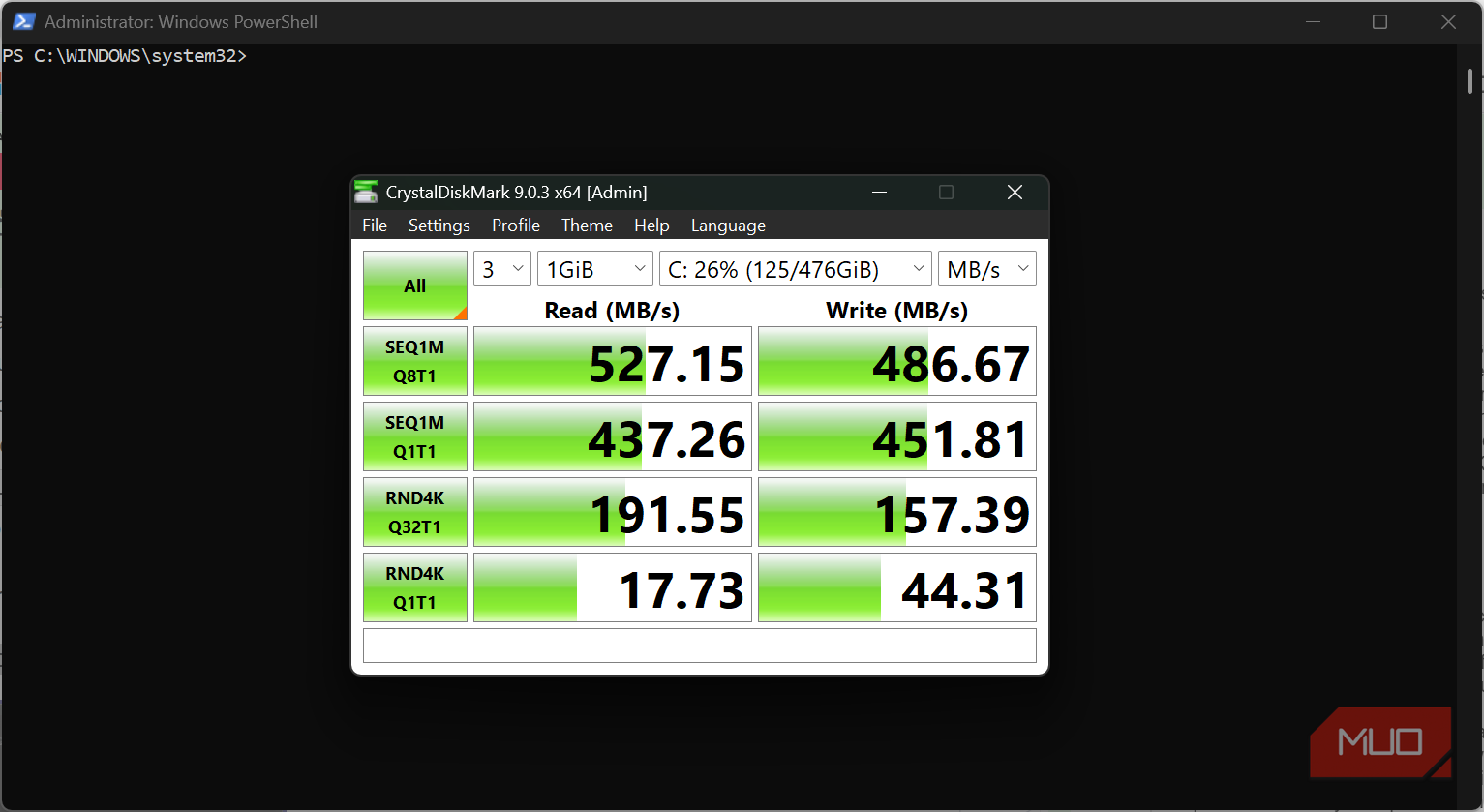
I always run a benchmark after installing a new SSD. Glancing through the numbers often gives reassurance that all is fine. However, this habit caught up with me. Using a handful of Windows commands revealed things about my SSD that even CrystalDiskMark never surfaced. I could finally see the drive's reliability and a setting that might have been harming it. That momentary snapshot of raw throughput is just one part of the story, and I now check it differently.
Windows had a second opinion on my SSD
Get-PhysicalDisk showed me something a benchmark never could

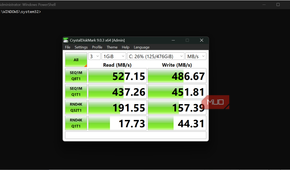
I've run CrystalDiskMark on this SSD many times, and it has always shown good read and write speeds. However, simply out of curiosity, I opened PowerShell and ran this command:
Get-PhysicalDisk
Among the results were three interesting fields: HealthStatus, OperationalStatus, and MediaType. They piqued my interest because they never appeared on a benchmark chart. These values reflect what Windows Storage considers the drive's current health and operational status. It's a separate health assessment from what manufacturer utilities typically report; it isn't a measure of how quickly the drive may move data.
I also queried the drive's wear level and power-on hours using: Get-PhysicalDisk | Get-StorageReliabilityCounter. You can't always rely on Get-StorageReliabilityCounter — support depends on the drive, controller, and driver. Your specific SSD may not return any useful information here.
Sometimes the filesystem is the real problem
CHKDSK detects corruption that SSD health checks miss


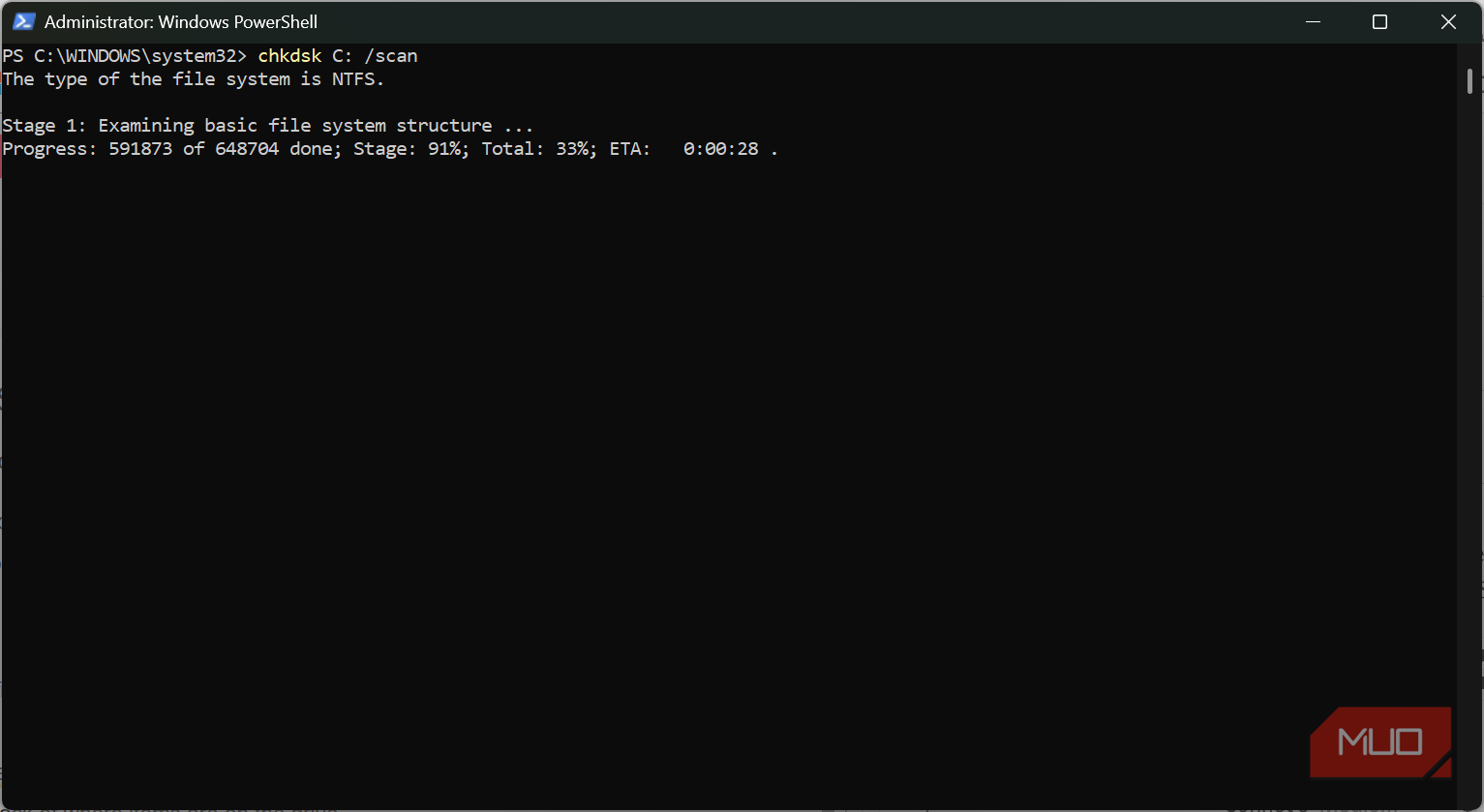
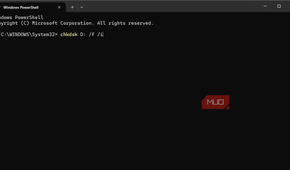
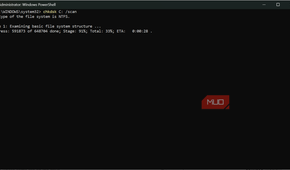
Even though the first command showed the drive was healthy, this still doesn't explain why a certain folder may not open. Running the command below fixed that.
chkdsk C: /scan
It scanned the filesystem without making changes and reported errors. CHKDSK on an SSD focuses primarily on filesystem integrity (the NTFS filesystem itself) instead of physical surface checks associated with hard drives. This includes the file records, indexes, and security descriptors that keep track of where items are on the drive.
|
Symptom |
What it usually means |
Can CHKDSK catch it? |
|---|---|---|
|
Folder won't open |
Index corruption |
Yes |
|
Random file goes missing |
Orphaned file record |
Yes |
|
Drive runs slow overall |
Hardware wear |
No |
|
System won't boot |
Boot sector damage |
Sometimes |
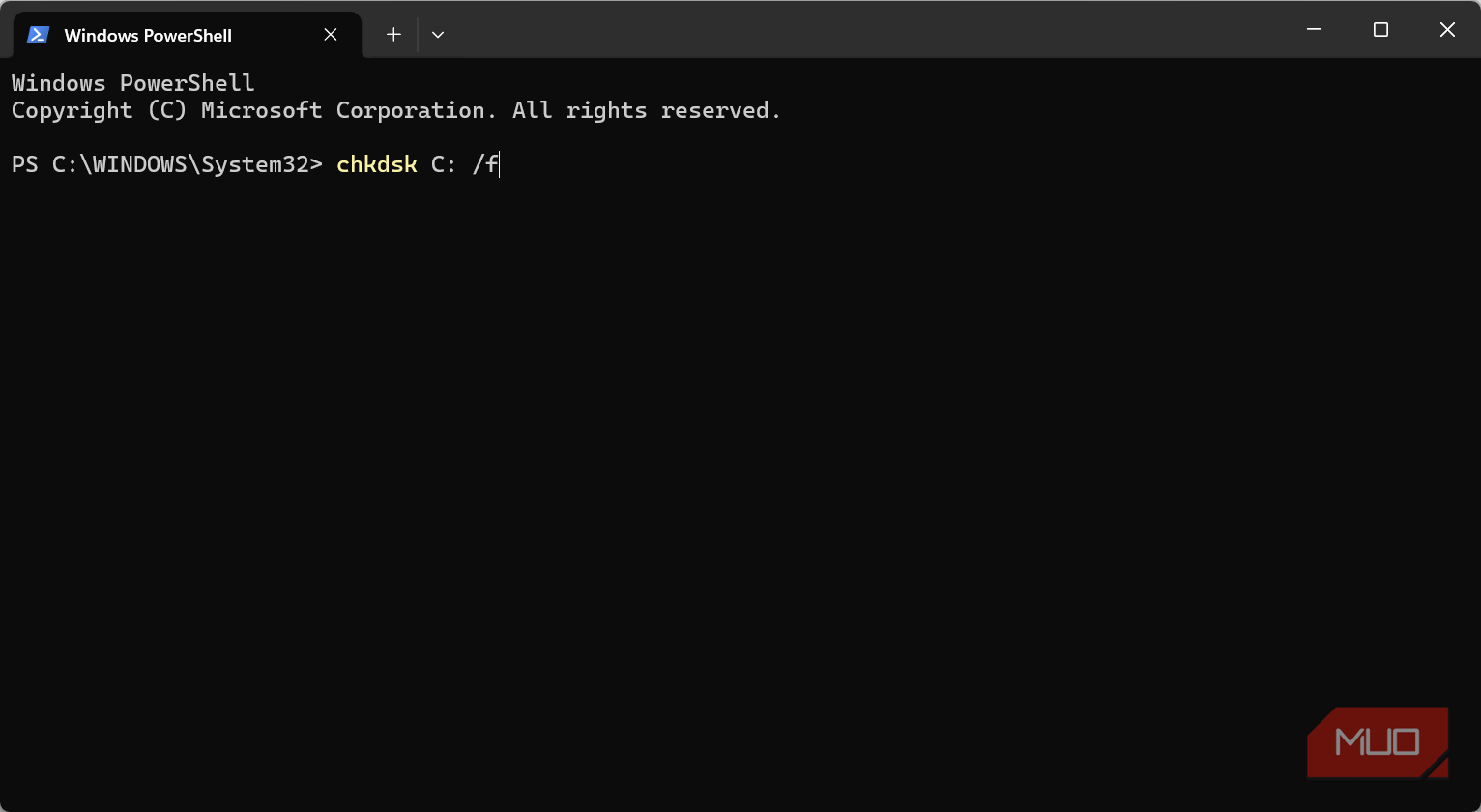
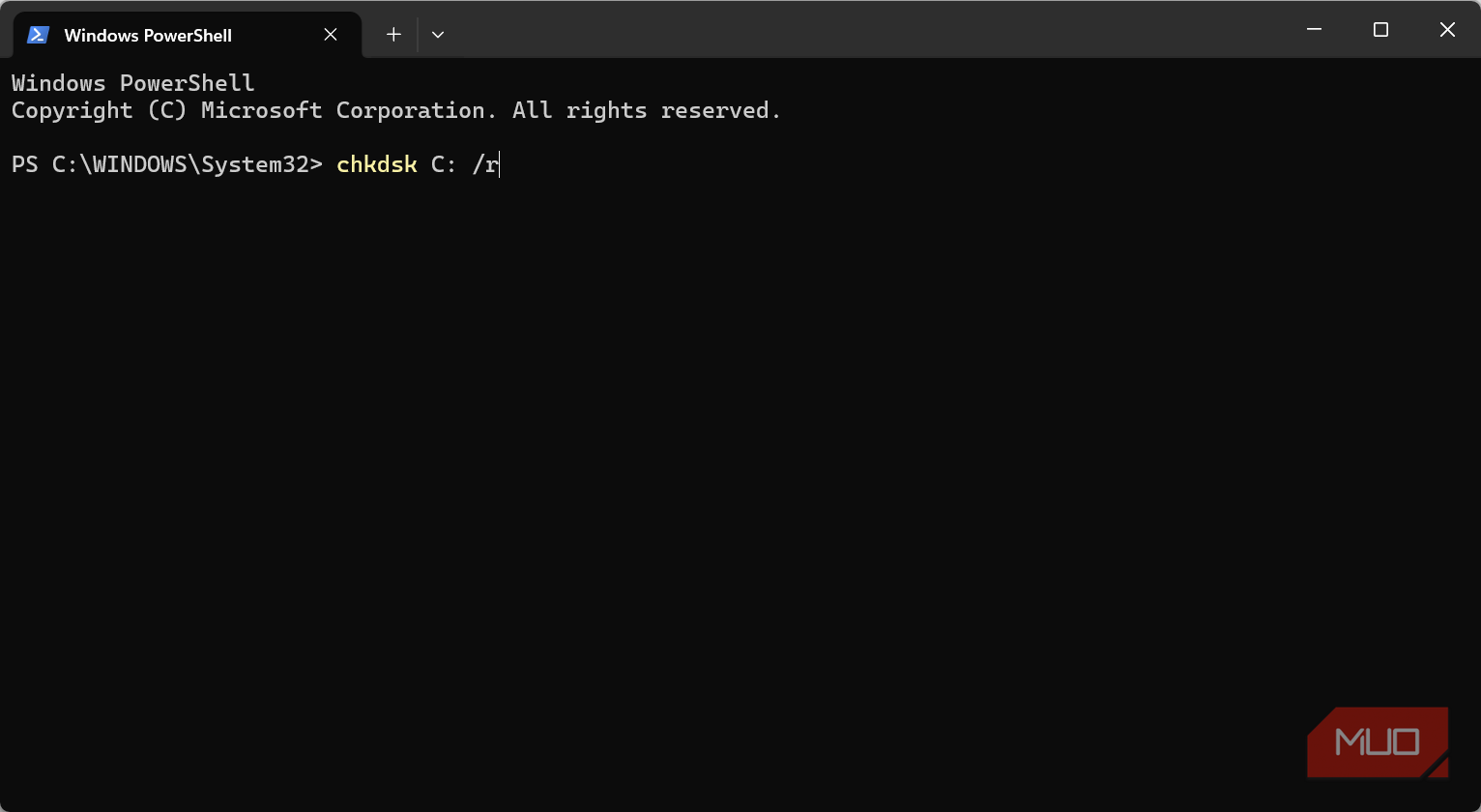
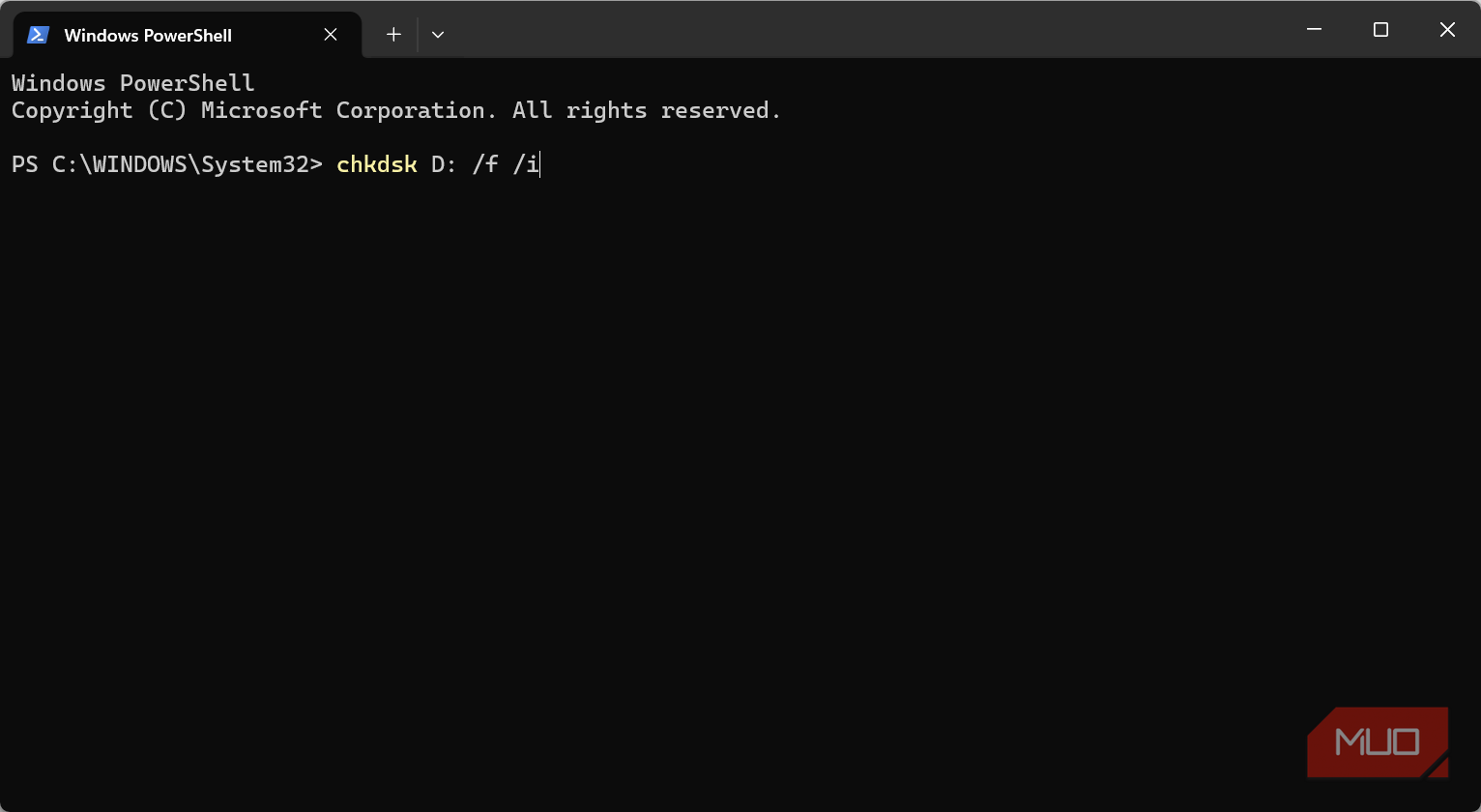
Afterward, I ran chkdsk C: /f to fix the issues the scan reported. The problem wasn't the drive itself, but the filesystem on it.
One TRIM setting worried me more than it should have
fsutil confirmed it was still working behind the scenes

TRIM helps SSDs avoid the long-term slowdowns that plague full hard drives by letting the controller clear unused blocks. I used this command to check mine:
fsutil behavior query DisableDeleteNotify
This was the result it returned:
- NTFS DisableDeleteNotify = 0 (Allows TRIM operations to be sent to the storage device)
- ReFS DisableDeleteNotify = 0 (Allows TRIM operations to be sent to the storage device)
0 meant TRIM was enabled. However, TRIM can be disabled without you intentionally doing it. Some RAID configurations don't pass TRIM through, and on some chipsets, USB-to-NVMe enclosures may block it too. If you get a value of 1, running this command enables it:
fsutil behavior set disabledeletenotify 0
You don't see these values in benchmarks, and even if TRIM is disabled, the drive can still post a decent speed test today. It's only after months of use that the damage begins to show.
I almost optimized my SSD for nothing
Optimize-Volume showed Windows was already doing the work

I almost ran the command: Optimize-Volume -DriveLetter C -ReTrim -Verbosebecause I assumed my SSD needed to be manually kept in shape. However, after navigating to Settings -> System -> Storage -> Advanced Storage Settings -> Drive Optimization, I realized the OS had a schedule to retrim my drive weekly.
On hard drives, defragmentation physically rearranges the data to reduce seek time. But SSDs are instead retrimmed. This process clears out unused blocks, and since SSDs have no read head to reduce seek time, there's no benefit to rearranging data.
In some cases, Windows may still run a limited defrag on SSD volumes if Volume Shadow Copy is enabled. This is a targeted action for specific features (e.g., Volume Shadow Copy) and doesn't mean the OS treats the whole SSD like a mechanical drive.
Ultimately, I didn't need to run any commands to schedule or configure retrim.
The benchmark answered a completely different question
CrystalDiskMark accurately showed the drive's speed, but benchmarks don't reveal health or filesystem issues. Beyond speed, there are other questions worth asking.
|
Question |
Benchmark |
Windows command |
What to do next |
|---|---|---|---|
|
Is my SSD fast? |
Yes |
No |
No action needed |
|
Does Windows think it's healthy? |
No |
Get-PhysicalDisk |
Back up your data if unhealthy |
|
Is the file system intact? |
No |
CHKDSK |
Run /f to repair |
|
Is TRIM working? |
No |
fsutil |
Re-enable if disabled |
|
Is Windows maintaining it properly? |
No |
Optimize-Volume |
Check the schedule, don't force it |
I ran four commands that exposed four blind spots, but none of them contradicted the benchmark results. The commands checked areas benchmarks typically don't.