


If you're on a long drive, it doesn't take long to realize just how much your car's tech feels less like a helper and more like a surveillance tool. For me, it happened during a routine morning commute. I was using Android Auto, which has a relatively new UI, and Gemini flawlessly handled a flood of texts, gave me a few routing shortcuts, and waited patiently for my next voice command. But as I sat at a red light, a thought hit me: How much of this ambient cabin noise is Gemini actively processing, and where is that data going?
With Gemini now deeply integrated as the core assistant for Android Auto, it does a lot more than just look up driving directions. It can summarize messy group chats, anticipate your routines, and have natural, back-and-forth conversations using Gemini Live. However, that level of convenience requires a massive amount of data access.
To see what Google was actually logging, I dug into my account settings. What I found wasn't entirely surprising, but it was enough to make me change how I configure my dashboard.
If you want to keep the hands-free convenience of a smart car without letting Google treat your car like a giant vacuum for your personal data, you don't have to go on a total privacy lockdown. Instead, you just need a smart middle ground. Here are the four specific settings I adjusted to strike the perfect balance.
How to turn off always-on "Hey Google" listening in Android Auto
Use your steering wheel button instead of ambient wake word detection


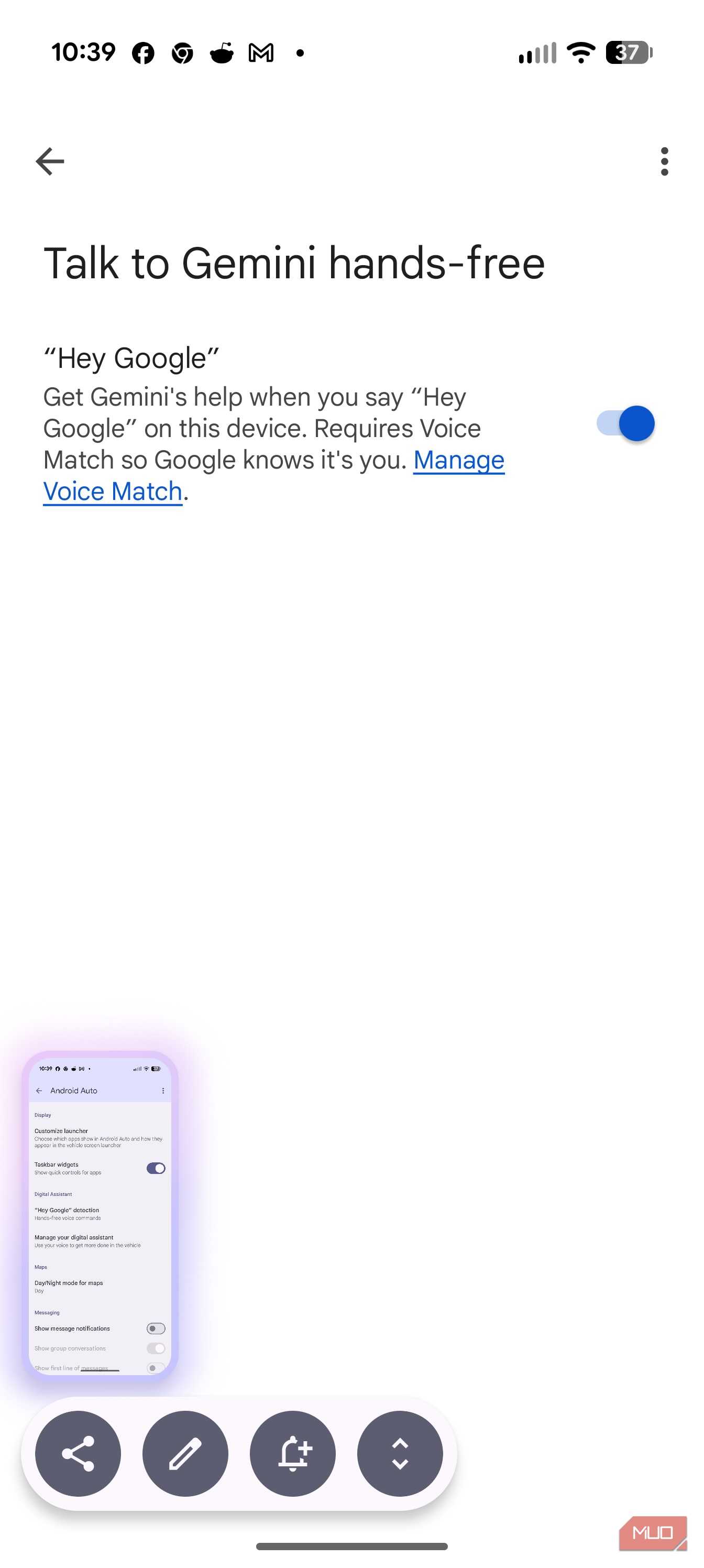


By default, Android Auto is always listening, so it can catch your voice the second you say the wake word. To do this, it leaves the microphone fully active, constantly listening for the specific acoustic pattern of “Hey Google.”
While Google states that this processing happens locally on your phone and isn't sent to the cloud until the wake word is triggered, an always-active microphone in a confined space like a car can feel intrusive. False positives happen, especially if you have a podcast playing or a lively conversation happening in the passenger seat.
You don't need to completely block voice commands; you just need to change how they are triggered. Almost every modern car with Android Auto integration features a dedicated voice command button right on the steering wheel.
To turn off always-on listening but keep hands-free control:
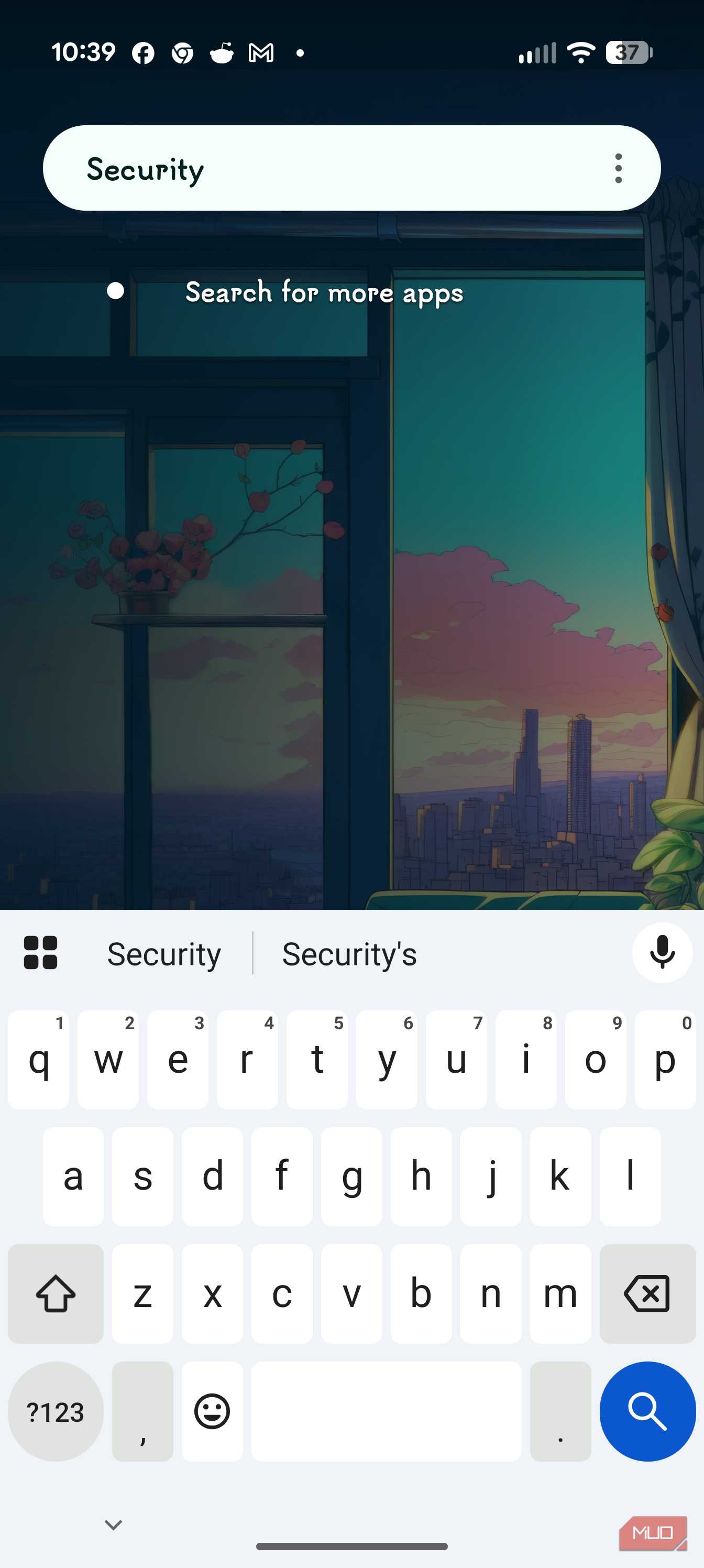
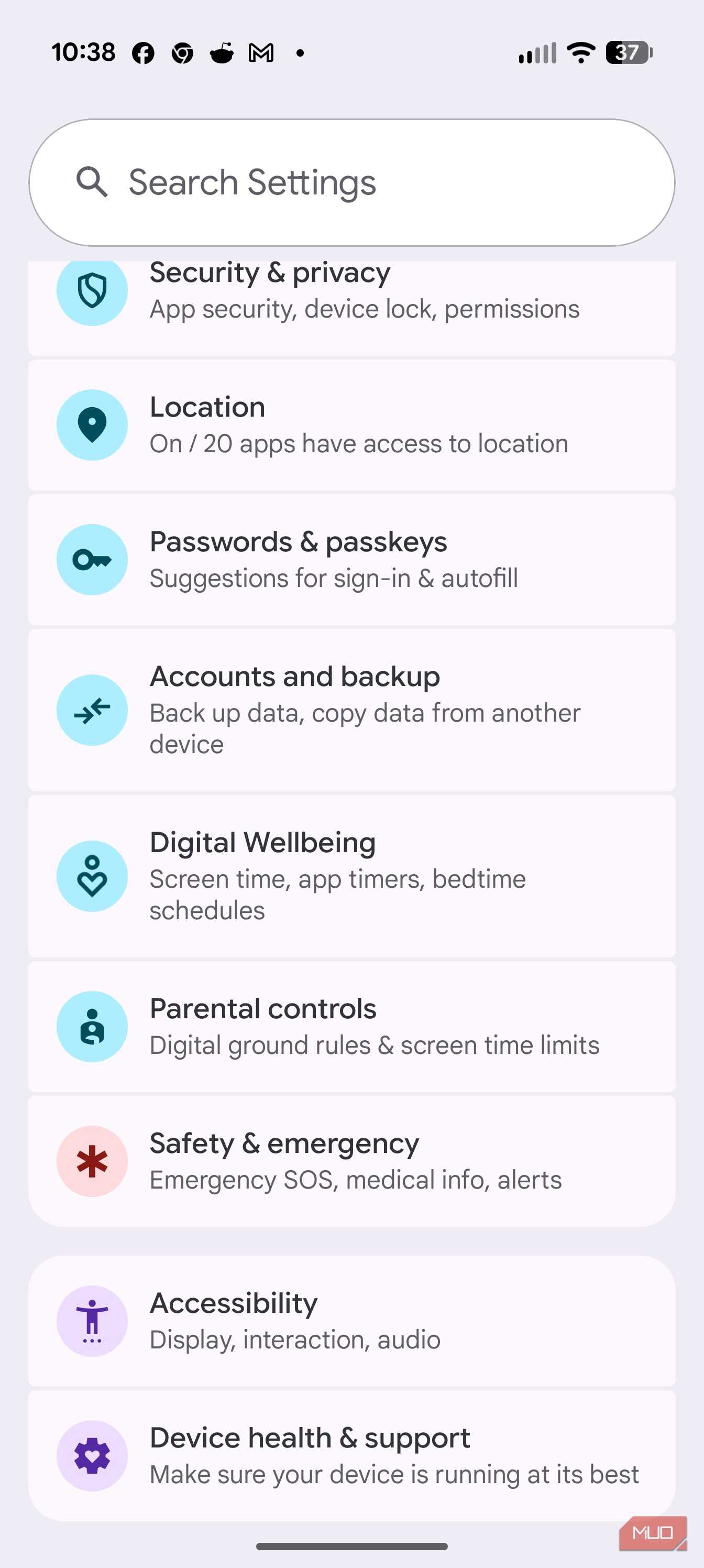
1. Open the Settings menu on your Android phone.
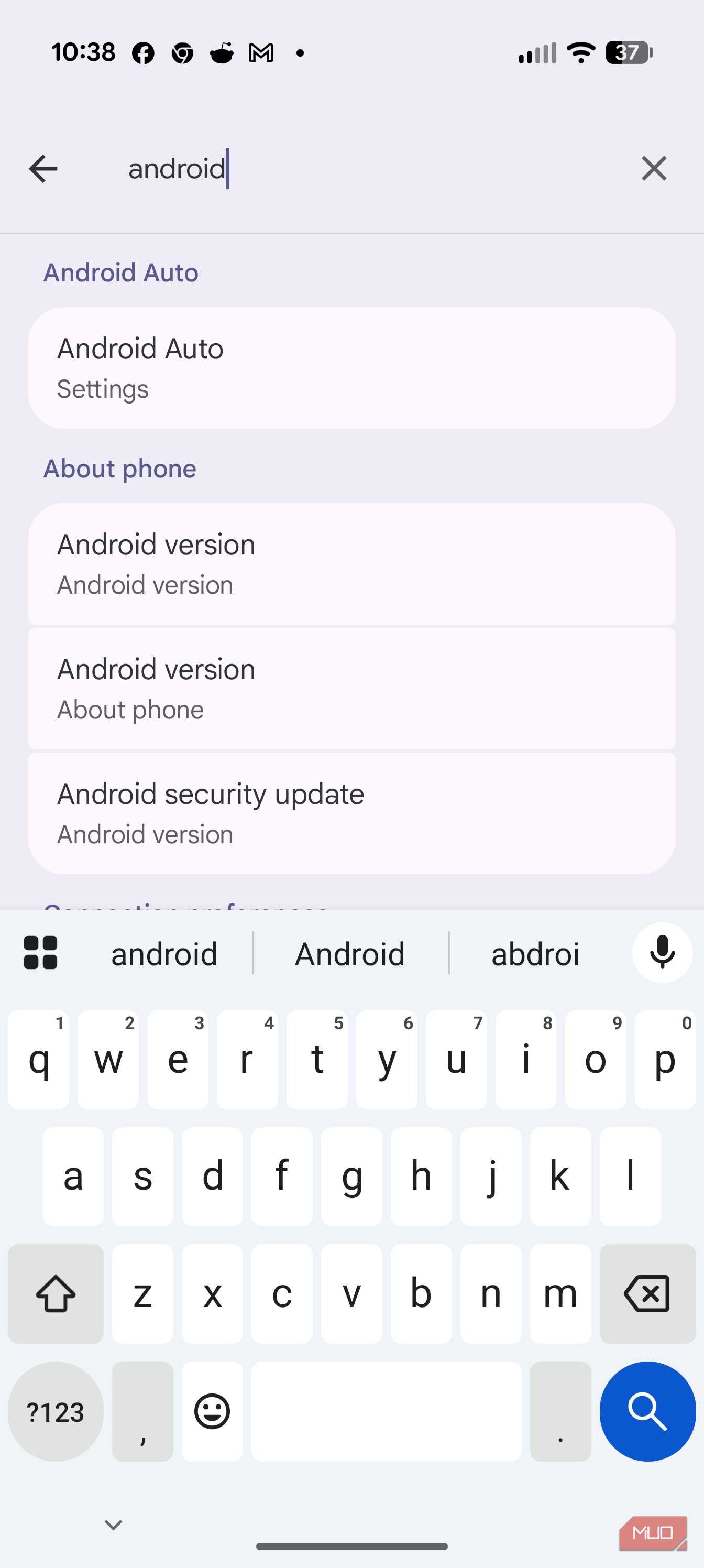
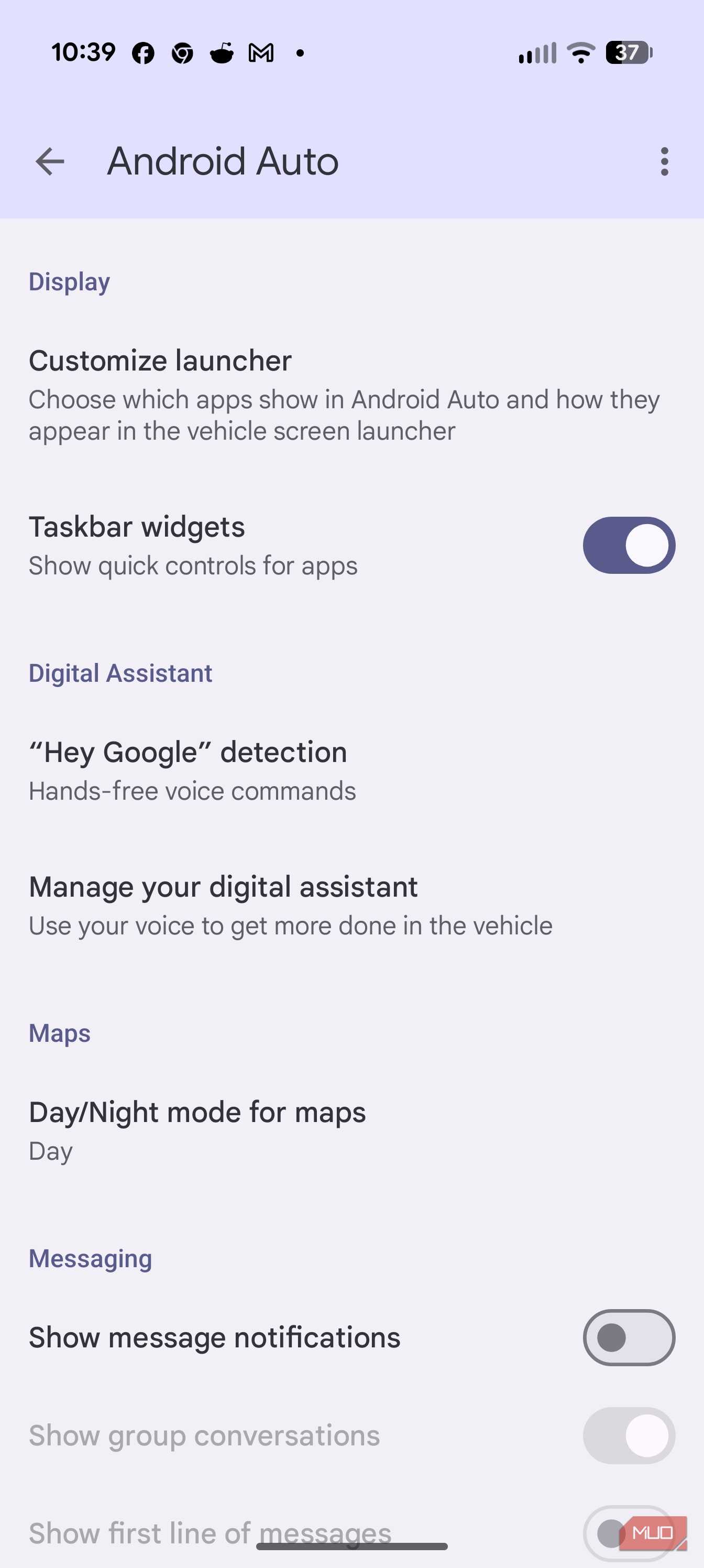
2. Search for or navigate to Android Auto (on many devices, this is located under Connected devices -> Connection preferences).
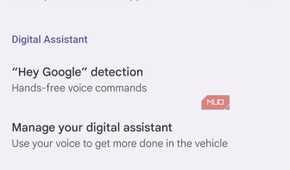
3. Select "Hey Google" detection.
4. Turn off the While driving slider or the main "Hey Google" toggle.
Now, Gemini will no longer listen to your ambient cabin conversations. When you need to input a navigation route or send a text, you simply tap your steering wheel’s physical voice button. Android Auto wakes up instantly, listens to your specific command, and goes right back to sleep.
How to pause Gemini Apps Activity and opt out of human review
Stop Google from storing and annotating your voice interactions


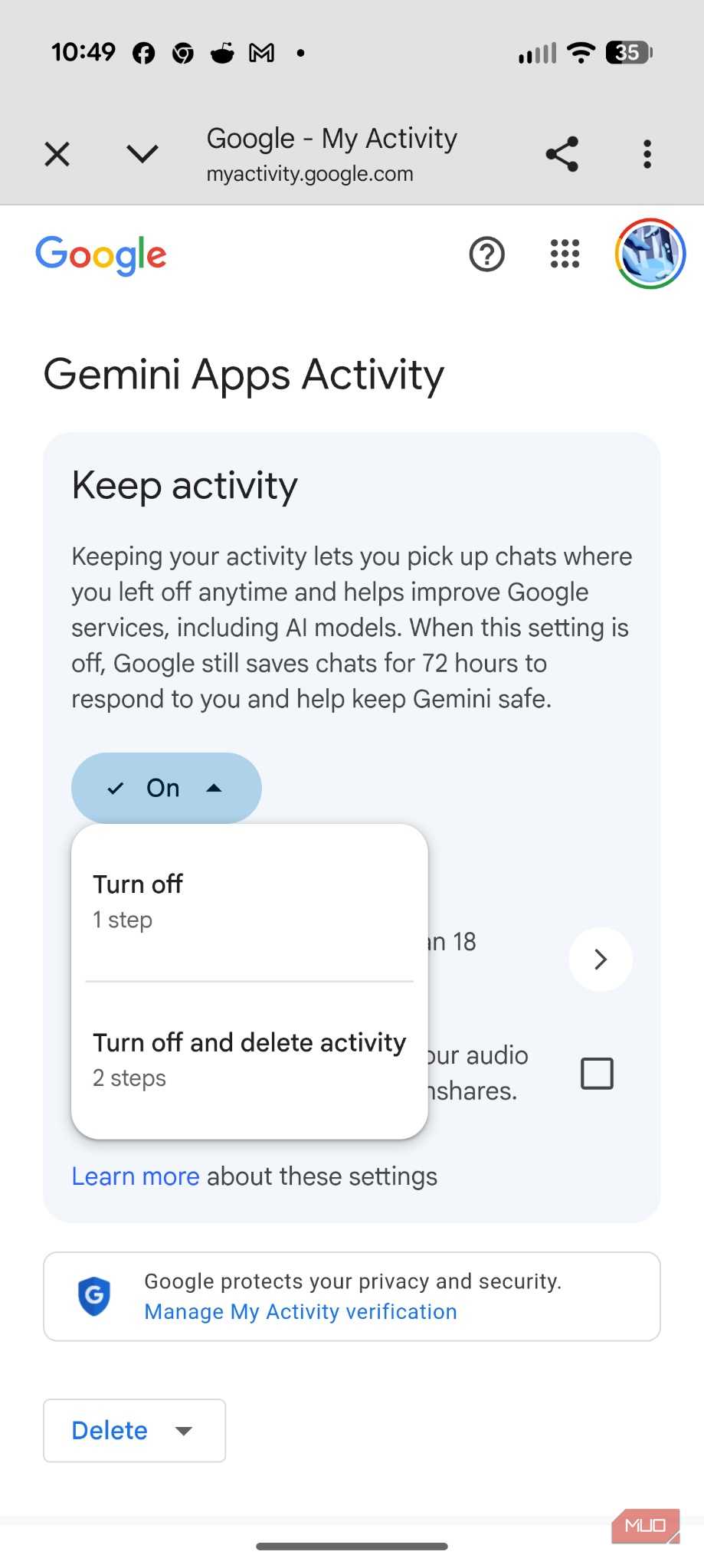



When you speak to Gemini, those voice interactions don't just disappear once the task is finished. By default, Google saves your Gemini Apps Activity — including transcriptions and location data — to your Google Account to improve its machine learning models.
Here’s the real kicker: Google actually sends a portion of these clips to human reviewers. Google's privacy disclosures explicitly state that human reviewers may read, annotate, and process your Gemini chats to train the AI. Even if you turn off Gemini activity later, data that has already been selected for human review can be retained separately for up to three years.
You can completely pause this retention without breaking Gemini’s ability to help you navigate or play music in the car.
If you are on a desktop browser, you can go straight to the dedicated myactivity.google.com/product/gemini page.
If you are on your phone, follow these steps:
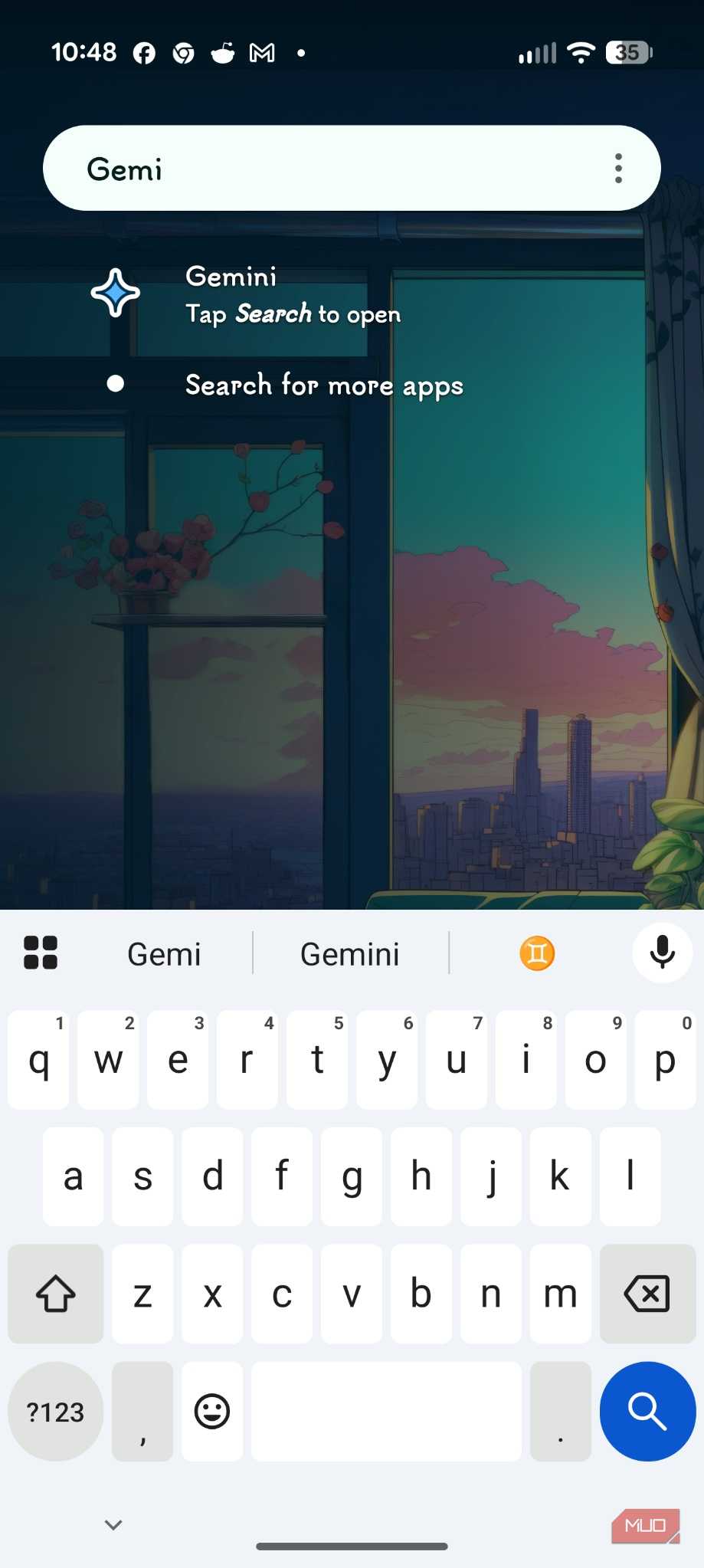
1. Open the Gemini app.
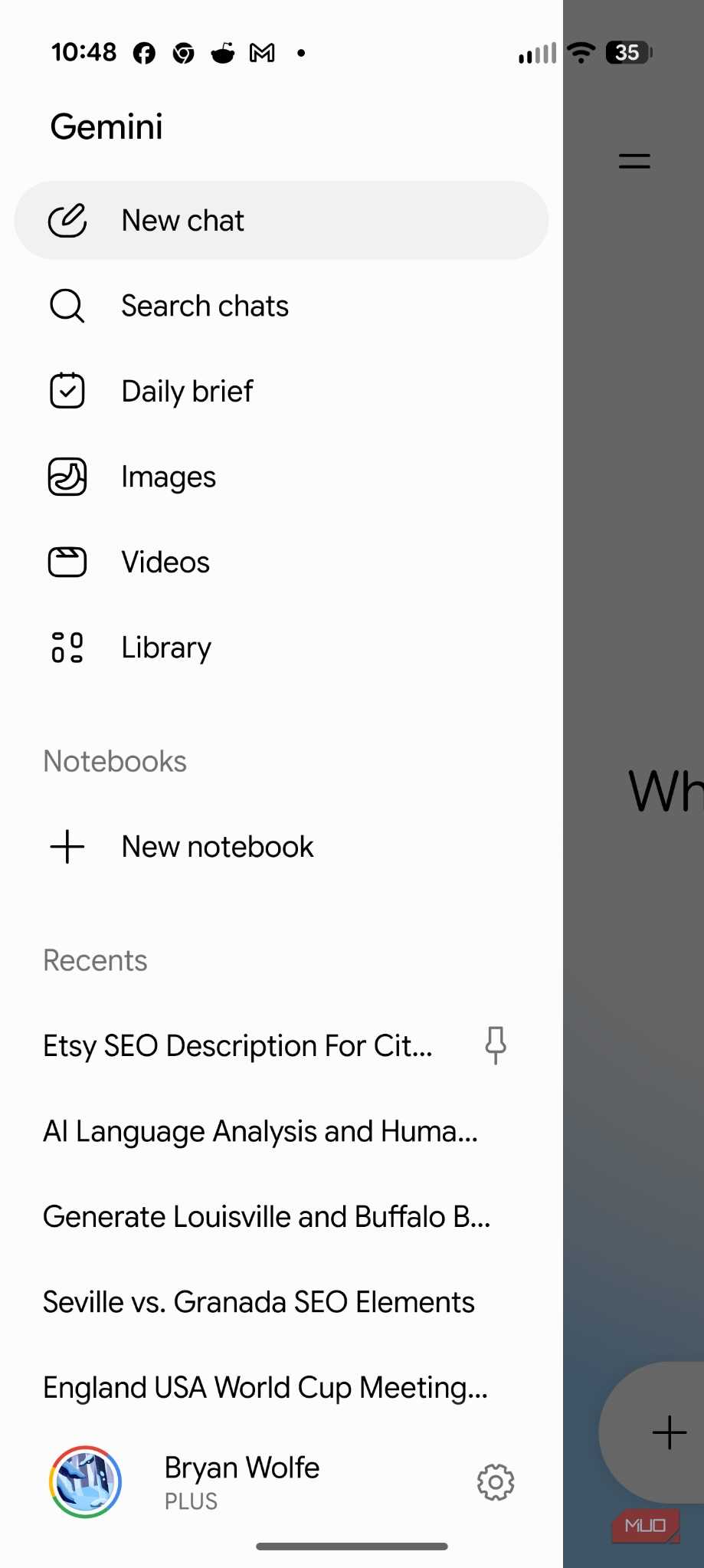
2. Choose the Menu button in the top-left corner.
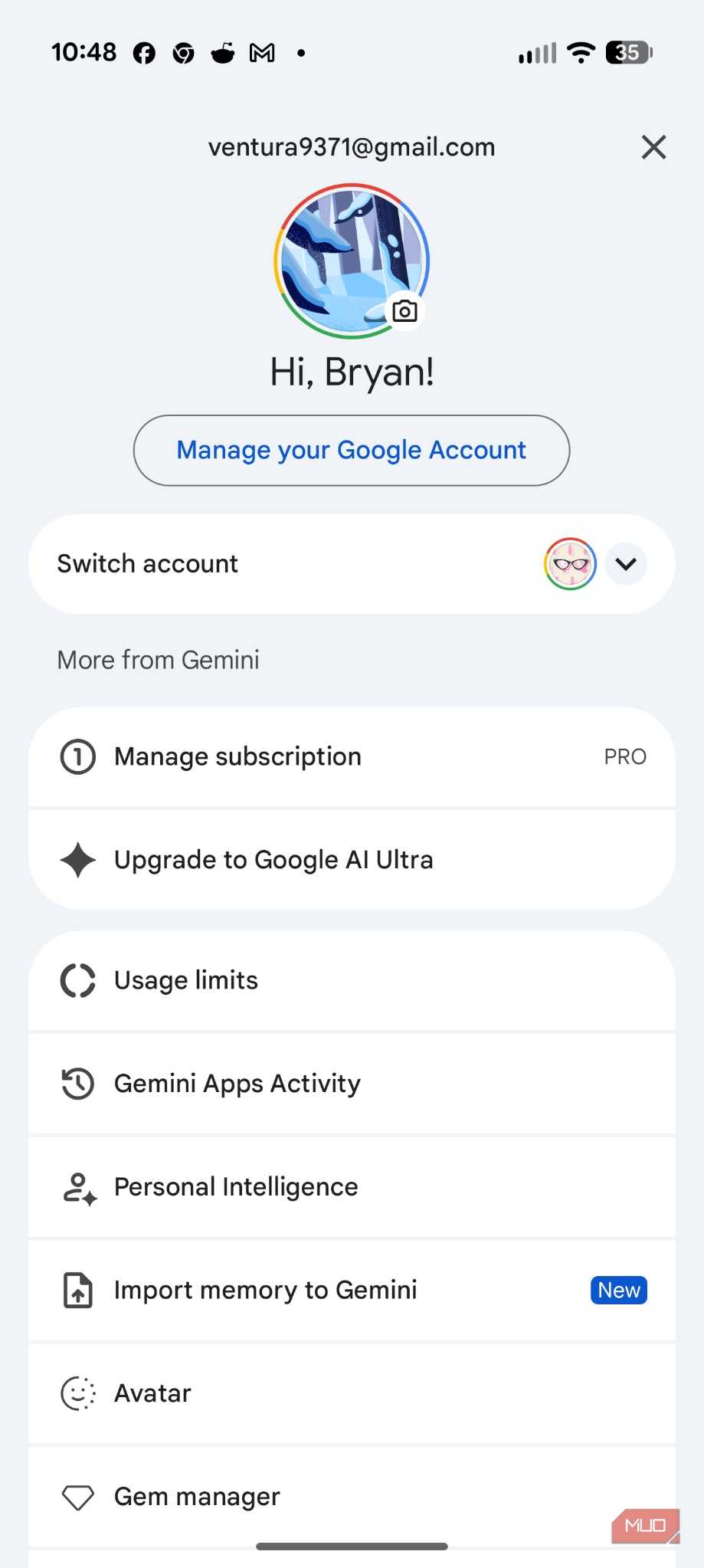
3. Select your profile at the bottom.
4. Choose Gemini Apps Activity.
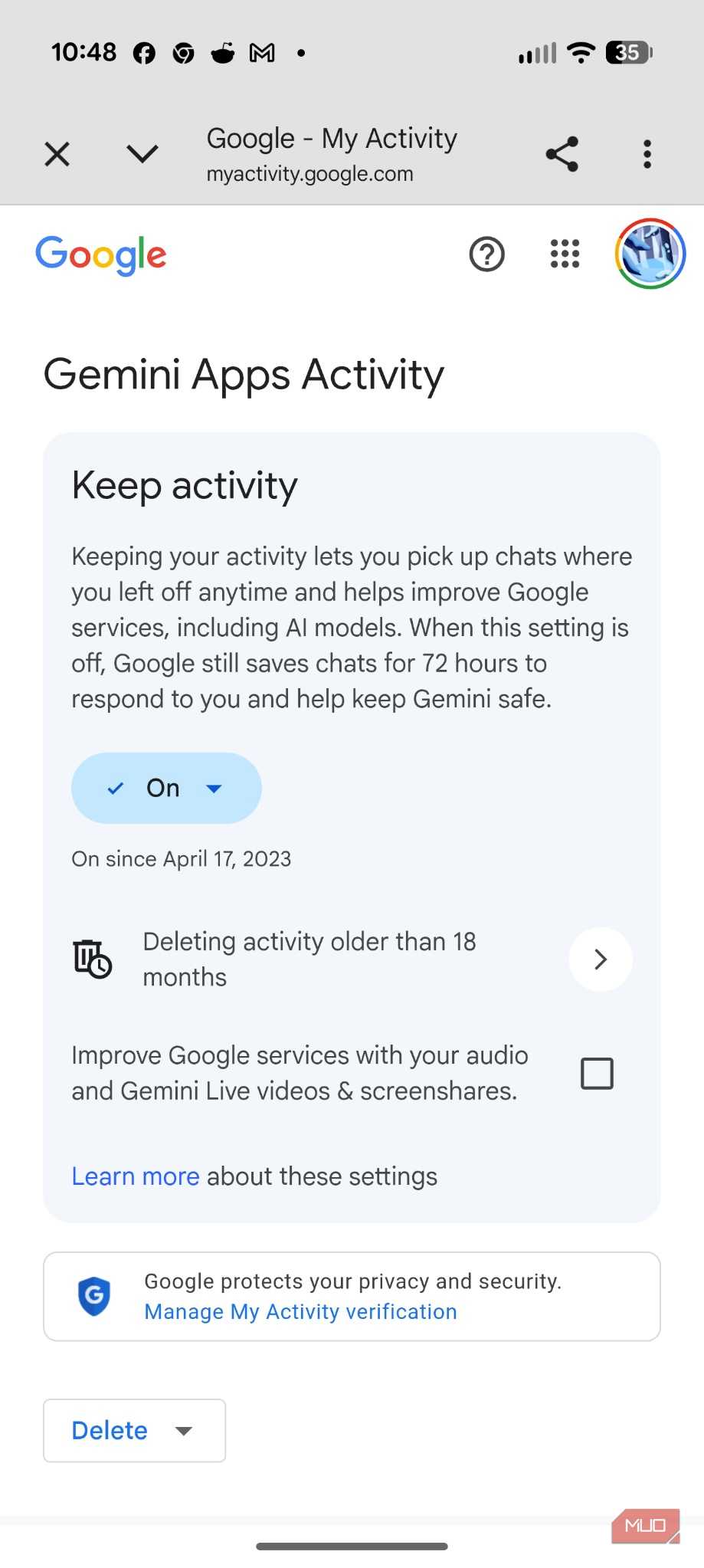
5. Near the top of the page, choose the button under Keep Activity.
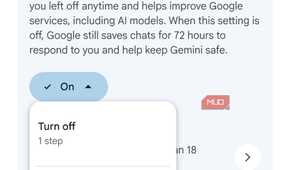
6. Choose Turn Off to stop tracking future chats, or select Turn off and delete activity to completely wipe your past history.
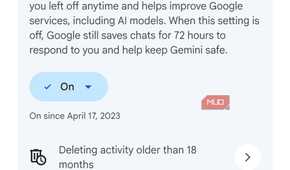
Note: If you prefer keeping your history for personal reference but want to avoid long-term hoarding, you can leave the setting "On" but tap Choose an auto-delete option. Change the threshold to 3 months—the shortest duration Google currently allows.
What happens: You can still talk to Gemini dynamically while driving, but Google stops keeping a permanent history of everything you say on the cloud.
How to disable Gemini's automatic message summaries in Android Auto
Keep text notifications without letting AI read your private conversations


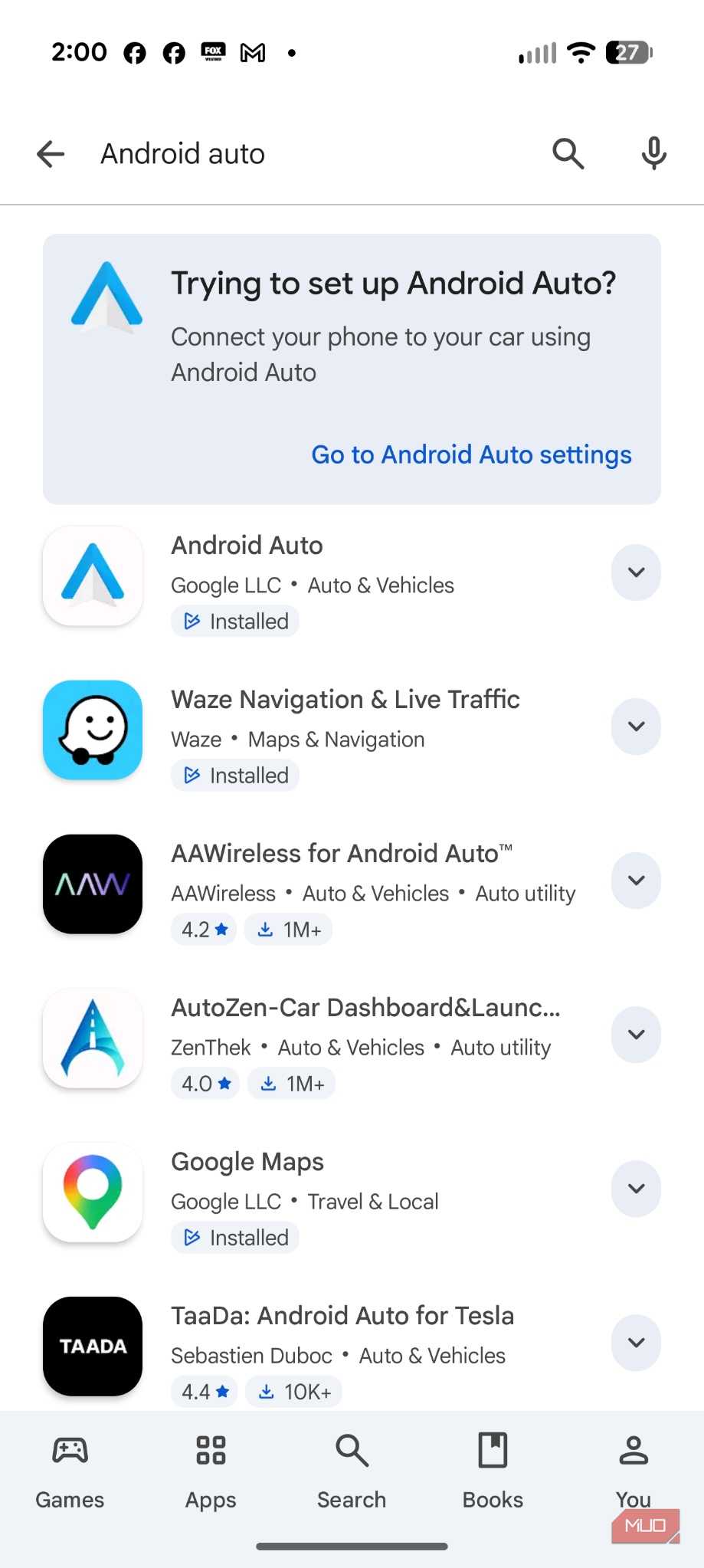
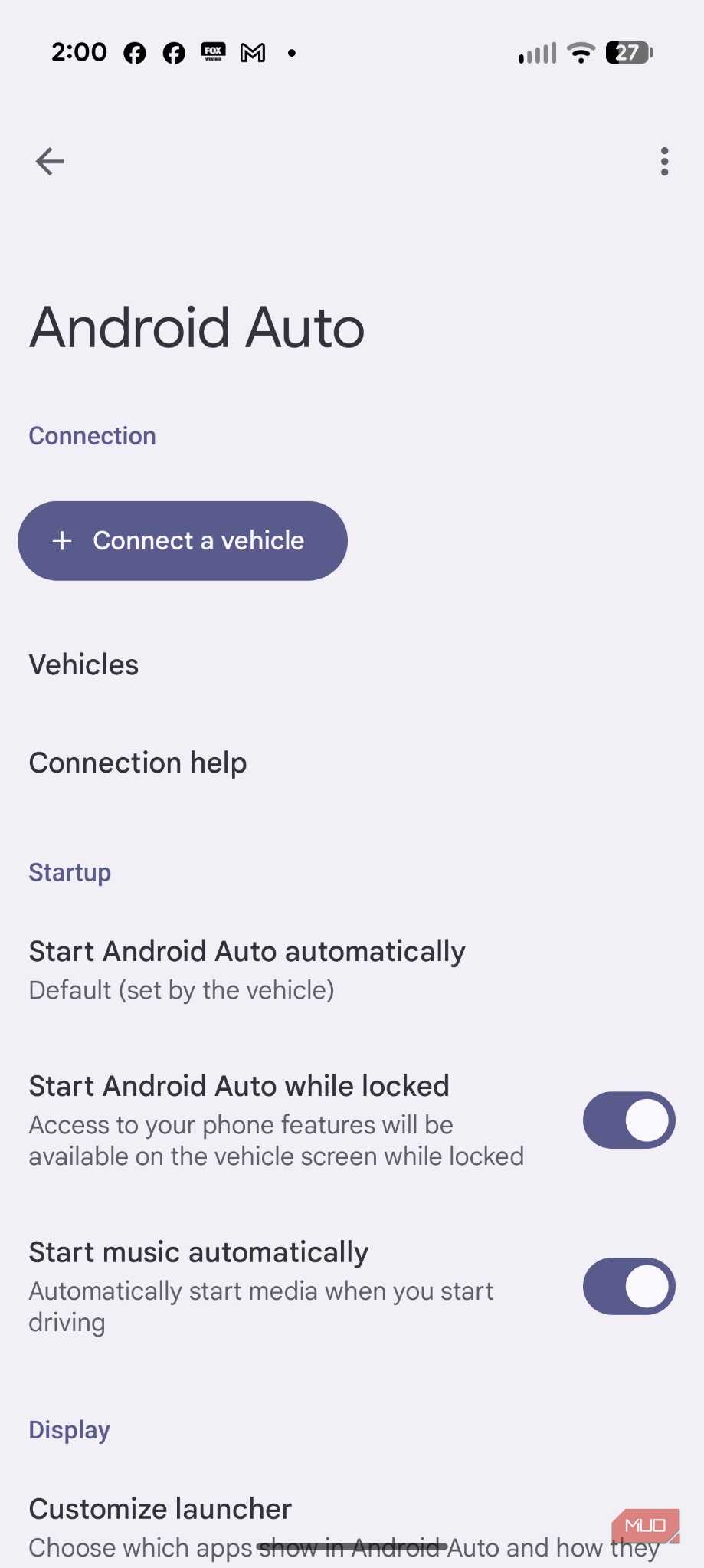
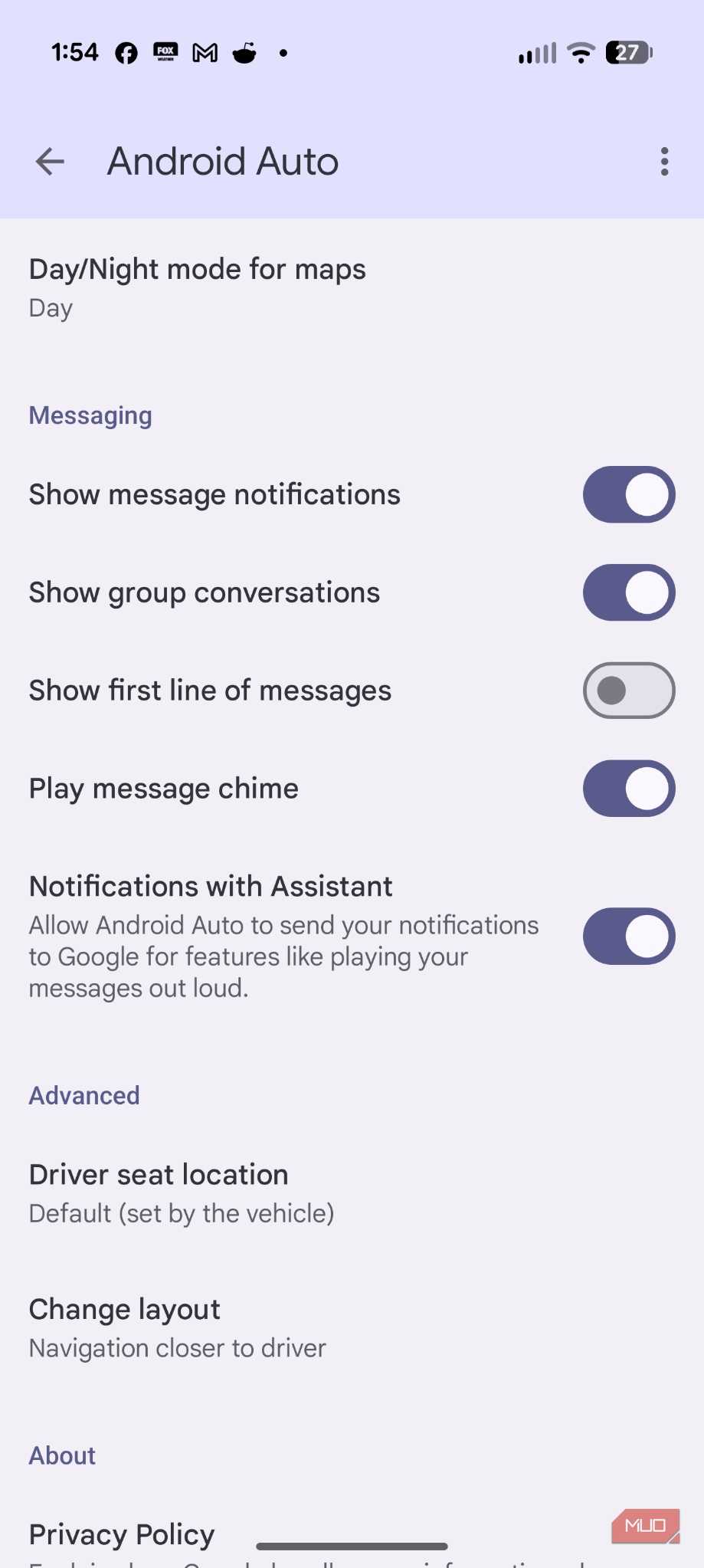
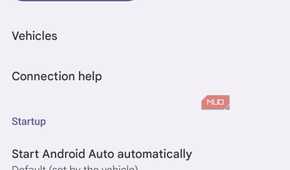
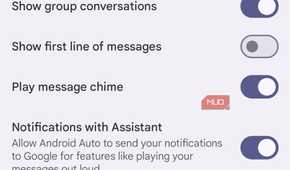
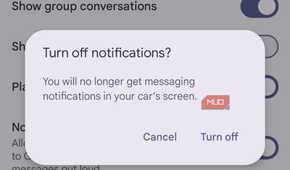
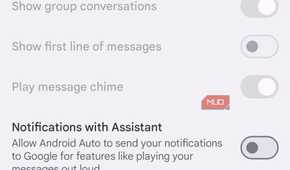
One of Gemini’s most heavily marketed features for Android Auto is its ability to automatically summarize long text messages and chaotic group chats while you drive. It sounds great until you realize it means Gemini is constantly reading your private texts in the background.
If you are carrying passengers, co-workers, or family members, having Gemini casually summarize a sensitive or private message out loud because it detected an incoming notification can lead to some incredibly awkward moments with your passengers.
You don't need to hunt through your phone's settings to fix this; you can disable the deep AI summaries directly from your car’s dashboard screen while keeping standard, manual text-to-speech notifications intact.
While your phone is connected to your vehicle, open Android Auto on your car's infotainment display.
1. Choose Android Auto on your phone.
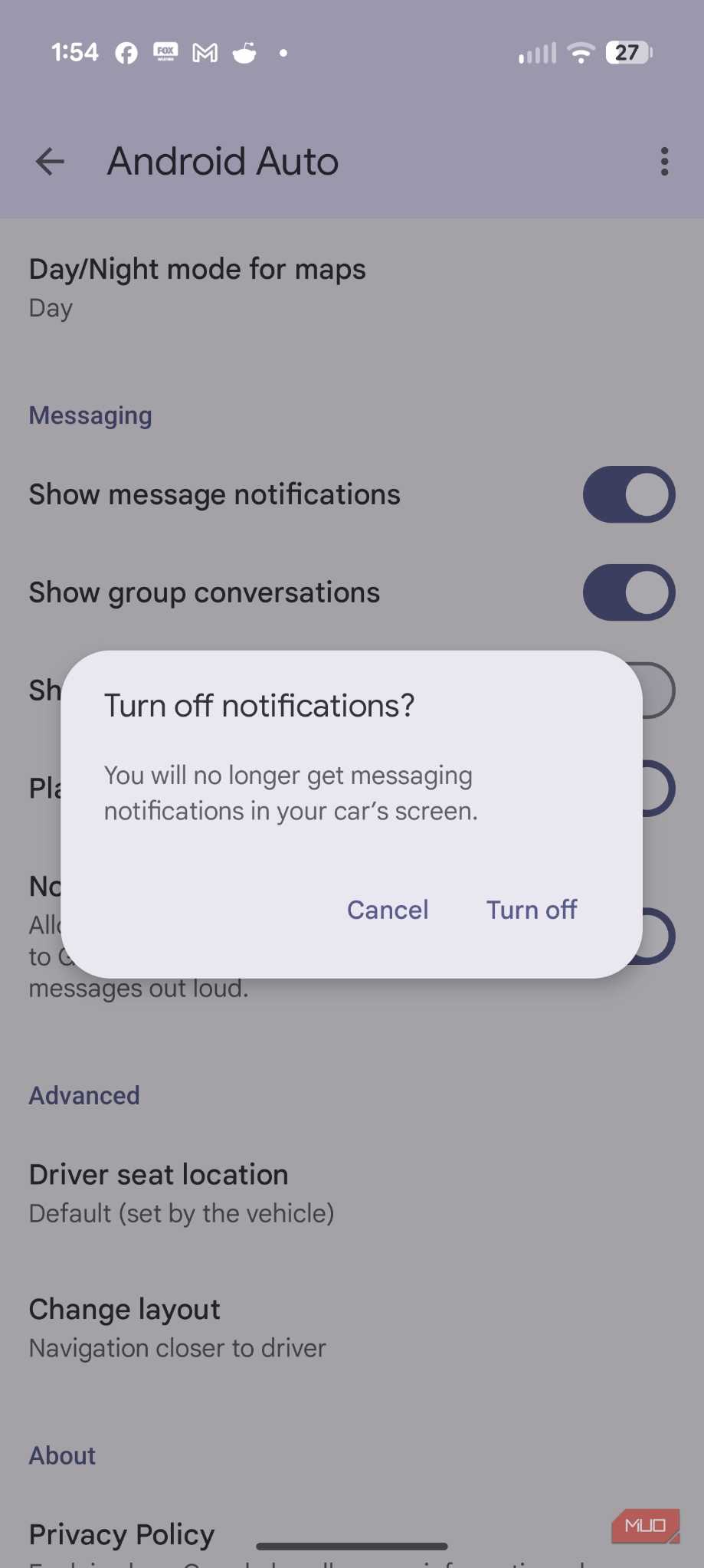
2. Under Messaging, untoggle Notifications with Assistant.
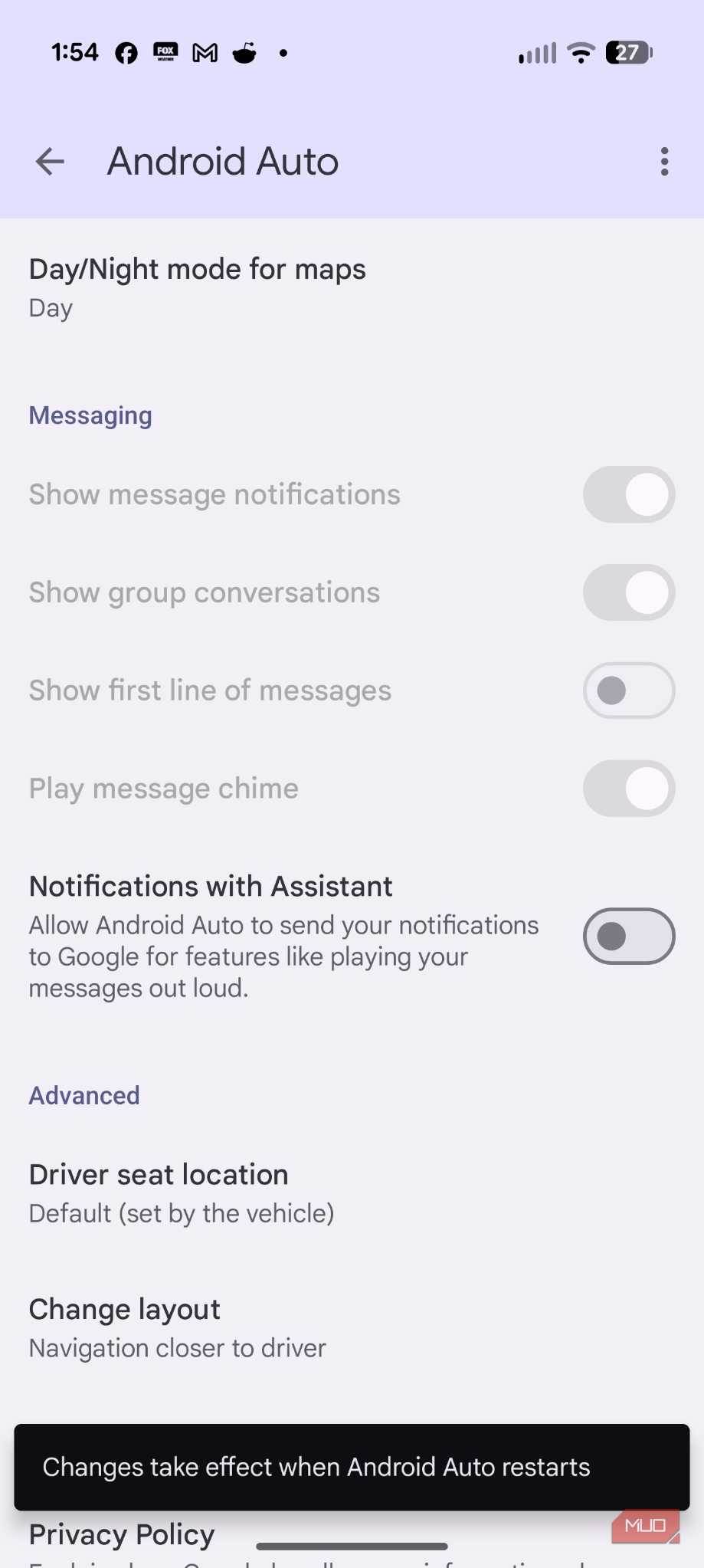
3. Switch the toggle to Off.
Here’s what happens: You will still receive a clean dashboard alert when someone texts you, and you can still choose to tap the screen to have the system read the exact, literal message to you. However, Gemini stops scanning your background message text to generate AI summaries.
The bottom line
Protecting your privacy doesn't mean you have to go completely off the grid. By swapping always-on listening for push-to-talk steering wheel controls, pausing cloud activity logs, and locking down your private conversations inside the car, you effectively draw a hard line around your car's cabin. You get to keep the stellar navigation, hands-free media switching, and voice-controlled texting—but on your own terms, without leaving the microphone running in the background. Be sure to check out the amazing utilities apps for Android Auto. It will make your driving even more carefree.

Google Gemini
- OS
- Android, iOS, macOS, Windows
- Developer
Google Gemini is an AI assistant that can understand and generate text, images, code, and more. It’s designed to help people find information, solve problems, and create things more easily.