


Windows 11 has matured a lot since launch, but there’s one part of it that still gets on my nerves: the right-click menu. It’s already cluttered, and it only gets worse as you install more third-party apps. Thankfully, this is Windows, so you’re rarely stuck with the defaults. I recently tried a free app called Windows 11 Context Menu Manager, and it helped me clean up the context menu in seconds.
Windows 11’s right-click menu is still a mess
Years later, it still feels crowded

We’re coming up for four years of Windows 11, and it’s funny how Microsoft still hasn’t fixed the right-click menu. It’s still unnecessarily long and hides some of the most useful options behind “Show more options.” I don’t know about you, but I hate that extra click every time I need to use the Create shortcut or Cast to Device option.
Yes, I know — holding the Shift key while right-clicking opens the old right-click menu directly, and you can even set Windows to always show the full context menu by default. But personally, I don’t like how dated the Windows 10-style menu looks when everything else feels modern and clean. It's a jarring step back I don’t want.
The worst part about all of this is that Microsoft still hasn’t included an option to edit the menu natively. You can’t remove or add options from the right-click menu as you like. That means you’re stuck with those entries you barely use.
Windows 11 Context Menu Manager can clean it up in minutes
The fastest way to declutter the right-click menu

Windows 11 Context Menu Manager is a free tool that does only one thing — and it does it well. Its only job is to help you clean up the right-click menu by removing entries you don’t want.
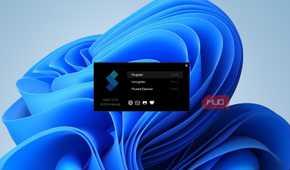
The app is bare-bones in the best way. Heck, you don’t need to install it to get started. Simply download it, run it, and you’ll see a list of entries living in the context menu — things like Paint, OneDrive, Quick Share, PowerToys, WinRAR, Notepad, Terminal, and Copilot. Each one has a toggle next to it, so you can turn off anything you don’t want. There’s no need to reboot or edit registry files.
The app lets you make these changes for a specific user account or all of them at once. And if you find an app that you don’t want to keep, there’s even an option to delete it directly. What I like about Windows 11 Context Menu Manager is that it lets me clean up the right-click menu without replacing it or pushing you toward the older design as a trade-off. And of course, re-enabling entries is just as easy.
The only thing is that the tool only lets you manage entries added by apps. That means you can’t remove Windows 11’s built-in entries like Add to Favorites, Pin to Start, Send to My Phone, or Share with. Those are baked into the OS, so you’re stuck with them.

Windows 11 Context Menu Manager
- OS
- Windows 11
- Price model
- Free
Windows 11 Context Menu Manager is a free tool that lets you remove unwanted entries from the Windows 11 right-click menu.
You can edit it too, but it’s not straightforward
It’s possible, just not convenient


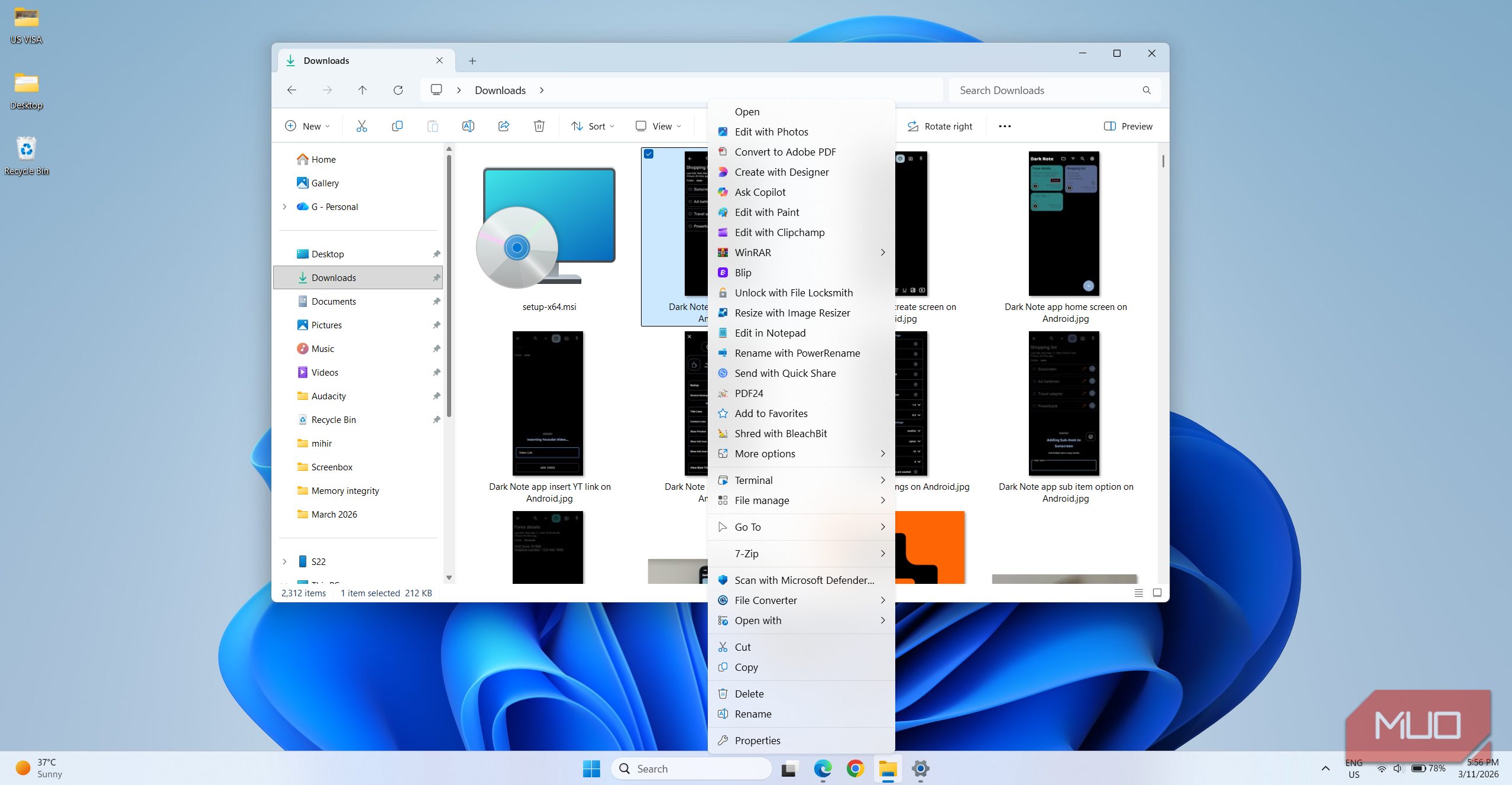
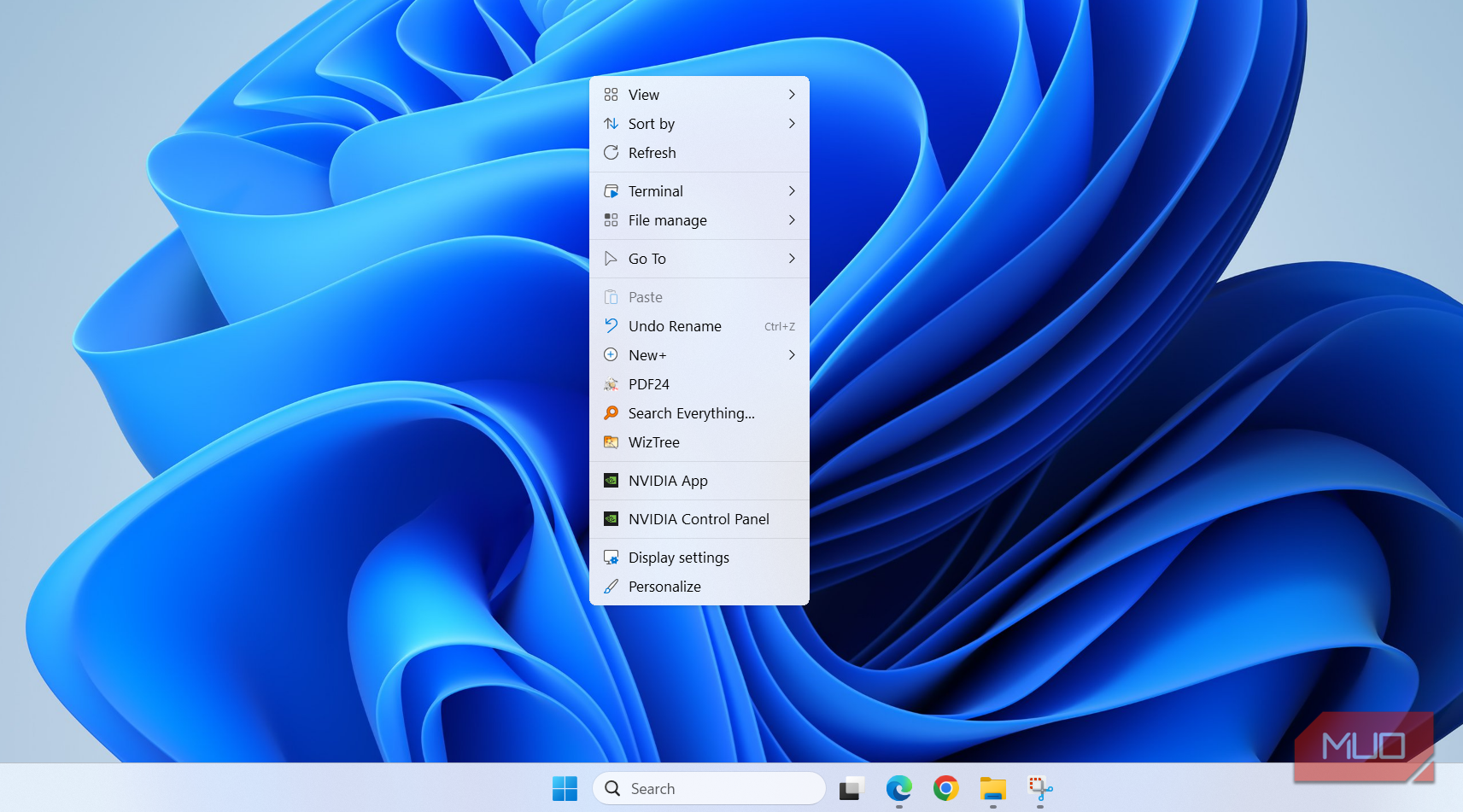
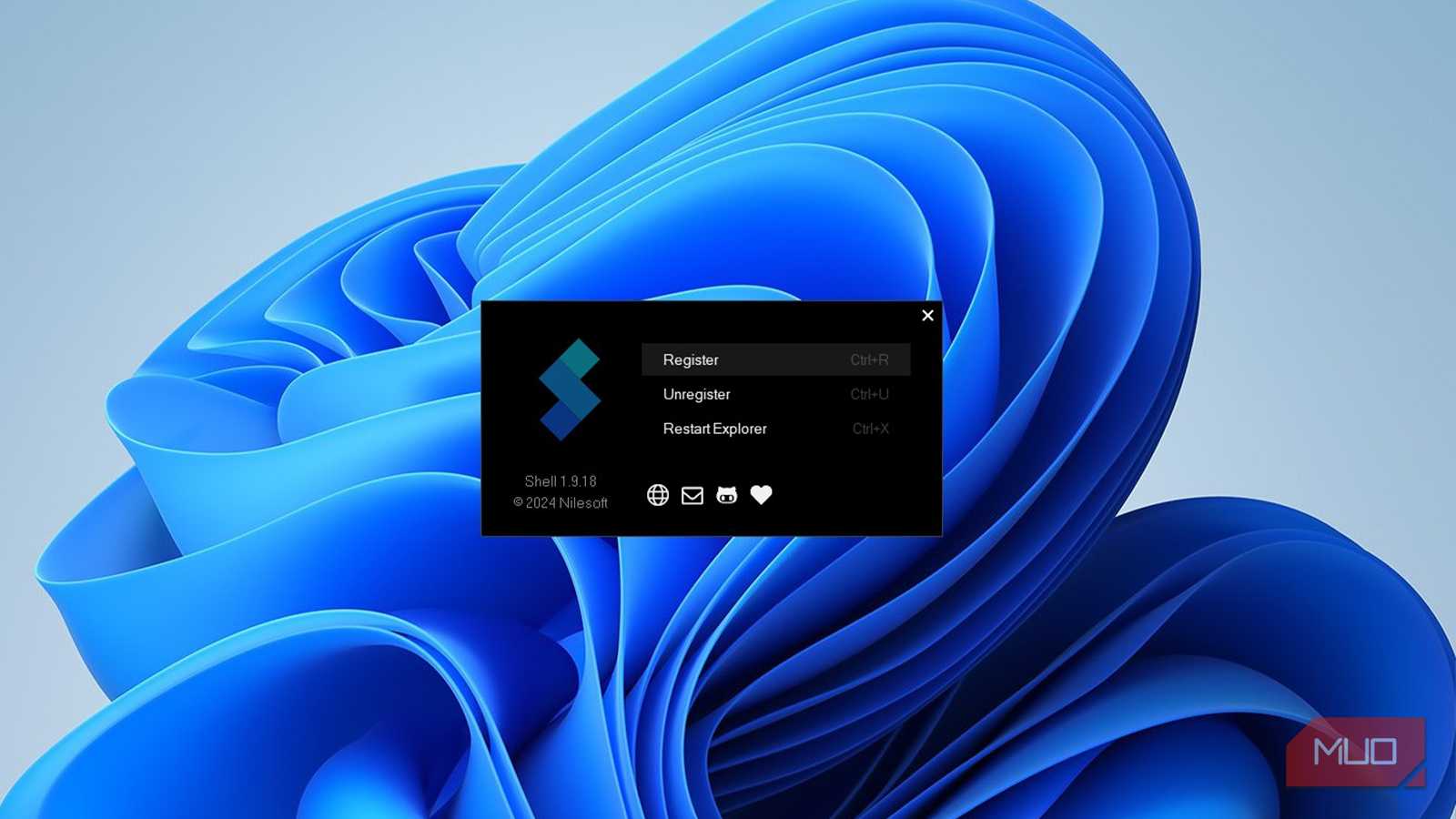
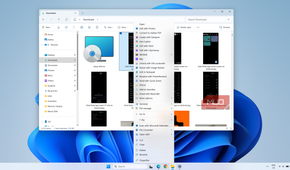
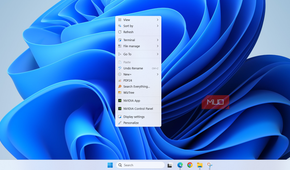
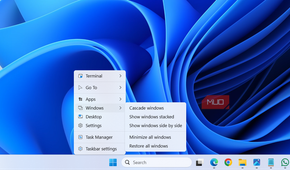
Windows 11 Context Menu Manager is good enough to get the job done. But if you want even more control over the right-click menu, there’s another tool called Nilesoft Shell. It’s a free, open-source tool that replaces the original right-click menu with something more compact. It does it without changing the overall look and feel.
It does this by moving some of the less-used options, like Share, Send to, and Give access to, under the More options submenu. This lets it make room for third-party apps like 7-Zip and PDF24. It even adds a separate Go To menu where you’ll see shortcuts for Downloads, Documents, Pictures, Videos, Program Files, and a few other folders.
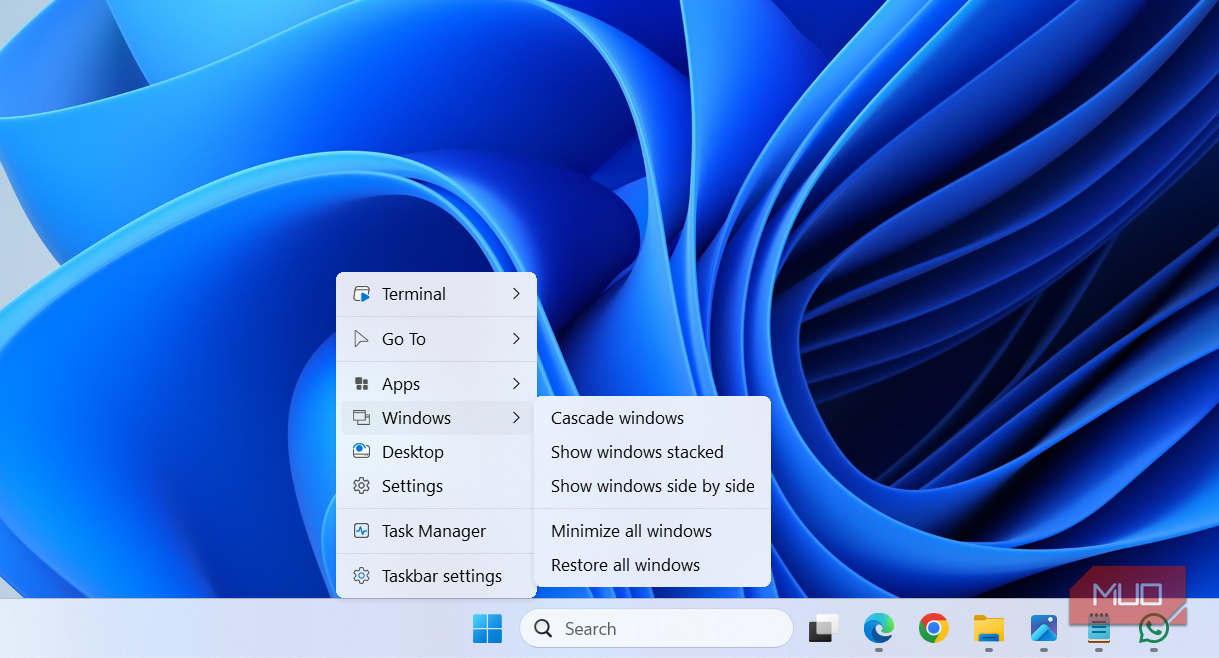
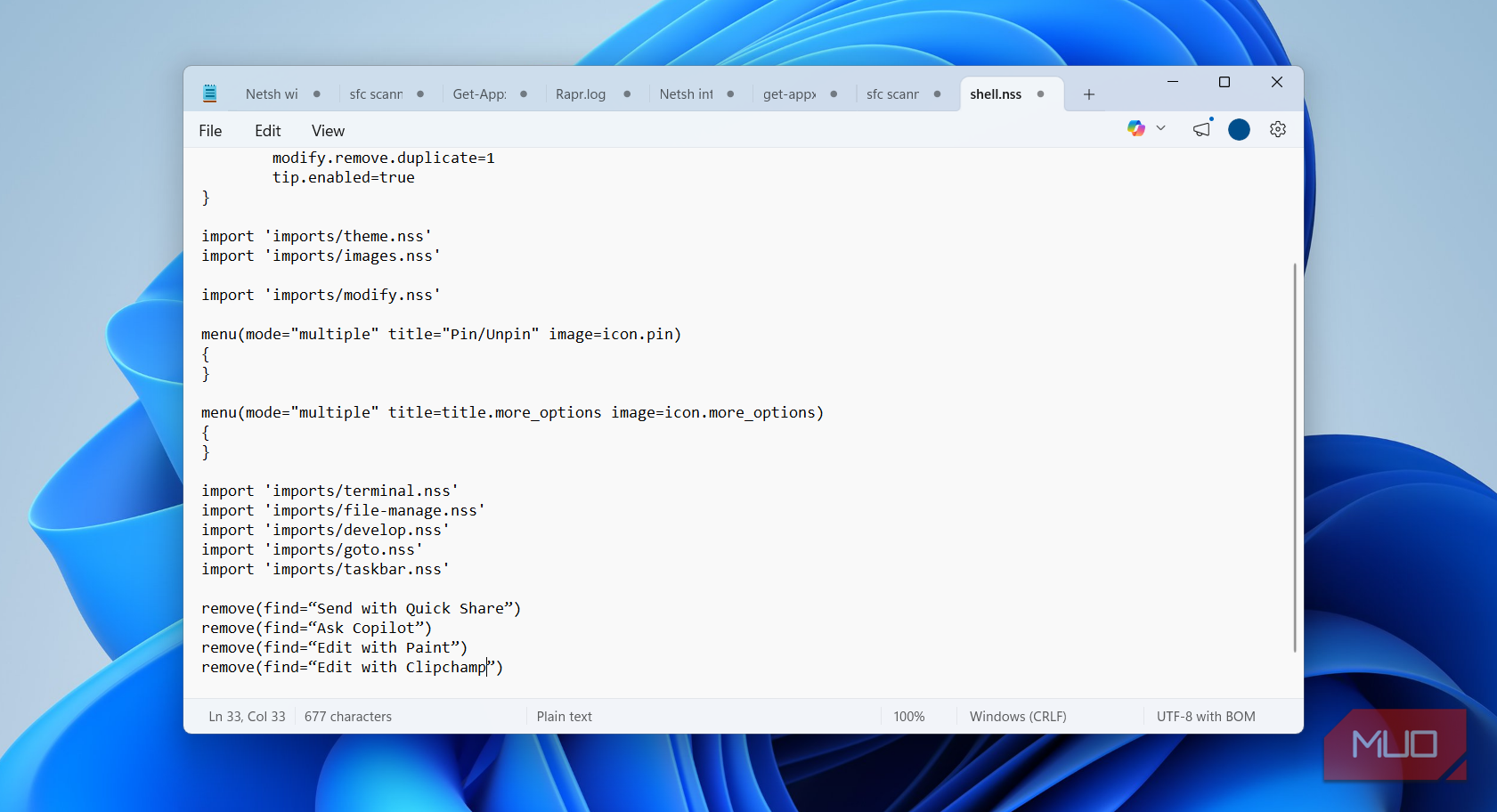
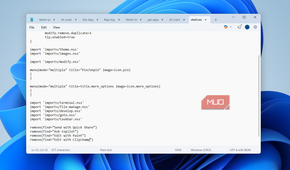
The best part about Nilesoft Shell is that it’s customizable. Right-click anywhere on the taskbar while holding the Shift key, and choose Shell > Config. In the Notepad window that opens, you can add more rules to remove specific entries. For instance, if you need to remove the Scan with Microsoft Defender entry, you simply have to add the following and save the file.
remove(find=“Scan with Microsoft Defender”)
Adding new entries is also possible, but it’s slightly more complicated. To add Chrome to the right-click menu, for instance, you need to type in the following rule.
item(title='Chrome', cmd='C:\Program Files\Google\Chrome\Application\chrome.exe', image='C:\Program Files\Google\Chrome\Application\chrome.exe')
It’s definitely a more advanced tool than Windows 11 Context Menu Manager, but if you want more flexibility, it’s well worth it.

Nilesoft Shell
- OS
- Windows
- Developer
- Nilesoft
- Price model
- Free (open-source)
Nilesoft Shell is a lightweight, highly customizable Windows shell extension that lets you take full control of your right-click context menu. Instead of being stuck with cluttered or redundant options, you can completely redesign the menu to fit how you actually use your PC.