


Cache isn’t something worth losing sleep over, but that doesn’t mean you should ignore it completely, especially when your phone is low on storage and you don’t want to give up on your favorite apps or photos. The tricky part is that Android doesn’t make it easy, so you have to rely on third-party apps like SD Maid. I used it recently, and it helped clean up 6GB of cache I didn’t know my phone had.
SD Maid 2/SE can do a cleanup Android can’t
Android’s built-in storage cleaner isn’t enough
Android’s storage tool gives you a complete breakdown of where your storage is going. It also flags large files, duplicates, old downloads, and unused apps, so you can free up storage quickly. Still, I wouldn’t call it thorough.
There’s no way to clear all app caches at once or even hunt down other junk files. Sure, you can go to the Apps menu and clear app caches for each app individually, but I don’t need to tell you how tedious that can get. That’s why I like SD Maid 2/SE. It’s an open-source app that can find junk Android’s own cleaner won’t even tell you about. More importantly, it can help you clean it all in a few taps.
Now, I’m mostly against using any cleaning apps because of all the permissions they ask for and the reputation they carry. But SD Maid is different. It’s open-source and explicitly commits to not collecting or selling any user data.
Using SD Maid is as easy as it gets
I finally get why power users swear by SD Maid


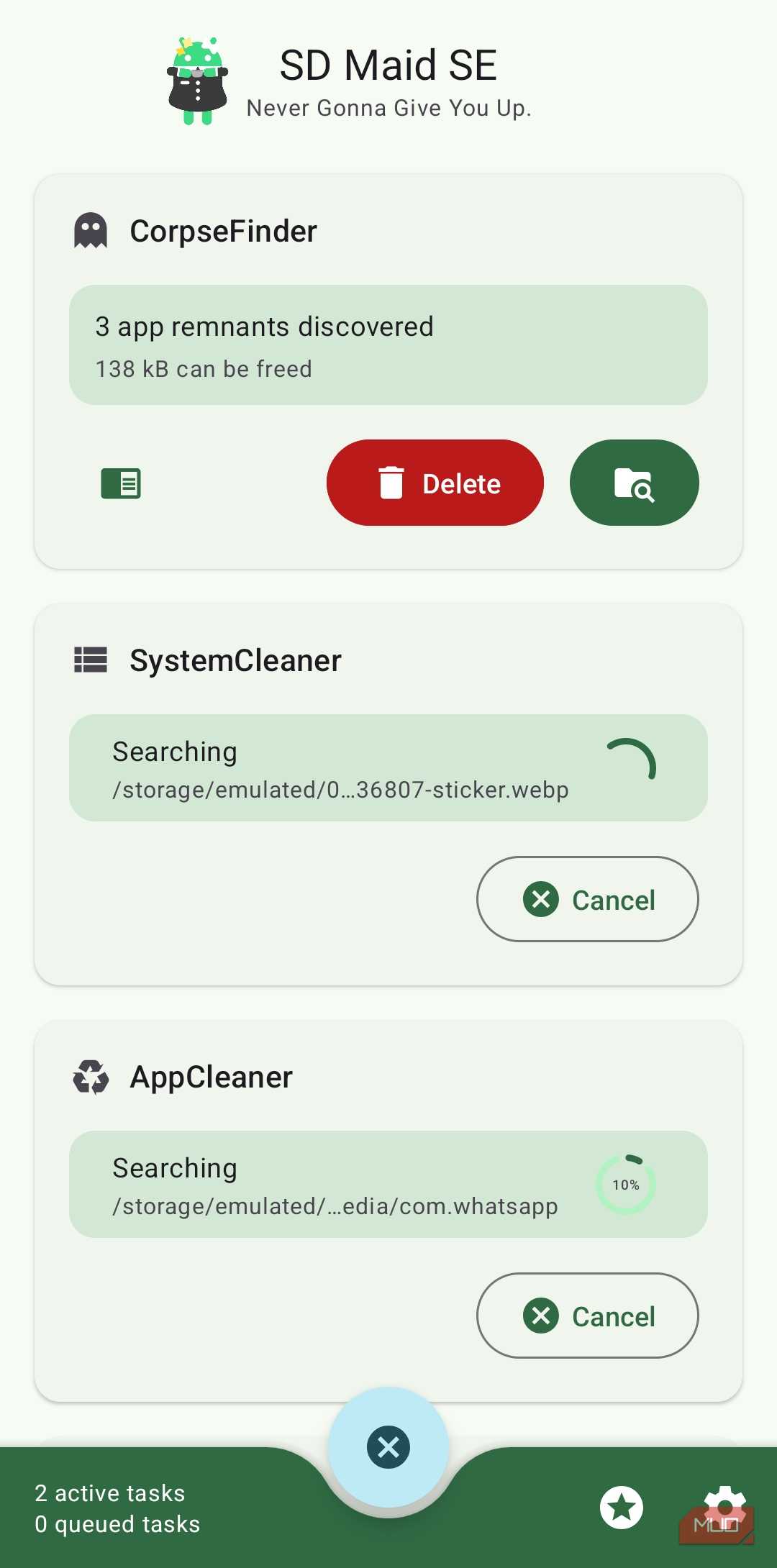
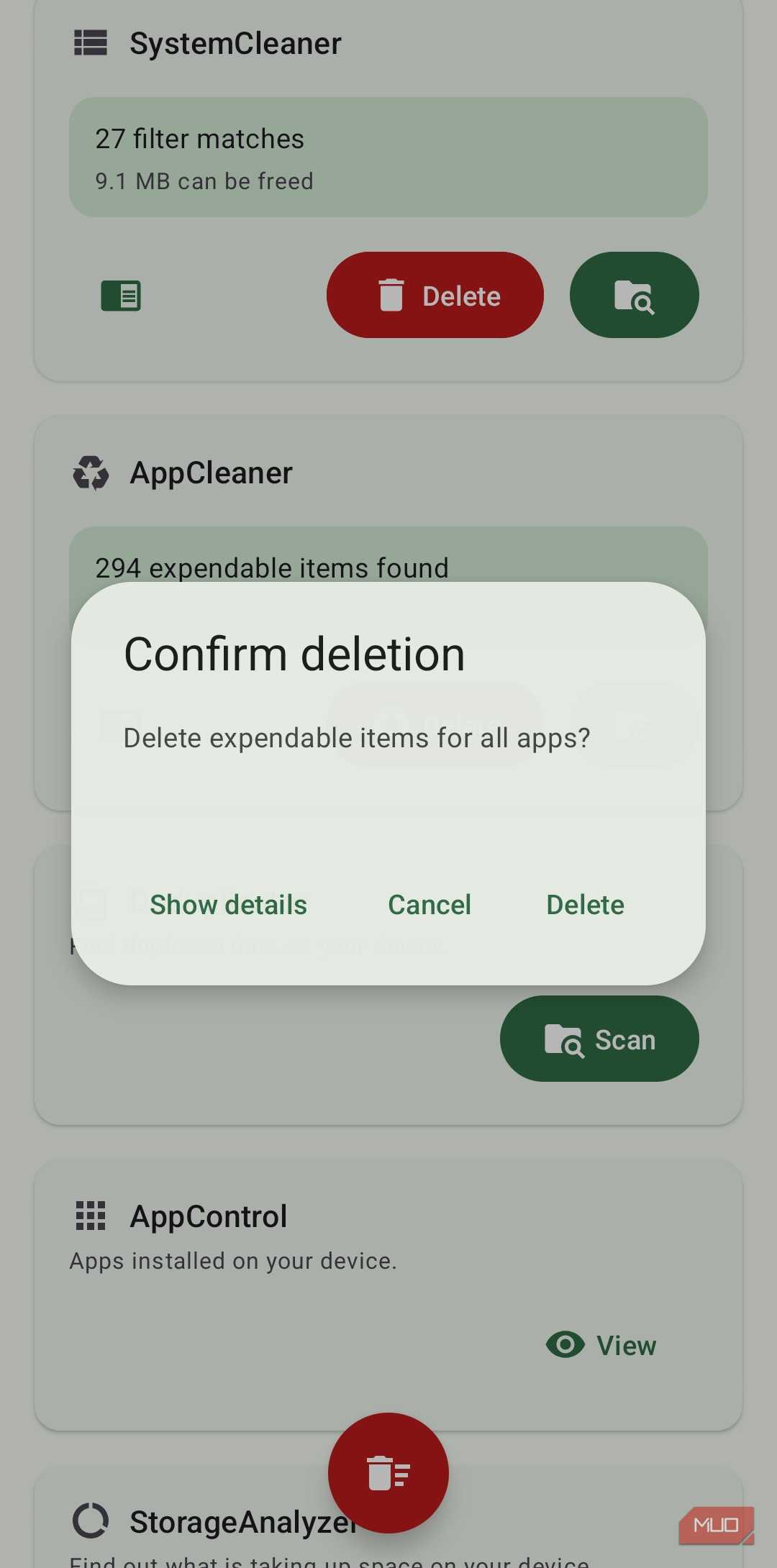
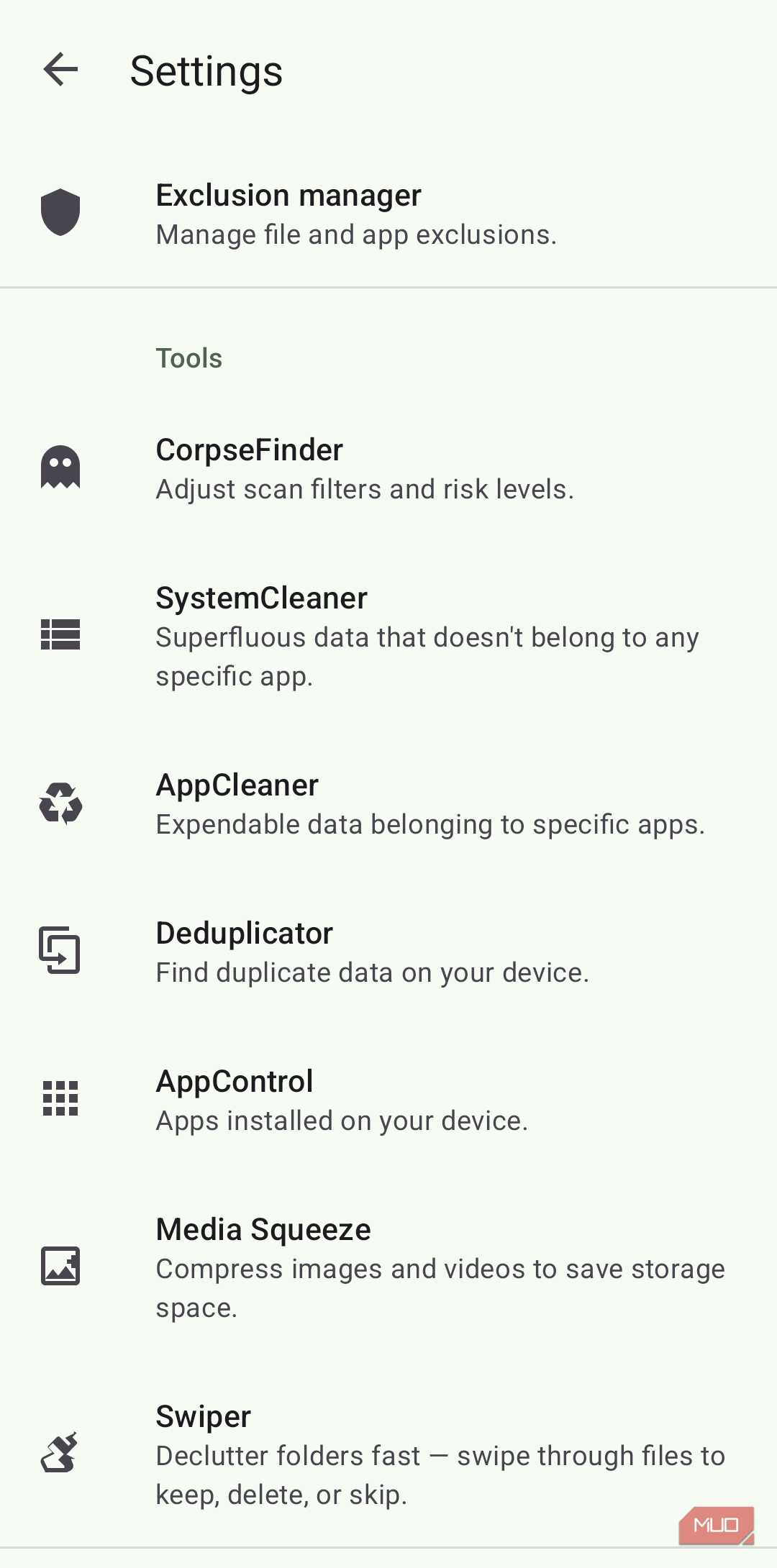
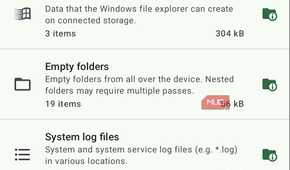
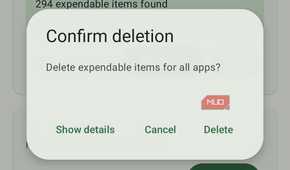
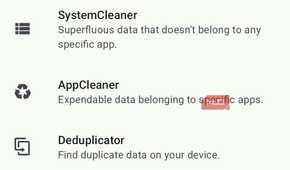
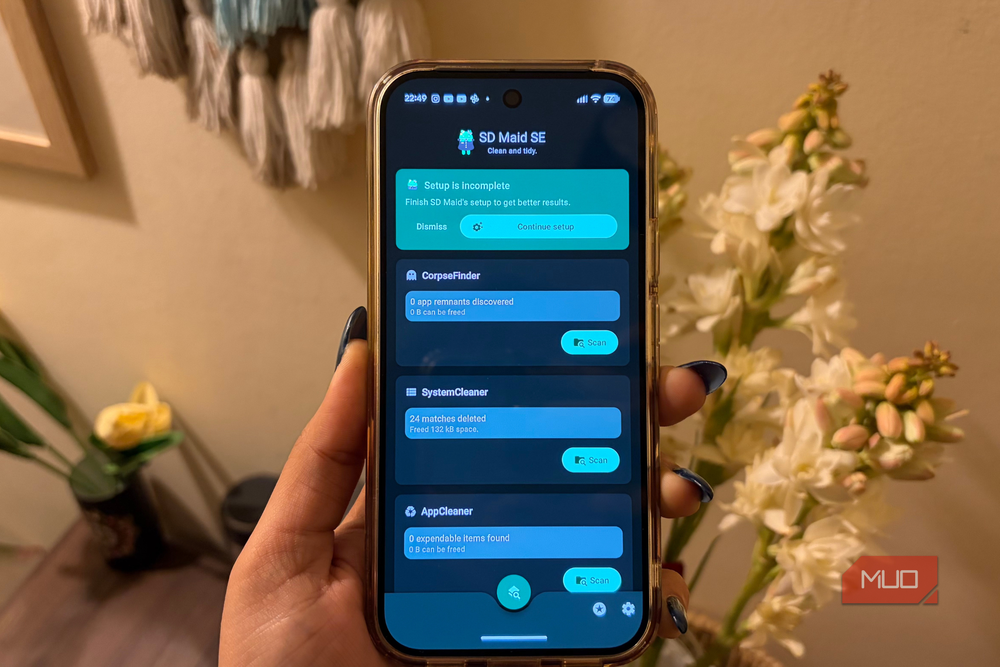
SD Maid is made up of several cleanup tools, but I only needed to use three to free up 6GB of storage. The first one is CorpseFinder, which essentially hunts down leftover files from apps you’ve uninstalled long ago. Android is surprisingly bad at cleaning up after itself when you delete something, so don’t be surprised if you find orphaned folders taking several gigabytes of storage. CorpseFinder can find those leftovers with a tap. What I like the most is that it doesn’t just give you a simple delete option. It shows a complete list of folders and where they're saved, so you’re not deleting data blindly.
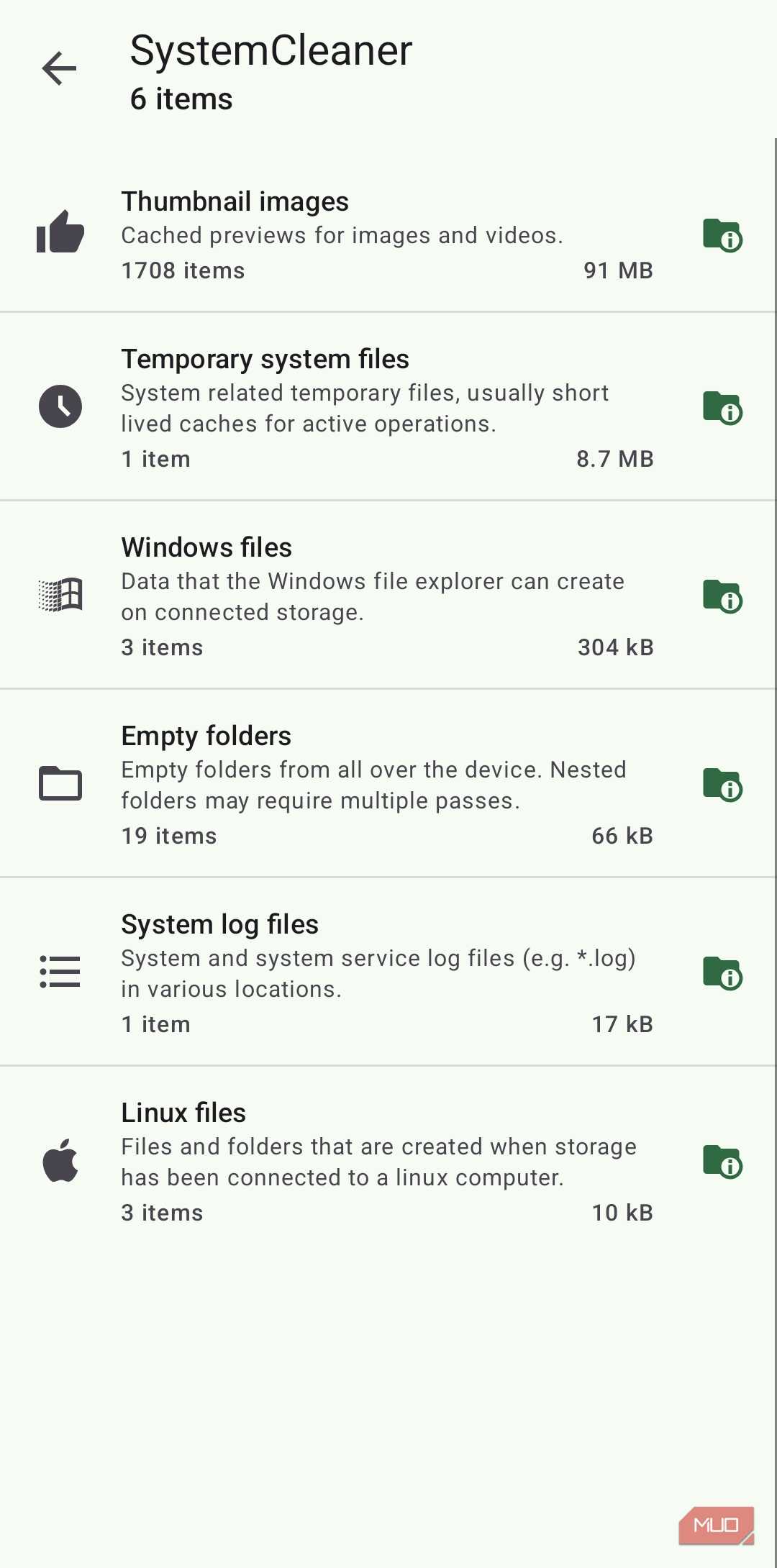
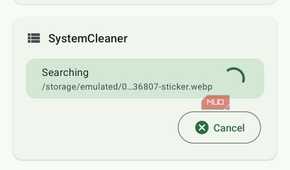
The second tool I used was SystemCleaner. This one goes after empty folders, log files, and other low-level system clutter that never shows up in Android’s native storage breakdown. Again, you can tap the scan button and see everything the app found.
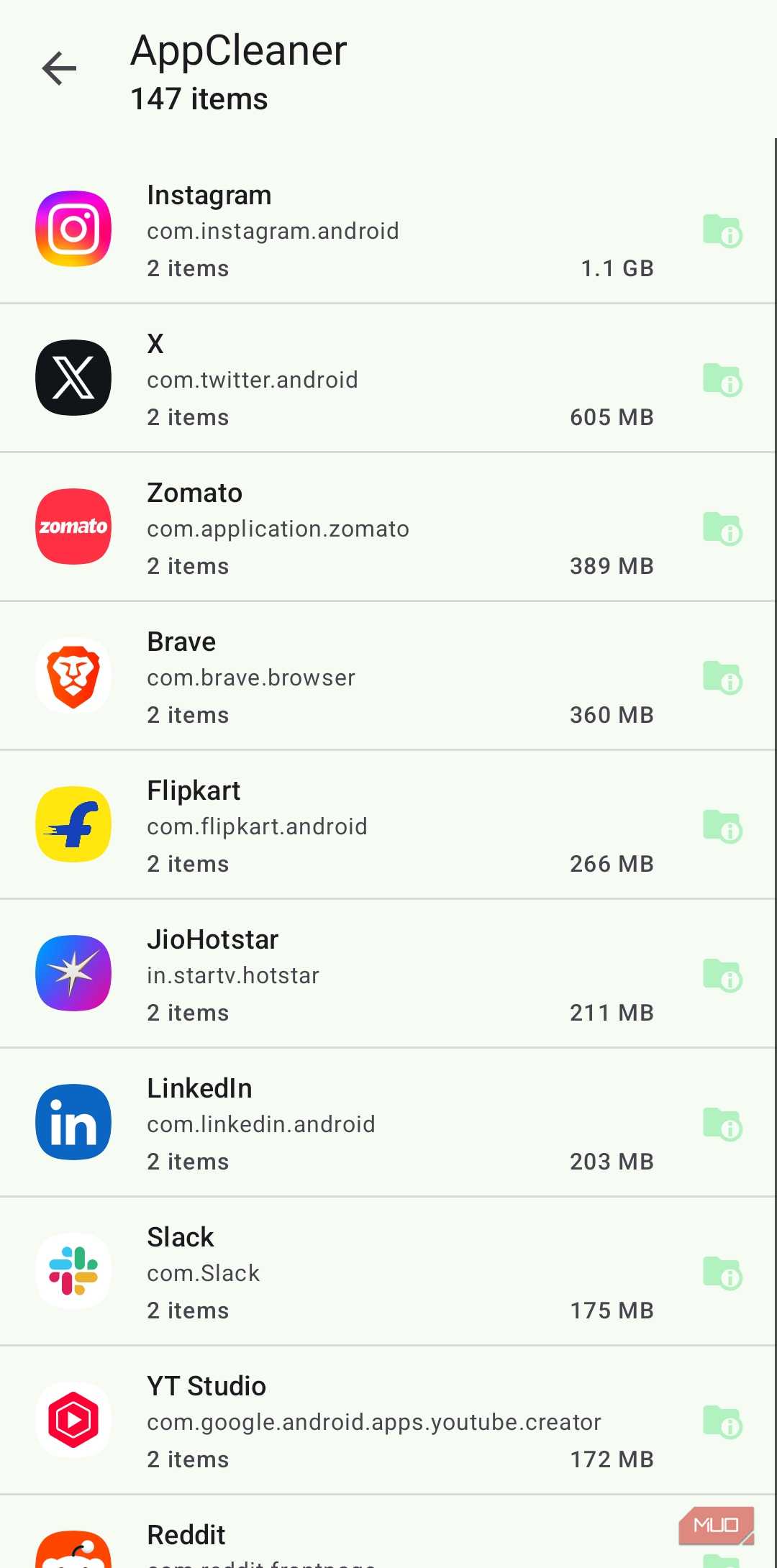
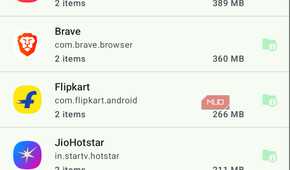
Finally, there’s the AppCleaner, which is something I feel Android should offer natively. It pulls up every app on your phone and shows how much cache and temp data each one is holding — all in a single list. You can also choose to include system apps here. The only catch is that this option is locked behind the Pro version of the app, which is around $4 for a one-time purchase and $2 as a yearly subscription, depending on where you live. There’s also a 14-day free trial so you can test the app before committing.
In my case, all three together ended up freeing 6GB of storage. Of course, this number can be high or low for you. Either way, if you’re not satisfied, SD Maid offers plenty more tools like these. Deduplicator scans for duplicate files. Swiper lets you scan individual folders and delete useless stuff in Tinder-like swipe style. Media Squeeze makes it easy to compress images and videos in bulk. My favorite option, though, is the Scheduler. You can set up SD Maid to auto-run CorpseFinder, SystemCleaner, and AppCLeaner regularly.

SD Maid SE
- OS
- Android
- Price model
- Free, Paid Pro Features
You don’t have to stop here
SD Maid is a great start, but there are other ways to free up storage without deleting your favorite apps or files. The most obvious is the one most people forget: trash folders. Gallery apps, file managers, messaging apps — they all have their own trash folders that hold data for 30 days before deleting it permanently. That seems fair, but 30 days is also a lot of time if you want to free up space now.
If you’re on a Galaxy phone like me, there’s another thing to worry about, which is pre-edit backups. Every time you edit a photo or video in Samsung’s Gallery, your phone saves the original copy as a separate file. This happens even when you overwrite the original file and these stick around unless you clear them manually.
In any case, low storage is something you shouldn’t ignore because it can kill your Android’s performance like no other.