


Most people don't think about their SSD until something feels wrong. We know it can be better than an HDD, but you’ll notice boot times stretch out, games stutter on load screens, and file transfers that used to finish in seconds suddenly crawl. The usual instinct is to blame drivers or background processes, but the actual problem is often right there on your drive. A full SSD is a bigger problem than it seems, but there is a fast way to fix it.
Your SSD has a limit
Your drive is choking, and there are good reasons why

It is easy to run out of space when you're using your main PC and start to think about expanding. The buildup usually happens quietly. Temporary internet files, Windows update logs, error reports, and DirectX shader caches chip away at gigabytes without you ever touching them.
When you throw in large game installs, forgotten video files, and general digital clutter, then it's faster for your drive's usage to creep past the point where things start going wrong. I let mine get to such a bad point where I had a few dozen GBs left.
The trouble really starts around 80 to 90 percent full. That's when the drive's internal architecture runs into hard cache limits. Most consumer SSDs use Triple-Level Cell (TLC) or Quad-Level Cell (QLC) NAND flash. This is affordable but inherently slow to write to on its own.
To make up for that, manufacturers set aside a chunk of free space to act as a fast version of a Single-Level Cell cache buffer. When the drive has plenty of room, the cache expands and keeps things feeling fast.
Push past 90 percent, though, and the storage controller can't find the empty blocks it needs to keep that buffer alive. The cache shrinks fast or collapses entirely. That causes a lot of performance issues because data gets forced past the exhausted cache and writes directly to the slower TLC or QLC cells underneath.
That whole workload is too much. Write speeds crater from several gigabytes per second down to a much lower level than the drive is rated for. Background garbage collection kicks into overdrive, constantly shuffling dead data around just to scrape together small pockets of free space.
You can easily avoid this with a little upkeep, but even if you're already at the point of no return, it's pretty simple to fix.
Clear your data to restore drive speeds
Getting below 80 percent takes a real audit, not just emptying the recycle bin


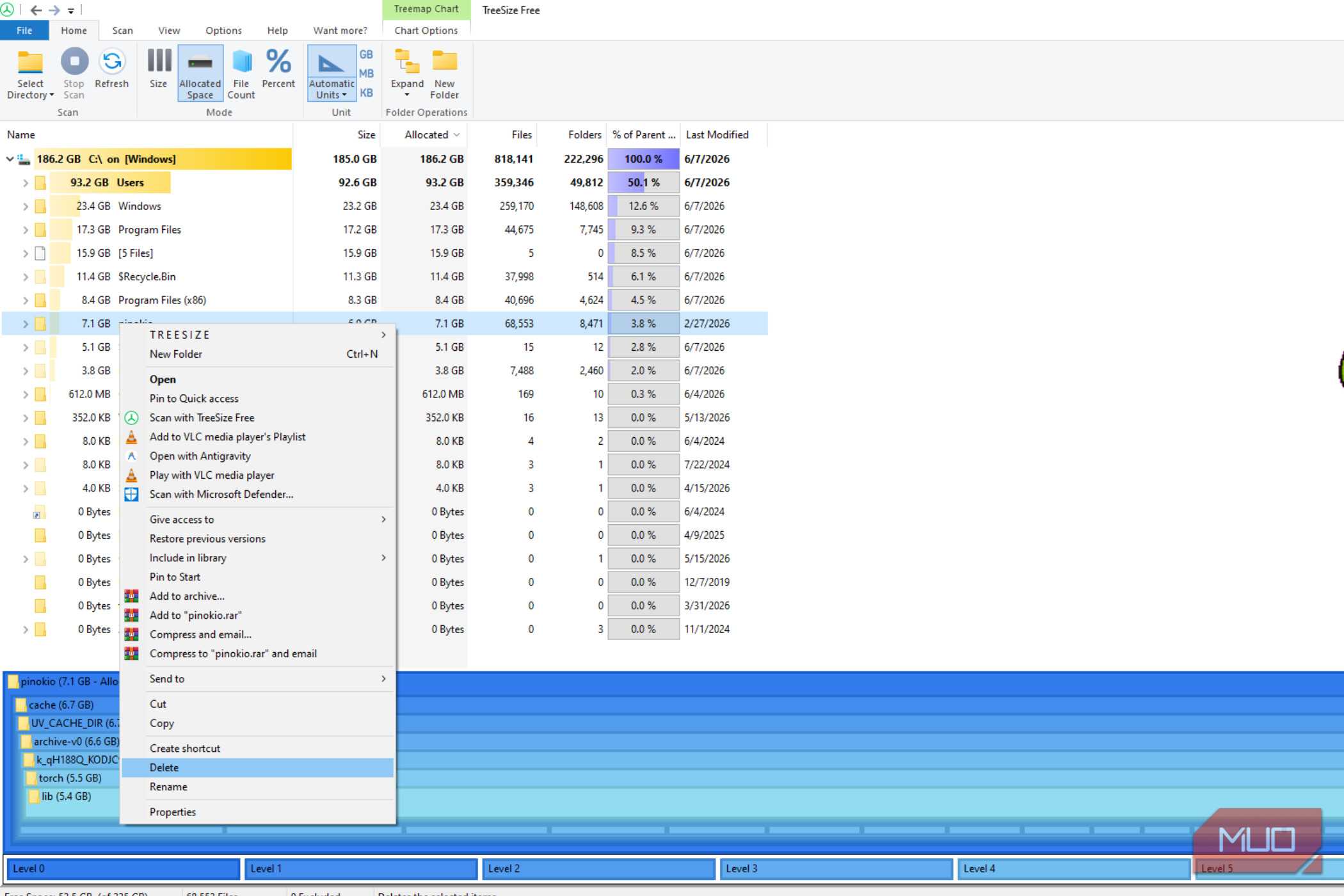
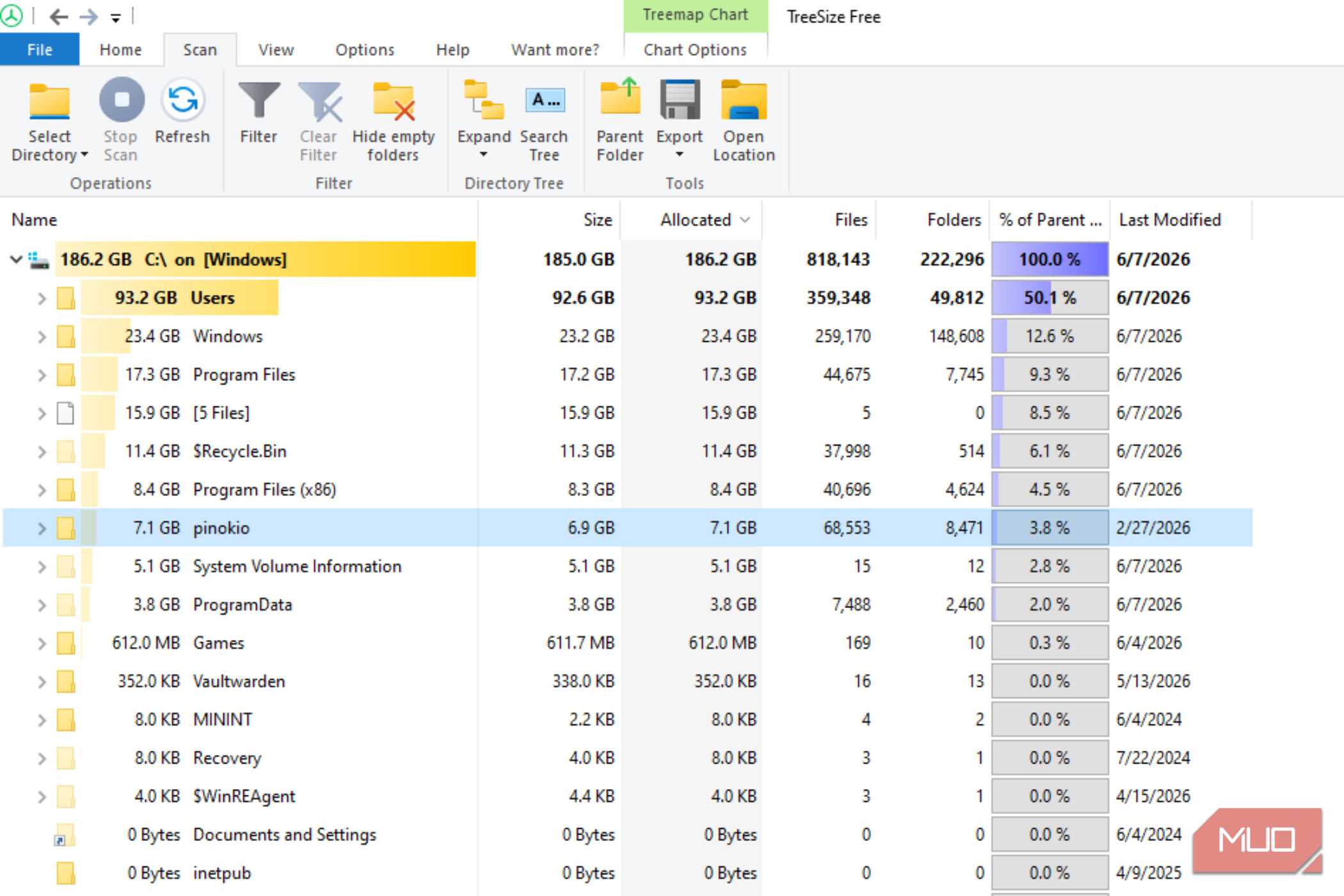
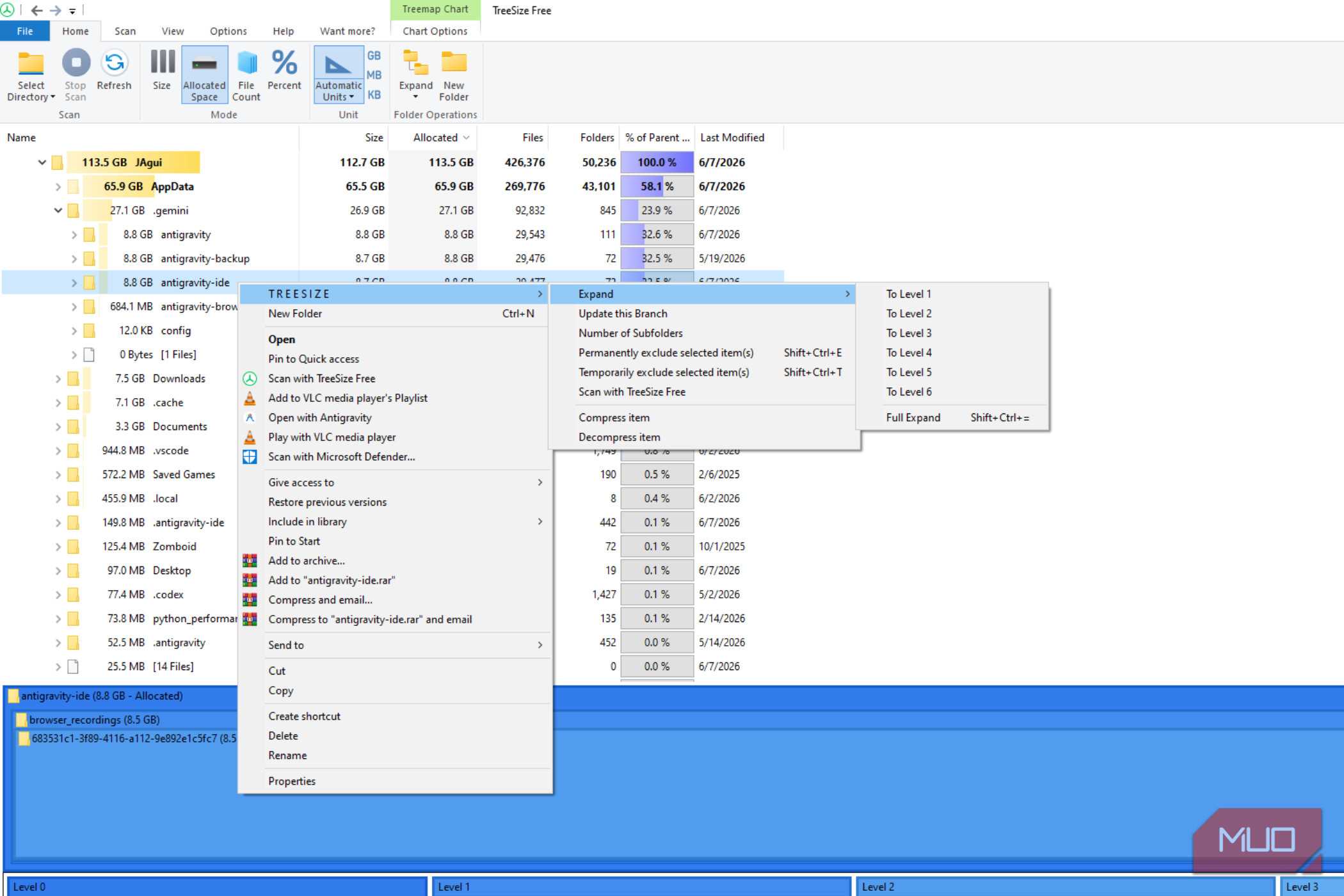
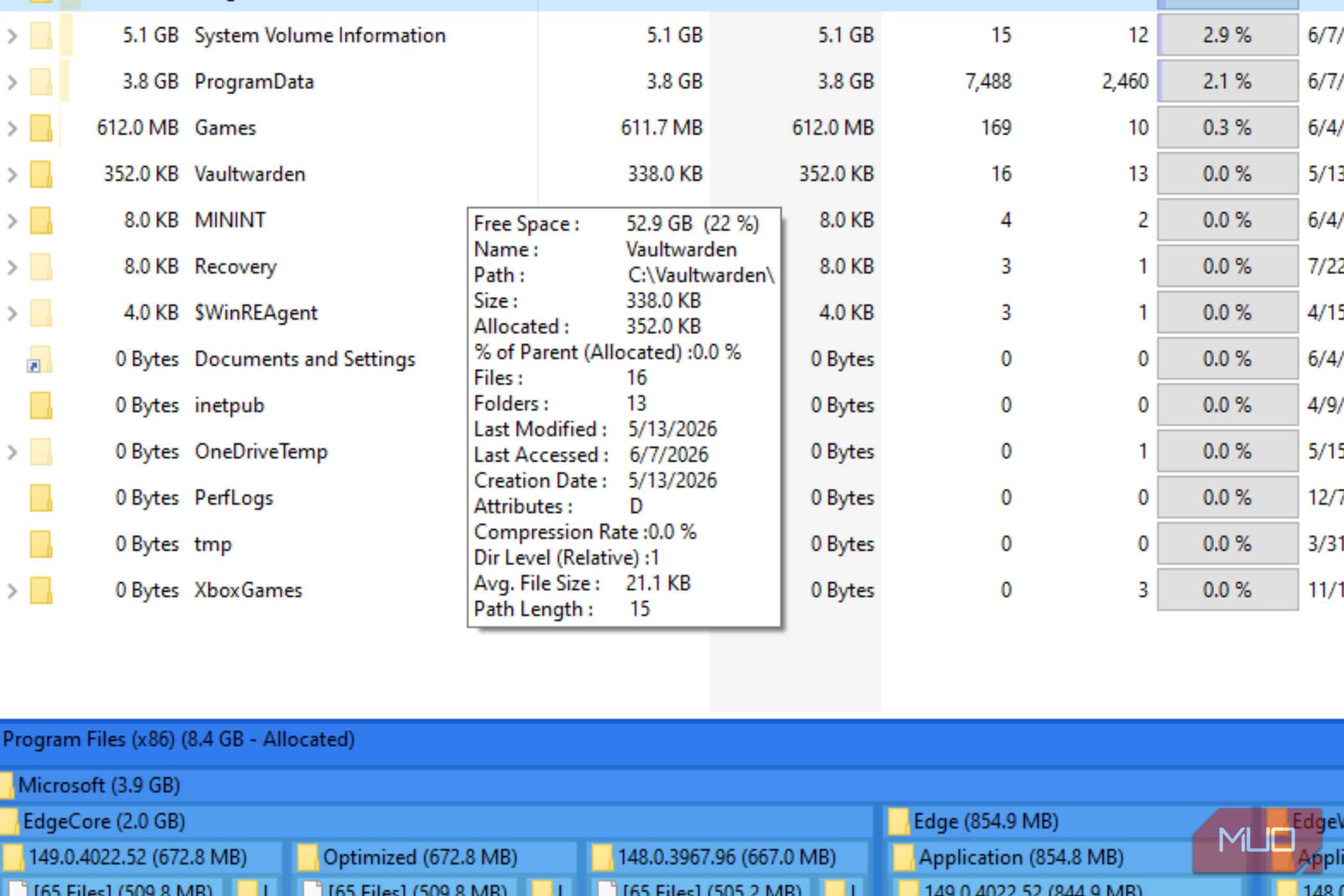
The goal is to get your SSD's usage below 80 percent and keep it there. Leaving at least 10 to 20 percent free is something the drive physically needs to work properly. That breathing room gives the flash controller spare blocks to handle background cleanup, spread out wear across the drive, and keep its write cache running without things slowing to a crawl.
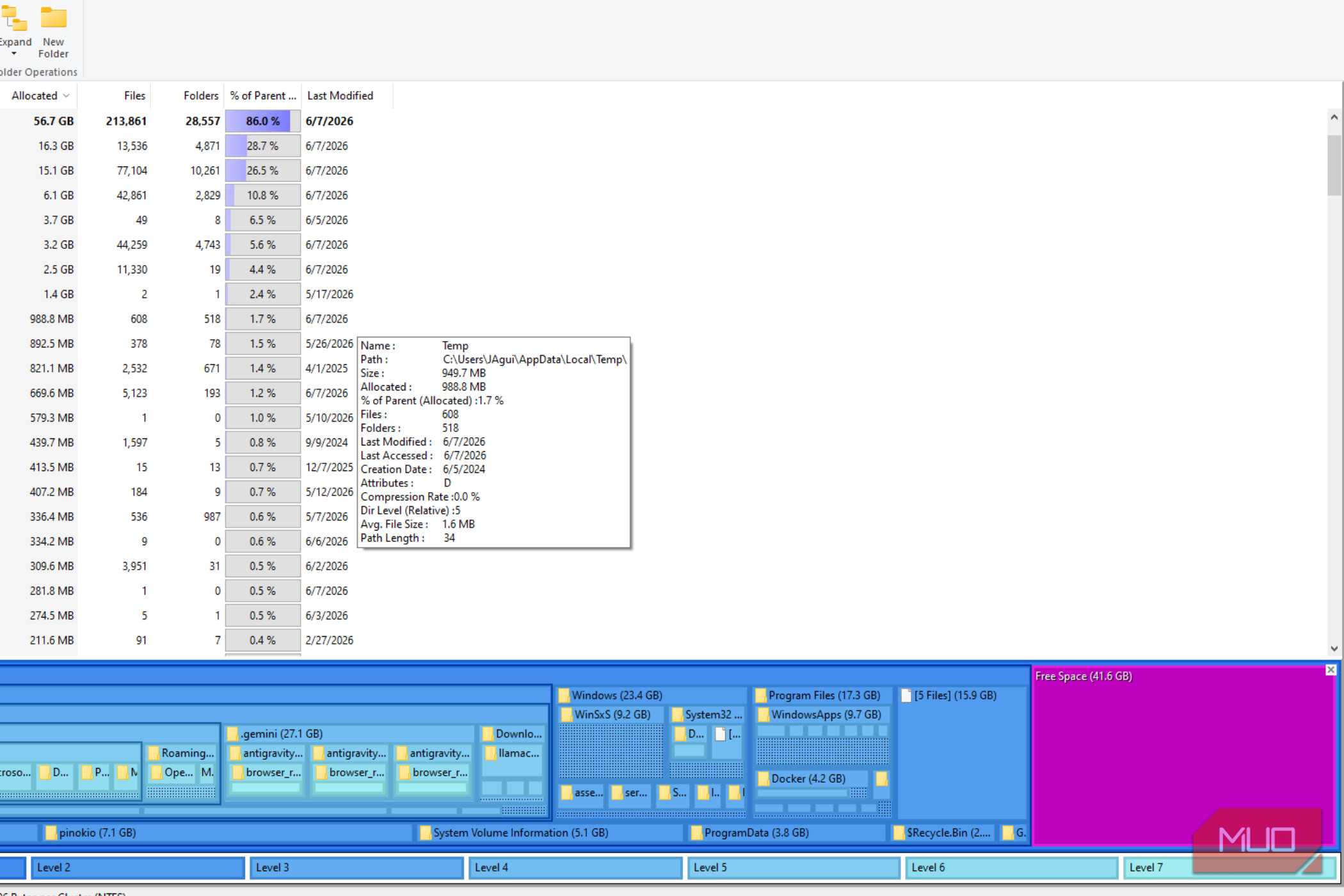
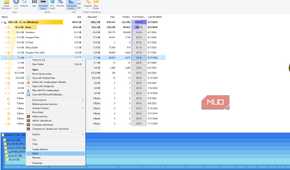
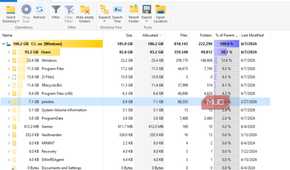
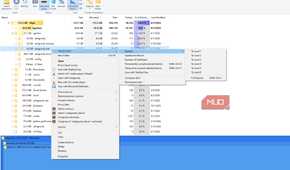
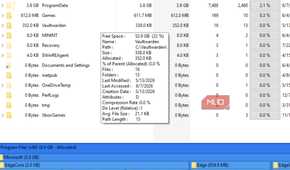
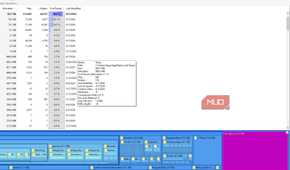
Start by figuring out what's actually eating your space. Windows lets you sort installed apps by size in Apps & Features, which is a quick way to spot bloated game installs and software you forgot you had. For a deeper look, something like TreeSize, which I used to clean my drive.
This gives you a visual breakdown of your folders and turns up hidden space hogs that would otherwise be hard to find. Once you know what's taking up room, move the bulky personal stuff, photos, video projects, and archives off your main drive and onto an external or a secondary mechanical drive.
Start with the biggest drives. I saw I had two Antigravity backups for no reason at all. I wasted 16GB on that alone.
Alternatively, you can just delete it. I had far too many random leftover files I really didn't need. I really like TreeSize because it just lists the folders and their sizes, and I recommend going into downloads and games first. Those were two of my biggest folders, even though I don't play games that often, and I thought I had my downloads under control.
Windows also quietly accumulates a lot of junk over time. Disk Cleanup handles this well, and if you haven't used it, you definitely should after deleting what you can first. Make sure to run it with "Clean up system files" selected and admin rights. That way, it goes after temp files, upgrade logs, error reports, Delivery Optimization leftovers, old Windows installations, and shader caches.
One easy trick that gets overlooked is turning off hibernation from the command prompt. This deletes the hiberfil.sys, a file Windows keeps permanently reserved at roughly the size of your total RAM. That can mean several gigabytes freed up immediately without touching anything else. As you clear space, the SSD controller gets the clean, pre-erased blocks it needs to rebuild its write cache, and your write speeds and overall responsiveness return with it.
SSDs degrade differently
SSDs don't degrade the same way as hard drives, but they absolutely do degrade

A lot of people assume SSDs don't slow down as they fill up. The logic makes sense on the surface. Unlike mechanical hard drives, there are no spinning platters, no read head physically dragging itself across a disk, no rotational latency or file fragmentation to worry about.
SSDs store data electrically in NAND flash memory, with near-instant access times. The core issue is asymmetry built into the hardware. Writing happens at the small page level, but erases have to happen at the much larger block level.
A flash cell can't accept new data until its entire surrounding block has been erased. That means the controller needs a healthy supply of empty, pre-erased blocks sitting ready at all times because nothing moves fast without them.
Push past 80 percent capacity, and that room that your SSD needs to work with disappears. Instead of writing to a clean block, the controller has to pause, read an entire partially filled block, merge the new data, erase the old block, and write everything back. Doing that for every single write destroys performance.
So it's always best to give yourself a lot of space and use any extra storage you have for long-term files.
It's time to clean your drive
Keeping an SSD below 80 percent capacity isn't the kind of maintenance most people think about until performance already falls apart. Clearing space, moving files off your primary drive, and letting Windows automate routine cleanup get you most of the way there with little effort. Once you're back under that threshold, the drive handles the rest on its own, and the difference in day-to-day responsiveness is usually obvious very soon after.

FileTreeSize
- OS
- Android
- Platform
- Android
FileTreeSize a disk space analyzer app that helps you find out which files and folders are hogging your device's storage.