


Most Windows storage tricks come down to either clearing temporary files or deleting large apps and files. But there’s one more lesser-known trick, which is to compress Windows itself.
This might sound bizarre, but it’s actually a built-in feature called Compact OS, and it can easily free up close to 10GB of storage on your PC without actually deleting anything. I decided to try it on my main PC to see how well it actually works, and more importantly, what it costs you in return.
Windows can compress itself with a single command
No need to delete anything

Compact OS is a built-in feature that can reduce the Windows OS footprint by compressing the system files. When you run the compression command, Windows goes through its own core files and squishes them down, then decompresses them as and when they’re needed. The whole thing happens in the background, so you don’t actually notice any wizards or prompts while using your PC.
Windows is also smart about this. It picks the compression algorithm depending on what your PC’s hardware can realistically handle. On a fast, high-end PC, Windows will opt for a more aggressive compression, while on the slower ones, it typically opts for lighter algorithms, so the decompression overhead doesn’t drag everything down.
Compact OS has been around since Windows 10, but the reason it’s not popular is because it’s mainly designed for budget laptops and tablets that don’t have much storage to begin with. Devices with 128GB or 256GB storage are where every little bit of space counts, and that’s where Compact OS is actually beneficial. But that doesn’t mean you can’t use it on other PCs with higher storage.
Compressing the OS was quick and painless
I wish everything in life was this easy


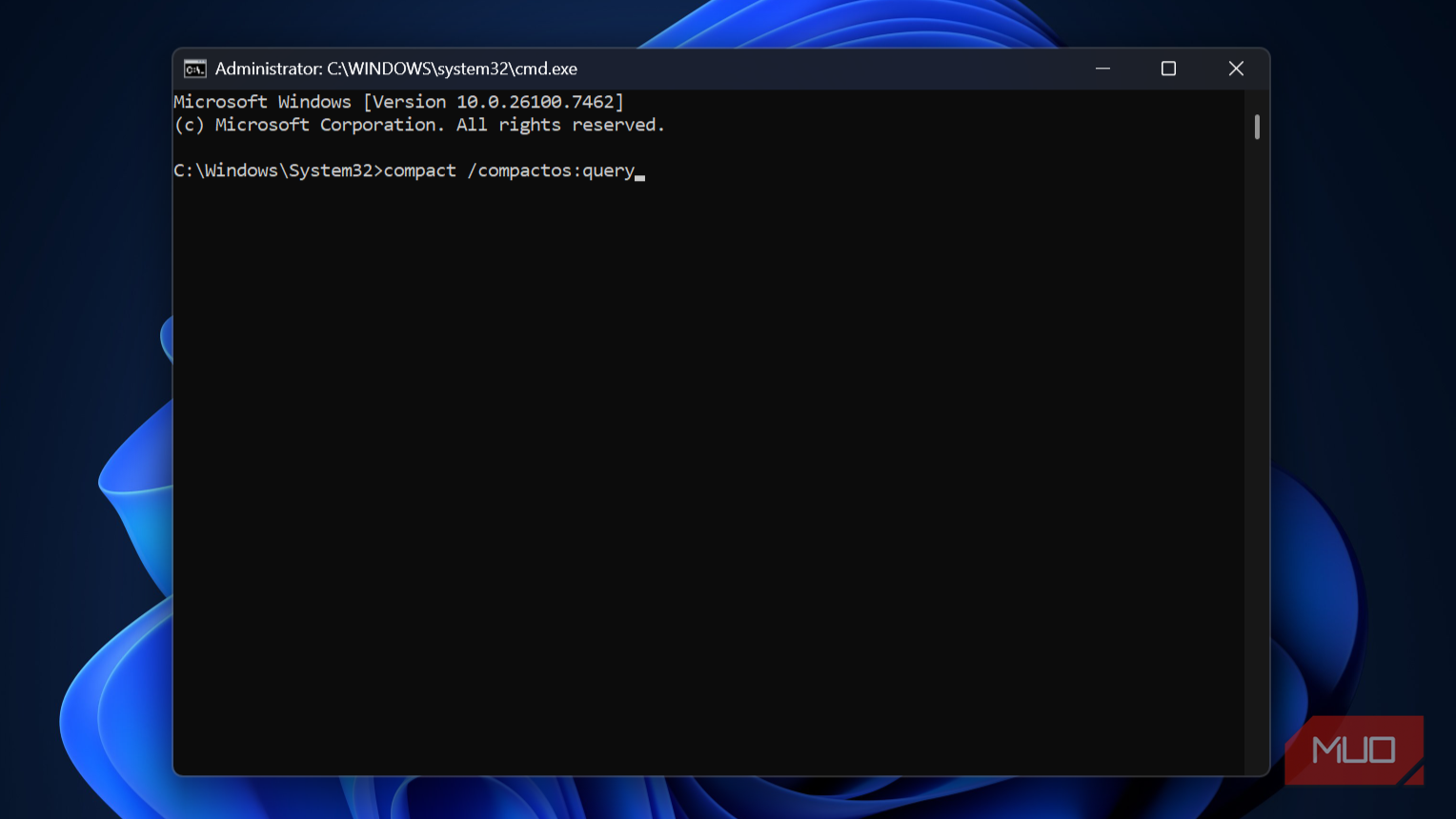
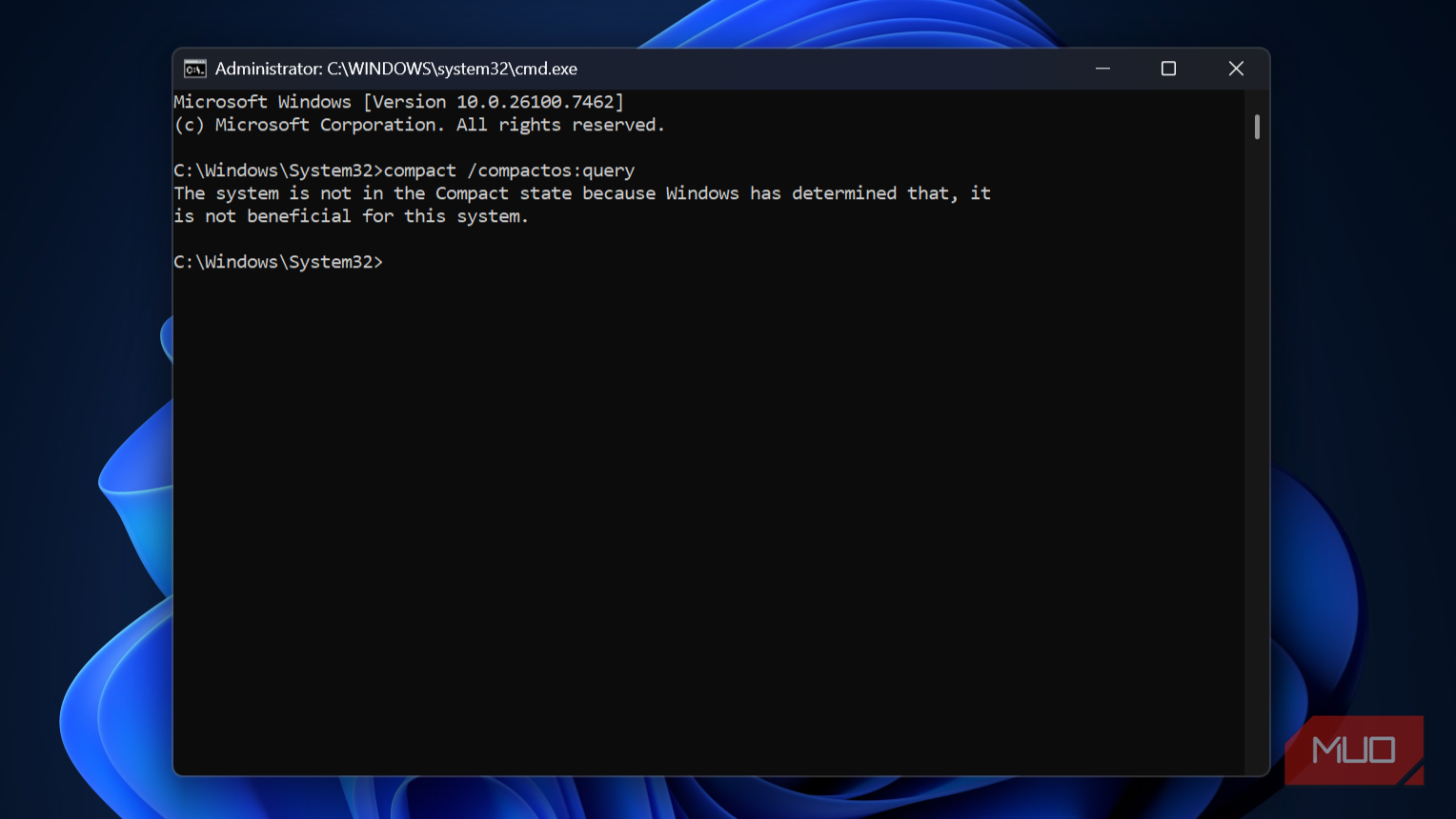
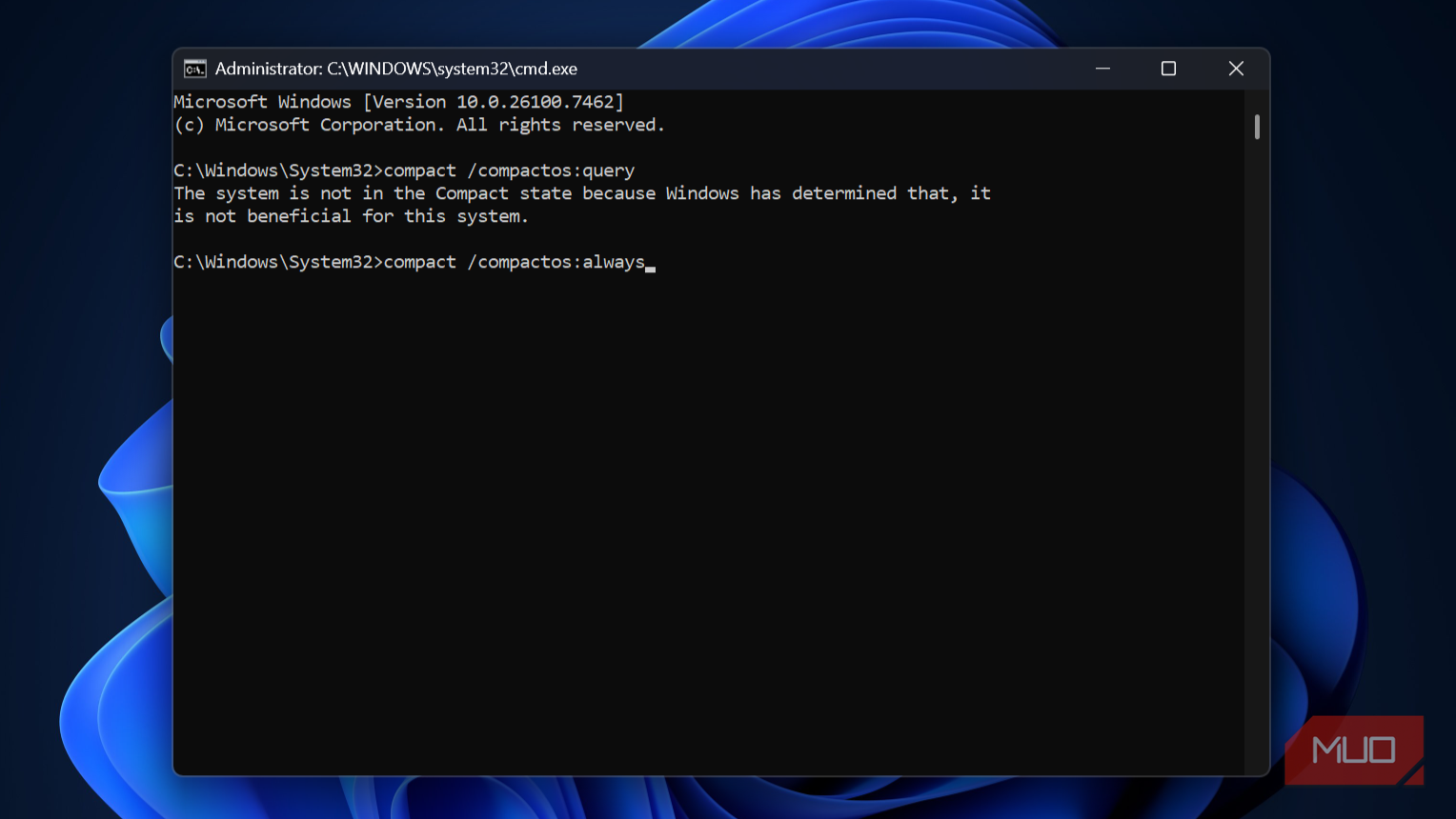
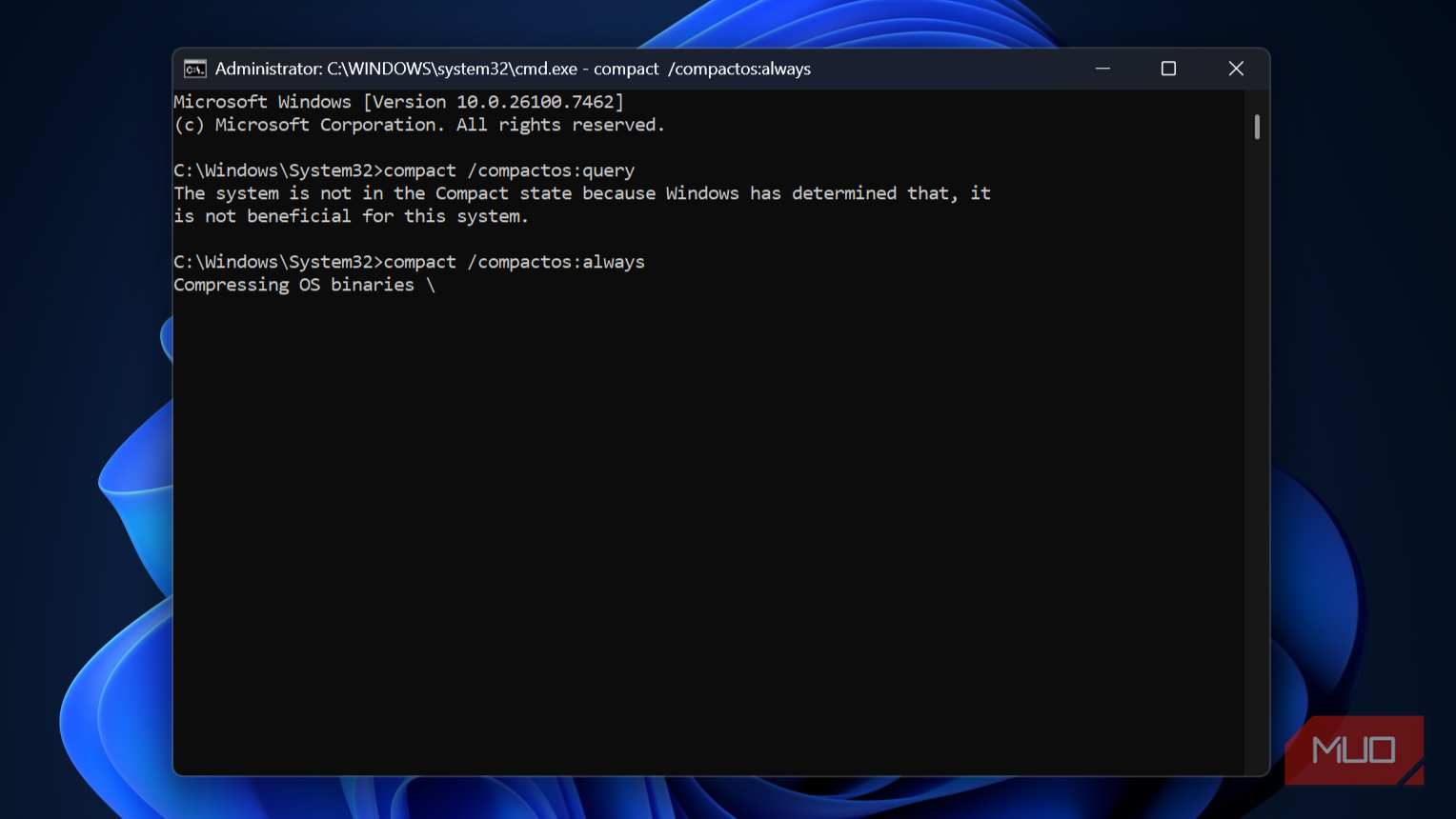
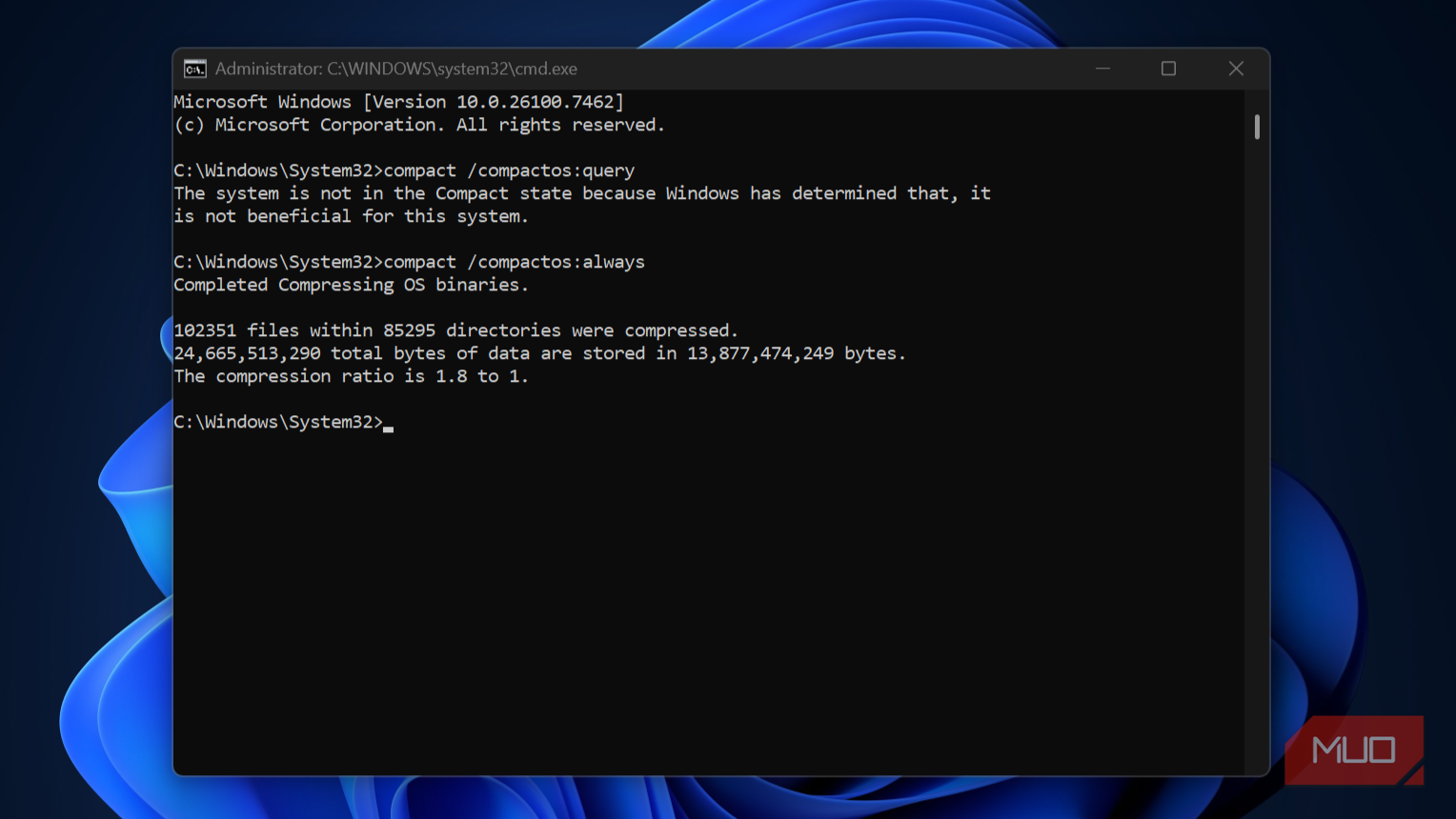
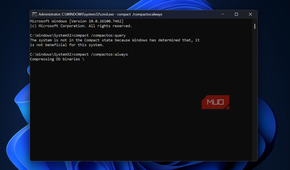
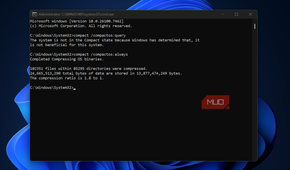
Since Compact OS is a built-in feature, there’s no real risk or downside to enabling it. Before you do that, though, it’s best to check if Compact OS is already active on your machine. For this, type CMD in the Start menu and choose Run as administrator. Then, type compact /compactos:query and hit Enter. Windows will tell you whether the compression is already applied or not. In most cases, it will be the latter. And to enable Compact OS, type compact /compactos:always and hit Enter.
It’ll take a while to finish, depending on your PC’s hardware. You can do other things while this is happening, but you may notice the fans spinning a bit faster than usual. Once the compression is done, it'll tell you how much space was saved. In my case, it was 11GB, though your mileage may vary.
The storage savings come with a few trade-offs
There’s a performance catch

Saving 11GB with a single command — without deleting anything — sounds like a no-brainer, but there’s a catch. And I only felt it after living with Compact OS for a bit.
The first thing I noticed was the boot time. Before compression, my PC was at the Windows desktop screen in around 10 seconds. After Compact OS, that crept up to 13 seconds. 3 seconds doesn’t sound a lot, but it’s actually a 30% increase. I almost expected this going in since Windows has to decompress its own system files before running.
What I didn’t expect was the performance slow down after boot, especially on a PC running AMD Ryzen 7 7435HS with 24GB of RAM. Even after the boot, the first few minutes felt sluggish. Apps took a beat longer to open, the desktop felt less snappy, and even the Start menu had a slight lag to it.
The CPU numbers told the full story. Before Compact OS, my CPU usage would barely cross the 20-30% mark under normal usage. But with Windows system files compressed, it was regularly hitting 70-80% any time I was searching for something or opening an app.
Undoing this wasn’t too hard
If you’ve tried Compact OS and the performance hit isn’t something you want to live with, reversing it is just as easy. All you have to do is open CMD as administrator, and run this command: compact /compactos:never. Windows will decompress system files in roughly the same amount of time it took to compress them, so set aside 10-20 minutes and let it do its thing.
My experiment with Compact OS didn’t go the way I hoped, but that doesn’t mean Compact OS is completely useless. It still makes sense on PCs where storage is an issue. It's also ideal for systems where performance isn’t a priority, like IoT devices or kiosk setups that only need to do specific tasks daily.
For everyone else, though, it’s best to not fall into the extra storage trap. The savings are real, but so is the slowdown. More importantly, there are better ways to reclaim storage without deleting personal files or affecting OS performance.