


Most of us fall into one typing routine on Android and stick with it. A text box opens, the keyboard appears, and muscle memory takes over, making it easy to overlook how many different ways Android can accept text once you move beyond tapping letters one by one.
You can replace the keyboard entirely, and plenty of Android keyboard apps are built around different typing styles and priorities. But you don’t always need another app to change how you enter text. Several useful alternatives are already built into Gboard or Android’s accessibility features, ready for the moments when a standard QWERTY keyboard isn’t the best tool for the job.
Swipe through whole words instead of tapping letters
Your thumb can stop playing whack-a-mole
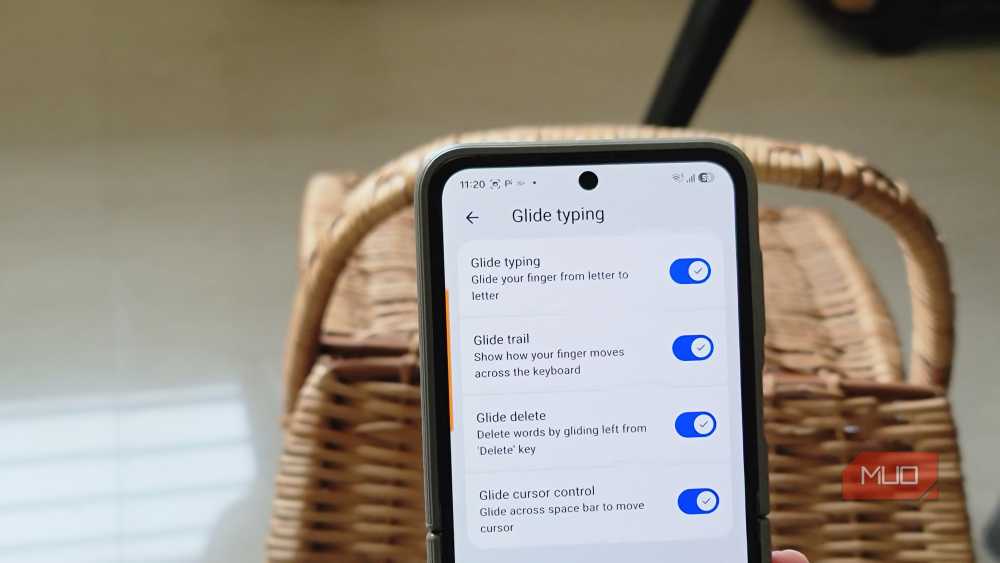
Glide typing is probably the easiest alternative to pick up because there’s very little to relearn. Instead of pecking at each letter individually, you drag your finger across the keyboard from one letter to the next, lift when the word is done, and let Gboard interpret the path and drop its best guess into the text field.
I find it especially useful when I’m typing one-handed because my thumb can keep moving instead of hopping between a bunch of tiny targets. It’s less reliable with names, acronyms, URLs, and obscure technical terms, so I still switch back to tapping when accuracy matters more than speed.
You can turn it on under Gboard Settings > Glide typing, and there are several other Gboard tricks that can make everyday typing faster once you start digging through the keyboard’s settings.
Dictation can leave your thumbs in the dust
Talking to a text box gets normal pretty quickly
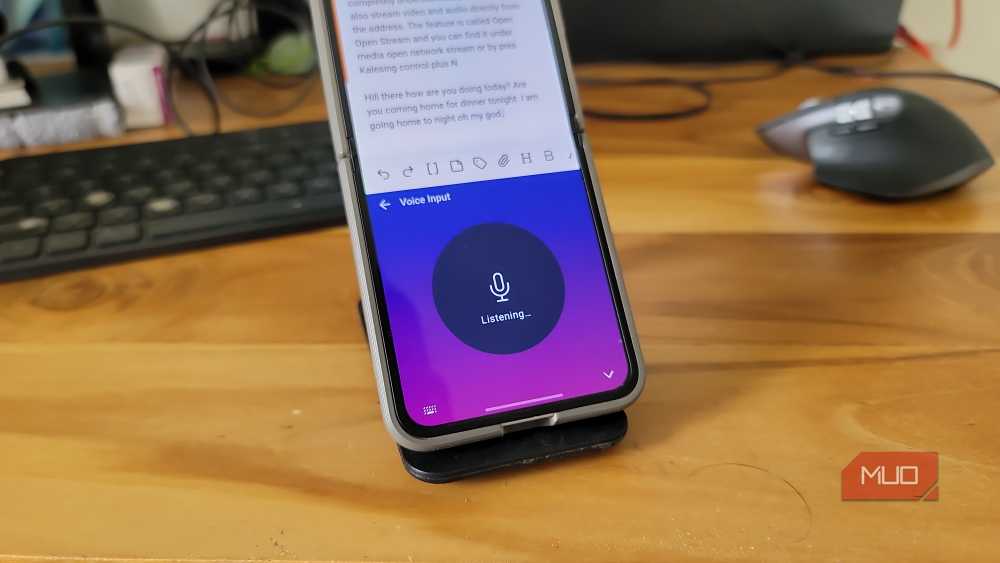
Gboard’s voice typing works almost anywhere you’d normally use the keyboard. Tap the microphone, start speaking, and your words appear as editable text. You can dictate punctuation and paragraph breaks too, although the exact features available vary by language.
Pixel 6 and newer Pixel phones get a more capable version called Advanced Voice Typing. It can add punctuation automatically, insert emoji, and respond to editing commands such as deleting text. The feature currently supports English, French, German, Italian, Japanese, and Spanish.
I usually turn to dictation when I already have a paragraph mapped out in my head and don’t want to peck it into a phone. Rough notes, long messages, and first drafts can move much faster when I speak them first and clean them up afterward. Names and technical jargon can still get mangled, though, and dictating an entire message in a crowded waiting room comes with its own social complications.
Gboard isn’t the only option either. FUTO Keyboard supports fully offline voice typing, with speech recognition handled locally on the device instead of relying on a cloud service.
You can literally write the words by hand
Your phone is willing to decipher your penmanship

Gboard includes a handwriting layout for supported languages that replaces the usual key grid with an open writing area. You draw letters with your finger or stylus, and Gboard converts those strokes into regular text that you can edit, copy, and send just like anything typed on QWERTY.
You can enable it under Gboard Settings > Languages by choosing your language and turning on the Handwriting layout. If that option doesn’t appear, the language isn’t supported.
Writing with a finger on a regular phone is fun for a few minutes before the normal keyboard starts looking much more appealing. A stylus makes the feature far more practical. Samsung Keyboard also has its own handwriting mode, and compatible Galaxy phones let you use the S Pen to write directly into supported text fields, which makes a lot more sense when the pen is already in your hand.
If you're a Galaxy owner who rarely takes yours out, you may also be overlooking several other useful things you can do with the S Pen.
A real keyboard can turn Android into a tiny workstation
Sometimes the best touchscreen keyboard has actual keys



Dave Meikleham \ MakeUseOf



 Credit: Digvijay Kumar / MakeUseOf
 Credit: Tashreef Shareef / MakeUseOf

 Credit:
 Dave Meikleham \ MakeUseOf


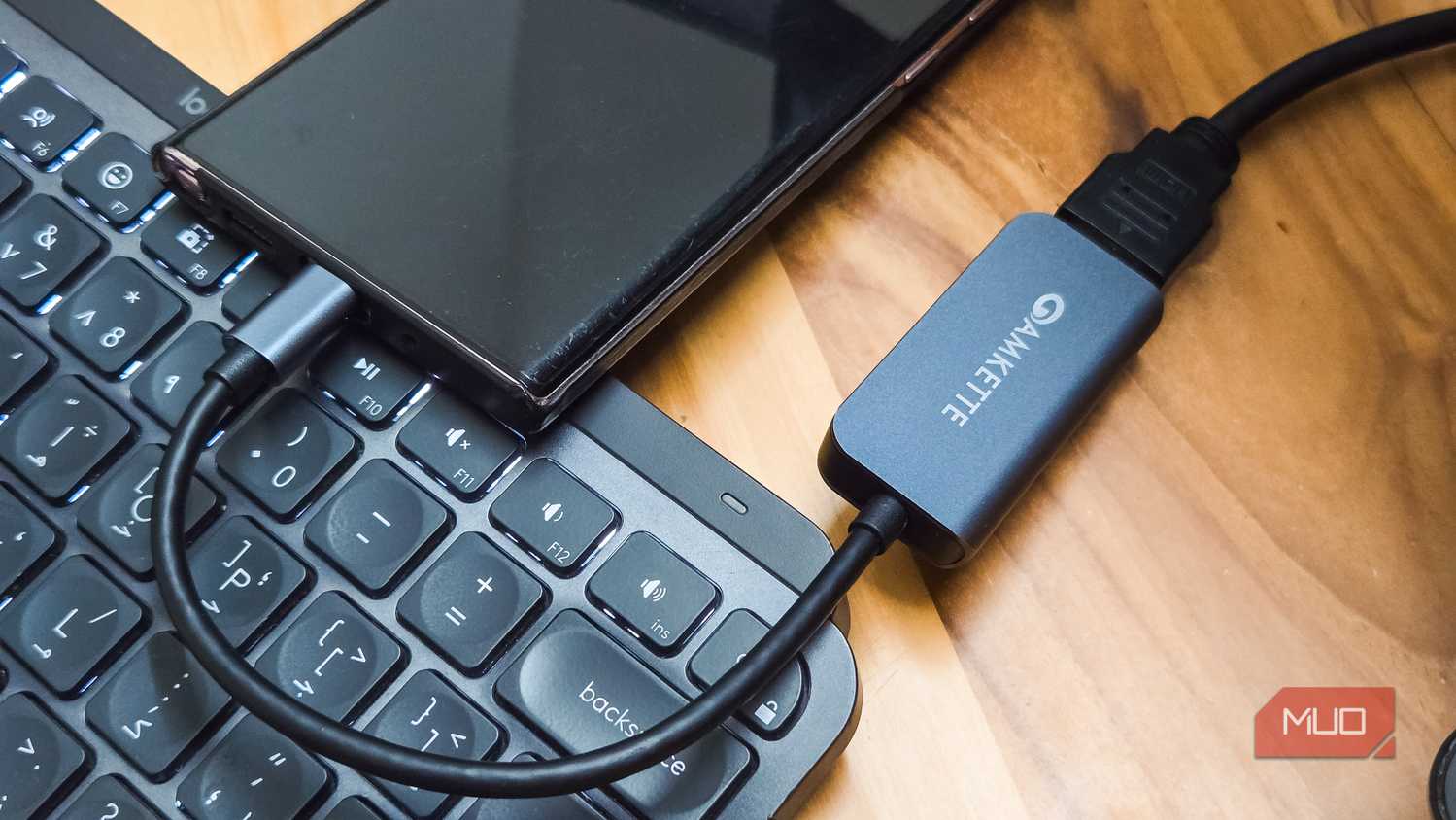
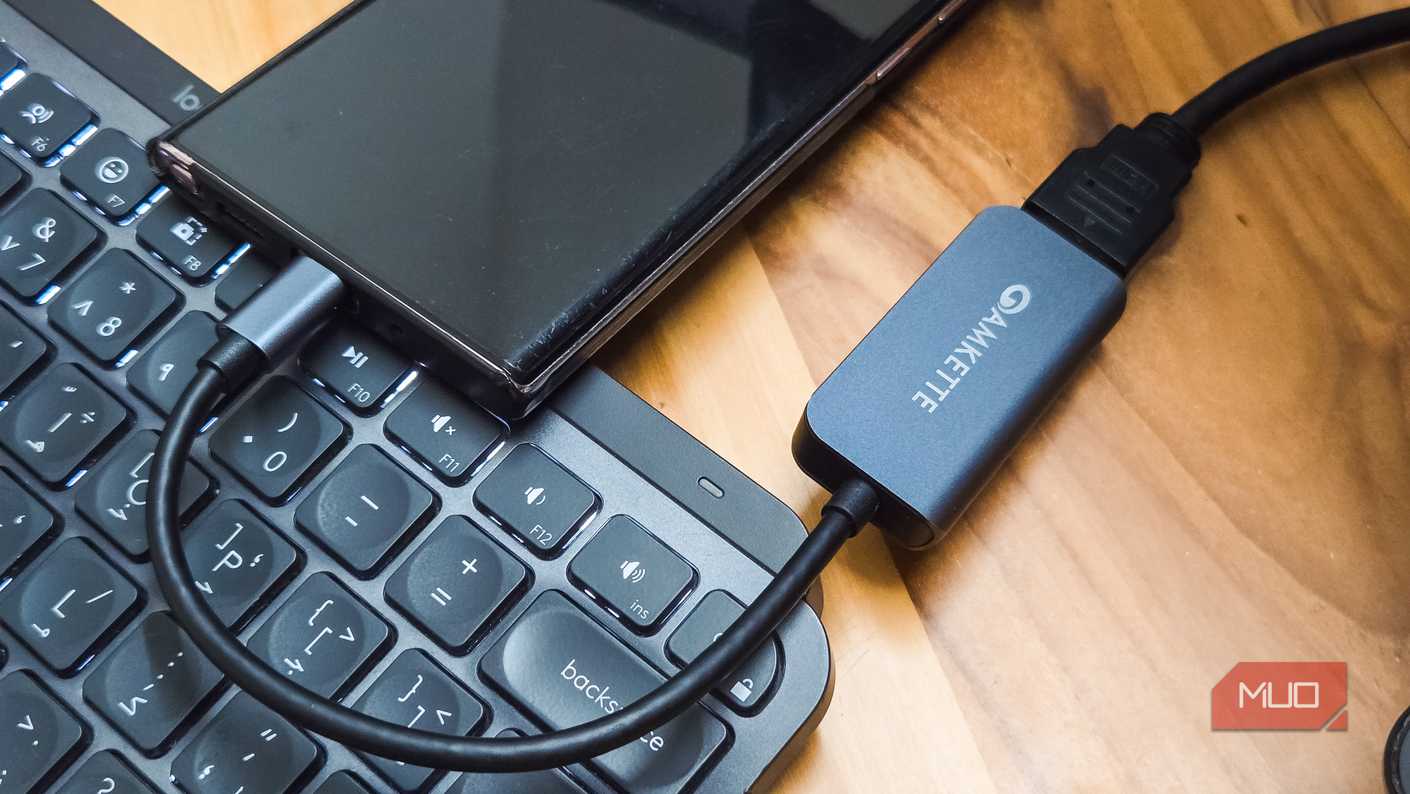
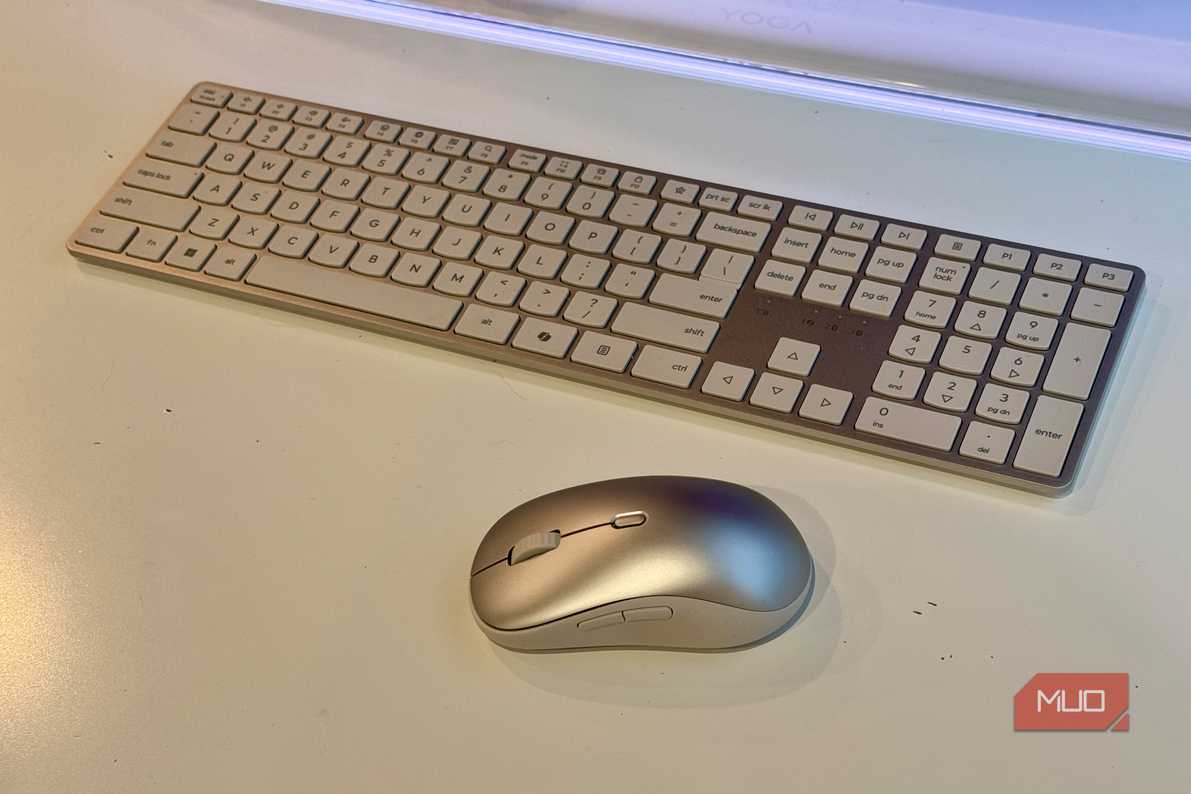
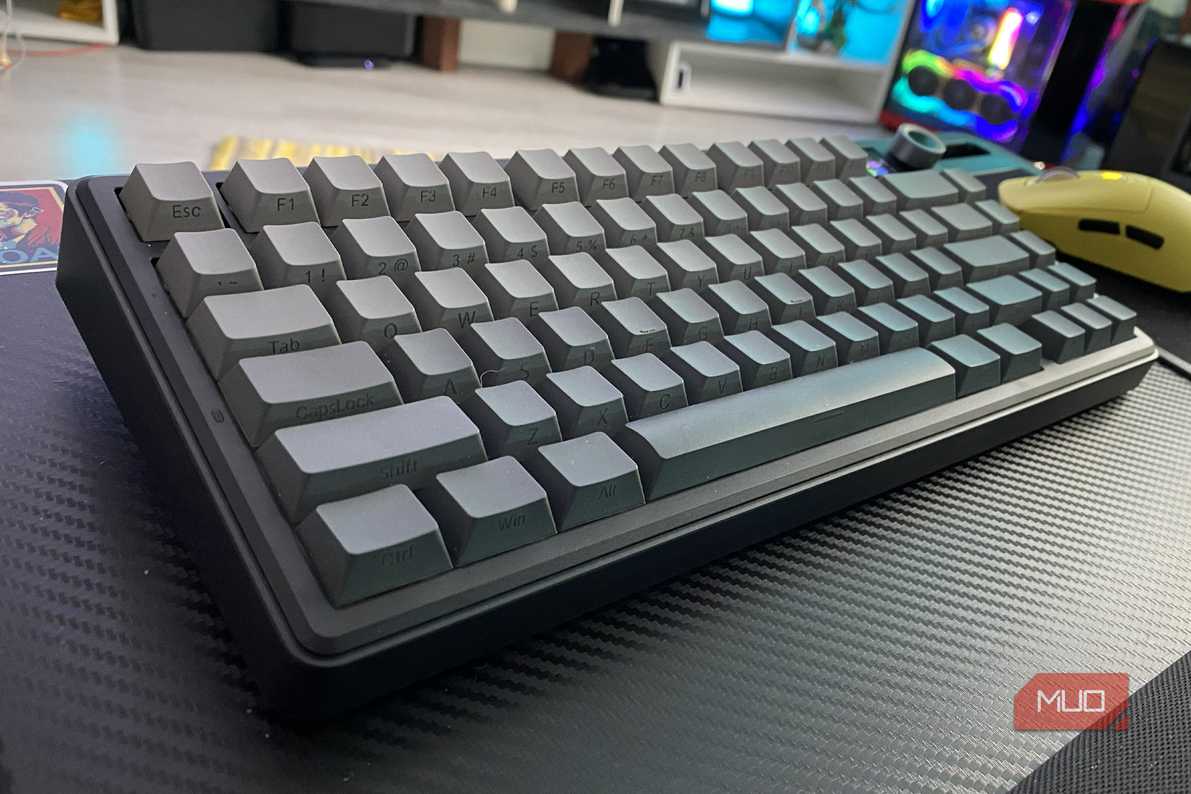
Android can handle physical keyboards over Bluetooth or USB, so you can pair a compact keyboard with a phone or tablet and type much like you would on a laptop. The system also includes settings for hardware keyboard layouts and related controls, while plenty of apps recognize familiar shortcuts for editing, navigation, and other common actions.
The idea makes a lot more sense on a tablet, where propping up the screen and adding a keyboard can turn long emails, spreadsheets, web forms, and documents into far less of a thumb-powered endurance test. Apps that support keyboard shortcuts also cut down on how often you have to reach up and jab at the display every few seconds.
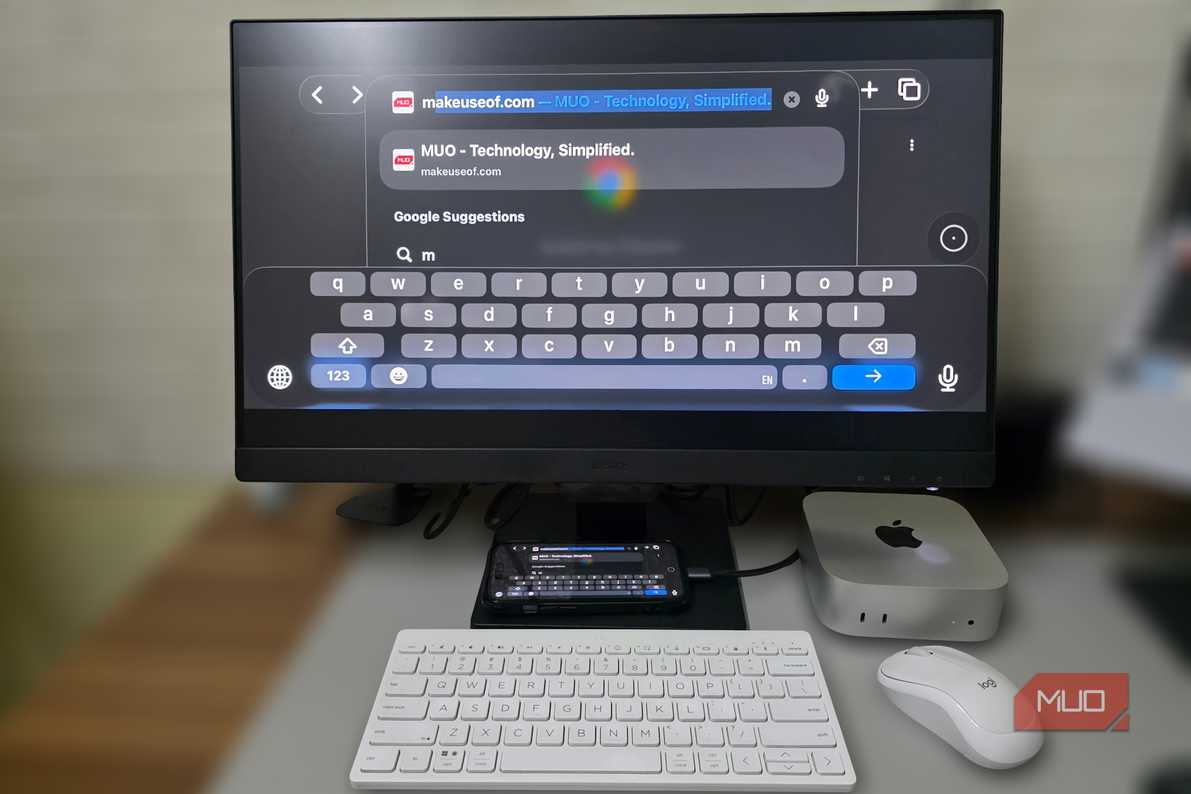
Carrying a keyboard just to answer a couple of WhatsApp messages would be comically excessive, but it starts to make sense when your Android device occasionally has to impersonate a computer. Phones capable of desktop output can take the idea further, and Android now has a desktop mode that can turn a supported phone into a more PC-like setup when you add a monitor, keyboard, and mouse.
Gboard has a Morse code keyboard hiding inside it
Two keys can still write an entire sentence

Hidden among Gboard’s U.S. English layouts is a Morse code keyboard, which is probably not where most people expect to find one. Instead of filling the screen with letters, it gives you dot and dash inputs, then turns those sequences into text while still offering word predictions and suggestions along the way.
You can add it through Gboard > Languages > English (US) > Morse code, and the customization goes well beyond a novelty toggle. There are controls for character and word timeouts, repeating keys, audio feedback, and support for external switches.
That last option gives the feature a much more practical purpose because two large inputs can be easier to use than a dense QWERTY layout for people with certain motor or accessibility needs. Morse code might be a fun curiosity for one person, while for someone else it can be a far more workable way to type on a touchscreen.
Android can turn the screen into a Braille keyboard
Six fingers are enough to replace QWERTY

TalkBack includes an on-screen Braille keyboard for people who read and write Braille. It supports six-dot Braille input directly on the touchscreen, with your fingers corresponding to Braille dots instead of printed letters. Android can also connect to compatible refreshable Braille displays for reading, navigation, and text entry.
To set up the on-screen keyboard:
- Turn on TalkBack under Settings > Accessibility > TalkBack.
- Select TalkBack settings > Braille keyboard > Set up braille keyboard.
- Follow the setup instructions, then open an app with a text field.
- Bring up the keyboard, choose Switch input method, and select TalkBack braille keyboard.
The keyboard supports gestures for spaces, line breaks, deleting characters or words, switching languages, and editing text. TalkBack also includes additional controls for Braille displays and physical keyboards.
Braille input is part of a much broader set of Android accessibility features designed around different ways of interacting with a phone. For someone who already uses Braille, a printed QWERTY layout doesn’t have to sit between their hands and the text field.
QWERTY is only the default
I’ll still use a regular keyboard most of the time because years of muscle memory are hard to argue with. I’m just less inclined to treat it as the default answer for every situation.
Android leaves plenty of room to choose what works best depending on the device, the kind of text you’re entering, and how you prefer or need to interact with the screen. QWERTY is where most of us begin, but Android gives you plenty of ways to move beyond it.