


Your Android phone’s battery life gets worse over time — but degraded battery health isn’t the only thing to blame. The apps you install play a role too. Specifically, the ones that constantly poll your location data even when you're not using them. That background activity adds up, and it can drain your battery without making it obvious.
I recently cut off unnecessary background location access on my phone and got two extra hours of battery life out of it.
Android’s location services can be a huge battery drain
The damage adds up fast

Location services on Android can burn through the battery way faster than you’d expect. The reason comes down to how it works under the hood. Location services operate in layers. There’s GPS, which uses your phone's actual hardware receiver and is the most power-hungry. Then there’s Wi-Fi scanning, which pings nearby networks to triangulate your position even when you’re not connected to anything. Below that is tower triangulation. Your Android phone mixes and matches these depending on what prediction an app needs.
The problem is scale. When there are dozens of apps requesting your location independently, those wake-ups stack fast. Of course, the drain caused by each app can vary, depending on the precision of the location data it’s asking for and how frequently it polls. But those cumulative hits can add up quickly across the day.
To be fair, Google does impose limits here. For starters, not every app can access your location in the background, and even those that can are restricted to only a few location requests per hour. Still, that doesn’t stop your weather app, food delivery service, or navigation app from tracking the location and draining the battery even when you’re not using them.
What makes this tricky is that Android’s battery usage won’t show you any specific entry that says the battery drain was caused by background location polling. The drain usually gets absorbed into vague app-level numbers or system processes.
Tracking down apps using location in the background was easy
It barely took more than a couple of minutes


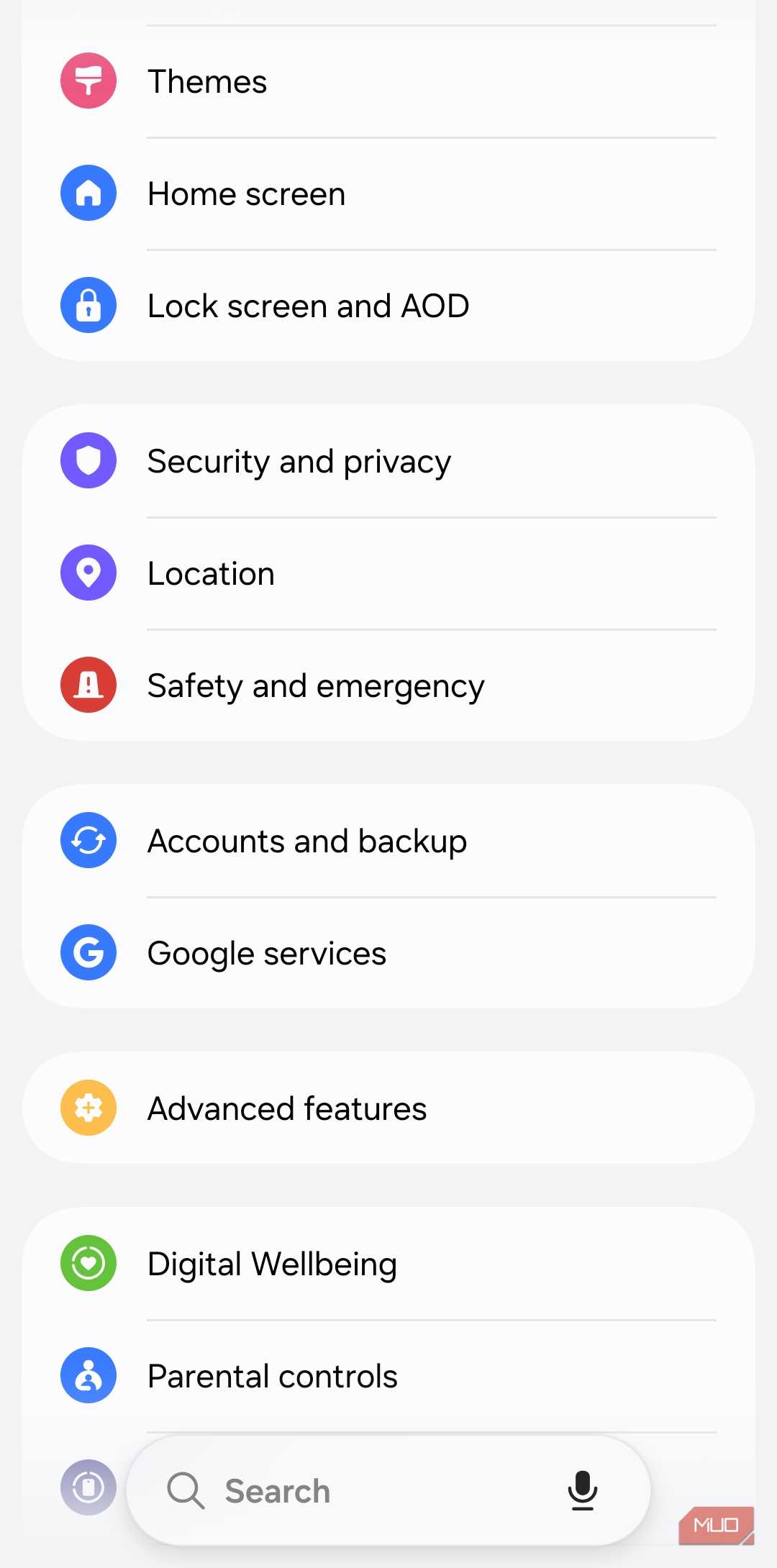
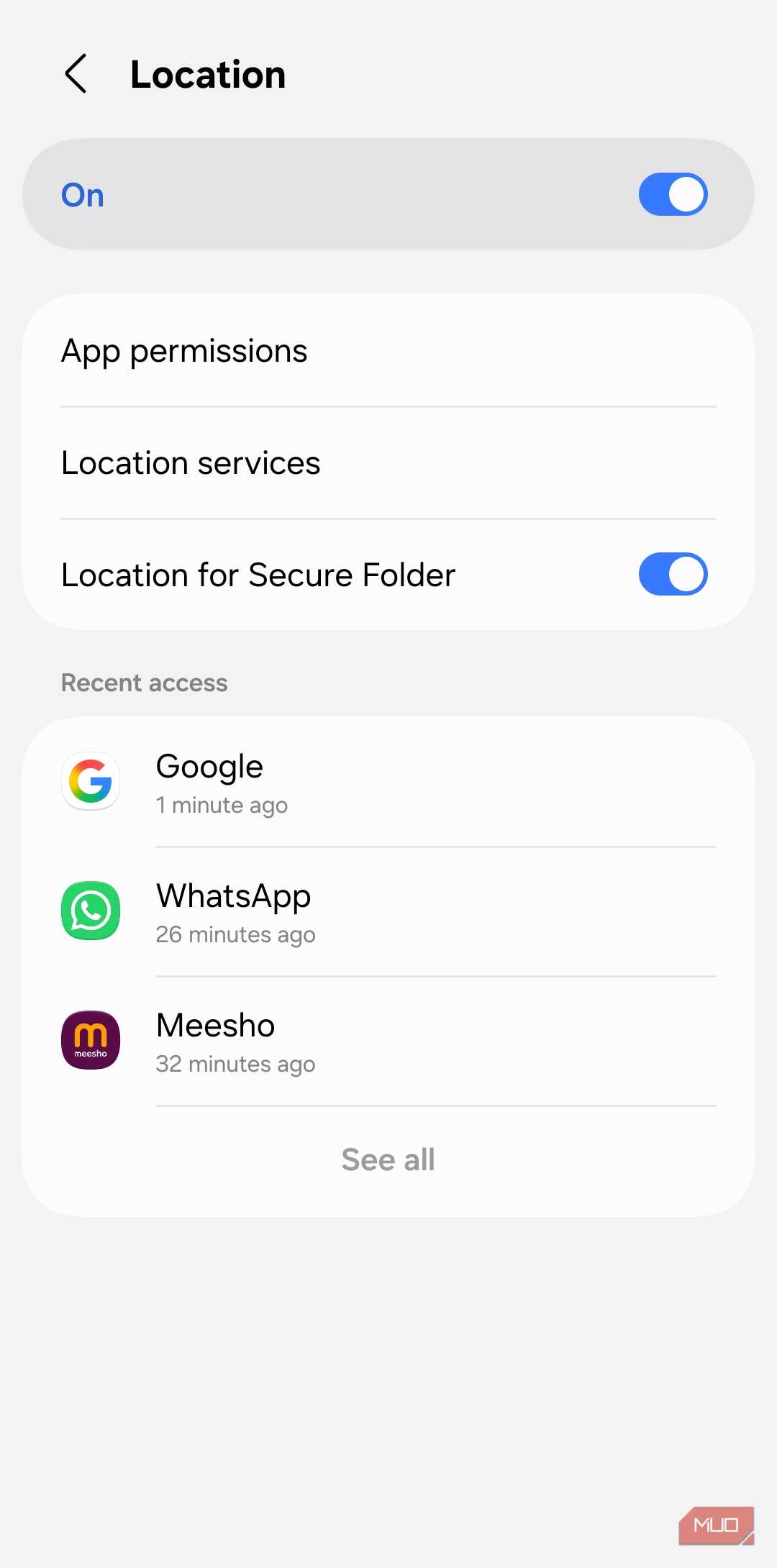
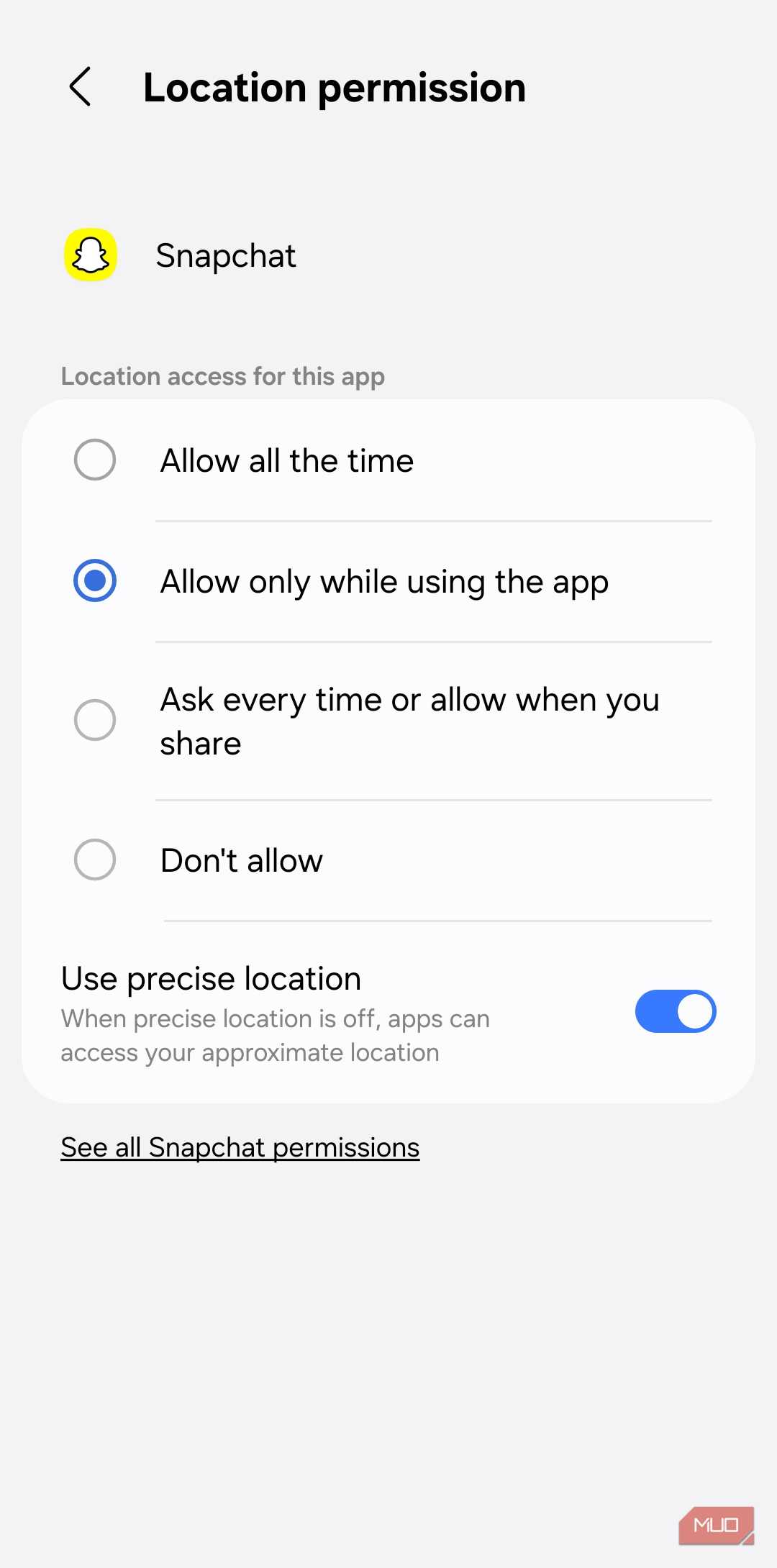
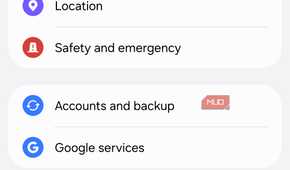
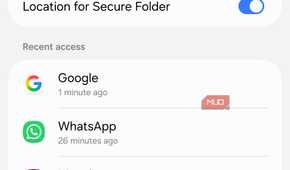
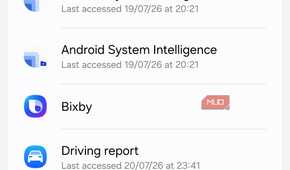
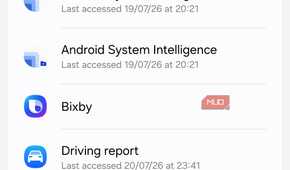
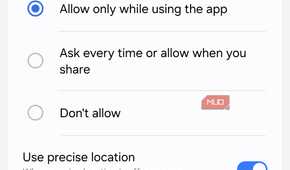
Even when you know how much location services can drain your battery, it’s not exactly practical to ditch them entirely. A lot of system features, including Google’s Find Hub, rely on it.
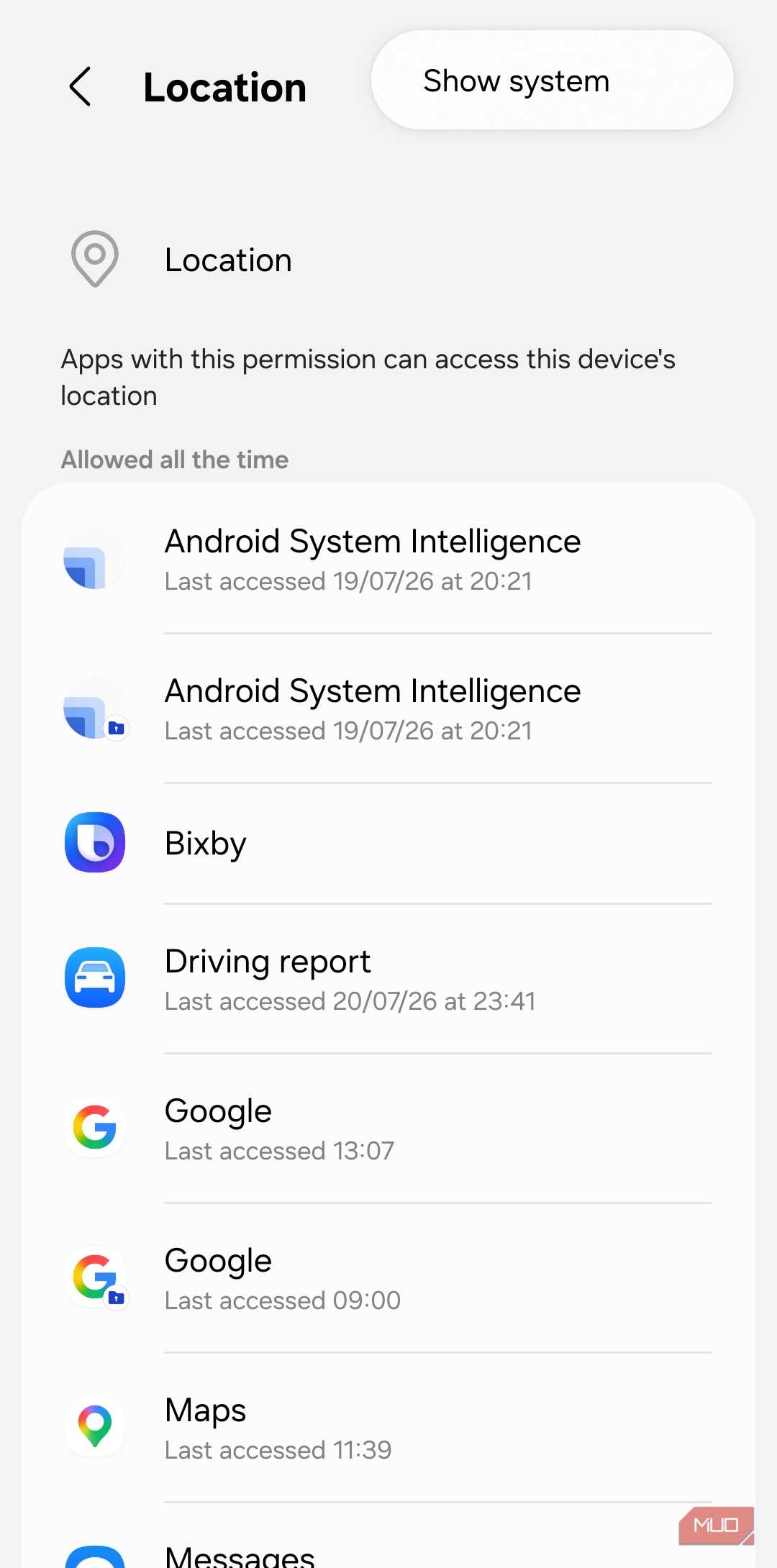
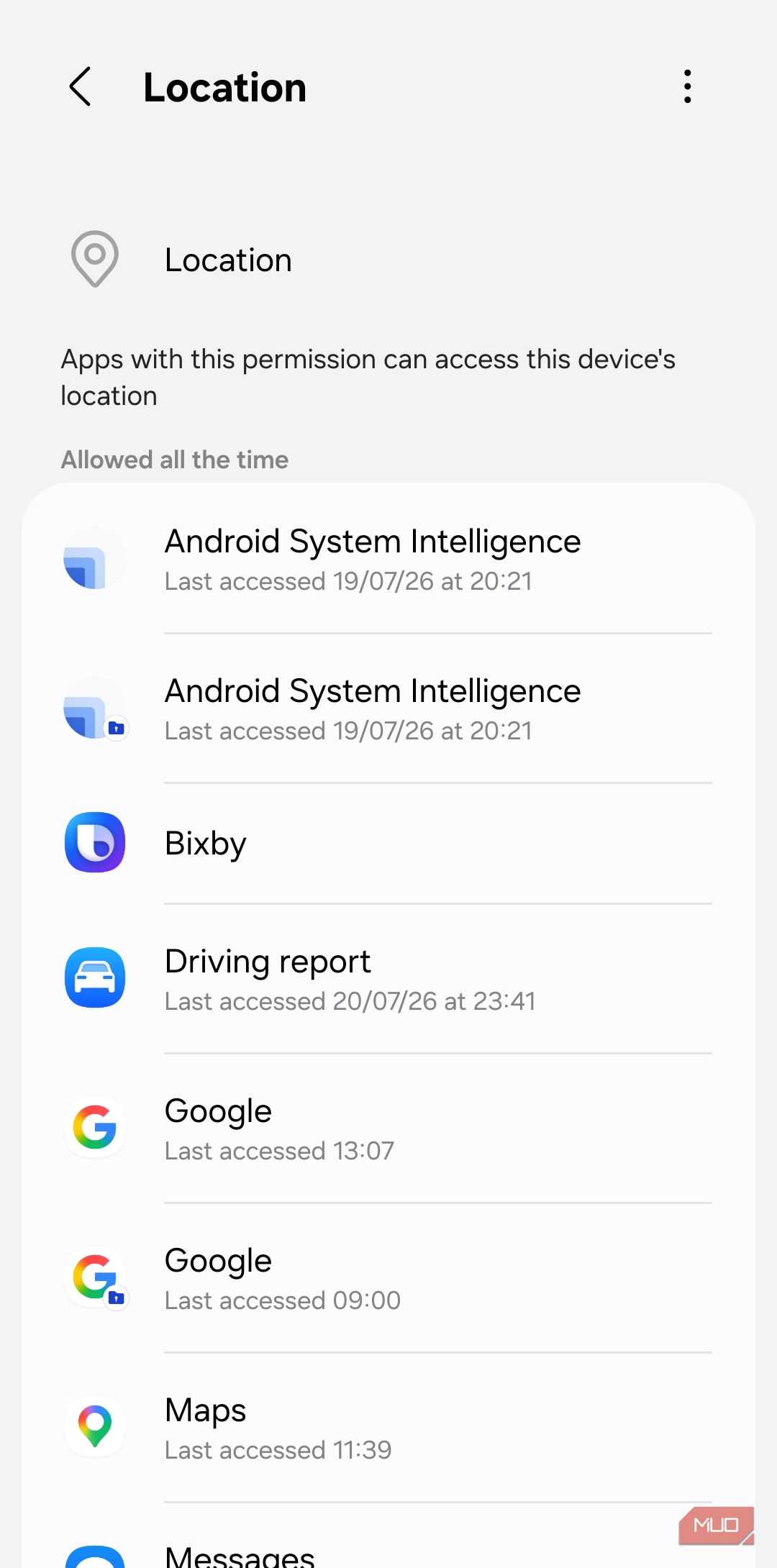
But that doesn’t mean you can’t do anything to limit the battery drain. Head to Settings > Location > App permissions and you’ll see a list of apps under Allowed all the time. These are apps that can poll your location at any time. Tap the three-dot icon at the top and choose Show system to pull in system apps too.
Go through the list to find apps that you feel don’t need constant location access. For most of them, you can set their location access to Allow only while using the app. Once you do, they’ll only be able to request location data when you’re actually using them.
In my case, I found a lot of apps that didn’t need that kind of location access — Bixby, Google Maps, Snapchat, Messages, and Weather. I even disabled it for Google and Samsung’s Customization Service app. Depending on how you’ve configured location services in the past, this list may look a little different for you. In any case, the entire audit doesn’t take much time, and it can easily add a few hours of battery life.
There’s more ground to cover while you’re here
There’s still more battery left on the table
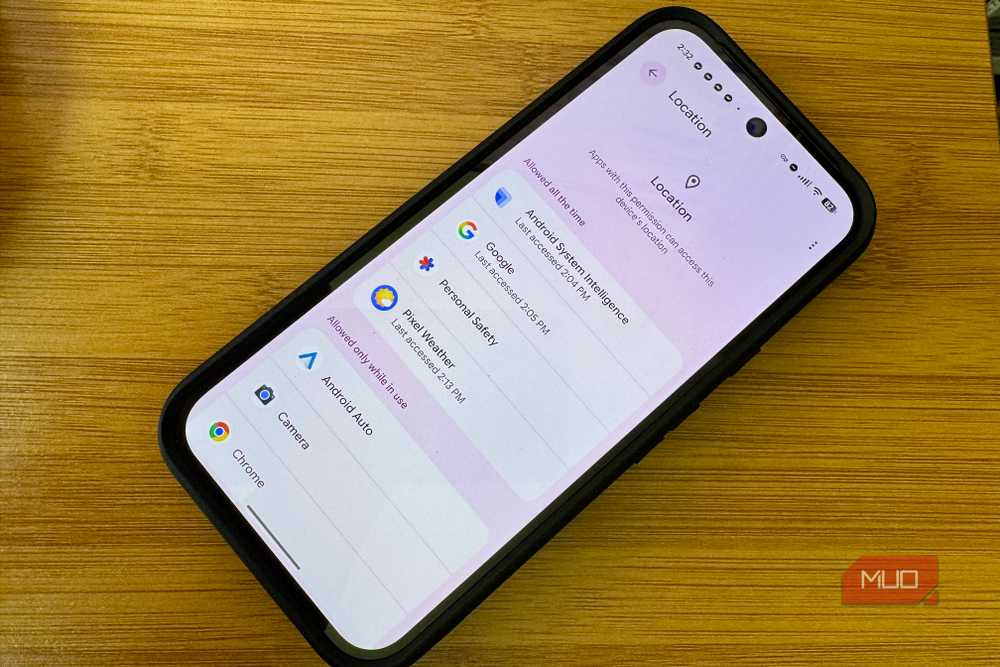
Disabling background location polling is a great start, but you don't need to stop there. Inside the location permission menu, go through apps listed under Allow only while using it to find ones that don’t need location access at all. Shopping apps, games, and even browsers tend to sneak onto this list. If you’re not actively using any app feature that requires location data, flip these to Don’t allow entirely.
For apps that do need location access, disable the Precise location toggle. As I said earlier, higher accuracy uses extra power, and more importantly, most apps will still work fine without it. The obvious exceptions are navigation and ride-booking services. You can even disable Google Maps’ timeline feature if you don’t want a complete track record of your movement. For that, head to Settings > Location > Location services > Timeline.
Finally, you can set the location services to “Device only” mode. This will force your phone to drop Wi-Fi and cell tower assist and rely purely on GPS. Of course, this can affect the accuracy at times, but you’ll notice the difference in battery life.
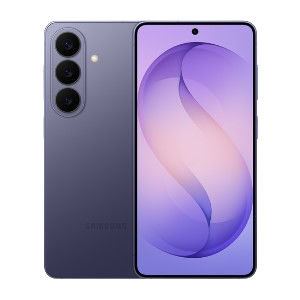
Samsung Galaxy S26
- SoC
- Snapdragon 8 Elite Gen 5
- Display
- 6.3-inch Dynamic AMOLED 2x
- RAM
- 12 GB
The Samsung Galaxy S26 features a 6.3-inch 120Hz display, a Snapdragon 8 Elite Gen 5 chip, and a 4,300 mAh battery. It includes a 50MP main camera with enhanced AI software, 256GB of base storage, and a slim 7.2mm profile, focusing on fast daily performance.
- Storage
- 256 or 512 GB