


It’s easy to blame things like battery health or third-party apps when your phone’s battery life starts getting worse. But the best thing you can do is simply take a look at the battery usage menu and see what’s actually consuming the power.
I did that on my Galaxy S26 last week and noticed a mysterious entry named Customization Service on the list. Honestly, it only grabbed my attention because it used more battery than the likes of Instagram and YouTube. When I saw it, it seemed like one of the system processes, but I couldn’t have been more wrong.
Why does Customization Service use so much battery
The hidden battery hog

Samsung’s Customization Service doesn’t sound like something that should have an impact on the battery life. It’s a feature that your Galaxy phone enables as soon as you sign in with a Samsung account. Its job is to collect your data across Samsung services and use that to show personalized recommendations and suggestions. All of this information is also sent to Samsung’s servers, which, of course, requires battery power. Naturally, the more you use your phone, especially Samsung’s own apps and services, the longer the Customization Service stays active in the background.
When I checked my phone’s battery usage under Settings > Battery > View details, I noticed Customization Service appearing at the top of the list for consecutive days. Part of the reason Customization Service flies under the radar is that it doesn’t appear in the app drawer like most other apps. So, when you check the battery usage, it feels like a core system service — which in a sense it is, just not a particularly important one.
Also, its impact can vary from one phone to another. It all comes down to how many Samsung apps and services you use. If you use Samsung Internet, Samsung News, and other built-in apps, you’ll likely find Customization Service using anywhere between 5% and 20% battery. If you don’t, however, its impact can be as low as 0.1%.
Privacy concerns gave me another reason to disable it
It was uglier than I thought

The unusual battery drain is what pushed me to look into Samsung’s Customization Service. But doing that made me realize its battery usage should be the least of my concerns. The bigger problem is how much data the Customization Service is designed to collect.
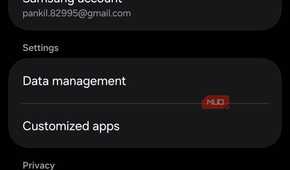
The Customization Service menu on my Galaxy phone only gives a brief and somewhat vague explanation, stating that it allows Samsung apps and services to collect data about my interests and activity. That sounds fairly harmless. But if you head to Samsung’s website, you’ll realize what those "interests and activities” truly mean.
This service is designed to collect all kinds of data, including app usage patterns, features you enable, search history, browsing activity, and even location data. Heck, it even collects information about what kind of music you listen to. Of course, this is not the kind of data you want to give just so you can get better recommendations.
What bothered me even more is that this data isn’t solely used to improve suggestions. According to Samsung, it can also be used for direct marketing and personalized ads.
Disabling it had almost no downside for me
Life without it has been quite normal


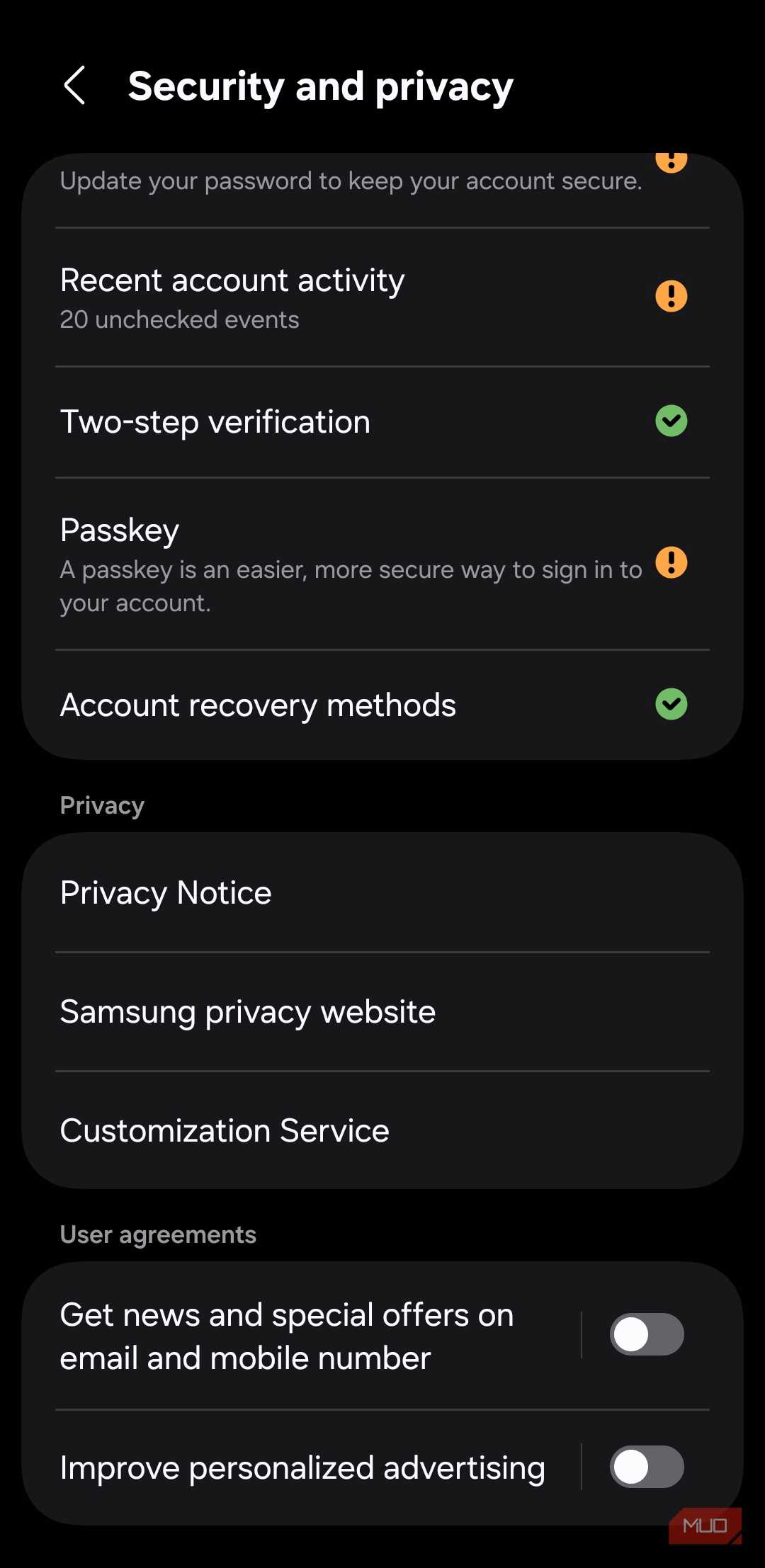
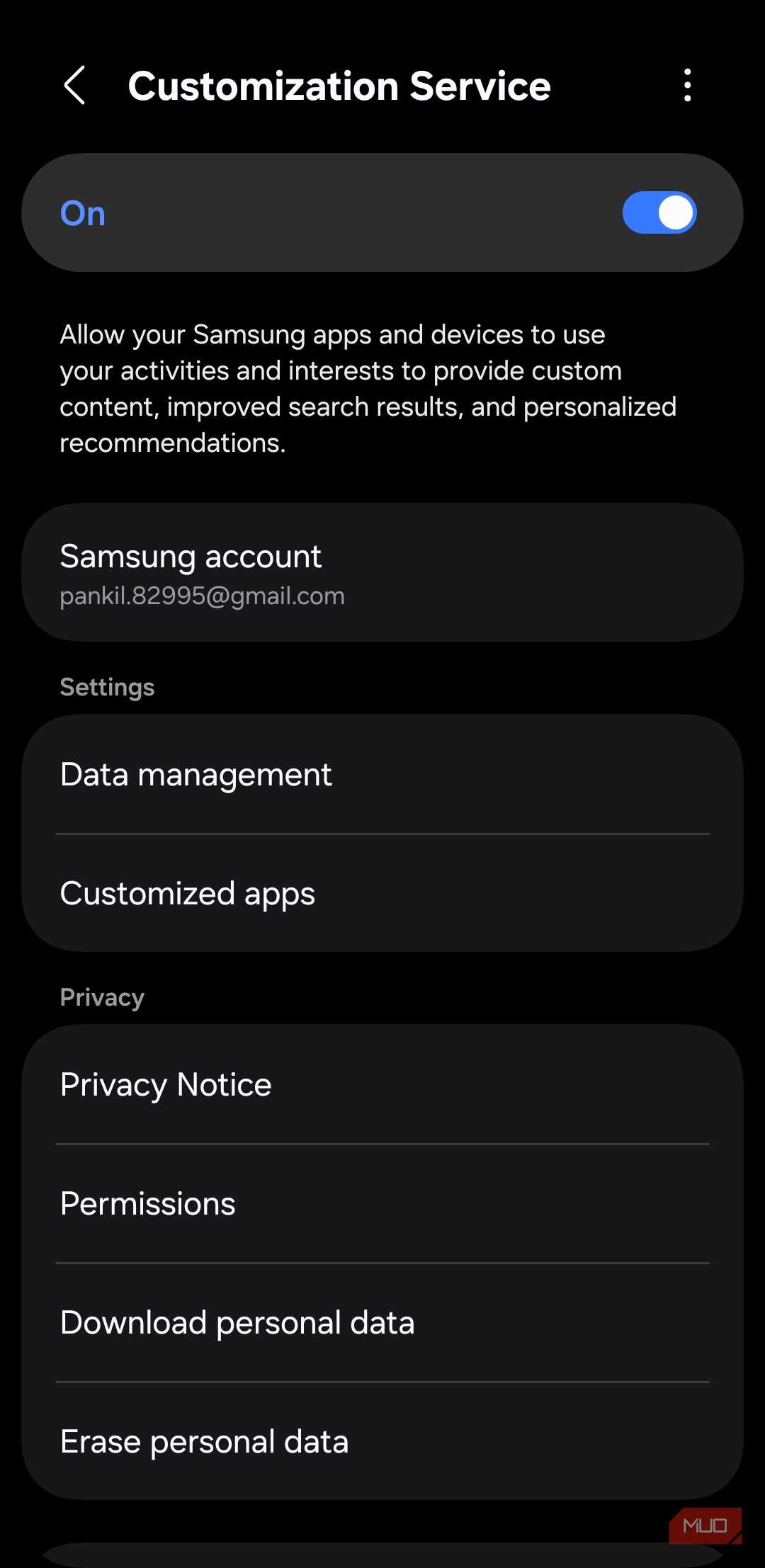
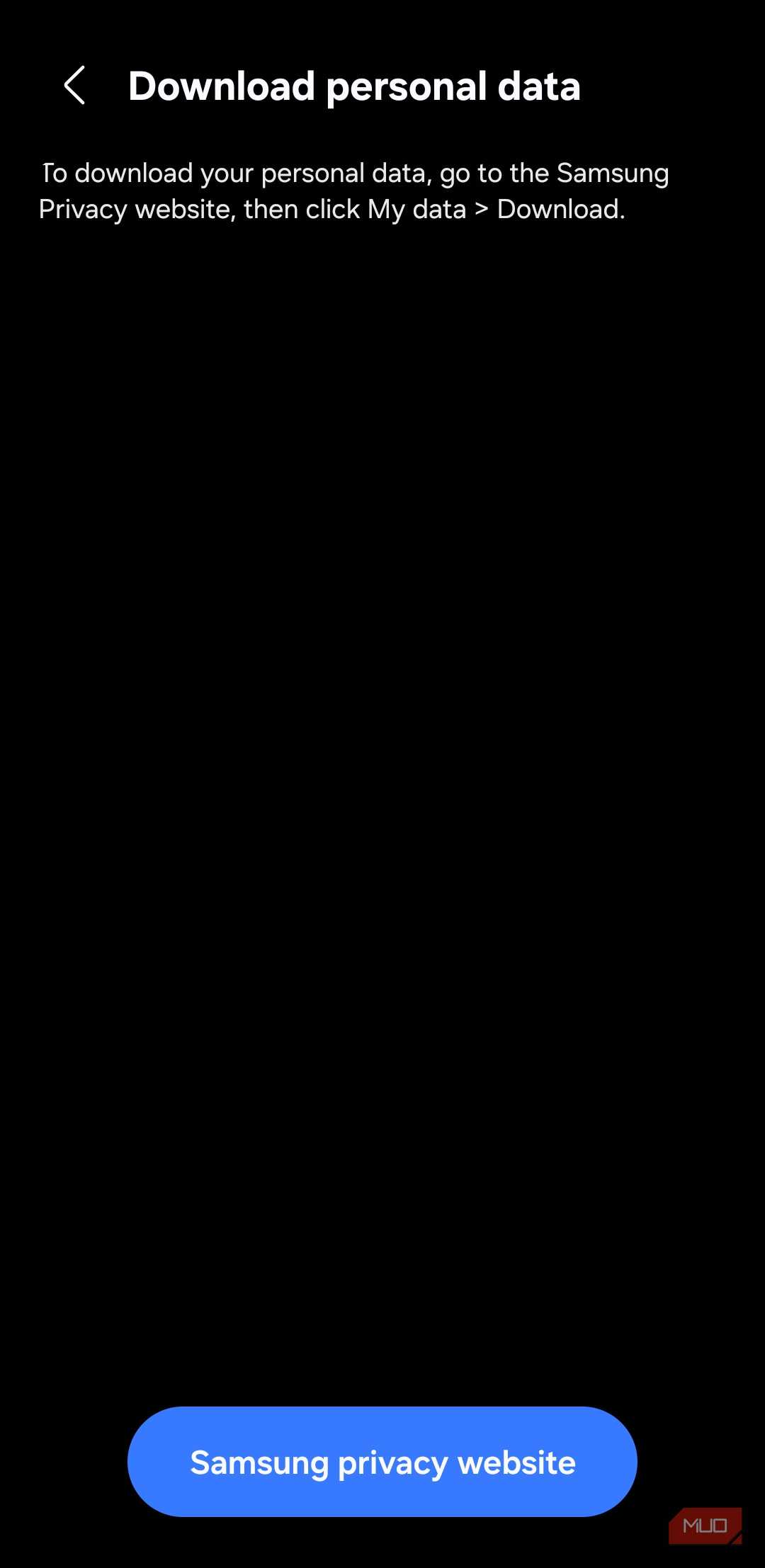
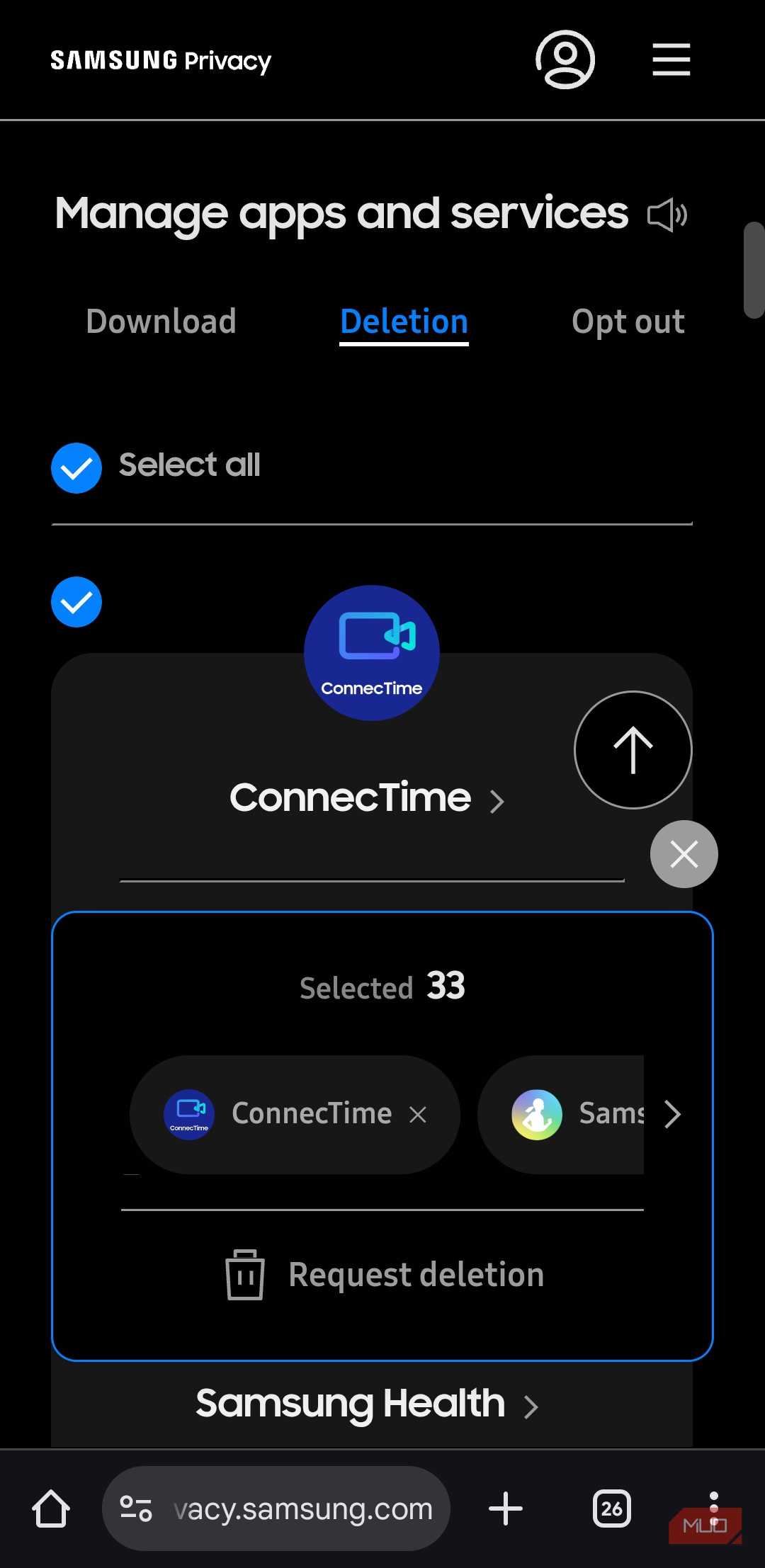
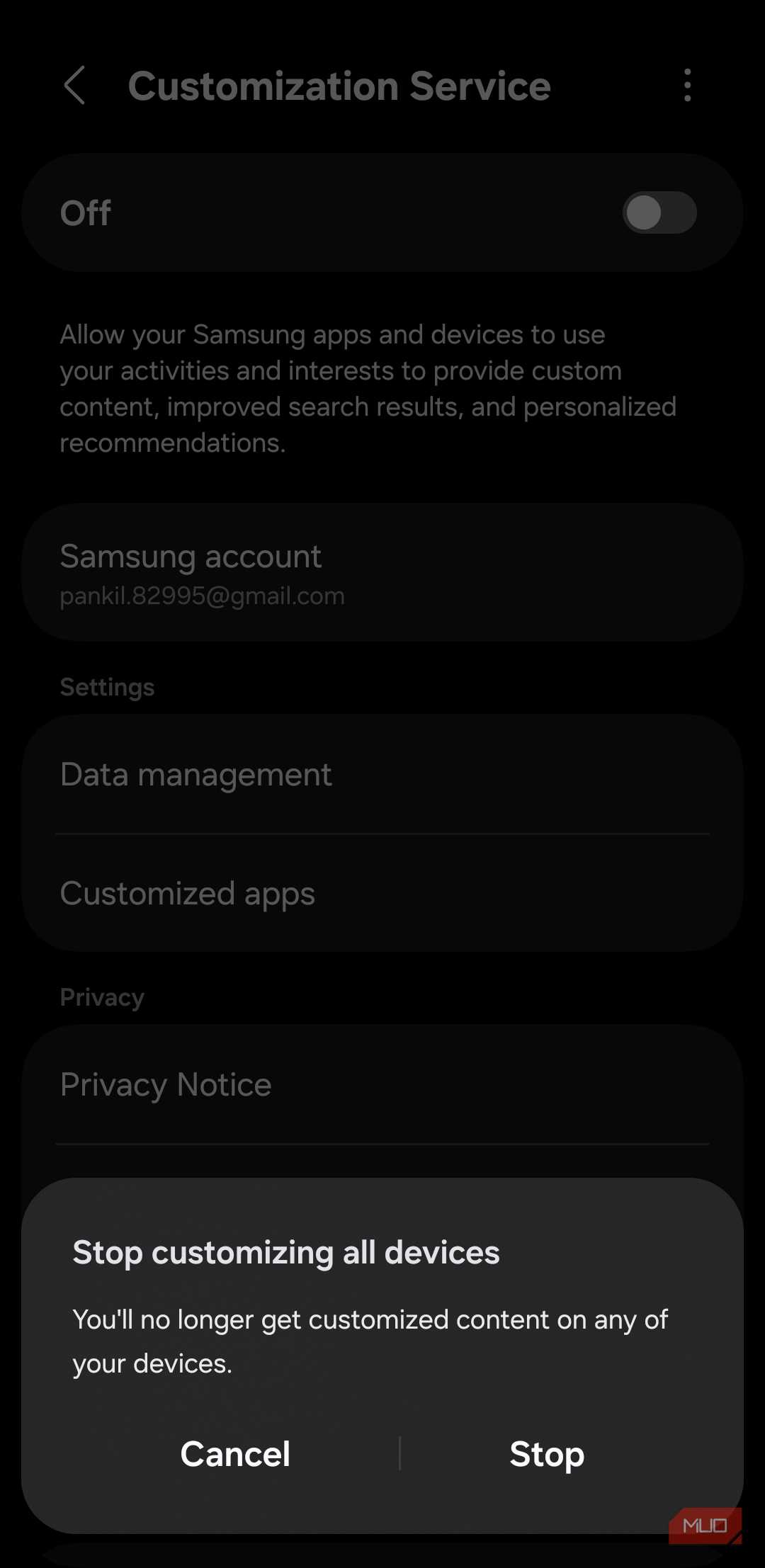

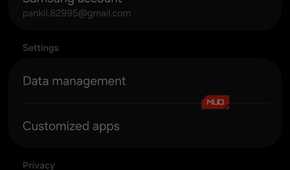
If there’s a silver lining here, it’s that Samsung actually lets you turn Customization Service off completely. That means you don’t need to stop using a Samsung account or give up your Galaxy phone for better privacy and battery life.
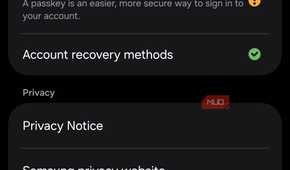
To turn it off, head to Settings > Samsung account > Security and privacy > Customization Service. Turn off the toggle at the top and hit Stop. Before you do this, though, make sure to tap Erase personal data in the same menu. This will take you to Samsung’s website, where you need to sign in with your Samsung account. Once done, head to My data > Deletion > Customization Service and choose Request Deletion. Yes, Samsung doesn’t make this part particularly easy, but it’s crucial if you want to delete everything Samsung has already collected through this service.
And as for the downsides, I honestly didn't notice any. All of my favorite apps and features worked just fine after that. The only thing that changed was that the Customization Service wasn’t constantly collecting data about what I was doing. And, of course, it stopped showing up in the battery usage menu, so my phone was no longer wasting battery anymore.
You don’t have to stop at Customization Service
Much like Customization Service, Galaxy phones also ship with a few apps that continue to run in the background even if you never open them. So, if battery life is a priority, you may want to disable them as well. Another thing you can do is change the Performance Profile to Light. This lets your Samsung phone improve battery life by slightly lowering the performance. The good thing is, you won’t notice any difference in day-to-day activities, like messaging, browsing, streaming, or even gaming.
My favorite battery-saving feature, though, is Sleeping Apps. This basically allows your phone to stop your lesser-used apps from running in the background. This feature works entirely on its own, and you can even add apps to the exception list so they never get put to sleep.

Samsung Galaxy S26 Ultra

- SoC
- Snapdragon 8 Elite Gen 5
- Display
- 6.9-inch Dynamic Super AMOLED 2X
- RAM
- 12 or 16 GB
- Storage
- 256GB, 512GB, or 1TB