


If you have ever sat at your computer waiting for a simple window to open, only to watch your cursor freeze while the hard drive light blinks in a frantic rhythm, you know how frustrating it is to feel like your machine is working against you. It can feel like you've hit a flat tire out of nowhere. Windows includes a background service that behaves exactly like this, and it's making your PC slower.
Microsoft collects data in the background
The constant observer inside your computer

Microsoft has baked a continuous, background data collection tool directly into Windows. It's called Connected User Experiences and Telemetry (or DiagTrack). If you've ever spotted it in your system processes, you know it runs quietly in the background under the Customer Experience Improvement Program. Its whole job is to gather a constant stream of data about your hardware and software and send it back to Microsoft.
It is filled with system health, hardware specs, crash reports, and logs of how you actually use your apps. Microsoft says it needs all this to catch bugs, decide which patches matter most, and personalize your experience.
That might be fair, but for a lot of people, it just feels like something is always watching over their shoulder. Since this service runs at the system level, the privacy toggles buried in your Windows settings don't really do what you'd hope. They dial back how much data gets sent, but they don't stop the background processes from running and keeping tabs on you.
The reason this works so well for Microsoft is a tool called Event Tracing for Windows. This is a kernel-level framework that logs system events by firing off a constant stream of small, scattered writes to your local drive. DiagTrack doesn't work alone either.
The Microsoft Compatibility Appraiser runs as a scheduled task, quietly scanning your hardware and software in the background. These processes will kick off their heavy profiling runs minutes after you step away or sometimes right in the middle of whatever you're doing.
You'll see full freezes lasting 30 to 60 seconds. Apps stop responding, the mouse stutters, and if you're playing audio, you might even hear it pop or cut out because the system is too bogged down to keep up. The fans spin up; the machine runs hot, and the whole thing feels like it's fighting you.
Microsoft frames DiagTrack as a helpful diagnostic tool, and maybe on a brand-new machine, it's barely noticeable. However, on older hardware, it behaves less like a helpful background service and more like something quietly draining the life out of your computer while you're just trying to get things done.
The mechanics of disk thrashing
Why your drive gets overwhelmed

The main culprit in older machines is the mechanical hard drive. Unlike modern SSDs, which handle everything electronically, traditional drives use a physical arm that swings back and forth across spinning platters to find data.
Since reading and writing are both handled by the same physical arm, the drive can only do one thing at a time. This leads to what people call disk thrashing, which happens because Microsoft is trying to collect data on bugs.
Every request means waiting for the arm to move into position and for the right spot on the disk to spin around beneath it. When Windows runs its Connected User Experiences and Telemetry service, it puts this physical mechanism through the wringer. On a mechanical drive, that kind of access is brutal. It forces the arm into a constant, erratic back-and-forth across the disk, leaving little time for anything else.
This chews through the drive's already limited capacity for handling requests, gutting its performance. As the physical parts struggle to keep up, the system falls into a state where the drive is so overwhelmed it can barely function. This is when you see 100% disk usage in Task Manager, which means your storage has hit its ceiling and is being monopolized by background processes.
The result, from where you're sitting, is a computer that feels broken. Because the drive arm is tied up with Microsoft's ongoing data collection, anything you actually want to do has to wait in line.
Turning off diagnostics for better performance
Taking your computer back


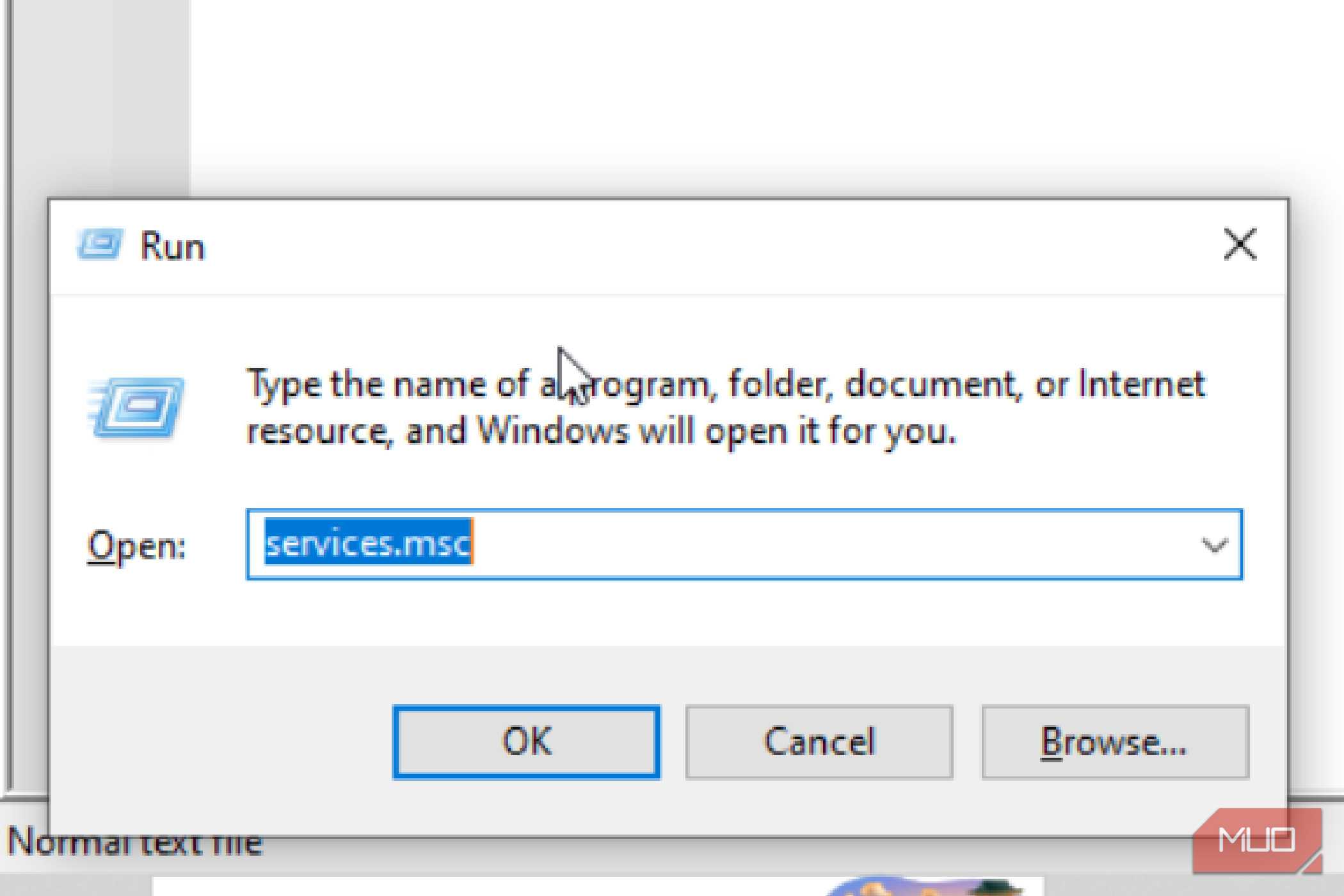
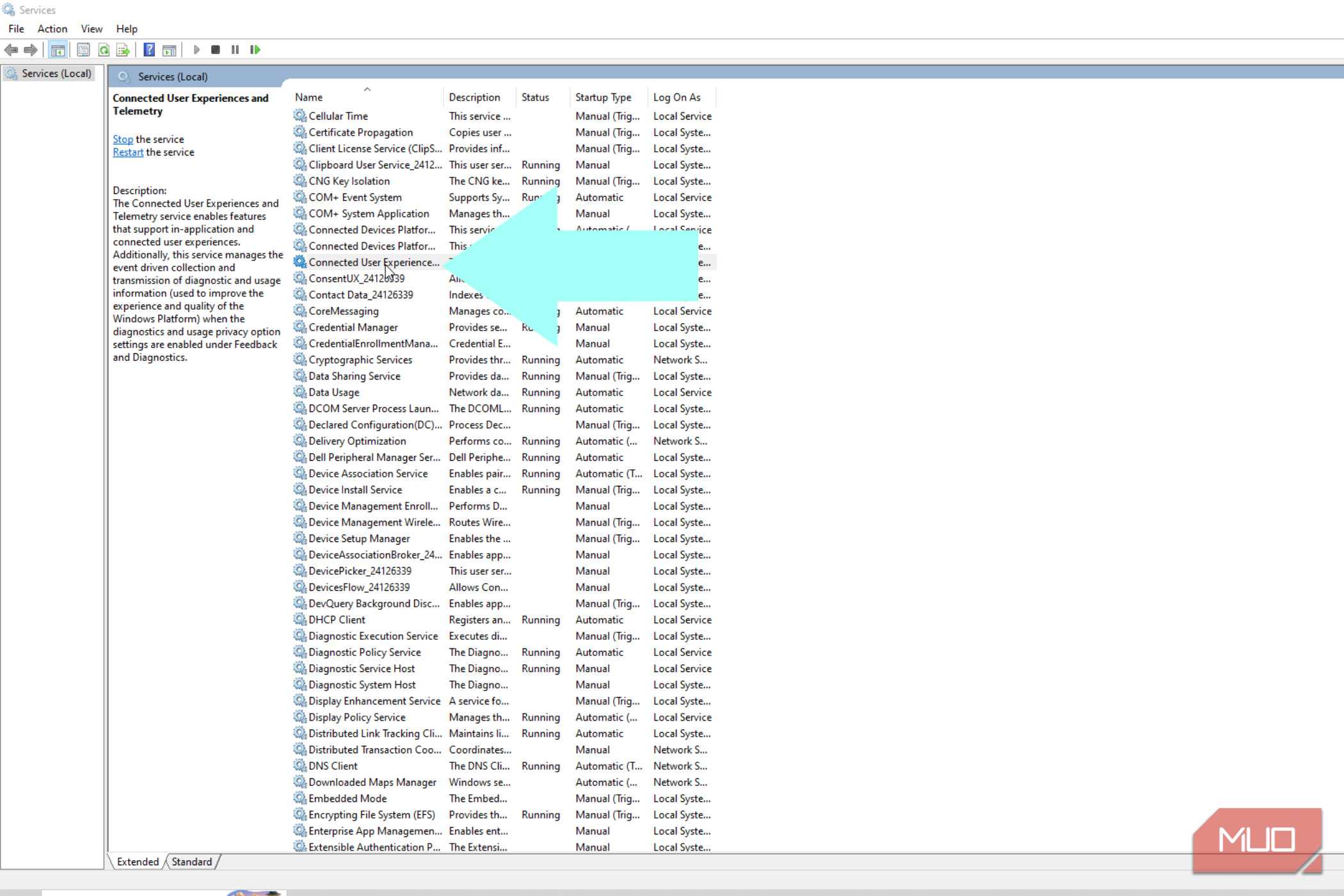
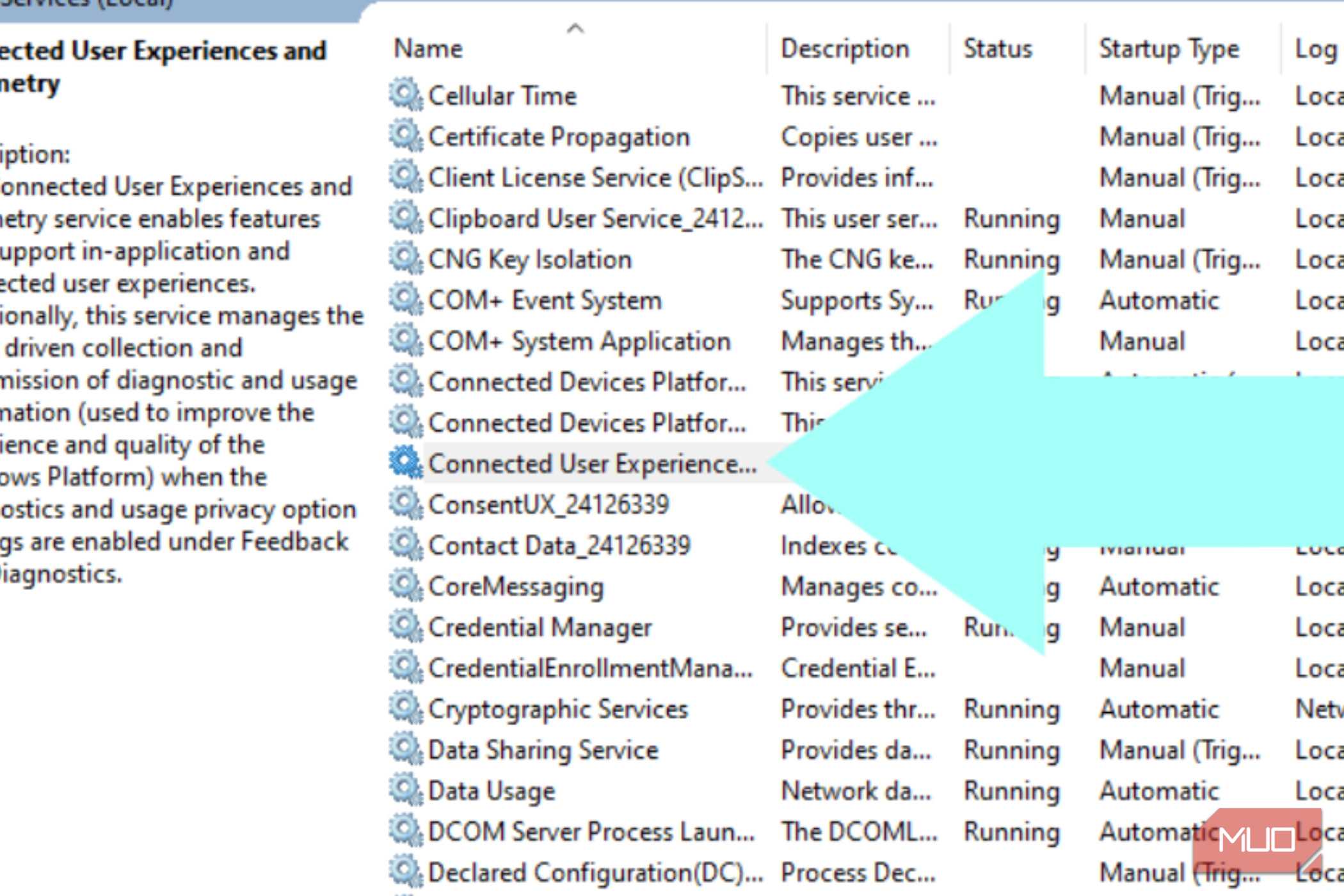
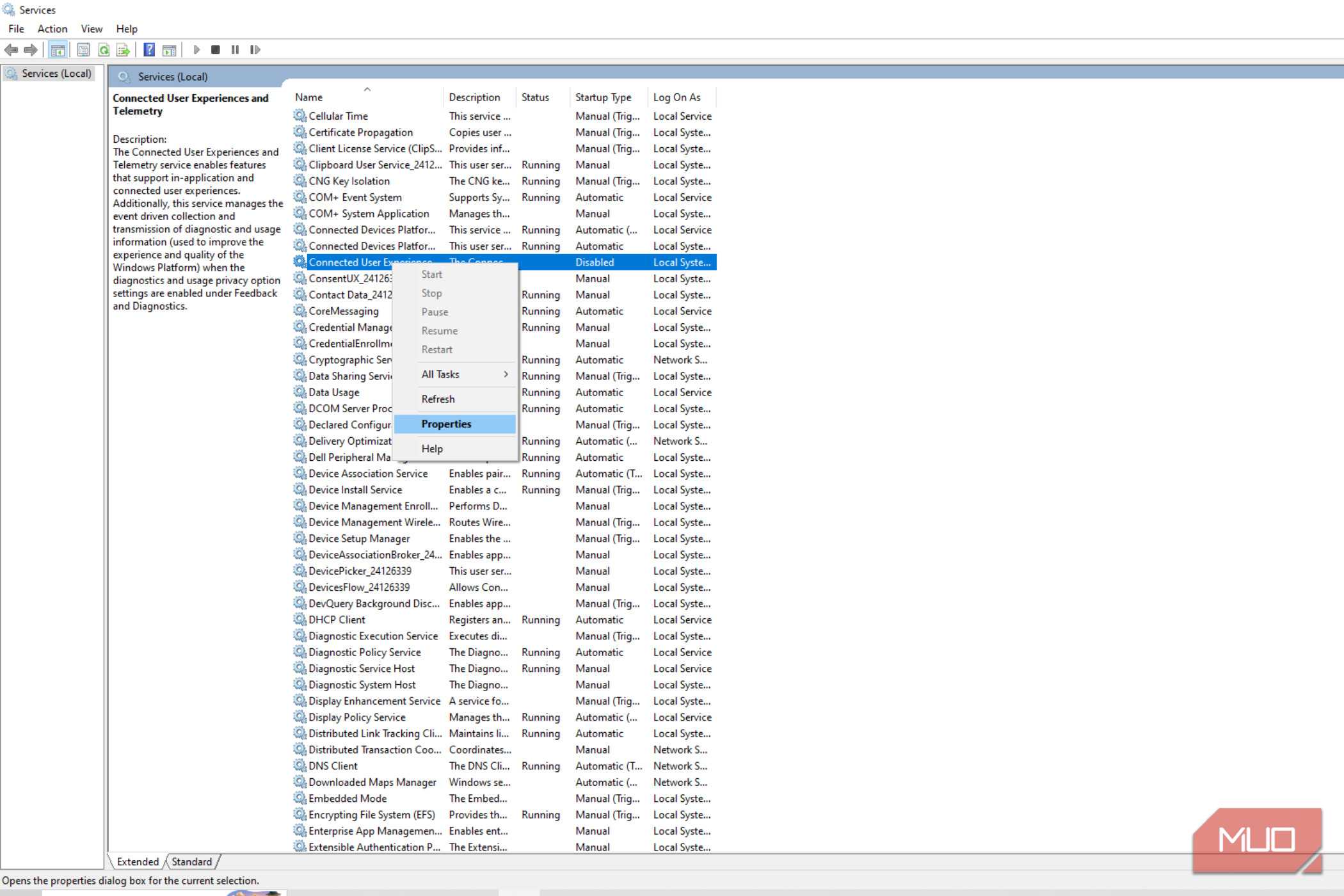
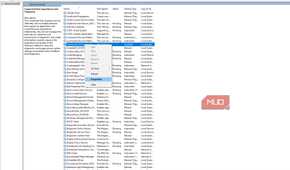
The good news is you don't need any third-party tools to stop this, and you can undo the change anytime. Getting your computer back to normal just takes a quick trip into Windows' built-in Services app.
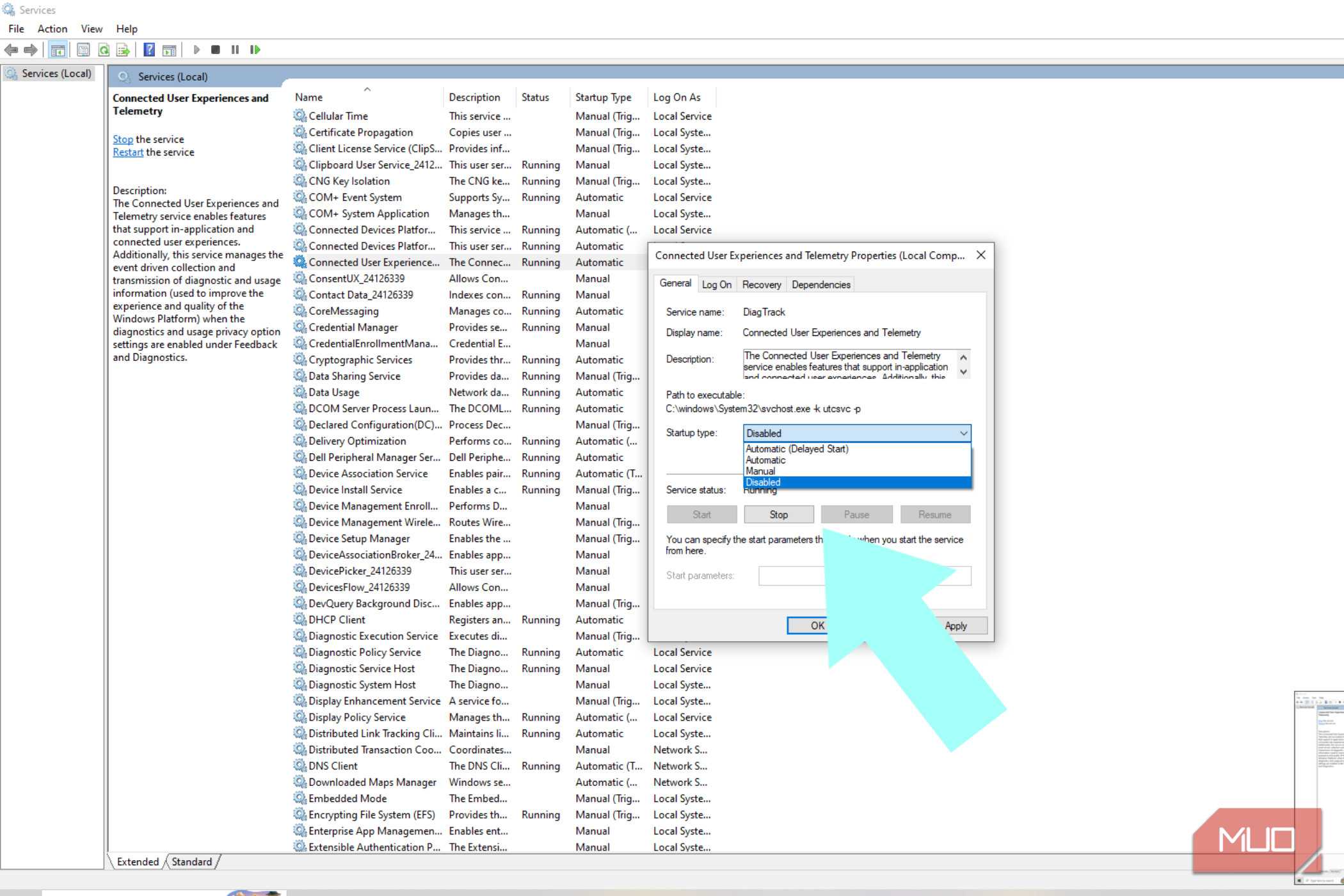
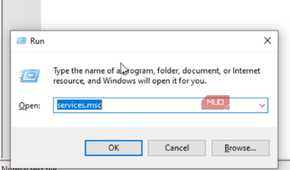
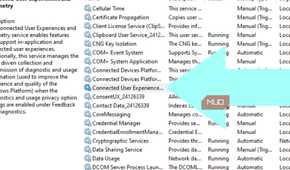
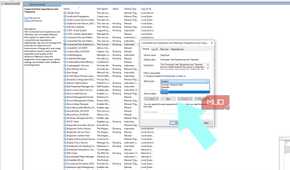
Hit Windows + R to open the Run dialog, type services.msc, and press Enter. You'll see a list of everything running behind the scenes on your machine. Scroll down to Connected User Experiences and Telemetry, right-click it, and choose Properties.
Hit Stop to kill the active process, then change the Startup Type dropdown from Automatic to Disabled. Click Apply and OK. If you want to be thorough, head to the Recovery tab in that same window and set all three failure responses to Take No Action. That way, it won't quietly restart itself after a crash or reboot.
You're basically turning off Microsoft's way of catching bugs across millions of PCs, so this hurts the process of making patches. Turn it off, and they lose visibility into issues specific to your system, which in theory could slow down fixes that benefit everyone.
That said, it's your computer. You bought it to get work done, not to run background diagnostics for a trillion-dollar company. If telemetry is hammering your hard drive and turning basic tasks into a slog, then that's a perfectly reasonable thing to stop. Getting your machine running smoothly again is more important than keeping Microsoft's data pipeline fed.
Turn off the extra data collection
Disabling these telemetry services is the right move for most users. You're opting out of the system that helps Microsoft track bugs and manage updates for its platform. If you rely on that diagnostic feedback loop for support, you might want to keep it running. But if you would rather stop the constant disk thrashing that makes your computer feel unusable, turning off this service is a reasonable trade-off.

- OS
- Windows
- Minimum CPU Specs
- 1Ghz/2 Cores
- Minimum RAM Specs
- 4GB RAM
- Software Version
- 24H2
Windows 11 is Microsoft's latest operating system featuring a centered Start menu, Snap Layouts, virtual desktops, enhanced security with TPM 2.0, and deeper integration with Microsoft Teams and AI-powered Copilot.