


Local streaming has always been and will always be one of my favorite ways to game. Setting up your own local host for streaming games is always a fun hobby, and especially useful if you intend to rid yourself of the clutches of subscription tiers.
One of the more easily accessible options has always been Steam Link, which lets you play Steam games on any device you own (assuming they support the Steam app, that is). Still, it has always felt a bit unreliable to me — from frequent drops to image quality degradation; there were always little quirks that vexed me to no end.
Thankfully, the open-source community came up with a solution in the form of two applications, Moonlight and Sunshine, which give Steam Link a run for its money.
Installing and setting up Sunshine with Moonlight
You need to configure both the host PC and streaming device


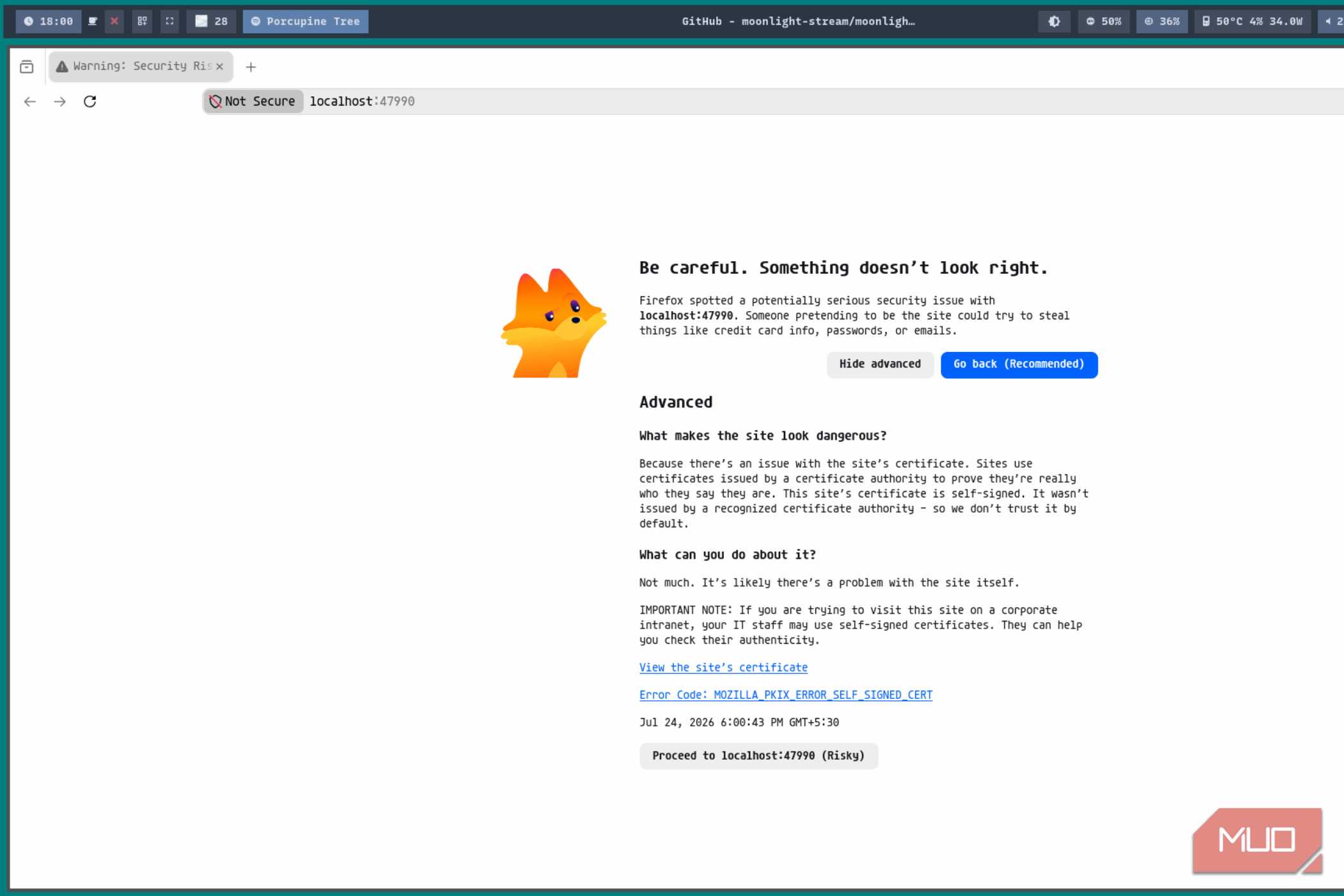
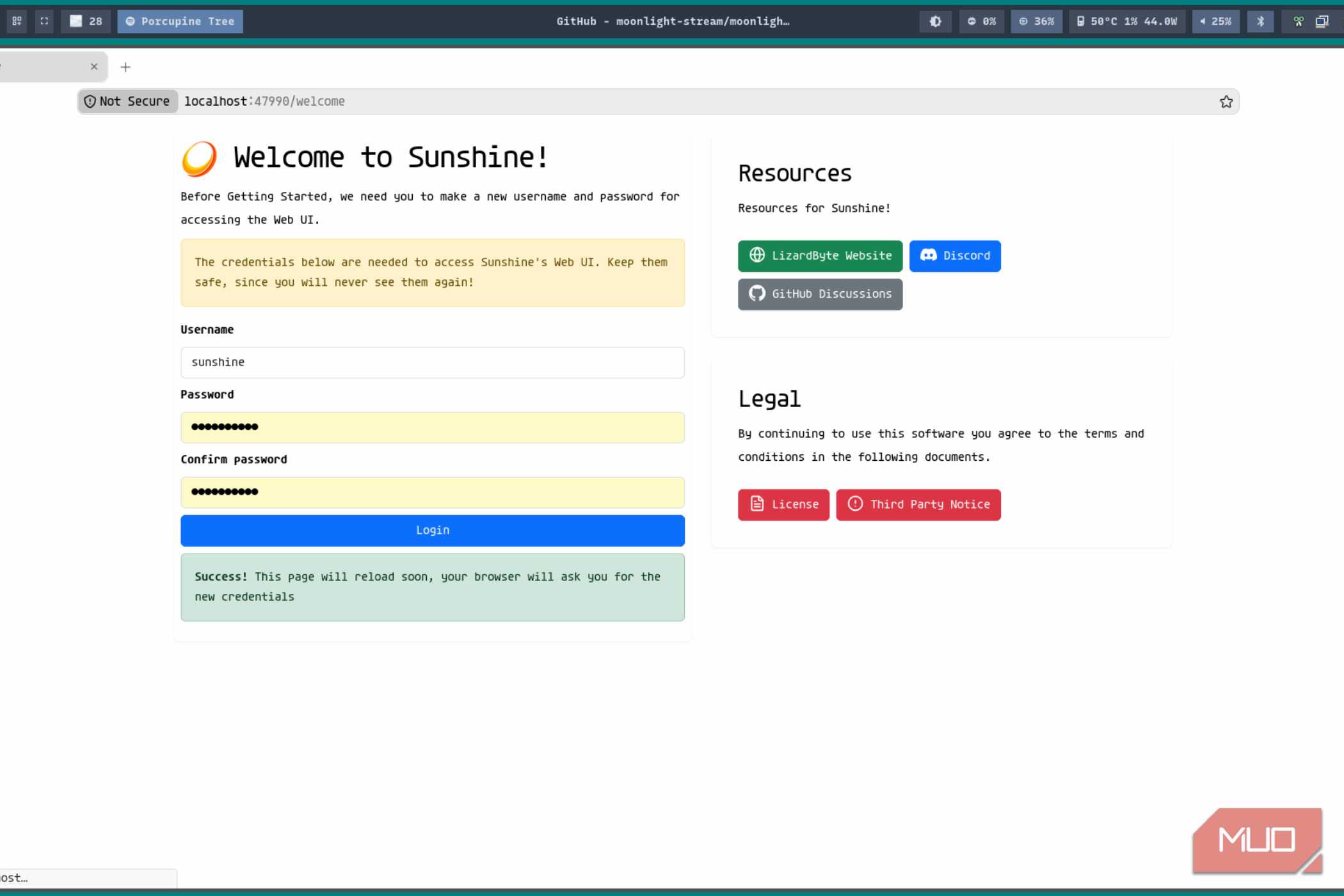
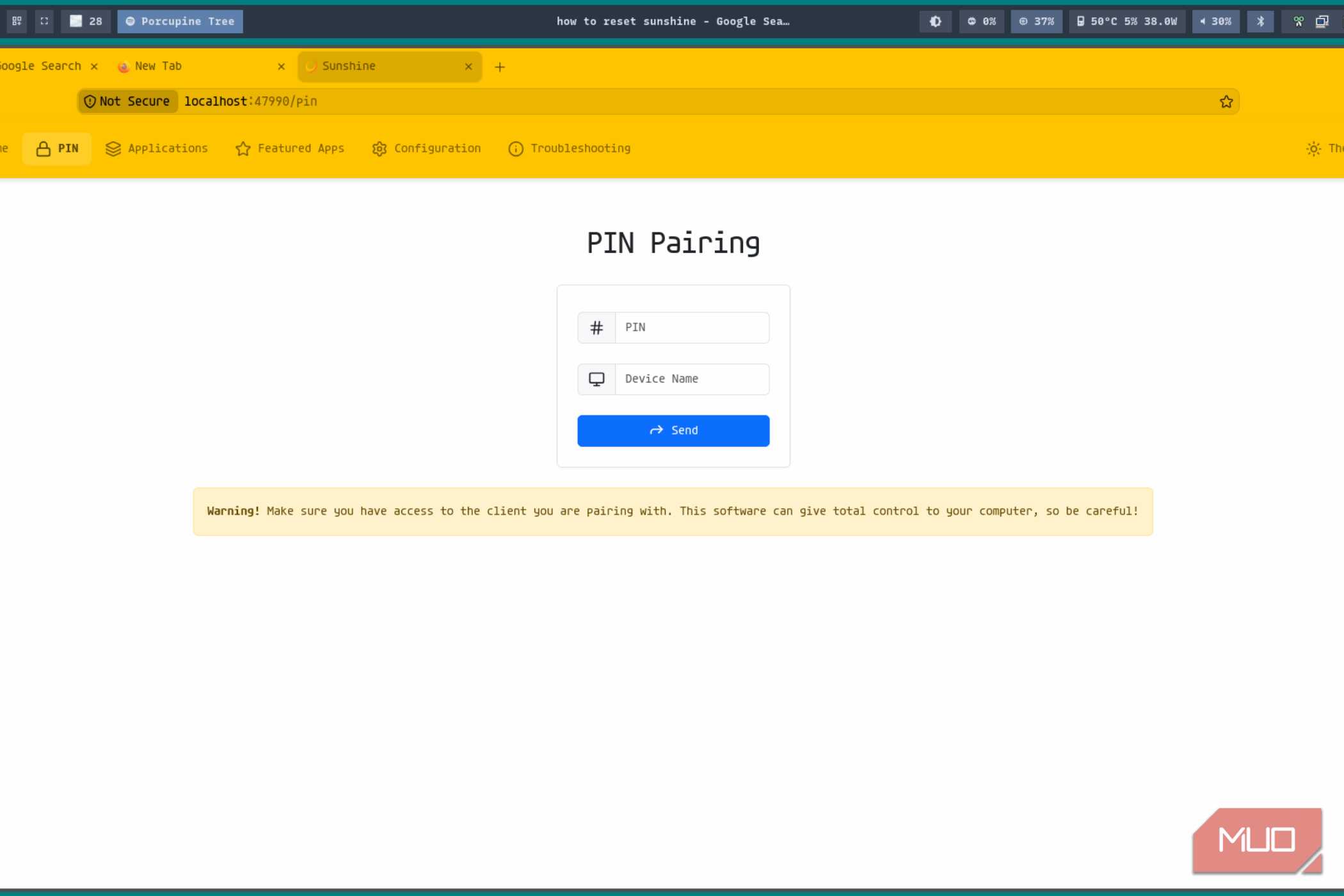
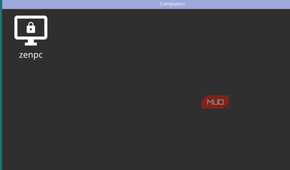
Sunshine is remarkably easy to set up. It’s available as a native package from the AUR, and installing one of the pre-compiled ‘bin’ packages took less than a minute.
paru -S sunshine-binYou’ll also want to have the GPU drivers for your card (or iGPU) installed. Once installed, it’s possible to have it start automatically at boot using the default systemd service file.
systemctl --user enable --now sunshineFinally, you’ll want to head on over to the Sunshine web UI, which can be accessed from a very specific URL on your host computer.
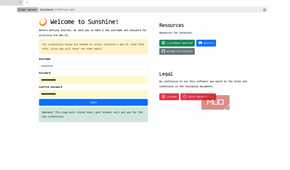
https://localhost:47990/After setting up a username and password, you can head back into the activated web UI, which has quite a few options to consider, but more on that later.
The next step involves installing Moonlight on the device you want to stream to. For me, it was the Lenovo Legion Tab, which I intended to use as a lighter alternative to something like a full-blown PC handheld.
This was the easiest part of the whole process and required me to simply download the Moonlight app from the Play Store. There’s also an iOS version of the same. After installing it (and setting the necessary permissions), all that was left to do was to connect to Wi-Fi.
Make sure to use the same Wi-Fi network as your host computer.
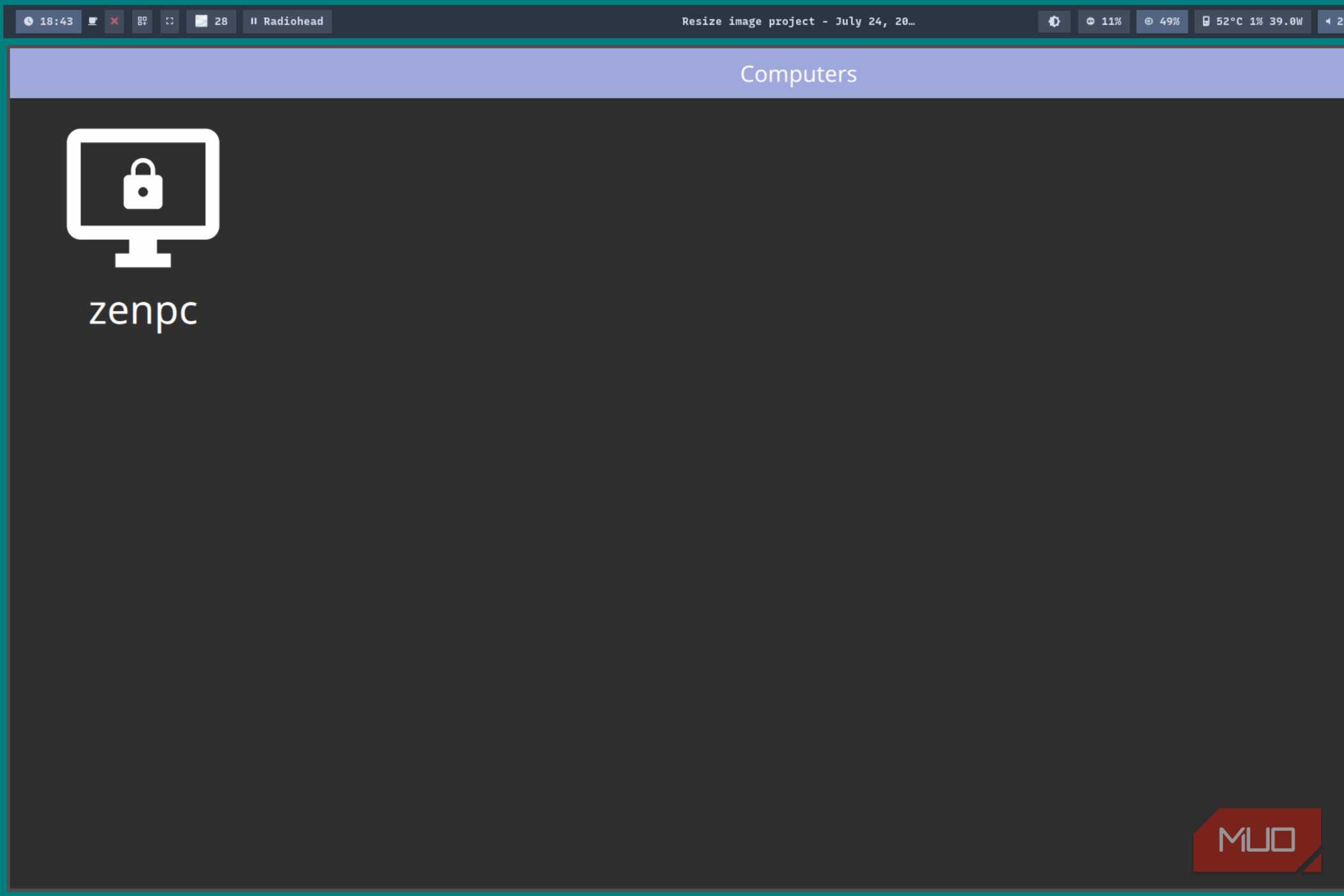
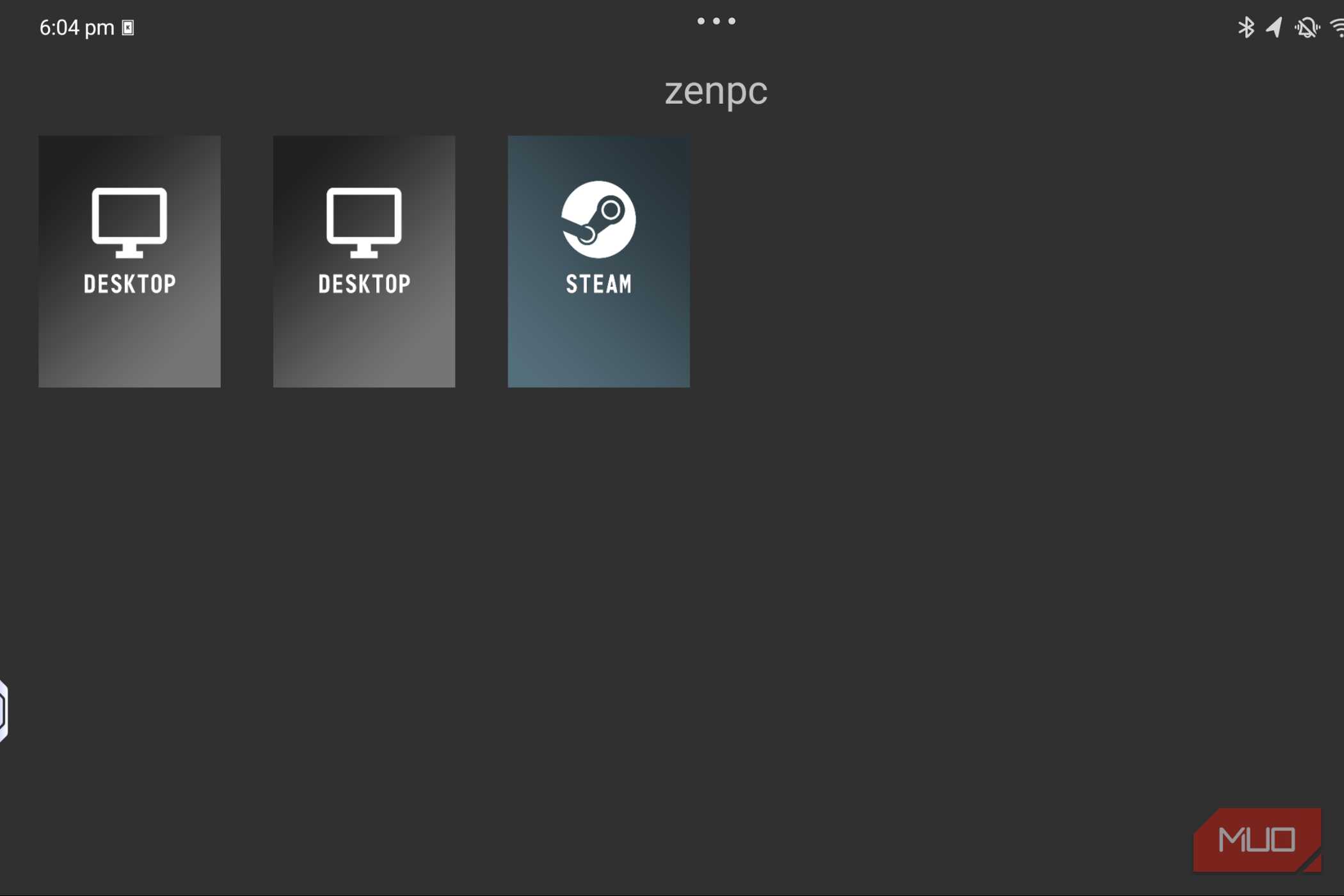
Assuming you’ve already set up Sunshine, Moonlight should automatically pick up your host PC.
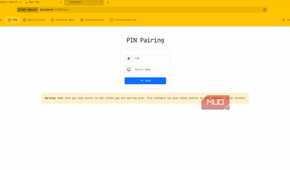
Simply tap on the host PC’s name, and you’ll be presented with a random PIN. Next, enter the same PIN on the host PC to initiate a one-time pairing process. After it succeeds, you’re pretty much done at this point.
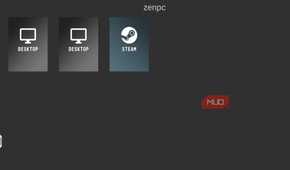
You can fire up Steam Big Picture mode directly and browse all your games from virtually any (supported) device. For best results, pair a Bluetooth controller to the streaming device before you try playing games on it.
Steam Link has been consistently worse in comparison
Still a lot easier to get up and running

Steam Link has never been reliable for me. In many ways, it has been a bit of a frustrating experience. Which is a shame, since the core idea behind Steam Link is really good. It offers an easy way to configure local streaming from PCs on virtually any supported device (which is exactly what Sunshine does), but it is a more hands-off approach. Valve’s solution is far more automated and leaves little room for tinkering, much like SteamOS. Still, it is a just-works solution, or at least it tries to be.
In reality, Steam Link is underwhelming. It is not a stutter-free experience, and the quality is a lot worse than whatever Sunshine seems to offer. It’s also a lot less tinker-friendly, but that might be me being a bit unreasonable.
Recommended settings and tweaks for a smoother gaming experience
All of which depends on your internet

A look into the Settings menu of the Moonlight app, and it’s quite obvious that there are a lot of things to tinker with here. Far too many, in fact, and so we will stick to the basics.
Most of the pre-configured defaults are fine as-is, but these changes are crucial:
- Set Native as the resolution of choice. This will depend on your streaming device.
- FPS should be set to at least 60.
- Set video bitrate between 25 and 30 Mbps for best results. Anything higher will most certainly choke your Wi-Fi and show up as stutters. Although feel free to experiment if you have a wired connection in place!
Everything else can be left untouched; the defaults automatically handle the rest. Your mileage will vary with video bitrates, however. After a certain point (past the 50 Mbps range), it seems to barely make a difference. As such, it might be wise to not go ham on the bandwidth slider.
A few uses outside just gaming
Another neat feature of Sunshine/Moonlight is being able to control a desktop remotely. There’s a desktop viewer built right into Moonlight, which still manages to have the same level of granular control as that of the game stream.
It’s also quite usable, with minimal latency — which will, of course, work better with an Ethernet connection, but it's best to measure it first. I’ve used this “desktop mirroring” mode for a while now, mostly for accessing a Steam Machine laptop during some maintenance, for a quick and easy way to get things done.