


I’ve installed Windows more times than I can count, and over the years, it has helped me develop a routine that I follow almost without thinking. This includes disabling all the annoyances, limiting Microsoft’s data collection, enabling useful features, and installing apps I rely on. All of these things barely take half an hour, but they go a long way in making Windows feel cleaner and a lot more fun.
Remove bloatware
Why keep apps I’ll never open?


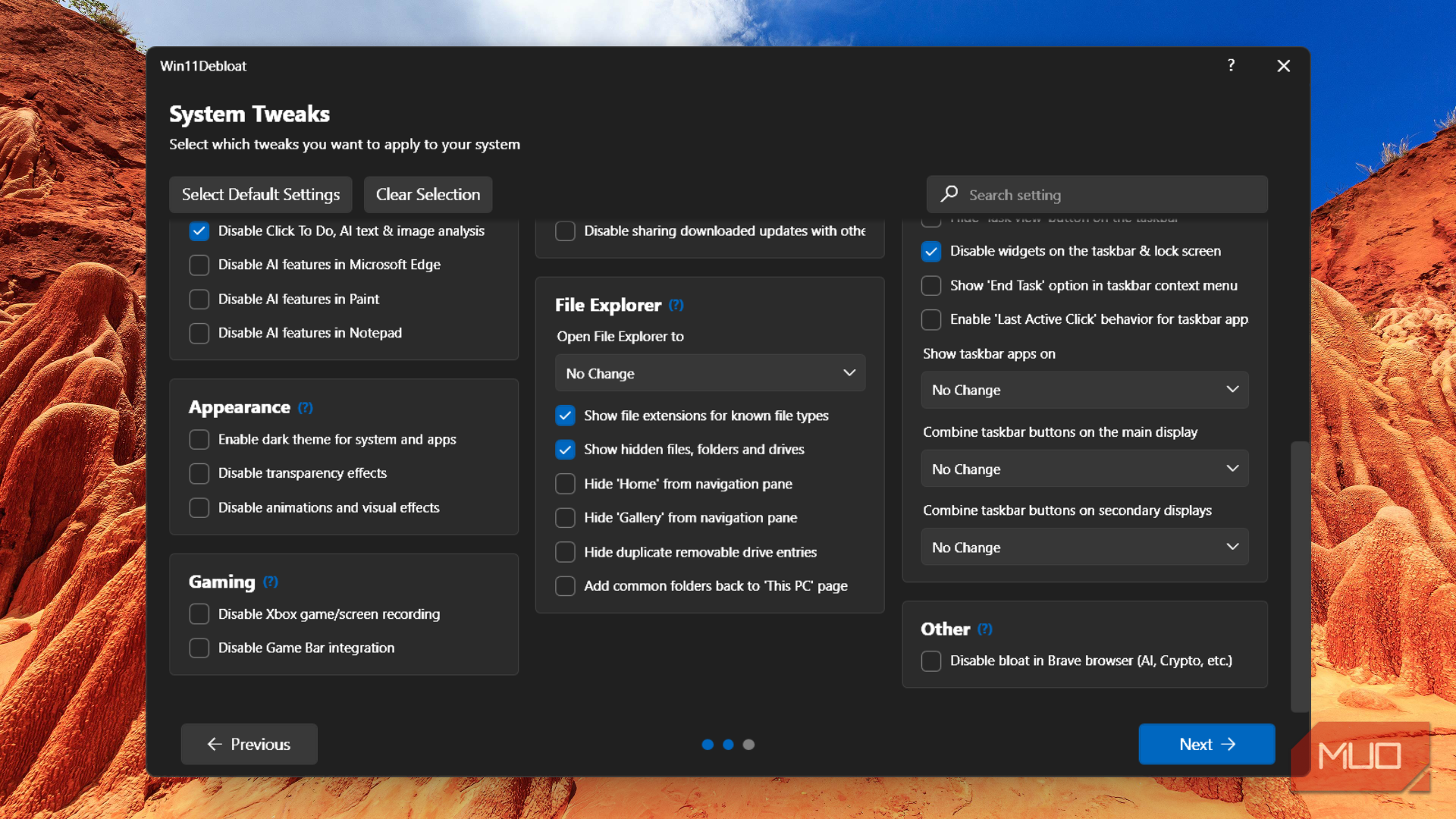
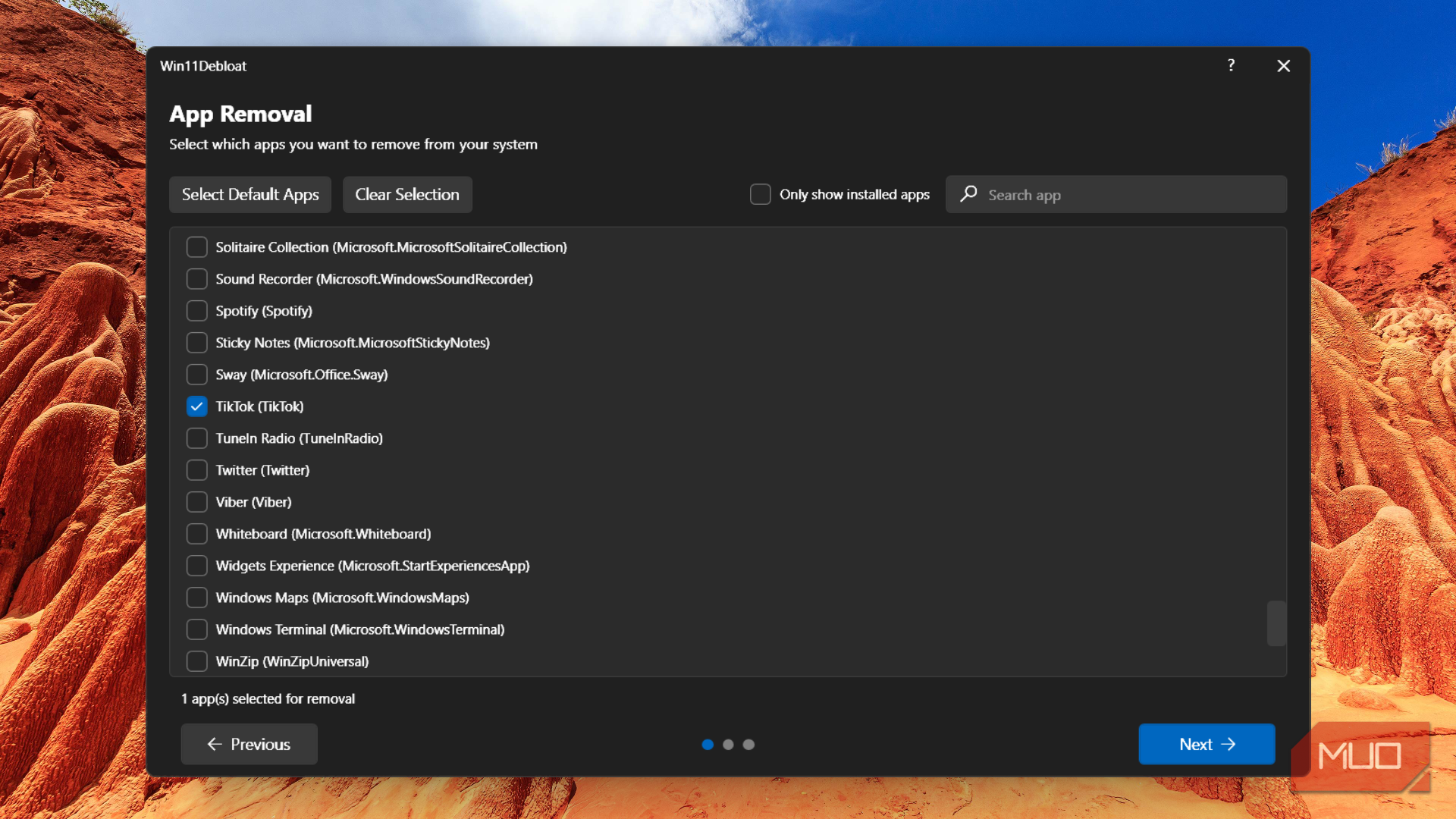
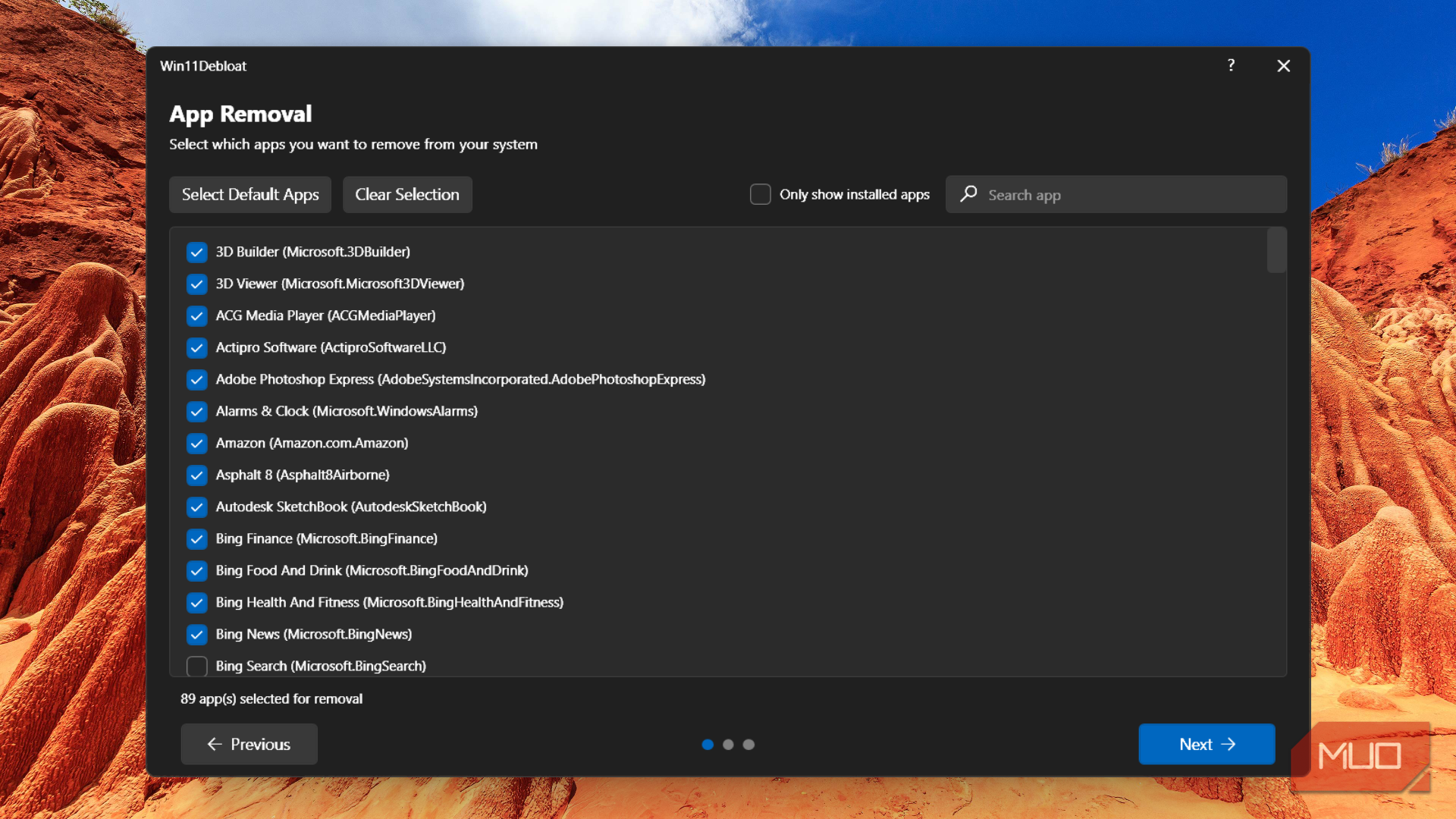
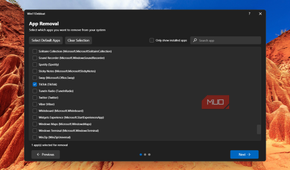
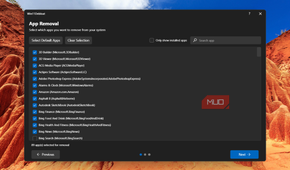
One of my biggest gripes with Windows 11 is the sheer number of apps that come pre-installed. You’ll find Clipchamp, Teams, Xbox, Outlook, To Do, Edge, OneDrive, and plenty of others. To be fair, Microsoft isn’t the only culprit here. Most laptop manufacturers also tend to bundle their own tools, trial software, and third-party apps, which makes the whole bloatware situation worse.
And the problem with having this many apps isn’t just the clutter. Many of these apps are often configured to launch at boot and run background processes, which can affect the overall performance. That’s why one of the first things I like to do on a fresh installation is debloat it.
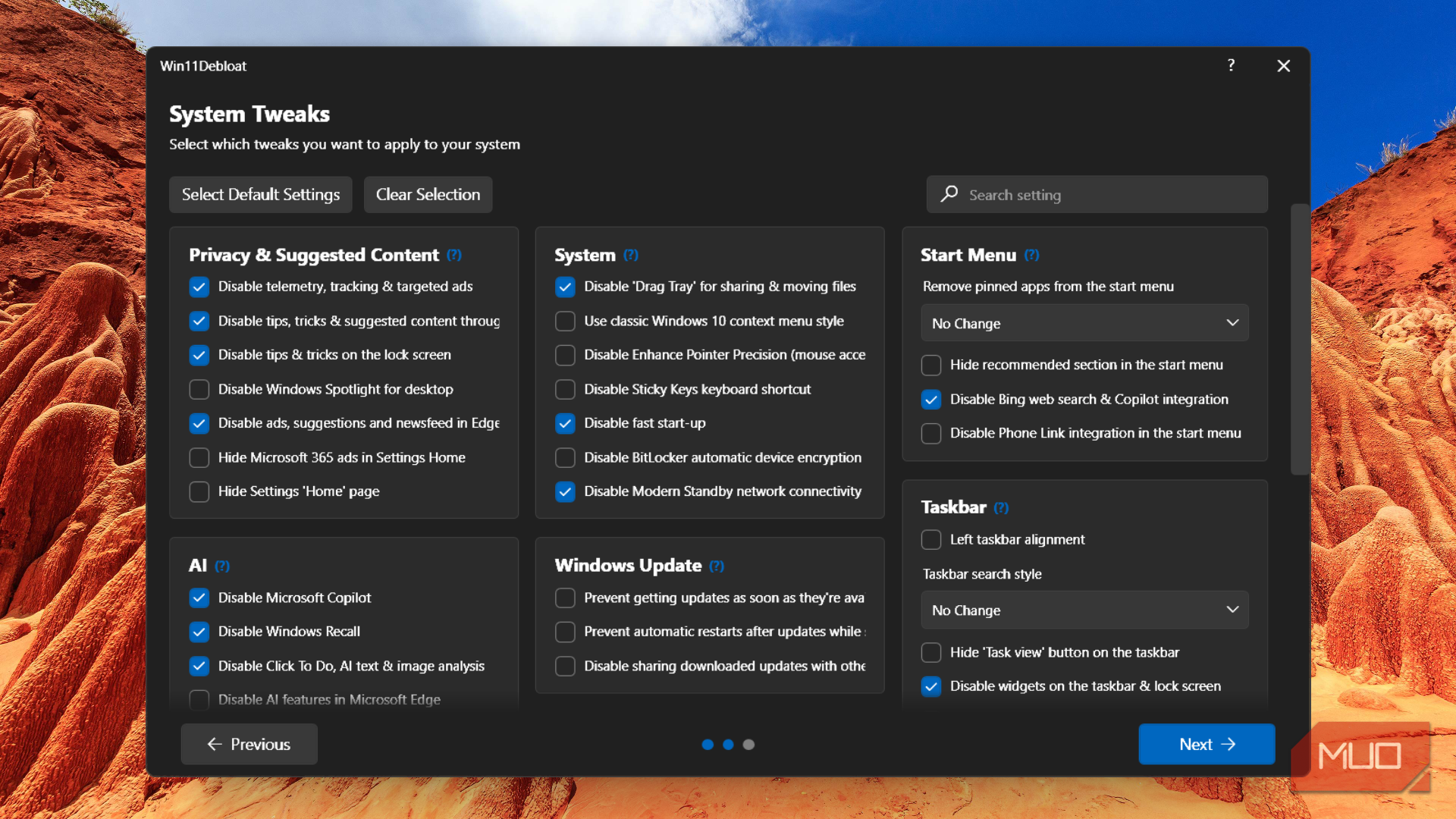
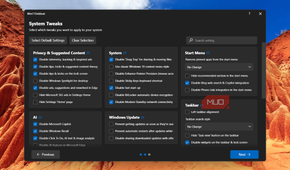
There are a couple of ways to go about this. You can either manually uninstall apps you don’t need or use a dedicated tool like Win11Debloat to remove all the useless apps at once. I prefer the latter because it’s quick and more thorough than manual cleanup.

Get rid of ads and cut down data collection
A cleaner Windows should be the norm

Unfortunately, paying for a Windows license doesn’t mean you’ll never encounter ads. In fact, from the moment you set up your PC, you’ll find recommendations and promotional suggestions throughout the OS, including the Start menu, File Explorer, notification panel, and even the Settings app. Microsoft may not call them ads, but that’s essentially what they are. While they don’t affect performance, they can make your PC feel distracting.
The good news is that you can get rid of most of these ads in a few steps. I usually spend a few minutes digging through the Settings app and disabling every promotional toggle I can find.
Another thing I do is check key privacy-related settings. By default, most of them are set up in a way that lets Microsoft collect data about the apps you use, which sites you visit, collect diagnostic information, and how you use your PC in general. If you’d rather keep this data to yourself like I do, head to Privacy & security tab and turn off things like advertising ID, activity history, optional diagnostic data and telemetry-related settings.
Change important settings
Microsoft’s defaults aren’t always the best


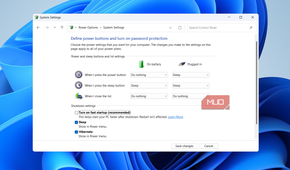
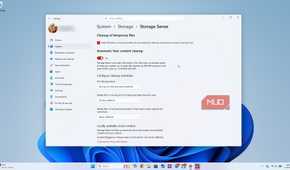
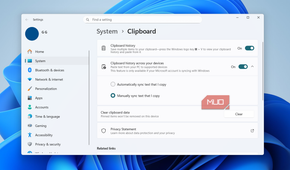
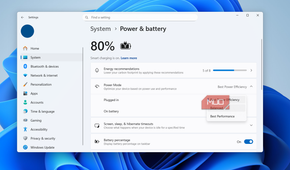
Windows 11 ships with a lot of sensible defaults, but there are still a few settings I change on every installation. For instance, I always disable Fast Startup because it doesn’t add much value on PCs with SSDs and can sometimes cause problems with updates and even hardware detection.
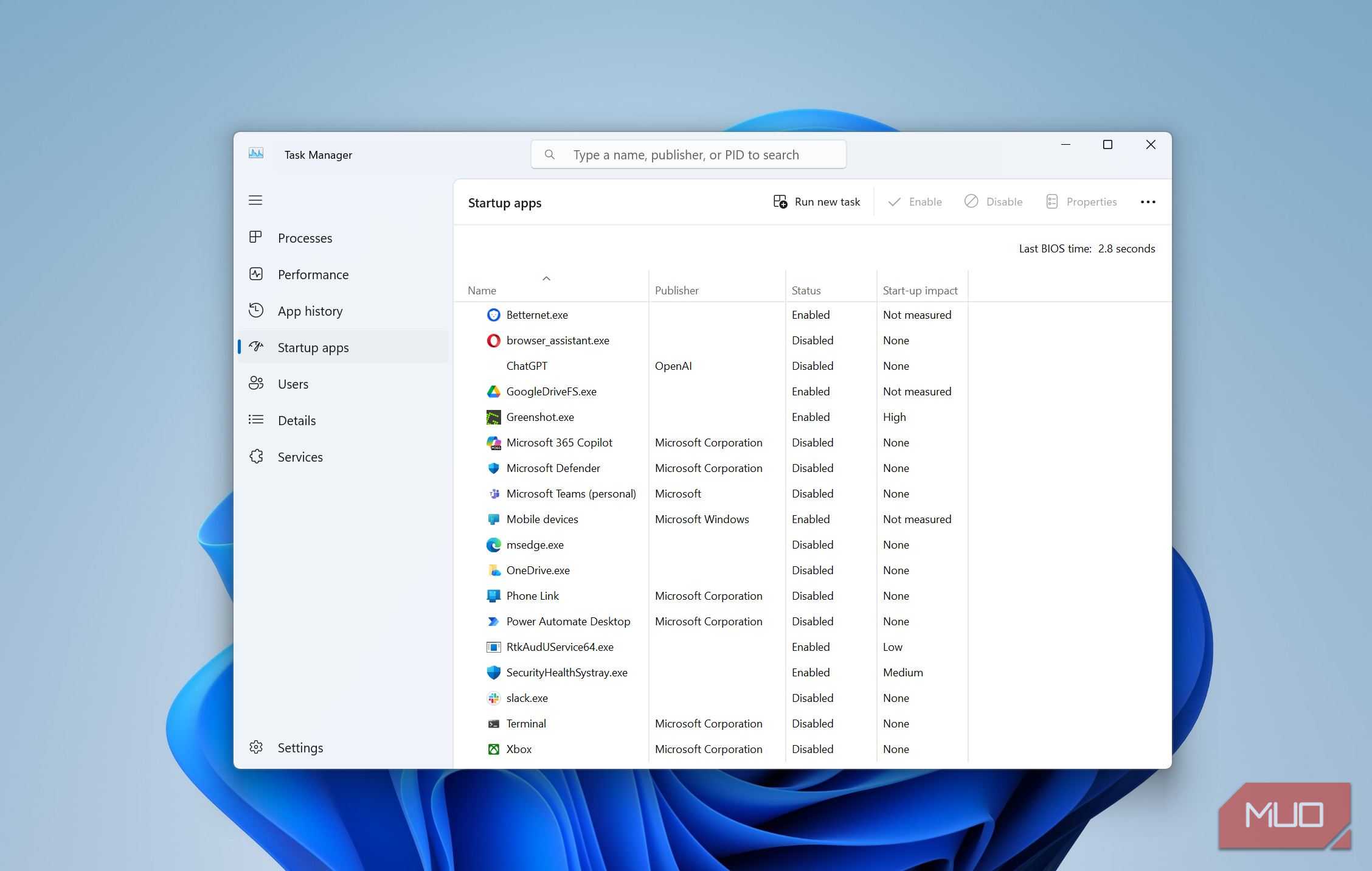
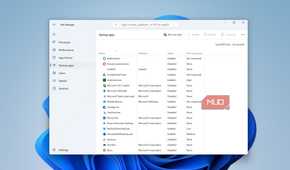
Next, I head to Settings > Apps > Startup to see which apps are configured to launch at boot. Disabling all the unnecessary apps is a great way to reduce boot times and improve performance in general. Notifications are another area that deserves attention. I usually disable most app alerts since constant pop-ups can be distracting.
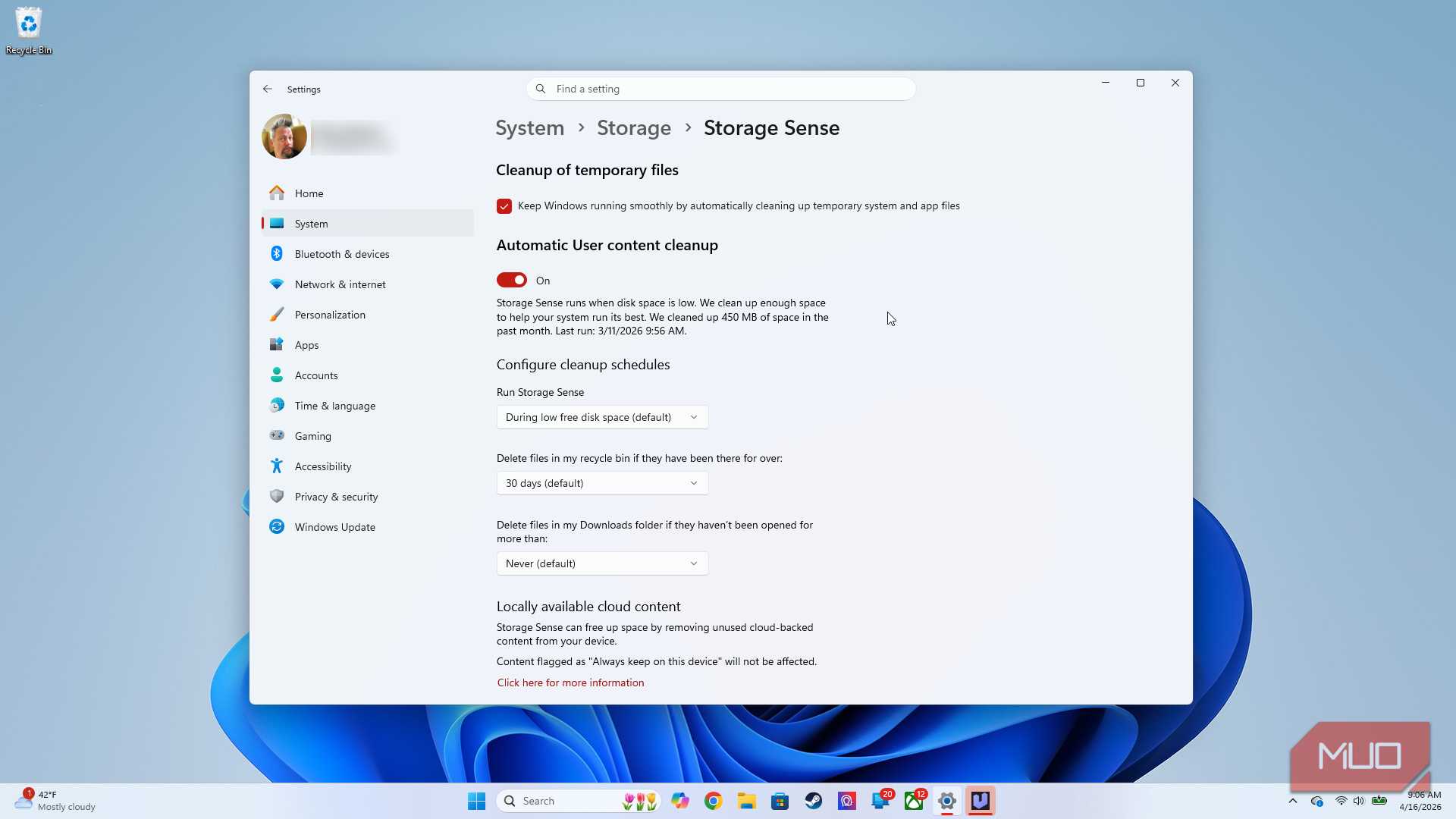
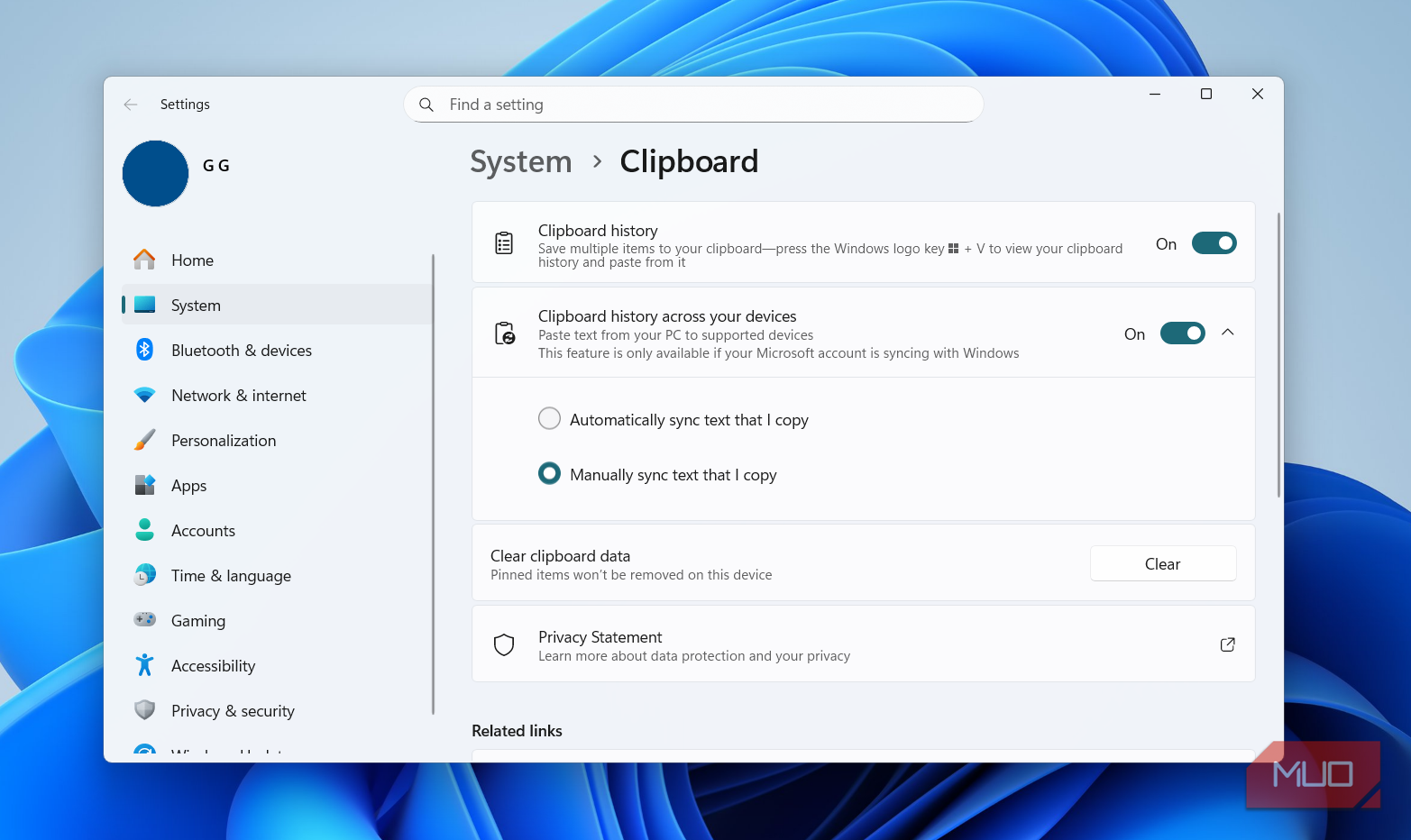
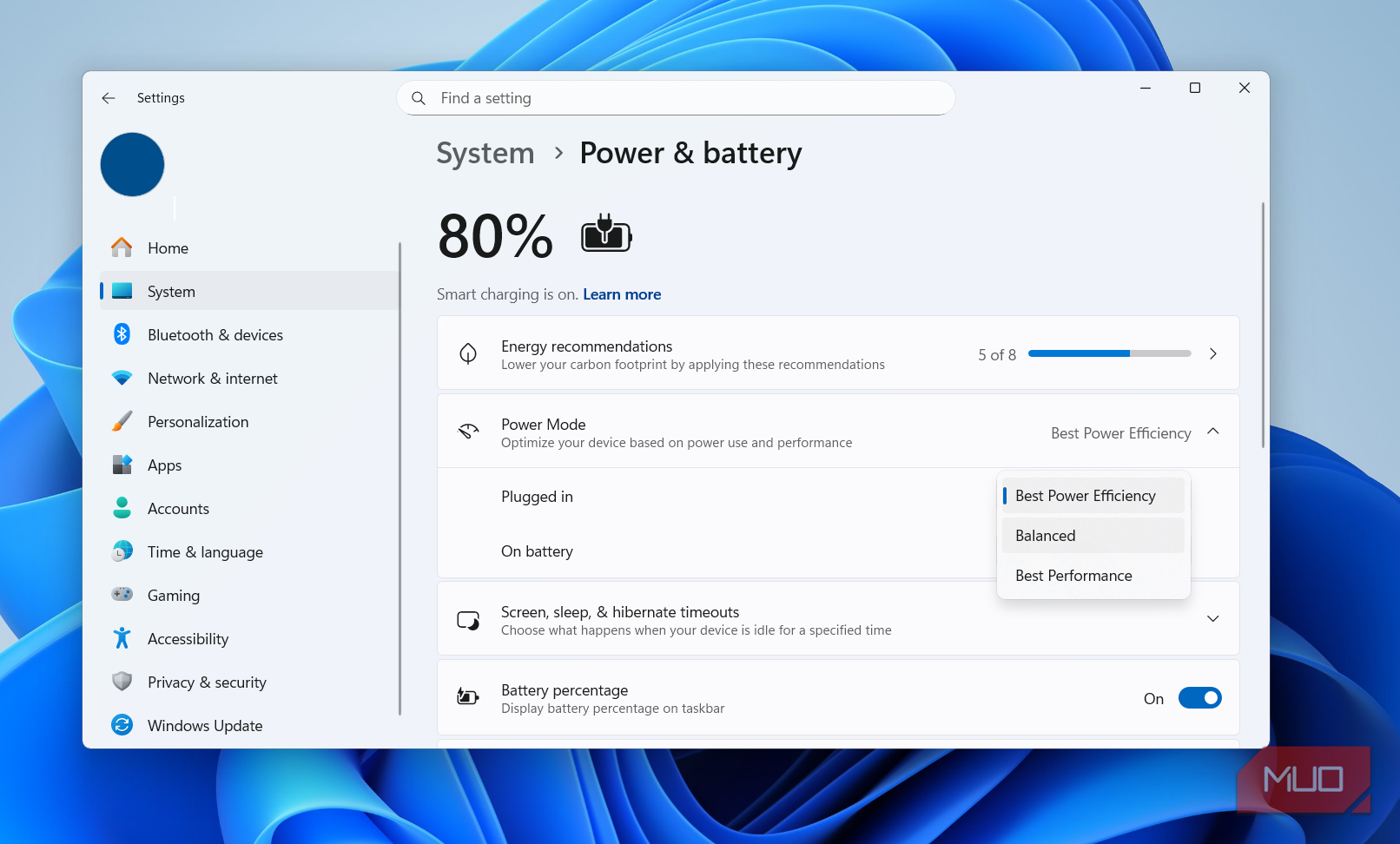
Besides these, I also enable a few quality-of-life features I feel should be turned on by default, like Storage Sense, Clipboard History, System Restore, Best Performance power mode, among others.
Install important apps
I can barely function without these

My Windows PC doesn’t feel truly mine until I’ve installed a few apps that I use every single day. At the top of the list is PowerToys. It’s easily the best Windows app ever made, and it’s from Microsoft itself. It bundles dozens of useful tools like key remapping, spacebar previews, file explorer add-ons, and even a Start menu replacement.
Next up is Brave. Most of my work happens inside a browser, so yes, changing the default browser is something I can’t skip. I also install Blip since it lets me move files around across devices without cables or cloud storage. For PDFs, I stick with PDFGear because it’s completely free and has every editing tool I need.
Finally, there’s Windhawk. This one isn’t as essential as all the others, but it’s the best open-source tool for tweaking various parts of Windows, including the taskbar, Start menu, File Explorer, and even the desktop.
Update everything
A boring step I never skip
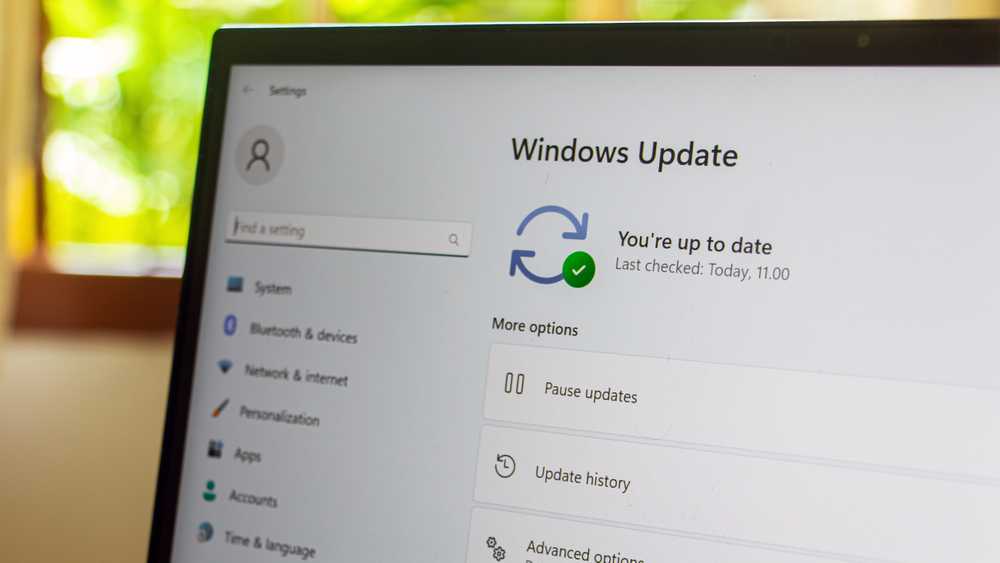
The final and perhaps the least exciting thing I do is update everything. If you’ve bought a new laptop or PC from a store, there’s a good chance it’s running an older version of Windows. Some of these machines can sit in warehouses for months before they reach the customer, which means they often ship outdated software.
Fortunately, Microsoft has made installing updates much less of a chore than it used to be. All I have to do is head to Settings > Windows Update and hit the Check for updates button. Windows even checks for essential driver updates when I do this, so I’m not missing out on anything important.
Honestly, the easiest way to ruin your Windows experience is to use it exactly how Microsoft ships it. All these tweaks are quick and simple, and most importantly, they make Windows a lot more enjoyable.

Asus Zenbook A16 (2026)
- Operating System
- Windows 11
- CPU
- Qualcomm Snapdragon X2 Elite Extreme
- GPU
- Adreno X2-90
- RAM
- 48GB LPDDR5