


MOD is one function I avoided for years because it always seemed like too much mathematics for no real reason. The syntax looks simple enough, but it never quite gives you the result you'd expect at first glance.
After ignoring it for so long, I finally took the time to understand how the MOD function works. Once I did, I realized just how useful it is. Now, it's one of my most useful Excel functions for handling cycles, patterns, and even complex data structures.
Why the MOD function feels so strange
Some rules make this function more confusing than it looks

The MOD function in Excel looks harmless enough: it returns the remainder when one number is divided by another:
=MOD(number, divisor)
That sounds simple, but Excel has some rules about computer architecture, negative number logic, and how it interacts with dates and times that make things a bit more complicated.
First, computers store numbers in binary (ones and zeros), and some decimals simply can't be represented perfectly. If you run something like the following, you'll be asking Excel how many times 0.3 goes into 7.2:
=MOD(7.2, 0.3)
Since 7.2 is exactly divisible by 0.3 (24 times), you'd expect a clean 0. Instead, Excel outputs a value like 0.000000000000000444. That's because Excel converts 7.2 to its closest binary approximation (which is slightly more than 7.2) and 0.3 to its closest binary approximation (which is slightly less than 0.3). When it subtracts 24 rounds of that approximate 0.3 from that approximate 7.2, the tiny rounding mismatch appears at the very end of the calculation as 0.000000000000000444.
If you have a conditional formula checking whether that cell equals zero, such as [=IF(O2=0, "Valid", "Error")], this fraction will break your logical test. The fix is usually to wrap the entire calculation in Excel's ROUND function to eliminate binary noise.
Another quirk is that, unlike some other programming languages, the MOD function always returns a result with the same sign as the divisor, not the number being divided. If you enter [=MOD(19, -13)], your instinct might tell you the remainder is 6. Excel, however, returns -7. This happens because MOD is based on the following formula:
MOD(n, d) = n − (d × INT(n/d))
Here's what that looks like in practice:
|
=MOD(3, 2) |
1 |
|
=MOD(-3, 2) |
1 |
|
=MOD(3, -2) |
-1 |
If the divisor is 0, the function returns a #DIV/0! error, one of the most common Excel errors. Understanding these rules is important when you're using MOD to calculate patterns, loops, or fiscal calendar shifts that cross into negative values.
However, there's another side to the MOD function. Because any whole number is perfectly divisible by 1, dividing by 1 leaves you with only the fractional, or decimal, remainder:
=MOD(number, 1)
This is incredibly useful when processing timestamps. In Excel, dates are stored as whole numbers (for example, 45291), while times are stored as decimals (for example, 0.5 represents 12:00 PM, or half a day). Imagine your system exports a combined date and time stamp into cell O2 as the value 45291.75, which represents December 31, 2023, at 6:00 PM. If you want to isolate just the time, you can use this formula:
=MOD(O2, 1)
Since 1 goes into 45,291 exactly 45,291 times, the mathematical remainder is simply 0.75. When you format the result as Time, Excel displays 6:00:00 PM, stripping away the date portion in a single step.
Once you get around these quirks, the MOD function stops feeling weird and starts becoming useful, especially once you see the range of problems it can solve.
The MOD function’s best use cases
Save time with patterns, dates, validation, and more


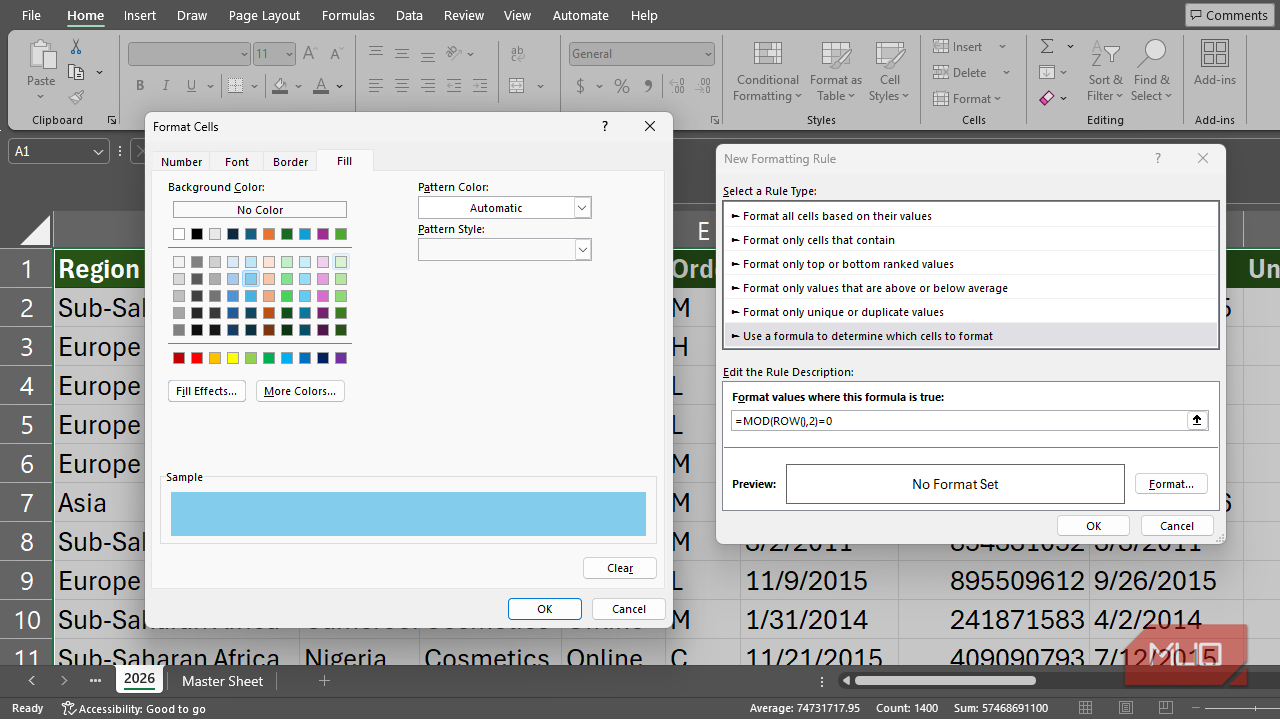
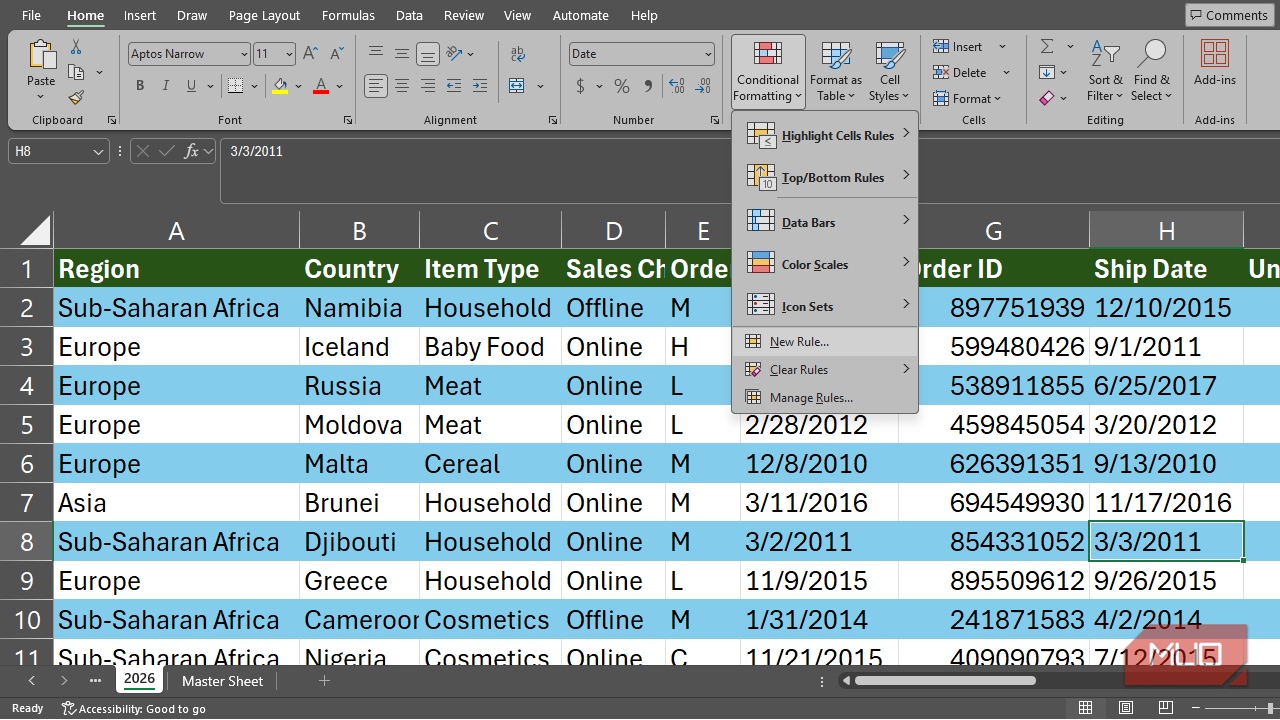
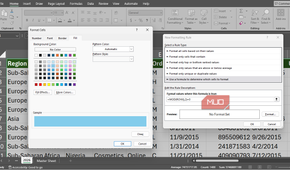
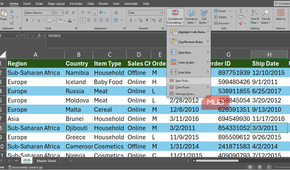
MOD is a favorite inside Conditional Formatting rules. If you want to shade every other row or column in your spreadsheet, you can use a formula like this:
=MOD(ROW(),2)=0
This formula highlights every second row on your sheet. Swap the 2 for a 5, and you'll highlight every fifth row or column instead, which is handy for building trackers or schedules that repeat at set intervals.
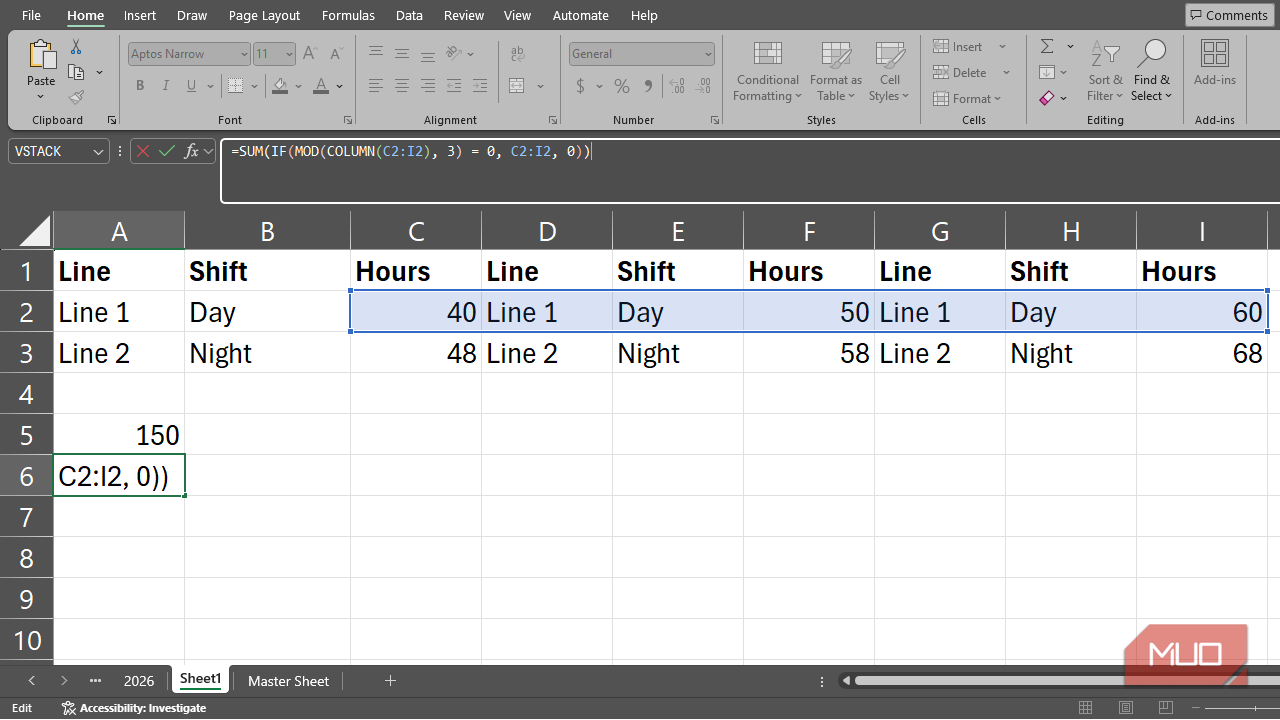
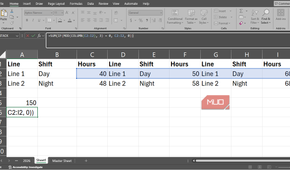
The MOD function is just as useful when you're working with repeating data structures. Imagine you have a dataset with column groups like "Line, Shift, Hours" repeating over and over. You can use the following formula to isolate just the Hours column inside a SUM or AVERAGE formula:
=MOD(COLUMN(range),3)=0
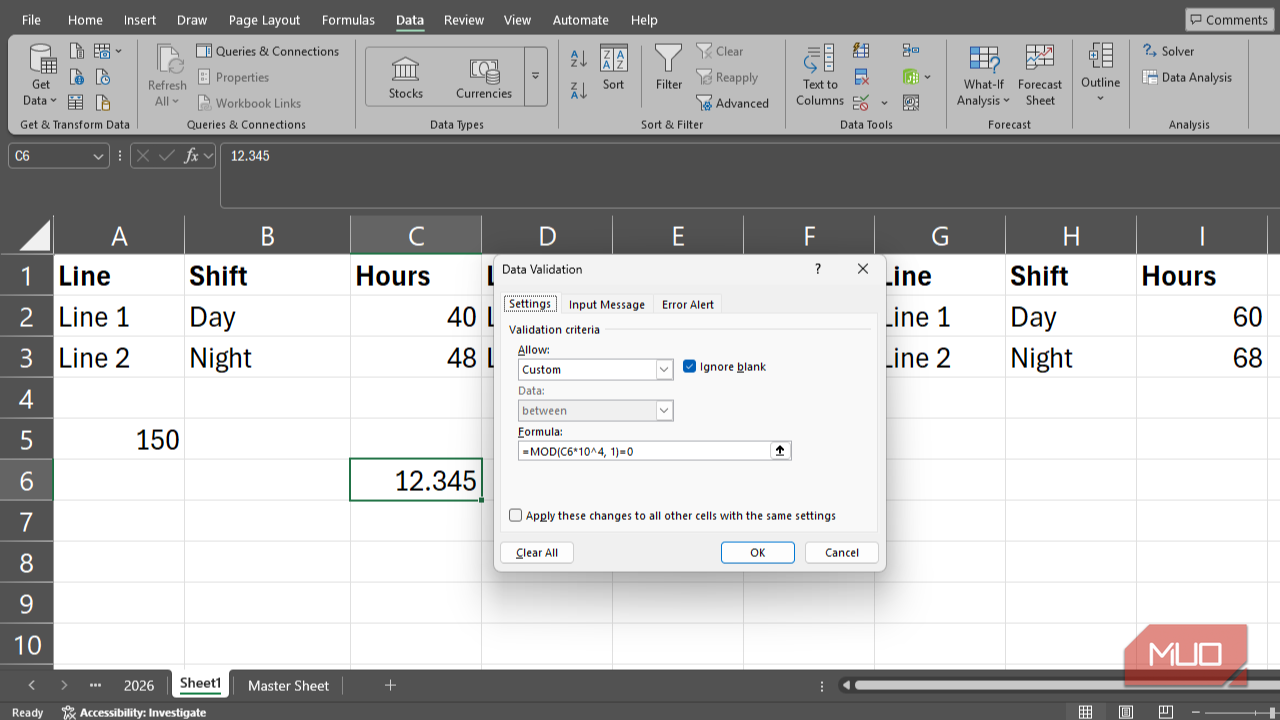
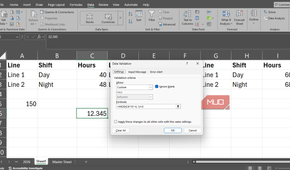
MOD is also great for data validation. For example, the following formula ensures that an entry contains no more than four decimal places:
=MOD(C6*10^4,1)=0
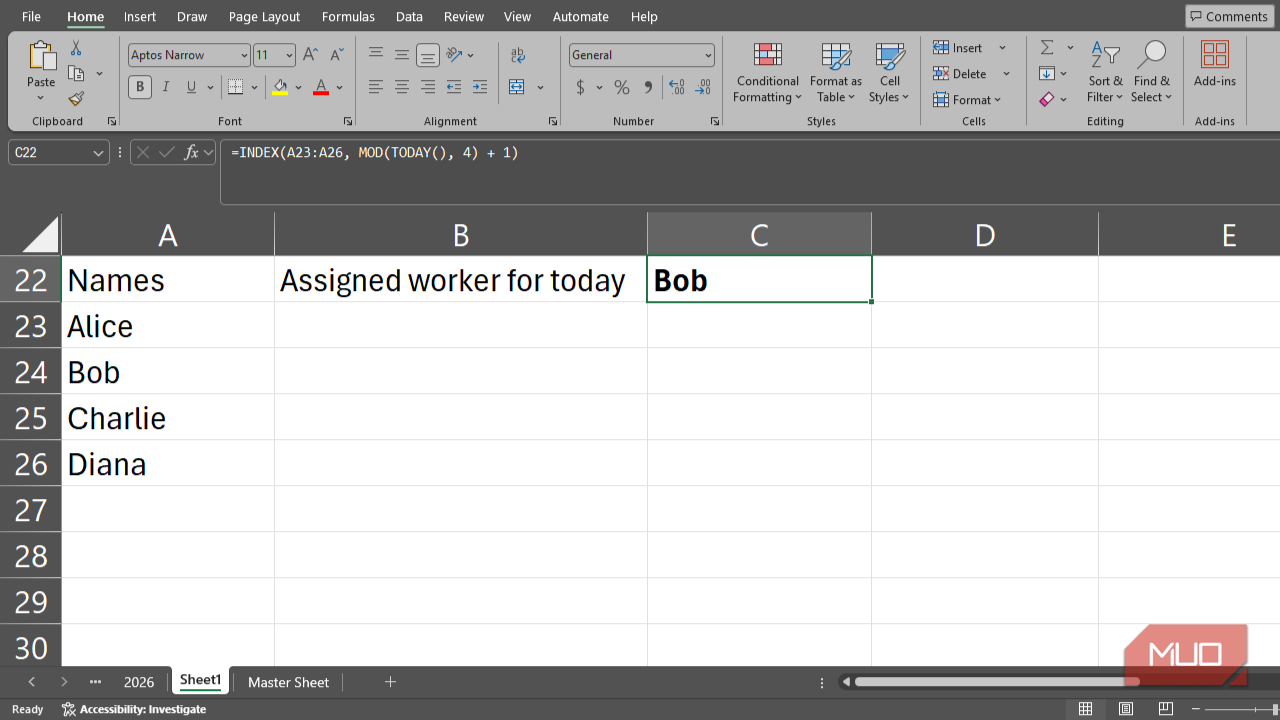
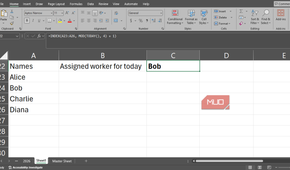
If you need a rotating schedule, you can pair MOD with TODAY(). Suppose you have four names in a list. This formula cycles through them automatically, changing the assigned name each day:
=INDEX(A23:A26, MOD(TODAY(),4)+1)
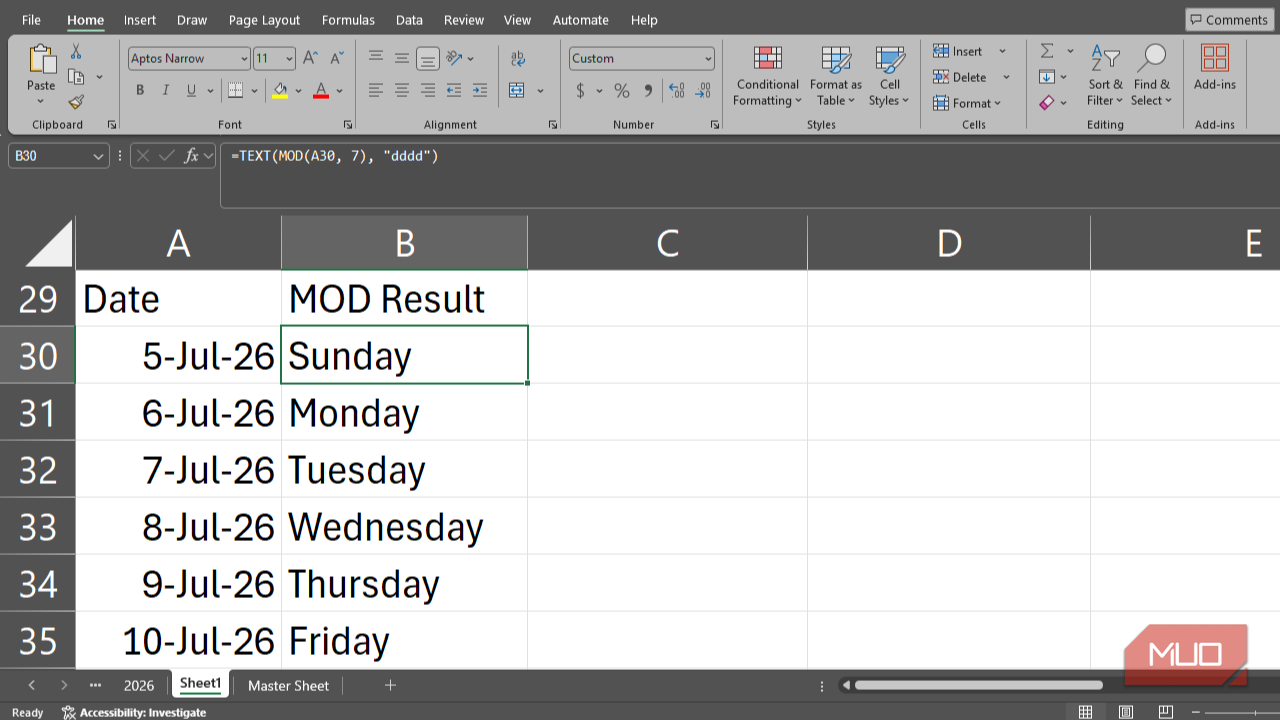
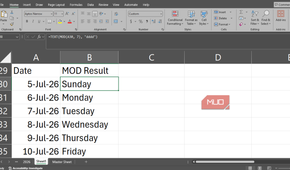
Since Excel stores dates as serial numbers, a formula like the following can also help determine the day of the week, as the remainder follows a repeating seven-day cycle:
=TEXT(MOD(date cell reference, 7), "dddd")
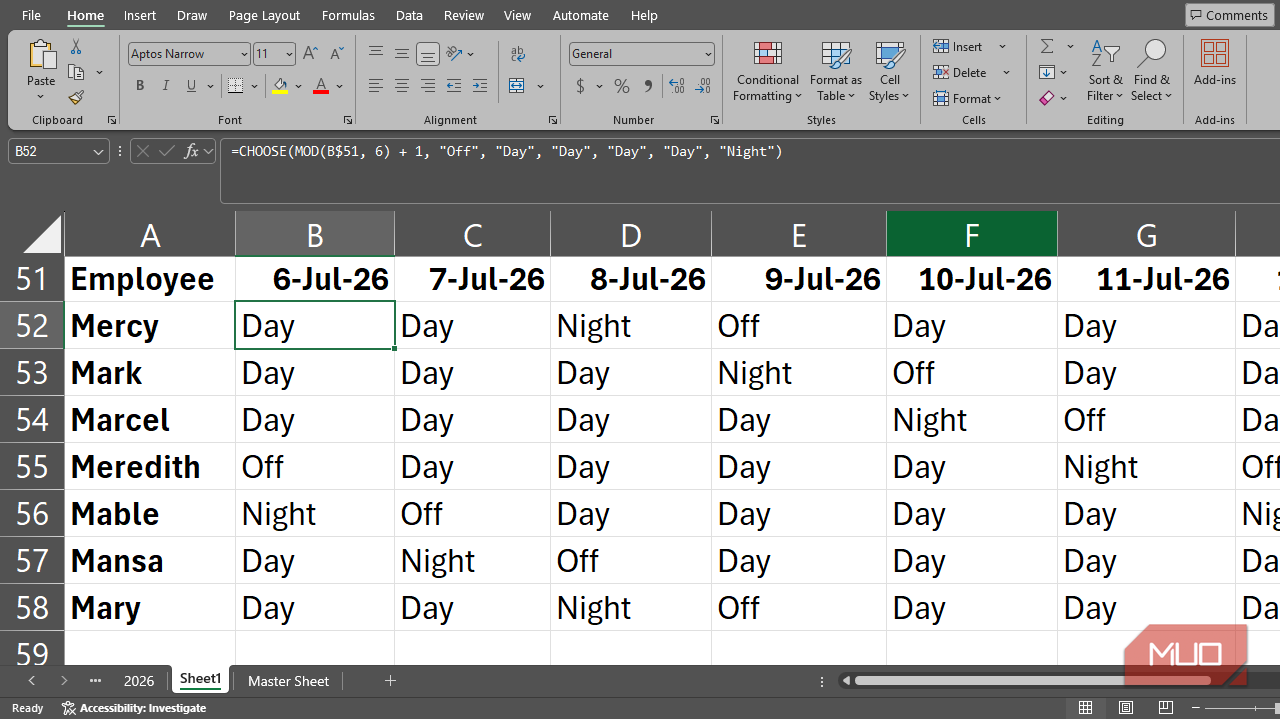
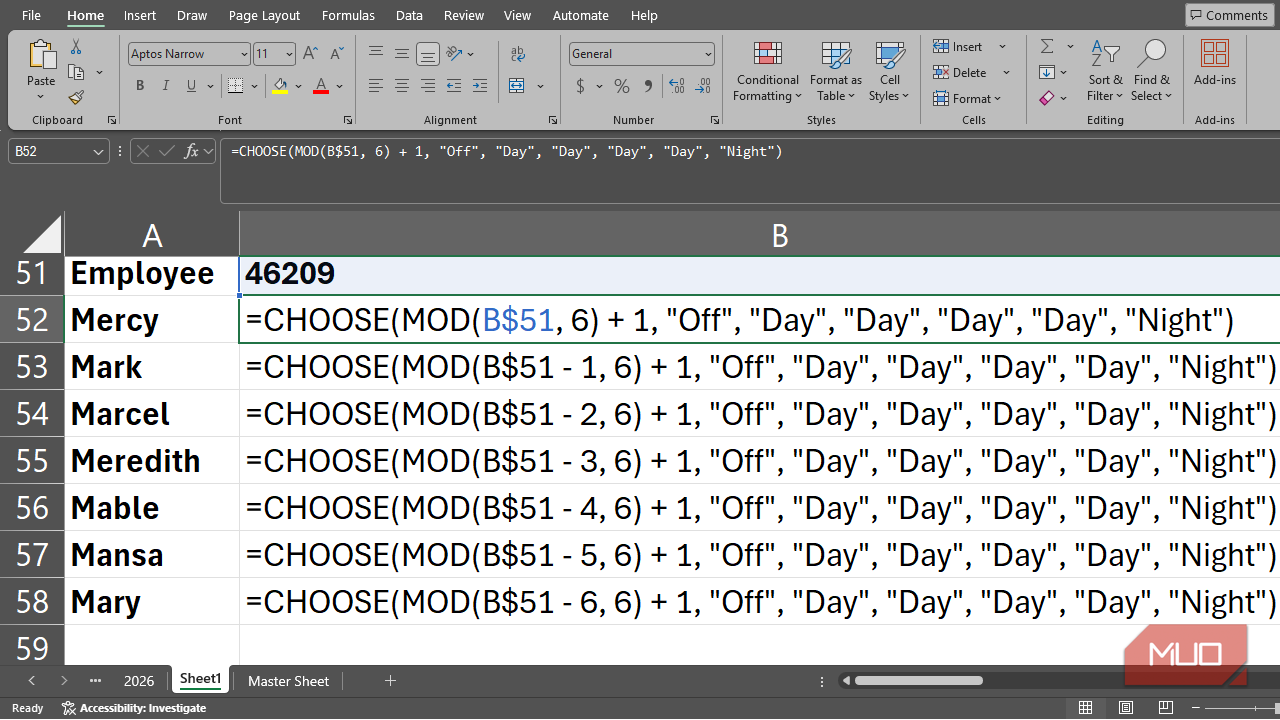
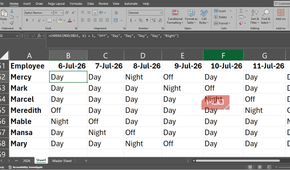
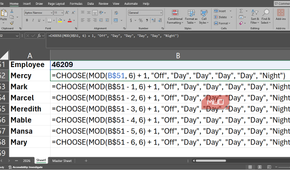
MOD is equally useful for building an automated shift scheduler. Instead of manually mapping out repeating rosters, you can use MOD to create a mathematical loop that advances your schedule automatically day by day:
=CHOOSE(MOD(Date, Cycle_Days) + 1, "Shift 1", "Shift 2", "Shift 3"...)
If you'd like to stagger the schedule so different employees aren't all taking days off or working on the same shifts at the same time, simply subtract days from the date inside the formula (e.g., Date - 1) for your second worker and so on. This offsets their starting position in the loop and creates a perfectly balanced rolling roster.
Beyond dates and formatting, MOD can help normalize or unpivot data by generating repeating combinations of variables without requiring manual entry. In long-running scripts, you can also use it to update a status bar at specific intervals, such as every 1,000 rows, avoiding the performance cost of refreshing the screen during every loop iteration.
This function is worth the learning curve
It's funny how the formulas that seem the most confusing at first are often the ones you end up relying on the most. MOD is proof that spending a little time understanding Excel's stranger logic can pay off.
The next time a spreadsheet throws you a repeating pattern, a cycle, or a stubborn edge case, don't reach for another clunky workaround. Give MOD a shot instead. Once you understand how it works, you'll probably find yourself using it far more often than you ever expected.

- OS
- Windows, macOS
- Supported Desktop Browsers
- All via web app
- Developer(s)
- Microsoft
- Free trial
- One month
- Price model
- Subscription
- iOS compatible
- Yes
Microsoft Excel is a powerful spreadsheet application used for data organization, analysis, and visualization. It supports formulas, functions, pivot tables, and charts to process complex datasets efficiently. Widely used in business and education, Excel also integrates with other Microsoft 365 apps for collaboration, automation, and real-time data insights.