


I know you can relate to this feeling. You read a dozen reviews and finally buy the earbuds everyone is raving about on the internet. But the moment you get home, unbox them, plug them into your ears, and play your favorite song, you realize that it doesn’t sound how you expected it. You might start second-guessing yourself, wondering if your investment went wrong or if you got played by marketing.
I looked it up online and found that one setting on my phone could easily change how my earbuds sounded. The best part is that it just takes two minutes to turn this feature on. Here's how to make your earphones sound good, too.
Don’t ignore your phone’s Bluetooth codec
Codec does a lot for how your earbuds sound

When you connect your earbuds to your phone, they use a specific Bluetooth protocol to send and receive audio. This language is called an audio codec. If a bad one is chosen, then even if your hardware is premium, you will not get good sound quality.
A codec’s job is to compress the audio into something small enough to travel over Bluetooth and then reconstruct it on the other end. Some codecs do this carefully, resulting in optimal sound quality. Others do it quickly and skip a few things, thereby throwing away data while preserving just enough core detail.
However, not all codecs are created equal, and your phone doesn’t always pick the best one available. This is the annoying bit. Android doesn’t always give your earbuds the best path (codec, in our case) it supports.
A lot of phones play it safe and send the audio signal through the default codec that connects faster and drops the fewest frames/packets, even if this means sacrificing sound quality. The fallback codec is SBC, which is supported by every pair of Bluetooth earphones on the market.
But that is the codec that your phone defaults to when it doesn’t know what else to try, and it is usually the reason why your premium earbuds don’t sound great out of the box. Your earbuds might support something far better, as mentioned in Google’s official documentation.


I changed one setting on my Samsung phone
It is hidden inside Developer Options


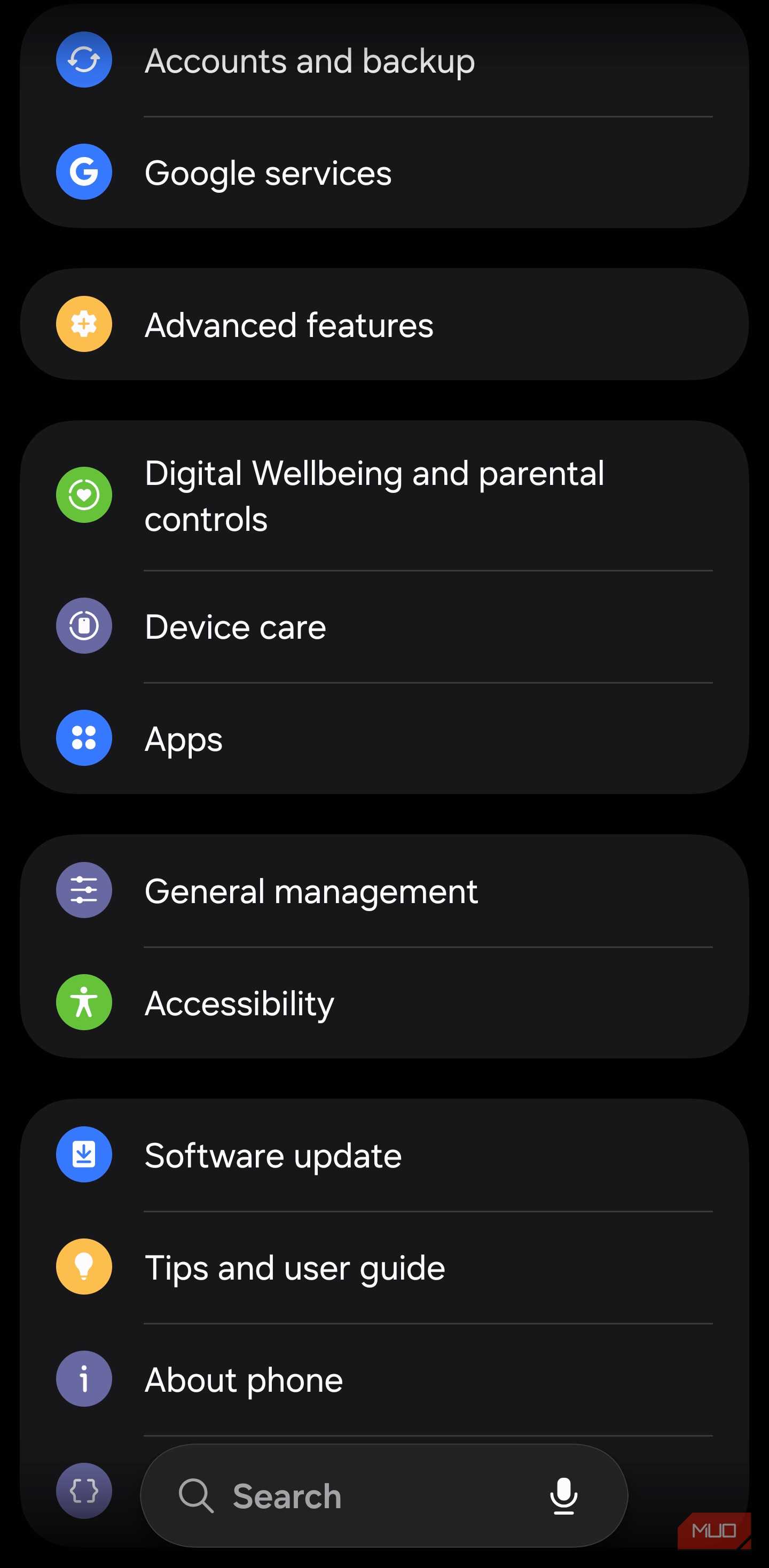
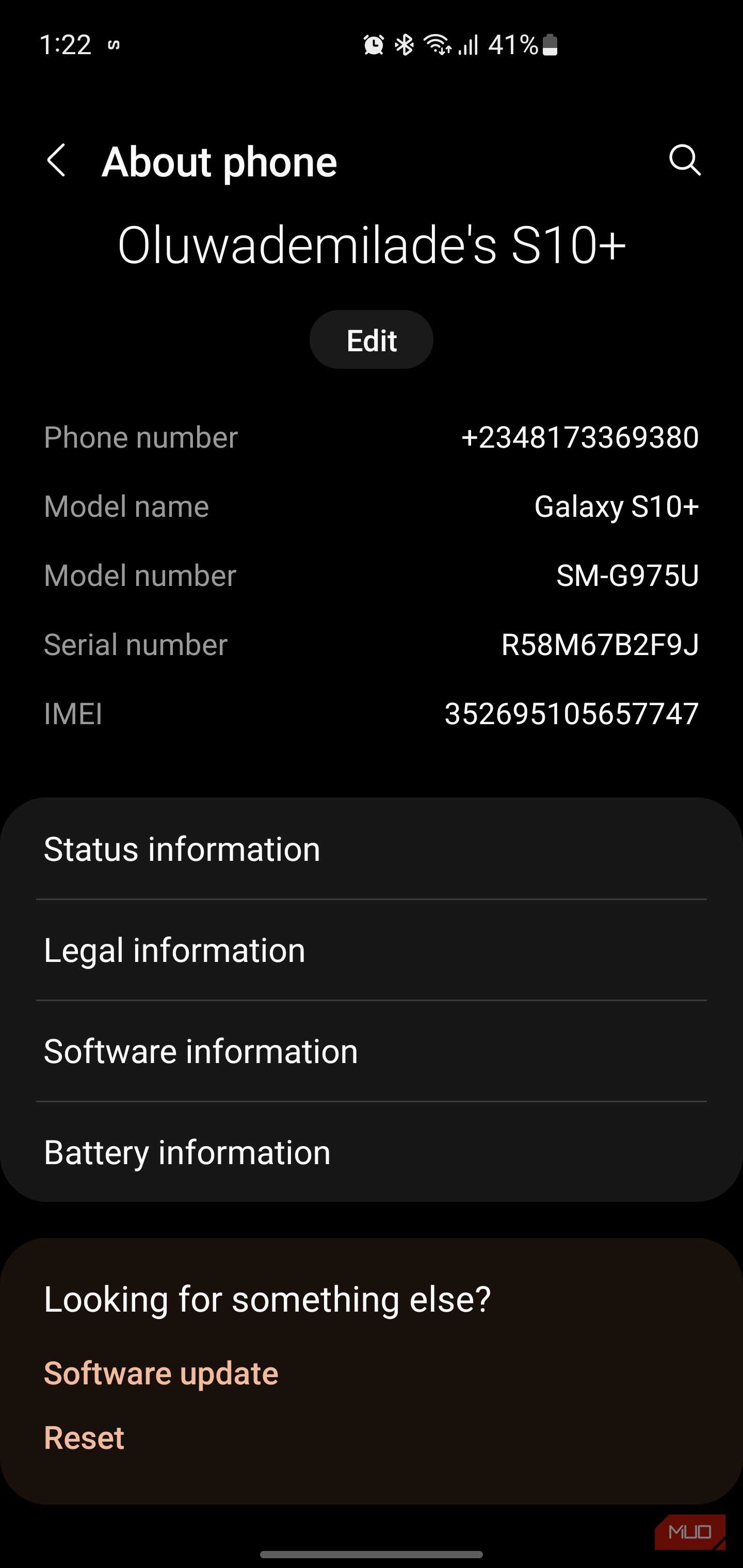
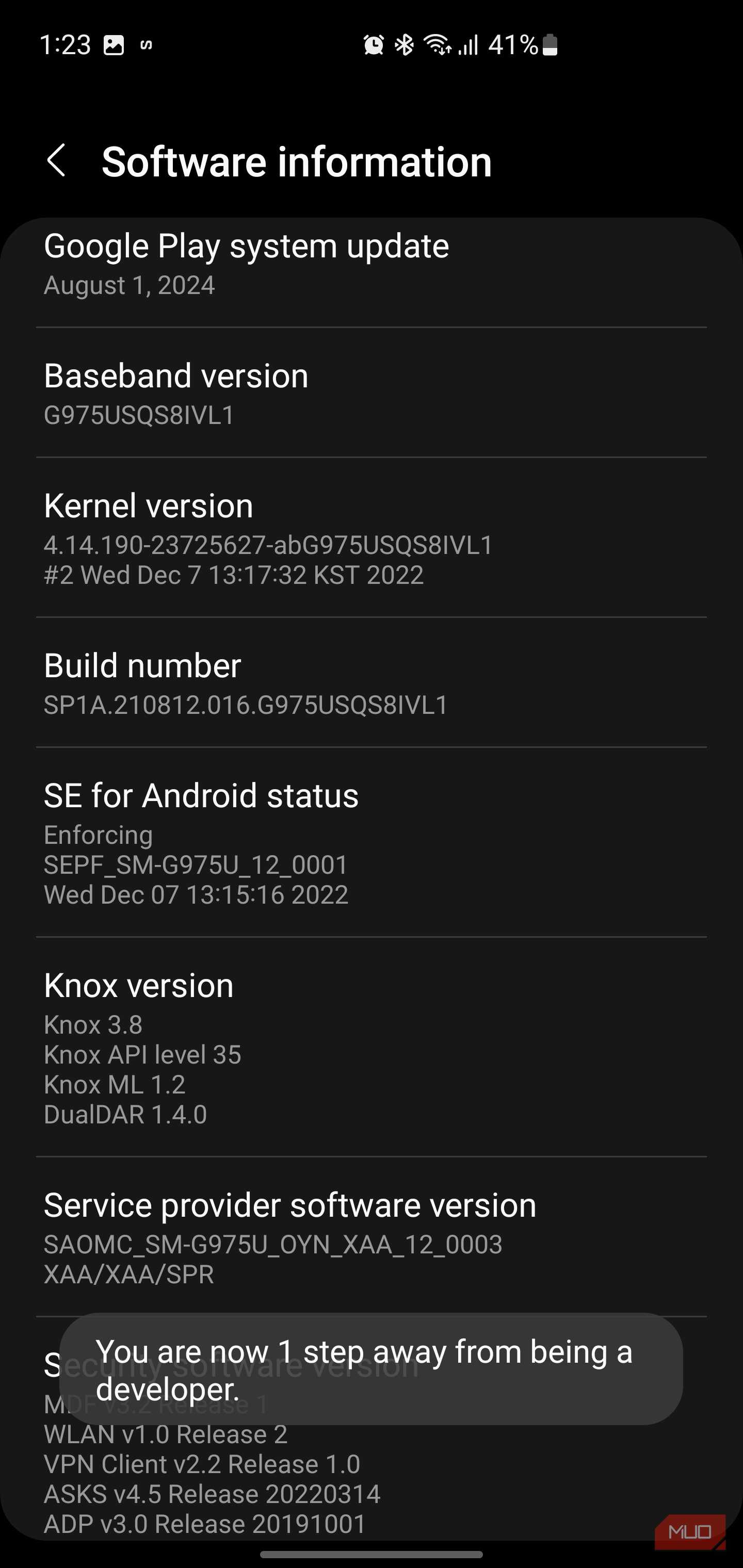
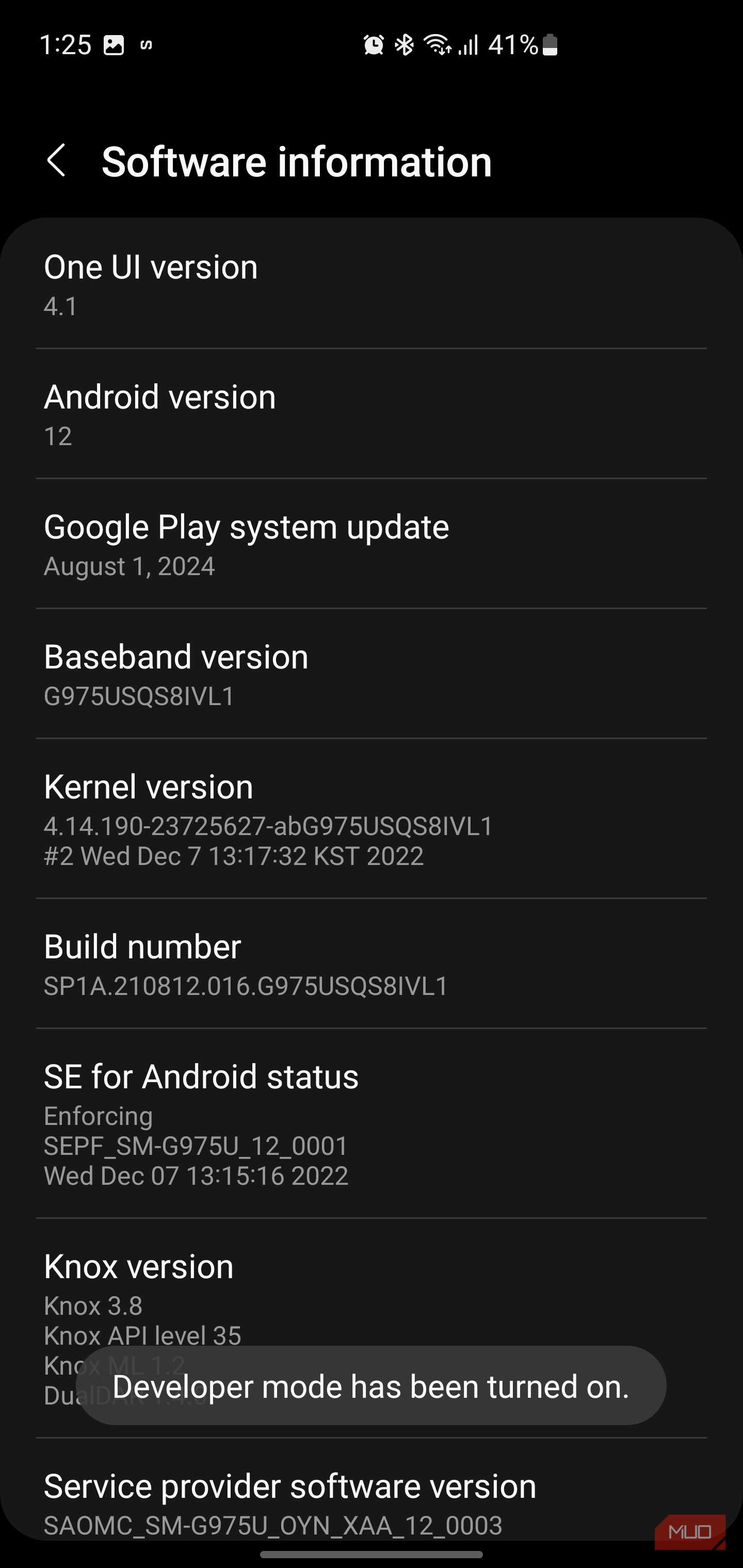
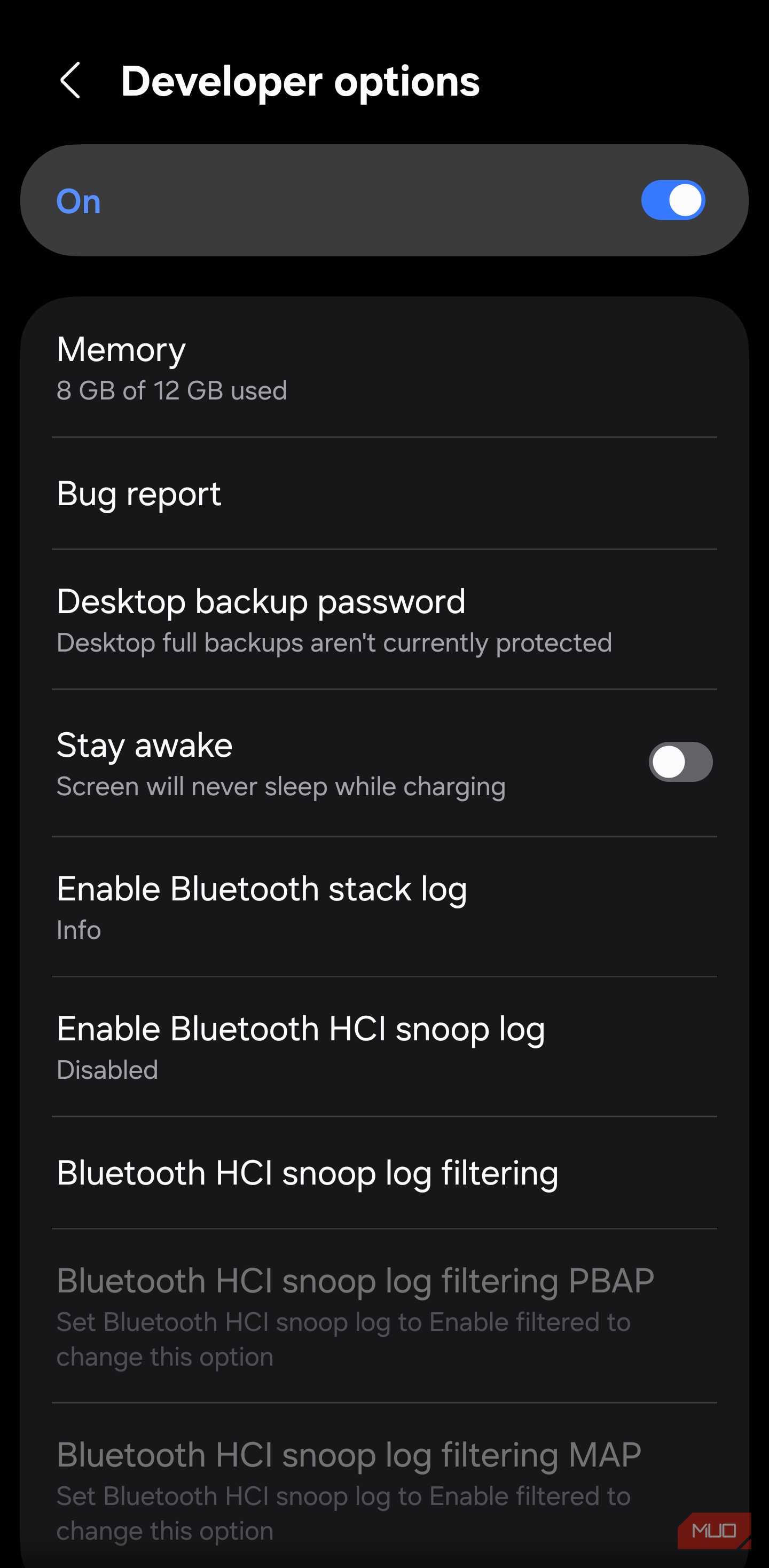
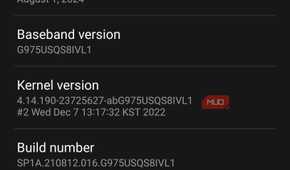
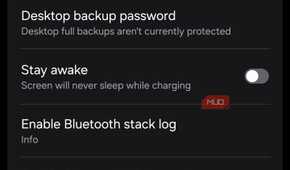
I use a Galaxy S25 Ultra, and I will admit I assumed my phone was squeezing the best possible sound out of my Samsung Galaxy Buds+. To my surprise, that was not the case.
I had to dig through the settings myself and found that there was a setting available inside Developer Options. Notably, Developer Options also hides several options that are helpful for non-developers, can help improve battery life, and some are just fun features.
Note that this same trick applies to the newer Samsung Galaxy Buds and other supported earbuds as well. Here’s what you need to do:
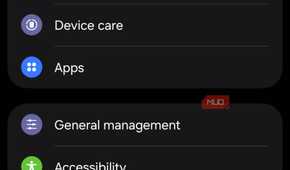
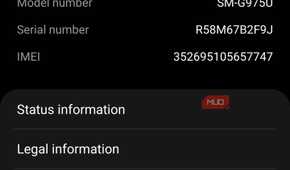
- Open Settings, and head over to About phone.
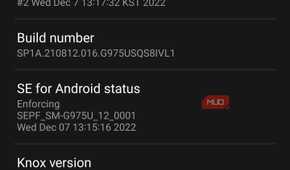
- Tap on Software information.
- Tap on Build number seven times in a row until you see a message saying that you are now a developer.
- Go back to Settings, and you will see Developer Options. Open it and toggle it to ON.
- Search for 'codec' or scroll down to the Bluetooth Audio Codec section.
You will see a bunch of codecs, and if this is your first time here, it is definitely a good idea to know what they mean. This is important because you have to pick the right codec for your earbuds. In short, here is what the codecs mean:
- AAC is an upgrade over SBC and is something that iPhones lean on. Do note that it isn’t always consistent on Android.
- aptX and aptX HD are Qualcomm’s codecs, common on Android phones, and they tend to be noticeably better than SBC for detail and consistency.
- LDAC is built by Sony, and is the one that would surprise you the most. According to Sony, it streams up to 990 Kbps, roughly three times the data of a Bluetooth stream, and more importantly, it is available on every Android phone since Oreo. However, for Galaxy earbuds users like me, the LDAC option is not available.
You need to connect your earbuds to your phone; only then will the Bluetooth Audio Codec option be usable; it will stay greyed out. It is worth knowing that if you use Samsung Galaxy earbuds, using LDAC is not an option.
Samsung does not support LDAC, although its phones are capable of outputting audio through this codec. Samsung defaults to its own codec, so you need to go through a few extra steps to turn on the hi-res audio mode for your earbuds.
Codecs only work for media playback
If you think that changing the codec will instantly give you better sound quality, you might be disappointed. The codec choice only affects music and video playback. The moment you join a call, your phone switches to a completely separate audio pipeline where this codec choice doesn’t apply. If you want the absolute best sound quality, you should also check the Bluetooth version itself. While codec matters, the Bluetooth version number is also important.
Of course, changing one setting won’t turn your Bluetooth earphones into a premium-sounding device. But if you have a premium device, then there is a good chance that the codecs were the ones holding them back the whole time.
