


The vast range of customization options is one of the reasons why I love PC building so much. On modern motherboards, PCIe (Peripheral Component Interconnect Express) has become the universal connectivity standard for most components, and you'd be surprised to learn how many non-GPU devices can be connected to a PCIe slot.
Although not all PCIe connections on your PC are the same, lane bifurcation is a real concern when installing components. Having said that, the CPU becomes a bottleneck because it can only handle so much bandwidth coming from all these PCIe devices. In some cases, you may also have to leave the fastest PCIe slot idle because populating it can do more harm than good.
What PCIe generations and lanes actually mean
Bigger numbers and faster data


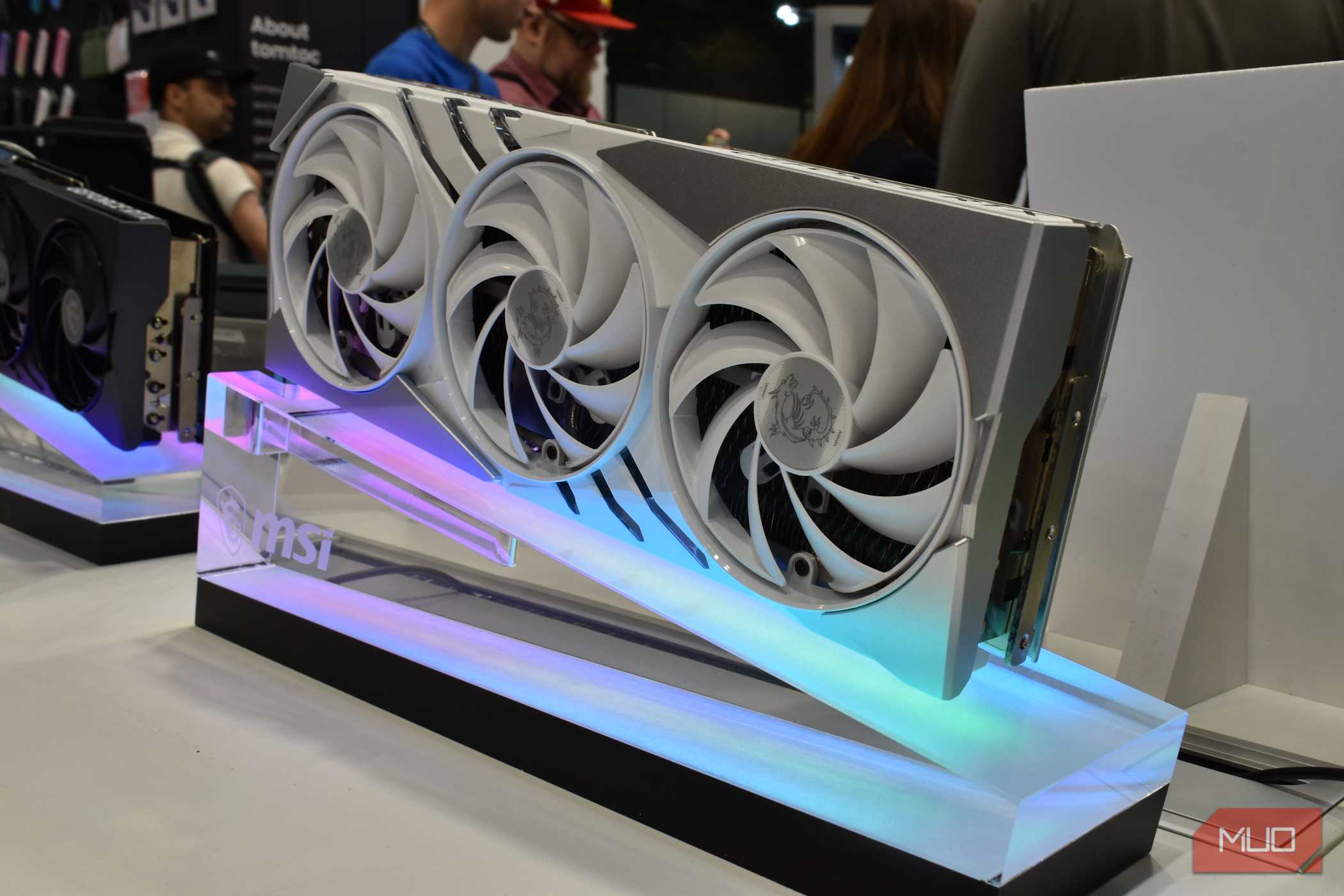
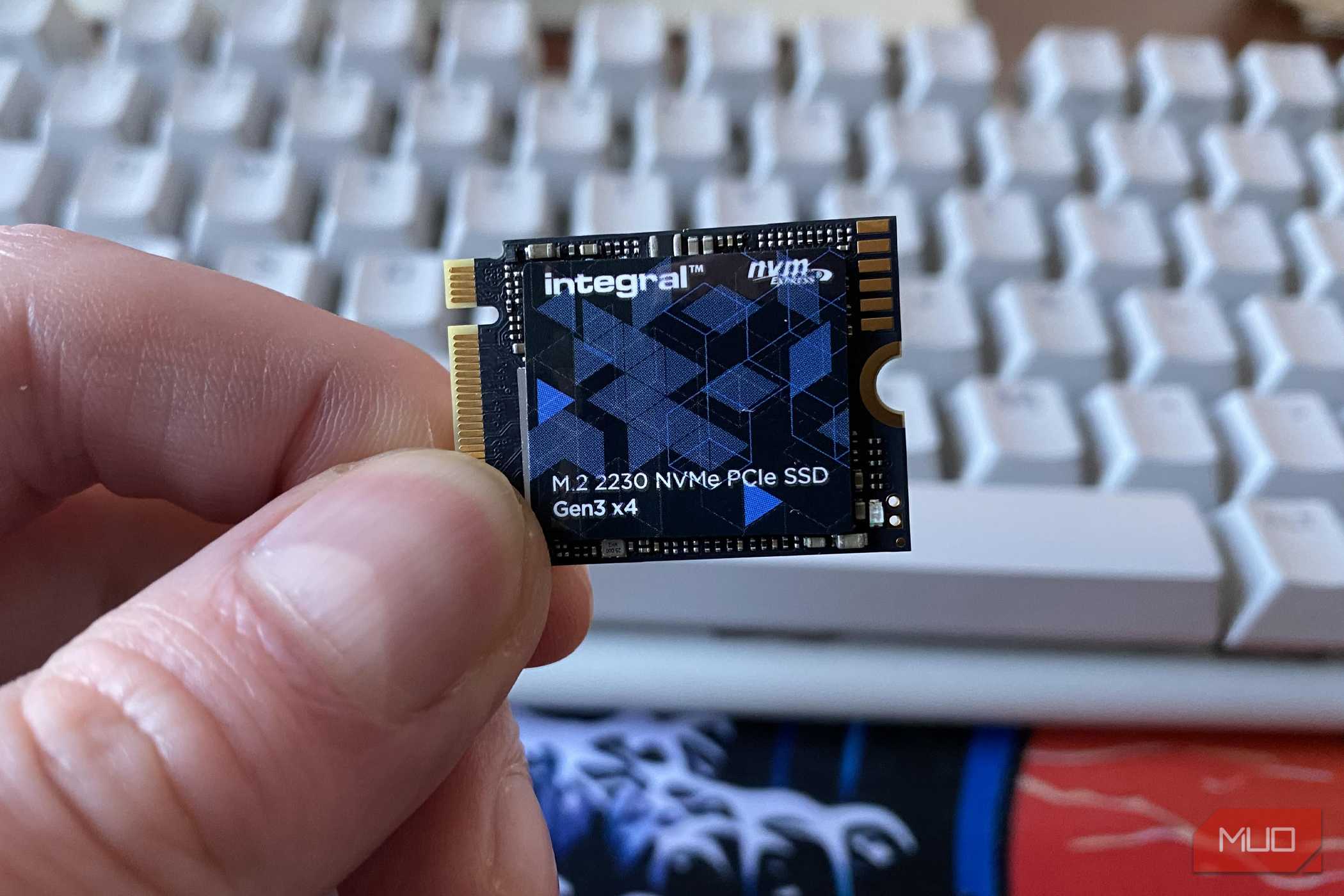
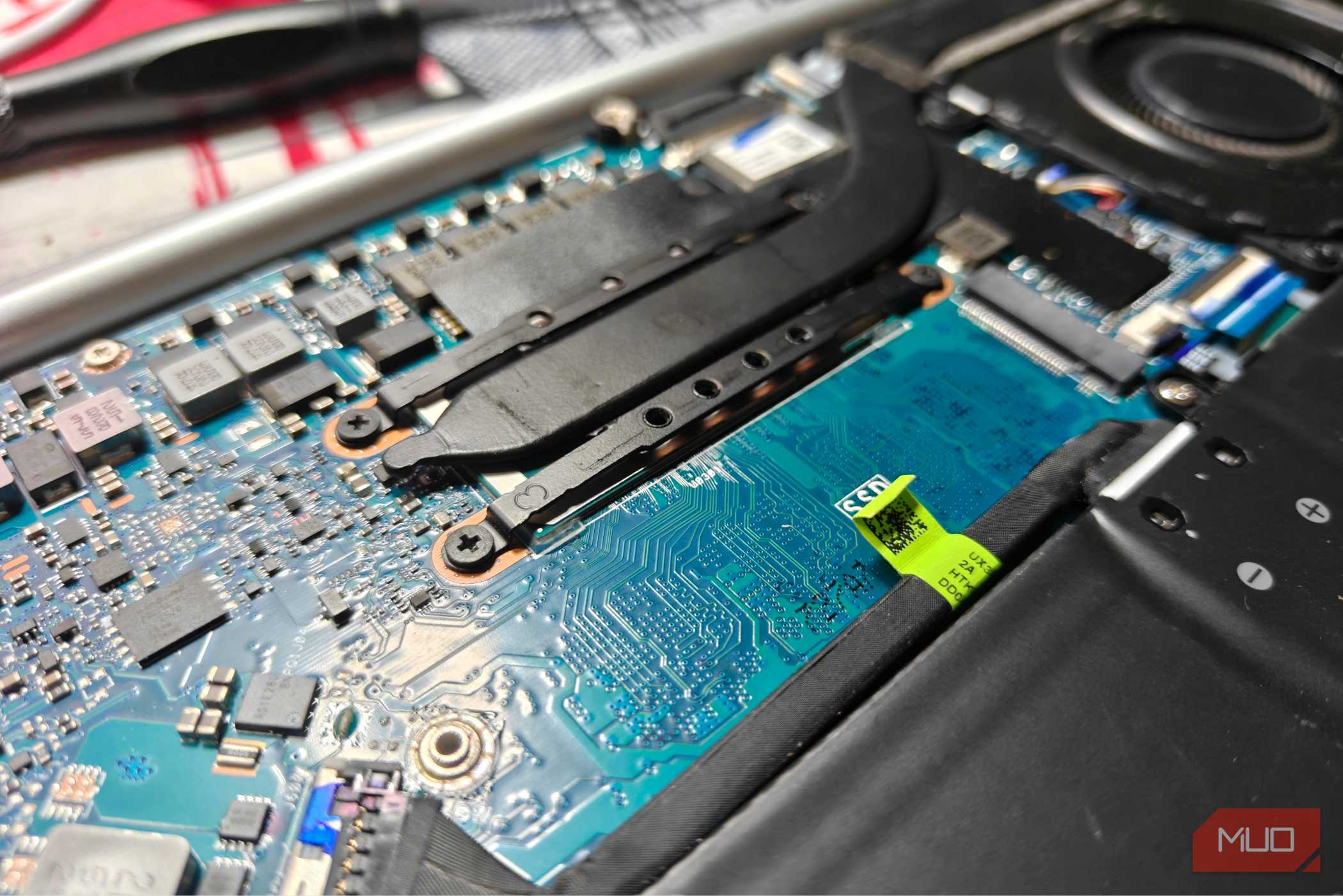
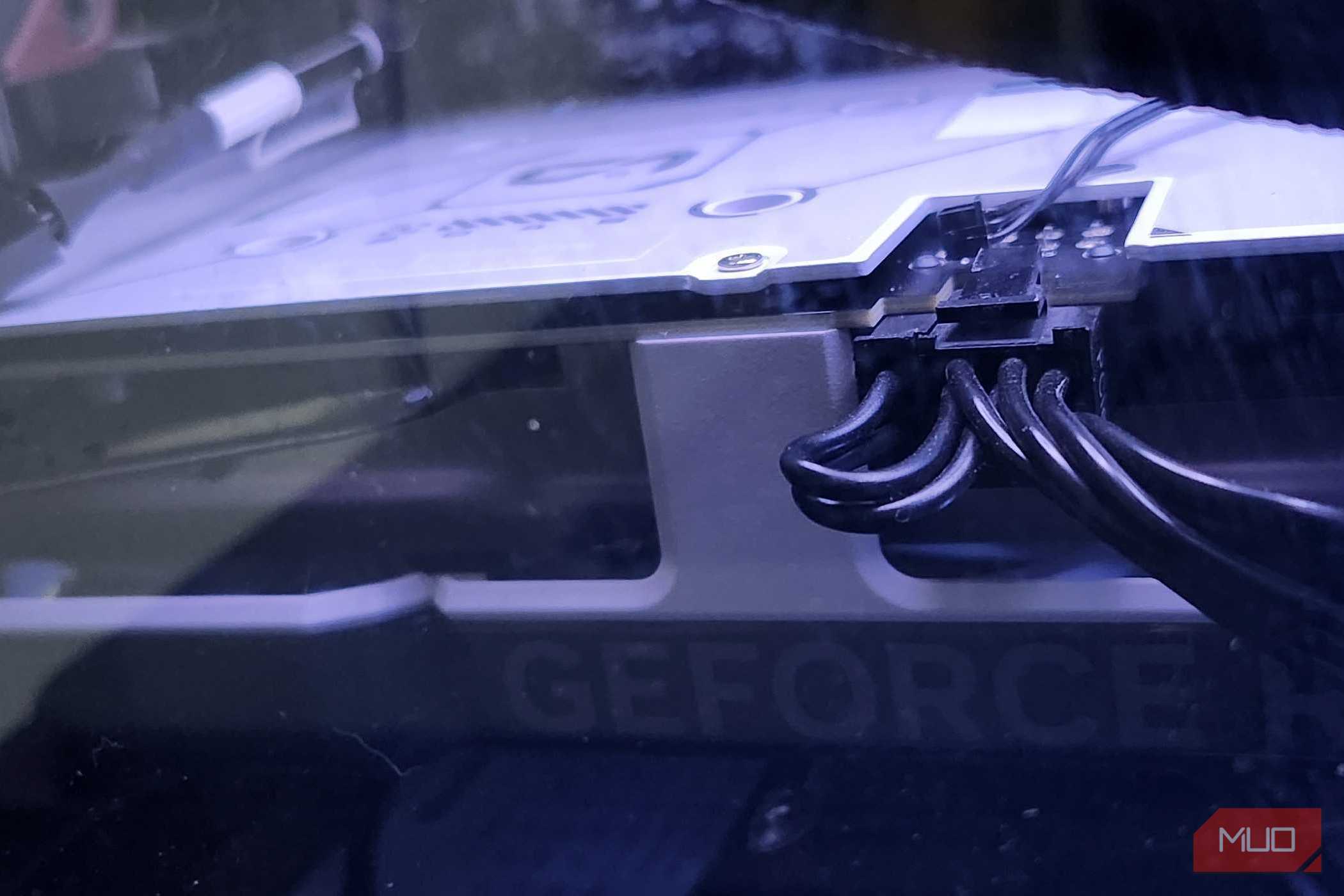
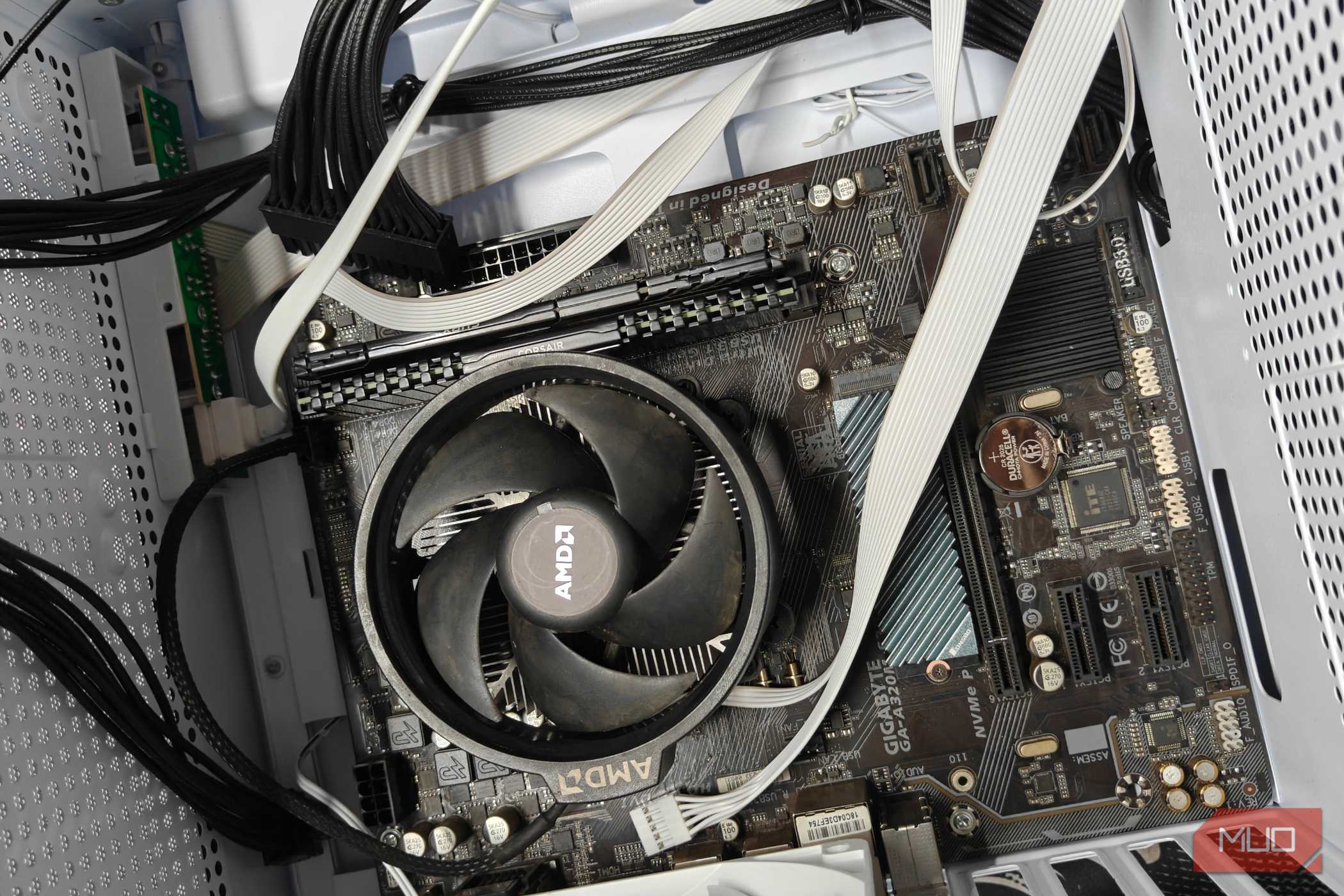
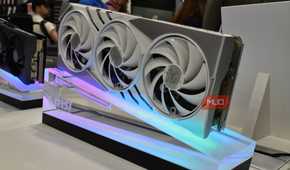
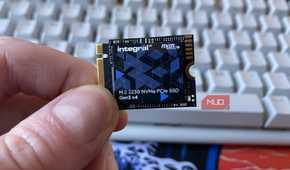
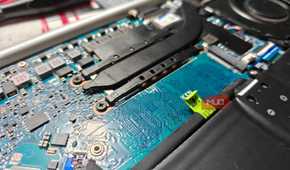

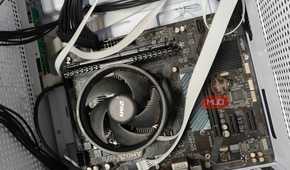
Before jumping into why that fast slot should be left empty, it's important to understand what PCIe generation and lanes mean. PCIe lanes are the number of data paths between the motherboard and the device that goes into the PCIe slot.
Tying PCIe generation to this concept: speeds double with each generation, and we're currently at PCIe 5.0, capable of delivering nearly 4GB/s per lane. Here's a full outline of all PCIe generations and the speeds they support.
|
PCIe Generation |
Speed (X1) |
Speed (X4) |
Speed (X8) |
Speed (X16) |
|---|---|---|---|---|
|
PCIe 3.0 |
~985MB/s |
~3.94GB/s |
~7.88GB/s |
~15.75GB/s |
|
PCIe 4.0 |
~1.97GB/s |
~7.88GB/s |
~15.75GB/s |
~31.5GB/s |
|
PCIe 5.0 |
~3.94GB/s |
~15.75GB/s |
~31.5GB/s |
~63GB/s |
Not all PCIe ports are the same, and each is used for a distinct purpose. For instance, PCIe X16 is used for GPUs, while PCIe X8 is normally used for expansion cards or a secondary GPU. PCIe X4 is for storage devices like NVMe and Thunderbolt cards, while PCIe X1 is used for smaller, basic connections like Wi-Fi and sound cards.
Your motherboard splits bandwidth unevenly
Not every slot speaks directly to the CPU

Modern motherboards have tons of PCIe slots, including several M.2 slots, an X16 GPU connector, and more. Your motherboard directs bandwidth to your CPU for processing, and the pathway to your CPU is either direct for the fastest slots or through your motherboard's chipset.
The connection path from the chipset is usually slower because the traffic is shared with other components and devices, such as the SATA controller, USB devices, and other PCIe devices.
However, the direct PCIe connection to the CPU is the fastest and most uninterrupted. Typically, the X16 PCIe slot and a single M.2 PCIe 5.0 slot are the only slots directly connected to the CPU. For that, the specific PCIe 5.0 slot should remain empty, even though it's the fastest.
Filling that extra M.2 slot can be costly
Lane sharing can cut your GPU's bandwidth by half

Even though there's plenty of bandwidth to go around with all the PCIe slots, not all of them can be occupied, at least not at full speed. Your CPU can only process a limited number of lanes at a time, and modern CPUs like AMD's Ryzen 7000/9000 and Intel's Core Ultra 200s can process up to 24 lanes (desktop platforms); 20 lanes are PCIe 5.0, connected directly to the CPU, while the remaining 4 lanes are PCIe 4.0, connected through the chipset link.
Slightly older CPUs like Intel's 13th- and 14th-generation chips are configured differently — they support 16 PCIe 5.0 lanes and 8 PCIe 4.0 lanes. In that case, the 16 lanes are shared between the X16 PCIe slot for the GPU and an M.2 slot directly connected to your CPU. Upon populating that M.2 slot, your GPU's bandwidth will be reduced to X8 lanes, slowing your performance since both slots draw from the same shared CPU lanes.
Not every motherboard has this issue, and you'll need to check the manual beforehand if it shares the GPU and M.2 bandwidth (Z790 boards are a perfect example).
How much performance can you lose?
PCIe 5.0 GPUs take it the hardest

PCIe lanes operate on a strict number, which is why even with the X4 lane occupied, the GPU falls back to X8, still leaving four lanes on the table that cannot be utilized. The X8 configuration can significantly impact performance on newer cards, especially those from the RTX 50-Series, since they're the first to support native PCIe 5.0. In heavy workloads like AI training, the performance difference is significant because they require more data transfer, but in gaming, that bandwidth is rarely fully utilized, meaning performance is minimal.
For instance, the RTX 5080 running at 64GB/s on X16 PCIe 5.0 will drop to 32GB/s on X8 lanes. On the other hand, the older RTX 3080 maxes out at 32GB/s and will have the same bandwidth as it did on X16 PCIe 5.0 after dropping to X8 PCIe 5.0 (which is equivalent to X16 PCIe 4.0).
For native PCIe 5.0 GPUs like the RTX 50-Series cards, expect modest drops, but on PCIe 4.0 cards, you'll notice at best a 1-3% drop in frames.
Populate your components correctly
The solution to this problem is pretty straightforward: skip the M.2 slot if you have a PCIe 5.0 GPU, unless you want to cut your bandwidth in half. However, if your card isn't native PCIe 5.0, the performance drop from dropping to X8 lanes isn't that notable, and you'll be fine. Also, if you don't have a PCIe 5.0 SSD in the first place, occupying that M.2 slot makes no sense; instead, I recommend using a slot via the chipset link.