


I recently switched to the Galaxy S26, and for some reason, it kept losing the Wi-Fi signal in random parts of the house. And since this was only affecting my phone, I knew the issue was with the device rather than my ISP or the router. Every other gadget, including my iPad, stayed connected to the same network without any problems.
At first, I tried all the usual tricks, like restarting my phone, reconnecting with the network, installing updates, and even rebooting the router. But nothing worked. My phone kept disconnecting from Wi-Fi at random until I dug a little deeper and changed a couple of key network settings.

12 Samsung Galaxy Phone Settings You Should Always Change
Setting up your new Samsung Galaxy device? Here are the settings you should change to get your phone working better.
My Galaxy phone was trying too hard to keep me online
Automatic switching was the culprit

Galaxy phones include a couple of connectivity features that prevent interruptions when the Wi-Fi signal becomes weak. The first one is Switch to mobile data. When enabled, it lets my Galaxy phone automatically switch to a cellular connection whenever it detects that the Wi-Fi signal is weak.
That sounds helpful, but it created another problem for me. Even a brief dip in Wi-Fi quality would sometimes trigger the switch, and my phone would start using mobile data instead. And because of this, I would sometimes eat through my monthly data allowance in a day without me realizing.
The second feature is Switch to better Wi-Fi networks. This one forces my phone to switch to another saved network when the signal drops. While it’s somewhat less problematic, I still didn’t want it. I have two separate Wi-Fi networks at home, and I use them for different purposes. So, instead of letting my phone decide which network was best, I simply wanted it to stick to the one I’d chosen.
Thankfully, disabling both features was easy. You can do this by heading to Settings > Connections > Wi-Fi, tapping the three-dot icon and choosing Intelligent Wi-Fi. From there, turn off Switch to mobile data and Switch to better Wi-Fi networks. Once I did this, my phone stopped losing Wi-Fi repeatedly.
Home Wi-Fi inspection revealed what was actually wrong
Finding the dead zone in my house made all the difference
Although disabling Samsung’s automatic switching features was helpful, it didn’t change the fact that my phone was still struggling with weak Wi-Fi in certain parts of the house. And to fix that, I used the Home Wi-Fi Inspection tool on my Galaxy phone. It helped me analyze Wi-Fi signal strength throughout my home, so I was able to find all the dead zones where my phone struggled with weak Wi-Fi signals.
I wouldn’t blame you if you’ve never heard of this tool. One UI keeps it tucked away inside a hidden menu called Connectivity Labs. To use it, you first need to unlock it like Android’s Developer Options menu.
Head to Settings > Connections > Wi-Fi. Tap the three-dot icon and select Intelligent Wi-Fi. Then, tap Intelligent Wi-Fi repeatedly until you see the Connectivity Labs option show up. Once it does, tap it, and go to the Home Wi-Fi Inspection menu.
Now, pick your Wi-Fi network from the list and hit Start. After that, just walk around your house, and your phone will measure the signal strength in real time. As you move around, it’ll also create a graph so you can easily compare signal quality across different parts of the house. Once I figured out all the dead zones, especially where I’d use my phone often, all I had to do was adjust the router placement. I’ll be honest, this took a bit of trial and error. Once I found the sweet spot for my router, though, my phone stopped struggling with poor Wi-Fi.
Connectivity Labs can even evaluate nearby Wi-Fi networks
It helps me pick the best option every time

At this point, I had already fixed the Wi-Fi problems at home. But while exploring Connectivity Labs, I found another useful tool called Nearby Wi-Fi Information, and it proved helpful whenever I needed to connect to networks in hotels, cafes, airports, or other public places.
To access it, open the Connectivity Labs menu and head to Wi-Fi Developer Options > Nearby Wi-Fi Information. This tool basically scans all the available networks and shows useful details such as signal strength, channel information, frequency band, and RSSI. It even ranks each network as Best, Good, Bad, or Worst, so I don’t need to understand all the technical details to make a good choice. I can just pick the highest-rated network without having to worry about Wi-Fi performance.
In my case, these built-in features were enough to fix the Wi-Fi problems. They may not work for everyone, though. If you’re still dealing with random disconnects or slow speeds, I'd suggest resetting your phone’s network settings. Doing so can clear out old or misconfigured network settings that may be causing problems.
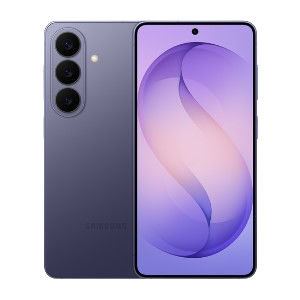
Samsung Galaxy S26
- SoC
- Snapdragon 8 Elite Gen 5
- Display
- 6.3-inch Dynamic AMOLED 2x
- RAM
- 12 GB
- Storage
- 256 or 512 GB