


As a freelancer, I spend most of my computer time on the browser, and naturally, I also have to download and upload a lot of files for my workflow. Unfortunately, slow download speeds impact productivity and are agonizing, especially when you know the ISP (Internet Service Provider) is not to blame.
I spent a lot of time troubleshooting, trying every possible fix, from switching DNS servers to updating Wi-Fi drivers. Unfortunately, the problem lay elsewhere, and I found a hidden setting in Chrome that unlocked my download speed and resolved the bottleneck.
Your ISP isn't a problem — your browser might be
The real bottleneck is hiding in plain sight

It's 2026, and Internet speeds are blazing fast — there's hardly any scenario where download speeds are being limited by the ISP. If that's the case, then why are download speeds still sluggish on the browser? Given a 100 Mbps connection, your download speed may be capped at 40Mbps due to server-side limitations.
For a single file, the connection is streamlined, and the server limits the transfer rate. As such, this wasn't an inherent issue on my end; rather, a server-specific issue. Fortunately, it is fixable.
I enabled one setting in Chrome, and my download speeds took off
Here's what parallel downloading does


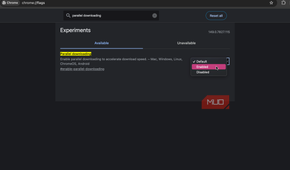
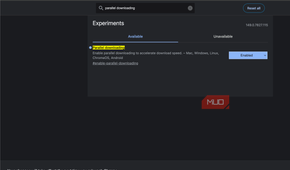
The fix I was referring to earlier — most browsers already have it built in. Parallel downloading allows splitting the files into multiple chunks and downloading them through separate connections. This way, you can work around the speed limitations.
When downloading multiple segments at the same time, your browser will combine them into a single file.
It follows the same principle as IDM's (Internet Download Manager) multi-part downloading, which is a big reason the tool is so popular for its high download speeds. Google Chrome calls it "parallel downloading"; Microsoft Edge uses the same label.
To enable parallel downloading, follow these steps:
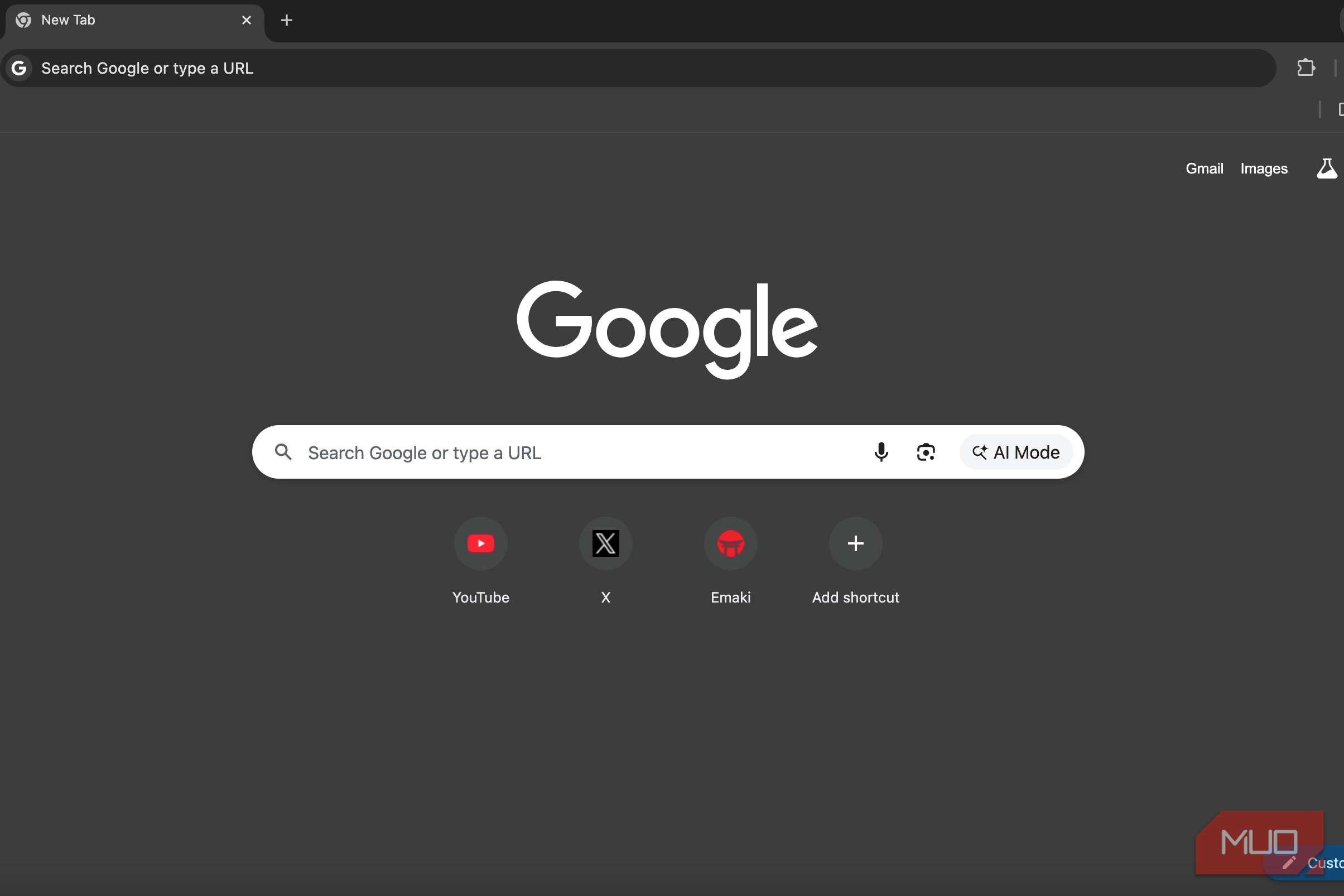
- Open Google Chrome.
-
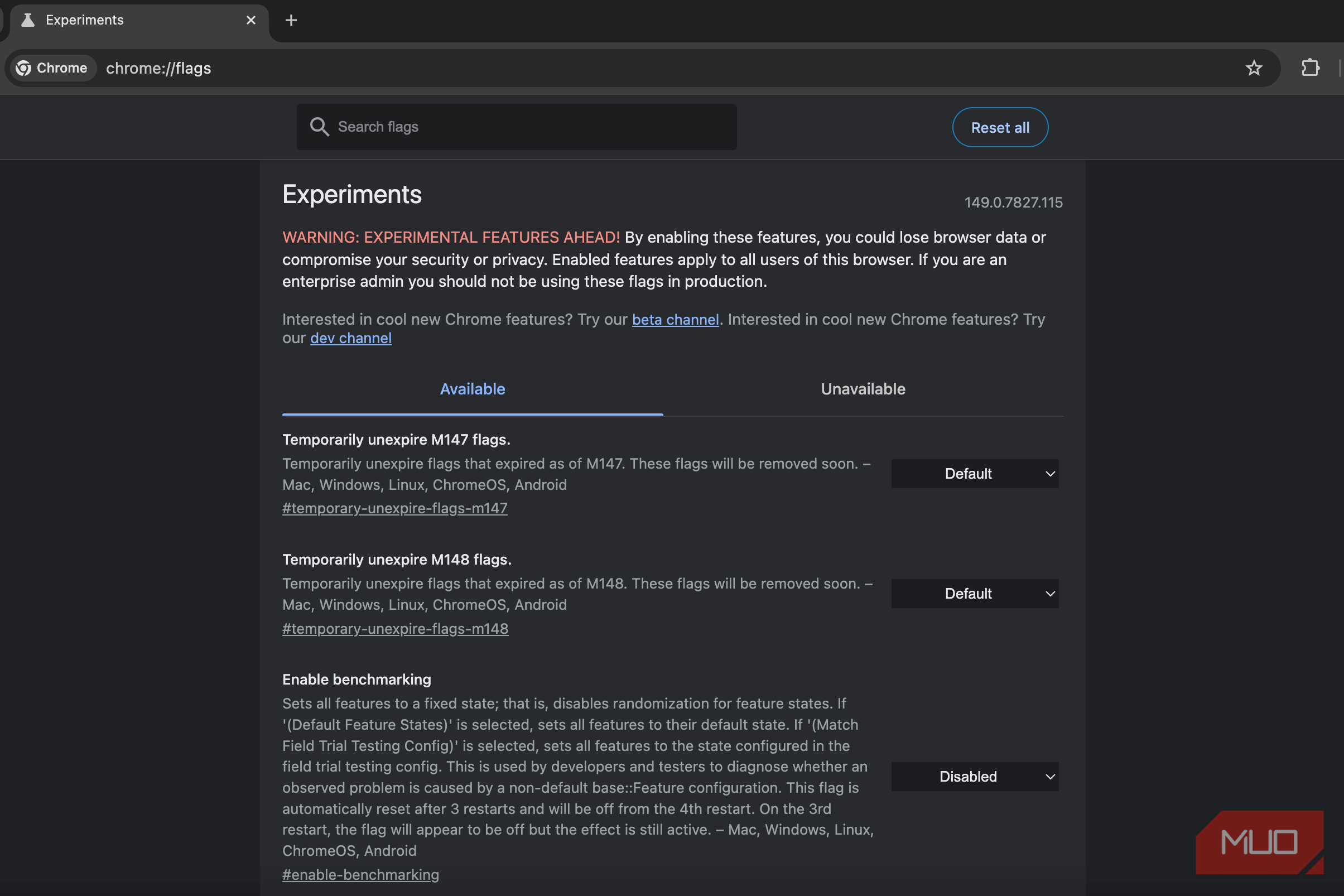
Type
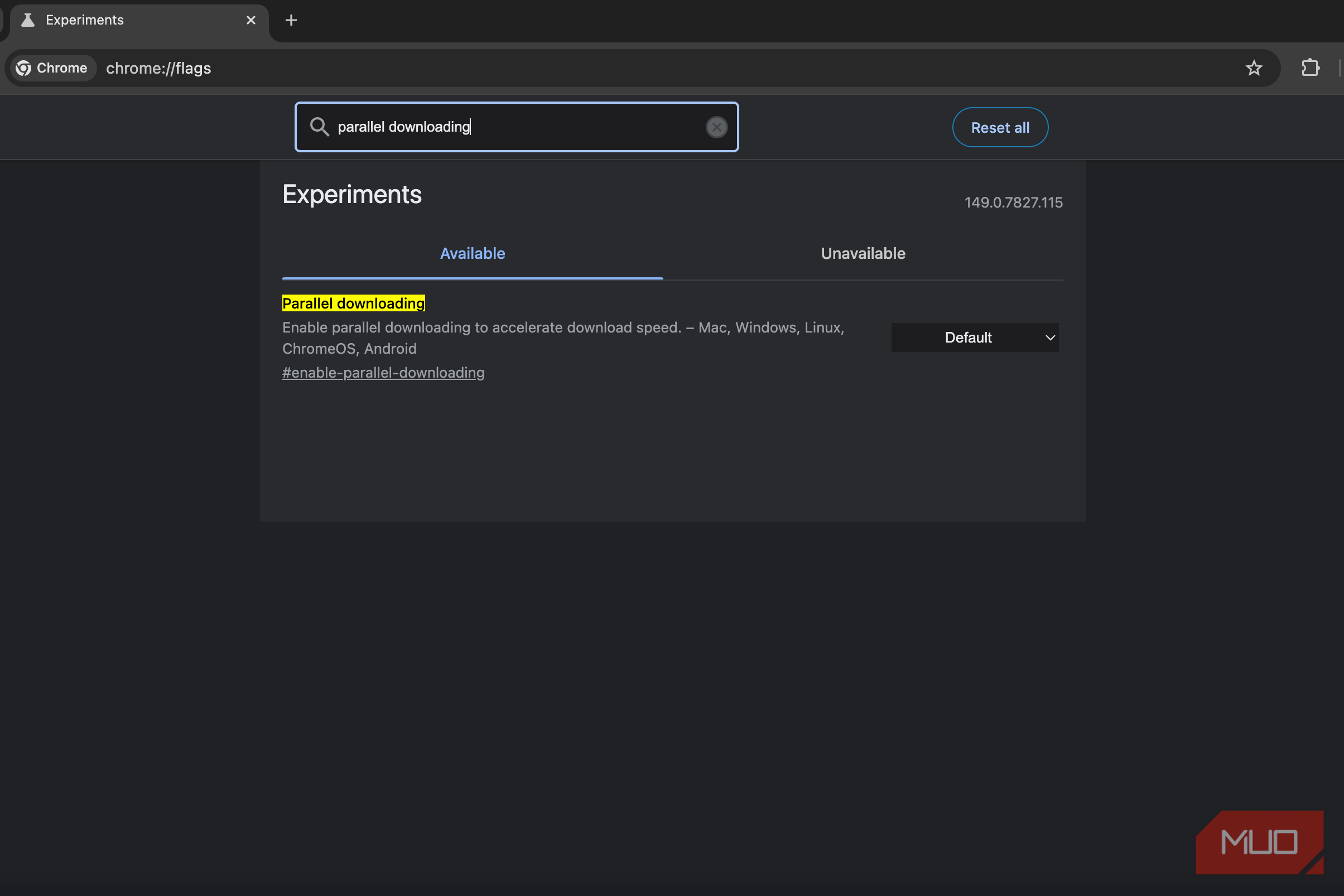
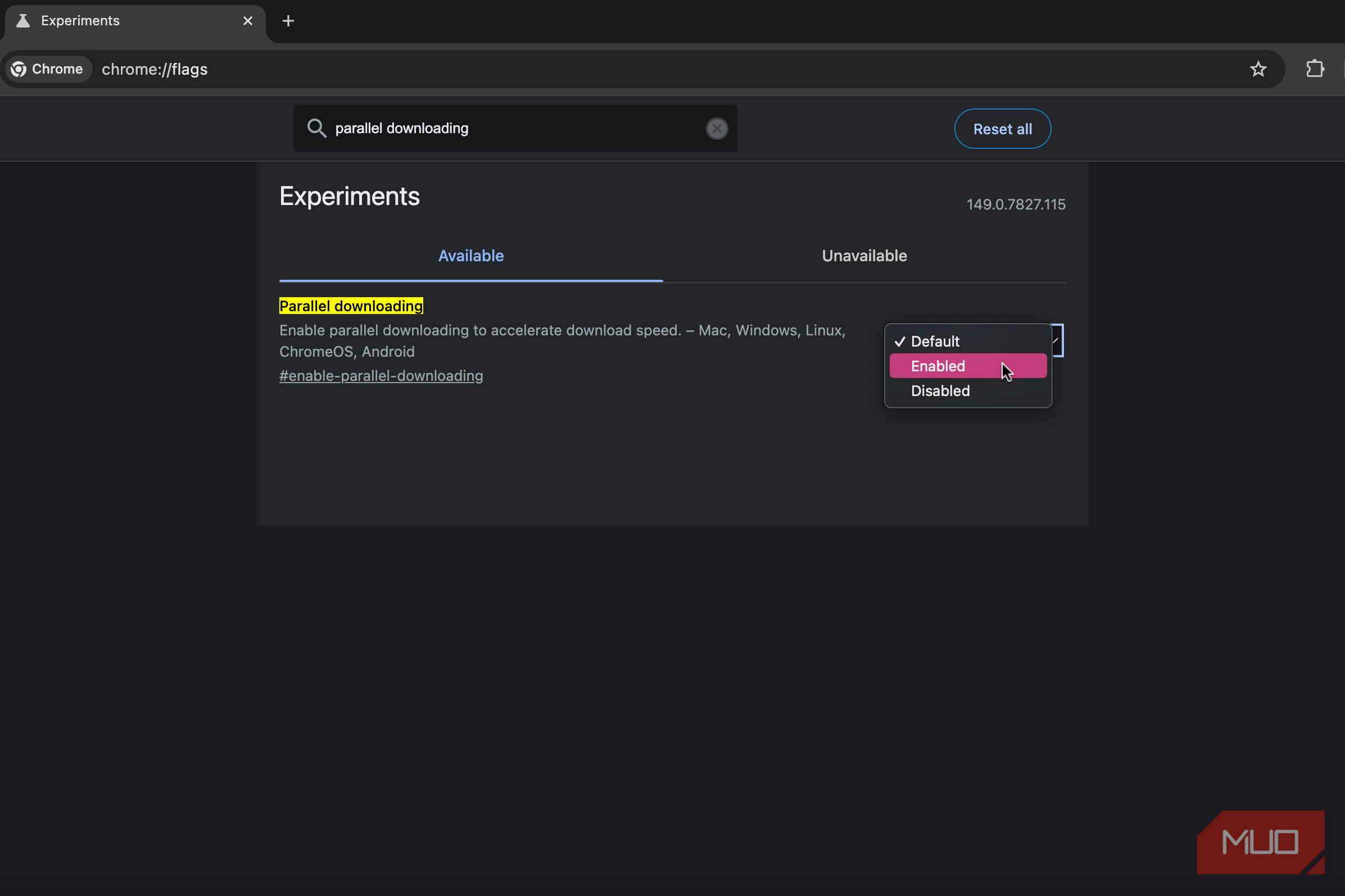
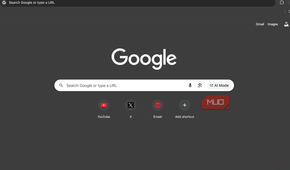
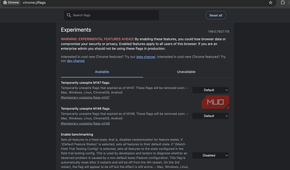
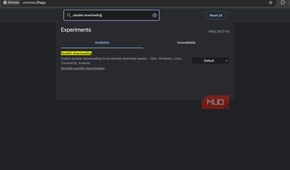
chrome://flagsin the address bar. - Navigate to parallel downloading.
- Change from Default to Enabled.
Chrome's parallel downloading is still an experimental feature, so it may not be available to all users or installations. That said, the feature is completely safe to turn on and won't break the system.
Parallel downloading helps — but not with every file
Know when to expect a real performance boost

For smaller file sizes, parallel downloading won't make much difference — the time taken with or without the speed limitation hardly matters. However, for large file sizes, you will notice the difference, including when downloading a Linux distro, software, backup archives, or ISO files.
Once enabled, you can test the difference yourself by restarting your browser to ensure the setting takes effect. Then, download a relatively large file, ideally more than 500MB, and check the download speed with and without the setting enabled.
Parallel downloading only works with servers that allow configuring multiple connections simultaneously, so that parts of the file can be downloaded simultaneously. However, some servers cap an IP address to a single connection per file, in which case parallel downloading will not make a difference.
The general rule of thumb I'd give is that if a file downloads fast and then slows down midway, parallel downloading is worth enabling, since the server would initially burst-throttle the connection and then slow it down later. Outside of that, if your download speed appears slower than your connection speed, parallel downloading would largely benefit you.
A few more fixes that are worth running
Parallel downloading isn't a silver bullet

As I mentioned earlier, parallel downloading only increases download speeds if other variables, like internet speed and network settings, are accounted for. Parallel downloading will not magically fix your download speeds in all cases, and for that, there are some other fixes that you could try.
Changing DNS to a provider like Google or Cloudflare is much faster than most default ISPs and also gives you the added benefit of securing your connection. Disconnecting the VPN if connected and updating your browser version helps too. Lastly, I recommend switching to a wired connection for your PC to eliminate drop-offs caused by distance or signal interference.
This is the easiest download fix you might not have tried
Parallel downloading has helped me save a lot of time ever since I enabled it, and I recommend trying it for yourself by measuring download speeds with and without it turned on. The good news is that parallel downloading is a native browser feature in Chrome, Edge, and other browsers — just hidden in the experimental feature menu, and once enabled, you won't even need a third-party downloader like IDM.

- OS
- Windows, macOS, Linux, Android, iOS/iPadOS, ChromeOS
- Developer
- Google LLC
- Price model
- Free
Google Chrome is a cross-platform web browser developed by Google LLC, built for speed, security, and integration with Google services. It uses the Blink rendering engine (formerly WebKit) and supports extensions, tab sandboxing, synchronization across devices, and frequent updates.