


Once your SSD starts filling up, you start the tedious task of finding out what's taking up space. I've used several graphical tools for this on Linux, but they often take a long time to index and require a series of mouse clicks to surface the main culprit.
I tried ncdu, a lightweight terminal analyzer, and within seconds, it scanned my entire system. Using the arrow keys, I was able to hunt down the storage hogs almost immediately. For these use cases, it's become my go-to tool for finding and purging bloat on Linux.
Running out of storage is only half the problem
Finding what's eating your disk is usually the frustrating part

I thought the fix for a storage problem would be obvious the first time it happened to me. However, I've come to understand that storage doesn't typically run out in a single dramatic event. It is usually a gradual process, triggered by one growing log here, a bloated cache folder there, and some forgotten apps or tools somewhere else. You don't always know where the storage went until there is a problem.
For most people, df is the first command to reach for in these situations. It simply shows the disks and how full they are. But this is just the first phase because it doesn't explain why. So you then proceed to du, but this is typically the beginning of more frustration. It presents a wall of output when you run it on a directory; then you pick a suspicious folder, run it again, and continue the cycle. This begins to feel like an archaeological dig through a large directory.
Without replacing du, ncdu builds on the same data and fixes this problem. The main change is the interaction. It saves you the stress of rerunning commands just to go deeper into a directory, offering a live, navigable directory tree.
The first scan tells you almost everything
You'll spend longer scanning than installing

Installing ncdu is uneventful. You install it by running the installation command below that corresponds to your distro:
|
Distro |
Install command |
|---|---|
|
Debian and Ubuntu |
sudo apt install ncdu |
|
Fedora |
sudo dnf install ncdu |
|
Arch Linux |
sudo pacman -S ncdu |
It takes less than 10 seconds to install, and you use sudo ncdu -x / to safely scan your whole filesystem or ncdu ~ for just your home directory.
Running ncdu -x / instead of ncdu / tells ncdu to stay within the current filesystem, preventing it from traversing mounted drives or network shares and skewing your results.
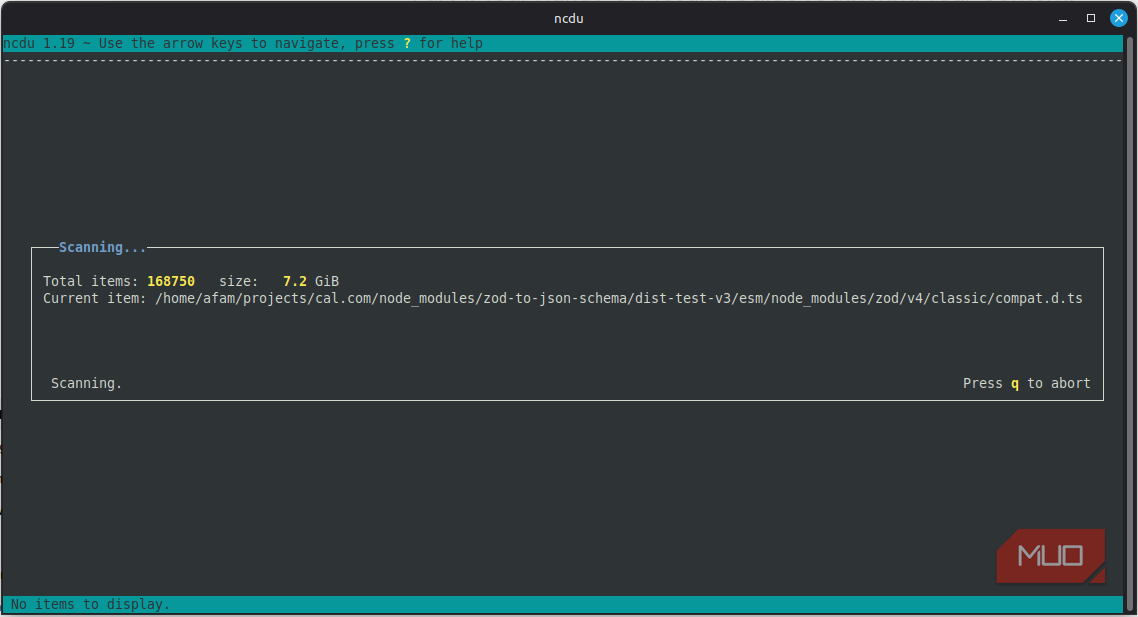
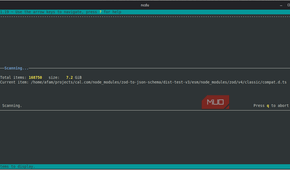
Scans are not instant. It took about 15 seconds to scan a directory that was about 16GB in size. However, this process updates once per second, and you get a progress indicator that helps show the terminal isn't frozen. Once the scan completes, the interface snaps into place.
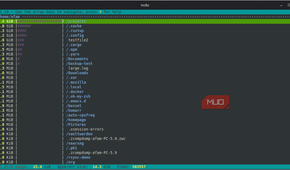
You get a ranked list of directories, starting with the largest at the top, with a clear indicator of each directory's size. To see this initial high-level data, you don't need to apply filters or run a second command. You use the up and down arrow keys to move through the list and the left and right arrow keys to go in and out of subdirectories. Also, going in and out of directories doesn't reset the context, which feels like a relief when compared to du.
It takes only a few seconds to spot things you didn't expect. I saw a folder that was quite big, even though I hadn't consciously filled it. The tool makes the answers immediately visible, and that's where it earns its place.
Cleaning up feels much less risky
Seeing what you're deleting changes everything


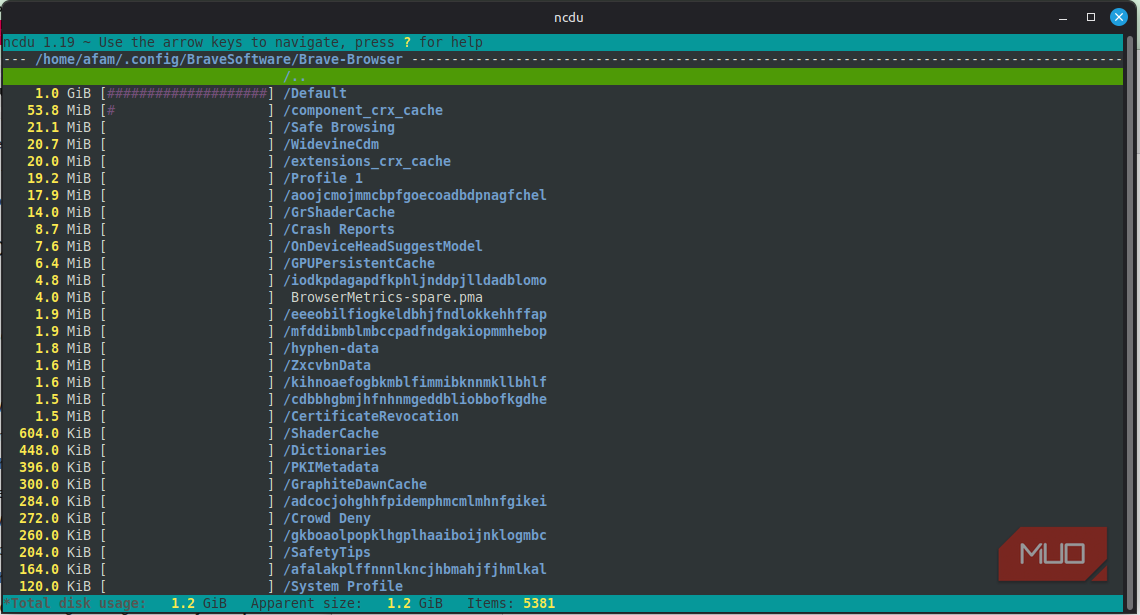
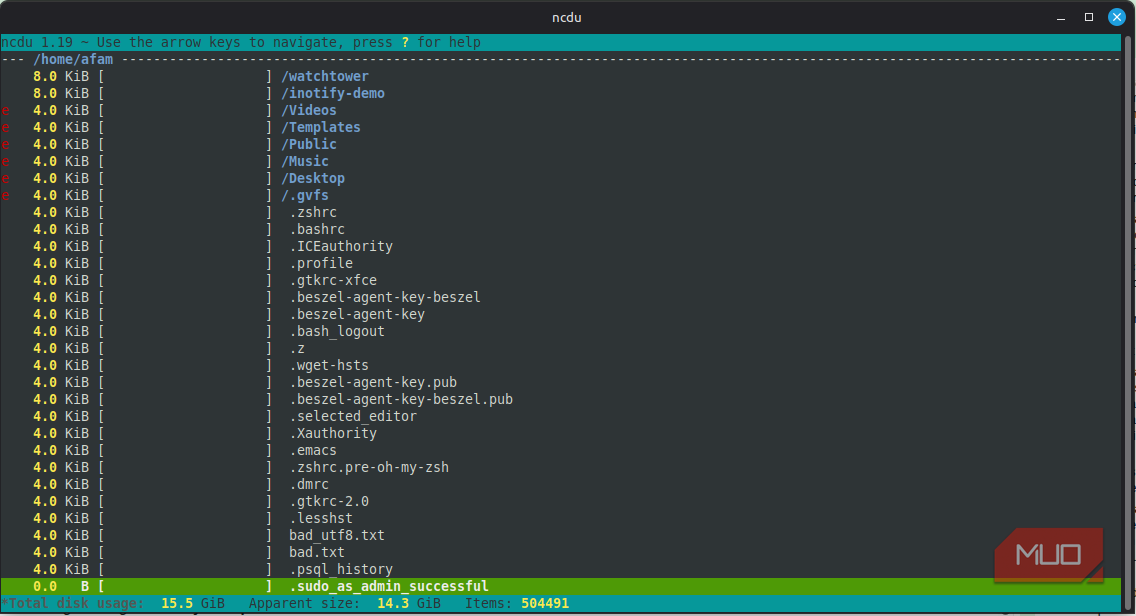
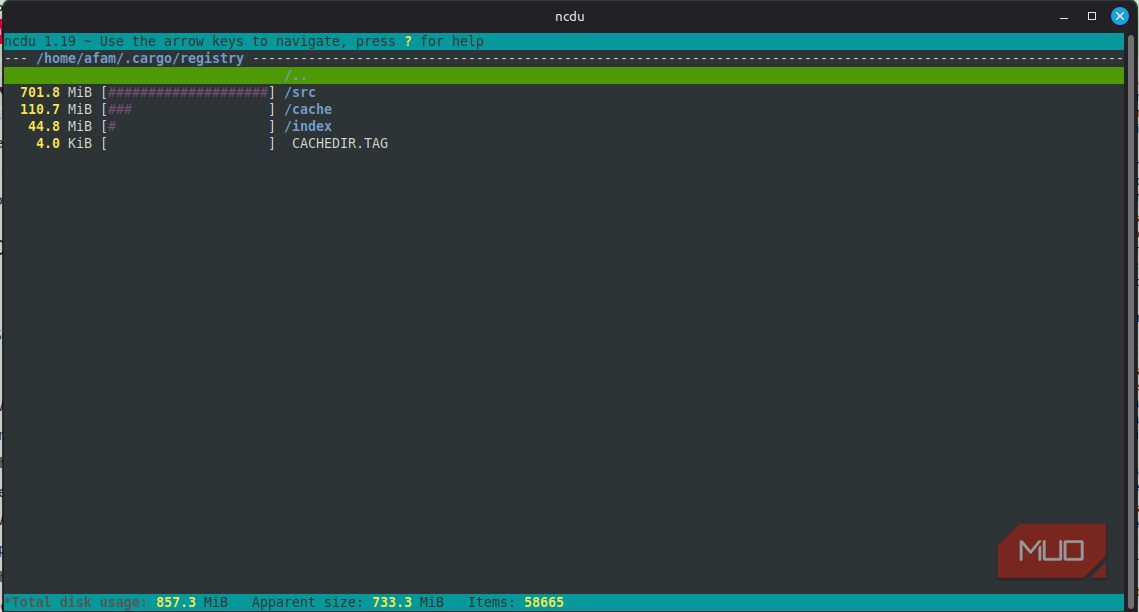
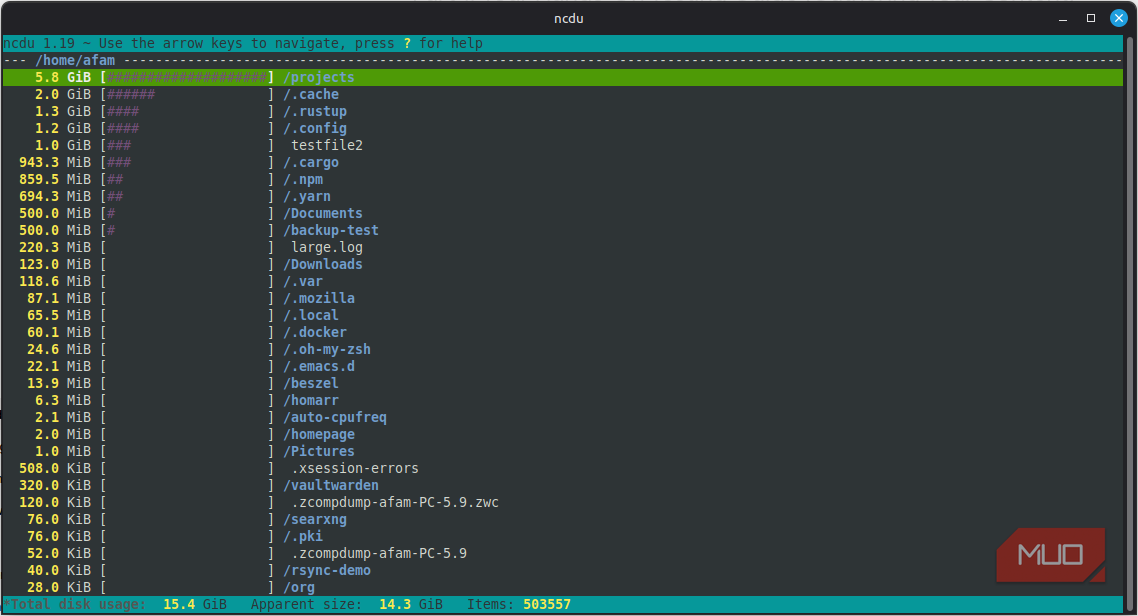
When you delete files, you typically are very cautious because rm doesn't forgive mistakes. You don't get a preview or a second look, and one wrong path means whatever you deleted is gone.
The dynamic is different with ncdu. When you navigate to a file, you see its exact size and what's around it, making it easier to decide whether to delete it. You don't get any surprises in retrospect.
When you need to delete something, just press d, confirm it, and that space is reclaimed instantly. After deleting, you get an immediate update in the interface. You don't have to wonder what happened or run any verification commands.
There is an important point to note regarding Docker. ncdu will show you the size of files in /var/lib/docker, but it's better to clean up Docker images using docker system prune.
I export a scan with ncdu -o output.json, then later view it with ncdu -f output.json; this avoids leaving an active session open.
When there's no desktop, this becomes the obvious choice
I've found ncdu useful on a desktop. However, VPS environments, Raspberry Pis, home servers, and NAS devices typically lack a desktop, so ncdu feels even more essential on these remote systems.
With du, you chain commands and reconstruct the filesystem. This is slow and adds a lot of pressure, especially on systems that are actively failing. However, when you SSH into a system, and something needs to go fast, run ncdu /. In a few seconds, you're looking straight at the problem. The tool runs cleanly even on a slow SSH connection and doesn't require X forwarding, VNC, or a graphical layer.
There are other storage utilities you still need; ncdu doesn't replace them. However, when I run into disk problems, especially somewhere without a GUI, I first reach for ncdu.