


Testing software is an integral part of my work. However, trying out certain tools can feel like a game of Russian roulette, with malware, bloated background services, and registry clutter, just waiting at the other end. Virtual machines like VMware and VirtualBox are the logical, safe options, but they are resource-heavy and often clunky.
I discovered I don't need them because if you are running Windows Pro, Enterprise, or Education, Windows has been hiding a lightweight sandbox all along. Within seconds, it launches into a pristine desktop environment, and the moment I'm done, it nukes everything. Ever since, it's been my no-risk testing environment, and I wish I'd discovered it years earlier. Here's how I activate and use it.
What Sandbox really is
A disposable Windows desktop

Windows Sandbox is a fully isolated Windows environment built into the Pro, Enterprise, and Education editions of Windows 10 and 11. Before Windows allows you to enable this temporary environment, hardware virtualization must be enabled in your UEFI or BIOS.
You can tell that virtualization is already enabled if Virtualization is present under the CPU graph in the Task Manager's Performance tab.
You might assume it works like a traditional VM because it uses Microsoft's virtualization technology under the hood. But it doesn't operate like a traditional VM. While regular VMs require you to create a static virtual disk, install an OS on it, and maintain it over time, Windows Sandbox takes a different approach. The moment the tool is launched, it dynamically creates a clean Windows image from your host Windows installation. It eliminates any kind of physical disk provisioning and doesn't require you to patch anything separately. This is the primary reason why it boots quickly.
Sandbox is disposable in every sense. The activities you perform within a session, such as installing programs, registry edits, background services, task scheduling, file downloads, and setting changes, are discarded once the session closes. At the next launch, you get a brand-new slate, with nothing carried over, and nothing touches the host PC while Sandbox runs.
These features are what truly made Sandbox an extremely useful tool for me. While I have never been overly bothered by malware creeping into my system at night, slower forms of damage have always concerned me. Examples include orphaned registry keys, background services left behind by an installer, and startup entries that just don't disappear. Sandbox doesn't just isolate threats; it also isolates clutter.
Setup is effortless
One checkbox does everything

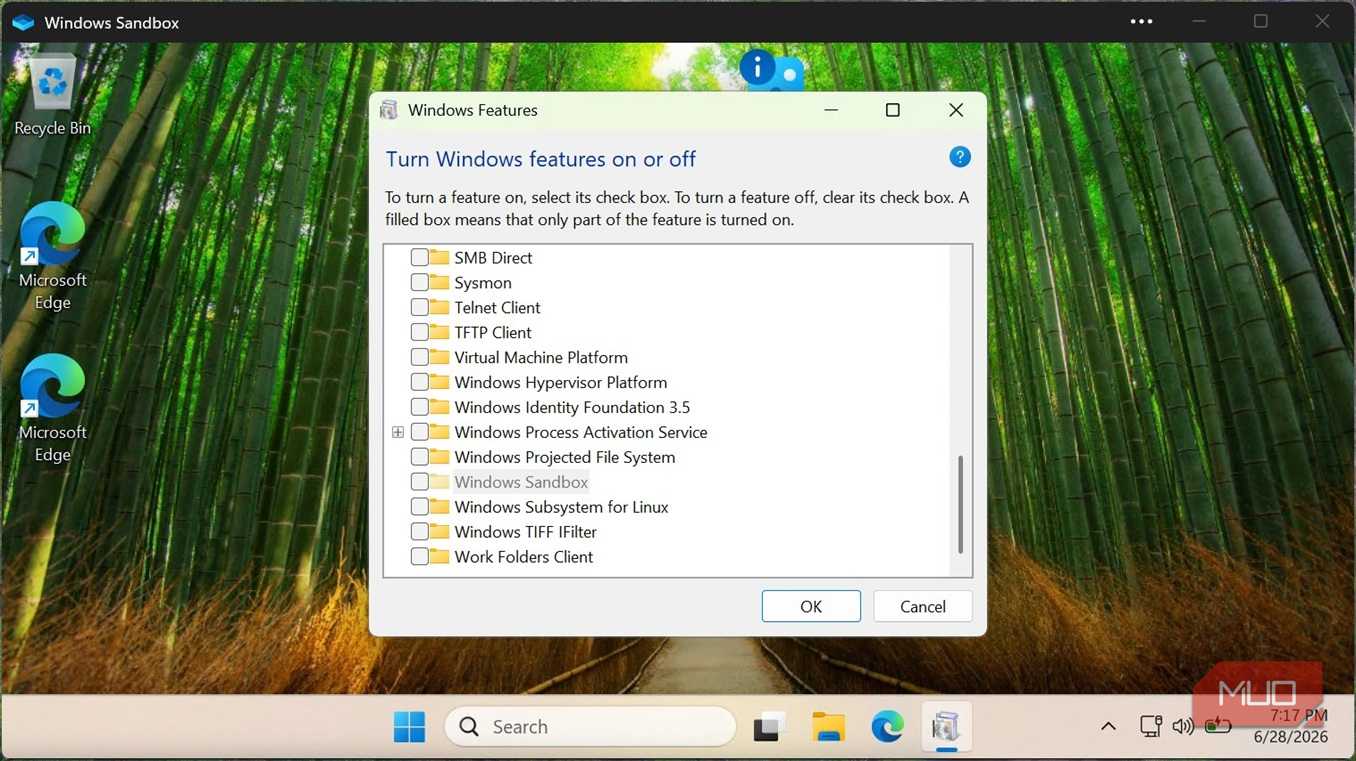
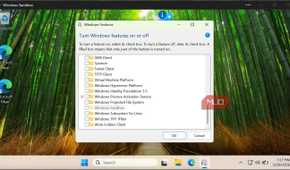
It didn't take more than 30 seconds to get it running. The first thing you do is search for "Turn Windows features on or off." Once the app opens, scroll down to Windows Sandbox, check the box, then click OK. Once done, restart your system, and that's the entire process.
Alternatively, you can run the command below from a PowerShell window, then restart the computer.
Dism /Online /Enable-Feature /FeatureName:"Containers-DisposableClientVM" /All /NoRestart
If Sandbox still won't launch after enabling it, double-check that Hyper-V and the Virtual Machine Platform weren't accidentally disabled, since Sandbox depends on both.
When I tried setting it up, I was impressed by how little I actually had to do. I didn't need to download an ISO, create and allocate a virtual hard disk, or perform a separate Windows activation. Just like you would with any other app, open Sandbox from the Start menu and get a fresh new desktop.
Testing became stress-free
I stopped worrying completely


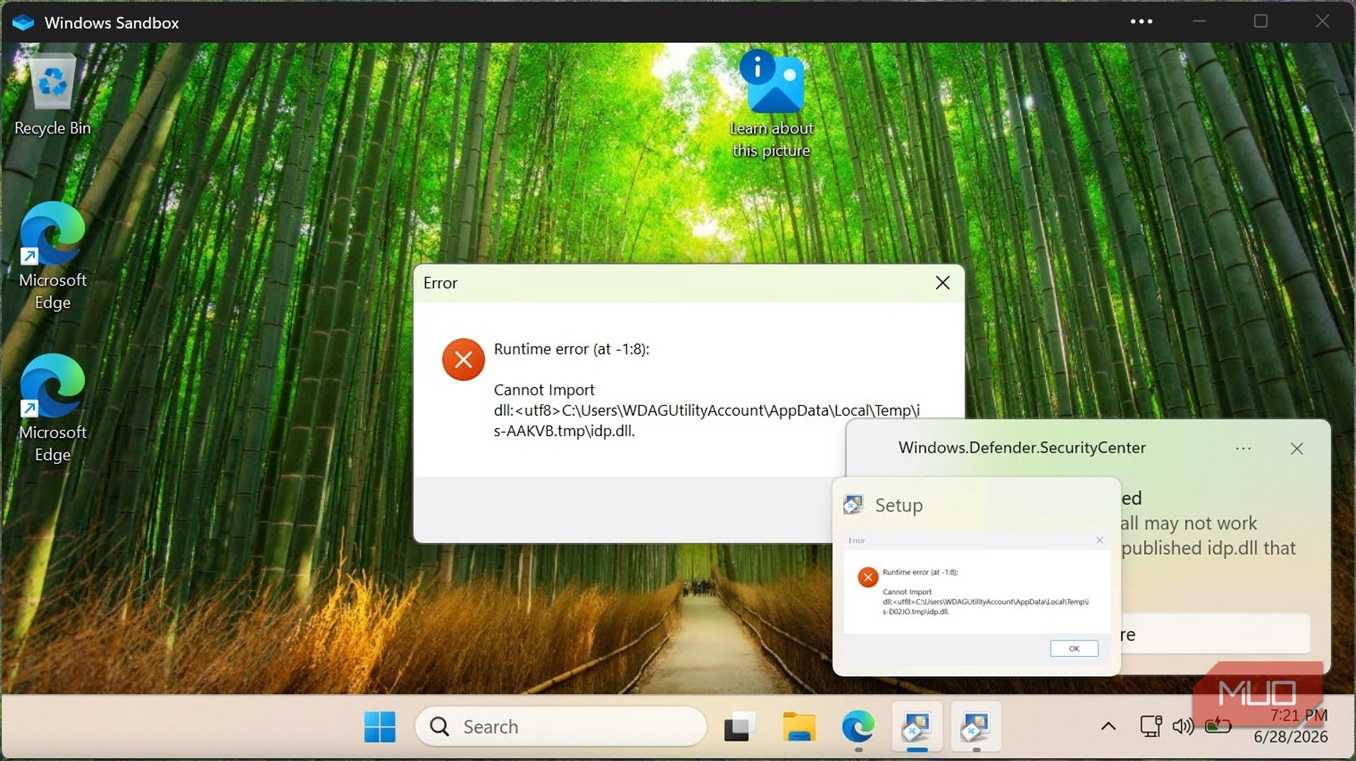
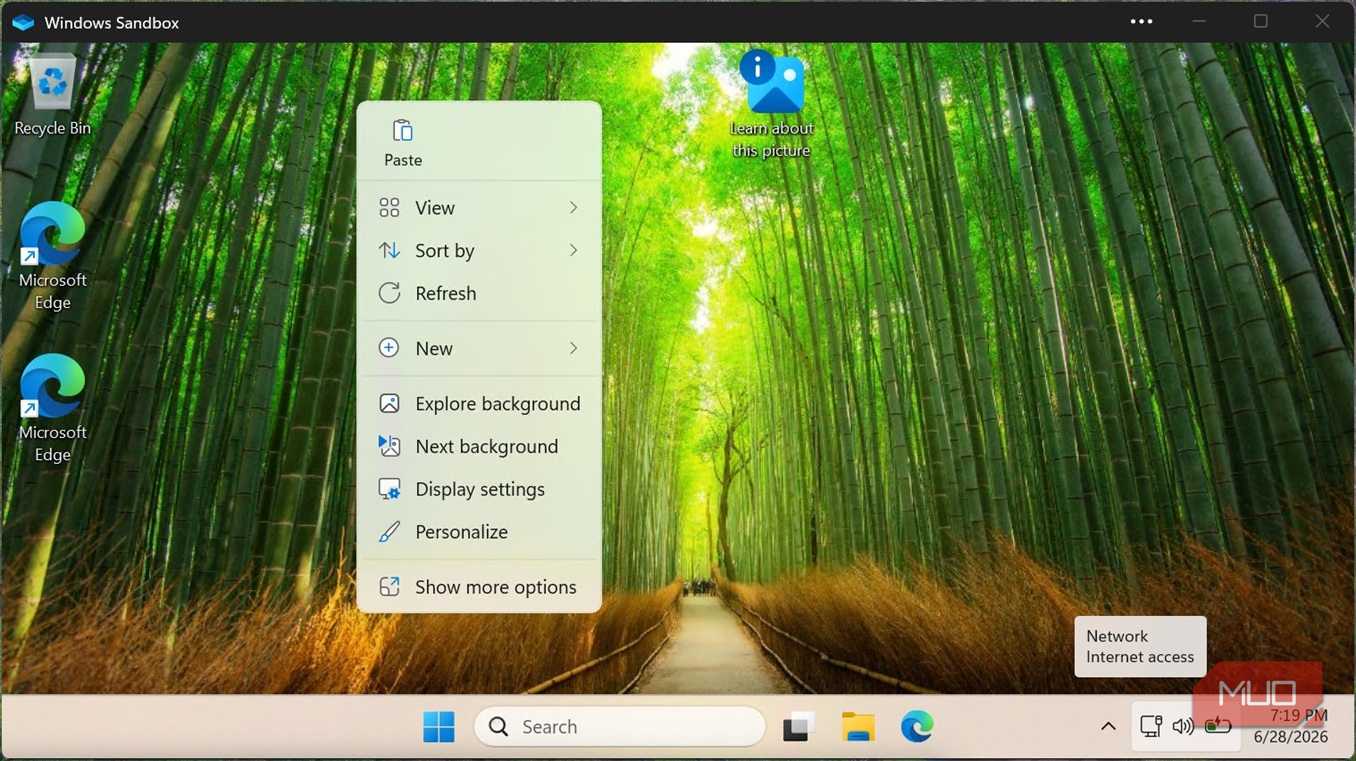
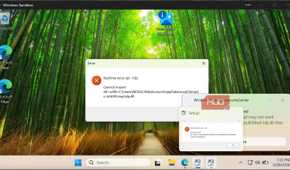
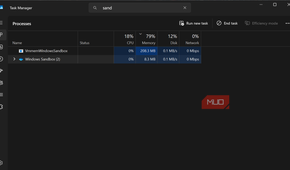
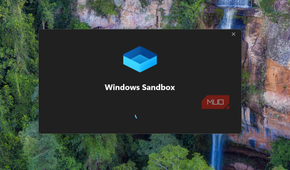
I first tested it with a small app that I wasn't comfortable running on my physical system. I only had to copy the installer to the Sandbox and run it normally. I then opened Task Manager in Sandbox and observed what the app actually did. I was watching for extra background processes and checking whether it quietly added background tasks and new services. The moment I closed Sandbox, everything the app had done was gone, with no real effect on my physical machine.
This realization made me stop asking, "Will this junk leave my PC?" I simply run it in Sandbox, and I know all I need to know about the program.
Sandbox has defaults that make testing frictionless. It shares the same clipboard as the physical computer, making it easy to copy and paste between the two environments. By default, it inherits internet access and enables vGPU on supported systems.
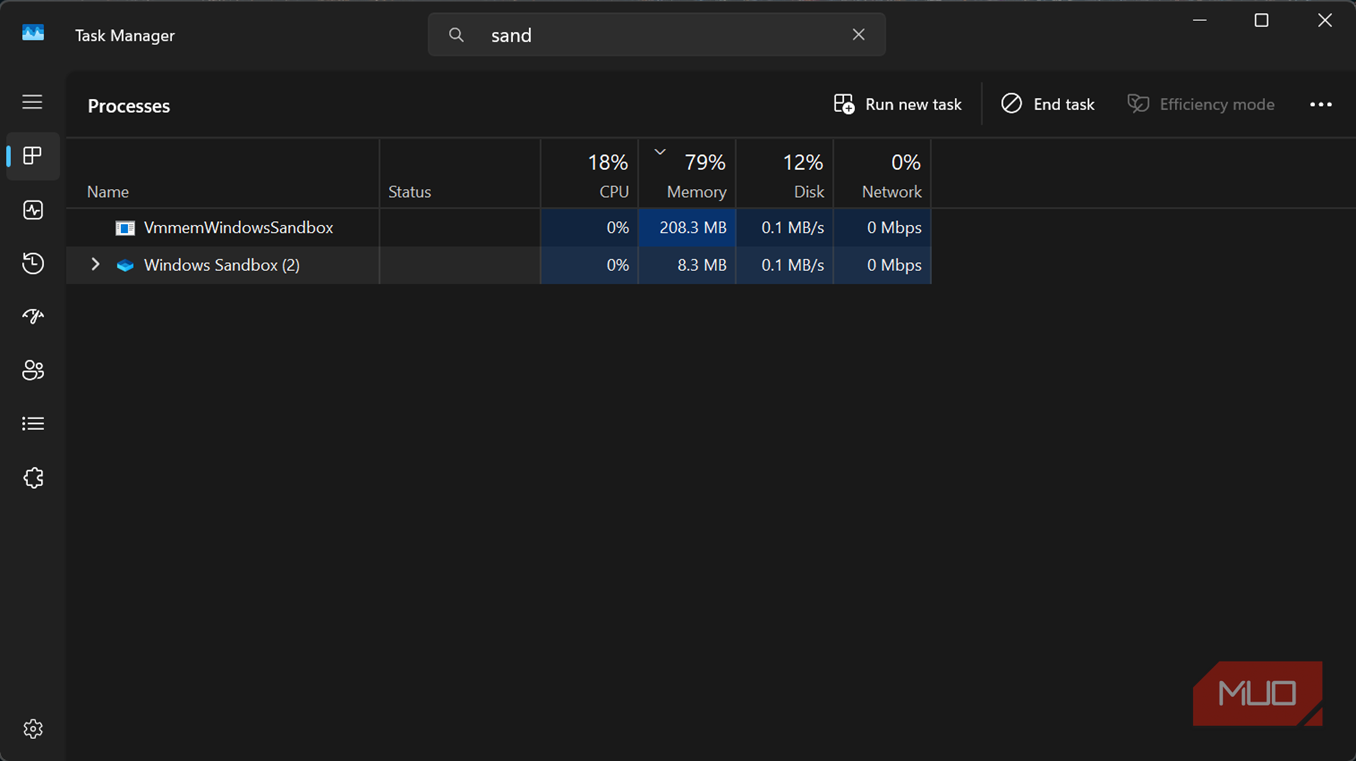
It takes about 15 seconds for Sandbox to launch on my system. In Task Manager, Windows Sandbox sits at about 8.3MB of memory and effectively 0% CPU. VmmemWindowsSandbox, the container that actually runs the environment, used about 208MB of RAM and remained at under 1% CPU at idle. Without the need to think about cleanup, this is a tiny price to pay.
When I really need to test something that could be sketchy, I use .wsb configuration files. These plain XML files allow me to customize my Sandbox environment before it boots. I can map a host folder as read-only to provide additional protection for my real files, or explicitly disable networking and vGPU for full containment. For most things, I use the default settings, which are fine. However, using .wsb, I can make Sandbox genuinely more powerful.
There is a place for the traditional VM
I once closed Sandbox when I wasn't done with it, and, of course, when I reopened it, everything had disappeared. This was a reminder that there is still a place for traditional VMs. However, that's exactly the point of Sandbox and a fair trade-off. Sandbox isn't built for anything you use permanently, and you don't get a different OS but a copy of your current Windows installation.
Here is how it stacks up against traditional VMs:
|
Feature |
Windows Sandbox |
VMware/VirtualBox |
|---|---|---|
|
Setup |
Built into Windows |
Install hypervisor and guest OS |
|
Startup |
Seconds |
Minutes |
|
Storage |
Dynamic allocation (no large fixed virtual disk) |
Large virtual disks |
|
Persistence |
None |
Full persistence |
|
Best for |
Disposable testing |
Long-term virtual machines |
Sandbox was perfect for quick, disposable testing, something I do very often. However, it doesn't — and will never — replace an entire VM.

- OS
- Windows
- Minimum CPU Specs
- 1Ghz/2 Cores
- Minimum RAM Specs
- 4GB RAM
- Software Version
- 24H2
Windows 11 is Microsoft's latest operating system featuring a centered Start menu, Snap Layouts, virtual desktops, enhanced security with TPM 2.0, and deeper integration with Microsoft Teams and AI-powered Copilot.