


You may assume that the Settings app is where you go when you need to fix a computer problem, but half the time, it doesn't help. I've had a sluggish laptop for about a week, with no helpful pointers from Settings.
Windows commands, on the other hand, give you some of the most direct options for troubleshooting and fixing your computer. I now rely on some built-in commands that log the exact information the Settings app leaves out. Here are five of the most important ones.
powercfg /batteryreport
See how much battery health you've really lost


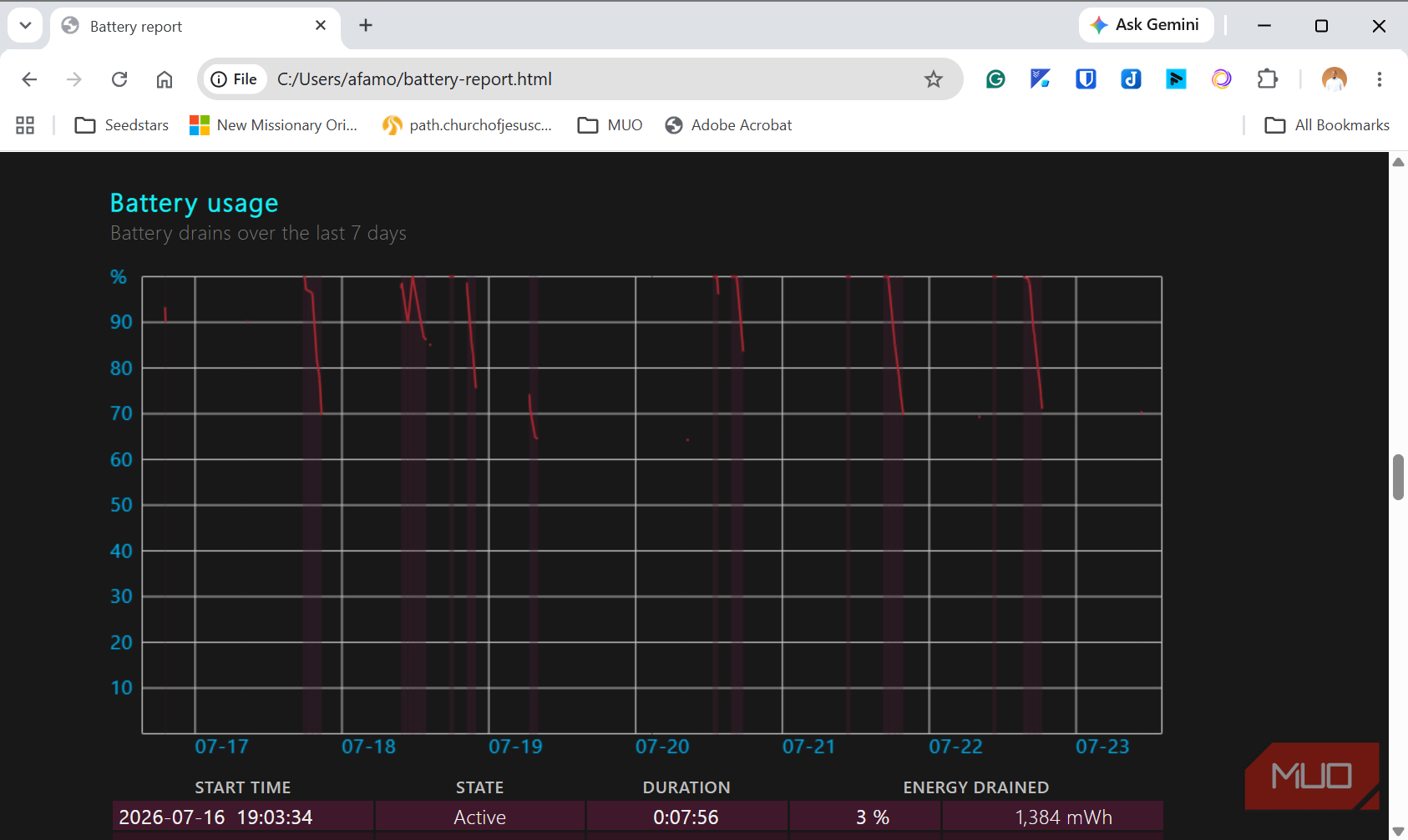
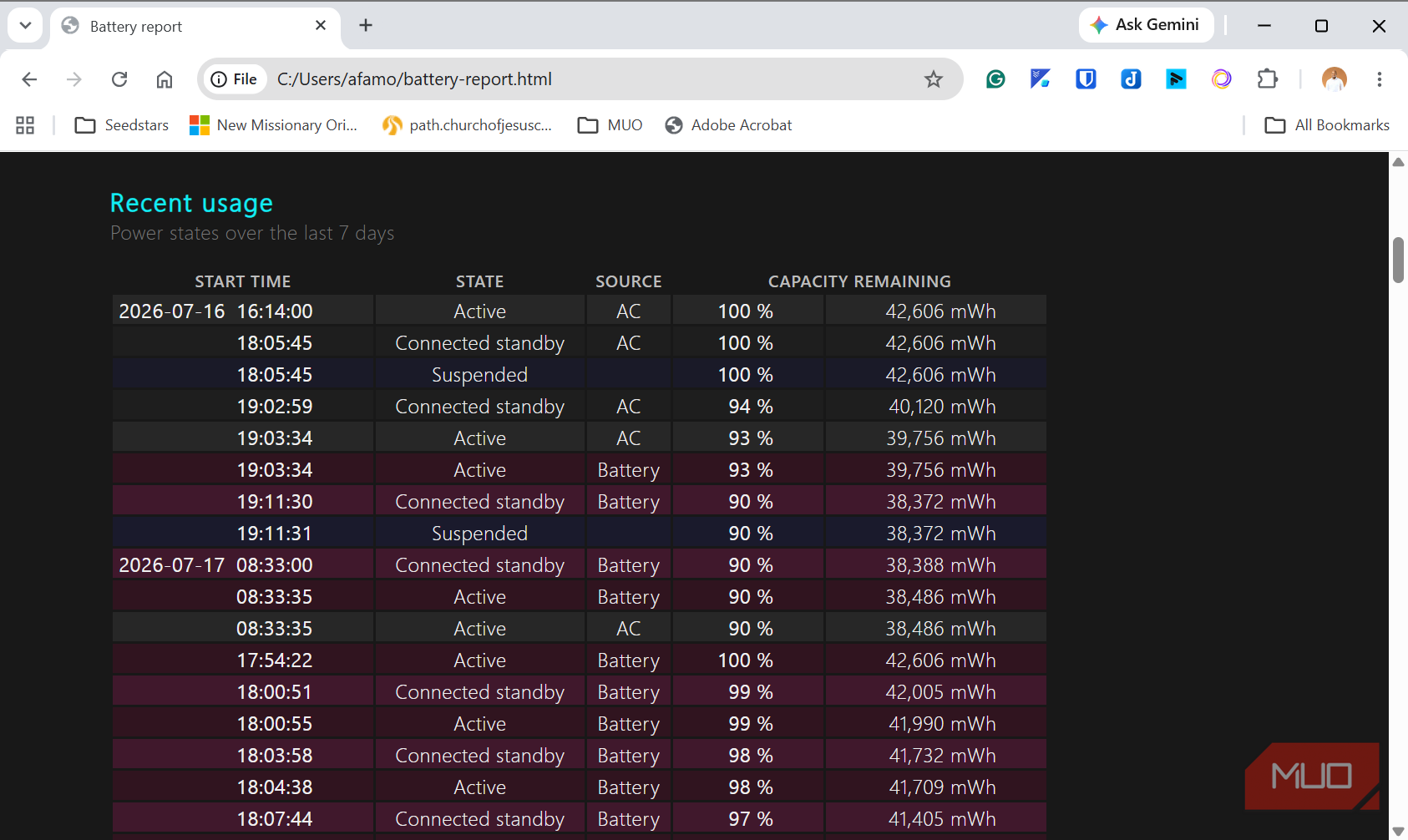
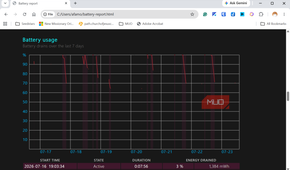
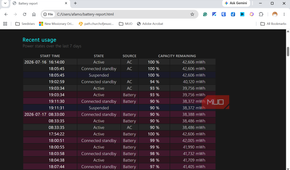
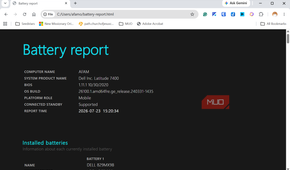
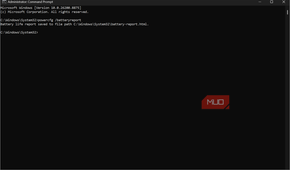
My laptop battery still charges to 100%. However, it doesn't last as long as it did a year ago. The Settings app has a battery usage page, but it doesn't give enough context for this problem. At best, it gives you seven days' battery usage data.
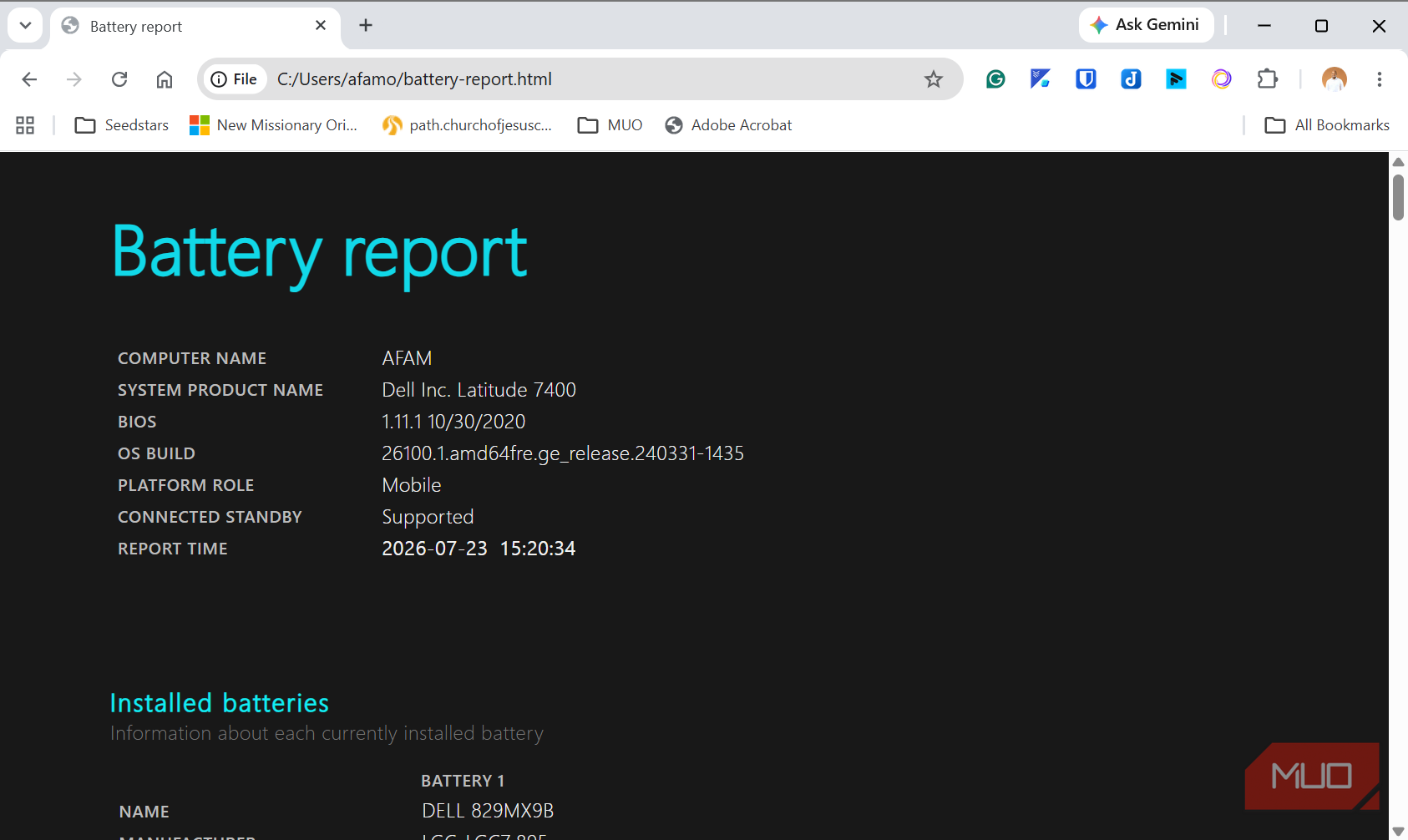
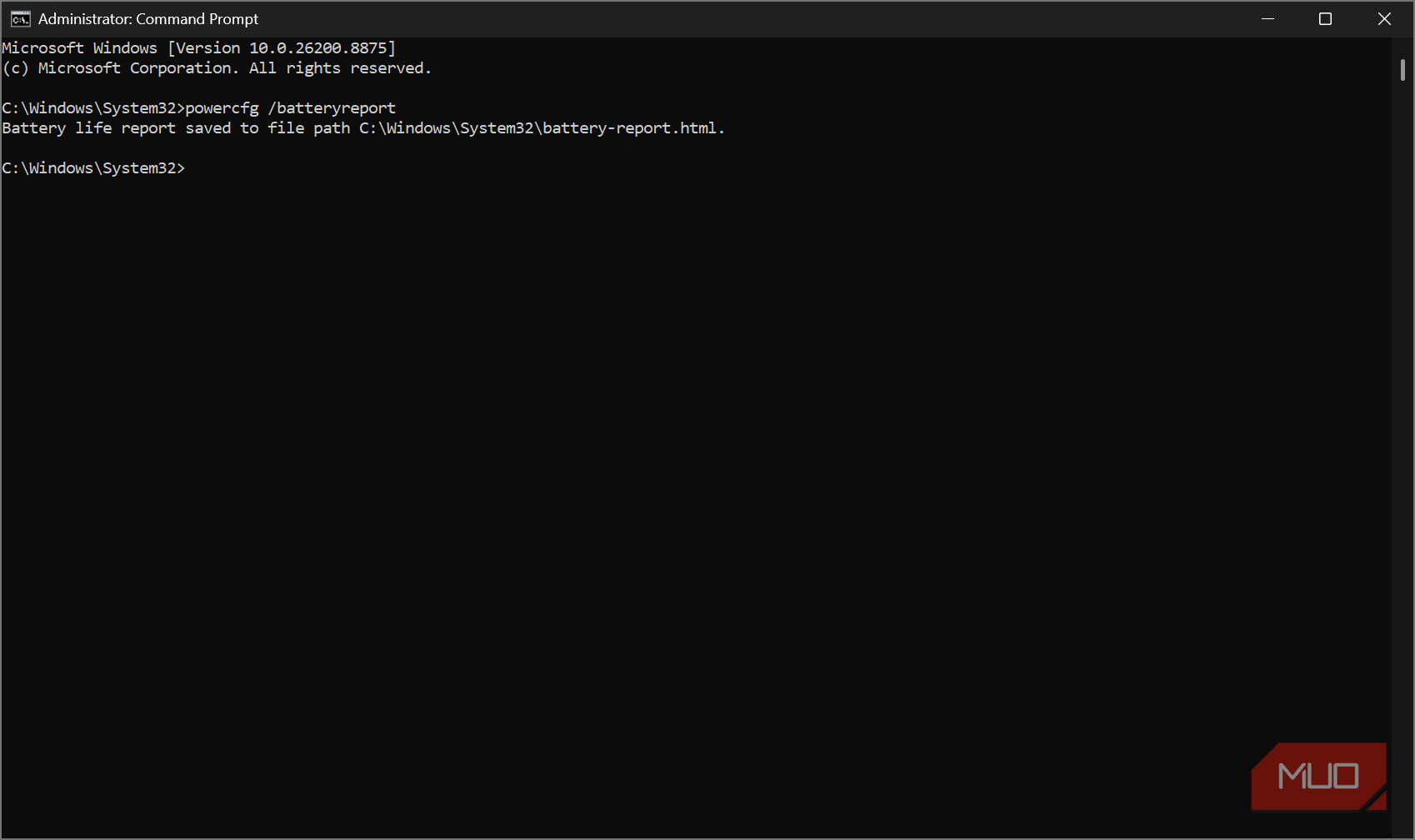
Typing the command powercfg /batteryreport in Command Prompt gives you far more valuable information. This command returns a path with detailed battery data. For me, this was the path: C:\Users\afamo\battery-report.html.
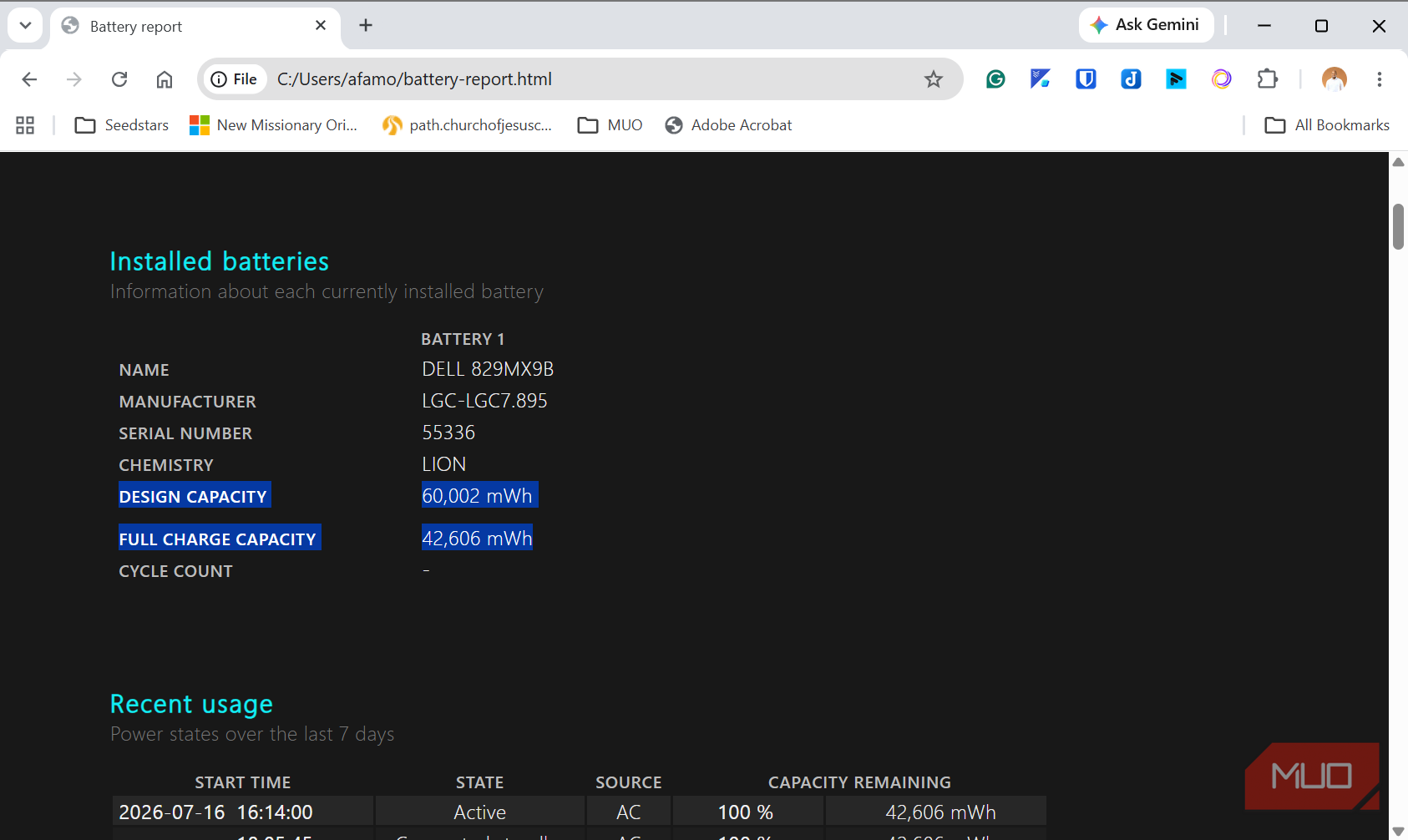
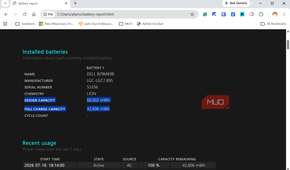
The first two things I explored in this report were Design Capacity and Full Charge Capacity. Design Capacity is a value representing how much your battery could hold on day one, while Full Charge Capacity represents what it holds today. My battery had dropped from 60,002 mWh to 42,606 mWh. It had lost 28.99% of its overall capacity. This is worth looking at before acquiring a used laptop. This explains why my laptop no longer lasts as long when watching Netflix.
Some devices track cycle count, and that's worth a look at too. On a laptop that's just a few years old, you may have a couple of hundred cycles. A cycle represents 100% of the battery's capacity being discharged and recharged. Many modern lithium-ion laptop batteries are designed to retain around 80% of their original capacity after roughly 300 to 500 full charge cycles.
sfc /scannow
When Windows can't repair itself anymore

It's not uncommon to experience random crashes with no clear cause on Windows. Sometimes, these manifest as apps that no longer open or an error that mentions a missing DLL. The sfc /scannow command, run from an elevated Command Prompt, is my go-to at such times. The command replaces damaged protected system files using copies stored in the Windows component store.
After the command runs, you get one of these three results:
- No integrity violations found
- Violations found and repaired
- Violations found that it couldn't fix.
If you get that third outcome, don't give up yet. It only means that SFC (System File Checker) has tried repairing files using the local Windows copy on your drive, and the copy is probably damaged, so there's nothing to restore from. In that case, run the command DISM /Online /Cleanup-Image /ScanHealth, and if it reports corruption, follow up by running DISM /Online /Cleanup-Image /RestoreHealth. By default, RestoreHealth downloads replacement files from Windows Update if needed.
|
SFC |
DISM |
|
|---|---|---|
|
Checks |
Individual system files |
The underlying Windows image |
|
Fixes |
Files, using the local image |
The image itself |
|
Run order |
First |
Second, if SFC fails |
driverquery
Device Manager says everything's fine, but this reveals more detail

There are several driver issues that the Settings app gives no context for. For several of these, from Wi-Fi drops without a clear reason to the random disconnection of a Bluetooth mouse, even Device Manager may simply show "This device is working properly." This message doesn't tell you the age of that specific driver, but only indicates that Windows can talk to it.
Now I use the driverquery command. It surfaces every driver on the system and includes a Link Date column. The Link Date reflects when the driver binary was built, which can sometimes reveal that a driver hasn't been updated in years. If I need additional details about a driver, including who signed it, I run driverquery /si.
While an old date may not always be a problem, if the driver tied to a symptom you're experiencing hasn't been changed for years, an update may fix the problem.
netsh wlan show wlanreport
The hidden history behind your Wi-Fi problems

Certain Wi-Fi problems seem to vanish just when you want to start investigating. Your connection drops, but by the time you check the Settings app, it all looks normal again.
In these cases, I run the netsh wlan show wlanreport command from an elevated Command Prompt. This command generates a detailed report at: C:\ProgramData\Microsoft\Windows\WlanReport\wlan-report-latest.html. The report typically covers three days of activity, and looking through the disconnect events, signal quality graph, and any driver-related entries has come in handy several times for me.
Rather than blaming the router for these drops, I've confirmed from the graph that a drop aligned with a specific driver event. This way, I instantly know which driver needs closer attention.
chkdsk /scan
Find file-system corruption before it causes bigger problems

Instead of checking a drive's physical health, you may need to examine the file system. This way, you can catch file table errors and file-system inconsistencies. These are not details readily surfaced in the Settings app.
The command I run is chkdsk /scan, which executes a read-only check. If the scan comes back with errors, running chkdsk /f will fix them.
Look beyond the GUI options
These aren't commands you have to run every week. However, when something feels wrong and looking through the Settings menu doesn't give enough context, they become a handy alternative.