


I don’t know about you, but I’m a huge fan of portable apps. They’re lightweight, don’t require any installation, and best of all, I can carry them on a USB drive and run them on any of my PCs. I've got a few favorites that I always carry with me, but the one I use the most is SpaceSniffer.
It’s a tiny 9MB storage tool that lets me visualize what’s taking up space on my drives. It’s also fast, free, thorough, and easy to use, which is why I prefer it over most other storage analyzers.
SpaceSniffer’s treemap makes finding large files and folders quick
Pick your drive and get started

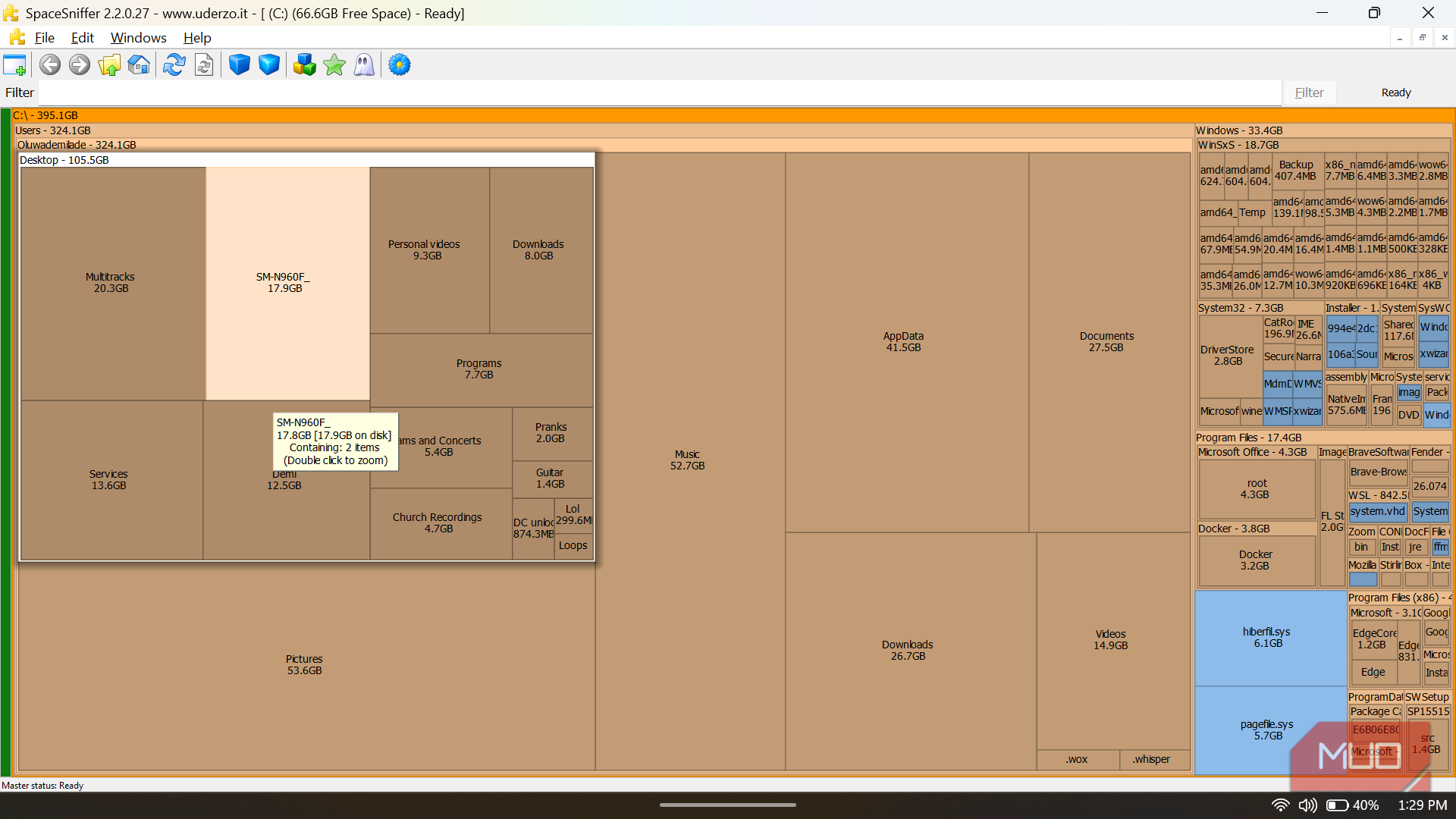
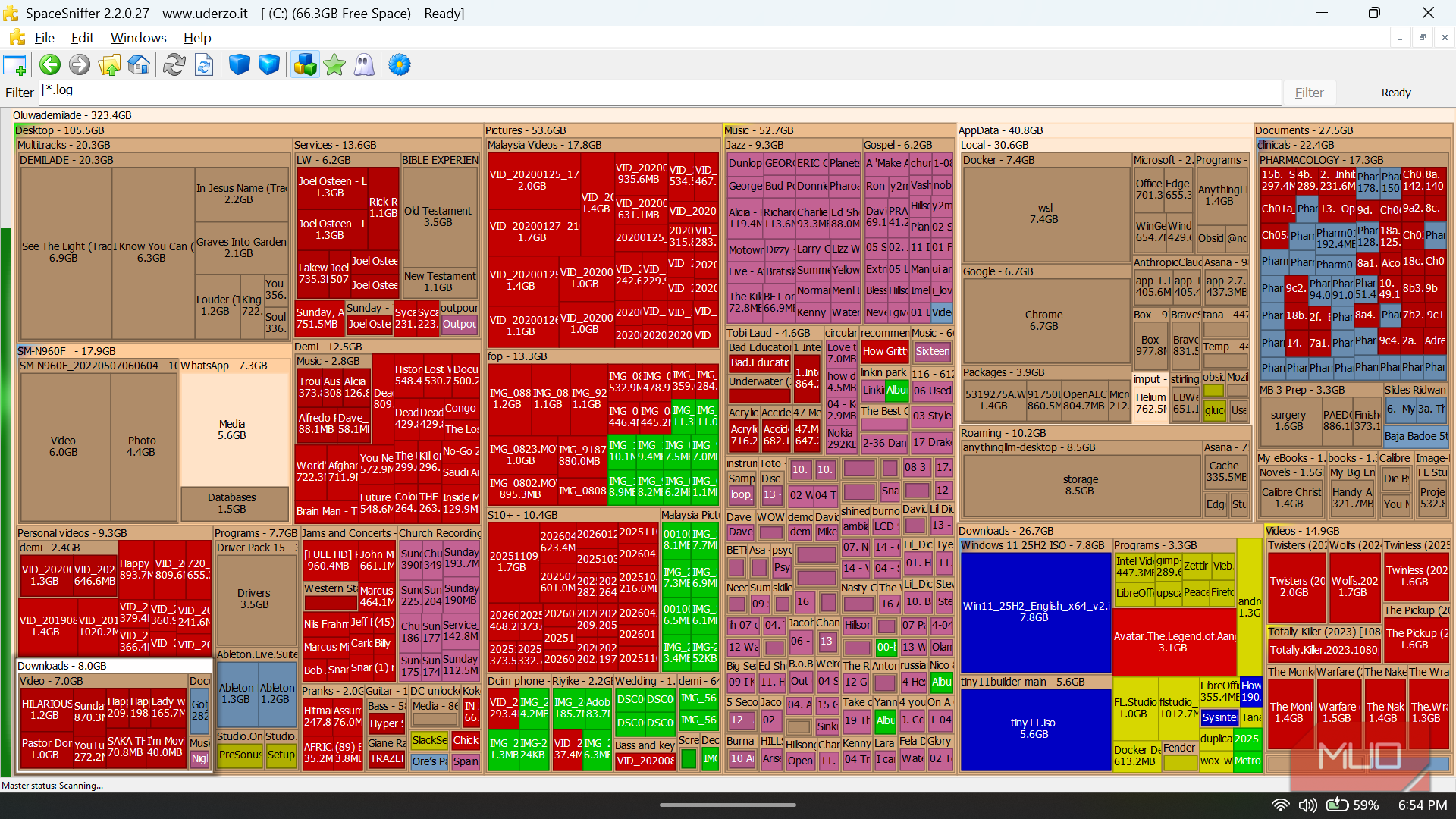
One of the things that makes SpaceSniffer so easy to recommend — besides the fact that it runs directly from a USB drive — is how easy it is to use. When you first open it, all you need to do is choose the drive you want to scan and wait. Yes, the initial scan might seem like it’s taking forever, but it usually doesn’t take more than a couple of minutes. Once that’s done, you’ll see a treemap made of dozens of rectangles. Each block presents either a file or a folder. This makes it easy to spot the biggest storage hogs, even if they’re buried several levels deep inside the C: drive.
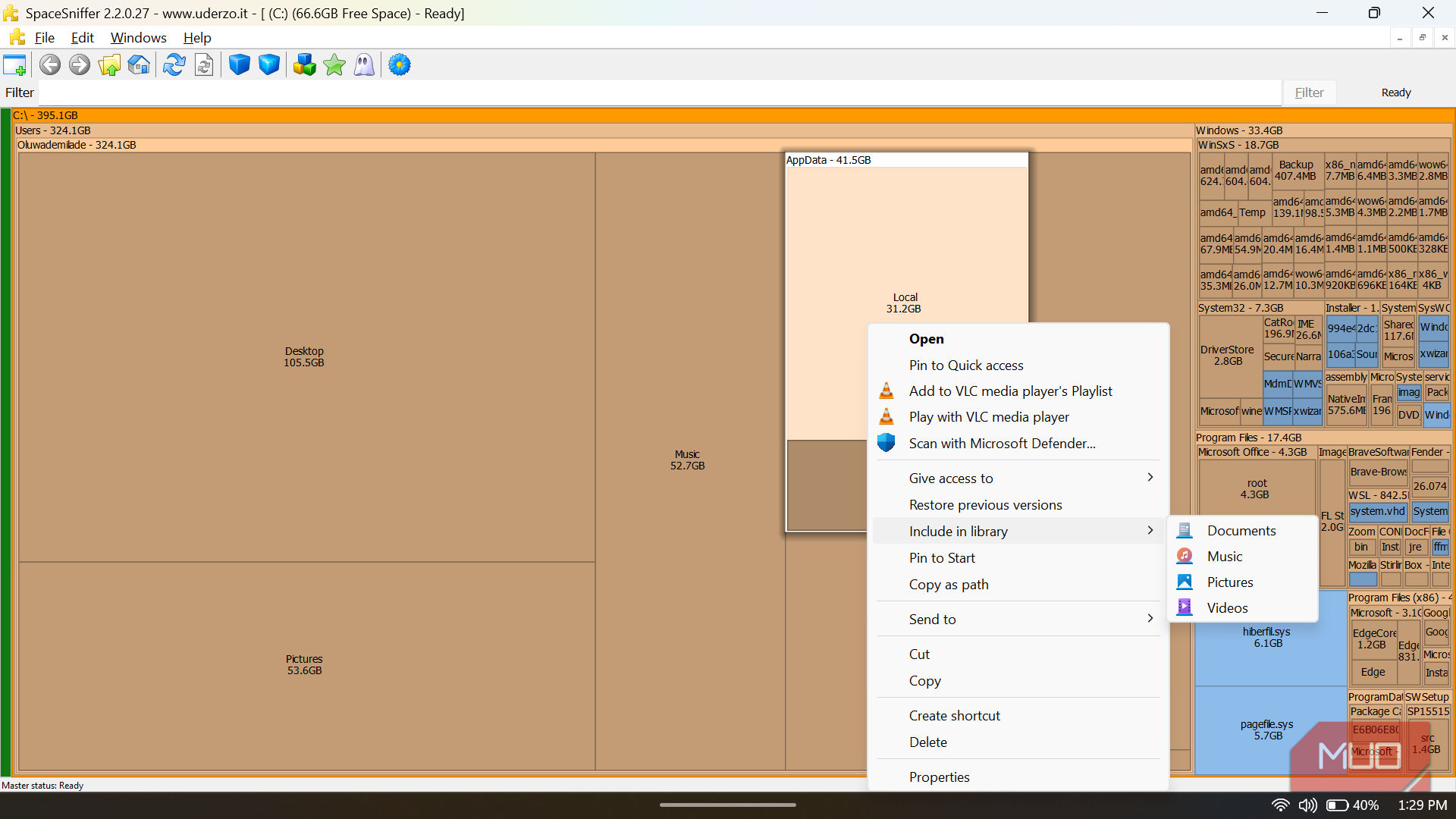
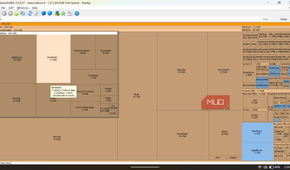
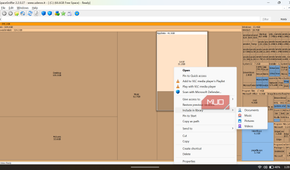
Yes, the concept is similar to other storage analyzer tools like TreeSize and WinDirStat. But what I like the most about SpaceSniffer is that its treemap is interactive. Clicking a folder in the treemap shows me all the folders inside it and how much space they’re taking. Double-clicking a block opens the folder and zooms in on it for a closer look. And when it’s time to clean up, I can simply right-click a block and choose Delete. It’s all too easy to do from the treemap.
SpaceSniffer updates the entire treemap in real time. So when you delete or even add a file or folder, the treemap updates almost instantly. In fact, one thing you’ll notice while looking at SpaceSniffer’s treemap is that a few of the blocks constantly flash. That essentially indicates Windows is using these files and folders to read or write data in real time. This is something I haven’t seen in most other storage analyzer tools.
Filters help me find the storage hogs I’m looking for
The star of the show


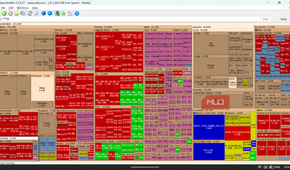
By default, SpaceSniffer shows every file and folder there is on your drive, which can feel a bit overwhelming. If you’re only interested in targeting a specific file type or looking for unusually large folders, its filters make the job much easier.
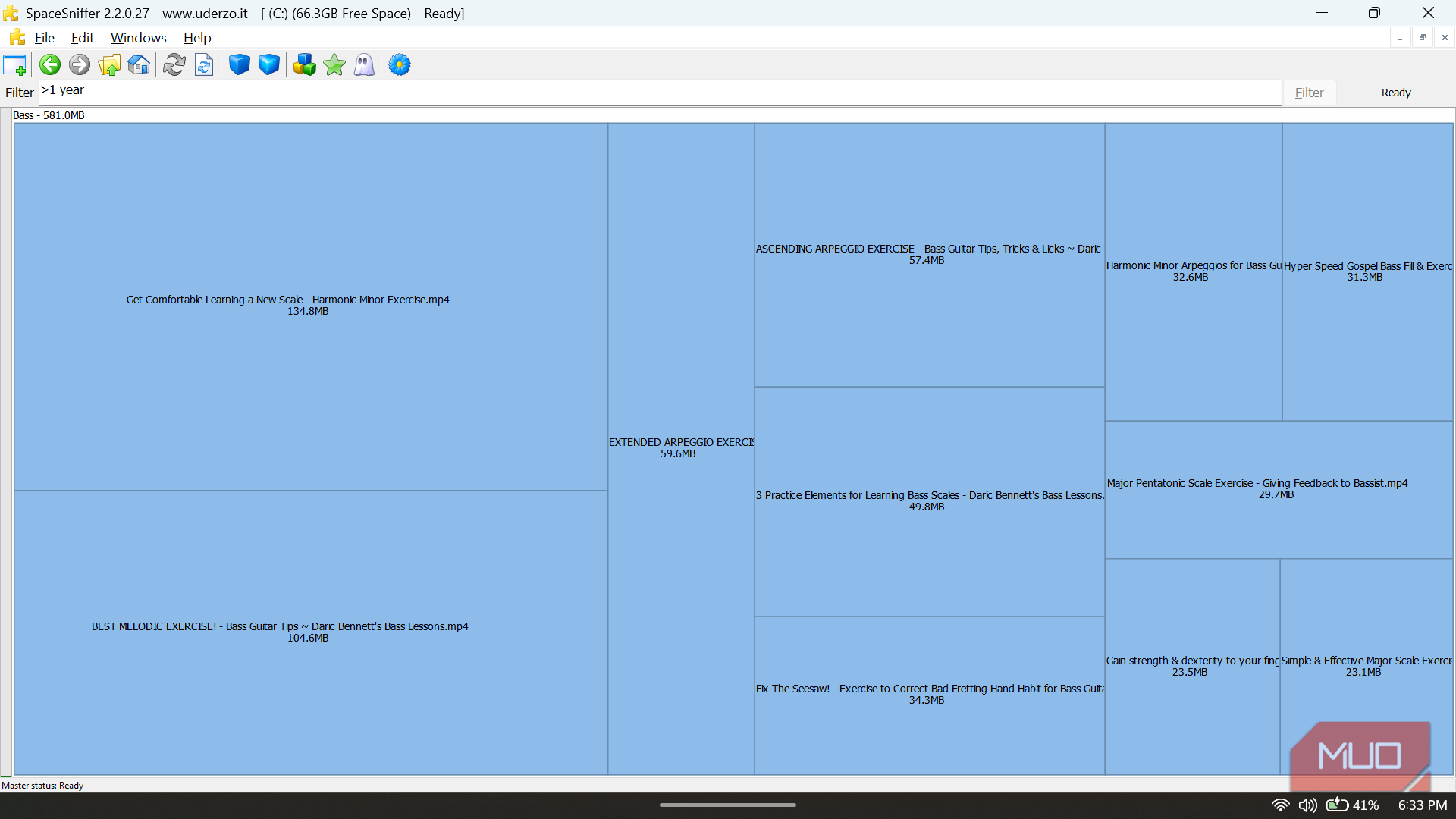
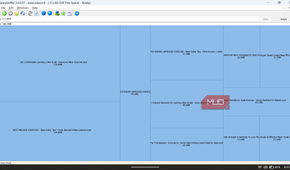
Yes, the Filter bar you see at the top is my favorite thing about SpaceSniffer after the blocks. If I type *.mp4 here, for instance, the tool will rebuild the treemap to show only MP4 files. And I can do the same for images, documents, ZIP archives, executables, and pretty much any other file type there is.
Filters can also help you find files and folders larger than a certain size. For instance, type >1GB, and it’ll update the treemap to only show you files and folders larger than 1GB. You can also apply filters within a specific folder instead of across the entire drive. I find this especially useful any time I want to clean up the Downloads folder on my PC, which is usually every few weeks.
And the best part about filters is that they can be combined. So if I’m looking for large videos inside the Downloads folder, I can simply type \Downloads;*.mp4;>100mb and hit Enter.
If you’ve used search filters in File Explorer before, using SpaceSniffer’s filters should take almost no time. If not, head to Help > Filtering to see how to make the most of these filters.

Sandisk Extreme Fit USB-C Flash Drive
- Capacity
- 64GB, 128GB, 256GB, 512GB, 1TB
- Speed
- USB 3.2 Gen 1 (up to 400MB/s)
- Connection
- USB-C
- Warranty
- 5 years
The Sandisk Extreme Fit USB-C Flash Drive is a compact expandable storage solution for laptop and tablet users. It's available in up 1TB storage capacities, comes with a five-year warranty, and works with Windows, macOS, and iPadOS.
SpaceSniffer is all about flexibility
Beyond the treemap and filters, SpaceSniffer also has other, smaller features that are just as useful. For instance, SpaceSniffer lets you assign tags to files and folders, which basically lets you color-code things on the treemap. I find it handy for marking files and folders I don’t want to delete accidentally.
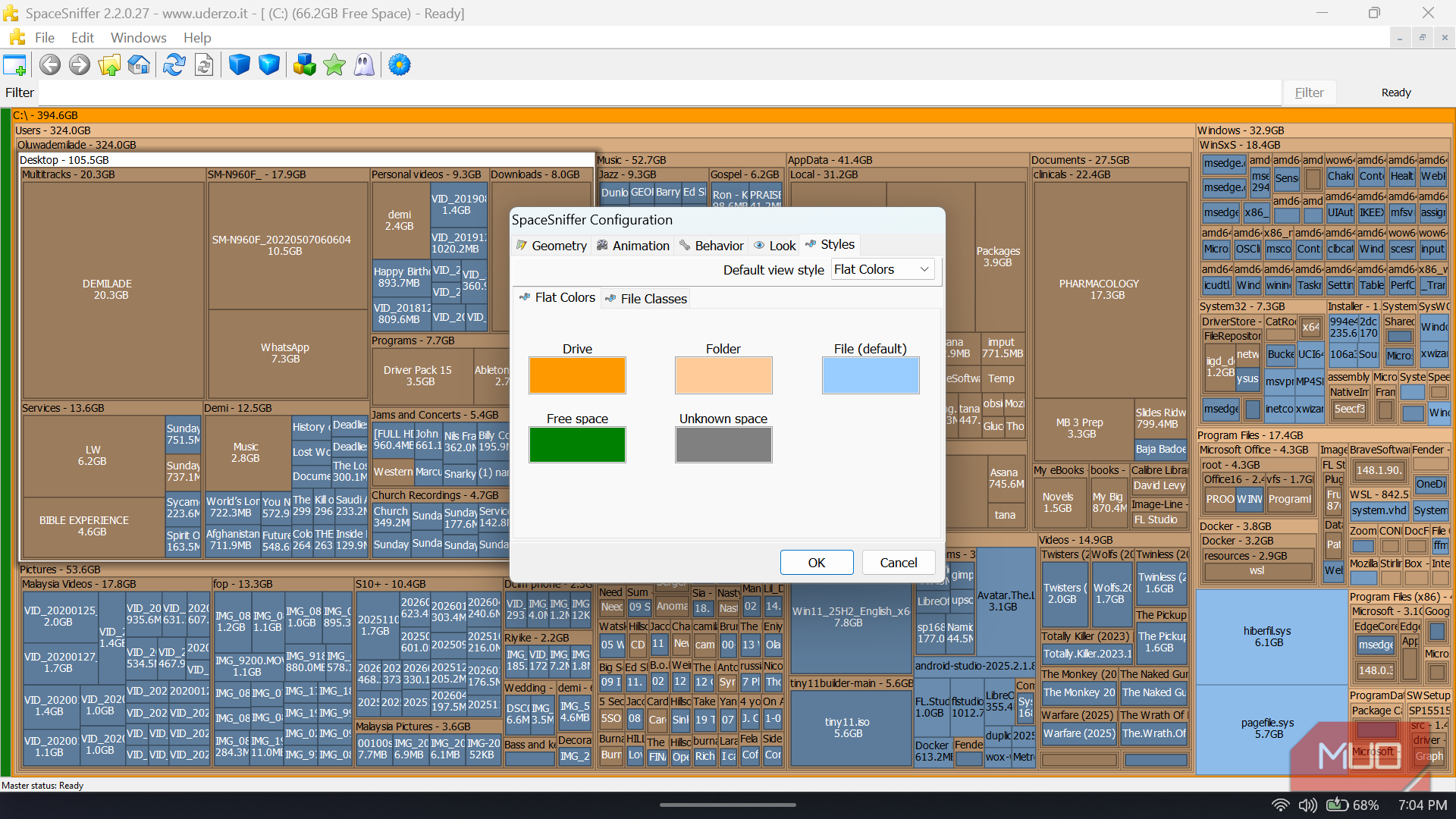
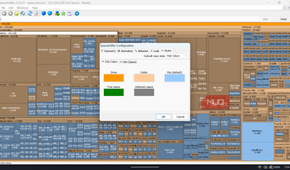
The overall color scheme is also fully customizable. If you’re not a fan of the default look, head to Edit > Configure > Styles to set different colors for files, folders, drives, free space, and unknown space.
Finally, the toolbar at the top makes navigating the app easy. It has familiar controls like the forward, back, home, and refresh buttons. There are also Less Detail and More Details buttons that let you control how much information the treemap shows at a time. Best of all, hovering over these buttons on the toolbar shows their corresponding keyboard shortcuts. As someone who loves using keyboard shortcuts, these are huge time-savers.
