


I switched to Firefox because I was just ready for a change. Chrome wasn’t doing anything wrong. I’d just been using it for a while, and I wanted to try another browser as my default. But some habits die hard, and I kept wondering if I had really gotten everything I could out of Gemini. So, I went back and gave it a proper hands-on try. That’s when I realized I hadn’t been using Gemini to its full potential. Once I saw how much easier Gemini made it to get what I needed from the stuff I already had open, I realized I’d been missing out.
Gemini in Chrome is still rolling out, so you may not have access to it yet. Your availability also depends on things like your region, language, device, and account.
Gemini helped me make sense of the wall of text
It pulled the key points, so I had a good starting point

For a psychology project I’m working on, I had Gemini grab the key points for each section. I know Gemini in Chrome can make mistakes, so I double-check any important information, but it still gives me a good starting point and saves me from reading information I don’t care about right now. I told Gemini to give me the main points of each section. When it gave me the info, it didn’t give me a wall of text I had to make sense of; instead, it gave me the headline and, below it, the main points in a bulleted list. This made the info easier to scan through.
The chat also includes a mini heading that gives me a heads-up about what the text is about without having to read it. That way, I could find the specific info I was looking for. I also found the pop-out useful since it let me pull the chat out of its docked position and move it around separately. It’s useful when you want to compare what Gemini says with information on your end that you don’t want to or aren’t allowed to upload, maybe for confidentiality reasons.
I saw how Gemini connected the main ideas across my tabs
I can ask one question about my tabs and get the answer I need without checking each one

This is, I would say, one of the main reasons why I couldn’t leave Chrome after all. I can have seven tabs open and ask Gemini for a single summary based on all of them, instead of reading through each one myself. For example, I was shopping for a new phone, and the top three contenders were a Samsung, a Google, and a Motorola phone. I wanted to compare specs like the processor, cameras, and storage—you know, the main specs you would normally look at when getting a new phone.
Since I was too tired to read through all the pages, I asked Gemini to scan them, pull out the main specs, and create a table listing them all. It listed specs such as:
- Display
- Processor
- RAM and storage
At the bottom of the table, it listed where each phone takes the crown, something I didn’t ask it to do. You can use up to 10 open tabs besides the one you’re working on, which is great when you’re working on a big project.
Those tabs don’t even have to be in the same Chrome window. I can share tabs from different Chrome windows with Gemini and move the same conversation between windows when I need to. This is one of my favorite features because I can control which tabs I include and which I exclude. I only have to type @ and choose the tabs I want to add. Gemini also shares the current tab by default, but I can see which tabs are being shared and remove any I don’t want it to use. After that, I only have to worry about the questions.
Gemini helped me understand the parts I was stuck on
I could keep asking questions without losing context


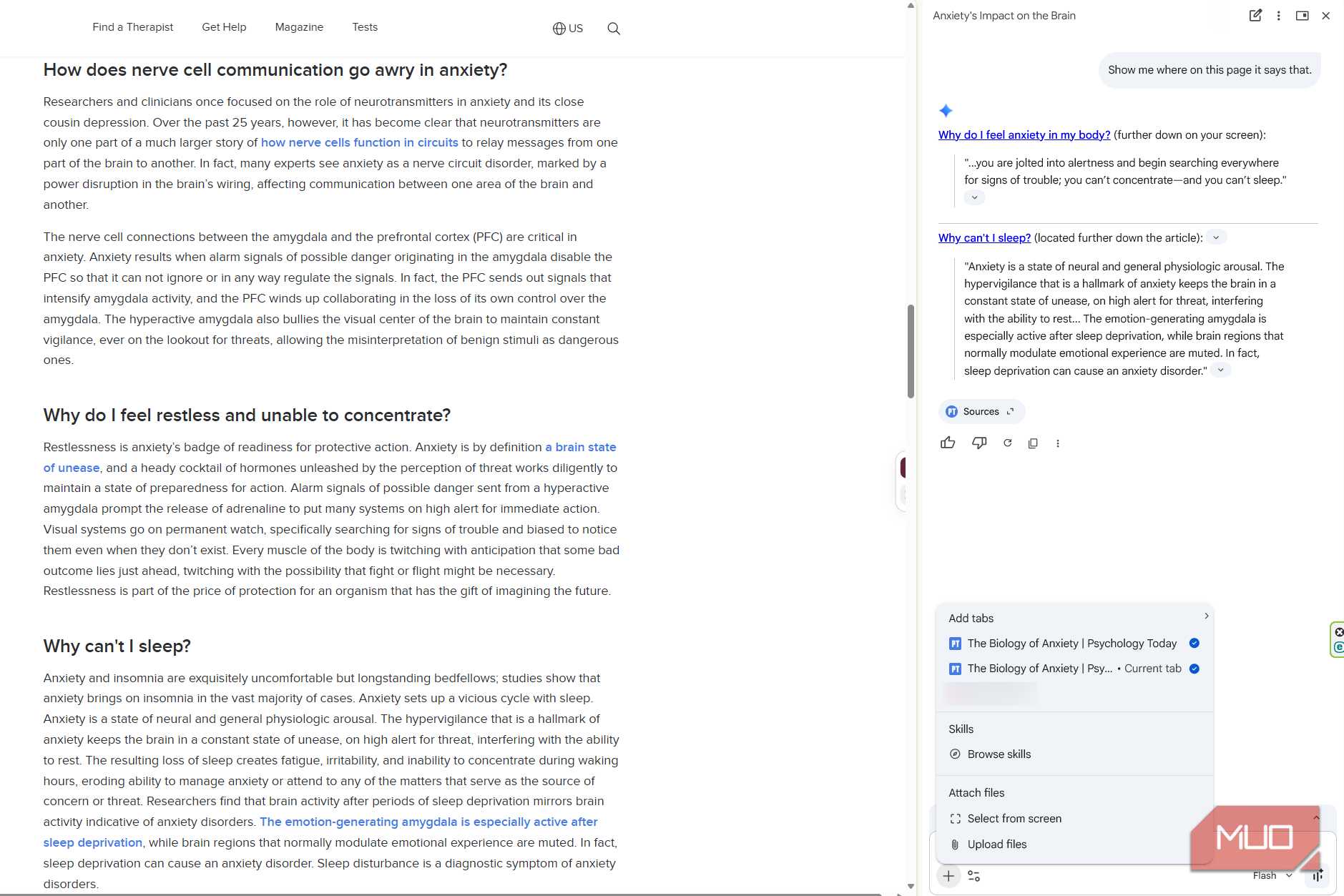
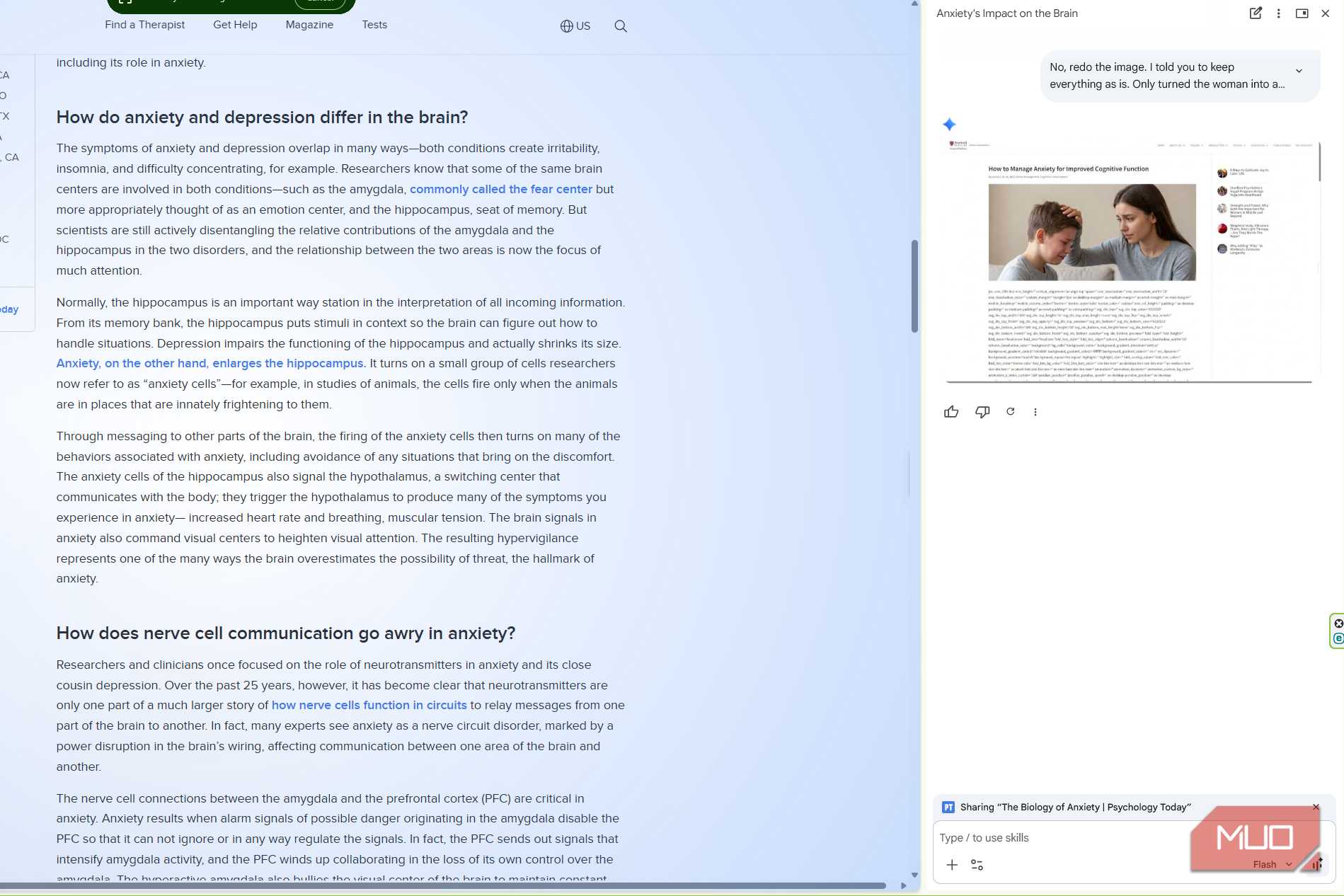
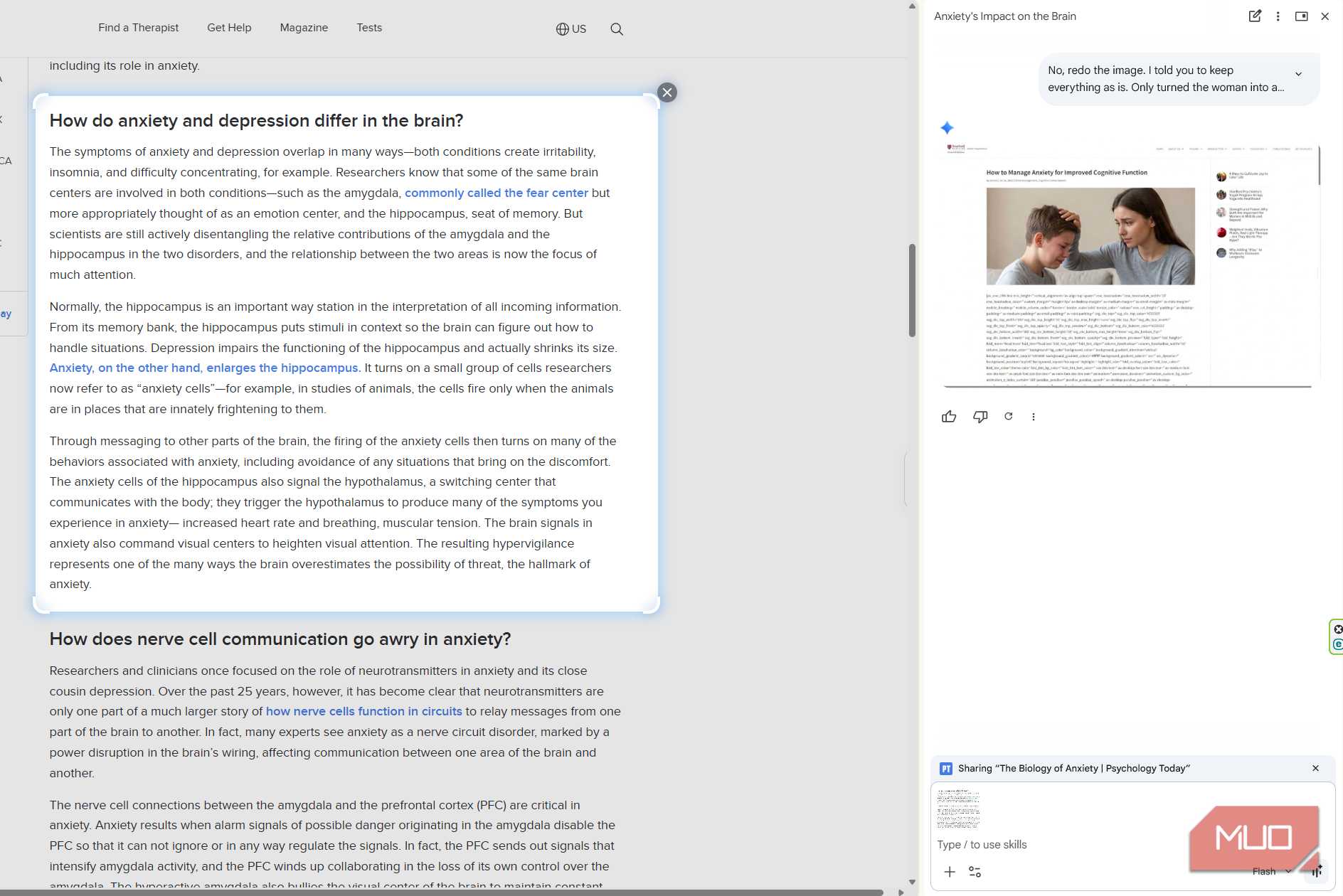
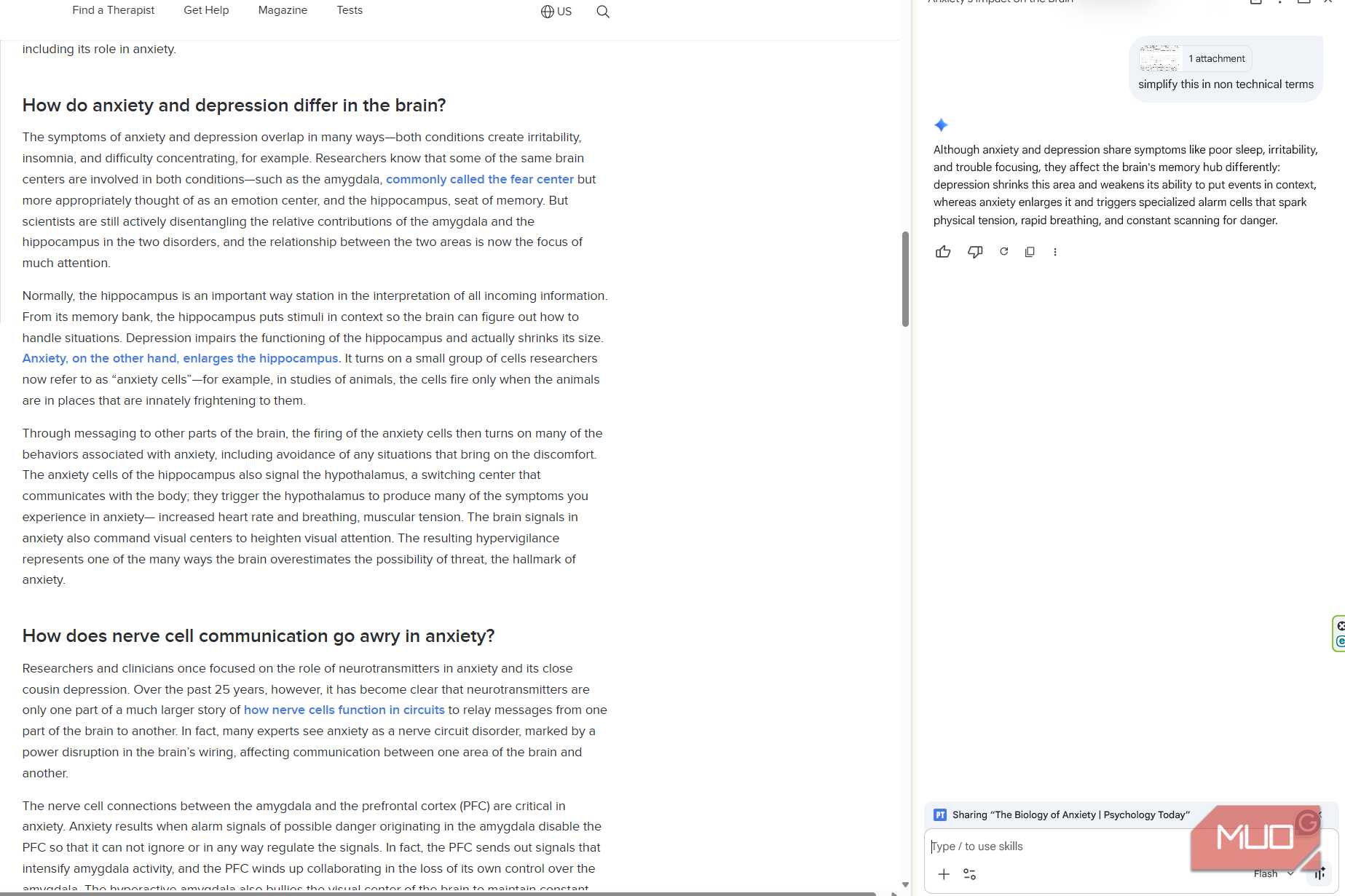
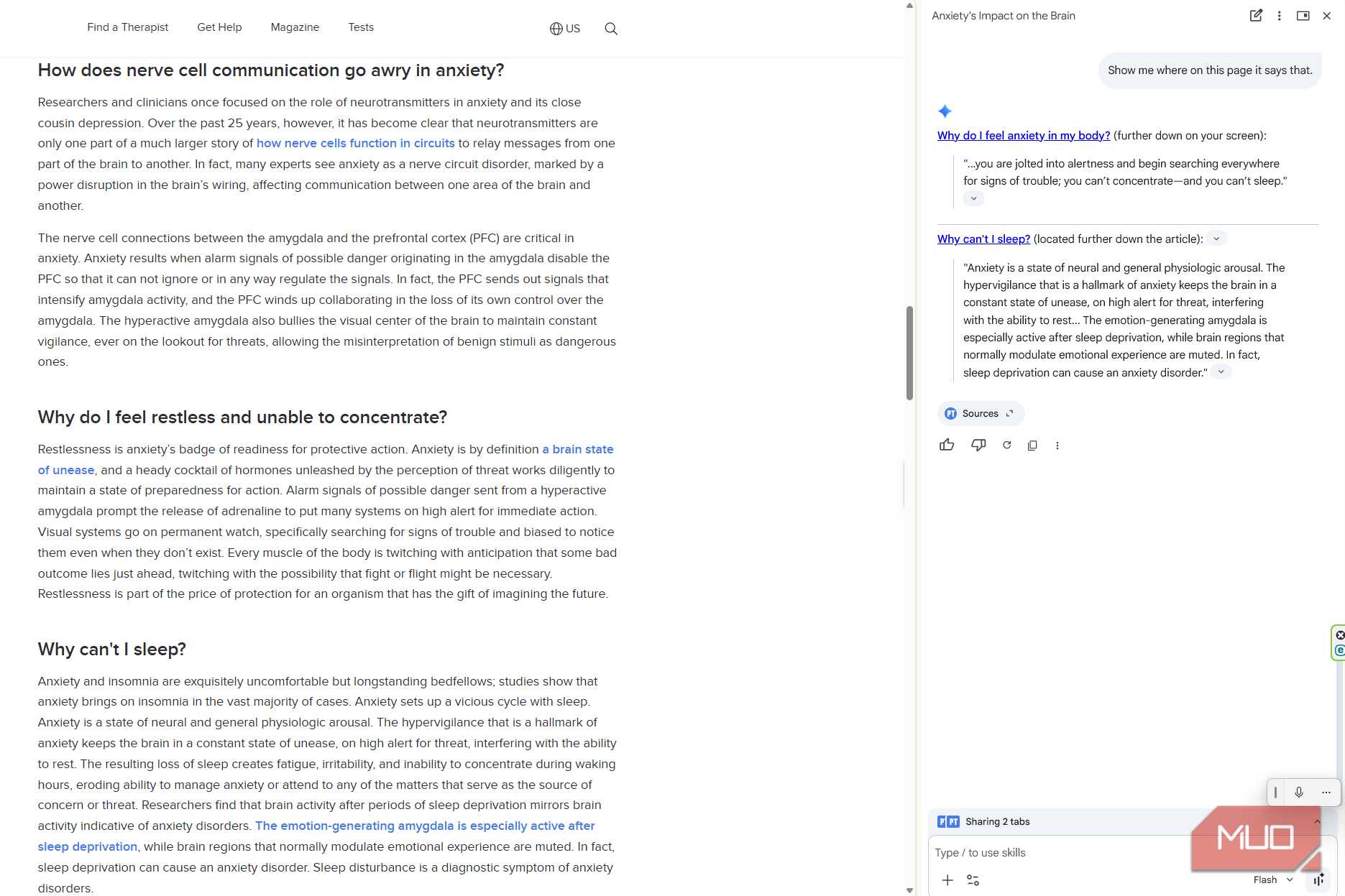

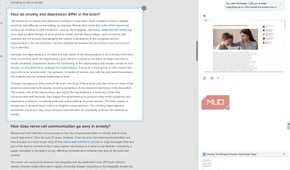
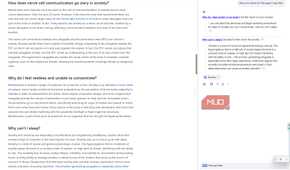
I know there are other AI models that can do the same thing, but confirming that Gemini can also make sense of what I’m reading is a plus. I don’t mean the info I feed it, but I mean giving it a specific section on a page and asking it all sorts of questions about it. I used the Select from screen option in the Gemini panel and drew a box around the part of the page I wanted it to focus on.
The section turned blue while Gemini was looking at it, indicating it was analyzing that specific area. I selected a section on anxiety and asked Gemini to explain it in simpler terms without leaving out the important parts. It broke the information down and gave me an everyday example, which made the section easier to follow. But I also wanted to see what happened if the first explanation still wasn’t enough.
I asked a follow-up question on the information, and Gemini remembered my earlier question and gave me a comparison about a two-way conversation with a volume knob. That made the info easier to understand. Since AI can make mistakes, I wanted to check where that information came from. So I asked Gemini to show me, and it scrolled through the page until it found the section. Also, when I clicked on one of the links, Chrome took me straight to that part of the original page.
That was useful for me because I could go back to the part I didn’t understand after Gemini’s explanation and see if it now made more sense to me. I can also ask Gemini to quiz me on the information once I feel I understand everything.
I’m sticking with Chrome for now
Just because I went back to Chrome doesn’t mean that I’m never going to use Firefox again. But after going more in-depth with what Gemini has to offer, I’m sticking with Chrome for now. Having it save me from going through all the tabs was one of the biggest reasons I switched back. It also did a surprisingly good job explaining the more complicated stuff to me and even showing me where it got the information.
I know Gemini can still make mistakes or misunderstand what I’m asking, so I’m always going to double-check any important information. However, it's been a huge help when I need to make sense of so many tabs in a short period. If you use Chrome and have mostly ignored Gemini, it might be worth giving it a proper try before writing it off.