


I love taking pictures and videos, but the downside is that my phone is a little over 84% full, so I need to start deleting some of them ASAP.
That’s why I gave Google Photos’ Free up space on this device feature a try. It’s supposed to remove pictures and videos from my phone’s storage once Google Photos has backed them up. I wanted to see how much space it could free up and whether it would delete any photos or videos that hadn’t been backed up.
Google Photos did the cleanup for me
I didn’t have to go through my photos one by one

If you’re constantly taking pictures and videos, your storage will fill up fast, especially if you take long videos. However, there is a solution: Google Photos’ Free up space on this device feature can help clear storage space by removing files from your phone that have already been backed up. The good news is that it’s easy to use: just tap your profile picture. Just make sure you don’t tap the cleanup option tied to your Google Account storage since that manages the space shared across:
- Google Photos
- Drive
- Gmail
I wanted to clear some storage on my phone, so I tapped Free up space on this device. The first tap on the feature name won't start the process; it’ll only show you how much it’ll clean up.
After I tapped the feature, it said it could free up 10GB of space. I knew I had a lot of files, but sheesh, not that many.
I made sure my pictures and videos were backed up
I couldn’t risk deleting a file that wasn’t backed up

I wanted to be as sure as possible that I didn’t lose any files in the process. Good thing I had different ways to confirm that my files were backed up. For example, I tapped the three dots in the top-right corner of the file I wanted to check, then tapped About. Under Details, I could see that a 4.9 MB image was backed up.
Also, after I took my pictures and opened Google Photos, I could see which files were waiting to be backed up or were still uploading. Once the upload was complete, I could also see the little cloud icon with a check mark briefly before it disappeared. So when I wanted to make sure all my pictures and videos were backed up, I checked that the pending upload icons had disappeared and that none showed a backup problem.
If you want to make sure every important file was backed up, you can also open Google Photos on your computer and double-check that those files are there. Once you’ve confirmed that, you can use Free up space on this device for the bigger cleanup.
My phone finally had room to breathe again
I could actually see the storage difference


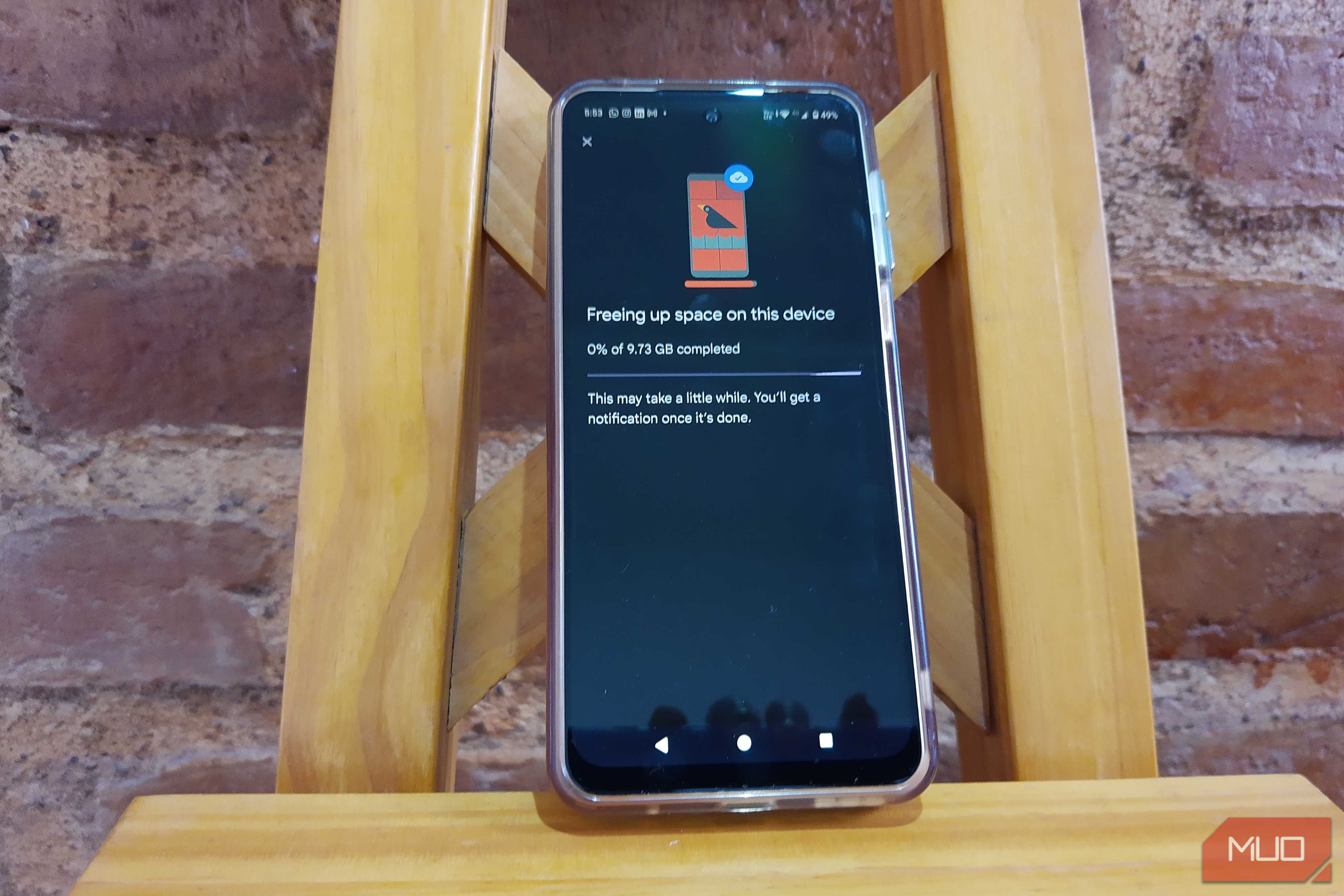
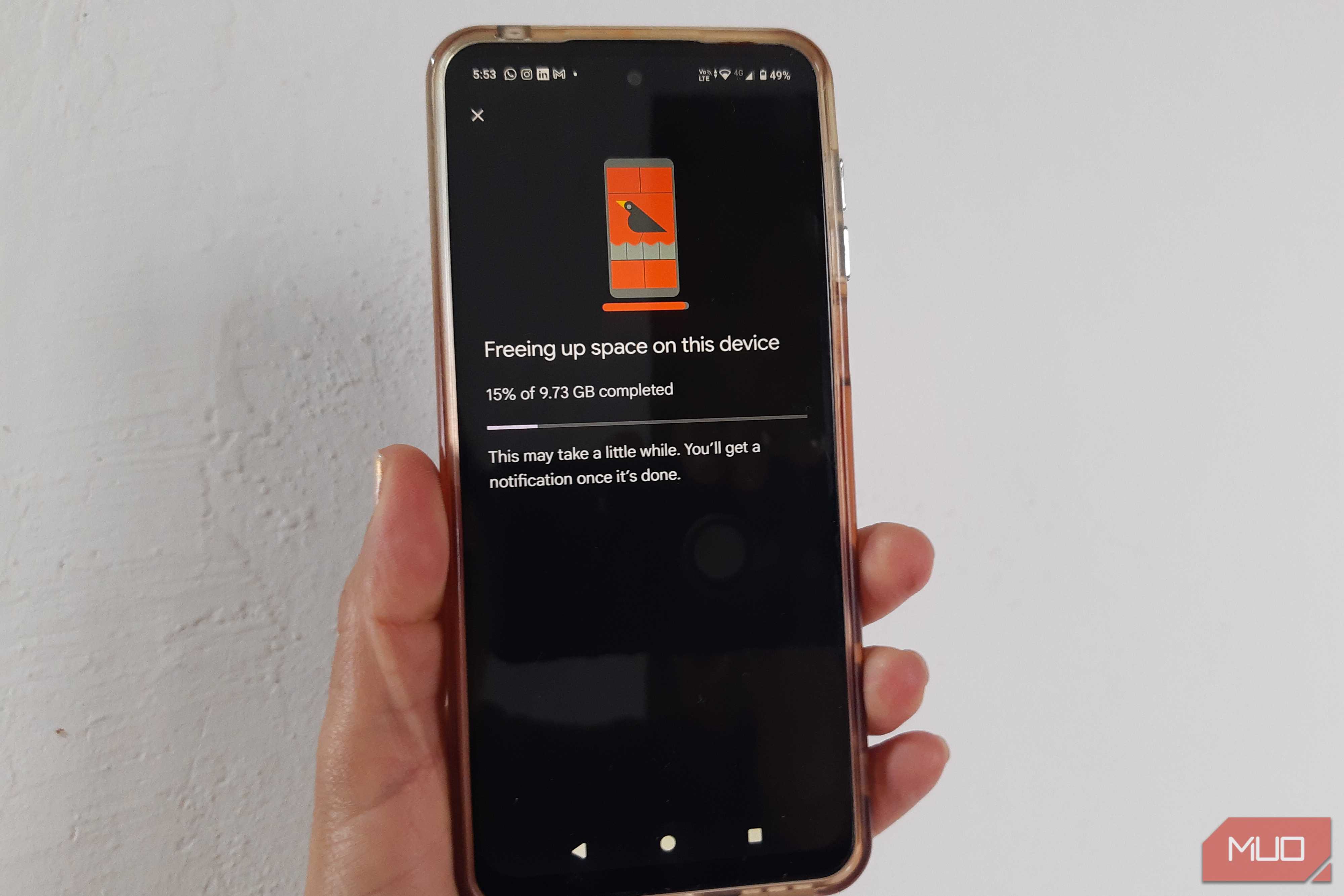
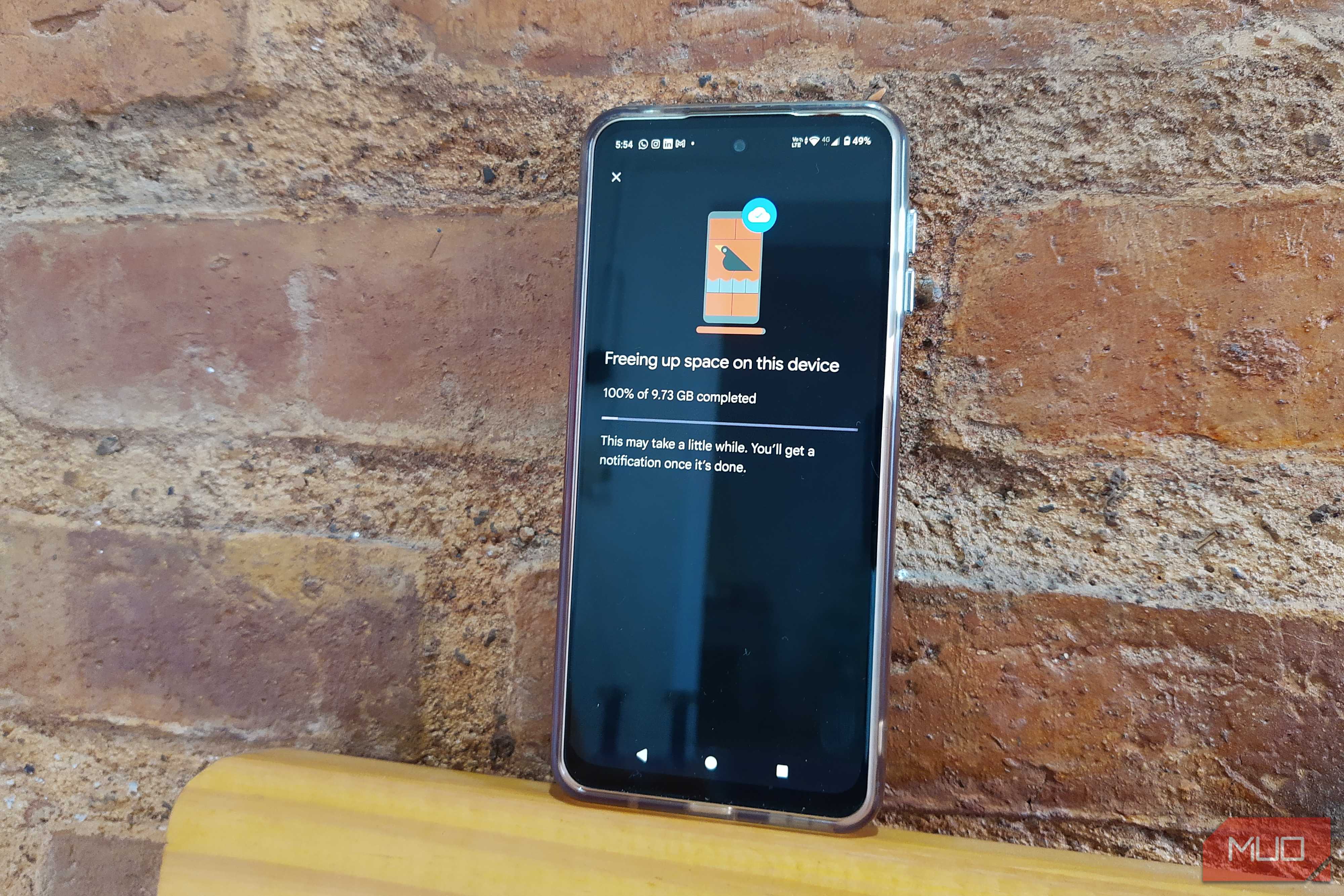
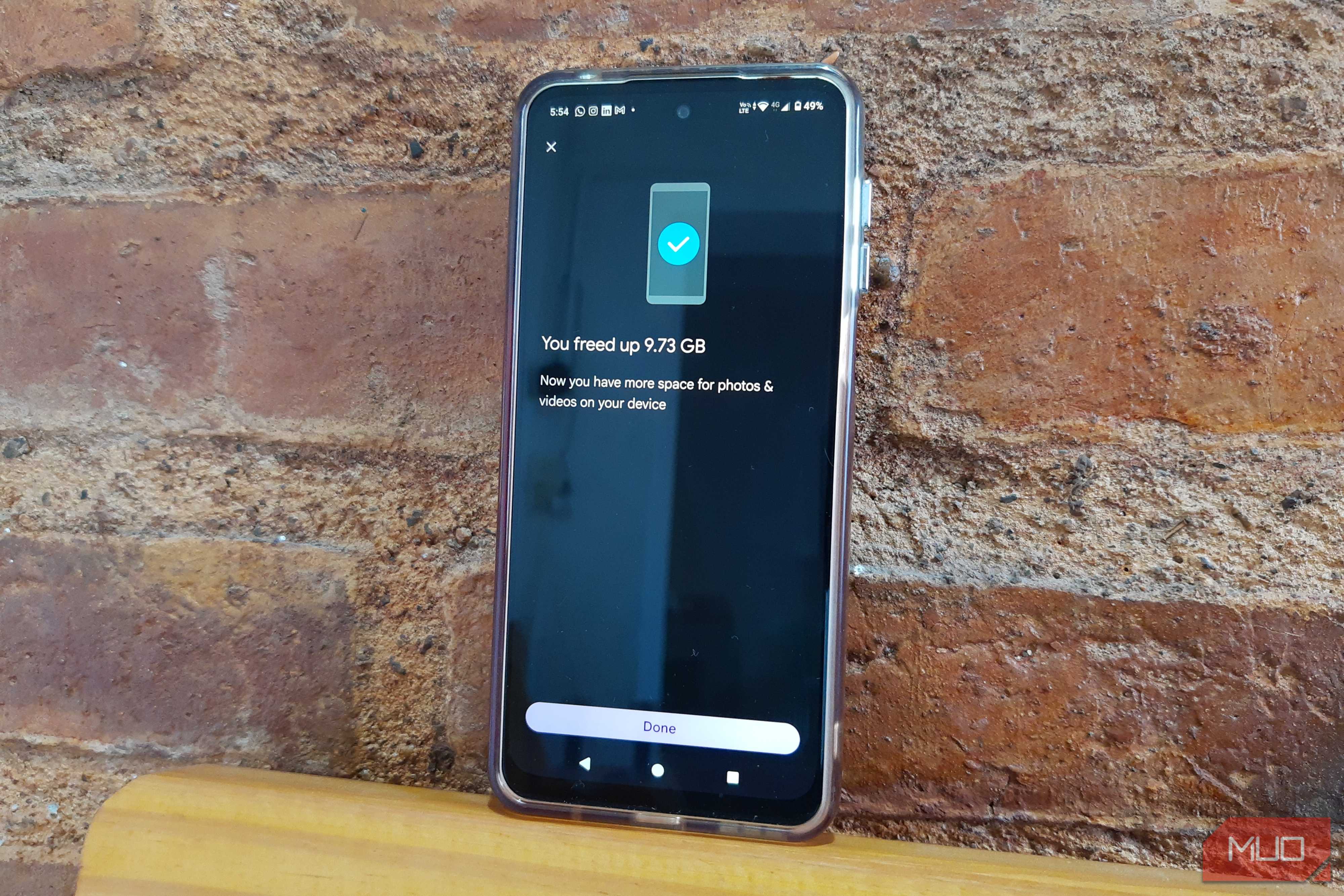
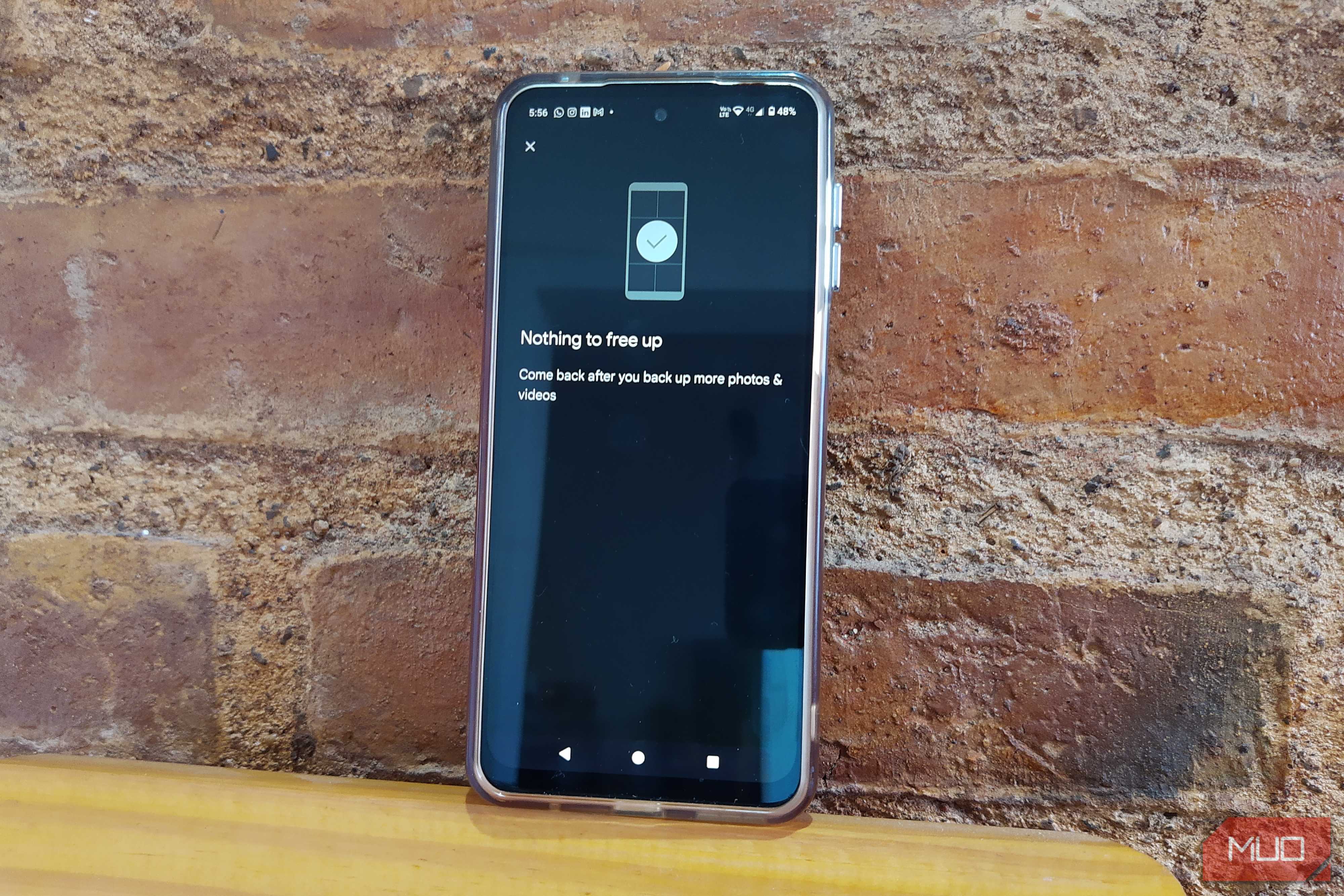




My phone storage went from 84% full to 77% after using Free up space on this device. The cleanup wasn’t as fast as I wanted, but at least it got the job done. I had enough time to make myself a cup of coffee without feeling rushed. So, if you have more than that to clean, I would recommend doing it when you are not in a hurry.
When the process finished, Google Photos showed me a message that it freed up nearly 10GB of storage. I tapped Done, and just to double-check, I went back to Free up space on this device. It showed me a message saying to come back later when I have more pictures and videos to erase. That was the confirmation I needed that the cleanup was actually finished.
Some recent photos and videos may still stay on your phone after you use Free up space. Google says files less than 30 days old can be kept on the device even when they're already backed up.
You can’t predict every glitch
What if one important photo disappears?

It only takes one question to make you doubt the process. What if? What if a glitch keeps one important photo from being backed up? When you have a small number of pictures and videos to check, it may be easier, but when you’re dealing with even larger volumes, the fear of losing them is all too real.
You might see a Backup complete message, but you still have that doubt in the back of your mind about whether all your pictures and videos were really saved. Sometimes it can feel just too big of a gamble to actually go through with it.
A few extra checks were enough for me to go ahead
I could confirm my important files in more than one way

It’s true that you can’t predict every glitch that might happen. But if you let every what-if get the best of you, you probably wouldn’t send an important email or make a bank transfer either. There’s always some risk when you trust technology with something important.
Still, Google offers ways to confirm your files were actually backed up. The easiest one is the Backup complete status once everything finishes. If there’s one photo or video you really can’t afford to lose, you can also use Back up now instead of just waiting for the regular backup.
And if that still doesn’t feel like enough, you can copy those irreplaceable files to an external drive before using Free up space on this device. That way, you have another copy somewhere else, and you’re not relying only on Google Photos.
I’d use Free up space again
Getting almost 10GB back without having to sort through my gallery one file at a time made using it worth it. I’m still going to double-check that important files are backed up correctly by taking a look in Google Photos before starting the process. Also, if you use the feature daily, keeping track of what’s backed up becomes much easier.