


Keeping my Windows installation drive from filling up has been a constant struggle. To Windows' credit, it does come with Storage Sense to help you clean up junk files periodically. You might already be aware of Storage Sense, though. What I wasn't aware of was Cleanup Recommendations, which found the easiest 9 gigabytes of storage I didn't know I could delete.
Using Windows Cleanup Recommendations
A hidden settings page that does the sorting for you


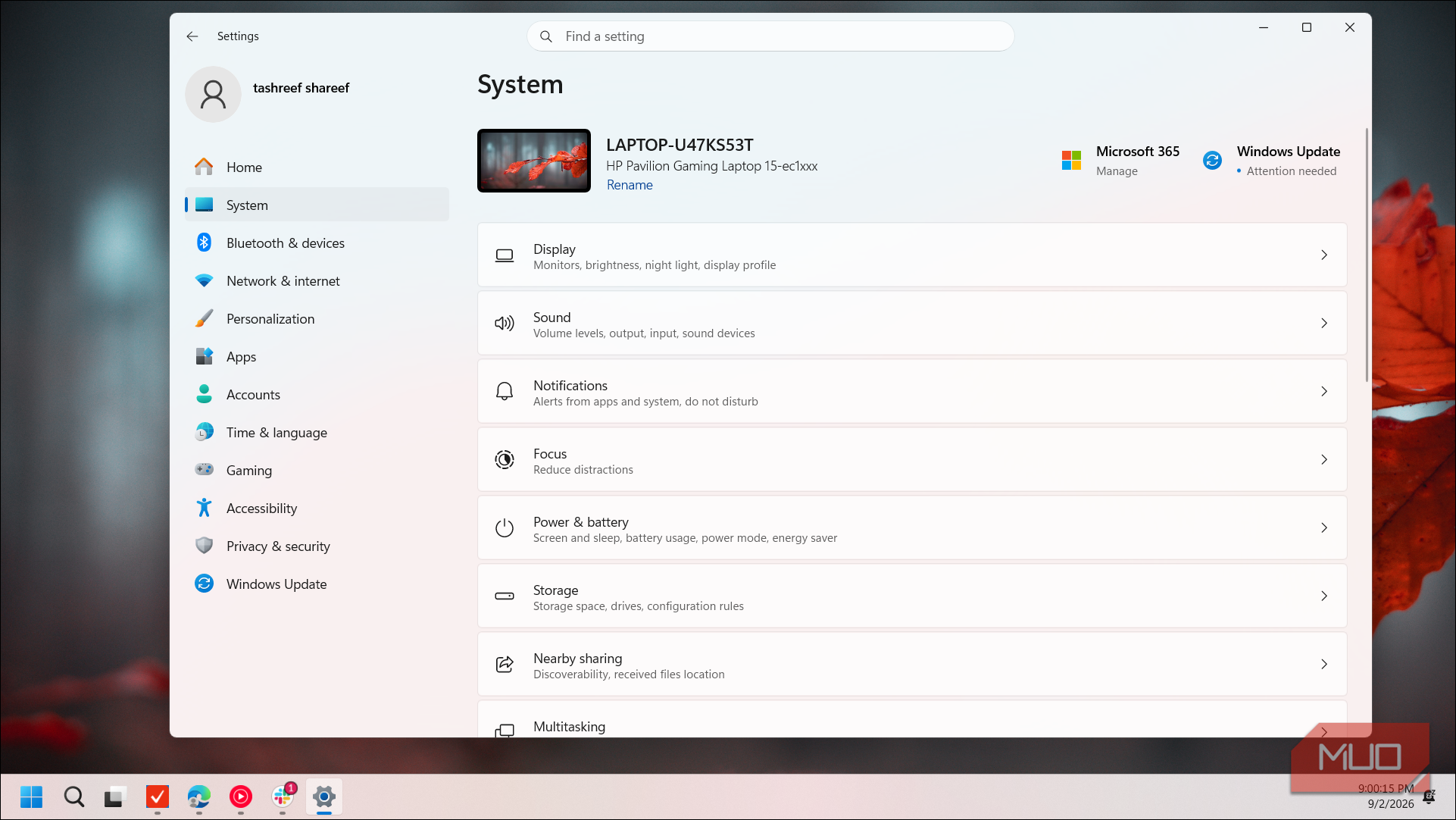
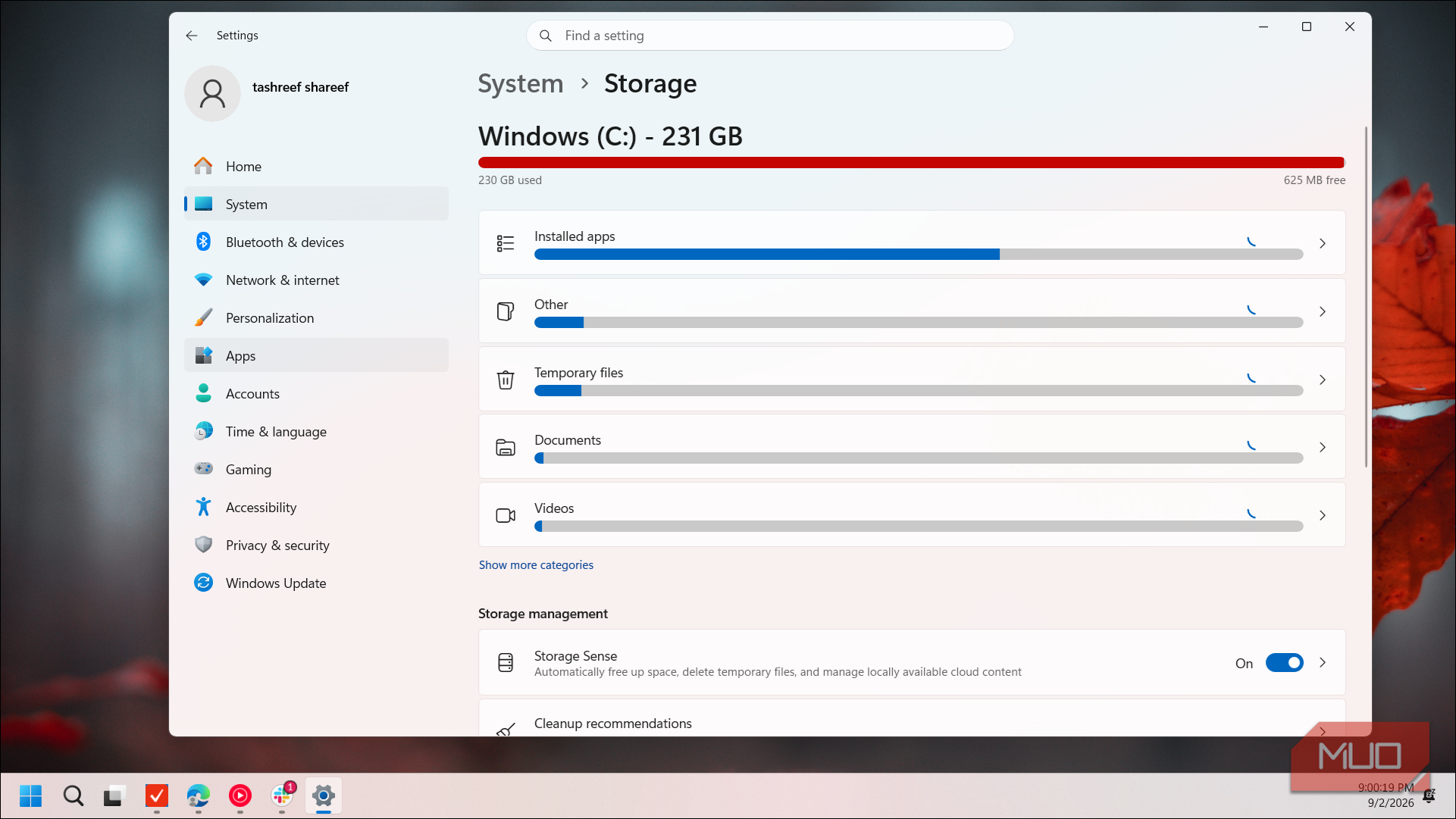
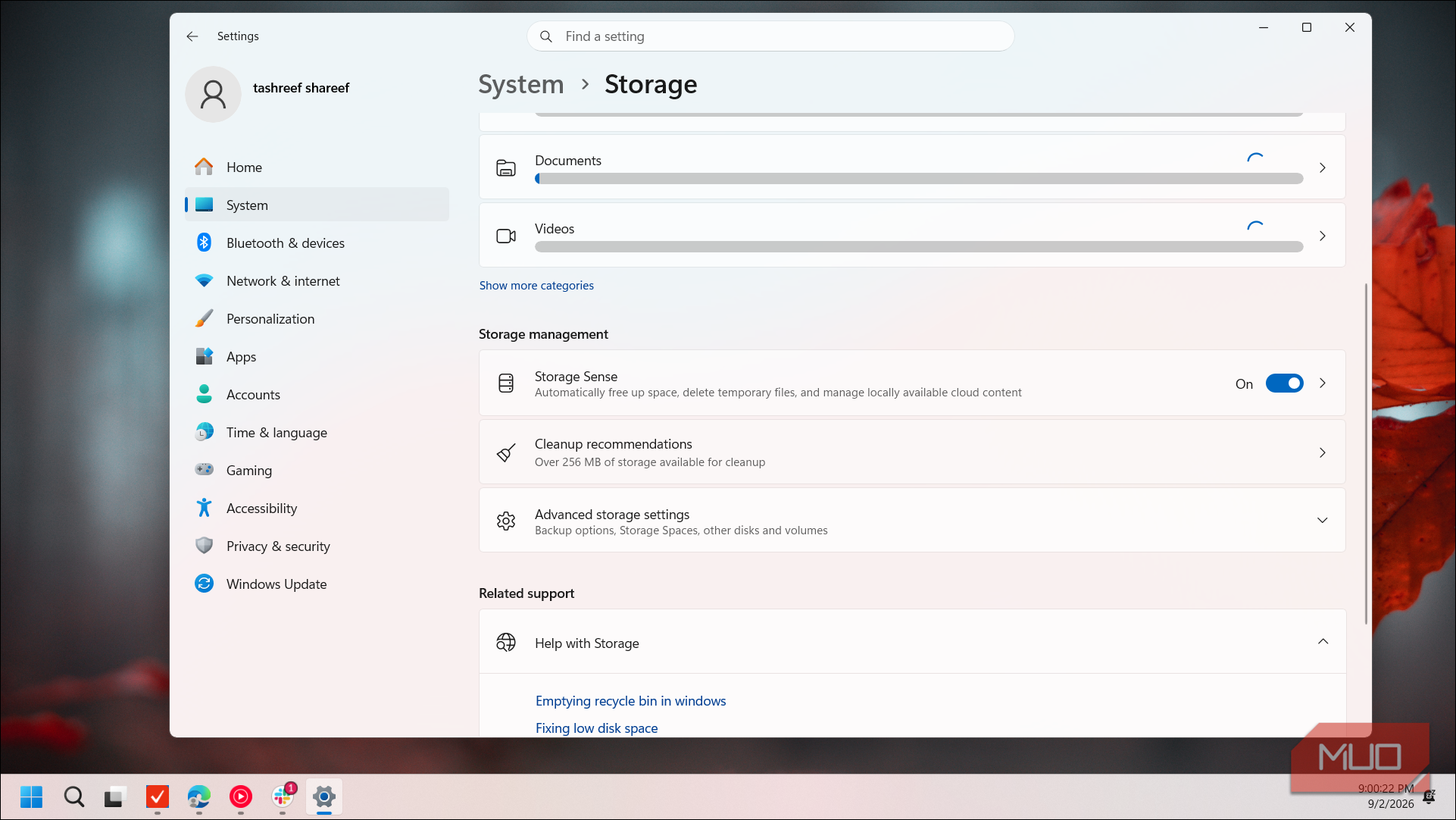
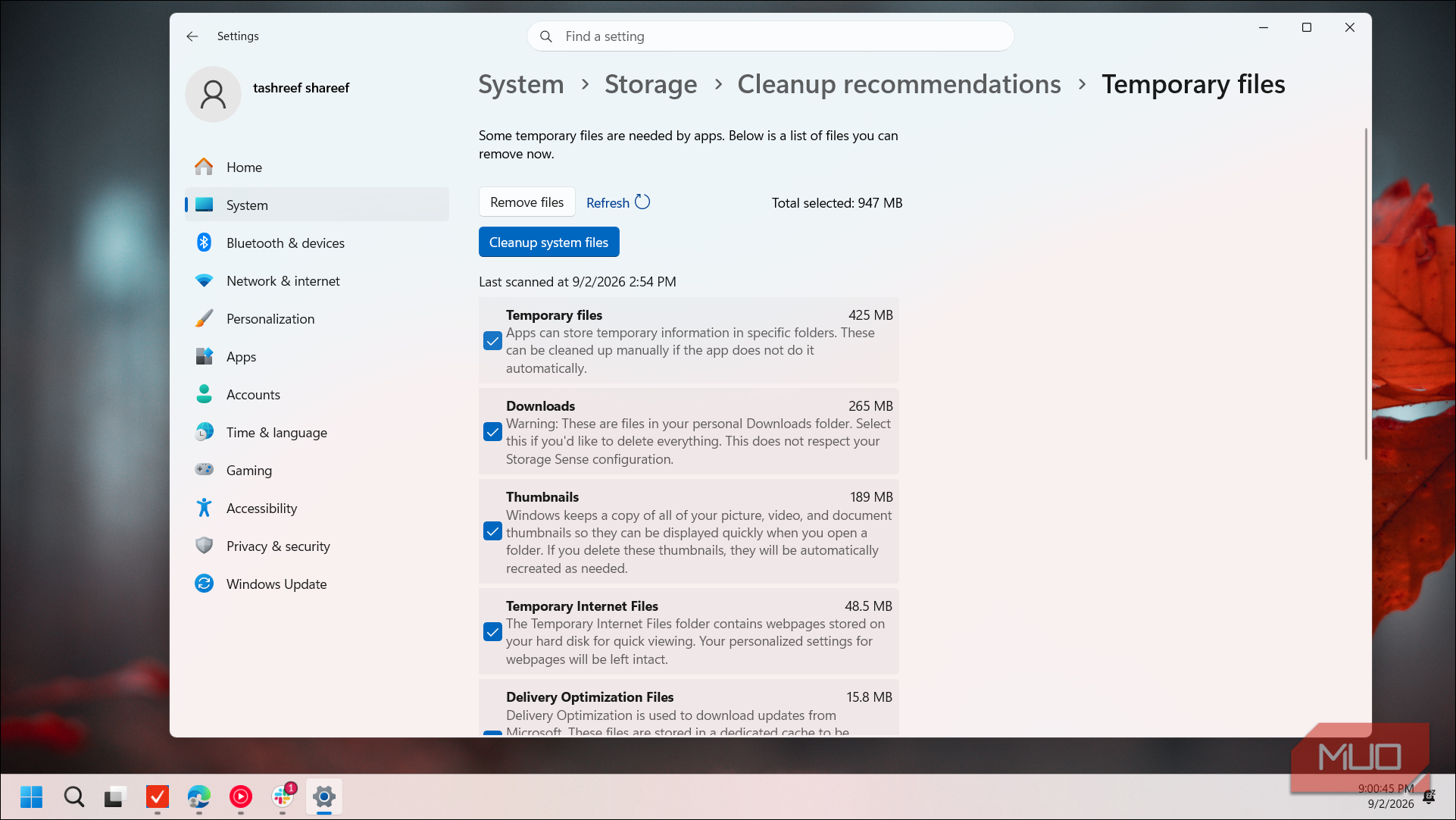
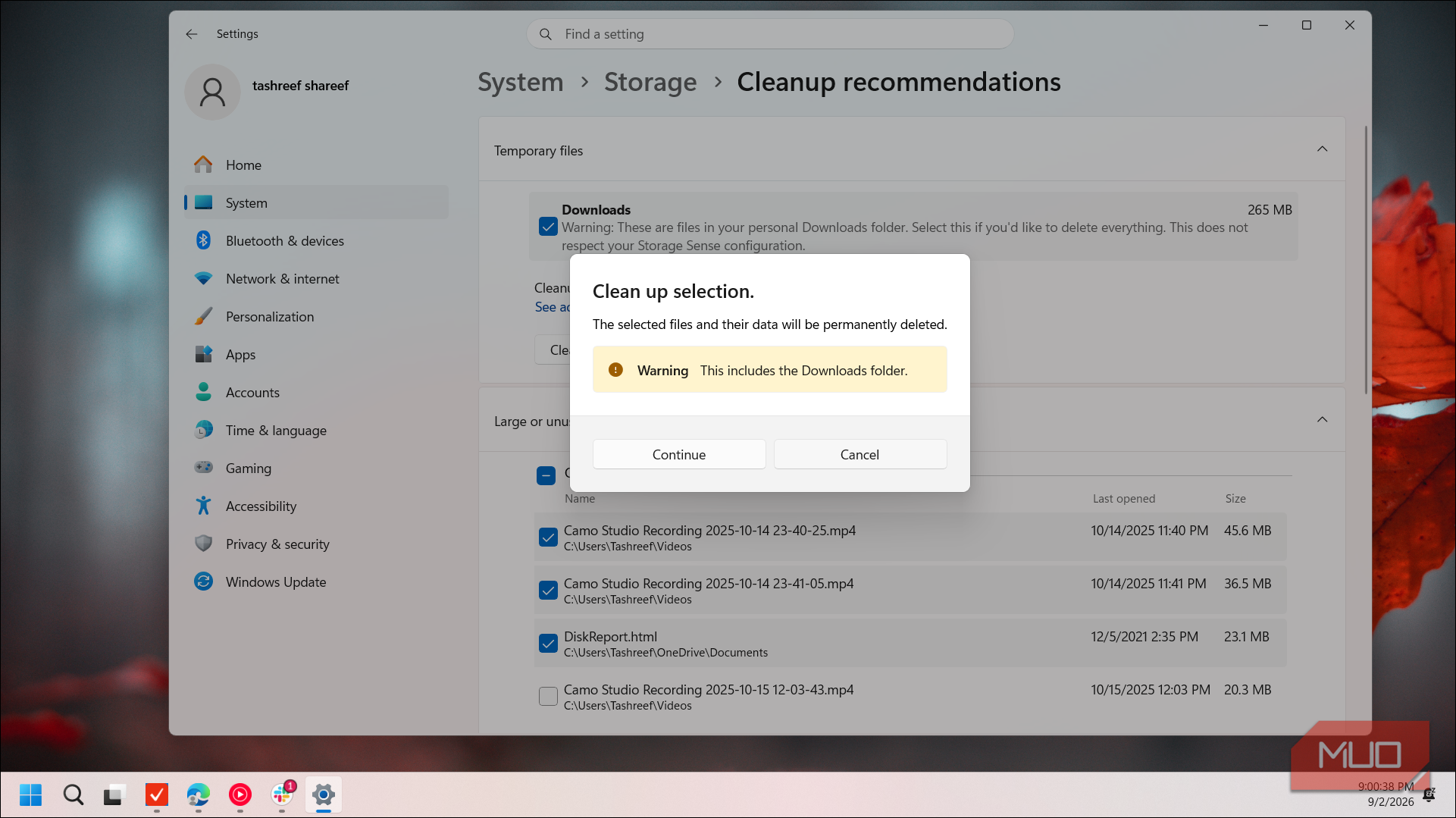
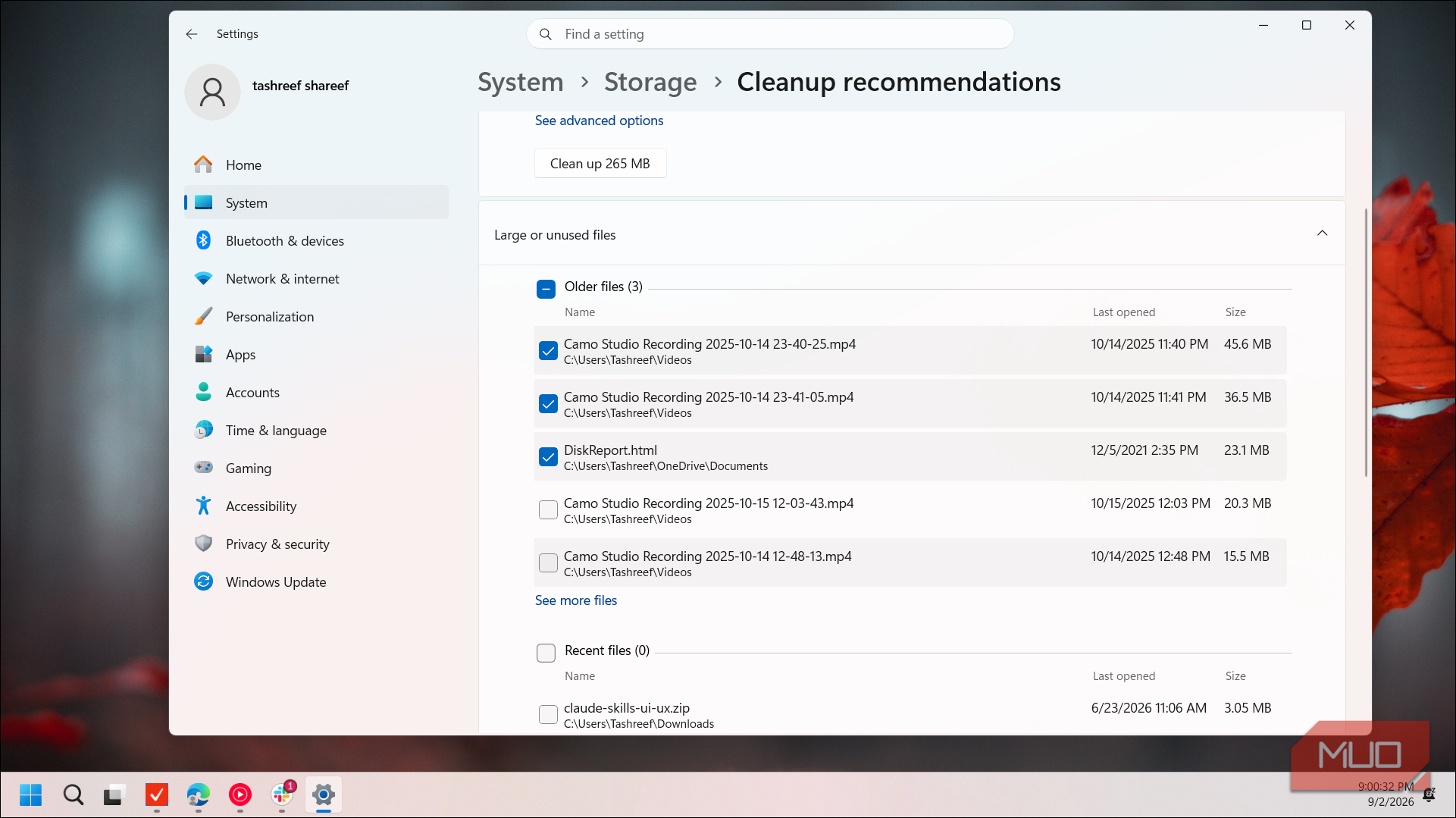
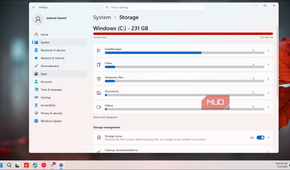
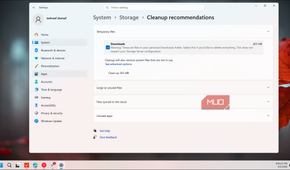
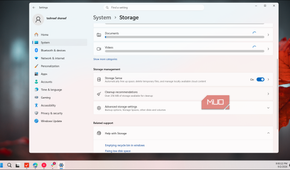
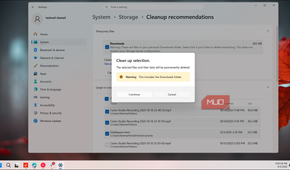
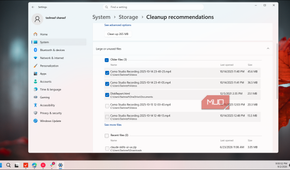
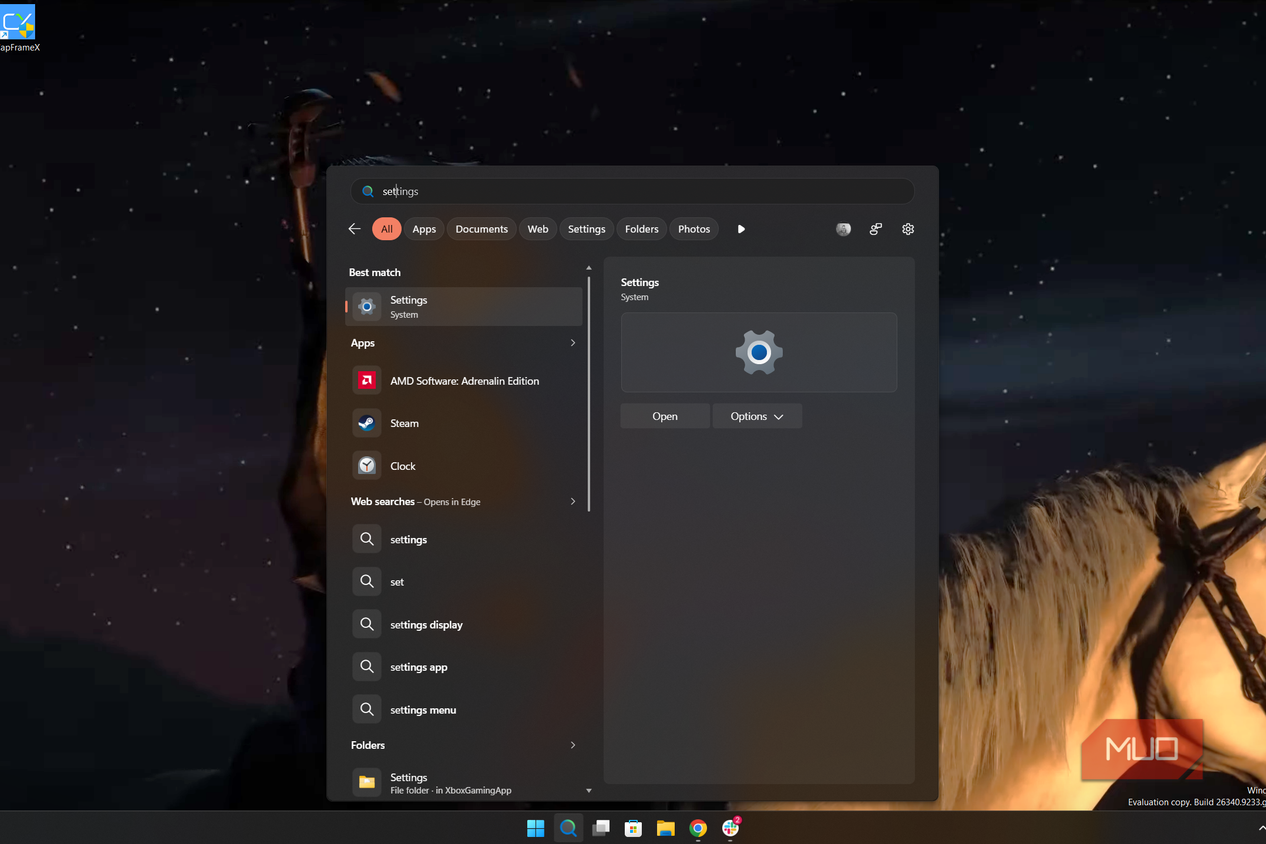
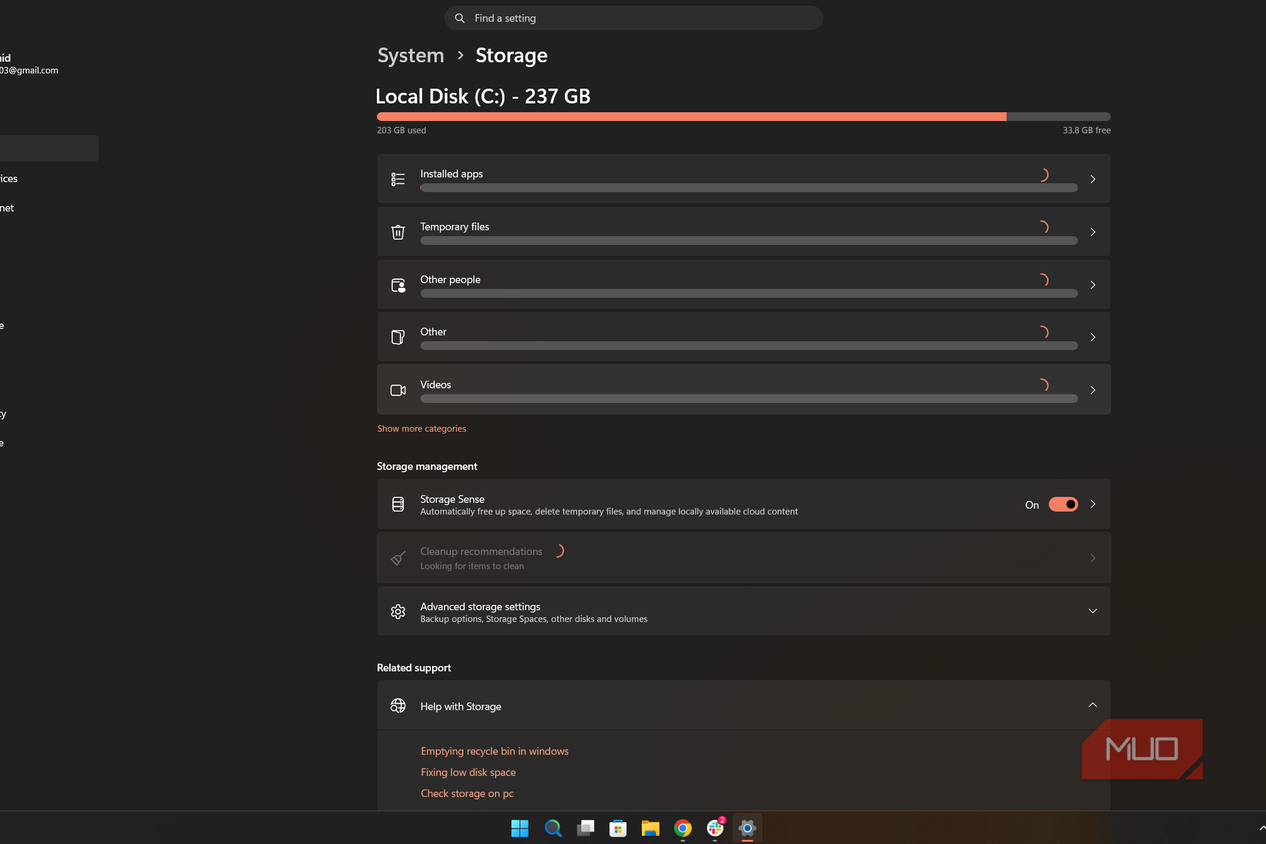
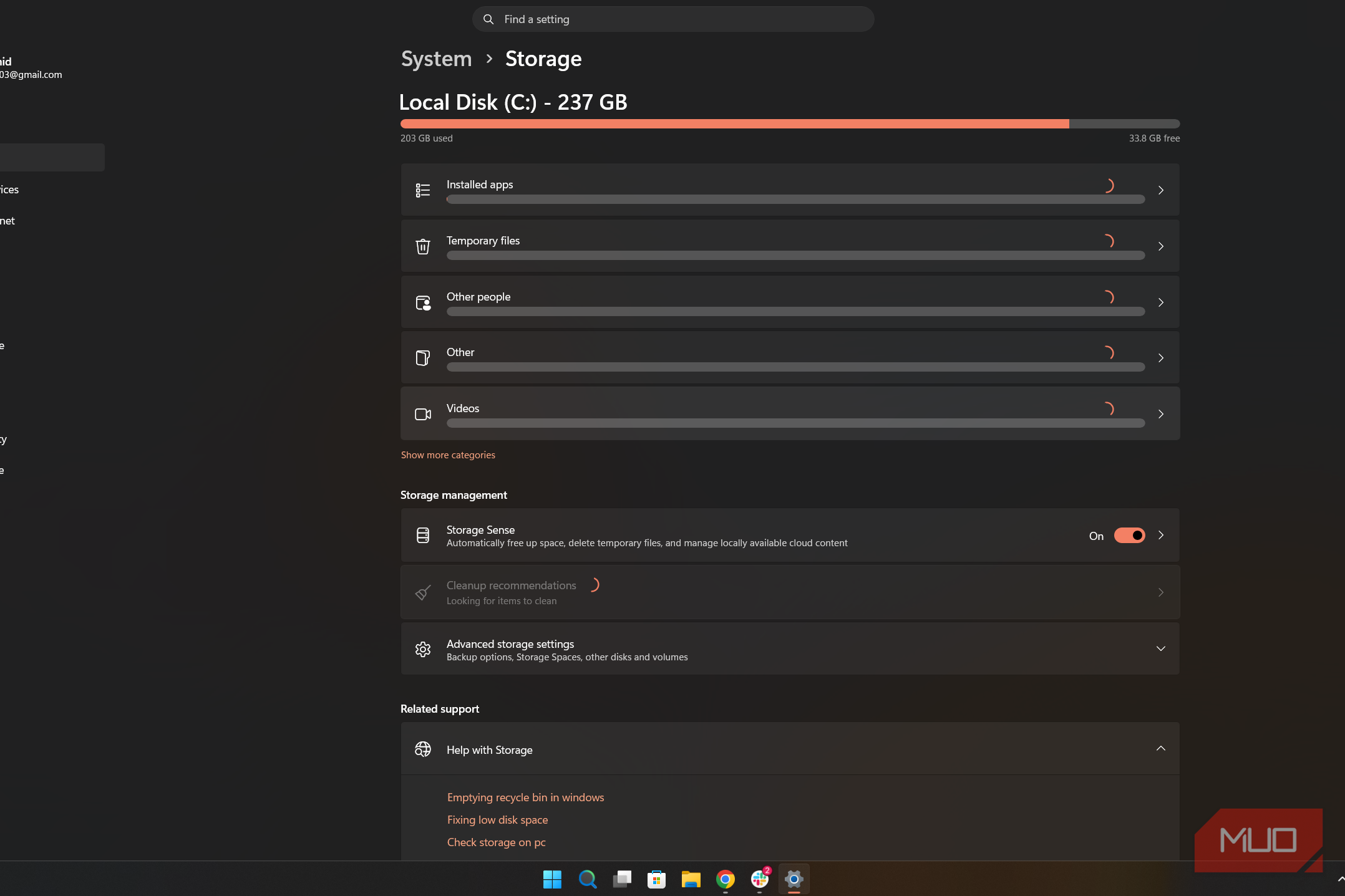
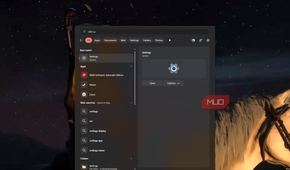
Cleanup Recommendations lives inside the Settings app, not as a standalone tool, and that's one reason I might have missed it all these years. To access it, open Settings and go to System > Storage.
Scroll to the bottom of the Storage settings and click Cleanup Recommendations. It already shows an estimate of how much space you can free up before you commit to anything, which is a nice preview.
- Click Cleanup Recommendations to open the page.
- Expand any section to see what Windows is suggesting you remove.
- Check or uncheck items as needed. A running total of the space you'd reclaim updates at the top as you make selections.
- Hit Clean Up when you're ready.
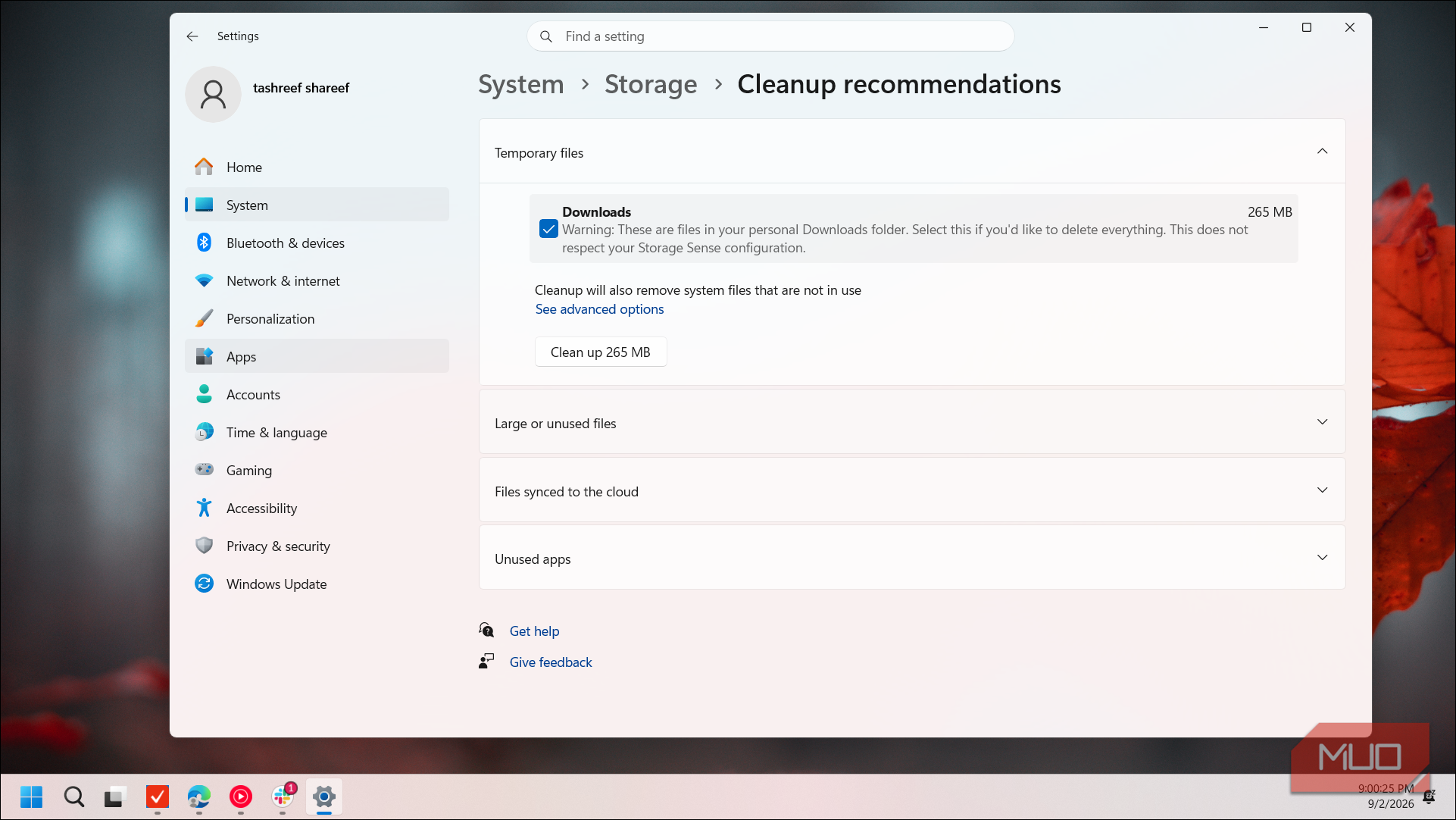
The recommendations are grouped into sections: Temporary Files, Large or unused files, Files synced to the cloud, and Unused apps. In my case, the Temporary Files section alone accounted for over 6 GB, mostly from my Downloads folder and Recycle Bin. The Large or unused files section is sorted by both size and age, showing older large files first, so you can quickly spot stuff you forgot was there.
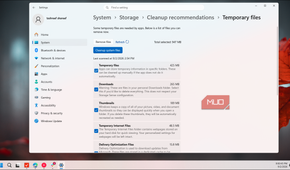
If you want more control, click See advanced options under Temporary Files. This shows every temporary file category sorted by size so that you can target the biggest space hogs first. As you check or uncheck items, Windows updates the total at the top of the screen.
Is it safe to clean up all temporary files?
Most are fine, but a few categories deserve a second look

For the most part, yes. Everything Windows lumps into Temporary Files was created for a short-term purpose and is no longer strictly needed. That said, three categories are worth pausing on before you hit Clean Up.
Windows Update Cleanup files are leftover copies from installed updates, and they can grow surprisingly large over time. They're safe to delete as long as your PC is running fine and you don't plan to roll back a recent update. The risk isn't that if a future update causes problems, you won't have the older files to revert to.
Windows ESD Installation Files may not even show up in the list. If they do, leave them alone. These files let you reset your PC to factory settings without needing external installation media. Deleting them won't cause any immediate issues, but if you ever need to do a factory reset later, you'd have to create a USB recovery drive yourself.
For Downloads, do a quick manual scan to see if anything important exists. This folder tends to fill up with installers and random files from the web, but it might also hold something you still need.
Storage Sense can automate this to an extent
Set it once and let Windows handle the routine cleanup


 Credit: Shaheer Khan/MUO
 Credit: Shaheer Khan/MUO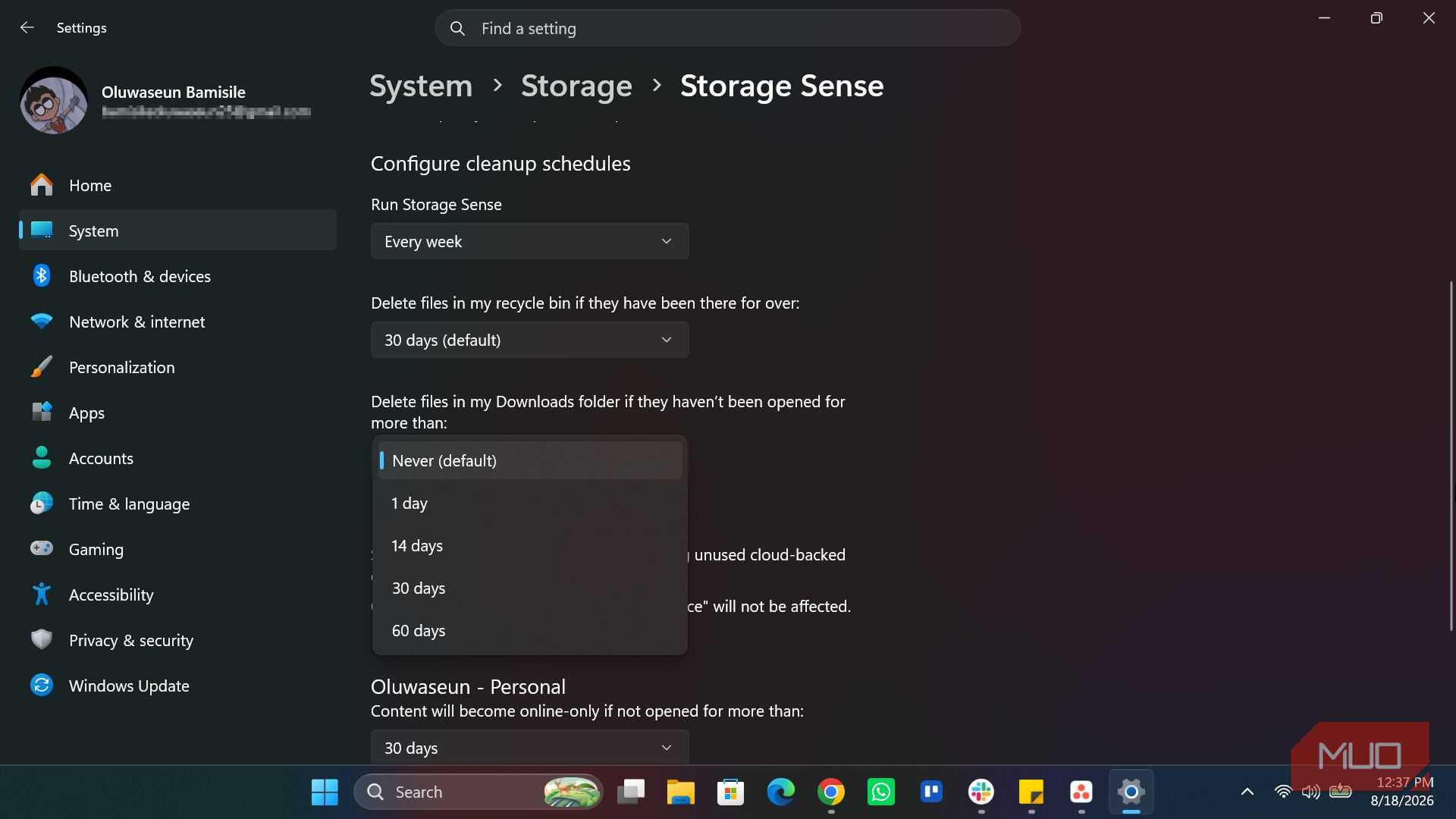
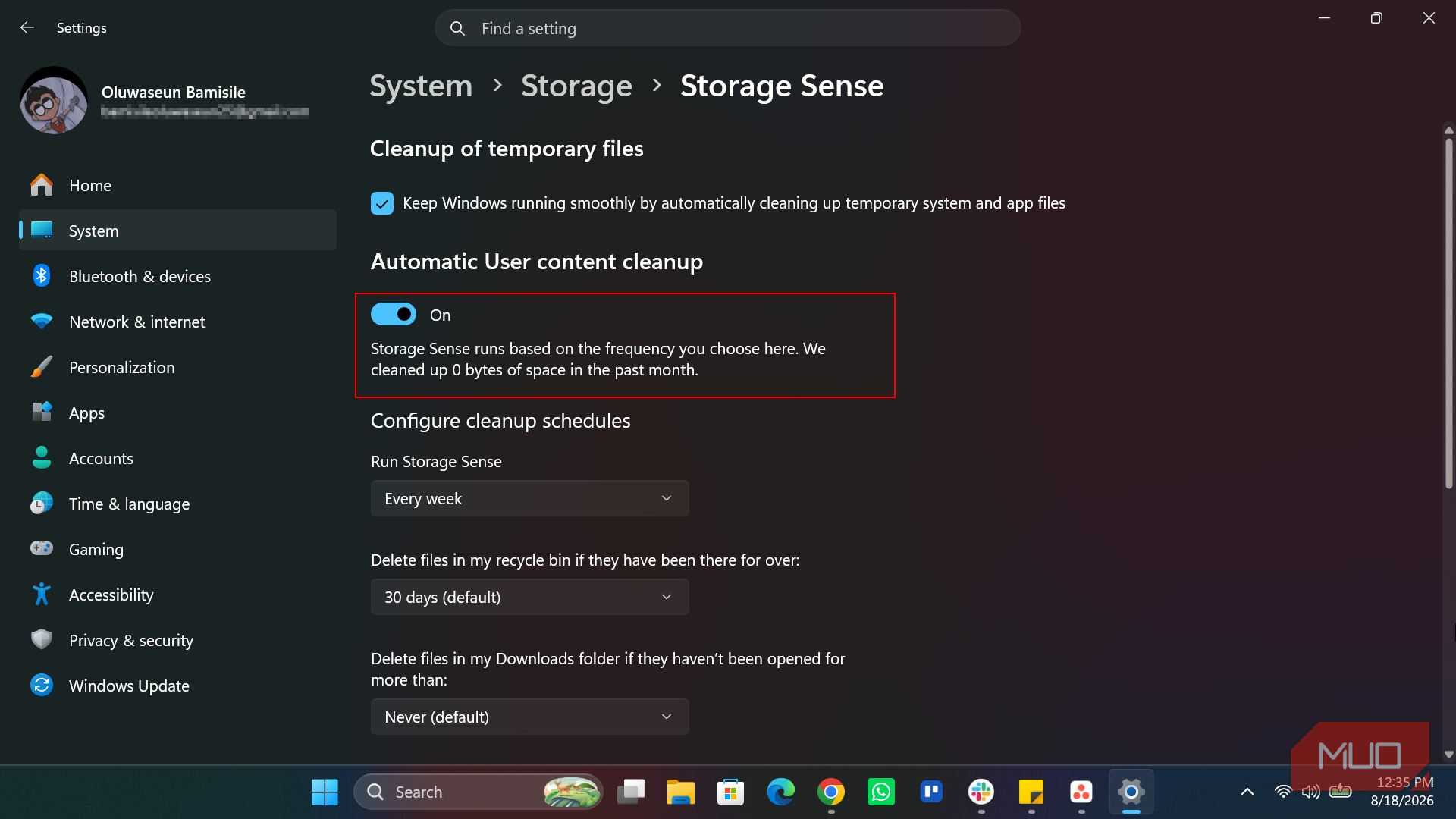
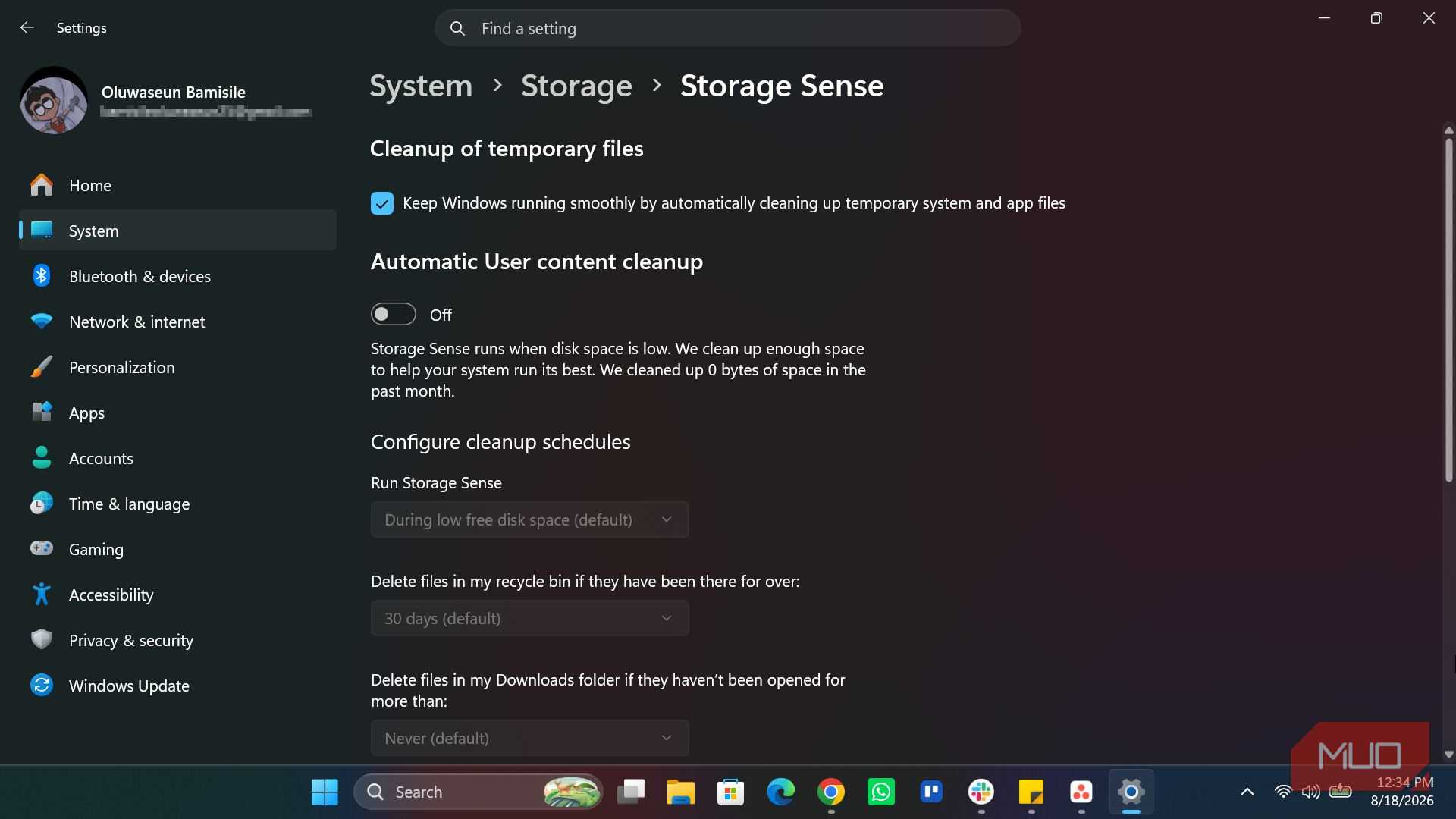
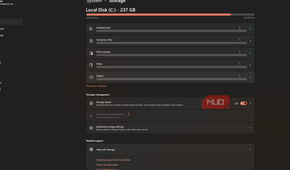
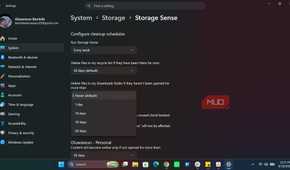
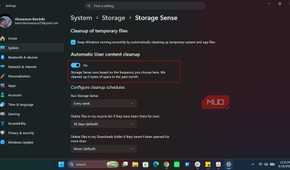
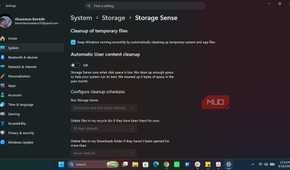
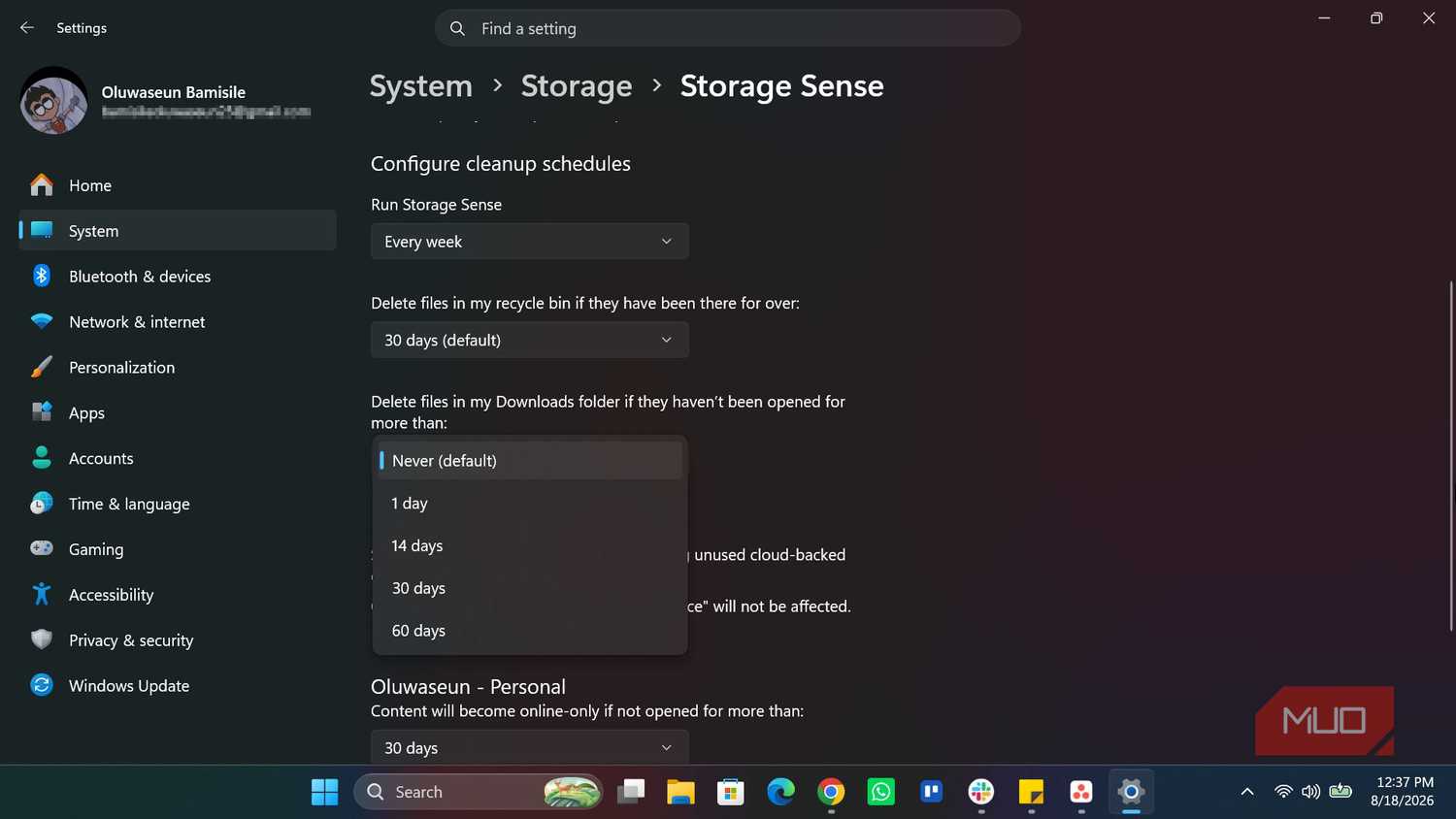
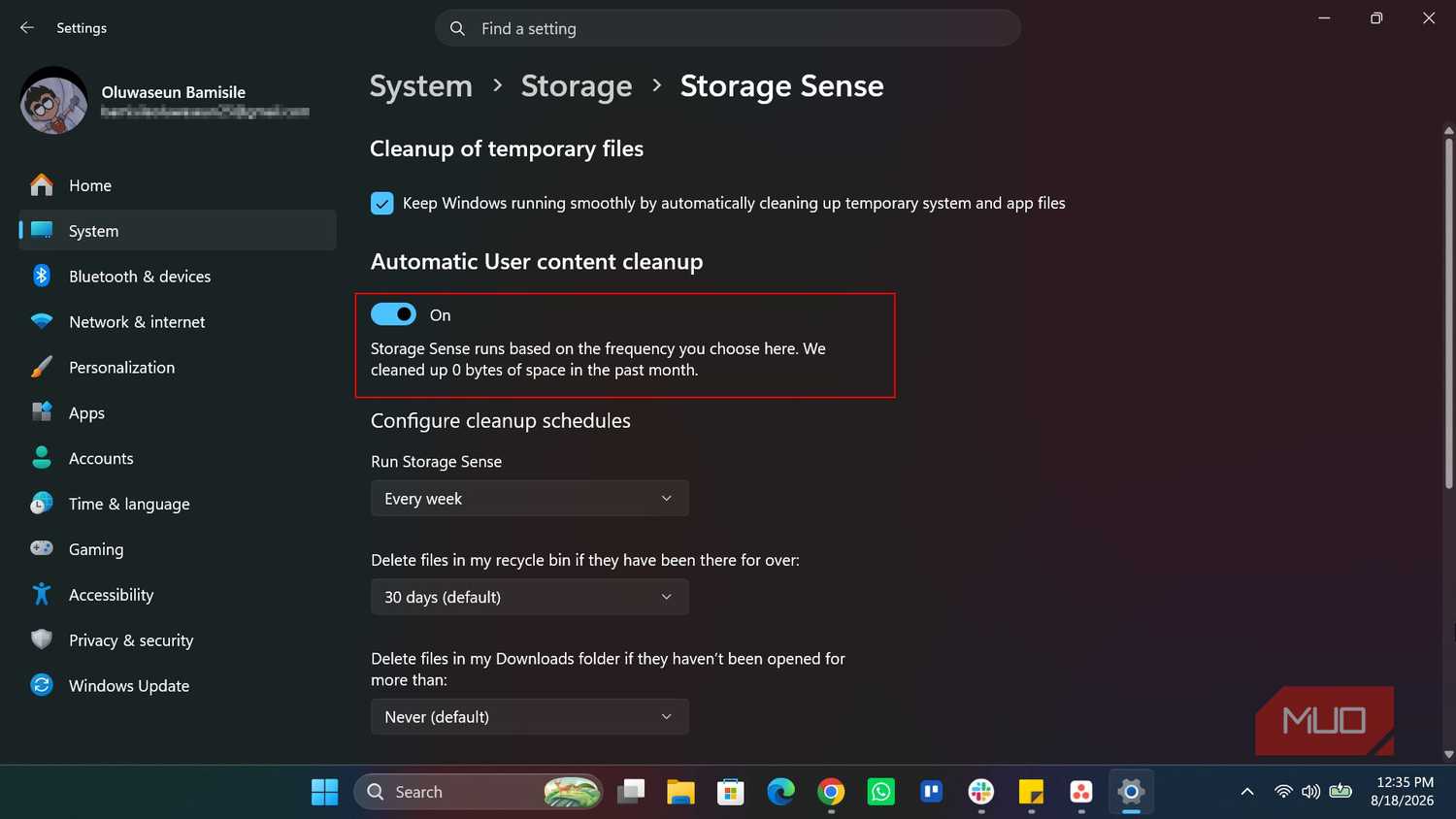
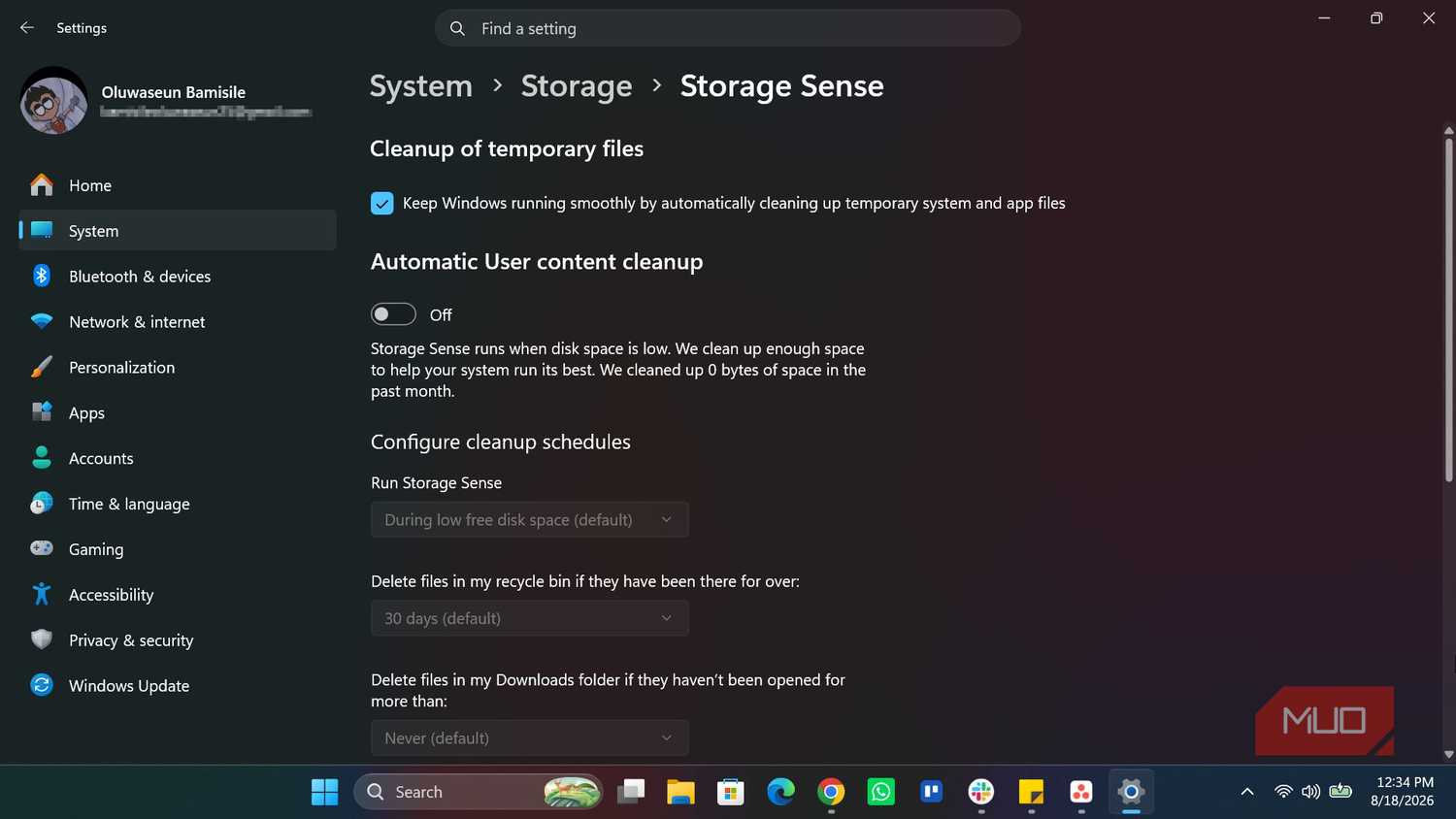
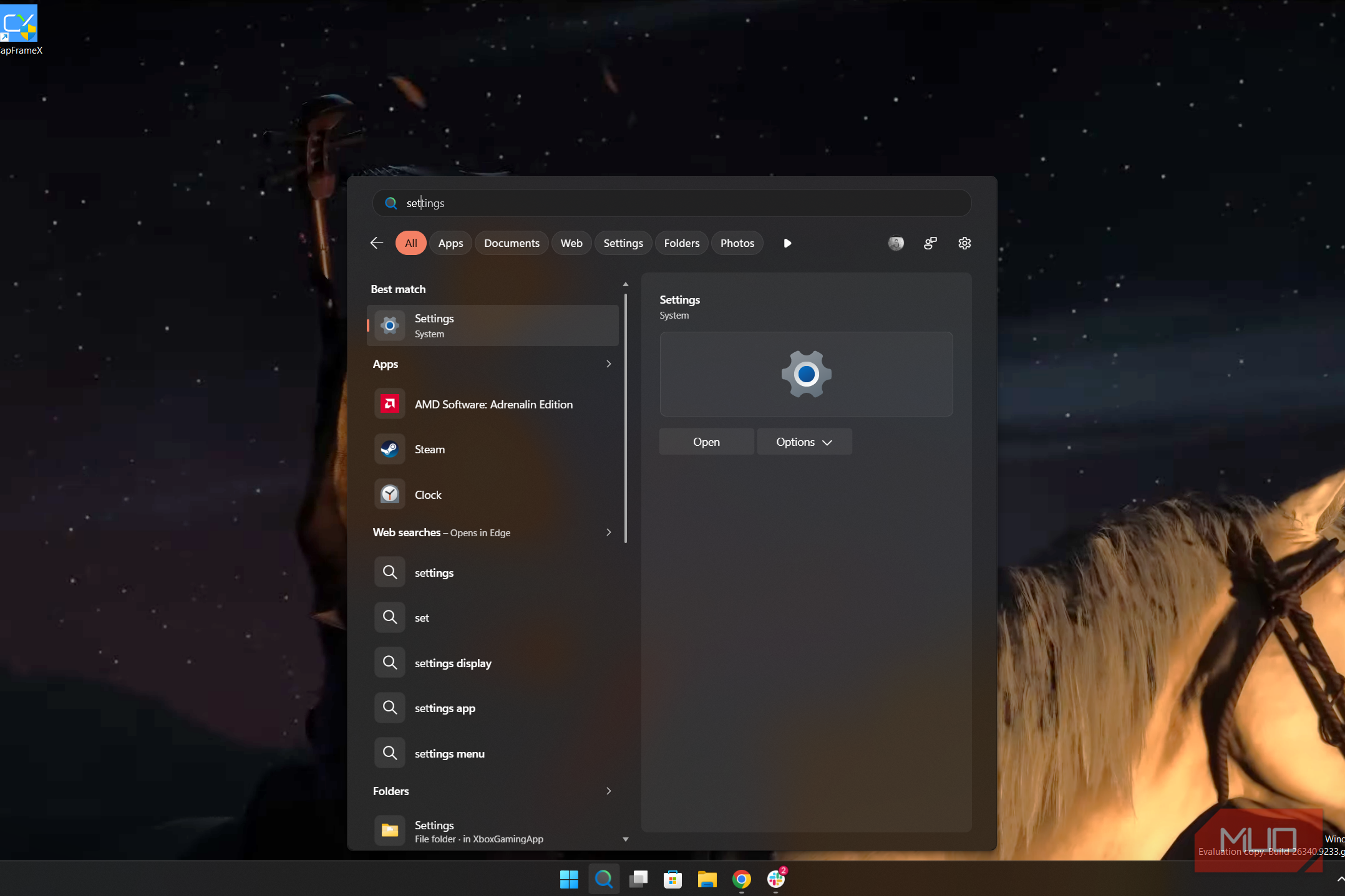
If you don't want to remember to open Cleanup Recommendations every few weeks, Storage Sense can handle the routine part of this automatically. It's been around since Windows 10 and does a decent job at keeping clutter from piling up. Head to Settings > System > Storage > Storage Sense and toggle it on. You can schedule it to run daily, weekly, monthly, or only when disk space gets low.
Once enabled, Storage Sense empties the Recycle Bin on a timer, clears out old files from the Downloads folder, and removes temporary files in the background. If you use OneDrive, it can also free local disk space by removing local copies of files that are already backed up to the cloud.
But Storage Sense has its limits. It won't clear cache from third-party apps or browsers, and it doesn't touch old Windows Update files or previous installation files on its own. For those, you still need to manually check Settings > System > Storage > Temporary Files and select Windows Update Cleanup. And if you want to clear cache from apps, you'd need to go to Run, type %localappdata%, and manually delete cache folders for apps you no longer use. Make sure you don't touch folders tied to apps you still rely on.
There's more you can do to gain even more storage space
Both Cleanup recommendation and Storage Sense only find what Windows already knows about: temp files, your Downloads folder, the Recycle Bin. They won't catch duplicate files buried across nested folders, or old project files you forgot about three drives ago. For a deeper cleanup, you'd want a disk space analyzer to visualize what's filling up your drives and hunt down the rest manually.