


At the back of my home, I have a laptop with one very specific purpose. It sits beside all my HAM radio gear, plugged into a software-defined radio, and acts as a web server for a hobby app I built to track GPS signals.
The laptop spends most of its time sleeping, but occasionally I do need to wake it up to use the GPS app. Because the laptop needs to stay close to the antenna but doesn’t need to be turned on 24/7, I faced a difficult decision. Either I walked outside and just turned it on, or I engineered a technical solution.
Of course, I chose the latter and used OpenWRT with Tailscale installed on my router so I could turn it on and access it from anywhere.
I needed the laptop to stay where it was
Wi-Fi reached the room, but Wake-on-LAN still needed a wired local relay


The old laptop I used to run my hobby radio software stopped being portable the moment it was stuck tethered to an antenna feed. My GPS application processes the receiver’s signals and extracts timing data, so moving the laptop just to make it easier to turn on would essentially ruin the whole project.
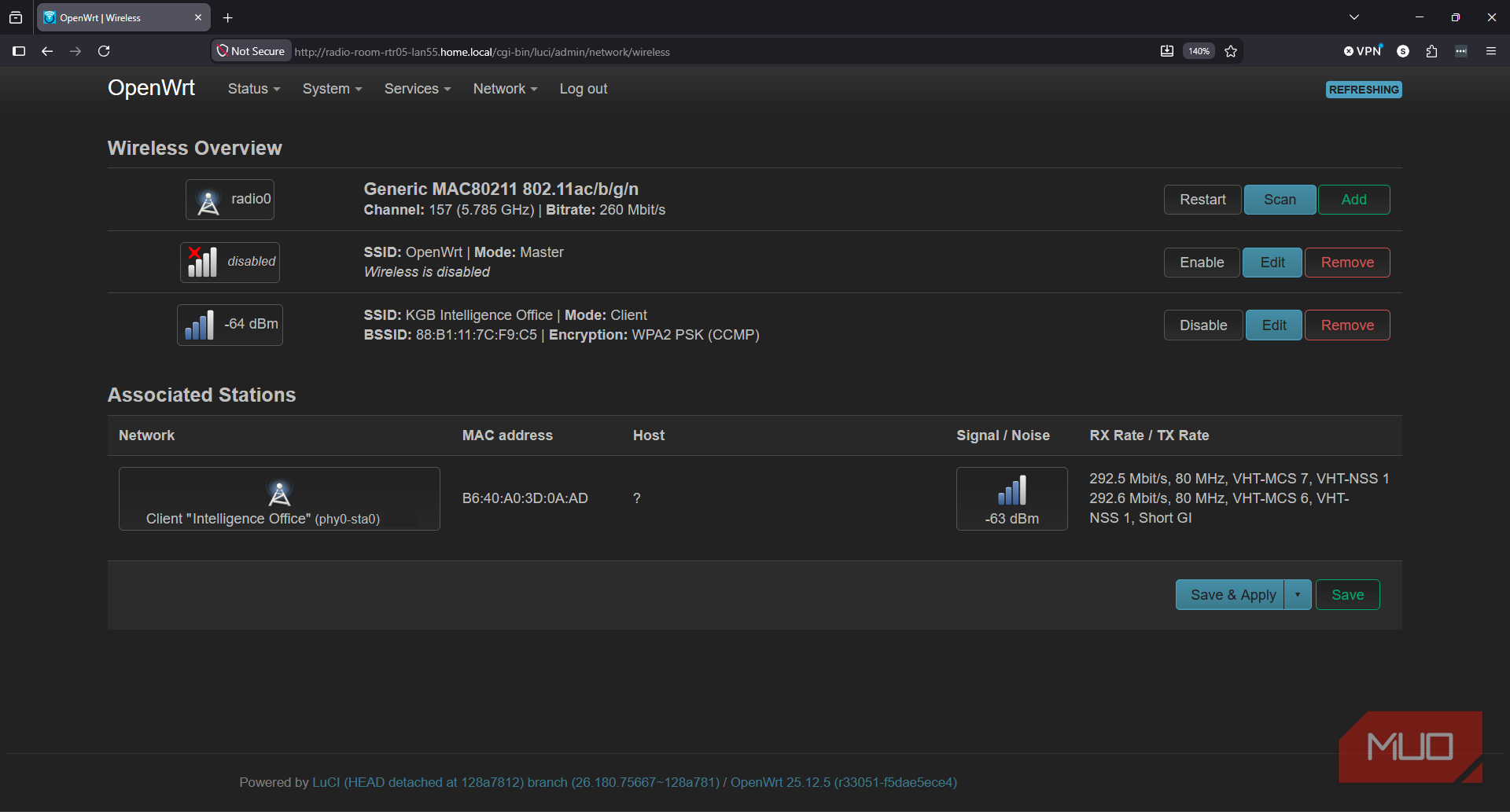
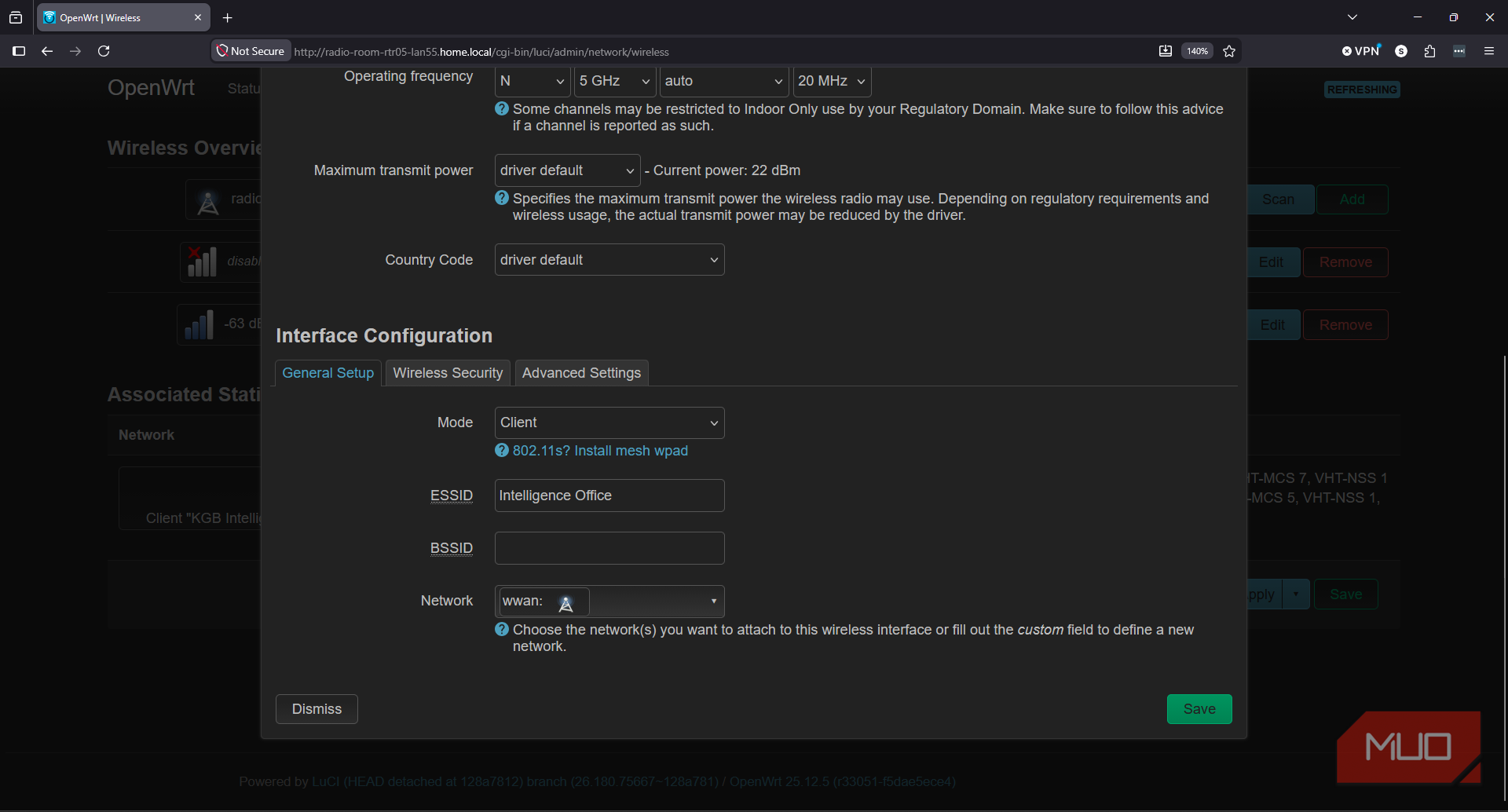
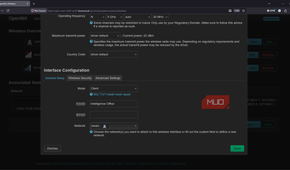
My Starlink Mini’s Wi-Fi reaches the room, but there’s no wired network available. To bridge the 192.168.55.0/24 subnet the laptop and other devices sit on, I used an old Intel NUC PC with OpenWRT and its Wi-Fi and Ethernet Adapters connecting the subnet to the rest of the home network.
Since OpenWRT allowed me to install Etherwake, a small Wake-on-LAN tool, I could use it to remotely wake the laptop. Wake-on-LAN works by sending a Layer 2 frame containing six FF bytes followed by the target’s MAC address repeated 16 times. This packet must be sent from the laptop’s local Ethernet network. Starlink’s CGNAT public address also prevents me from reaching OpenWRT with a basic inbound port forward.
Tailscale supplied the solution for dealing with CGNAT. It creates a private WireGuard-based network between authenticated devices using outbound connections, so it works through CGNAT without having to expose UDP port 9 (Wake-on-LAN/Discard port) or the OpenWRT web interface, LuCI. When outside the network, my phone could reach the NUC through Tailscale, then OpenWRT could send the magic packet locally through the LAN.
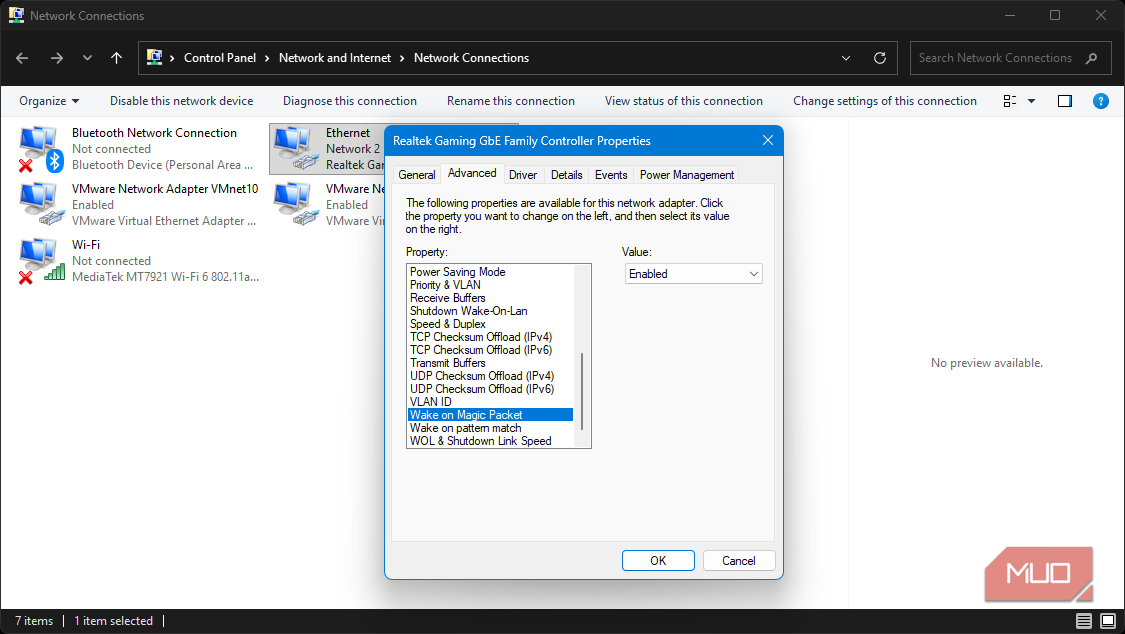
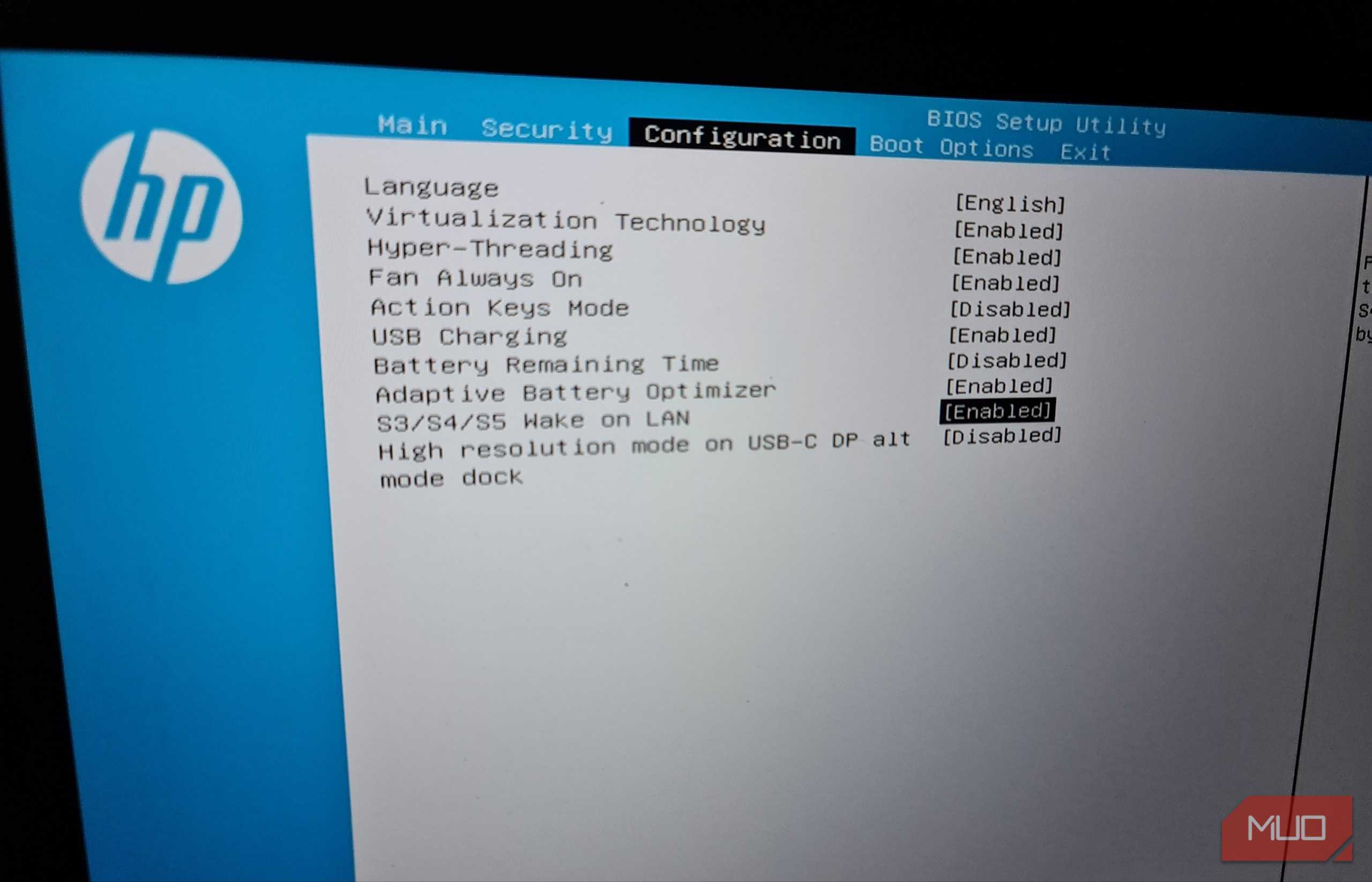
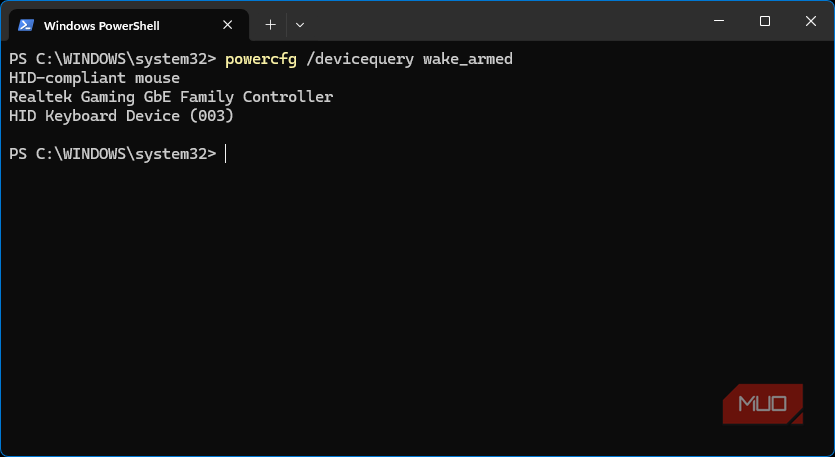
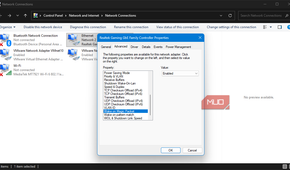
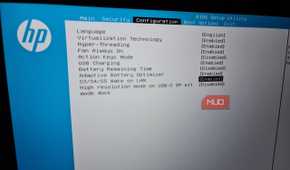
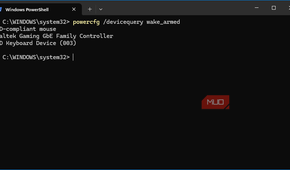
First, I needed to configure Wake-on-LAN in the laptop’s BIOS and turn on Wake on Magic Packet for its Ethernet adapter inside Windows. Once completed, I confirmed it was armed through PowerShell:
powercfg /devicequery wake_armedOpenWRT is brilliant because it can do things commercial routers can’t, like install Tailscale natively. So, installing it should have been easy. Unfortunately, OpenWRT’s root file system was only 98.3MB, with only 52.2MB available. The NUC had a 1TB drive, but the flashed image used pretty much none of it. Before I could install Tailscale, I had to expand the router itself.

OpenWRT
- OS
- ESX, VMWare, Supported Routers
OpenWrt is an open-source router operating system that replaces stock firmware with a more flexible, configurable networking platform. It adds deeper control over routing, firewall rules, DHCP, DNS, traffic shaping, VPNs, and package-based features.
Starlink made ordinary remote access a dead end
Tailscale crossed CGNAT once I gave OpenWrt enough room to install it

My networking plan was sound. Tailscale would establish an encrypted outbound connection from the NUC, my phone would join the private telnet, and OpenWRT would advertise the 192.168.55.0/24 subnet. This way, Starlink never had to accept an unsolicited connection or give me a publicly-routable IPv4 address. But that software still had to be installed and fit on my OpenWRT NUC router.
I had already installed a few software packages on the OpenWRT box, so I didn’t fancy Tailscale fitting into only 52MB of space. This meant I had to expand the file system onto the existing hard disk, which I did using a USB stick flashed with another copy of OpenWRT. I booted OpenWRT from USB and checked every device before touching the partition table:
lsblk -o NAME,SIZE,FSTYPE,MOUNTPOINTSThe internal OpenWRT root was /dev/sda1 and, importantly, unmounted. Using the parted tool, I expanded partition 2 into the unused space and resized its EXT4 filesystem:
parted -f -s /dev/sda resizepart 2 100%
partprobe /dev/sda
resize2fs /dev/sda2
After confirming with df -h /, Tailscale could now finally be installed:
apk update
apk add tailscale
/etc/init.d/tailscale enable
/etc/init.d/tailscale start
tailscale up --accept-dns=false
I kept Tailscale away from DNS because OpenWRT’s Starlink resolver had already been working perfectly for quite some time. The command produced an authentication URL where I could sign in with my Tailscale account and onboard the NUC/OpenWRT device. The next step was to configure Tailscale to allow me to reach OpenWRT’s LuCI web interface across CGNAT.

Tailscale
- OS
- Windows, macOS, Linux, Android, iPhone
- Developer
- Tailscale
Tailscale is a zero-config, VPN-based remote access tool. It's based on the WireGuard protocol and creates peer-to-peer connections between devices, regardless of location.
I had a green dot in Tailscale, but the router was unreachable
The tunnel was alive, but OpenWRT still had some firewall configuration left to do

The data path between my phone’s Tailscale app and the OpenWRT router existed, and I had a green dot on the Tailscale dashboard to prove it. However, the LuCI interface still timed out when I tried to access it.
In OpenWRT, Tailscale had created a new device called tailscale0, but it wasn’t a part of any firewall zone. I added it to LuCI as an unmanaged interface, then created a firewall zone for Tailscale with the following settings:
- Input: accept
- Output: accept
- Intra zone forward: reject (except from Tailscale to LAN)
- Forward destination zone: LAN
Next, I restarted the Tailscale daemon:
/etc/init.d/tailscale restartI then advertised the local network:
tailscale set --advertise-routes=192.168.55.0/24In the Tailscale admin dashboard, I approved the route and disabled key expiry for the always-on router. In theory, my phone, now on a mobile network, could open LuCI at 192.168.55.1 provided that it was connected to Tailscale.
The magic packet finally made it all come together
I can wake the RTL-GPS laptop without leaving it running all day


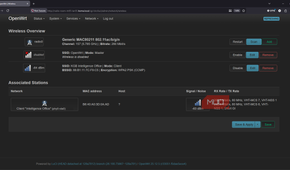
The final step was the easiest. I installed Tailscale on my Android smartphone, signed in to the same tailnet, and tested the connection over mobile data. LuCI loaded happily at 192.168.55.1 and confirmed the private route was genuinely working outside my home network.
Now, OpenWRT just needed two more packages to complete the job:
apk add etherwake luci-app-wolThis added Wake on LAN under LuCI’s Services menu. I created a new entry by selecting br-lan, which contained the laptop’s wired connection, and entered the Ethernet adapter’s MAC address. I got this from PowerShell on the target laptop:
Get-NetAdapter -Physical | Format-Table Name, MacAddress, StatusThen came the time to test it. I shut down the laptop completely, waited about 20 seconds, and hit the wake button under the Services > Wake on LAN section of OpenWRT. The laptop turned back on almost immediately.
Now, I could reach the laptop and its applications without having to walk to the back of my property or leave it running all day, saving some money on my energy bill. I tried it again from the mobile connection on my smartphone and again successfully woke up the laptop.
It was a success, and far easier than using one of my existing always-on servers to manage the Wake-on-LAN packet delivery. Because Etherwake generates a raw Layer 2 Ethernet frame, ordinary network routing won’t carry it across subnets and into the isolated 192.168.55.0/24 network. Tailscale, which I already have implemented in my home network, generates Layer 3 IP traffic, not Ethernet broadcasts.
I could have configured subnet-directed broadcast forwarding, or even deployed a Wake-on-LAN relay, but that would have added more rules and another service. OpenWRT does the job perfectly, stays powered, and sits right on the subnet already.
My router was the right place to solve it
The supporting hardware must stay powered, but the SDR laptop no longer has to

Despite what the packet’s name suggests, Wake-on-LAN isn’t magic. The NUC, switch, Starlink, and laptop charger all need to remain powered on. And it would only take a broken cable or extended power outage to drop the functionality.
But in my setup, these compromises made sense. The NUC was already serving as the radio network’s router, so it was the obvious place to set up the Wake-on-LAN infrastructure.
That flexibility is what makes OpenWRT so awesome. A commercial router would have stopped at sharing Starlink. OpenWRT joined Tailscale, advertised my isolated subnet, accepted requests from my smartphone, and generated the local Ethernet frames that wake up the laptop.
Etherwake is what delivers that final tiny magic packet, but OpenWRT made every hop before it possible. That’s exactly why I just keep finding new jobs for this absolutely brilliant router.