


All Android phones have multitasking features, but foldables offer the extra screen space needed to make the most of them. Folding phones from brands like Samsung, Google, and Motorola all have the potential to make you more productive. However, you need to tweak their settings and refine your preferences in order to realize that potential.
A disjointed cover screen experience, wonky app aspect ratios, and typo-laden split keyboards can all ruin your time with a foldable. Luckily, your phone's settings app has the fix. I always change these settings after setting up a new foldable, and you should too.
Continue apps on cover screen
Pick up right where you left off after closing your foldable

By default, closing a foldable will lock the device and turn off the display. This isn't an inherently bad behavior — it's natural to close your phone and put it in a pocket or bag in a single motion. That said, if you find yourself wanting to continue to use apps on the cover display after folding the main screen, the behavior can be frustrating. Instead of having to unlock the device and restart apps after folding your device, you can change a setting to ensure apps automatically open on the cover screen.
Samsung users can navigate to Settings → Display → Continue apps on cover screen and select one of three options: Always, Never, and Swipe up to continue app. I prefer the latter option, which gives you the most flexibility. Your phone will lock after a few seconds unless you swipe up on the cover screen to open the app you were just using.
I use this setting with Google Maps quite a bit. I can use the large foldable screen to find my destination, read reviews, and look at photos, but switch to the cover screen when I'm ready to start navigating.

On my Motorola Razr Fold, I tweak this option by tapping through Settings → Foldable display → App continuity. Here, you can pick from the same options available in Samsung's One UI, they're just phrased differently. Motorola earns bonus points for putting all its foldable settings in one place. Three identical choices are available on Pixel foldables, and you can find them under Settings → Display & touch → Continue using apps on fold.
If you only change one foldable setting on this list, this should be the one. It's helpful for improving productivity, as you can easily switch between the main and cover displays, using the best one for the job.
Cover screen mirroring
Samsung users can create different home screens for each display

There's one feature that I wish I could enable on Google and Motorola foldables, but unfortunately, it's a Samsung exclusive. The feature is strangely named Cover screen mirroring, which doesn't reveal what it actually does. This toggle lets you decide whether to use the same app and widget layout on both the cover and folding displays.
When Cover screen mirroring is enabled, any change you make to the cover display affects the folding display, and vice versa. I don't love this, because a home screen layout optimized for the cover screen won't fully take advantage of the main display's extra space.
You can turn this feature off under Settings → Home screen → Cover screen mirroring, allowing you to create separate app and widget layouts for each display. This is ideal for users that want to optimize their folding display for productivity, but arrange their cover display home screen for convenience.
I can keep my work apps and productivity widgets on the main display, while leaving apps like Google Messages, Apple Music, and Tesla on the cover screen. Samsung users shouldn't take this option for granted, because Pixel Fold and Razr Fold users still don't have it.
App aspect ratios
Force pesky apps to fit your foldable's aspect ratio


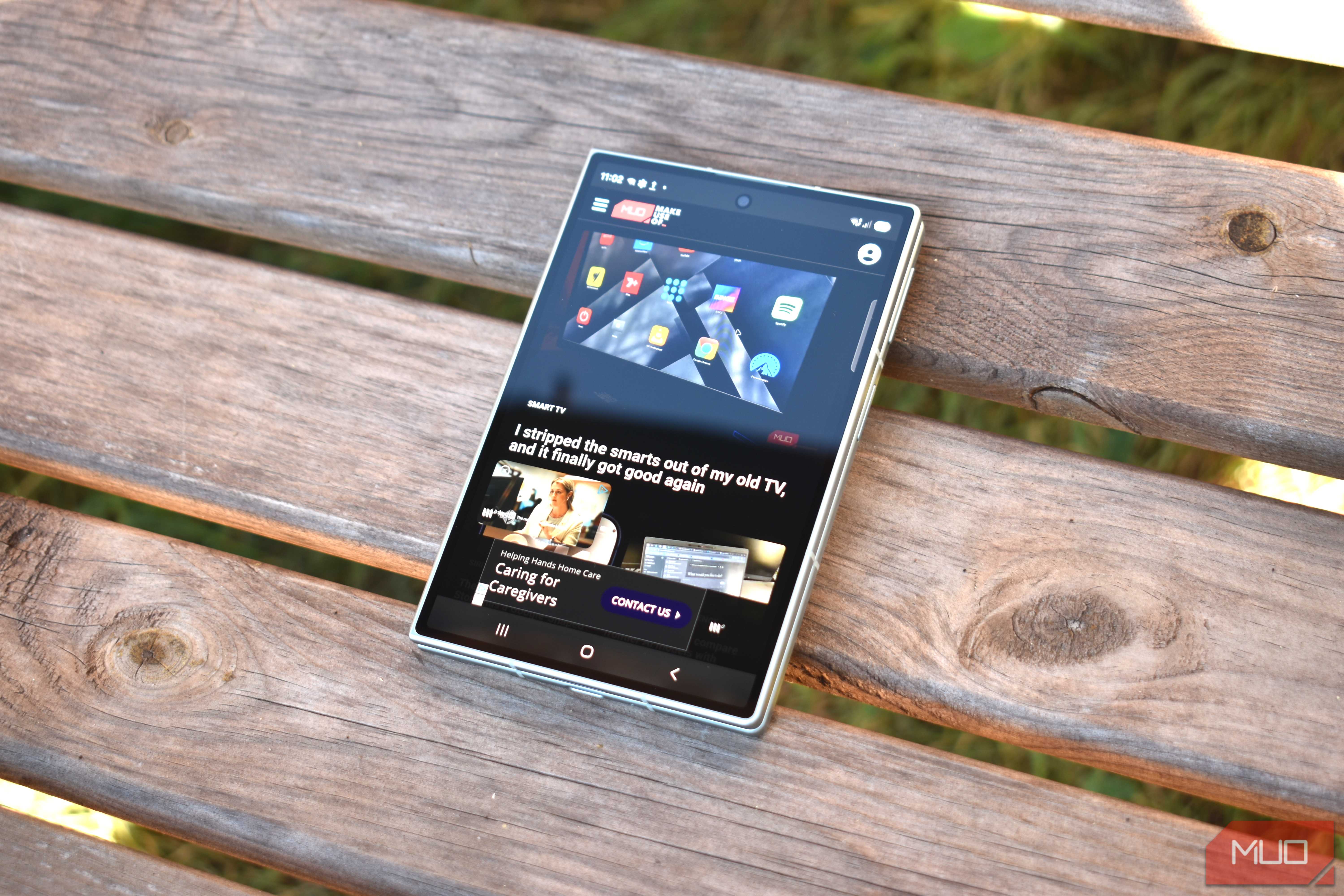
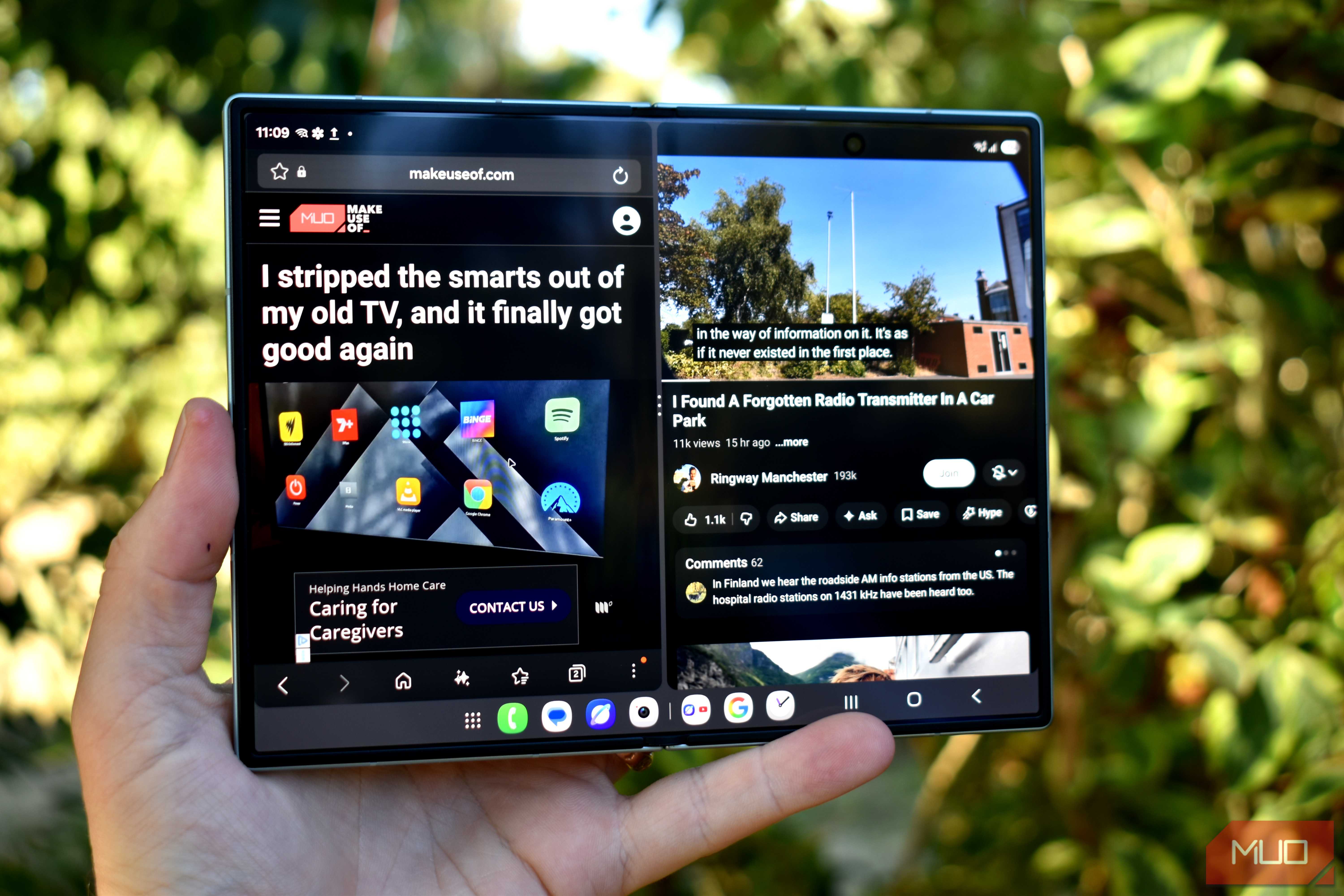
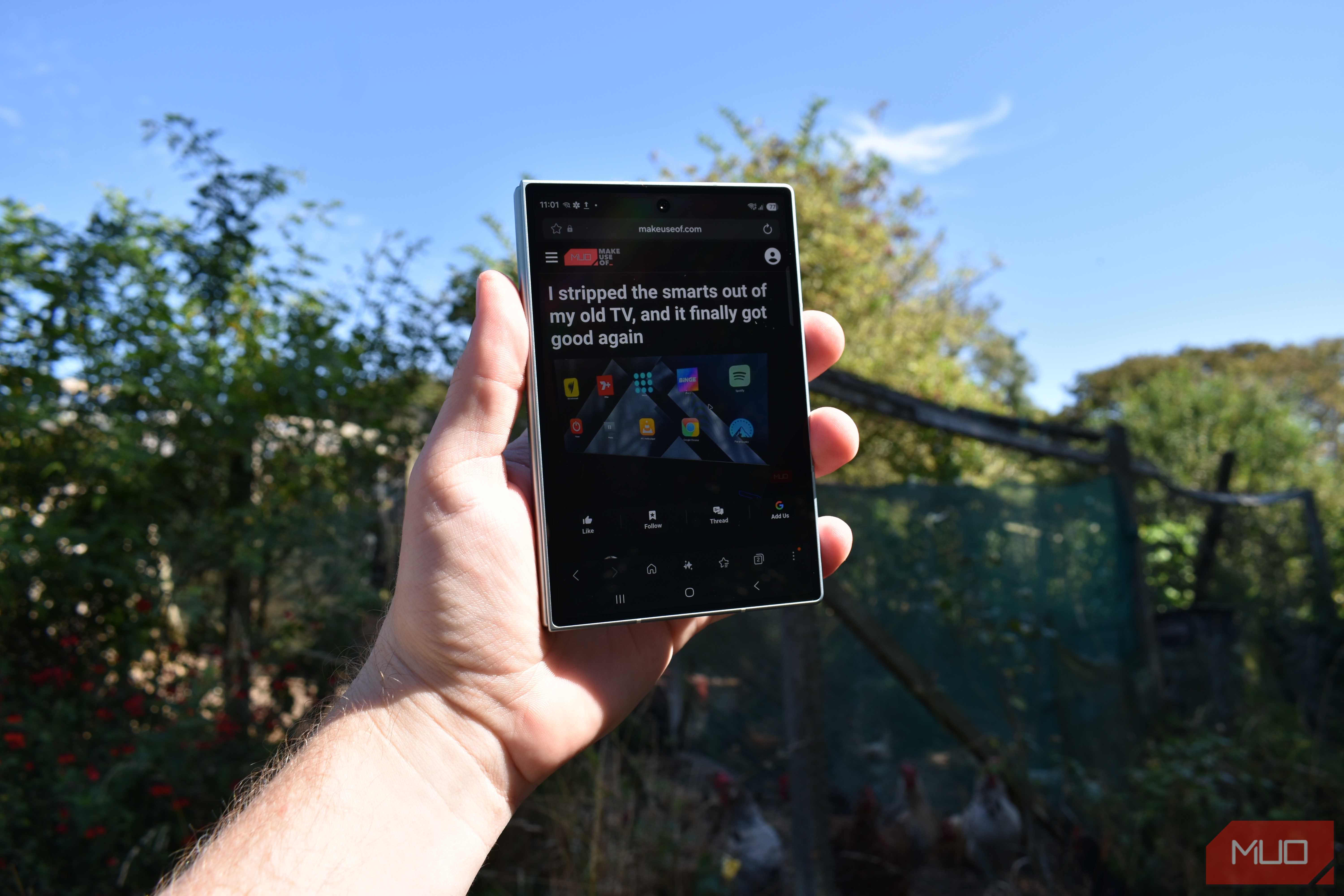
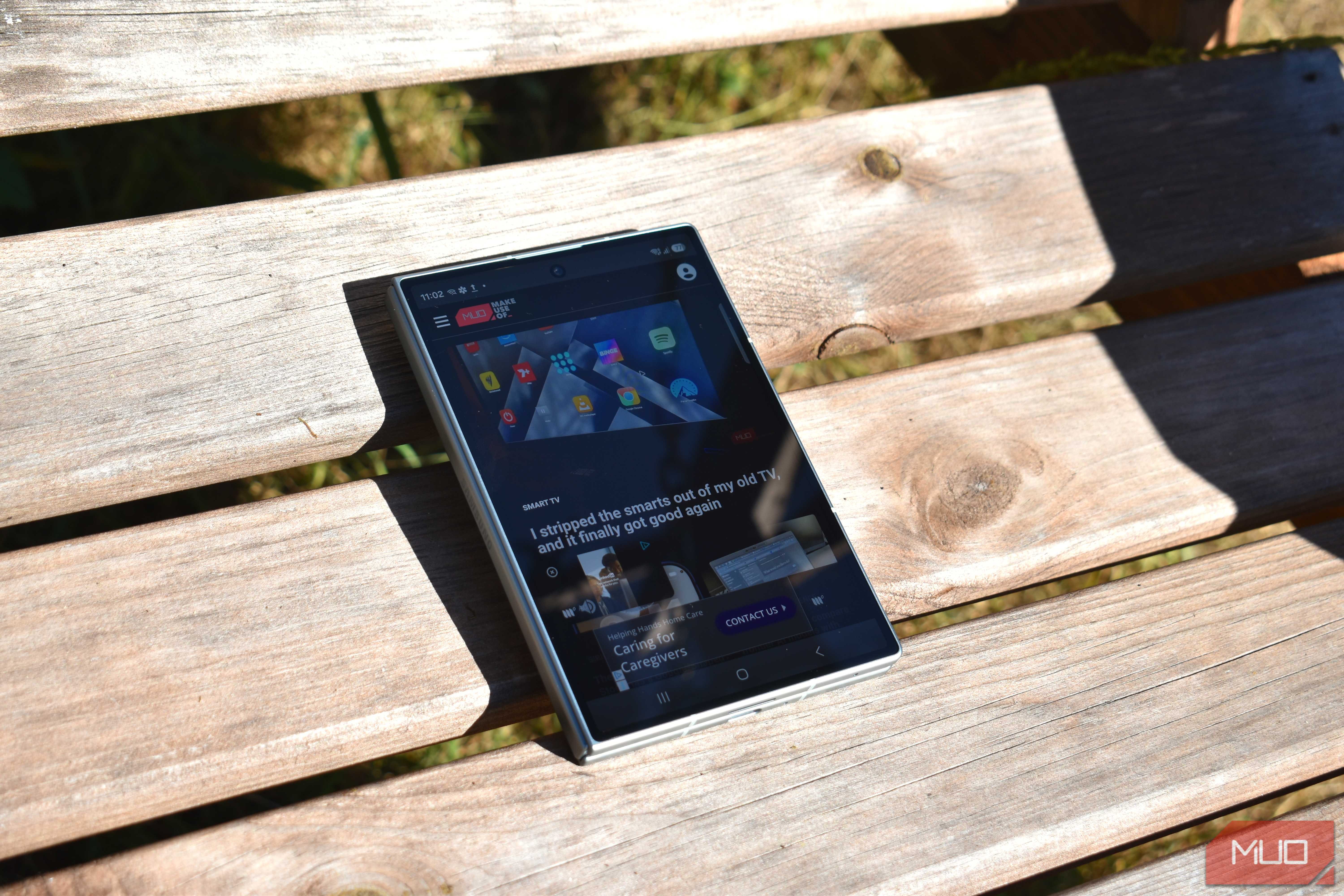
We've come a long way since Android 12L, and you can expect many of your apps to run smoothly on foldables with no manual tweaks thanks to modern Android versions. You may encounter the odd app that doesn't play nice with foldable aspect ratios, though. It's a good idea to remember that you can force any app to run at a specific aspect ratio in settings. This is great for those aforementioned apps that don't natively scale properly, cutting off key parts of the screen or stretching the UI in strange ways.
Google Pixel users can navigate through Settings → Apps → Aspect ratio to mandate a particular aspect ratio for individual apps. Tap an app in the list, and you can choose between App default, Full screen, 3:2, and Half screen. Using these options, you can either force an app to open using the entire screen or shrink it down to reveal UI elements that were hidden in full screen mode.
Samsung and Motorola users can use this feature, too. In One UI, go to Settings → Apps and open the menu for the app you want to manage. Then, tap App aspect ratios and choose one of the available options. These may vary depending on the app, but you can count on App default and Full screen.
For the Razr Fold, find Settings → Foldable display → App display size. Tap the app you want to change, and select one of the available options. Now, you'll be able to run your favorite apps on the folding screen without any issues.
Split keyboard
Turn off duplicate keys, or disable the split keyboard altogether

Using the default keyboard on a folding display can be tricky because of how wide it is. Unless you have giant hands, it may be difficult to reach across the keyboard. By default, Samsung Keyboard and Gboard both use split keyboard layouts for the main display. If you'd prefer a unified keyboard layout, simply tap the keyboard icon in the Samsung Keyboard toolbar and select Standard keyboard. You can also use a tiny Floating keyboard if you'd like.
Gboard has a similar option in the toolbar. Tap the drawer icon (the four squares) and press Standard keyboard to make the switch. You can keep the split keyboard layout if you prefer, but Gboard does something interesting you may want to change. By default, it adds duplicate G and V keys to both sides of the keyboard.
This may help with reachability, or cause you to make more typos than usual. Luckily, you can change this by tapping the Settings gear in Gboard and flipping the toggle beside Split layout to include duplicated keys to the Off position.
Always show Taskbar
Launching apps and creating split screen views has never been easier


 Credit: Brady Snyder / MakeUseOf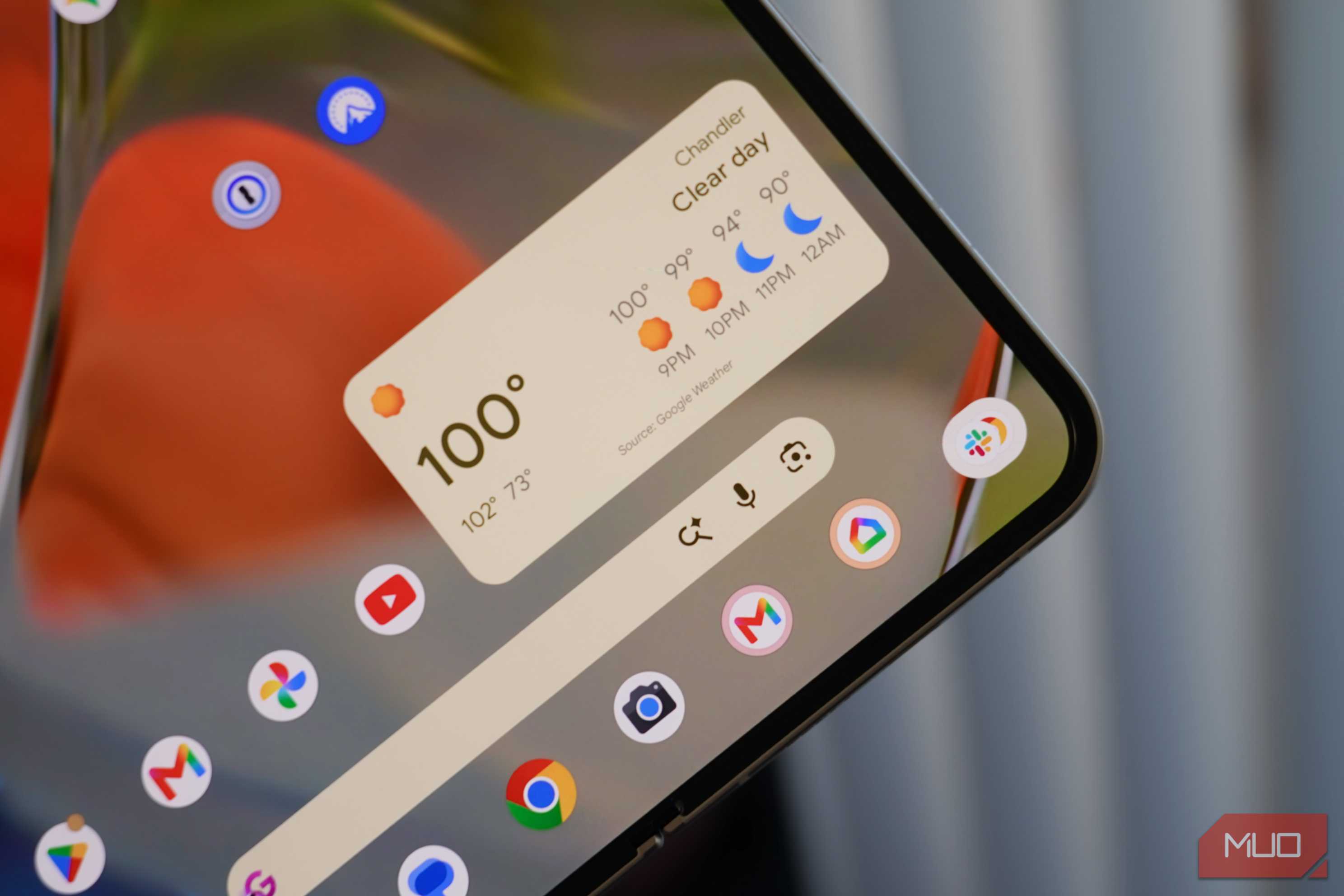
 Credit: Brady Snyder / MakeUseOf
 Credit: Brady Snyder / MakeUseOf
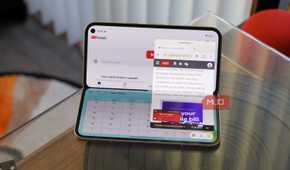
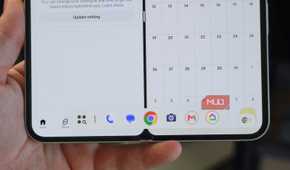
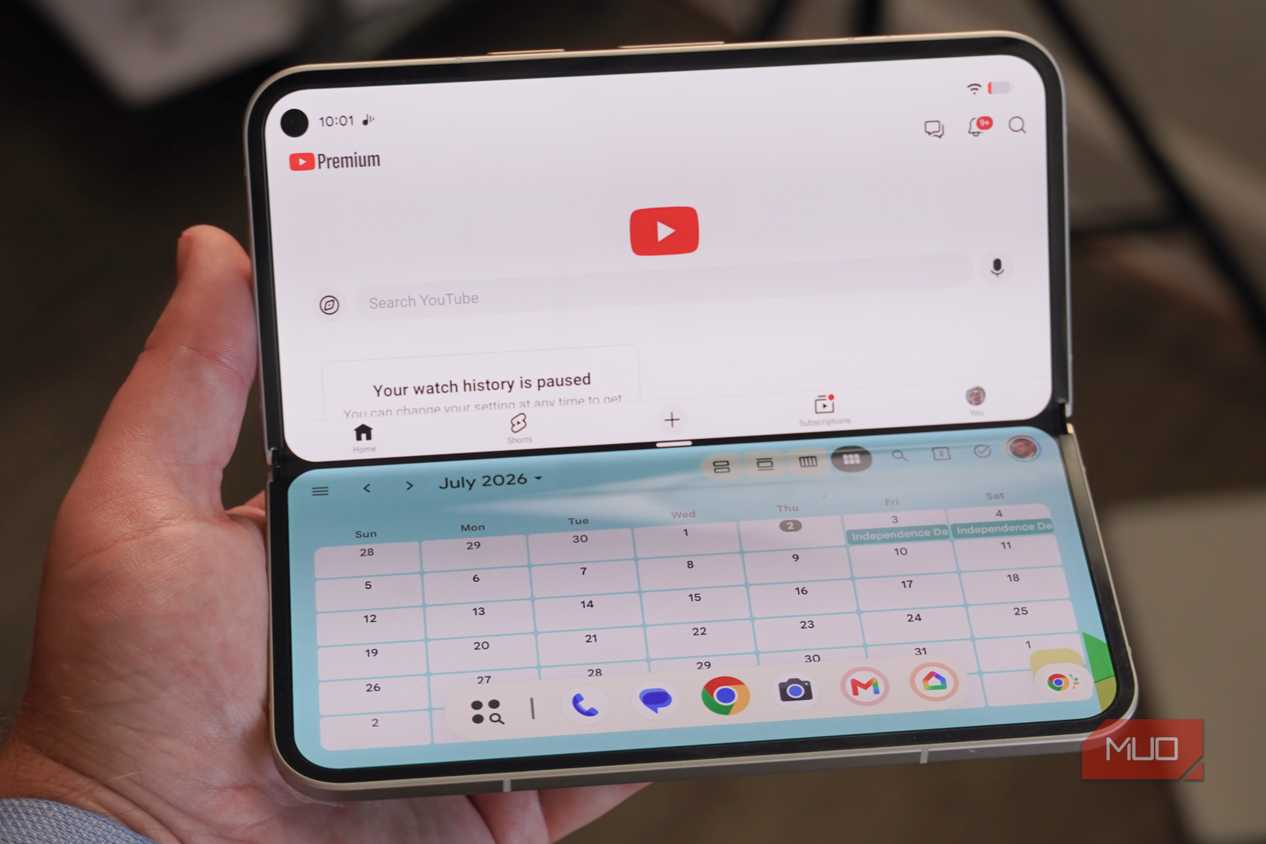
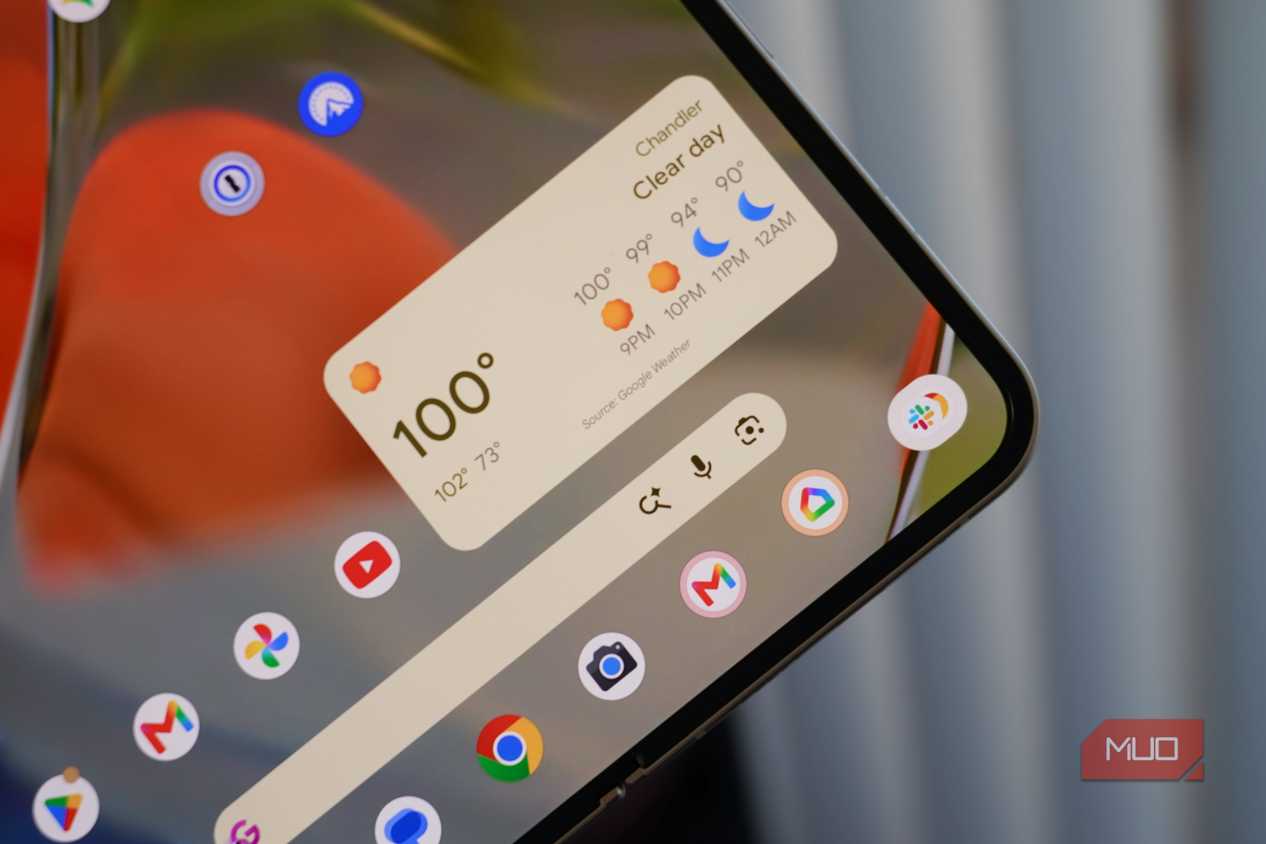
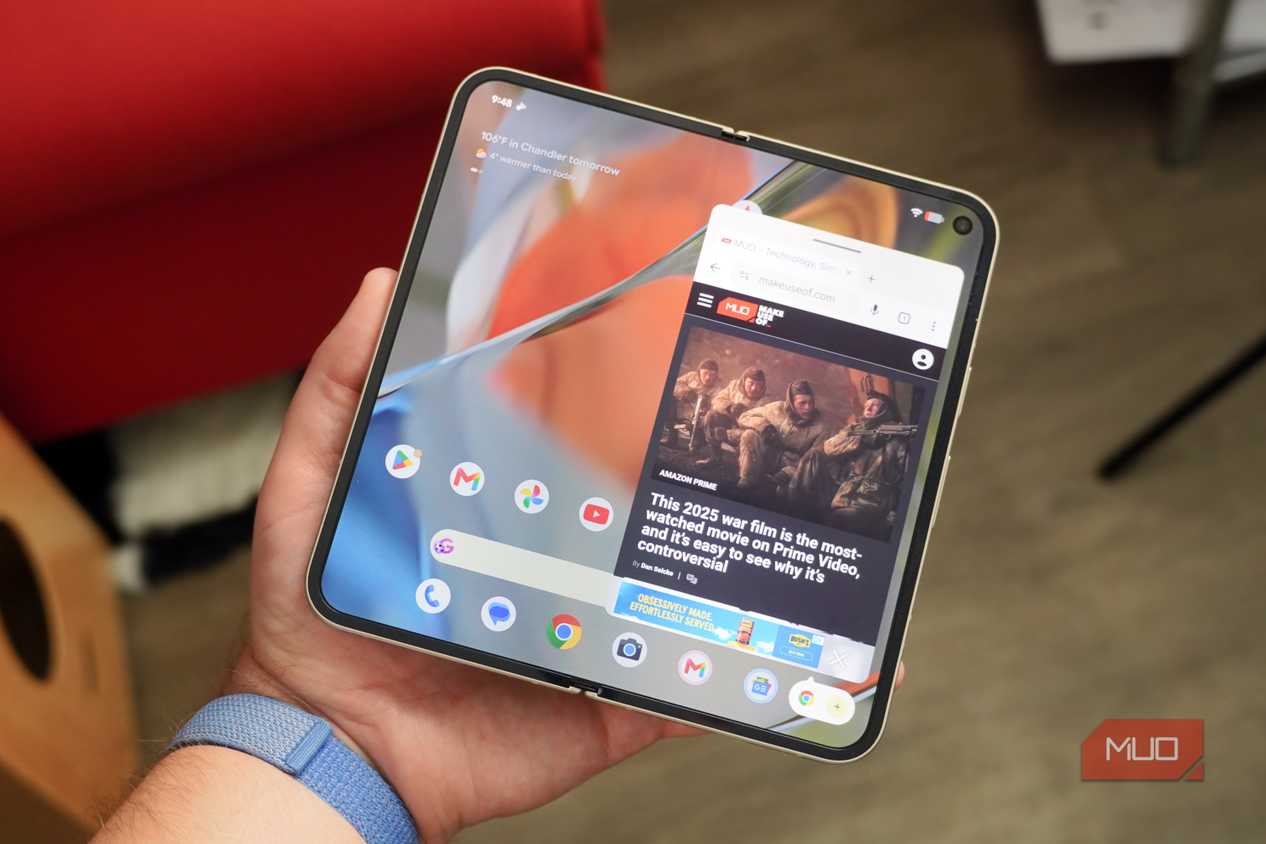
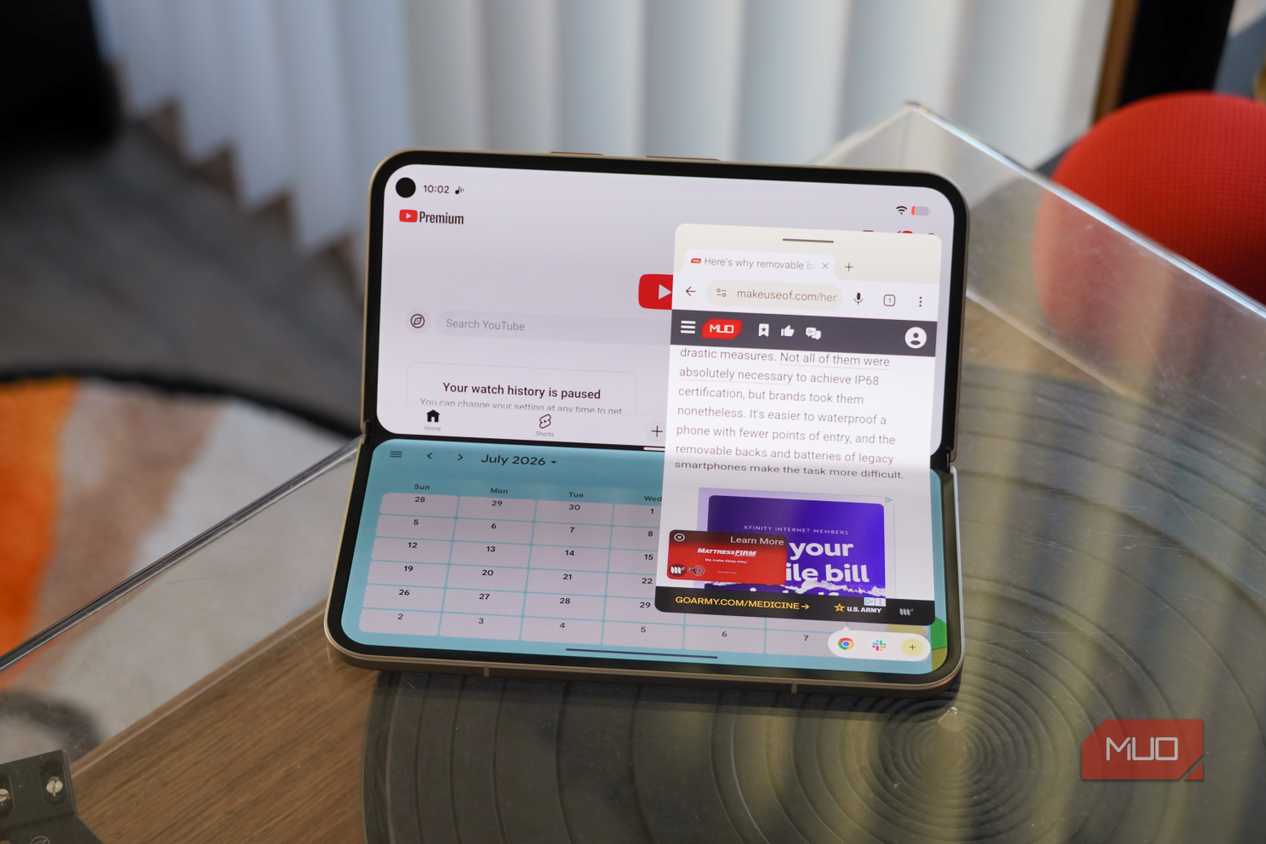
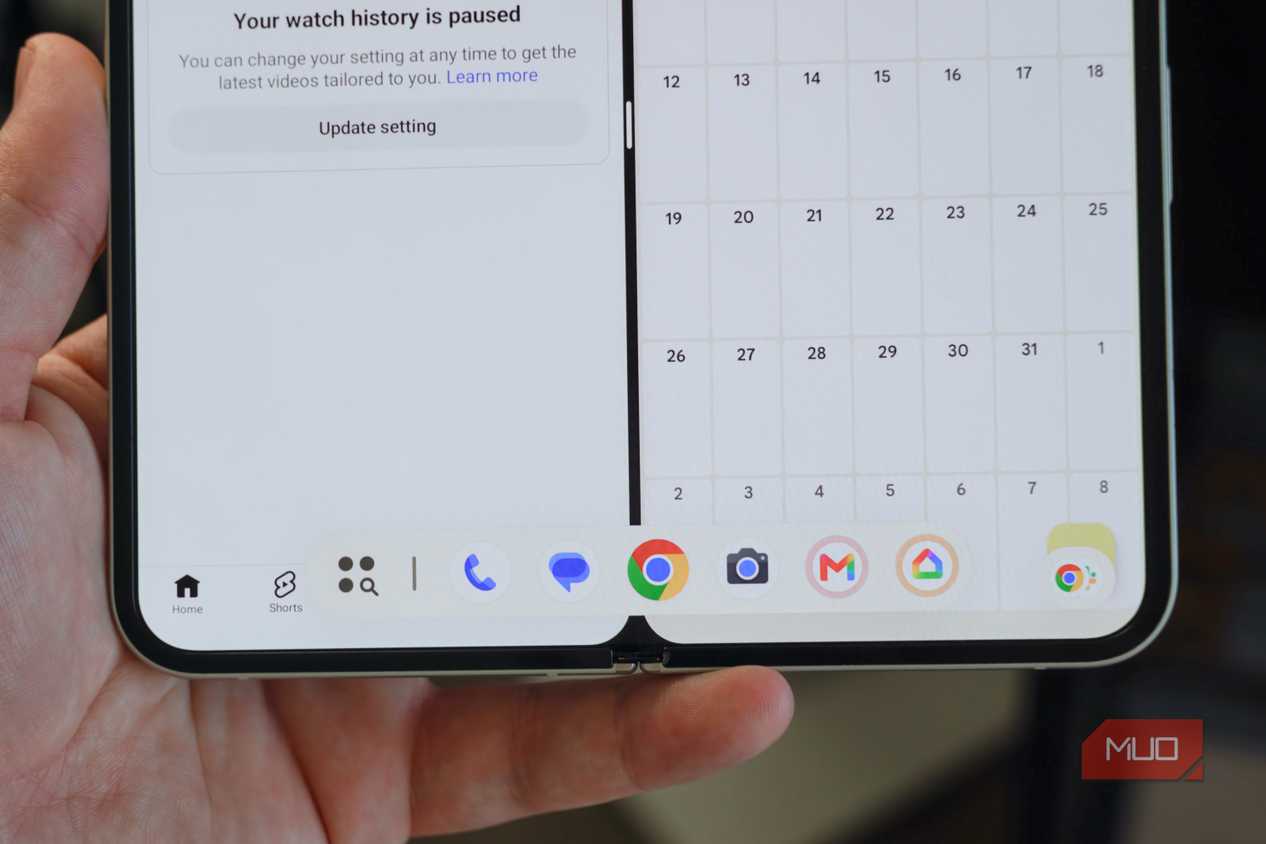
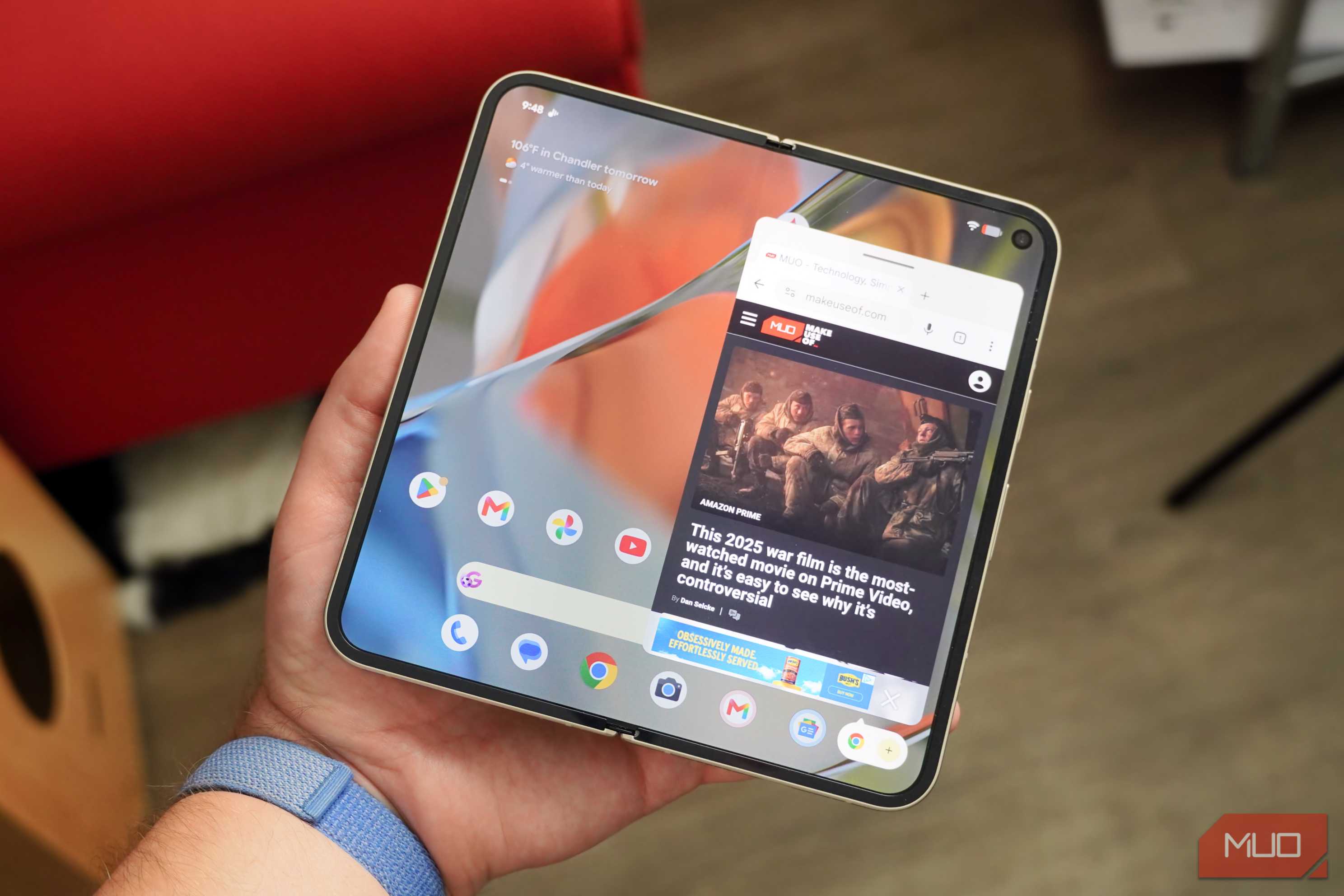
Android has a convenient Taskbar that makes it easy to launch apps or create multitasking views from anywhere. With the folding display active, swipe up from the bottom of the screen, and you'll be greeted with the Taskbar. This includes your dock apps, a shortcut to the app drawer, and any Android 17 app bubbles you have opened. By default, the Taskbar goes away when you're not using it, but you can change this to ensure the Taskbar never leaves your sight.
To do so, open Settings -> Display -> Taskbar in One UI and change the Taskbar style setting to Stay on screen. For the Razr Fold, you want to go to Settings → Foldable display → Task bar and select Always show. Google Pixel Fold users can swipe up to open the Taskbar, tap and hold the divider line between the app drawer icon and the app dock, and flip the toggle beside Always show Taskbar.
Keeping the Taskbar always active does cut into your screen, but it also makes launching apps and multitasking quicker. With multiple apps or pairs running, tapping an icon in the Taskbar allows you to simply jump between them. It saves you a swipe required to reveal the Taskbar each time, speeding up mobile workflows.
Why you should personalize your foldable
Software can make or break the foldable experience, and even the best foldables from Google, Samsung, or Motorola might need a few tweaks out of the box. I made my phone my own by changing these settings, and I'm glad I did.