


A folder went missing from my laptop, and I did the usual panic routine. I opened File Explorer several times, searched OneDrive, blamed Windows indexing, and then accepted the obvious. I had deleted the parent folder myself while cleaning up a synced directory.
OneDrive then did exactly what it was designed to do. It synced that deletion to the cloud and pushed the same empty reality to my other devices. I recovered some files from the Recycle Bin, but not cleanly. A few drafts had already been overwritten, and the restore became a reconstruction job rather than a quick undo.
That was when I understood that "my files are synced" and "my files are safe" are not the same sentence.
Cloud sync was doing its job, which was the problem
The fastest way to lose files on every device


Cloud sync services like OneDrive, Google Drive, iCloud Drive, and Dropbox are built around the core promise that whatever exists on one device should appear on all your devices. If you change a file on your phone, the update lands on your laptop. If you delete something from your desktop, that deletion propagates everywhere. That bidirectional consistency is useful, but it is also, when something goes wrong, exactly the mechanism that works against you.
The part I had to learn the hard way is that sync preserves the current state of your files, not a dependable history of them. It watches for changes, mirrors them to the cloud, and then pushes the updated state back to your connected devices. Edits move, renames move, and deletions move. From the service's perspective, this is success. From my perspective, it feels like a betrayal, especially because "my files are synced" sounded dangerously close to "my files are safe," even though I now know they're very different ideas.
It is also easy to underestimate how fast sync moves. Most of the time, that speed is a feature. But when the change being synced is accidental, destructive, or malicious, speed becomes part of the danger. Ransomware is the clearest example. If malware encrypts files on one machine, those encrypted versions can sync to the cloud and overwrite the clean versions on other connected devices within minutes, often before you have even realized the first machine has been compromised.
There are subtler failure modes, too. Sync conflicts can silently overwrite a file when two devices modify the same document at the same time, with one version simply losing without any obvious warning. Selective sync settings, when misconfigured, can exclude entire folders while leaving you with the impression that everything is covered. And perhaps most importantly, files appearing on multiple devices do not mean you have multiple independent copies. Every device is showing the same synced state. That distinction cost me weeks of work before I really understood it.
Your deleted files have a grace period, not a guarantee
The Recycle Bin is not a time machine

Most major sync services do offer some recovery options, and it is important to know what they actually cover.
For example, OneDrive keeps deleted files in its Recycle Bin for 30 days on personal accounts. Basic version history is available on free accounts for certain file types. At the same time, the more robust ransomware detection and recovery feature is tied to Microsoft 365 subscriptions — so the free/paid line is not as clean as it might appear.
Google Drive retains deleted files in Trash for 30 days before permanently removing them. Google Workspace admins have a further recovery window after that period closes via the Admin console, but this is not available to standard consumer Google accounts, so you should know which one applies to you.
Dropbox retains deleted files and version history for 30 days on free accounts, 180 days on Plus plans, and up to a year on Business plans. iCloud Drive also keeps recently deleted files for up to 30 days.
Those features sometimes help, but they come with real conditions. Recovery windows vary by subscription tier. Some features require paid plans to access at all. If your account is locked, suspended, or compromised at the moment you need it, those tools become unavailable. And if the deletion happened months ago, and you are only noticing now, the window has already closed. Version history and trash folders are useful, but they are conditional and time-limited — which is a meaningful difference from a true backup.
A real backup lives somewhere your mistakes cannot instantly follow
A safety net should not move with the fall







The 3-2-1 backup rule is still the clearest framework I know for keeping important files out of trouble. Keep three copies of your data, store them on two different media, and keep one copy off-site. The key principle is that at least one copy should be completely independent of your live sync environment, so that a bad deletion, ransomware attack, account lockout, or cloud hiccup cannot automatically reach it.
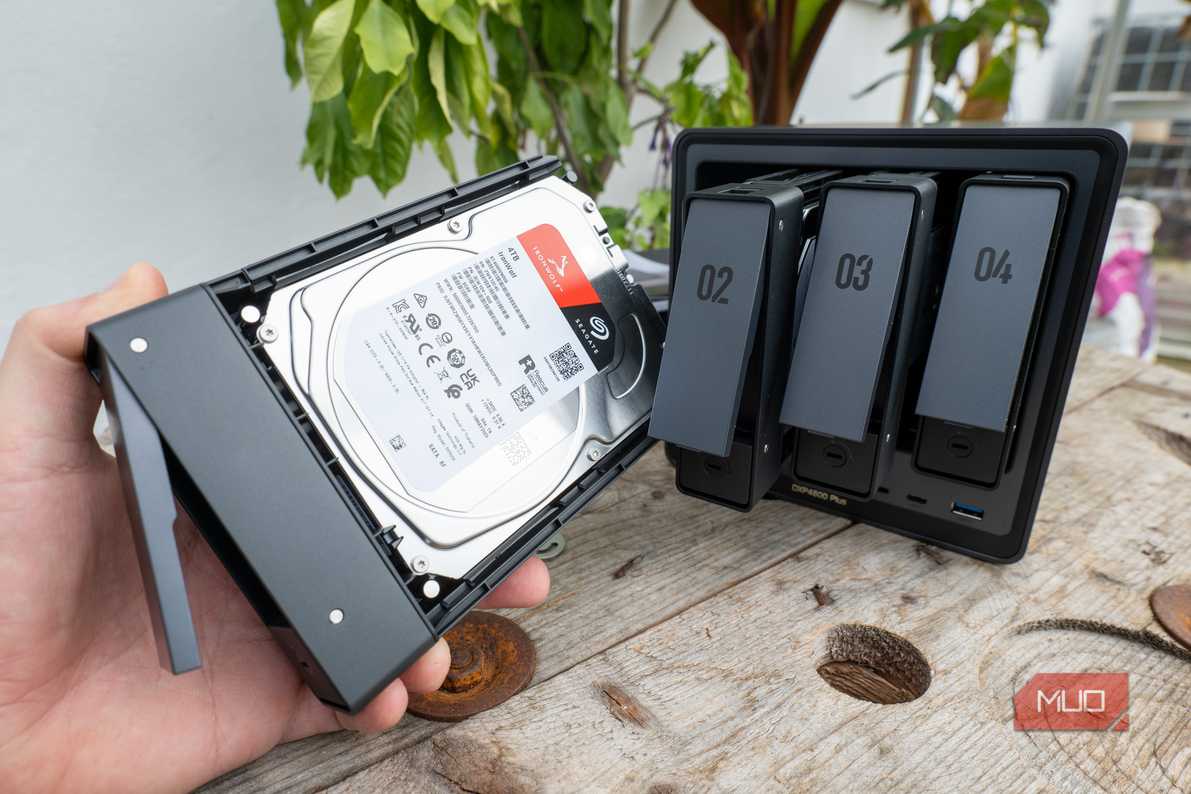
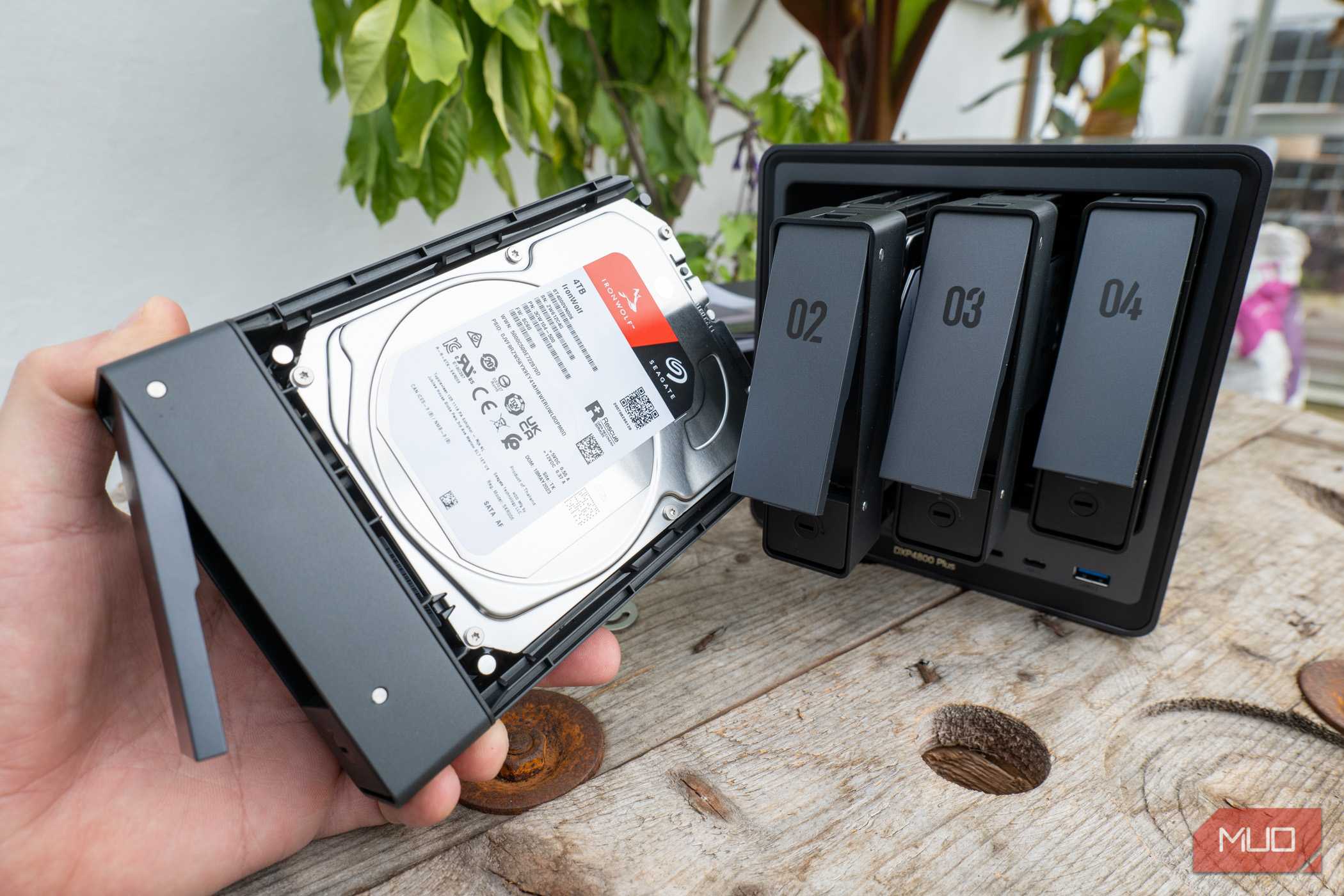
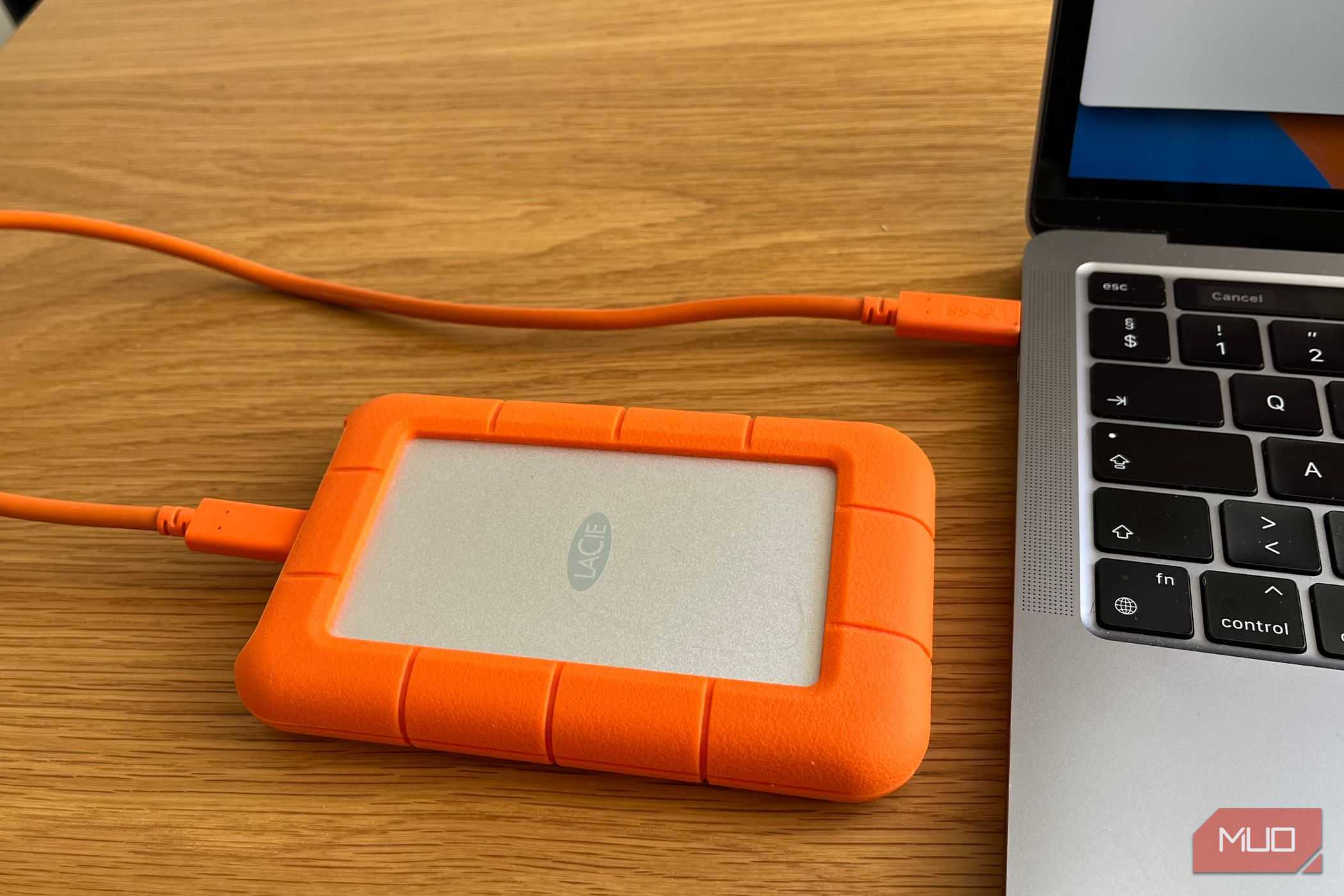
An external drive that you update on a schedule (using a tool like FreeFileSync) and then physically unplug is a solid starting point. A network-attached storage (NAS) device with snapshot support is more robust, since snapshots preserve your data at a specific point in time and give you a way back when live files change, break, or disappear. I would still treat a NAS as an option that needs proper care, because a badly managed one can become another single point of failure rather than the safety layer you thought you were building (comparing NAS and cloud storage can help you decide if it's right for you).
I also now keep dedicated cloud backup services, such as Backblaze, separate from sync tools. They are built for retention and recovery, not instant mirroring, and can keep versioned copies for months or years, depending on the plan. For cloud-native files like Google Docs and Sheets, which may not exist as standard local files, periodic manual exports are now part of my routine, too.
The habit that really proves your backup works is testing a restore. Copying files to another drive is not the same as knowing you can recover the right file when you are stressed and short on time. A backup you have never restored is, in practical terms, still an assumption.
I still use cloud sync, but I have stopped calling it backup
Cloud sync is a good tool, and I use it daily. It keeps work accessible across devices, handles continuity well, and occasionally rescues me with a timely version history entry after a bad edit. I am not suggesting you abandon it.
However, sync was built for availability, not for recovery. The speed that makes it seamless is the same speed that makes a mistake before you can stop it. Convenience and recoverability are different properties, and conflating them is exactly how you end up staring at an empty folder, wondering where weeks of work went.
I know, because that is how I found out.

- OS
- Android, iOS, macOS, Windows
- Developer
Google Drive is a safe, free cloud storage service that lets you easily save, share, and work on your files and photos from any computer or phone.