


I was at a clothing store last year, looking for a specific jacket. The clerk couldn't find it, so I showed him a photo on my phone. He took the phone, told me he'd ask his manager if they had something similar, and walked to the back of the store with it. Anything could've popped up on that screen while he was back there, and I wouldn't have known.
Screen pinning would've prevented all of that. It's a setting in Android's security menu that keeps your phone tied to whatever app is currently open. If I'd pinned the screen that day, the clerk could've walked anywhere with my phone and still only had access to my photos, nothing else on the device. I've pinned my screen before every handoff since.
Your phone becomes a single-app device
Only the pinned app responds


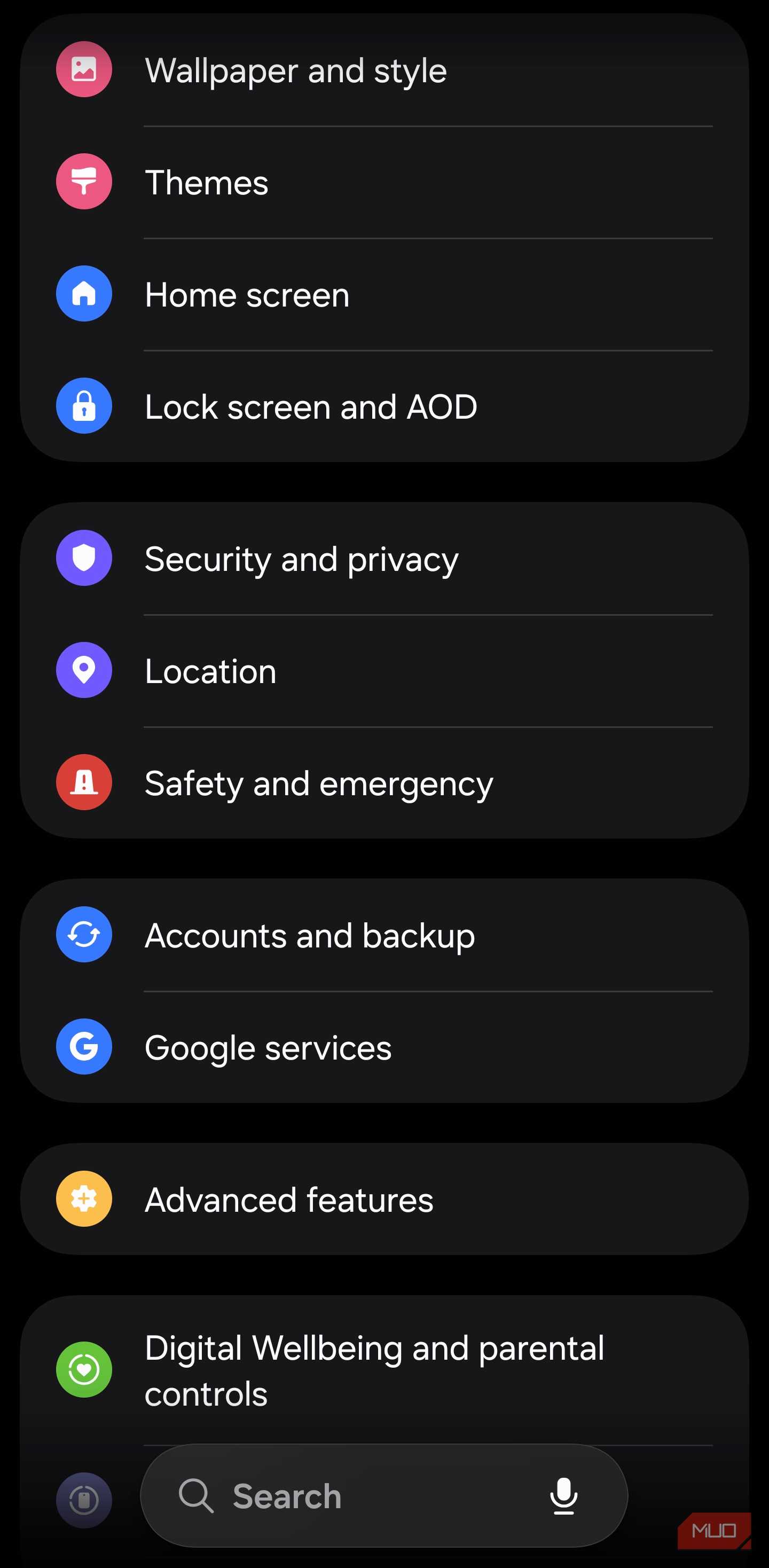
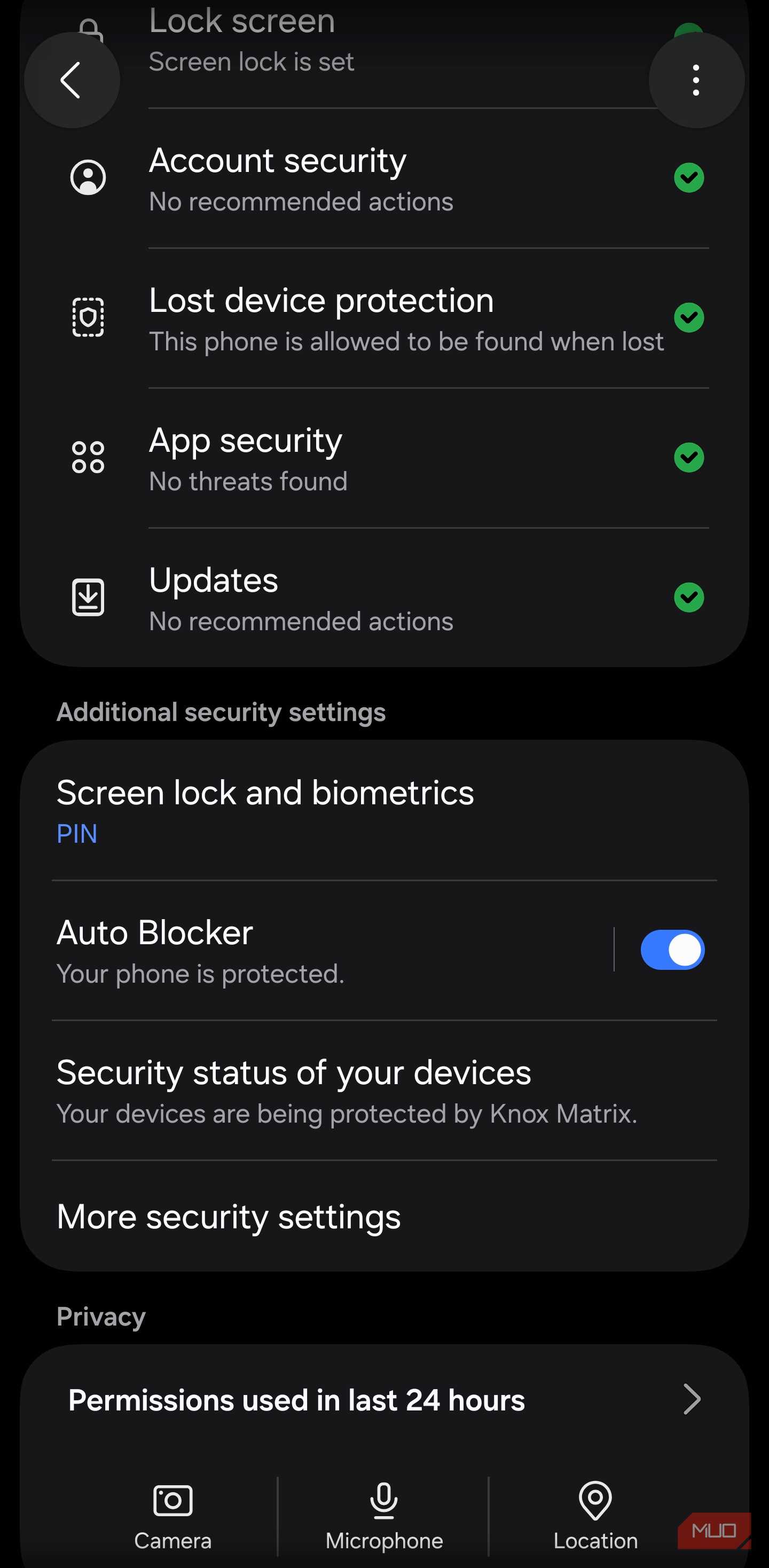
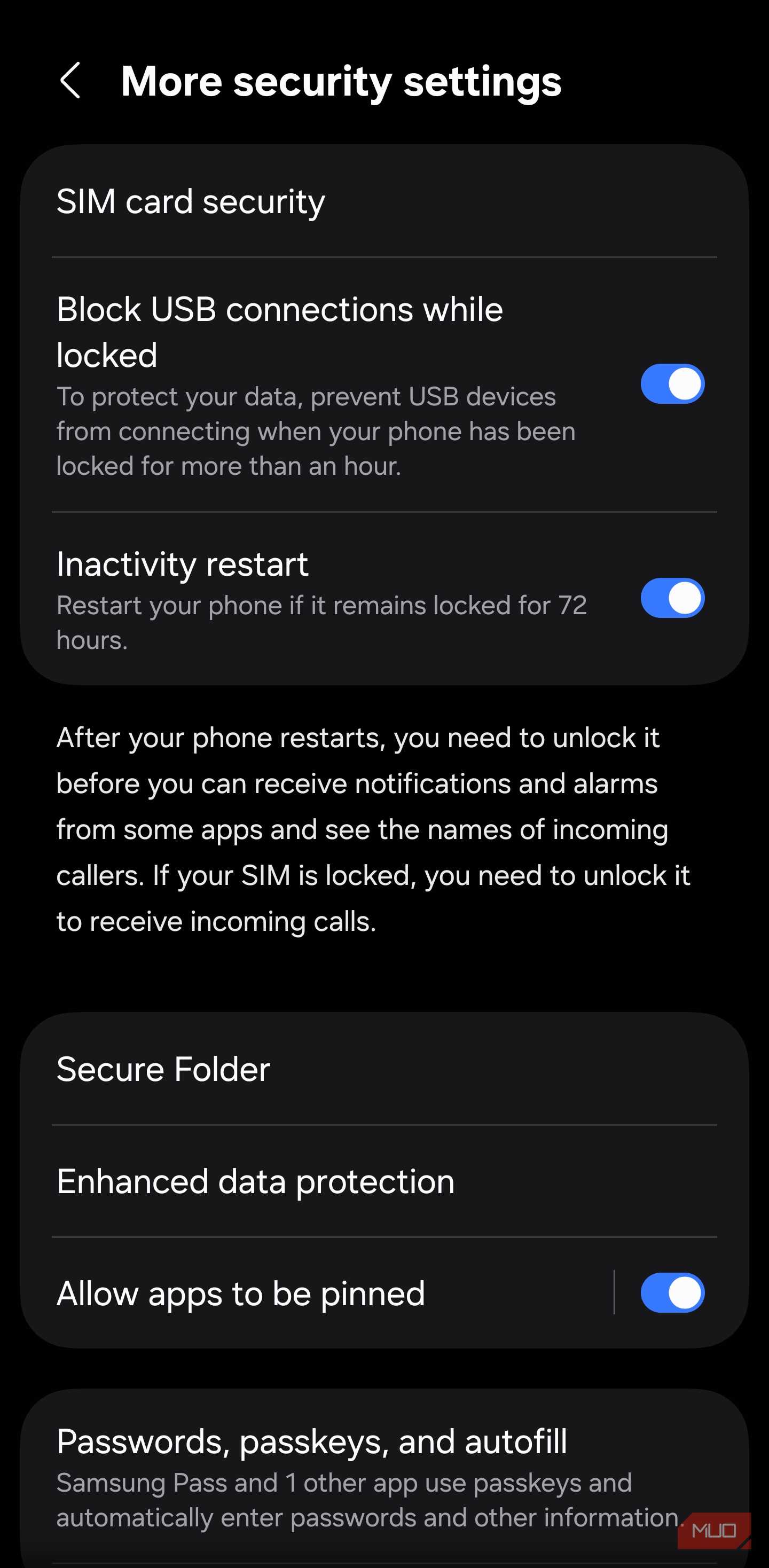
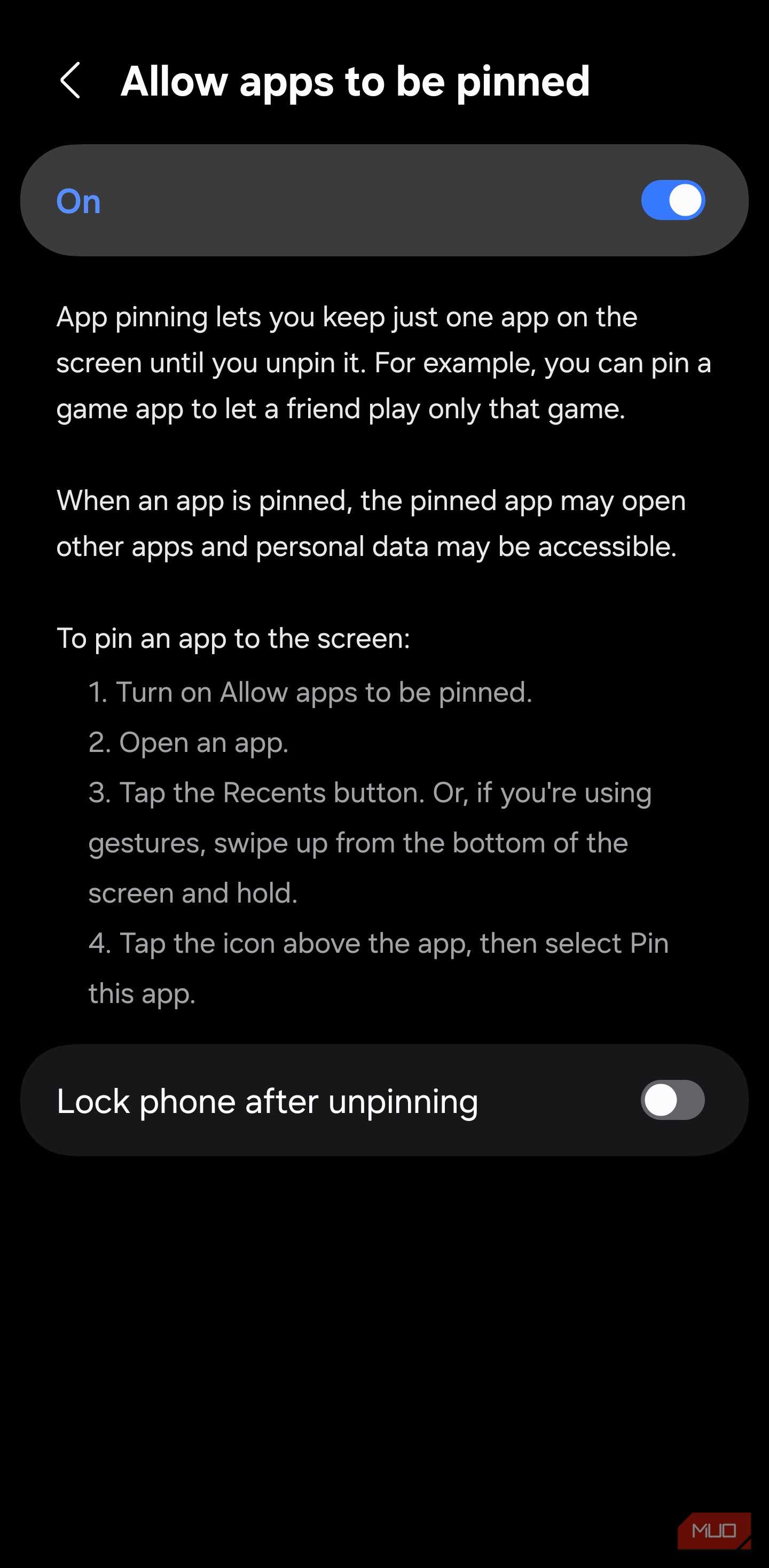
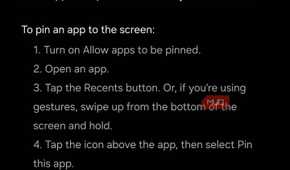
Pinning locks your phone to a single app and keeps it there. You can't swipe home or pull down the notification shade, and there's no way to switch apps. Tapping a link that would normally open another app instead triggers an unpin prompt. Your phone runs one app and nothing else for as long as the pin is active. The only way out is the unpin gesture, and with the PIN requirement turned on, that leads straight to your lock screen.
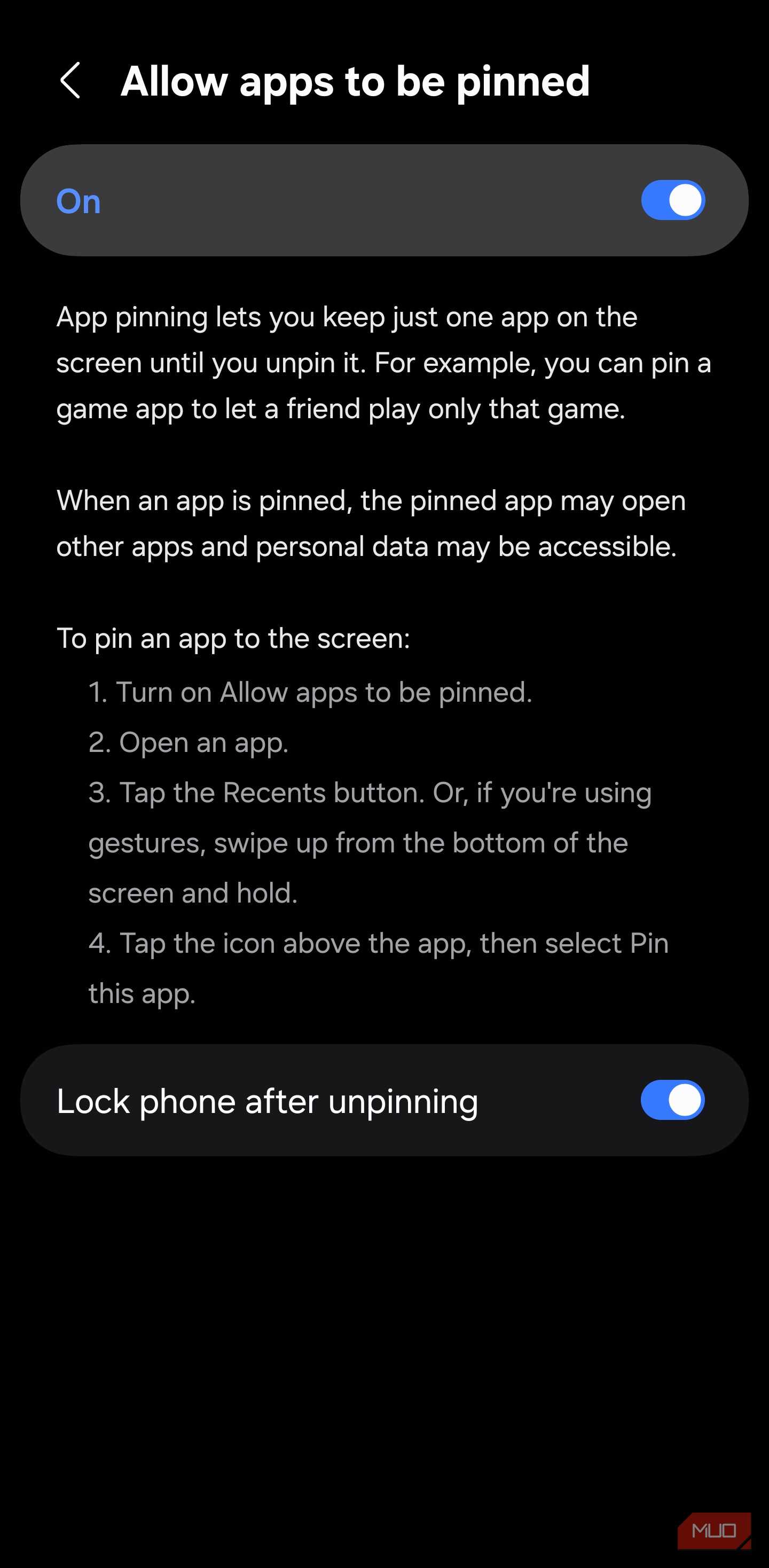
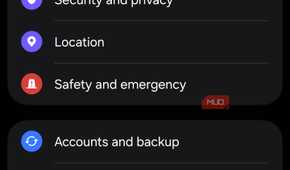
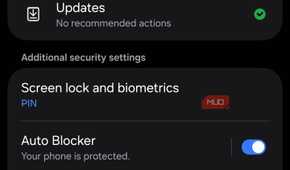
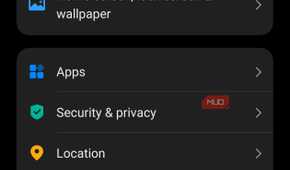
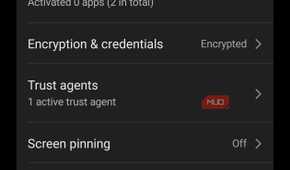
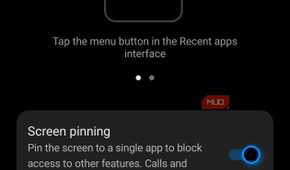
The toggle is in your phone's Settings, under Security & privacy. On a Pixel, head to More security & privacy, where it's listed as App pinning. Samsung keeps it under More security settings, labeled Allow apps to be pinned. Most other Android phones follow a path similar to that of the Pixel, though the exact menu names may vary. Once enabled, open the app, pull up your recent apps, tap its icon at the top of the card, and select Pin.
Right below the pinning toggle in Settings, turn on Ask for PIN before unpinning. Samsung labels this Lock phone after unpinning, but it does the same thing. Without this, anyone with the phone can unpin the app and land on your home screen. With it on, they hit your lock screen instead, and they can't get past it without your PIN or fingerprint. To unpin when you get the phone back, swipe up from the bottom and hold on gesture navigation. For three-button controls, long-press the back and recent apps buttons together.
Screen pinning keeps the person inside the app, but it won't limit what they do there. Pin your gallery, and they can scroll through every album in it. A pinned browser with saved passwords leaves those passwords accessible. For most phones, that's where the protection stops.
Locking what happens on screen
Some phones can freeze your screen entirely


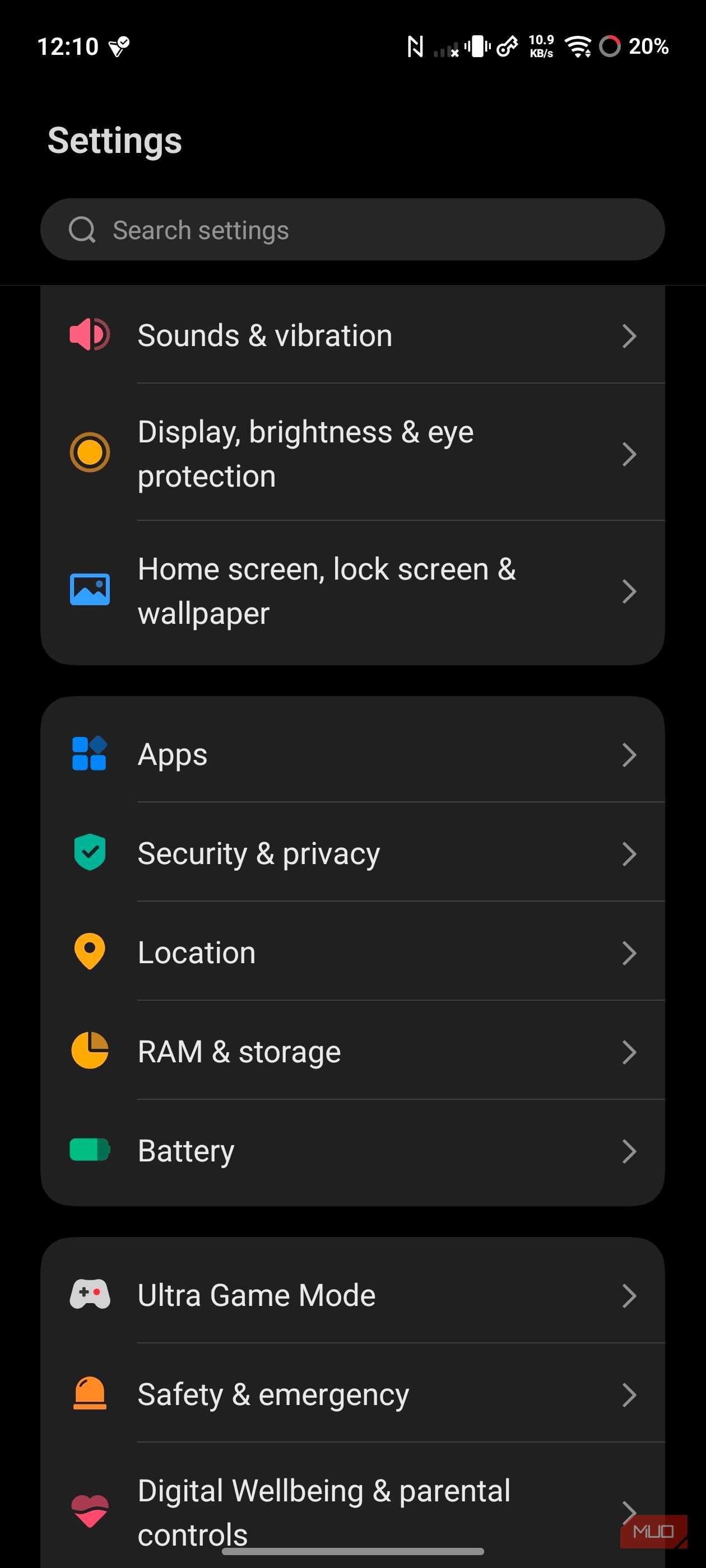
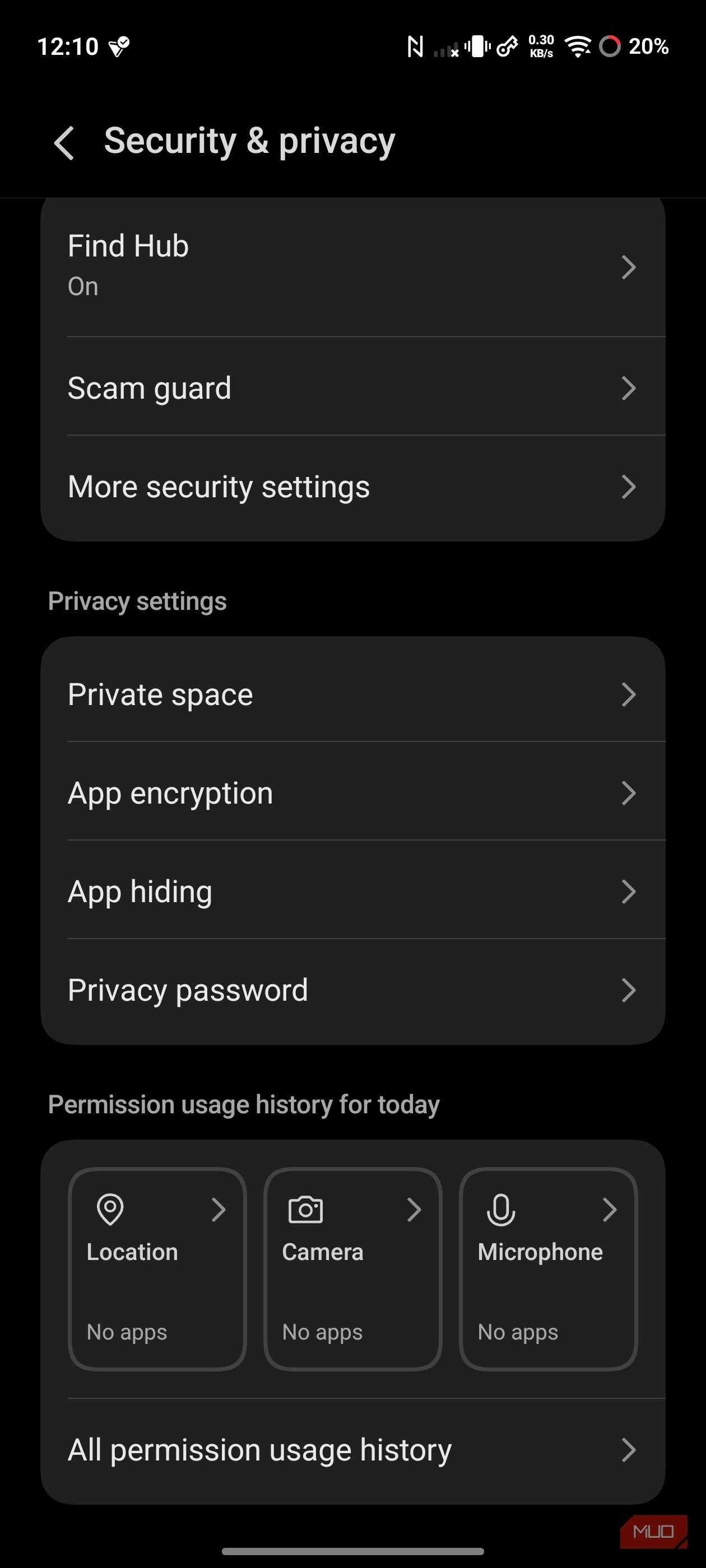
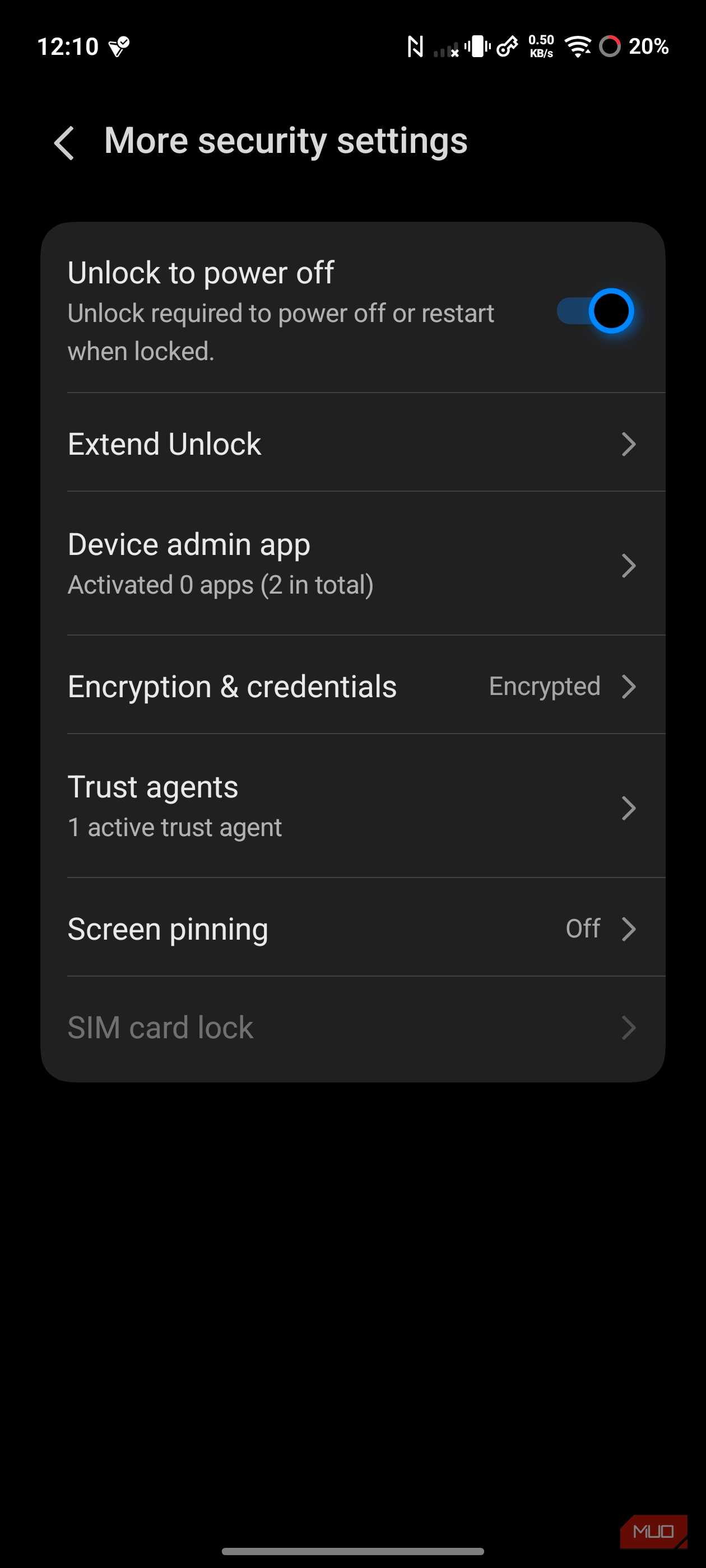
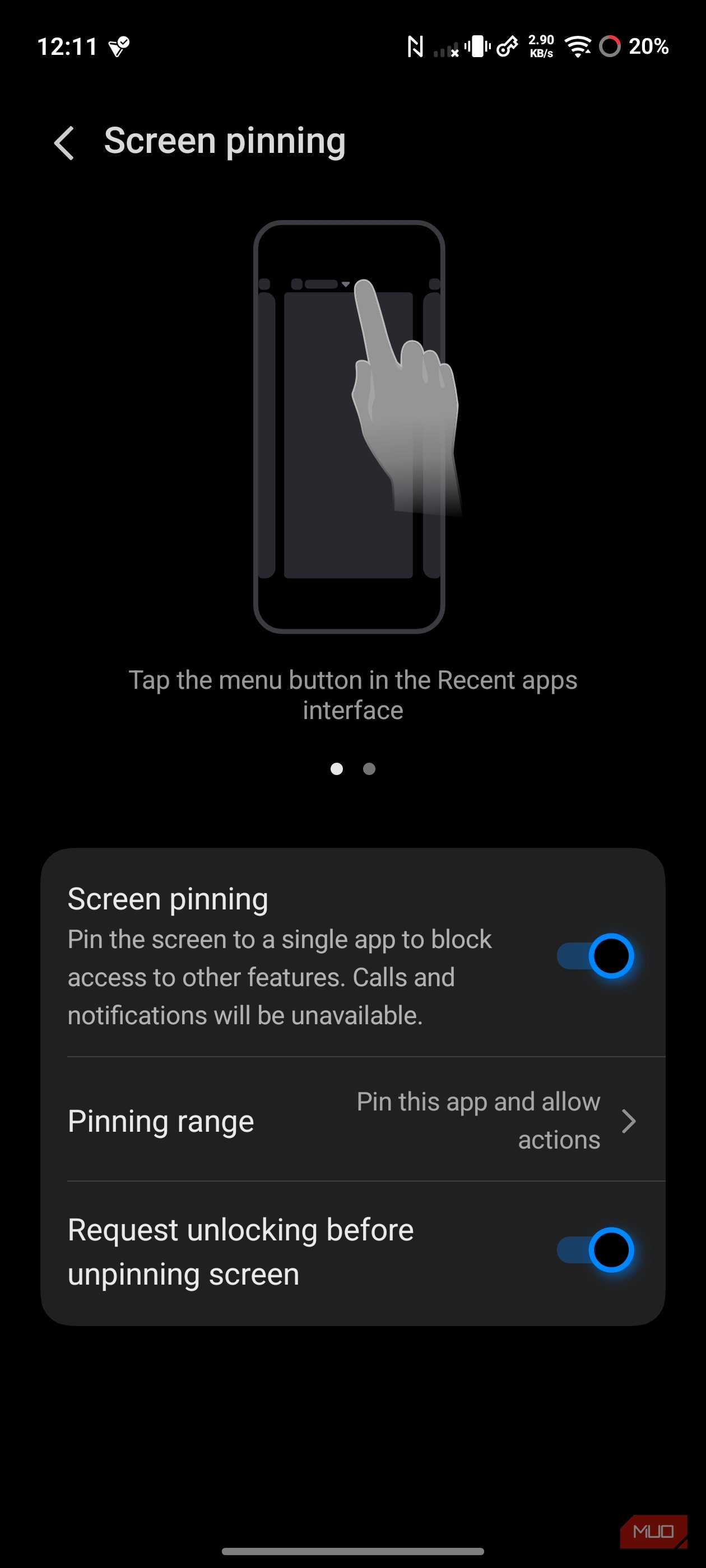
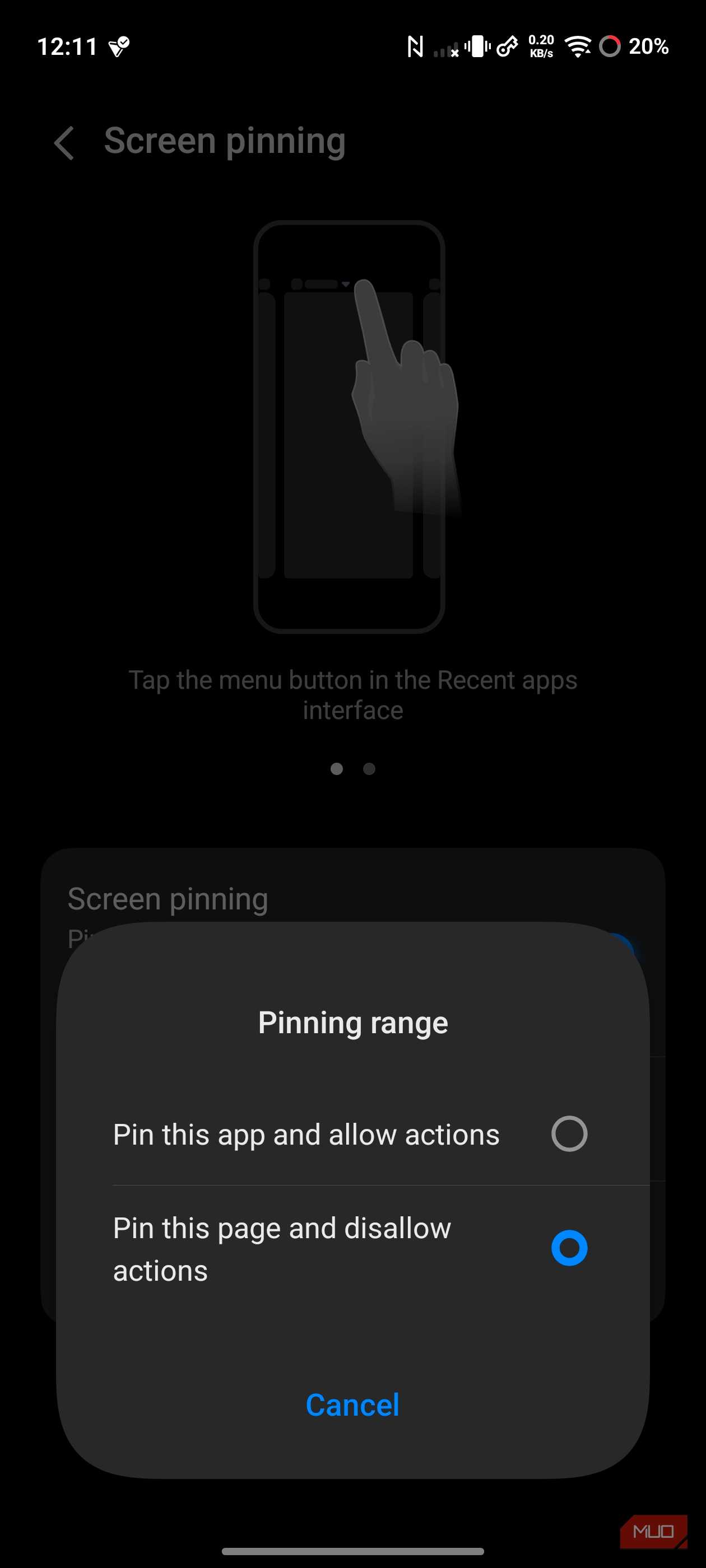
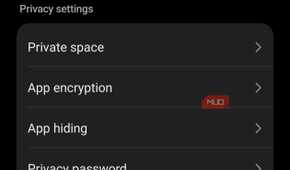

Not every handoff requires the other person to interact with your phone. If a friend asks to see a photo you took, you don't want them swiping through the rest of your gallery. Standard screen pinning would keep them inside the gallery app, but it wouldn't stop them from browsing. Certain Android phones let you freeze the screen entirely so nothing responds to touch.
On Vivo phones, this is built into the pinning settings. When you pin an app, you choose between two modes. The "allow actions" mode works like standard pinning, where the person can use the app but can't leave it. "Disallow actions" shuts off all touch input. The screen becomes view-only. If you've pulled up a photo, the person holding your phone sees only that photo. They can't swipe to the next one.


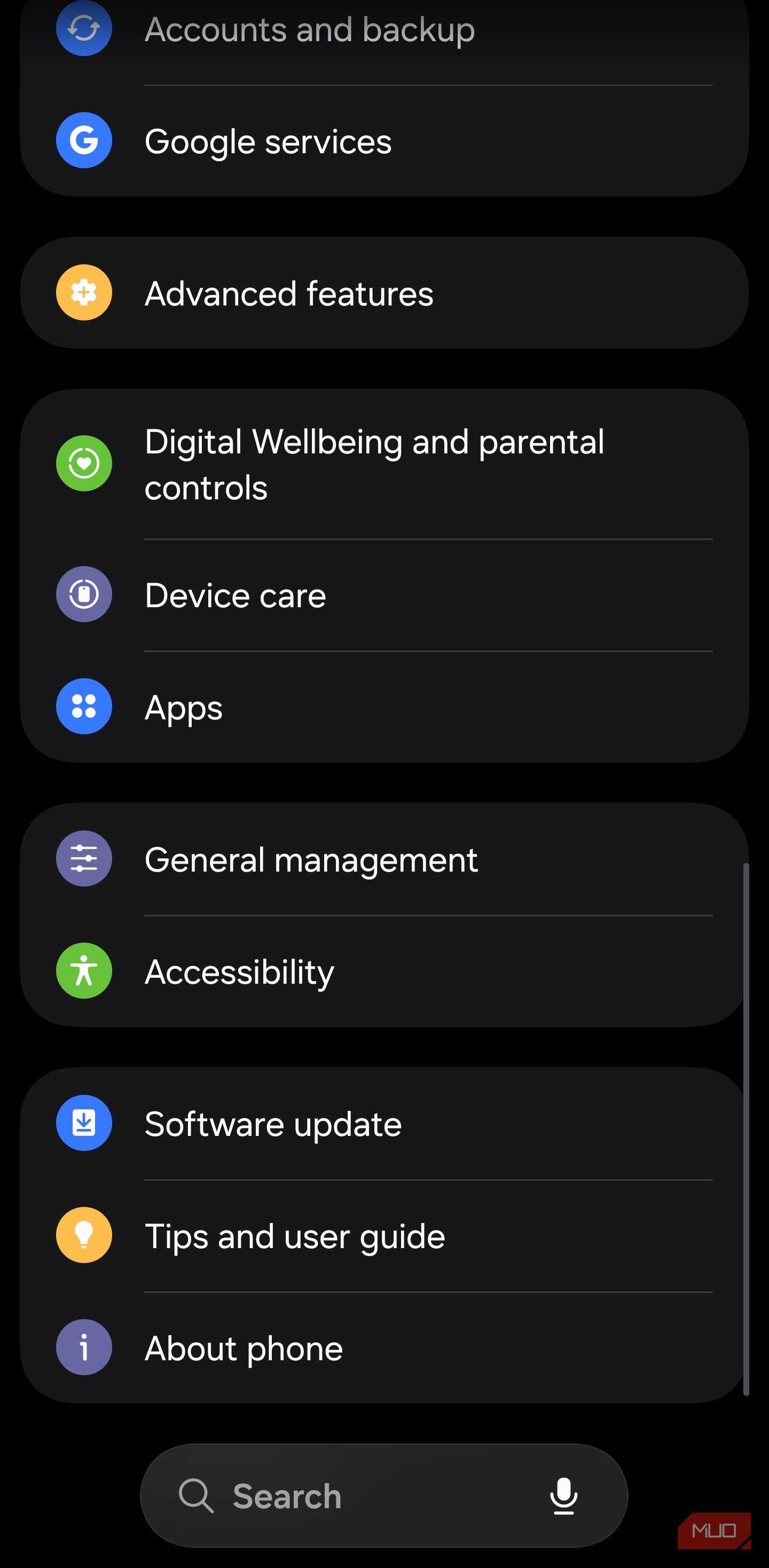
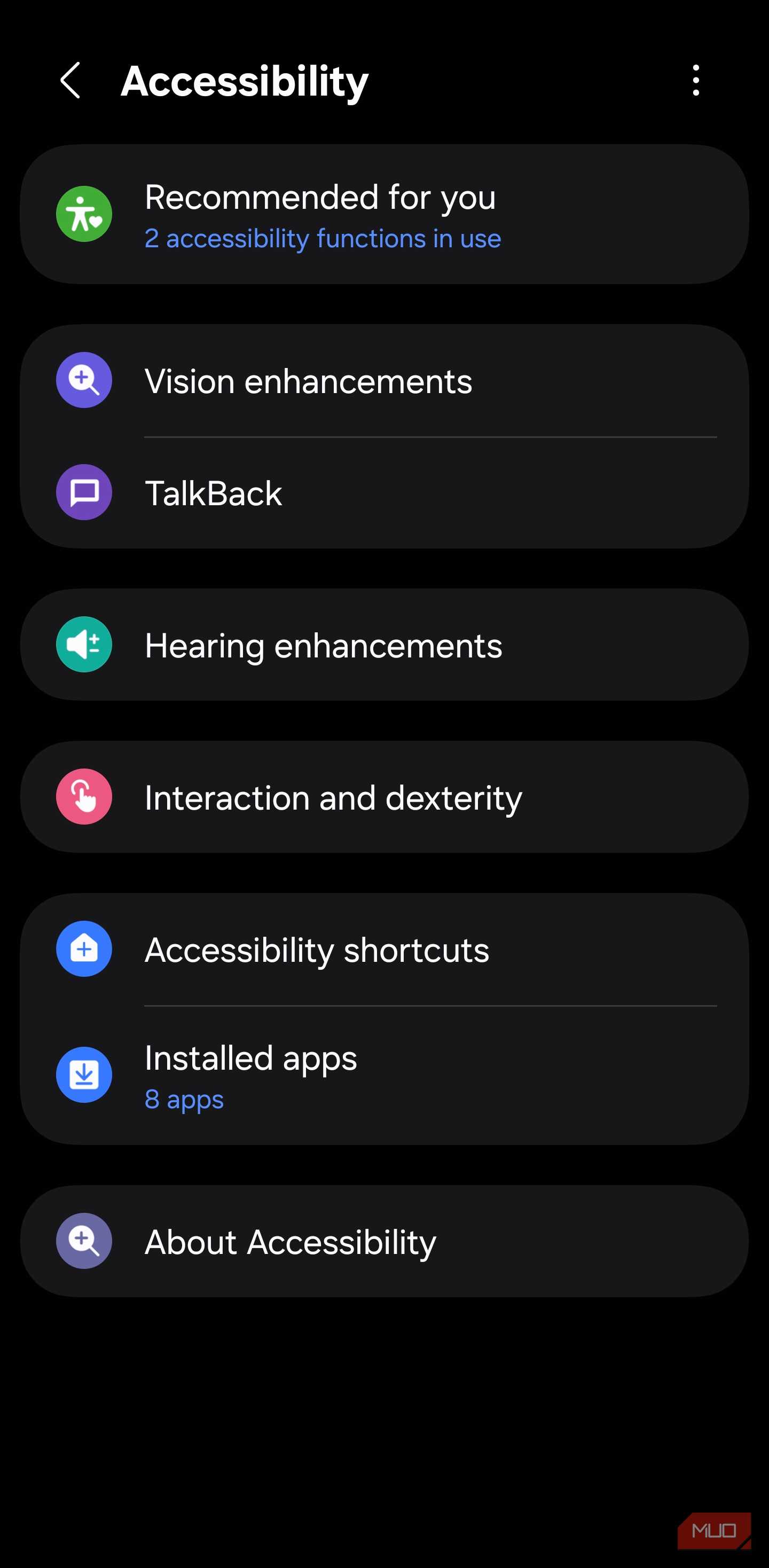
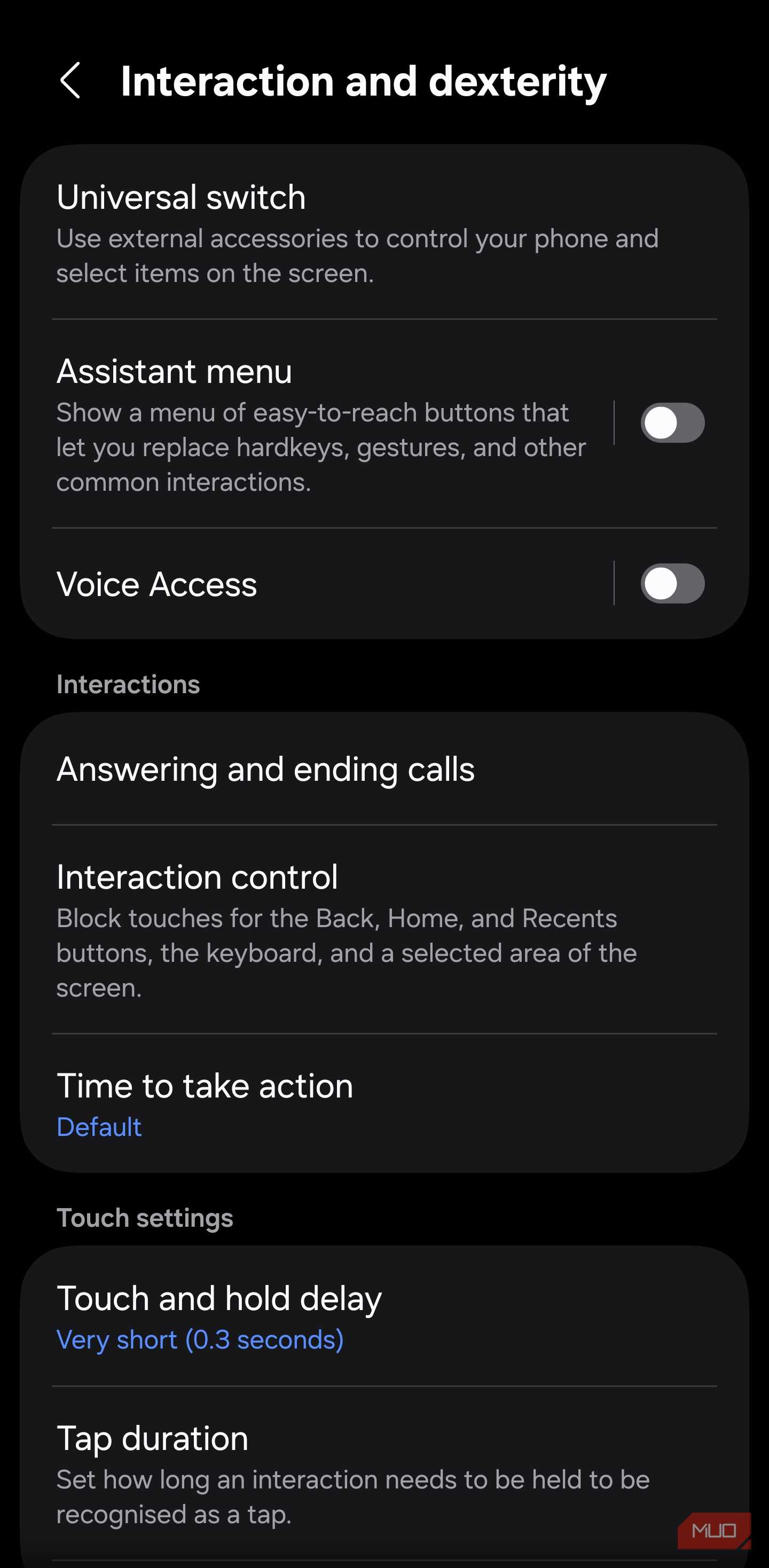
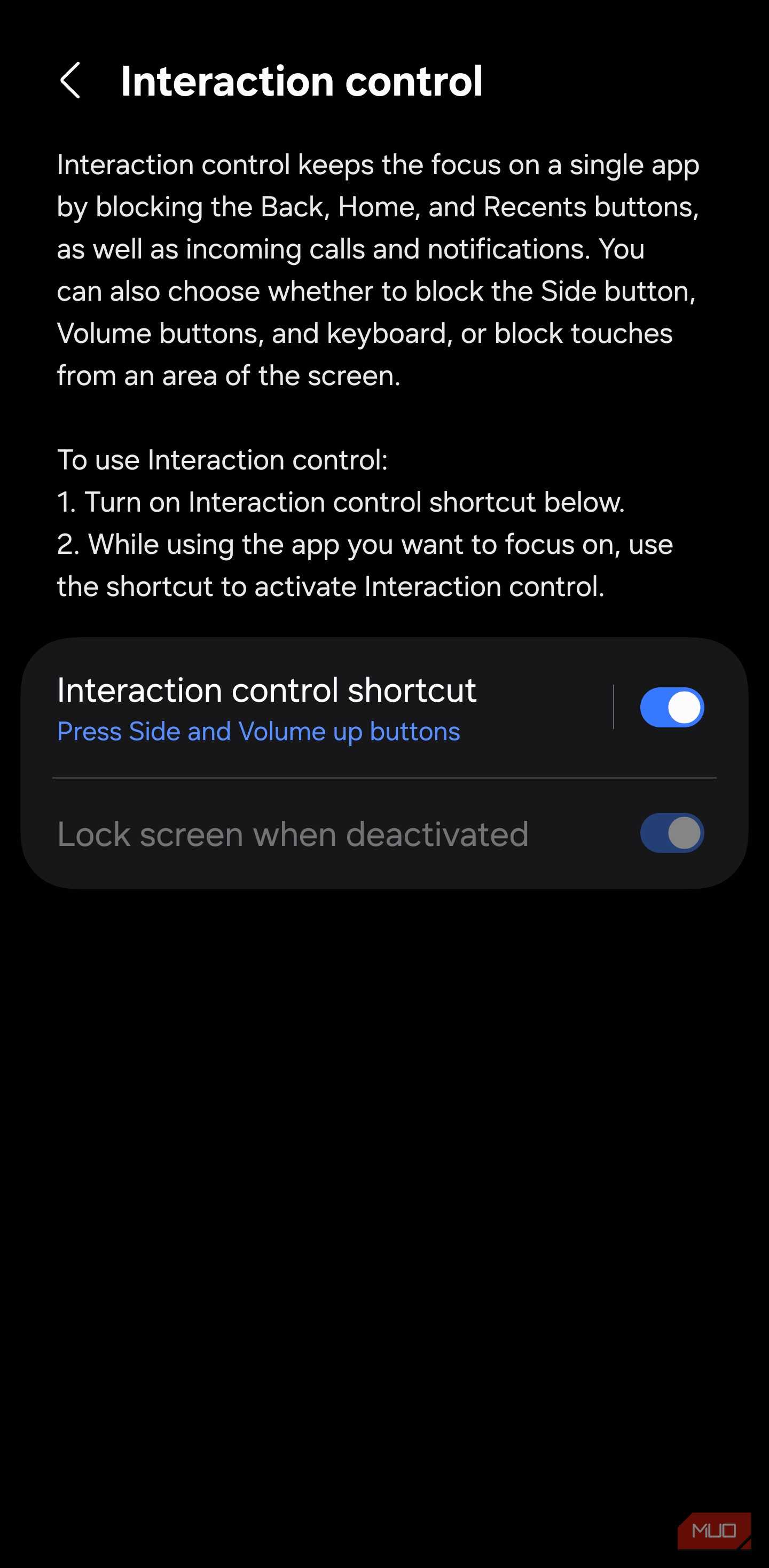

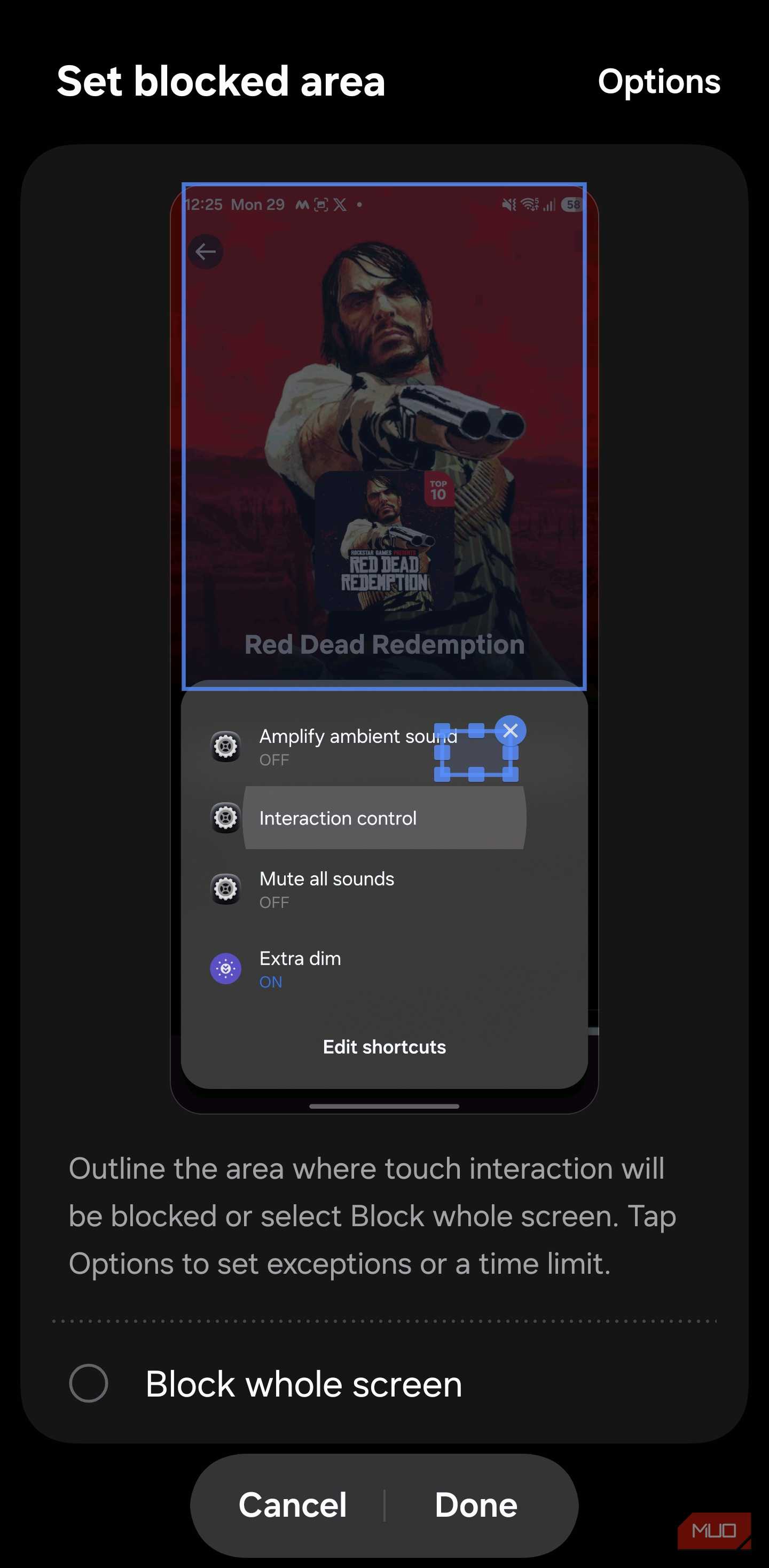
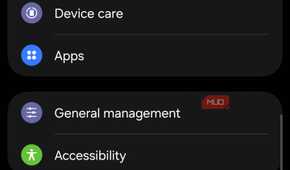

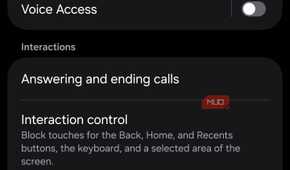
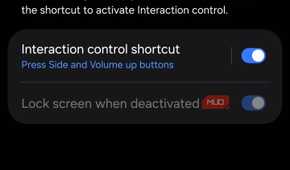



Samsung phones can do the same thing, but through a different path. Interaction Control is an accessibility feature that you'll need to enable first. Head to your Accessibility settings, open Interaction and dexterity, and toggle Interaction Control on. After turning it on, pick a shortcut: the Side and Volume Up buttons pressed together, or hold Volume Up and Volume Down for three seconds.
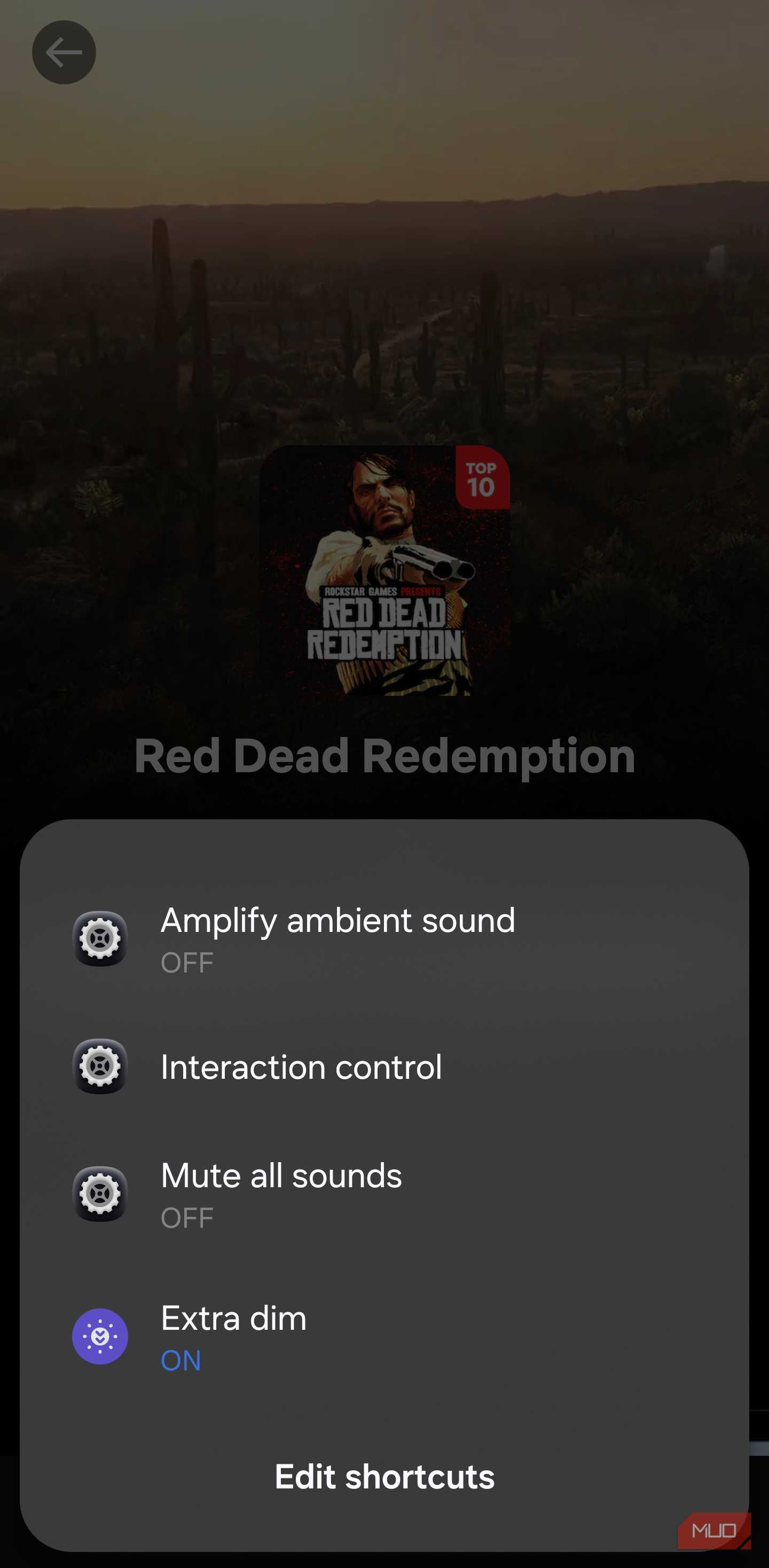
Open the app or photo you want to lock and press your chosen shortcut. A pop-up menu appears where you select Interaction Control. Draw a box around specific areas of the screen to block while keeping the rest responsive, or check Block whole screen at the bottom for a full freeze. Samsung also disables the physical buttons while it's active, so hardware keys won't help navigate away. To turn it off, press the same shortcut again.
A borrowed phone that stays borrowed
Screen pinning only needs to be enabled once, and it's ready whenever you need it after that. If the app you're pinning holds sensitive content, a freeze mode is the better choice. If a child at a family gathering wants your phone for an hour, Android's guest mode or a secondary user profile gives them a separate space with none of your data. Screen pinning handles the quick ones, where someone needs your phone for a minute, and you want everything else locked down. That clerk at the clothing store wouldn't have seen a single notification.