


I have been an unapologetic macOS loyalist for over a decade now, and you are unlikely to find me comparing macOS to Windows. But I am not one to pretend that everything is fine with macOS or that I don't miss any features I used to enjoy on Windows. Window tiling, a feature that lets you arrange windows across your screen, has been one of the features I have envied on Windows.
Though Apple made some changes to how window tiling works on macOS, things still aren't right! Every time I use a Windows machine, I kind of wish that kind of fluidity existed on macOS as well.
However, a utility I recently came across, called Rectangle, solved the problem for good and stopped me from envying Windows.
Apple added native tiling in Sequoia a while back
It tiles, technically, but that's not enough

For the longest time, window snapping was not a thing for macOS users. Users had to rely on third-party utilities to bring some order to the chaos of window management. However, with the release of macOS Sequoia, Apple introduced built-in window snapping. For what it's worth, I was relieved to find this feature in the Sequoia package, as it saves me a lot of time. However, I soon realized that the experience wasn't comparable to what Windows offers for window tiling.
Yes, built-in window tiling on macOS works, and you get features like drag-to-edge, visual snap indicators, and zone selection. These features are mostly enough for people working with a couple of windows side by side. However, when you have a larger screen and more apps to manage, native window tiling becomes really inadequate. You have a similar situation if you were planning to manage everything using a keyboard-first approach, too.
Rectangle claims to fix all these problems and offer a smooth window-tiling and snapping experience on macOS, and I was excited to try it out.
Rectangle was installed in under a minute
And I had a working layout almost instantly


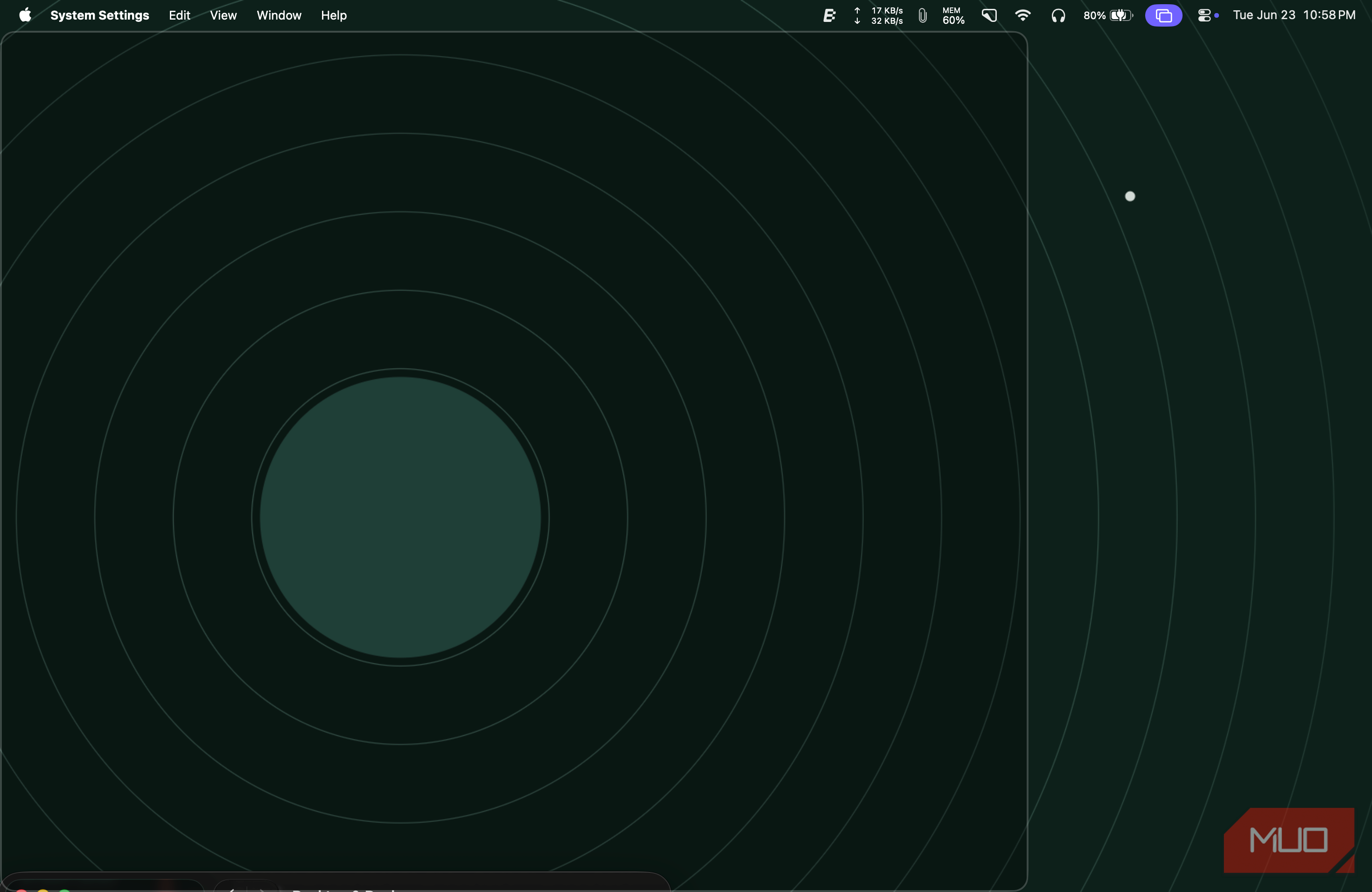
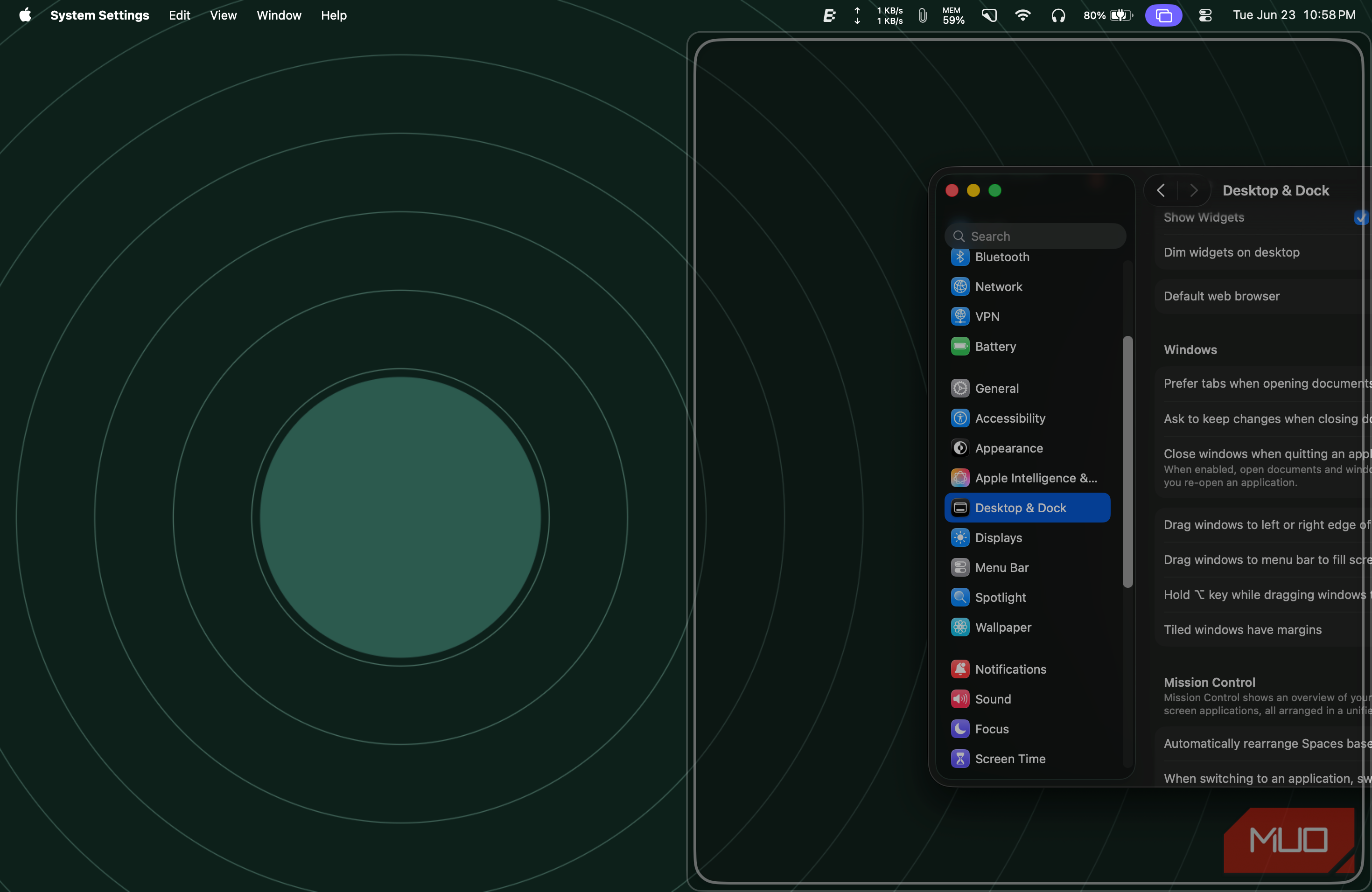
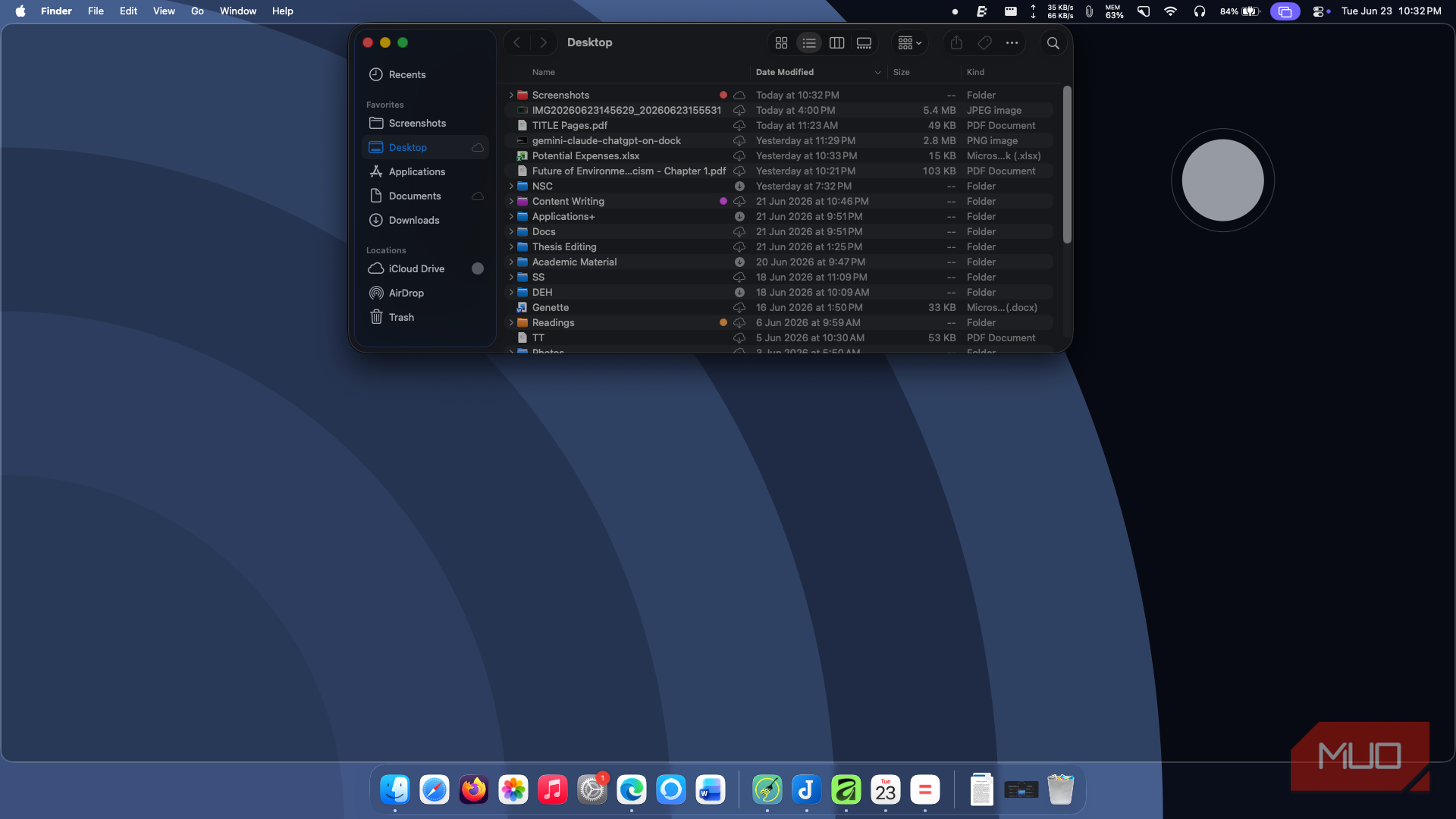
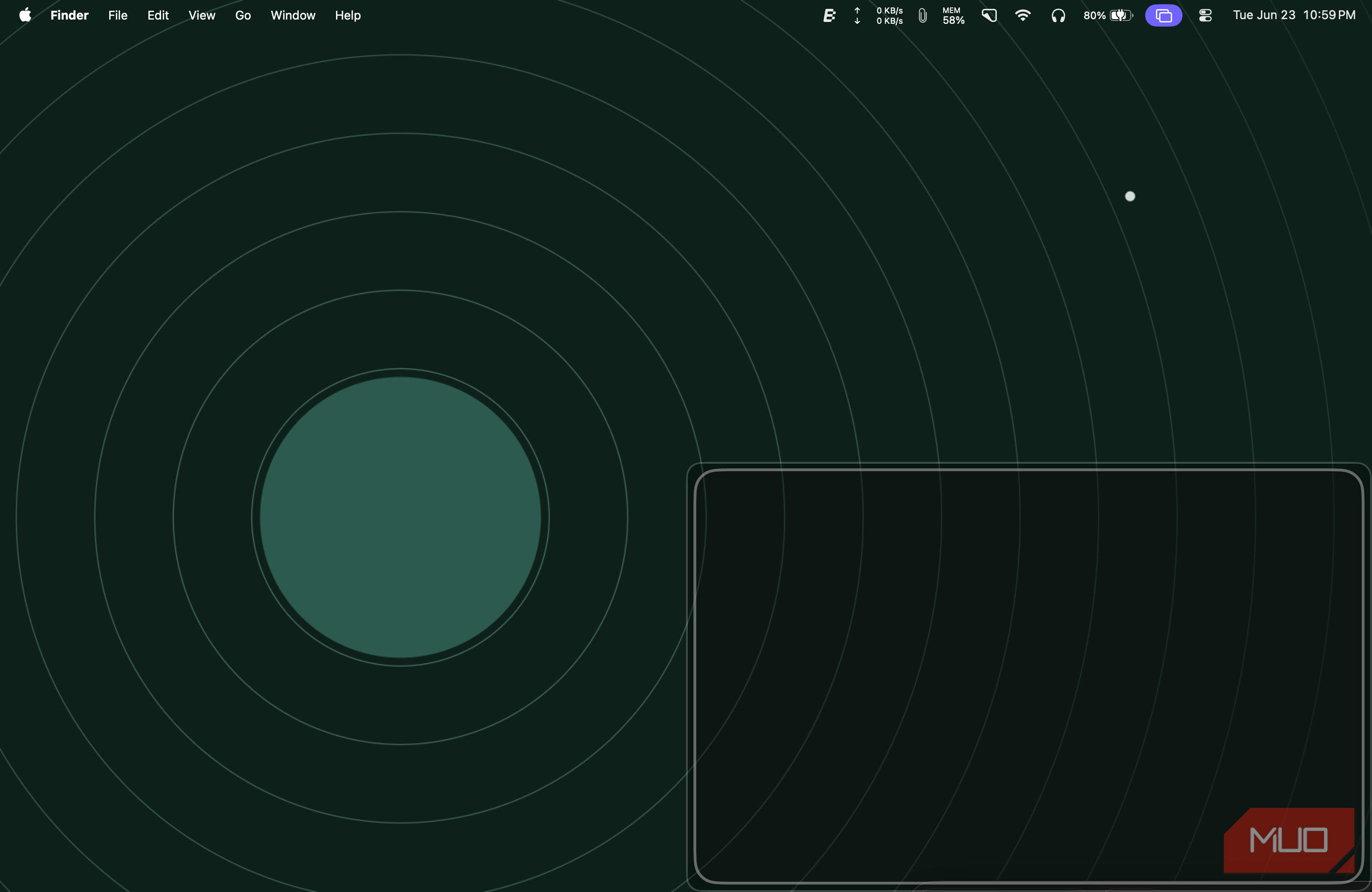
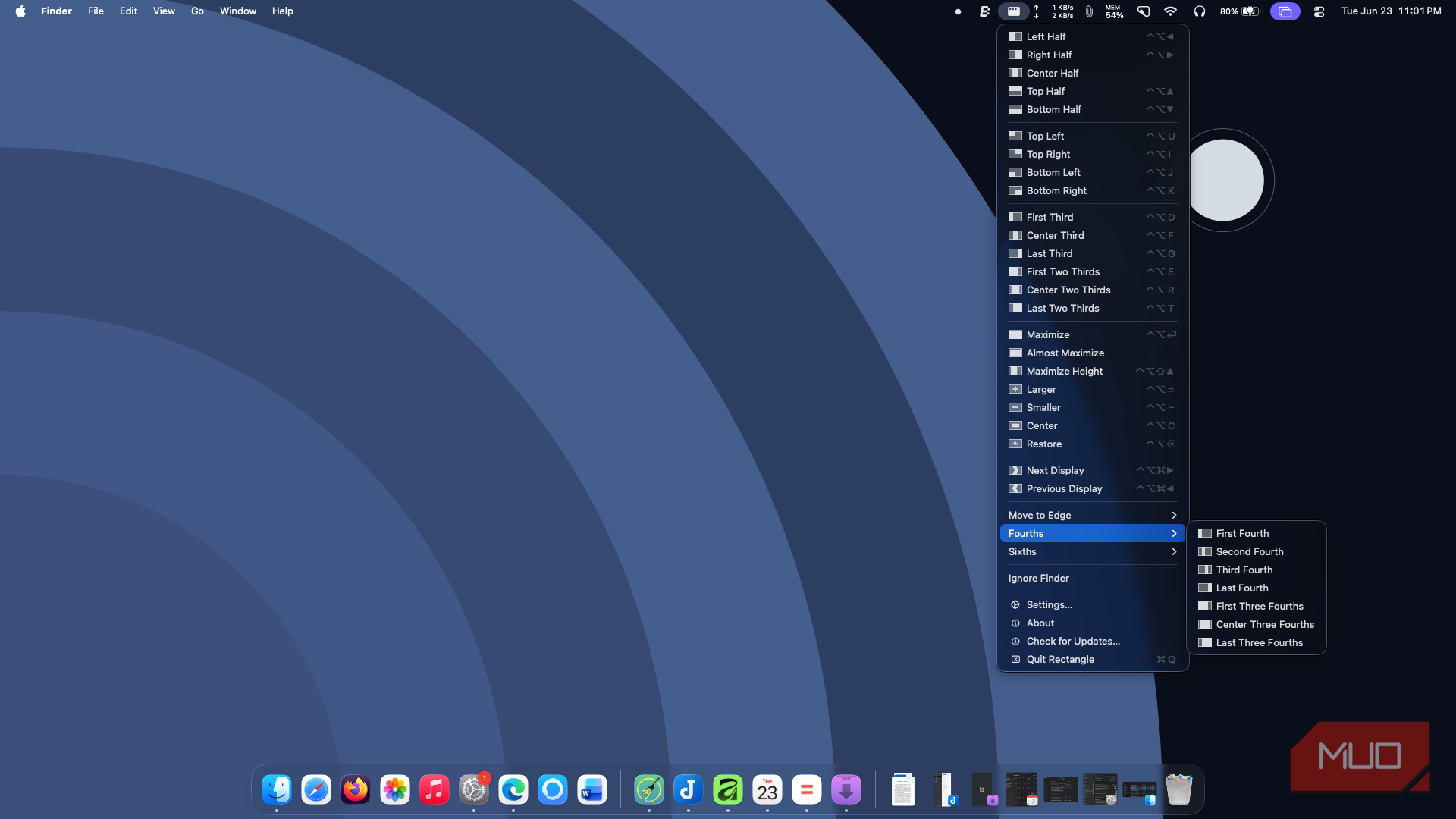



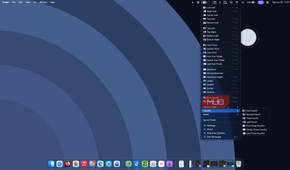
Installing and setting up Rectangle on my Mac took less than a minute. It asked for access permissions, and I had to disable the built-in window tiling to keep Rectangle working. Though there is a paid version of Rectangle, I couldn't spot any annoying upsell notifications or account-creation prompts either. Once these steps were complete, I had working layouts to arrange my windows.
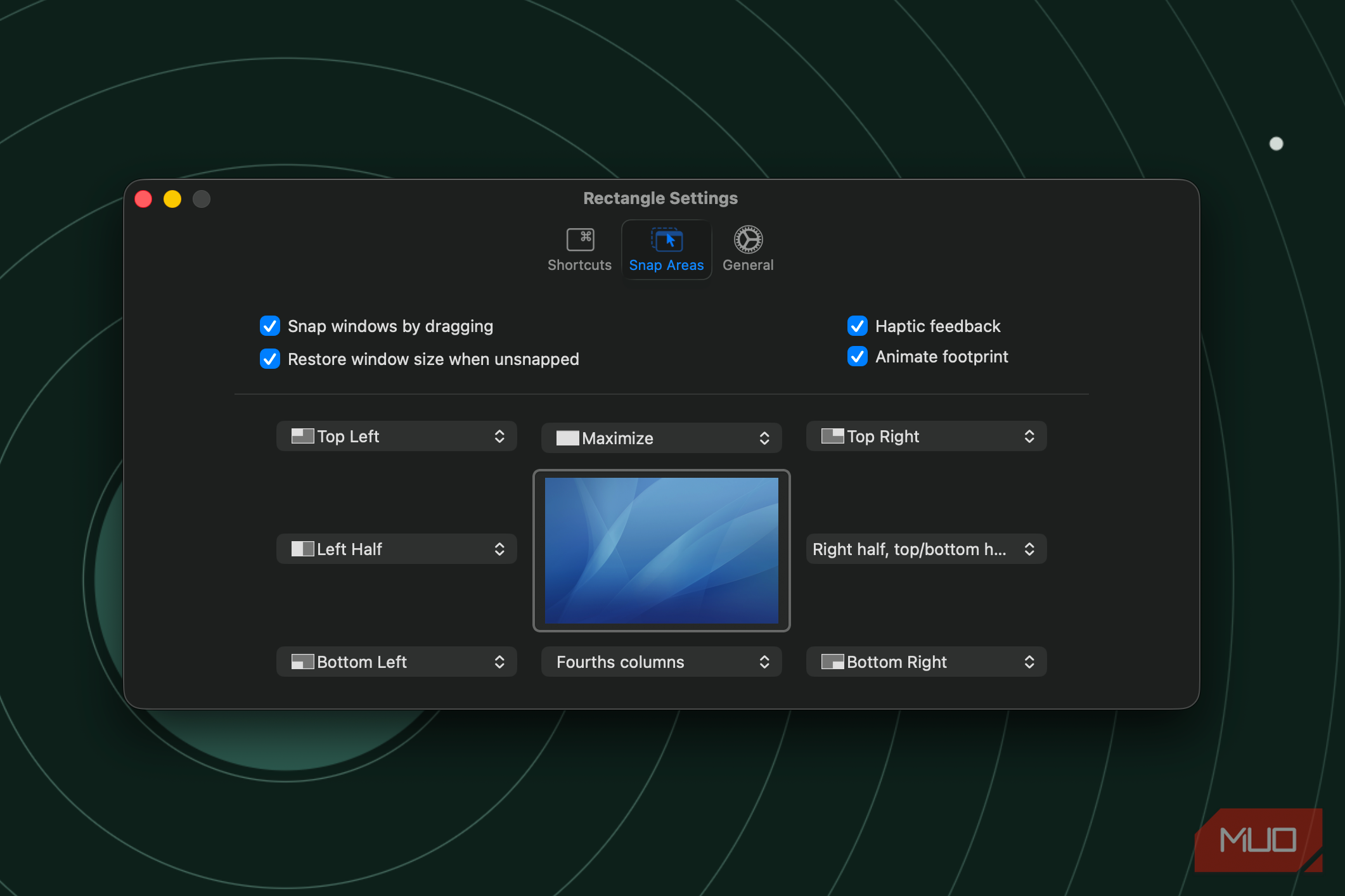
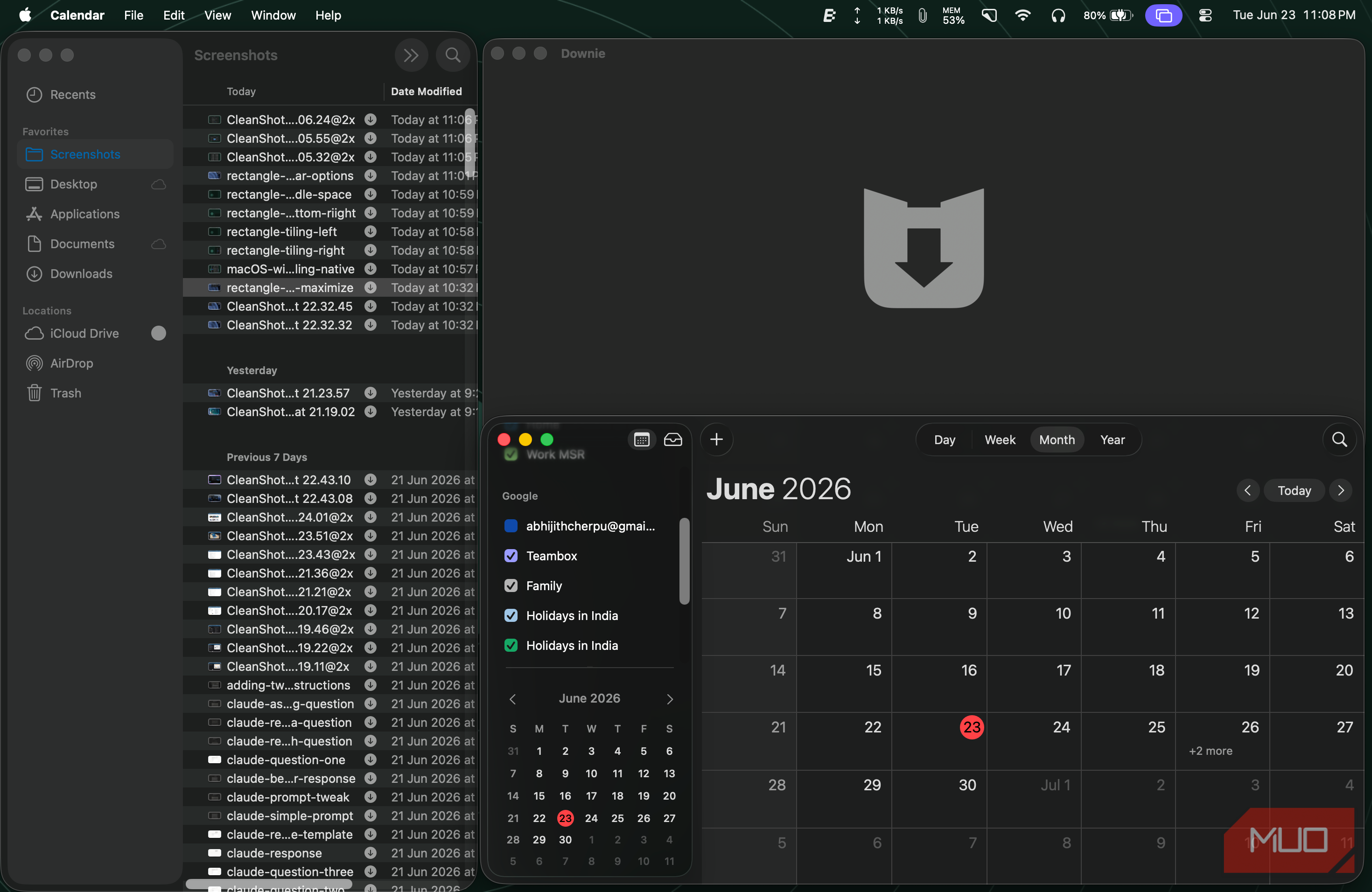
The first time you open Rectangle, you won't notice anything on the screen. Instead, you can access available options and settings from the menu-bar widget. I had a bit of confusion at first, but I noticed the tiling options when I started moving a window. Because window snapping was enabled by default, Rectangle showed me available options whenever I moved the window towards different edges of the screen. Compared to the built-in window tiling engine, Rectangle supports more layouts and arrangements.
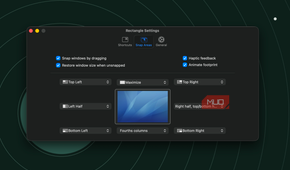
Even though Rectangle is a heavily customizable tool, you don't really need those options to enable a sensible form of window tiling on your Mac. The default enabled options are good enough to help you manage a very heavy multitasking system, especially if you have a larger display. For instance, you can move the window to the bottom of your screen to assign it to one of the screen's one-third sections. Similarly, pushing the window towards the top portion will maximize it.
Of course, it took me a few days to get the muscle memory right, to know where to move my window to get the layout that I want. Once that was done, it was easy to navigate Rectangle and its options. Throughout the process, I appreciated that there was no clutter or annoying upgrades to deal with.
The handful of shortcuts I actually reach for
This list is short but remains customizable


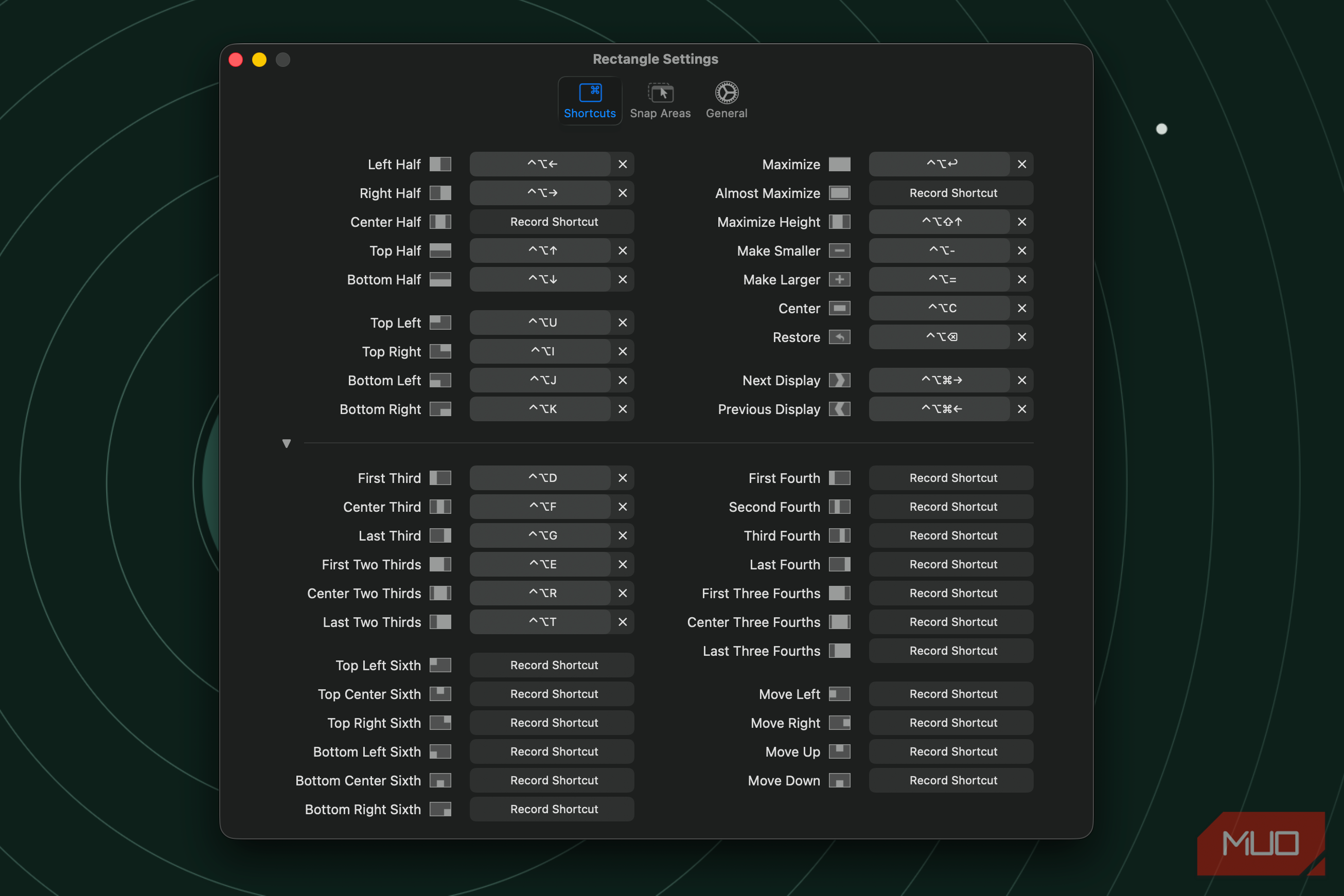
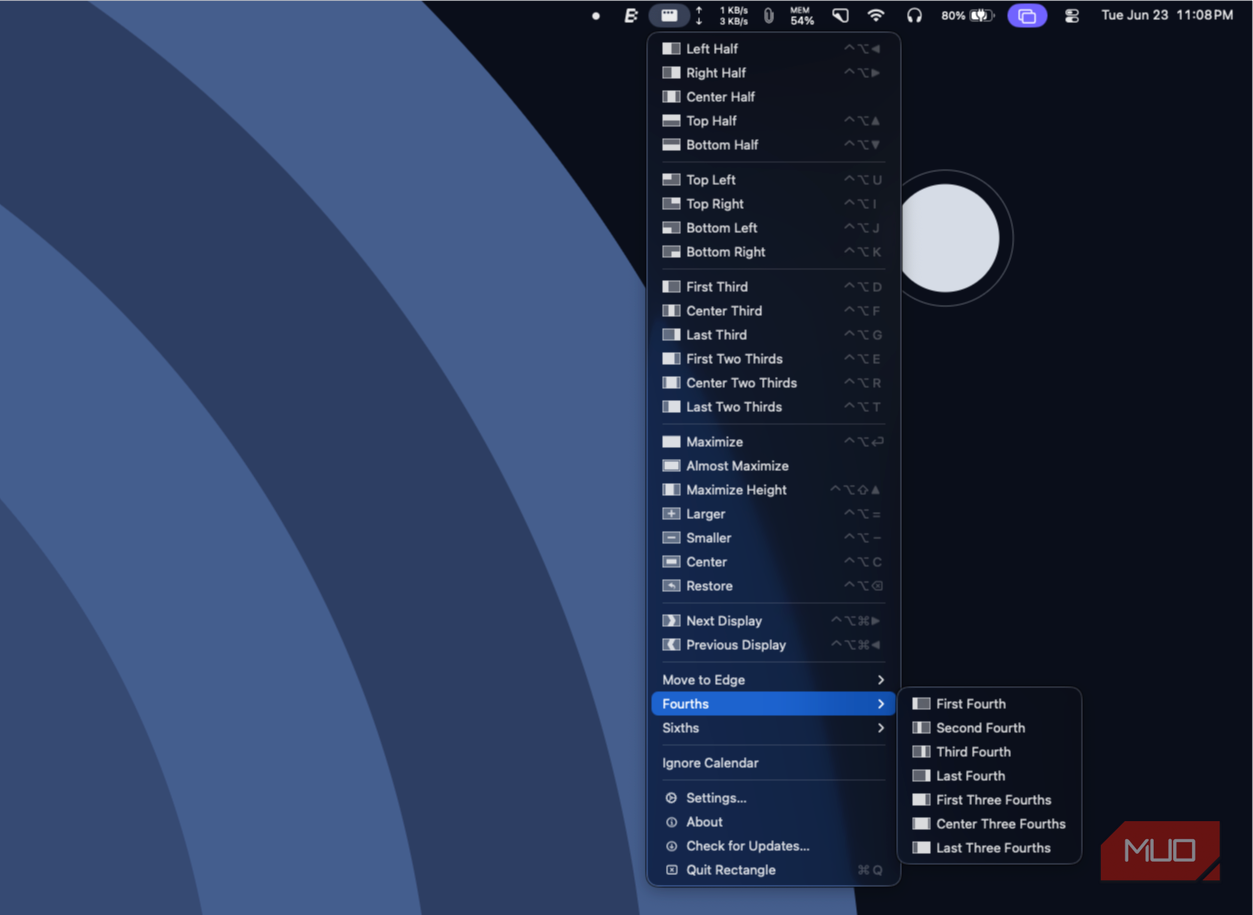
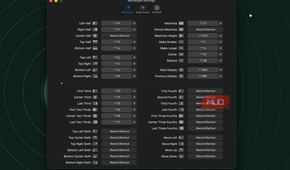
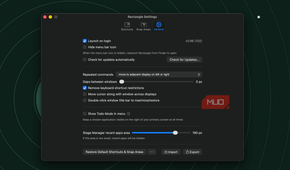
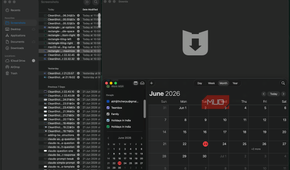
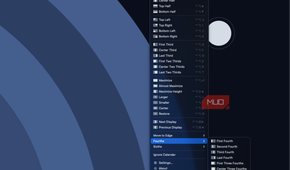
The lack of keyboard-based navigation is another limitation of macOS's built-in window tiling system. I found that Rectangle solves the problem with a predefined set of keyboard shortcuts that you can further customize if you want. You can use these shortcuts to move the selected window to one of the many available layouts. Once again, memorizing these shortcuts takes a minute, but it is definitely worth it if you don't like reaching out for your mouse/trackpad for window management. I also like the specific shortcut that lets me move a window between two displays.
Once you optimize Rectangle for your workflow, it can do things that native tiling on macOS cannot. For instance, you can snap a window to thirds with a single shortcut, or set up a four or six-window shortcut on a larger screen without even having to touch the trackpad. I also love what the customization options offer in this regard. For instance, if I feel a one-third layout isn't enough, I can configure Rectangle to show six spaces when I move a window towards the bottom of the screen.
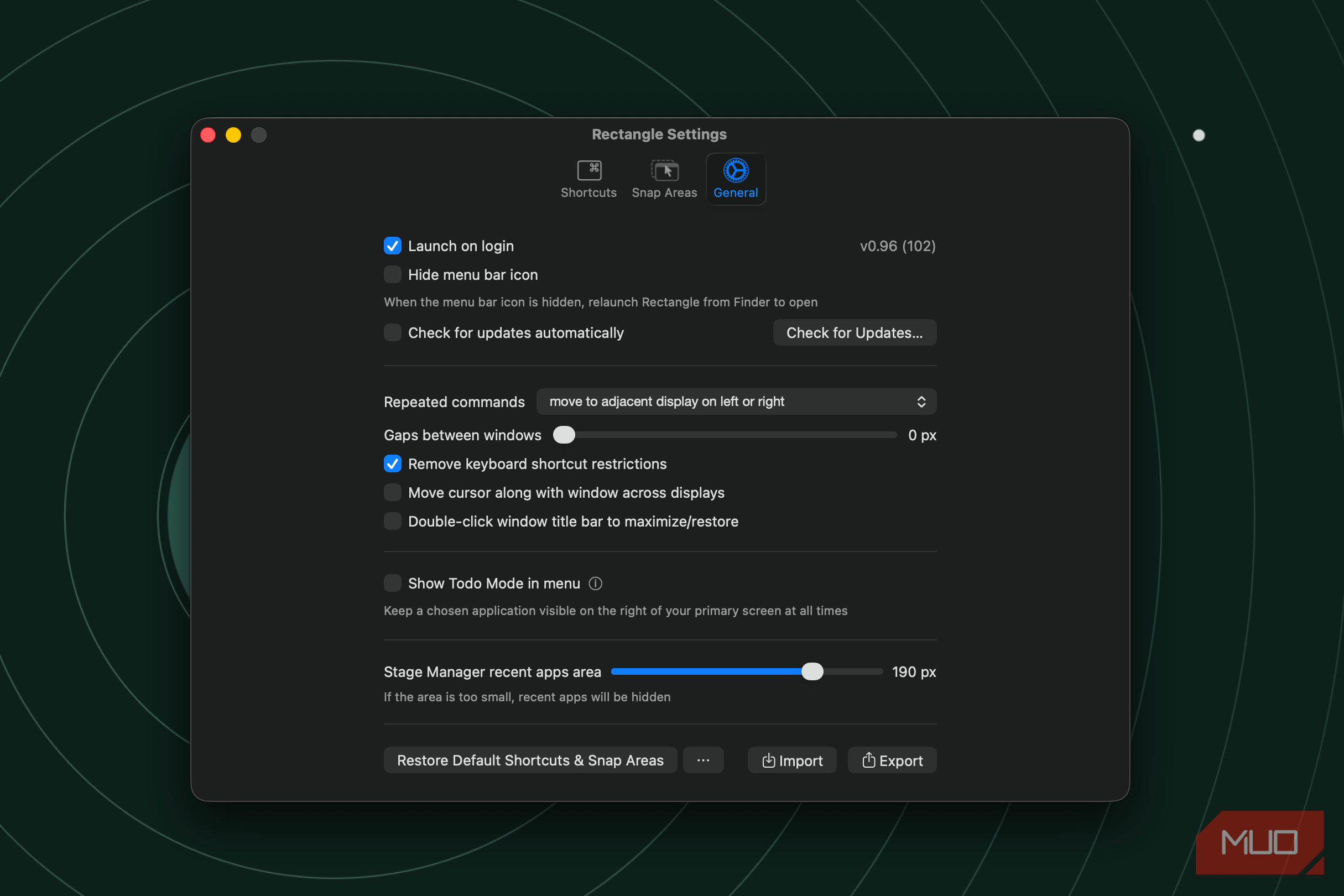
Rectangle's customization options also let you control how tiling works across different apps. For instance, if you don't want tiling options in a Finder window, you can always disable them. Overall, I felt that Rectangle offers the right balance of features and customization options for both beginners and professionals. This way, even if you don't want advanced options, you can use Rectangle as a better alternative to native window tiling on macOS.
What the free version doesn't give you
When we talk about what makes Rectangle imperfect, we should also discuss Rectangle Pro, which adds features like custom grid zones, window history, and additional customization options. So, the free version doesn't offer these options. I should also tell you that window tiling does not work well in all circumstances. For instance, when you choose a 1/3 or 1/6 layout, not all windows may resize or appear properly; you may also have to toggle macOS system settings for some features to work.
Yet, none of these things are deal-breakers when you want something better than native window tiling on macOS and something more similar to window tiling and snapping on Windows. For the same reason and because of the lack of a price tag, Rectangle is something every Mac user can consider.

Rectangle
- OS
- macOS
- Individual pricing
- Free, Open Source
- Developer(s)
- Ryan Hanson
Rectangle is a free, open-source window tiling utility that offers keyboard shortcuts to arrange windows on macOS.