


No matter where you live and which phone you use, spam calls are annoying. Somehow, they happen at the worst possible moment, too. One solution here is to install anti-spam apps on your smartphone, but they often bring a new set of problems. If you are on Android, however, you don't really need that third-party option. Instead, the latest versions of Android ship with multiple features to improve your calling experience, and I enabled them by toggling on 4 settings!
Caller ID & spam was the first switch I flipped on my device
Turns out my phone already knew who was lying

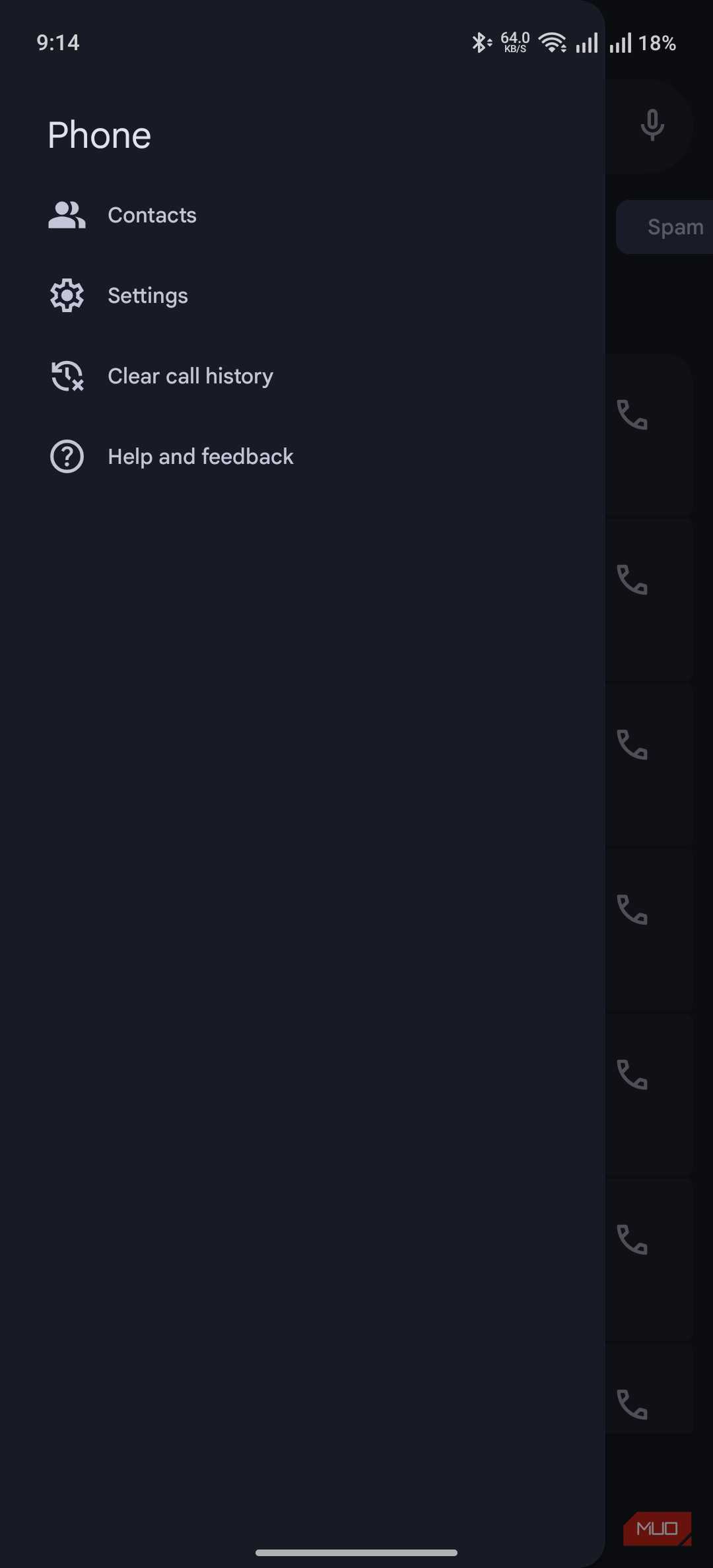
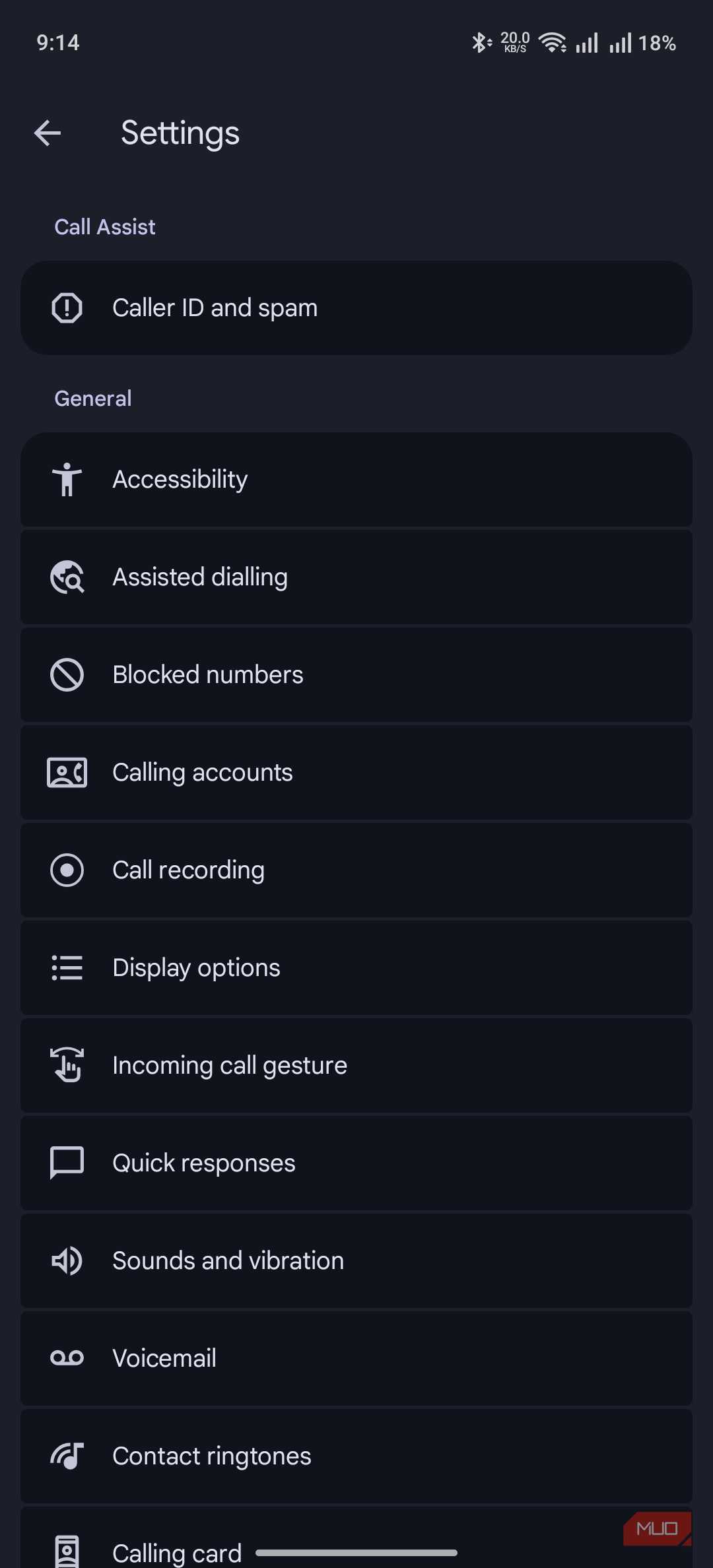
Unless you have de-Googled your Android smartphone to the core, the See Caller and Spam ID settings in the Phone app can make your life more peaceful. It is designed to help you identify who is calling you, including numbers that have been reported as spam. You can set it up by going to Phone > Settings > Caller ID & spam > See Caller and spam ID.
Once you have enabled this option, your smartphone will cross-reference the number of an incoming phone with an existing directory. If one of these numbers matches the records, the device will flag the call as spam. Depending on your device, the system may use data from Google and other providers.
Keep in mind that the setting doesn't block the spam call from appearing. Given how some legit numbers may be mistaken as spam, this option makes sense if you want the discretion to block a number.
Filter spam calls is the setting hiding inside the first one
One menu, two toggles, and everyone misses the second


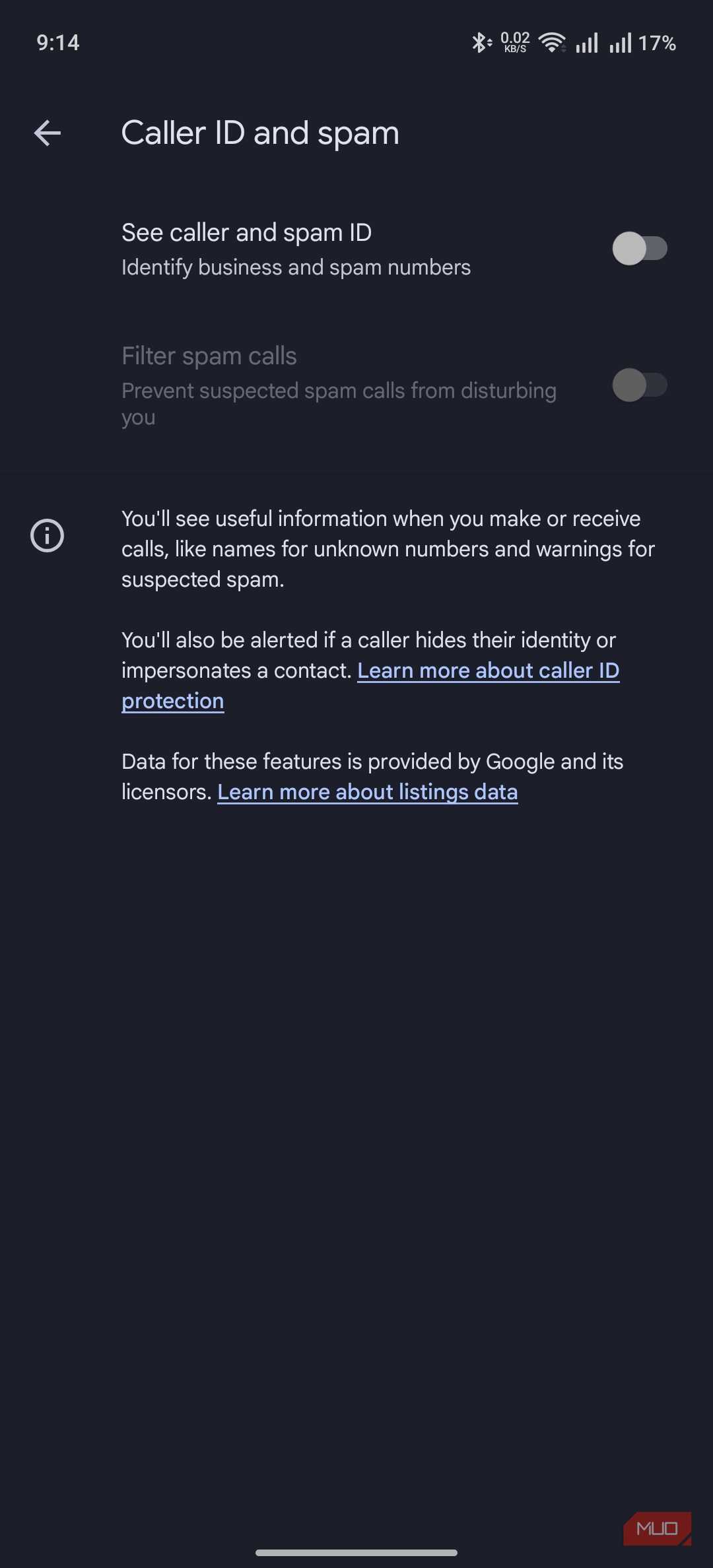
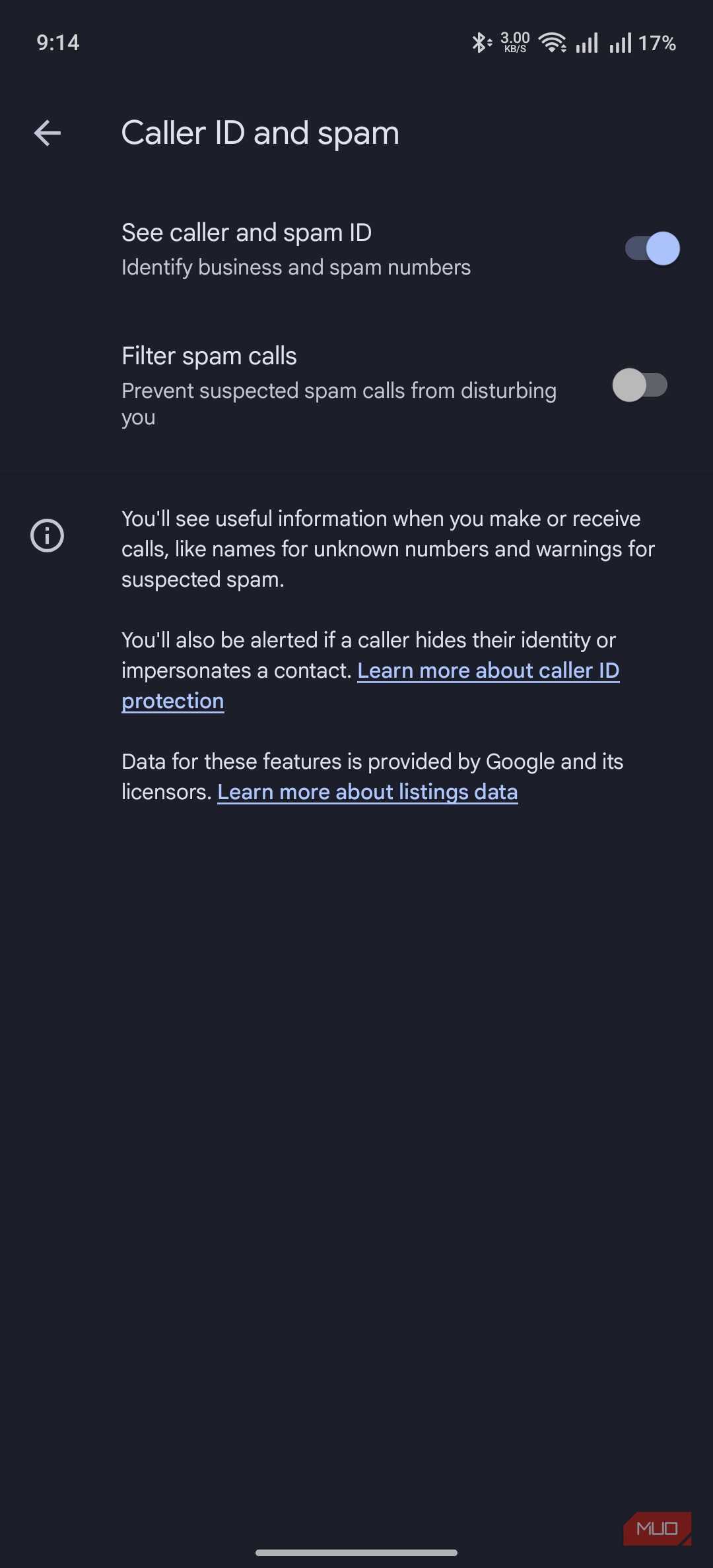
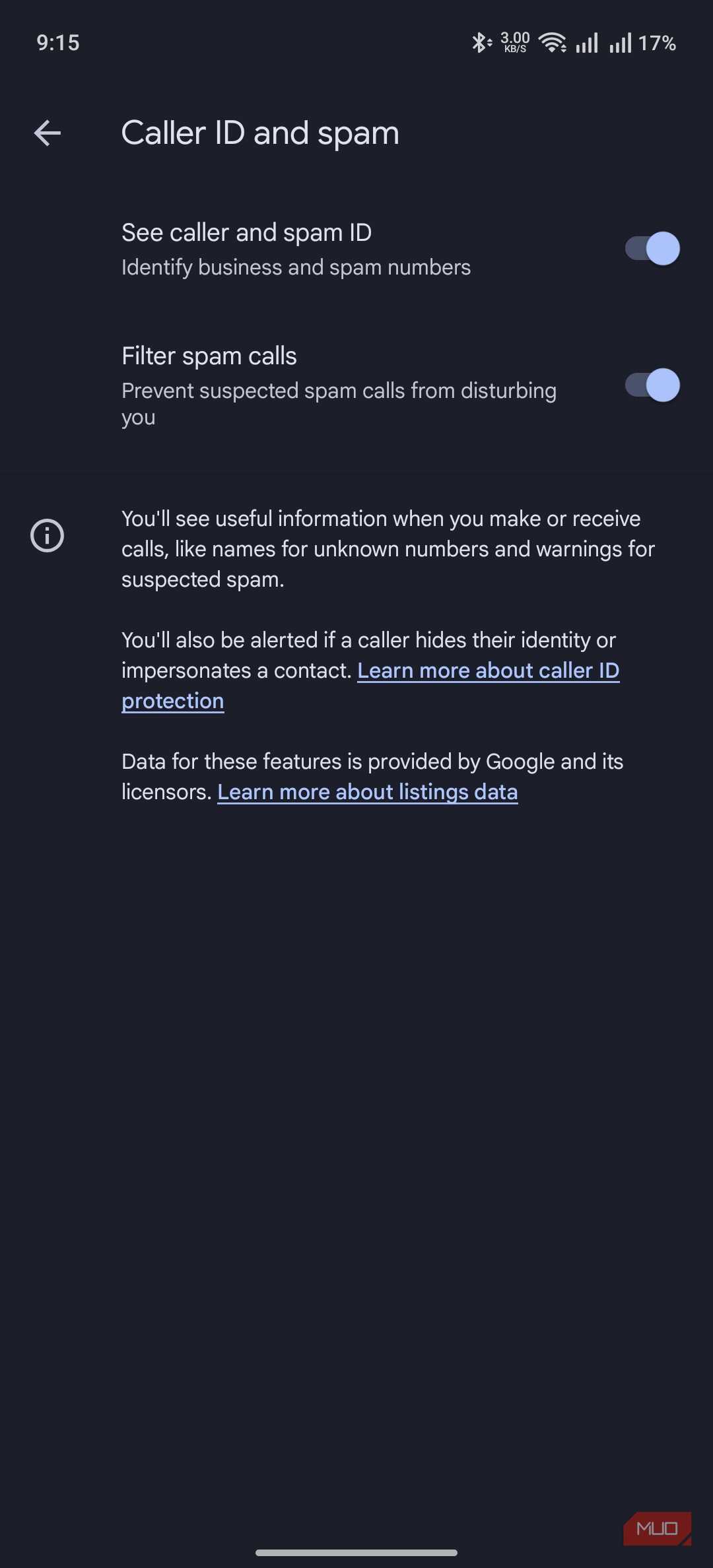




Though the first setting can show you the caller and spam ID, it doesn't do much to prevent them from appearing. If you want such protection, you must enable the Filter spam calls setting in the same submenu. The process is similar in that your phone will cross-reference non-contact numbers to an external list. However, this time, your phone will automatically block those numbers.
You can enable this option by going to Phone > Settings > Caller ID & spam > Filter spam calls.
You won't even know that you got that call in the first place. On some devices, the call will be sent to voicemail. I recommend enabling this option when you get tens or hundreds of spam calls every day and want an easy way to escape them. In all the years I've used this option, it has worked well for me. But this setting isn't without its caveats.
Because everything relies on a crowdsourced reference list, there may be situations where an important number is flagged as spam. Once you enable this option, these people may not be able to contact you. So, depending on the situation, you might need additional discretion here.
Blocking unknown numbers finally silenced the 6 am calls
No caller ID, no ringtone, no problem

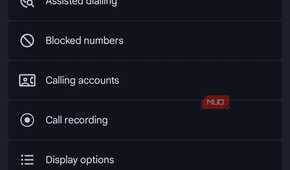
I'm sure you are equally, if not more, annoyed by those Unknown/Blocked calls you get at all the wrong times. Well, Android has a built-in option to block these unknown numbers and silence those 6 AM calls. You can enable this option by going to Phone > Settings > Blocked Numbers > toggle Unknown. The device will then start blocking calls from unidentified callers.
Just to be clear, "unidentified numbers" don't mean numbers you haven't saved as contacts. Instead, these are numbers that do not appear on the caller ID. On the contrary, these calls will show "Unknown" or "Blocked" on the screen. In most cases, these are VoIP-based or foreign numbers that cause more harm than good.
I've had this option enabled for a while, and I haven't missed any important calls. On the contrary, because my mobile number is public, it helps me avoid many spam calls.
Clear Voice stopped my kitchen from sounding like a call center
The one that fixed the calls, not just the callers

The three options mentioned above basically stop spam calls and unwanted callers from reaching your phone. However, the fourth option addresses an equally annoying issue with phone calls: background noise. This feature has different names across devices, and you can find it in Settings > Voice & Vibration > Clear Calling/Clear Voice.
For example, on a Pixel, it is called Clear Calling. On my OnePlus 13R, the same feature is called Clear Voice. The core function here doesn’t change, though. When enabled, the device will intelligently remove background noise from your side. So, even if there's a loud noise in the background, the receiver can hear you properly.
Because most Android smartphones are powerful enough to do this background noise removal on-device, you need not worry about privacy, either.
These four settings can't catch everything, and here's what still gets through
These four settings can undoubtedly make your calling experience better on an Android smartphone, but they are not the end of it. There are still some factors that get through these systems, such as spam numbers not included in the reference systems or background frequencies that reach the other side. In those cases, you might need third-party call-blocking apps as well; plenty are available. Yet, if you are dealing with a high volume of spam calls and background noise and want to start somewhere, you can definitely go with these options.