


My gaming laptop has been a solid performer for years. It can still happily play most titles on max settings and never really lets me down when I need it most. It does, however, have an issue with high CPU temperature.
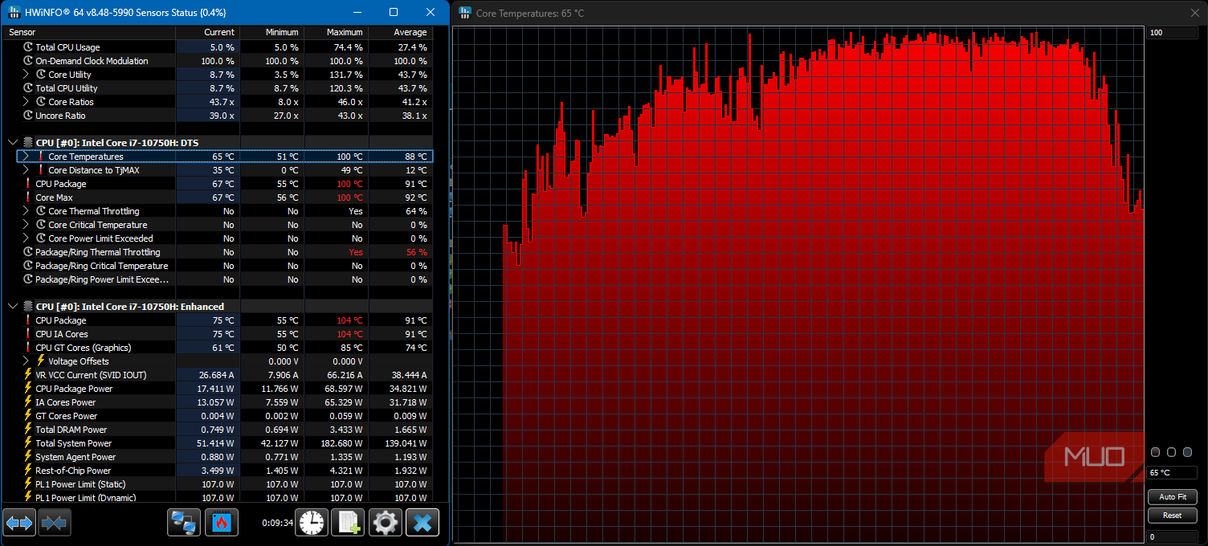
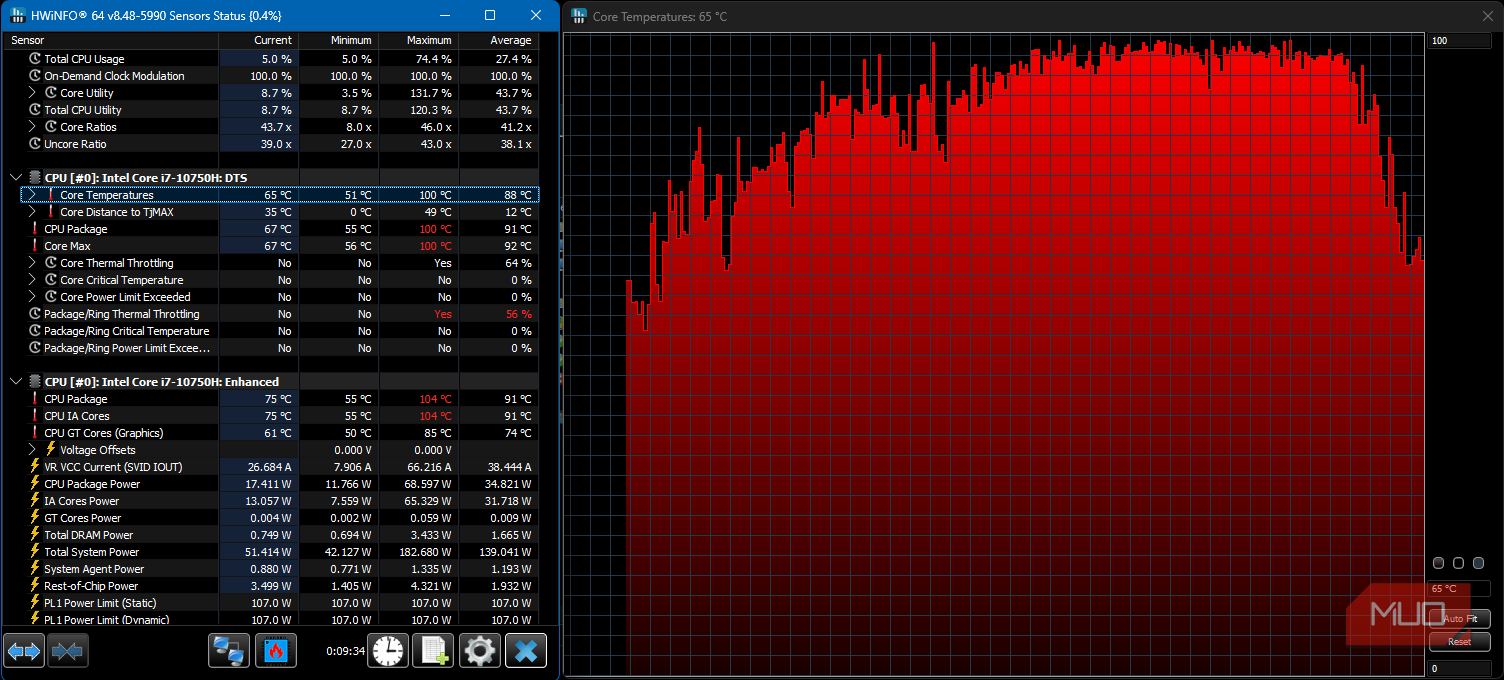
When I loaded up a game or even had too many tabs open on the browser, the CPU temperature routinely hit 120°C. As the thermal throttling kicked in, frame rates dropped, turning my Skyrim session into a PowerPoint presentation.
I took all the usual steps to correct this, like reseating the heatsink with new paste, clearing out the fans, and making sure it had room to breathe. While that knocked off one or two degrees from the temperature, it made no noticeable difference.
Instead, the biggest improvement came from changing one insignificant Windows power setting that, at the time, felt too small to even make a difference.
My laptop was running hot enough to heat my room in winter
The laptop still worked, but almost burning my wrists on the keyboard made it miserable




Most gamers know the annoying part about excessive hardware heat is that it slowly becomes part of the whole experience. It’s hard to get immersed in a game when you’re constantly watching CPU temps approaching boiling temperature in big red text on a monitoring app.
It’s not only the temperature that detracts from the experience. As CPU and GPU resources get used up, the fans ramp up and sound like an Airbus A380 is sitting on my desk. The laptop itself also gets incredibly hot, and after a few hours, my ears have had enough of the onslaught.
The consistently high CPU temperatures also make the laptop unpleasant to use outside of games. On warmer days, especially in summer, it never really feels cool or settled. Even light tasks like editing a spreadsheet were enough to start the fans screaming. Worse still, no amount of settings or custom profiles for fan speeds would make a difference.
It was incredibly frustrating because the performance was fine. I wasn’t trying to squeeze out any extra frames. I wanted the opposite. Less drama, less heat, and a laptop that would just stay stable under stress.
I changed one Windows setting to 99%
The last one percent was more important than I could have imagined

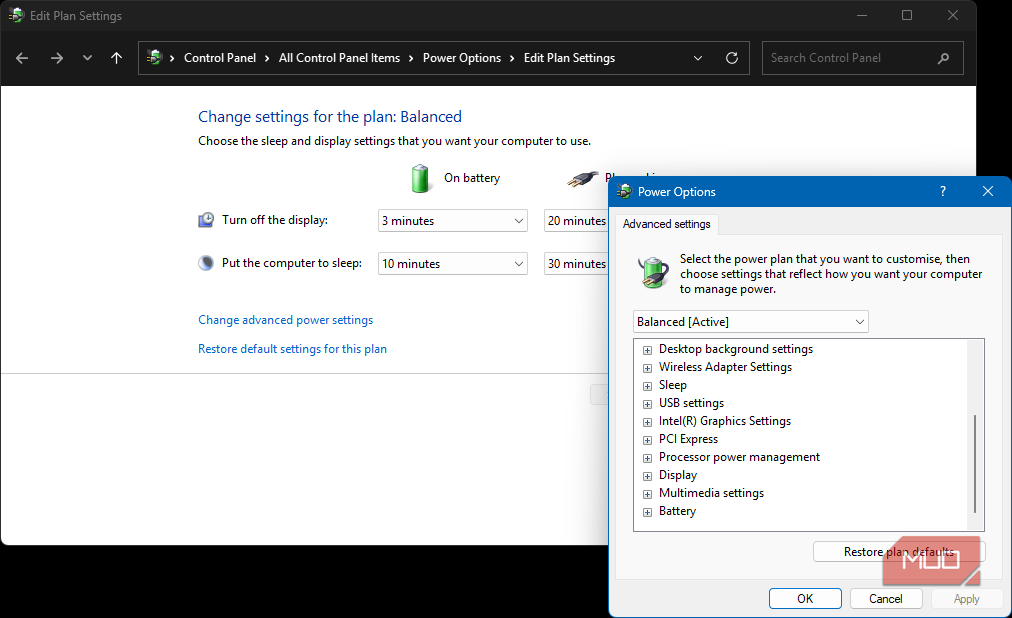
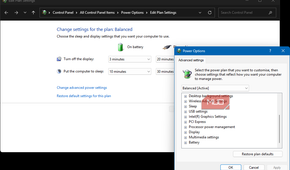
The one setting I changed was buried in the older Control Panel options rather than the shiny new Settings app. I went to Control Panel -> Power Options -> Change plan setting -> Change advanced power settings, then opened Processor power management and found Maximum processor state.
I set both options to 99%:
- On battery: 99%
- Plugged in: 99%
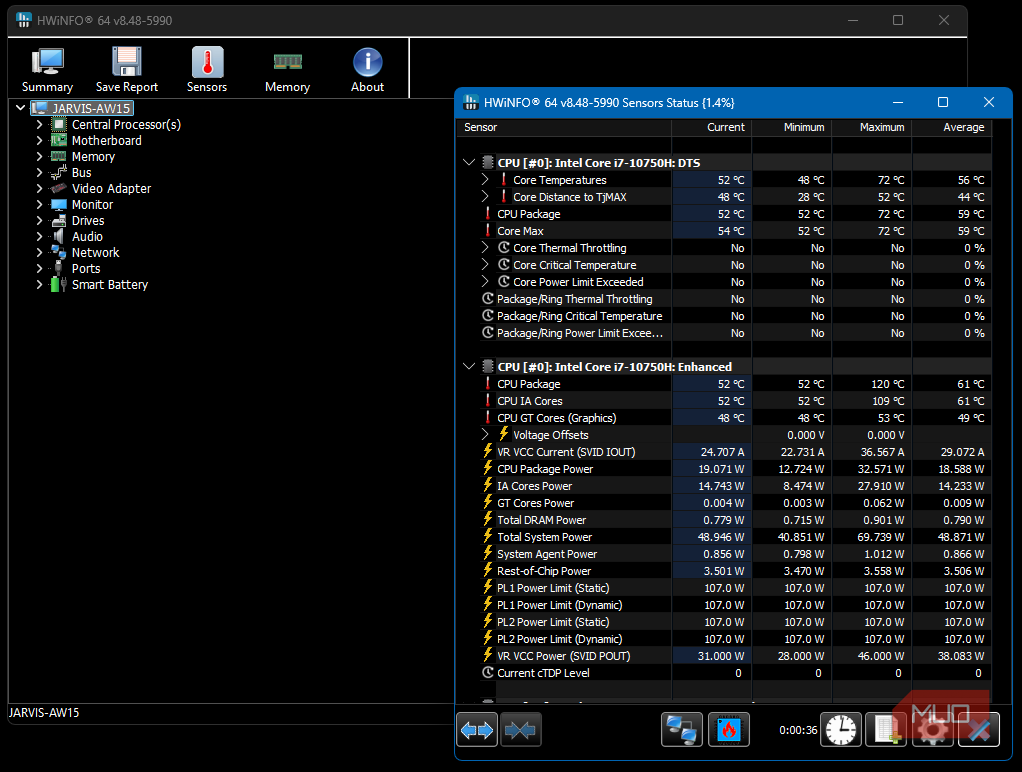
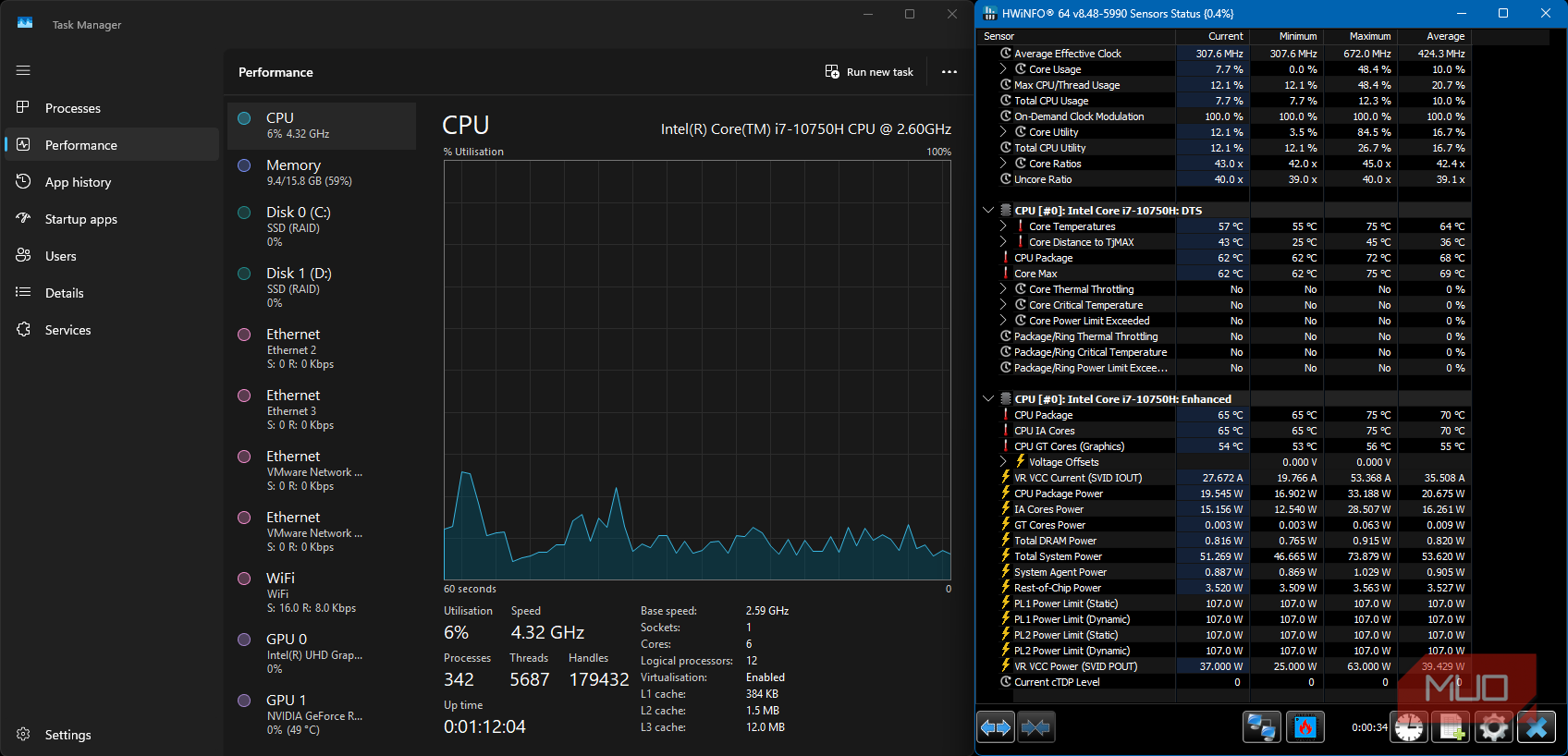
I honestly thought this would change nothing, but I tried it anyway in desperation. As soon as I hit Apply, the laptop immediately calmed down. I opened the Windows diagnostic app HWINFO, and sure enough, the CPU was now idling at ~50°C instead of 80-90°C.
The temperature drop was the part I did not expect
I wanted less throttling, but actually got a calmer laptop overall

I wasn’t really expecting anything life-changing from changing this setting. I had hoped that maybe the fans would take longer to ramp up, or that the CPU would throttle less during gaming. What I got was way more noticeable. The CPU temperature dropped dramatically not only under load but also when performing everyday tasks.
So how does 1% make such a difference? On most laptops, setting the maximum processor state to 99% stops the CPU from aggressively boosting. Dropping it by 1% doesn’t turn it into a sluggish mess, but it does keep Windows from letting the processor keep chasing boost behavior just from opening the start menu because it thinks it has room to do so.
After changing the setting, the CPU seemed to hold a much more stable clock speed instead of sprinting, overheating, backing off, and then sprinting again. The fan noise at idle was almost nonexistent, and the whole laptop felt steadier when running those resource-intensive tasks.
Of course, it wasn’t completely silent because this is a gaming laptop, and physics still applies. But for actual gaming, the stability stopped the constant thermal throttling. For me, that was more important than losing that peak clock speed due to the 1% power loss.
In theory, the tradeoff is real, but I barely noticed it
I gave up some boost speed to get a laptop I could actually use

There is an obvious downside here because limiting the maximum processor state should reduce peak CPU performance. When I render videos, play games, or start exporting a huge database, it’s natural to expect these tasks to take longer.
This isn’t actually what I experienced. The laptop was already losing performance when it throttled under heat, so the perks of full boost were merely theoretical. A CPU slowed by 1% that stays steady is far better than a faster CPU that keeps slamming into a thermal wall.
That said, this won’t solve the thermal issues caused by neglecting to clean my laptop. Clogged fans and heat sinks, dried-up thermal paste, or the laptop sitting on a surface that blocks the air intake will still cause problems even if I set the maximum power state much lower.
I would try this before opening the laptop
It is not a miracle repair, but it is a brilliant first test
This is now one of the first things I would recommend anyone who is having issues with fan noise and heat from their Windows gaming laptop try. It costs nothing, takes a few seconds, and it’s easy to reverse if performance drops to an unacceptable level.
It’s also far safer for anyone who’s not comfortable tweaking BIOS settings, messing around with undervolting tools, or opening up the laptop.
For me, it showed that aggressive CPU boosting is part of the problem, even after I had already tried everything else. If I had only tried this quick and simple fix first, it would have saved me a lot of time and gotten me back to the gaming I love far sooner.