


I've been using my Google Pixel 10 Pro for quite a while now, and like any longtime smartphone user, I know battery health isn'tperfect forever. The more you use a phone, the more its battery naturally wears down. What surprised me, though, is that my Pixel started giving me battery anxiety much sooner than I expected. The phone hasn't even been around for a full year, yet I often watch the battery percentage far more closely than I'd like.
There's nothing more frustrating than heading into the second half of your day and already wondering where your charger is. I wasn't ready to ditch the phone. So instead of replacing it, I started tweaking a few settings and changing some habits to see if I could squeeze more life out of the battery. The results were much better than I had expected.
I found the battery vampires hiding in my Pixel
Some apps need stricter bedtime rules


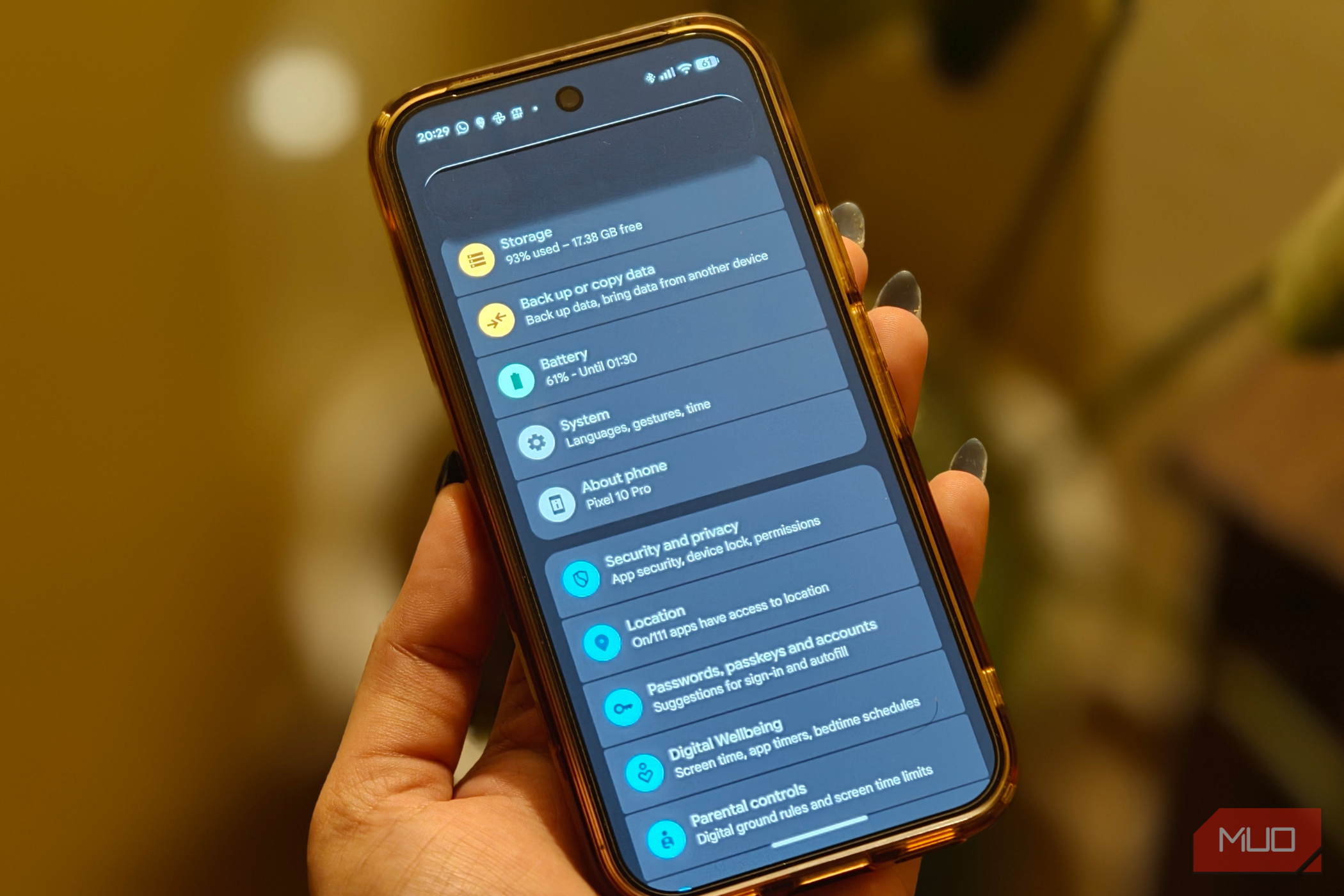
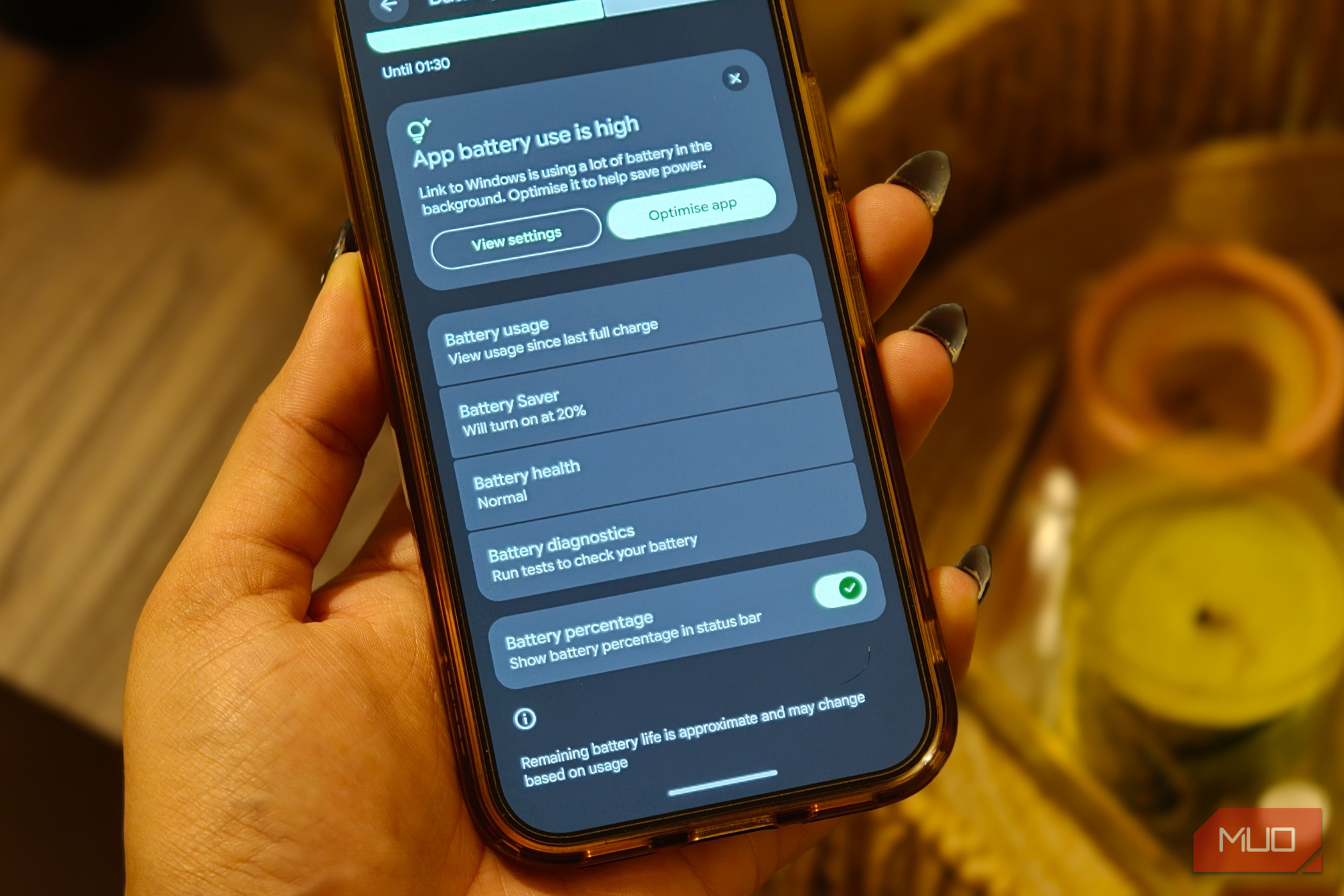
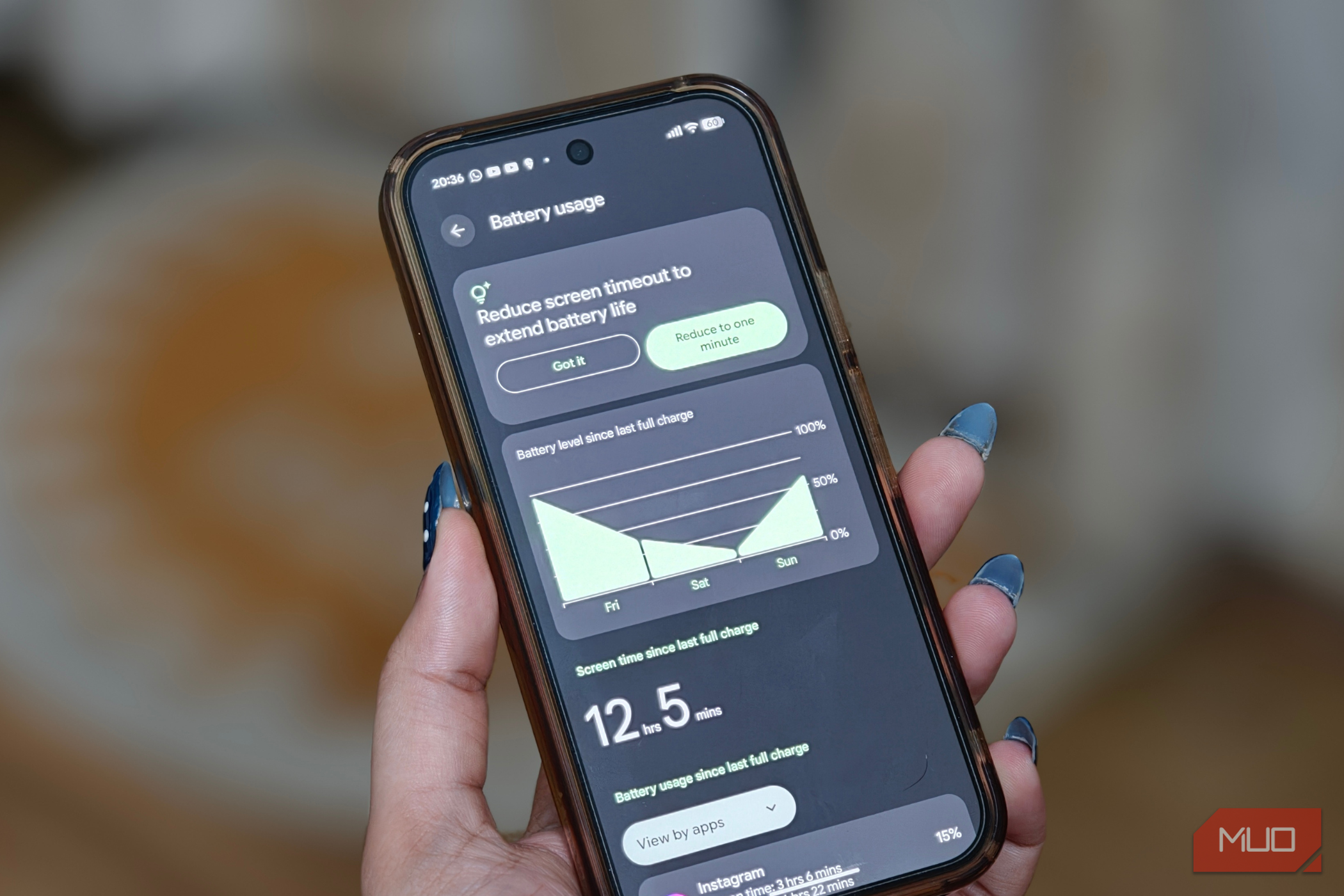
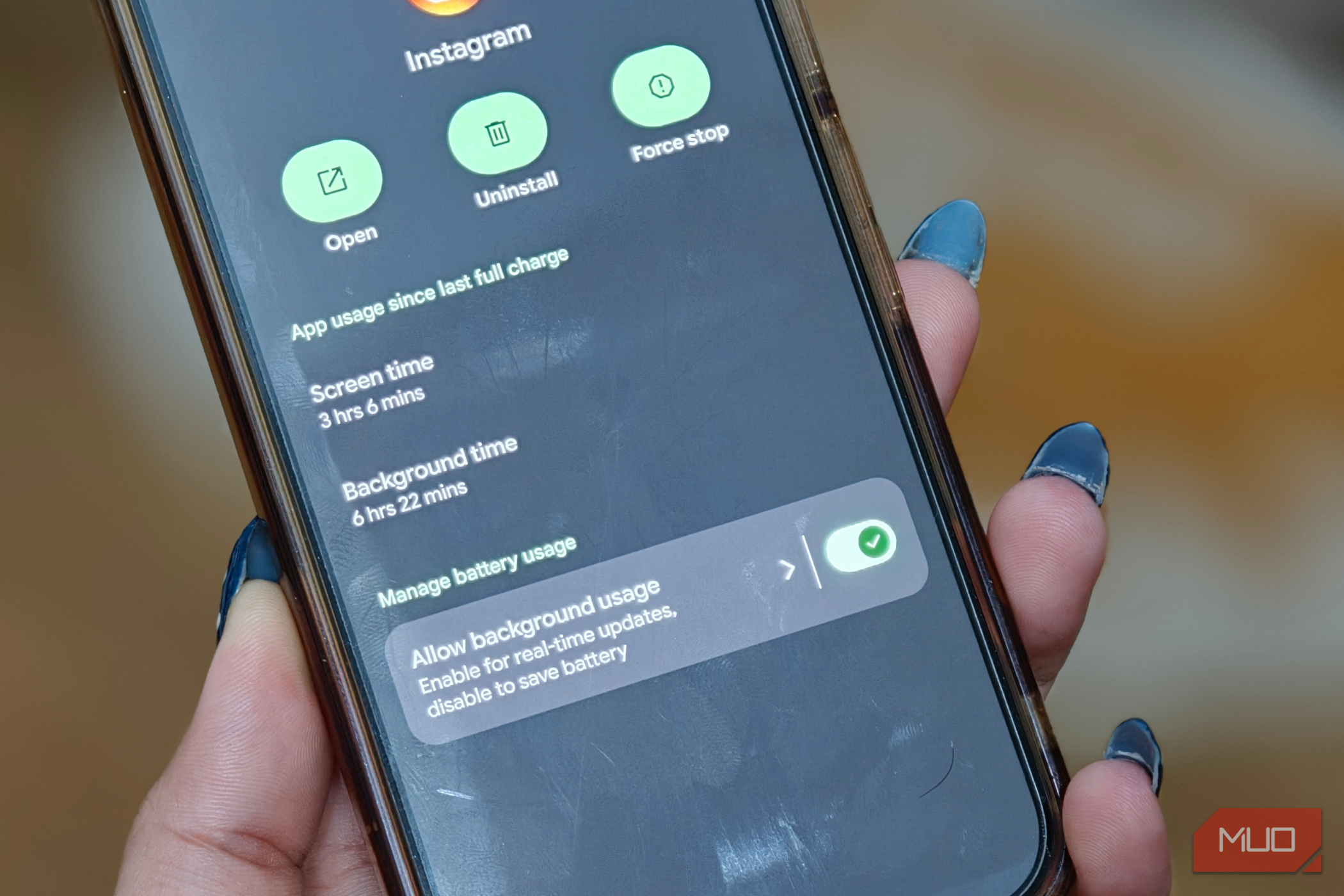
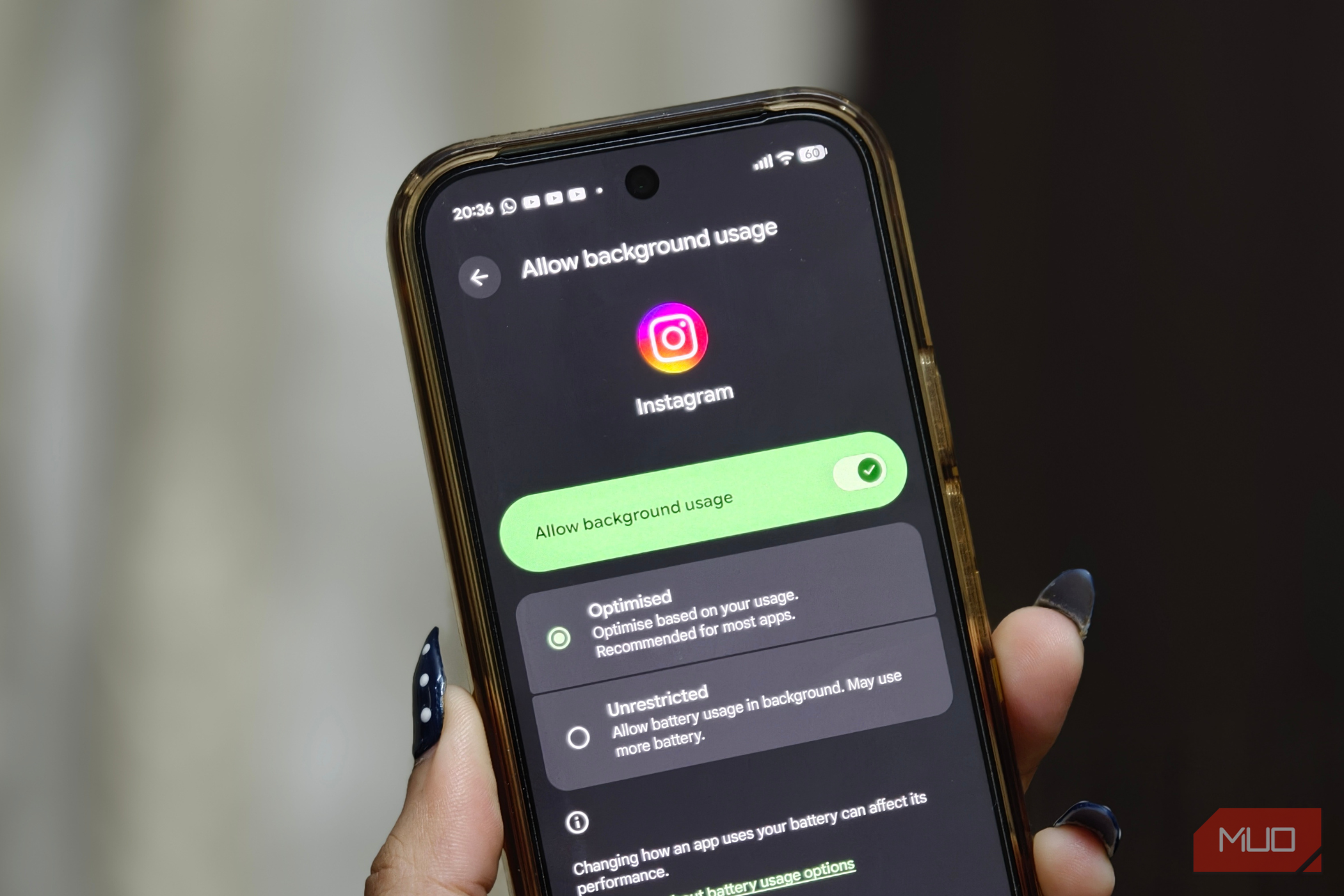
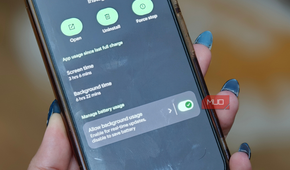
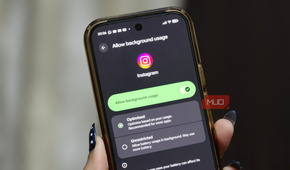
One of the first things I did was rein in a few apps that were draining my battery in the background. Most of us have apps that love waking up every few minutes for reasons known only to them, and over the course of a day, that constant activity can take a real toll on battery life. If you'd like to check which apps are the biggest offenders, here's how:
- Open the Settings app on your Pixel phone.
- Go to Battery and tap Battery Usage.
- Scroll through the list and look for apps consuming an unusually high amount of power.
- Tap on an app, then select Allow Background Usage.
- Choose Optimized. This still lets the app run in the background when needed, but limits how frequently it can wake up and use power.
I went through this process for several apps, and over time, I noticed a meaningful improvement in battery life on my Pixel 10 Pro. Don't expect a dramatic change overnight, though. Battery-saving tweaks like this tend to work in the background, and the benefits become more noticeable after a few days of regular use.
I put a few apps into hibernation
My battery came back feeling refreshed, too

The second change I made was arguably the most effective: pausing apps I wasn't actively using but still wanted to keep installed. We've all got those apps sitting on our phones "just in case" — not important enough to use regularly, but not unimportant enough to delete. The problem is that some of them continue to run in the background, using resources and sometimes draining battery life. Thankfully, Pixel phones make it incredibly easy to put those apps on ice without uninstalling them. Here's how:
- Long-press the app icon you want to pause.
- Tap Pause app from the menu that appears.
That's it. The app is now paused and won't run in the background until you manually reopen it. There is one important catch, though. When an app is paused, it enters hibernation mode. That means it won't send notifications, refresh content, or perform any background activity. So before you start enthusiastically pausing half the apps on your phone, make sure they're apps you genuinely don't need updates from. A shopping app you open once a month? Probably fine. Your messaging app? Maybe not.
My lock screen was doing the most for no reason
So I told them to chill

I also ended up turning off the Always-On Display setting on my Pixel 10 Pro. As much as I like the idea of glancing at my phone and seeing everything at all times, I realized I don’t really need it. My screen already lights up the moment I get a message or notification, so this feature was basically just sitting there sipping battery in the background. If you're in the same boat, it’s honestly worth switching off. Here’s how you can do it:
- Open the Settings app on your Pixel.
- Go to Display and touch.
- Tap Lock screen and turn off Always-on display.
And that’s it. This definitely makes a huge difference to your phone’s battery life.
5G, 4G, Wi-Fi … my Pixel was doing too much
Now it finally knows when to slow down

Another setting that genuinely helped me squeeze more life out of my Pixel’s battery is Optimize Network for Battery Life. So, your phone intelligently manages mobile data and Wi-Fi in the background, which means it doesn't run at full power when it doesn’t need to. Hence, your Pixel can switch between 5G, 4G/LTE, and Wi-Fi depending on what you're doing.
So if you’re just scrolling, checking messages, or letting your phone sit idle, it may switch to a lower-power connection instead of staying on high-speed 5G all the time. And yes, that little adjustment can actually help your battery last longer throughout the day. If you want to turn it on, here’s how:
- Open the Settings app on your Pixel.
- Go to Network & Internet.
- Tap Adaptive connectivity.
- Turn on Optimize network for battery life.
And that’s pretty much it. It does its thing in the background, and over time, you’ll start noticing your battery doesn't give up on you quite so early in the day.
I let my phone decide what deserves battery power
And honestly, it’s about time

One more setting you absolutely want to make sure is turned on is Adaptive Battery. When enabled, your Pixel slowly learns your habits over time — which apps you actually use, and which ones just sit there pretending to be important. Instead of treating every app equally, it starts prioritizing power for the apps you often open while limiting background activity to those you barely touch. The result is less unnecessary drain and noticeably better battery life as the days go on. To turn it on, here’s what you need to do:
- Open the Settings app on your Pixel phone.
- Go to Battery.
- Tap Battery Saver.
- Find Adaptive Battery and switch it on.
It doesn’t change anything dramatically overnight, but give it a little time — once it learns your routine, it starts making smart decisions in the background to stretch your battery through the day.

Google Pixel 10 Pro
- Brand
- SoC
- Tensor G5
- Display
- 6.3" Super Actua display
The Pixel 10 Pro is Google's highest-end flagship smartphone. It features an improved rear camera system, the Tensor G5 chip, seven years of software updates, and a 6.3" Super Actua display.
- RAM
- 16 GB
My Pixel didn’t change overnight — but it did change
These are a few changes I made to help my Pixel 10 Pro last longer in a day, and honestly, they’ve worked pretty well for me. But here’s the thing — don’t expect your phone to magically turn into a battery champ overnight. That’s not how this works.
What does work is consistency. When you tweak a bunch of these settings together, the differences start to show up sooner than you’d expect. It may not feel dramatic in the first hour or two, but over time, you’ll definitely notice your phone holding on a bit longer.