


I've set up a small ritual for my gallery where I go through my photos and videos twice a week and clean them up to keep my gallery clutter-free, but also keep my storage in check. However, even when I delete the files, it doesn't free up the storage immediately, as the files are moved to the recycle bin.
The files are stored in the recycle bin for 30 days before they are permanently deleted. Sounds good, but what if someone with access to your phone goes lurking around the recycle bin and gains access to sensitive data? I prefer to empty my recycle bin manually to free up storage, but also so that my deleted files stay deleted.
Why I prefer to empty my recycle bin manually
I delete my files because I don't want them anymore

When you delete a photo or video, it doesn't leave your phone right away. It goes into your recycle bin. We've all seen this on a computer, and it works the same way on Android. Moving files to the bin gives you a safety net, so you can restore anything you removed by mistake. To free up the space, though, those files have to go, which is why Android holds them for 30 days and then deletes them for good.
Now this gap can catch you off guard. I cleared a stack of photos to make room for a system update, watched the storage number, and it didn't move an inch. The files were gone from my gallery, but still sitting in the bin, taking up the same space they always had. I'm not the only one who's gone looking for ways to clear those low storage warnings without paying for more space, and emptying the bin is one of the simplest.
Reclaiming the space on the spot is one reason I do it manually. The other is privacy. The files I delete often hold things I'd rather not leave lying around: bank screenshots, photos I saved for a quick edit, the odd document with personal details on it and some other sensitive files. Sometimes I open the bin, and I'm surprised by what's been living there, and I think I should have cleared it weeks ago.
It's easy to forget that everything you delete is sitting in one folder, protected by nothing but your lock screen. Anyone who can pick up your phone and unlock it can scroll through that bin without a second thought. Android still doesn't let you shorten the 30-day window or skip the bin entirely (at least not on all devices), so a manual clear-out is the only real control you get.
Empty the recycle bin on Android
Start with the Gallery app








I'm using a Galaxy Z Flip 6 on One UI 8.5 for this guide, so the menus match Samsung phones most closely. The idea is the same on most Android devices, even if a label or two sits somewhere else. If you want the full rundown across every app, this walkthrough on how to clear out the trash folder on Android covers the common cases.
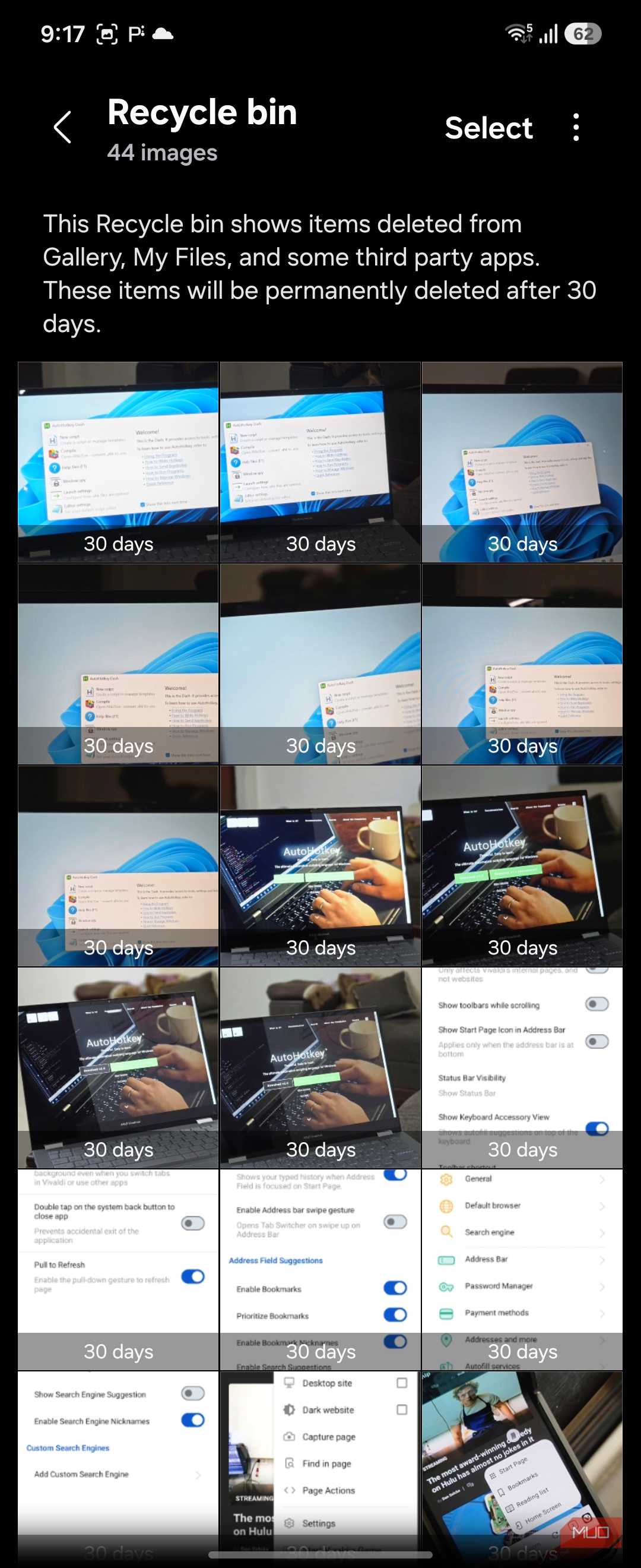
Most of my clutter is photos and videos, so the Gallery is where I start. Open Gallery, tap the menu (the three horizontal lines), and choose Recycle bin. Tap Edit, select the files you want gone, then tap Delete to wipe them. If you just want a clean slate, Delete all clears the lot in one go. There's a confirmation step, and once you tap through it, those files are not coming back.
Clear the trash in the Files app


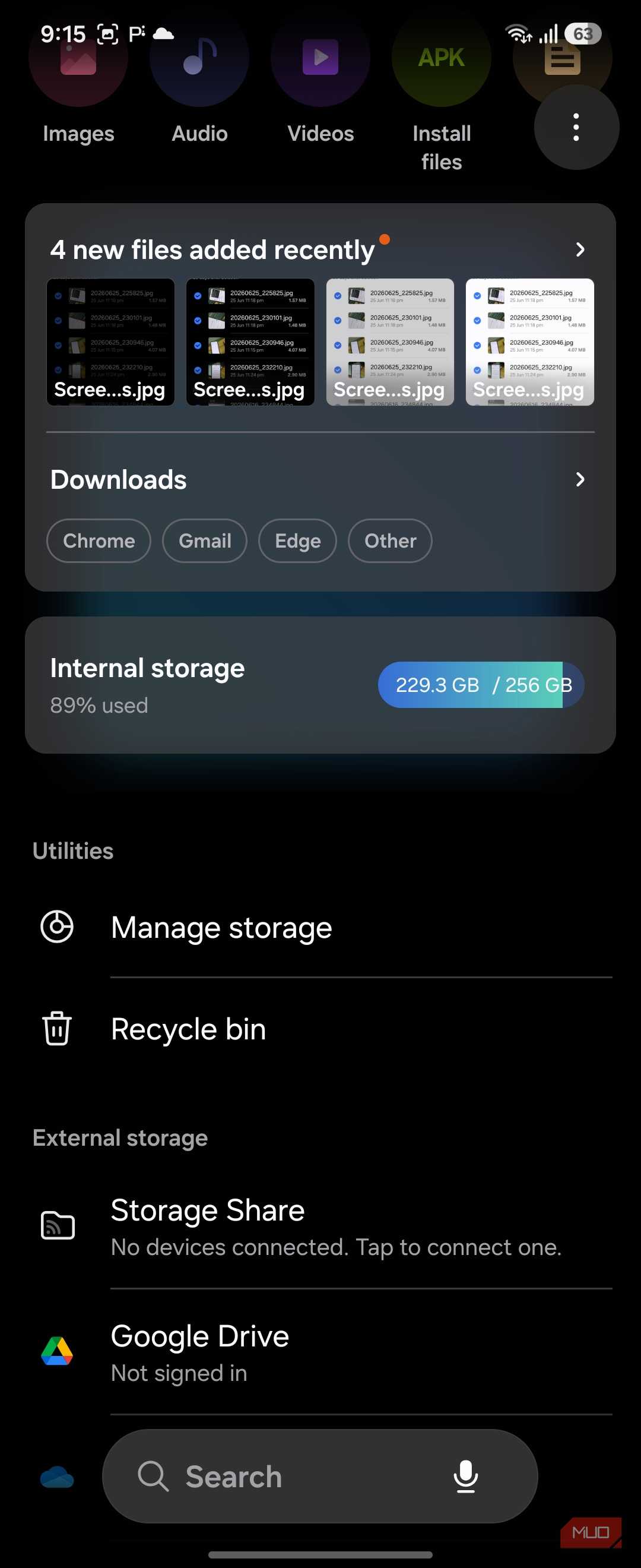
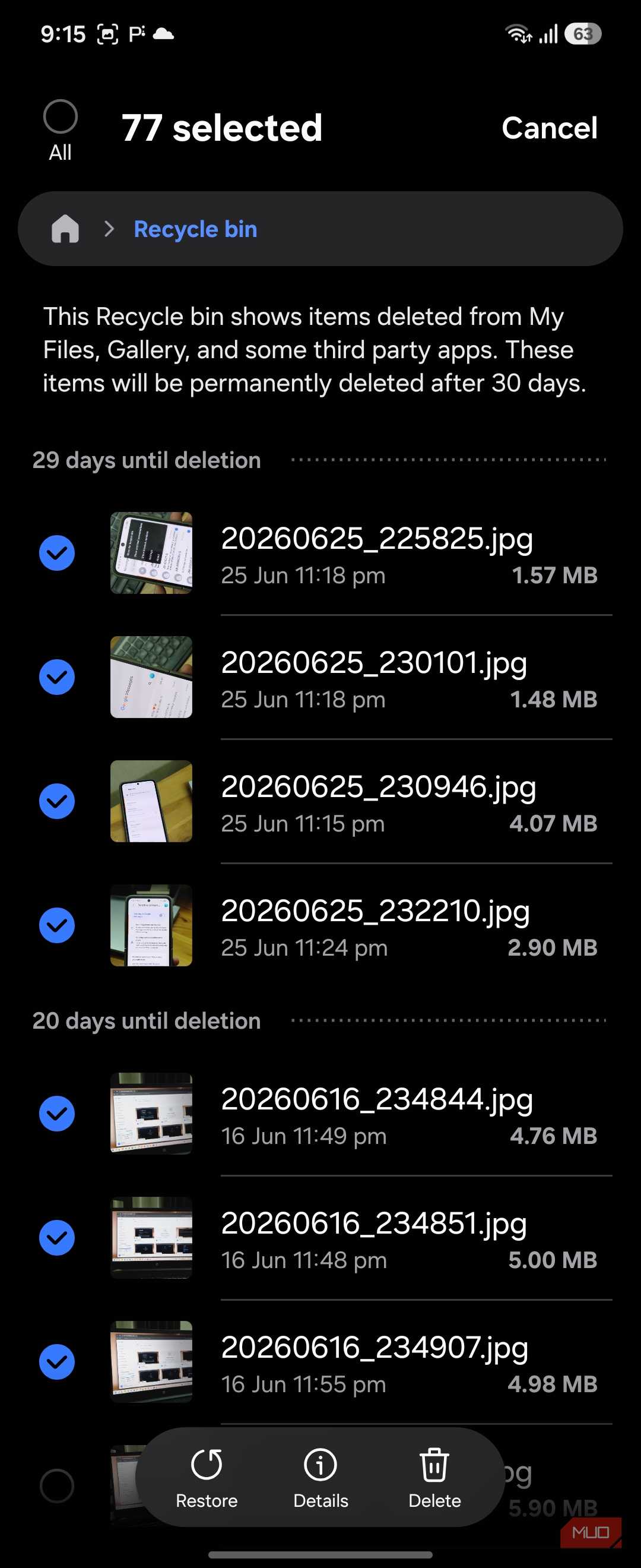
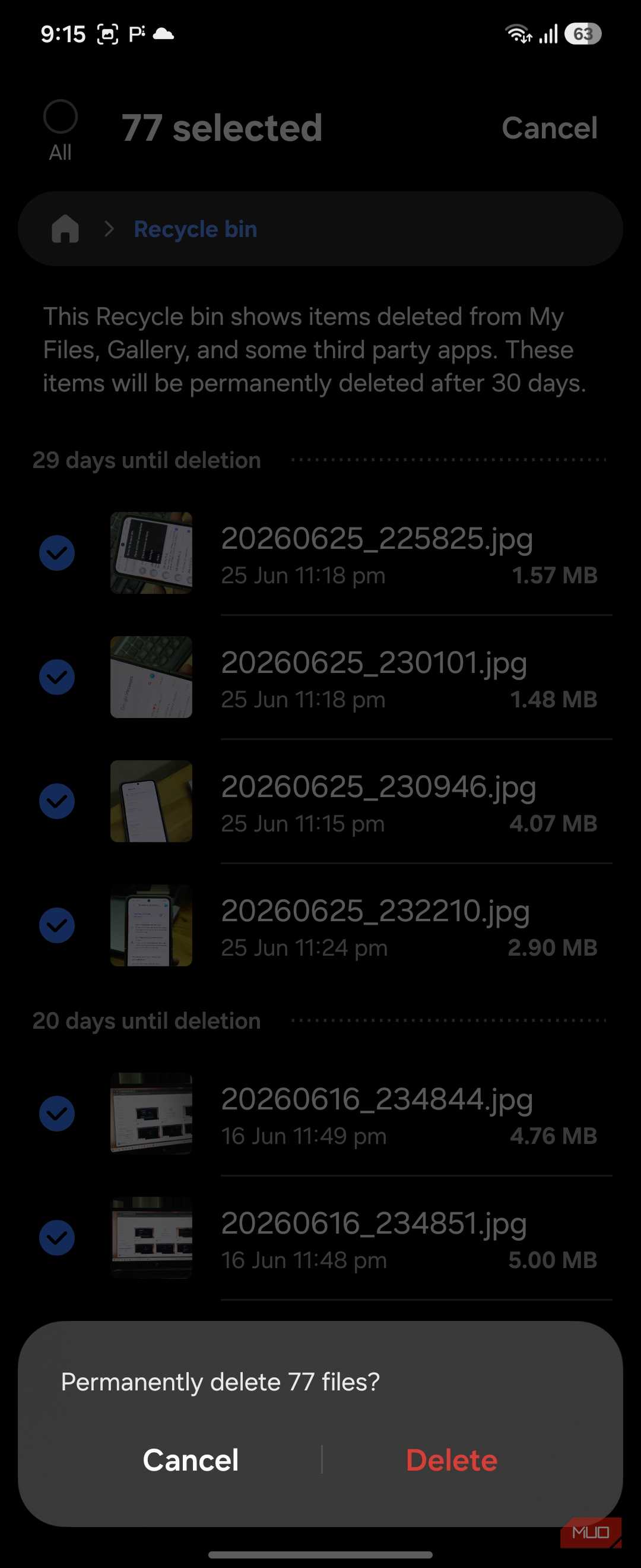
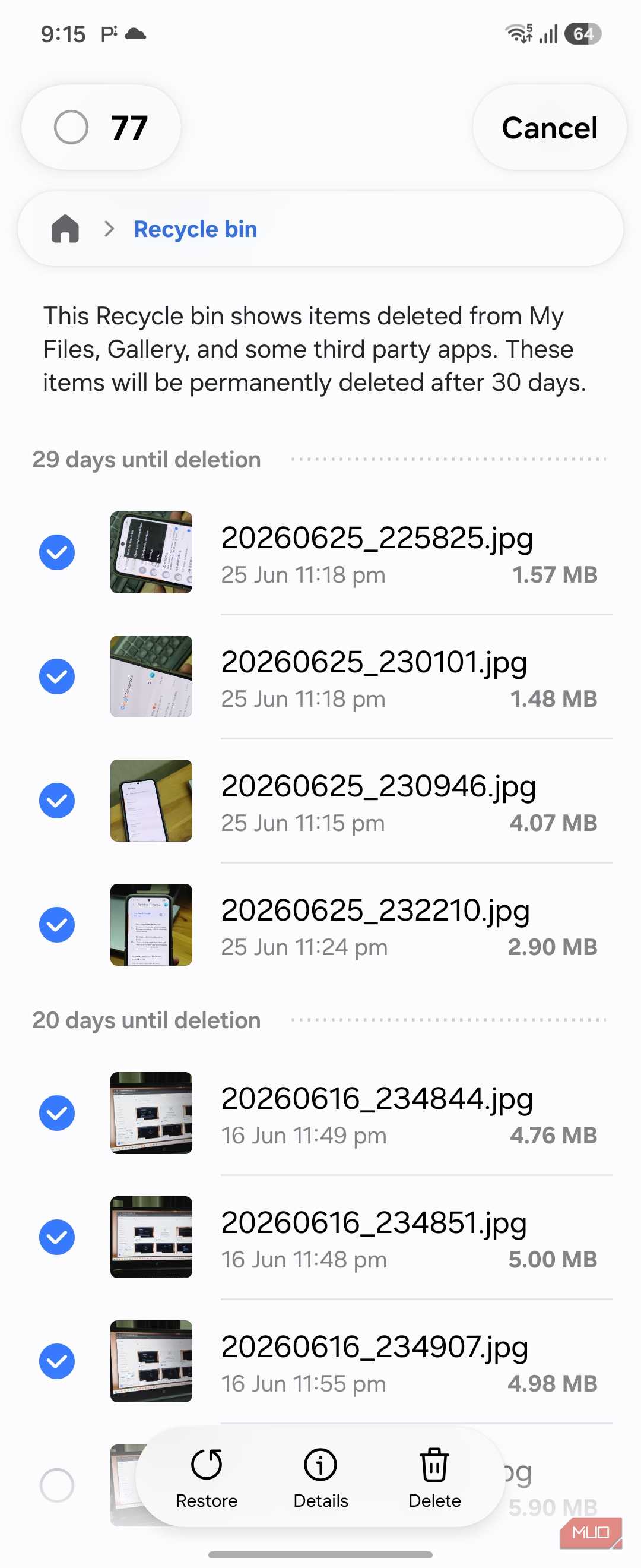


The Gallery only handles photos and videos. For everything else, like documents, downloads, and audio, you need the My Files app. Open My Files, go to the Recycle bin, tap More (the three dots), and select Empty to clear everything at once. You can also reach the same bin from Settings > Device care > Storage management > Recycle bin if you'd rather start there.
Don't forget the Messages app

Texts have their own bin, too. Both Samsung Messages and Google Messages have a recycle bin. Open Samsung Messages, tap the three-dot menu, and select Trash. From there, you can restore a conversation or clear it for good. The bin is on by default, and you can switch it off in the app's settings if you'd rather messages skip it entirely.
Other Android phones handle it differently

On a Pixel or another stock-Android phone like a Motorola, the bins live in Files by Google and Google Photos instead. In Files by Google, tap the menu, open Trash, choose All items, and tap Delete. Photos and videos sit in Google Photos under Library > Trash, where the three-dot menu hides an Empty trash option.
OnePlus keeps things closer to Samsung, with a Recycle bin inside its File Manager and a recently deleted folder in the Gallery. The labels shift from phone to phone, but the pattern remains the same, with each app guarding its own trash, and you clear them one at a time.

Samsung Galaxy Z Flip 6
- Brand
- Samsung
- SoC
- Qualcomm Snapdragon 8 Gen 3
The Samsung Galaxy Z Flip 6 is a stylish, foldable smartphone featuring a dynamic 6.7-inch AMOLED internal display and a durable hinge mechanism. Equipped with the latest Snapdragon processor, it delivers outstanding performance, an enhanced dual-camera system, and Flex Mode for convenient hands-free selfies and video calls.
Emptying the recycle bin protects your data and frees up storage
Android won't let you shorten the 30-day window or skip the bin, and the trash is scattered across the Gallery, Files, and Messages, so one proper sweep means checking at least two places. It's a chore the system should handle on its own, and it doesn't. However, for privacy reasons alone, it's worth the few extra minutes it takes to empty the recycle bin manually.