


Running a home server can involve a lot of babysitting. From operating system and Docker updates to the occasional broken configuration, you spend more time maintaining than actually using the server.
I finally decided to try something new: separate my data from the host entirely. So I ran a Docker-first Linux Live environment called Lightwhale. I was expecting a lighter OS but ended up with something much better. It gave me the entire infrastructure behind my home server in one Compose file.
I realized my server was one file
Everything else had become disposable

It recently occurred to me that the file that mattered the most in my entire server setup was docker-compose.yml. The old setup notes, my several bash scripts, many of which I'd forgotten the purpose of, and my README file from 2023 were part of the clutter. The main thing that did the heavy lifting lived in about 60 lines of YAML. Traefik served as a reverse proxy; I used a few apps daily, had a Postgres container, and utilized Pi-hole for DNS. That was more or less the entire homelab.
Compose was the blueprint of everything that mattered to me. The Linux install underneath suddenly felt less relevant; it was just the place where Docker ran. There is a split between infrastructure and data. My Compose file is the infrastructure, dictating what runs and how; my Postgres volume is data I wouldn't want to lose, and every other element is replaceable.
If, for some reason, I lost my machine, rebuilding my setup would mainly come down to copying a single text file and restoring my volume.
This realization made Lightwhale click for me. I didn't need to rely on the OS to build my server; I had this purpose-built operating system designed to run Docker containers effortlessly. And all it took was one USB drive and my YAML file.
How I use Lightwhale
The single text file for my server


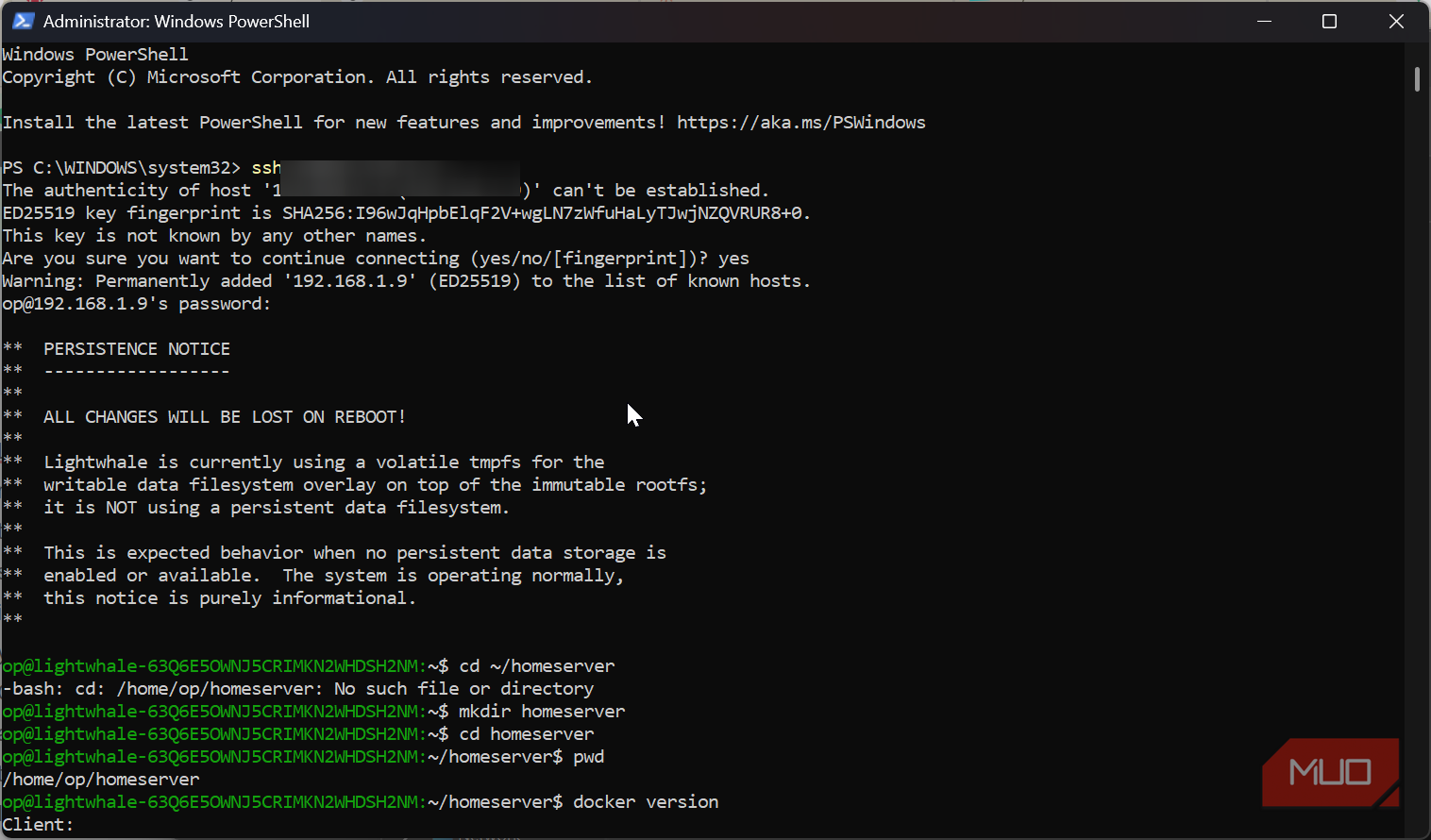
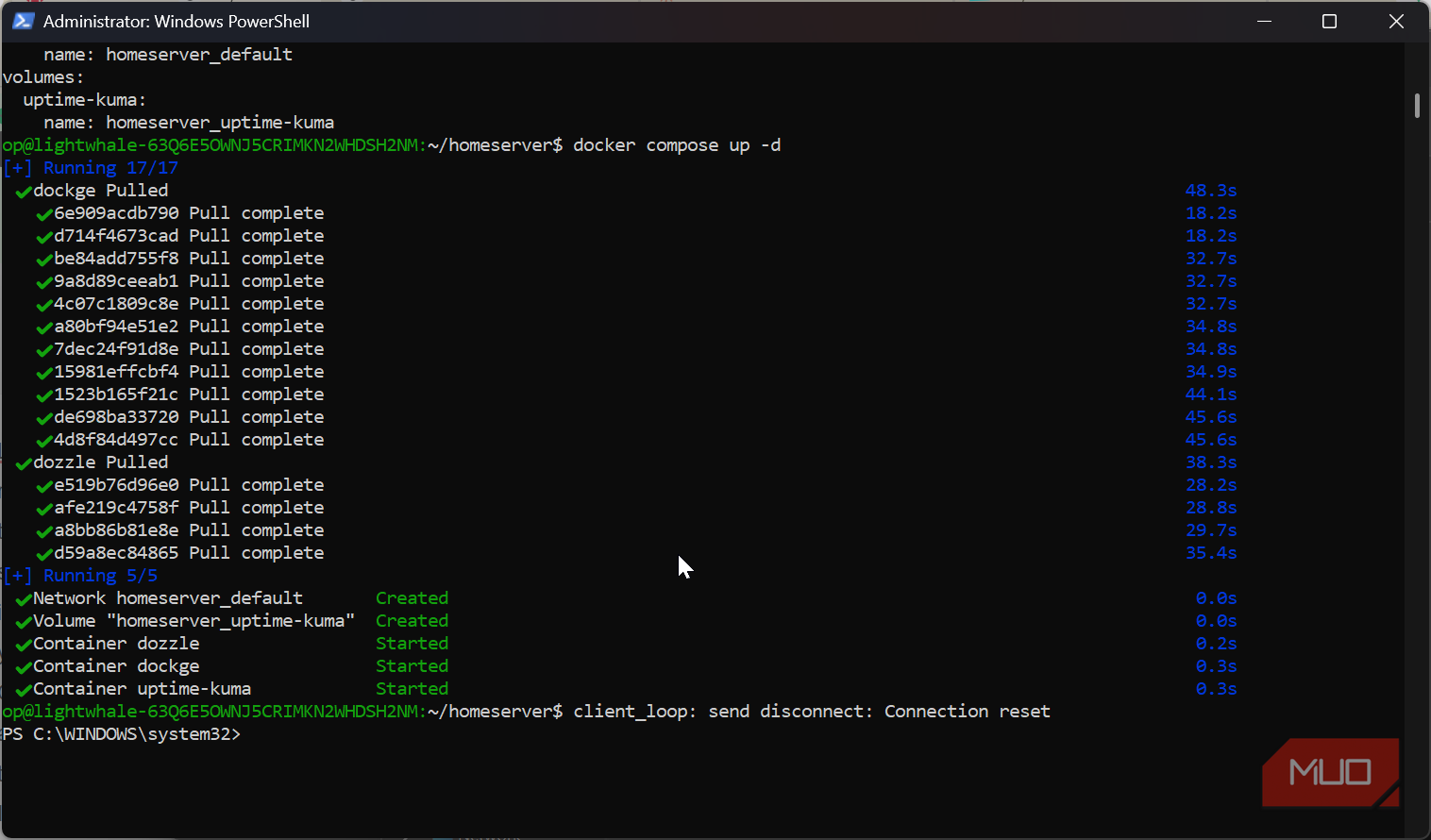
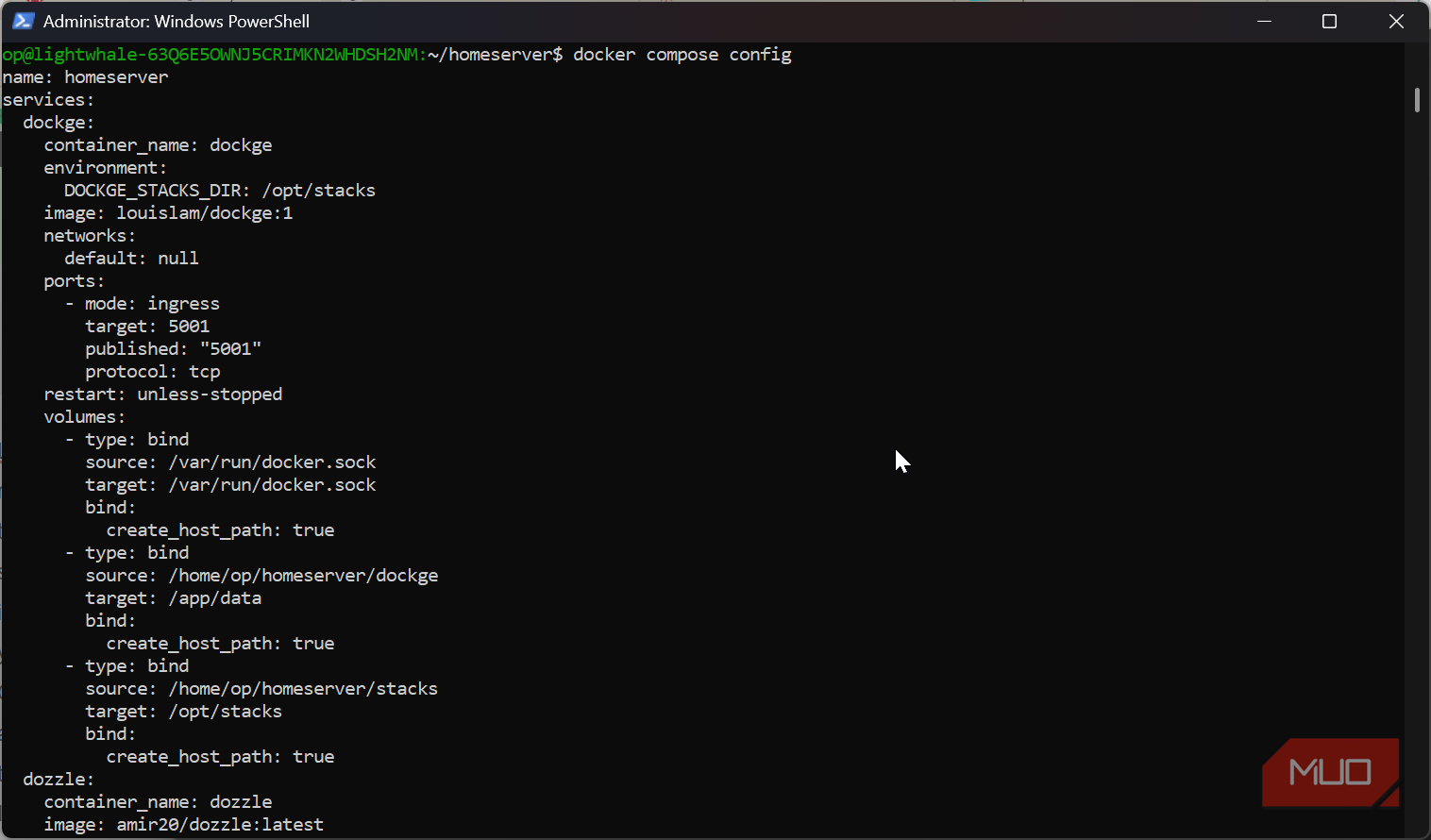
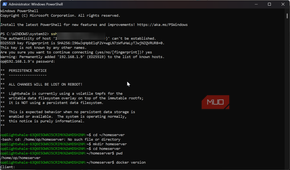
Lightwhale is a Linux distro built around the idea that the OS isn't what you maintain but something you boot. It's quite simple: download the ISO, write it to a USB using Rufus, and boot it. The design eliminates an installer, package selection screen, timezone configuration, or any of the other processes involved in installing a traditional Linux distro. It feels kind of like a video game cartridge; you plug in the USB, and Lightwhale boots live into a working Docker Engine. Once you boot the system, both the kernel and root filesystem load into memory, and that's where your system starts. In fact, after booting, you no longer need the boot media.
Once I'd booted into Lightwhale, I logged in, then connected to the internet via my Ethernet cable, ran the command below, and noted my IP address:
ip addr
I then switched to my main PC and connected via SSH using the command below:
ssh op@
It's much more comfortable to manage the server over SSH than directly from the local console. This is especially the case if you're editing config files. The next thing I needed was to create a directory where I could drop my server configuration.
mkdir homeserver
cd homeserver
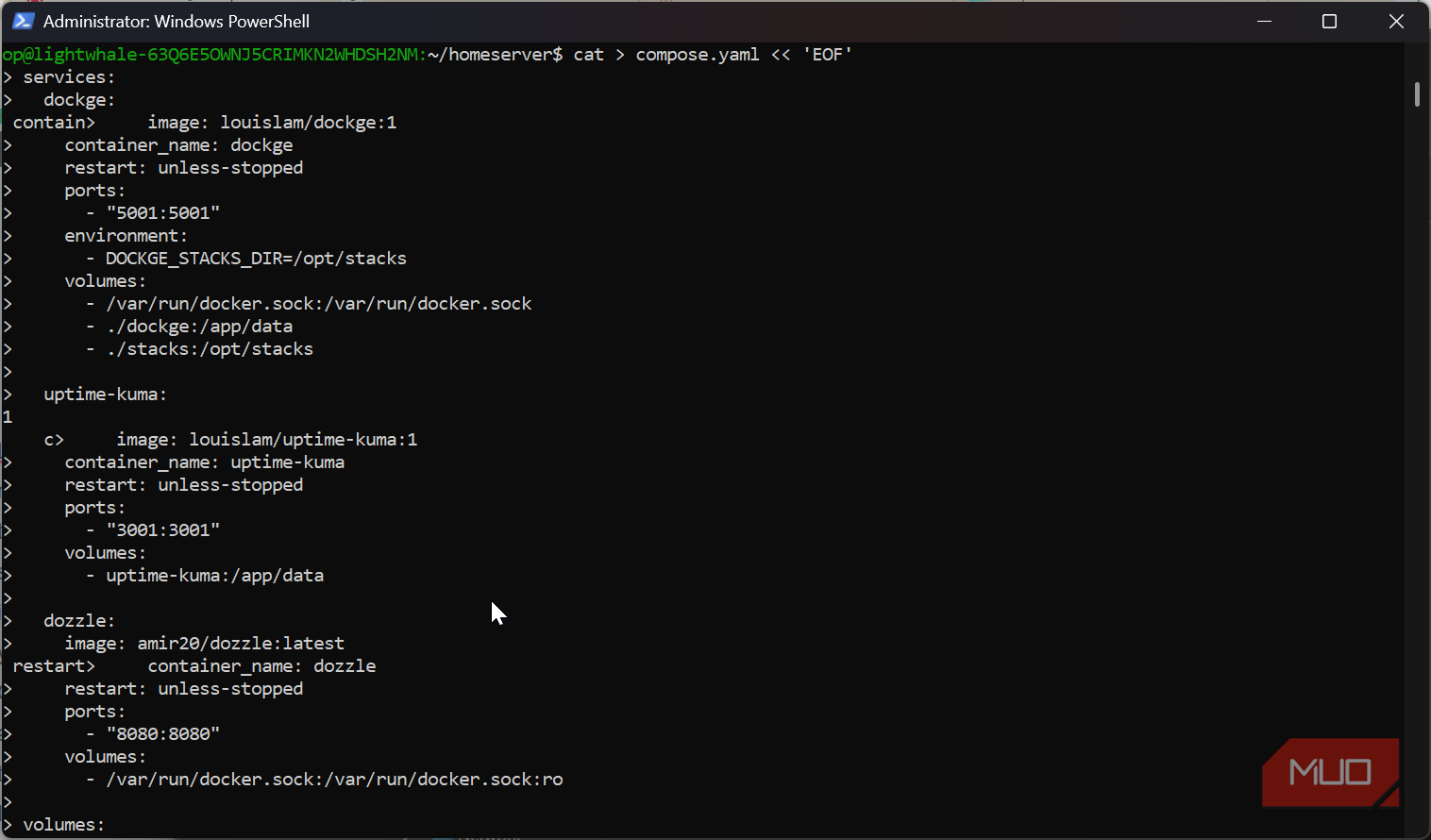
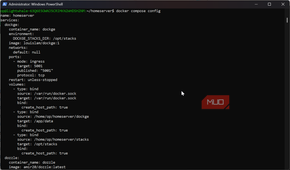
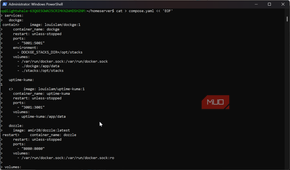
Finally, I got to the heart of the entire setup: my single compose.yaml file. This file has to include the services you love to work with and the setup for each one. It could be something as simple as this:
services:
 dockge:
 image: louislam/dockge:1
 container_name: dockge
 restart: unless-stopped
 ports:
 - "5001:5001"
 environment:
 - DOCKGE_STACKS_DIR=/opt/stacks
 volumes:
 - /var/run/docker.sock:/var/run/docker.sock
 - ./dockge:/app/data
 - ./stacks:/opt/stacks

 uptime-kuma:
 image: louislam/uptime-kuma:1
 container_name: uptime-kuma
 restart: unless-stopped
 ports:
 - "3001:3001"
 volumes:
 - uptime-kuma:/app/data

 dozzle:
 image: amir20/dozzle:latest
 container_name: dozzle
 restart: unless-stopped
 ports:
 - "8080:8080"
 volumes:
 - /var/run/docker.sock:/var/run/docker.sock:ro
volumes:
 uptime-kuma:
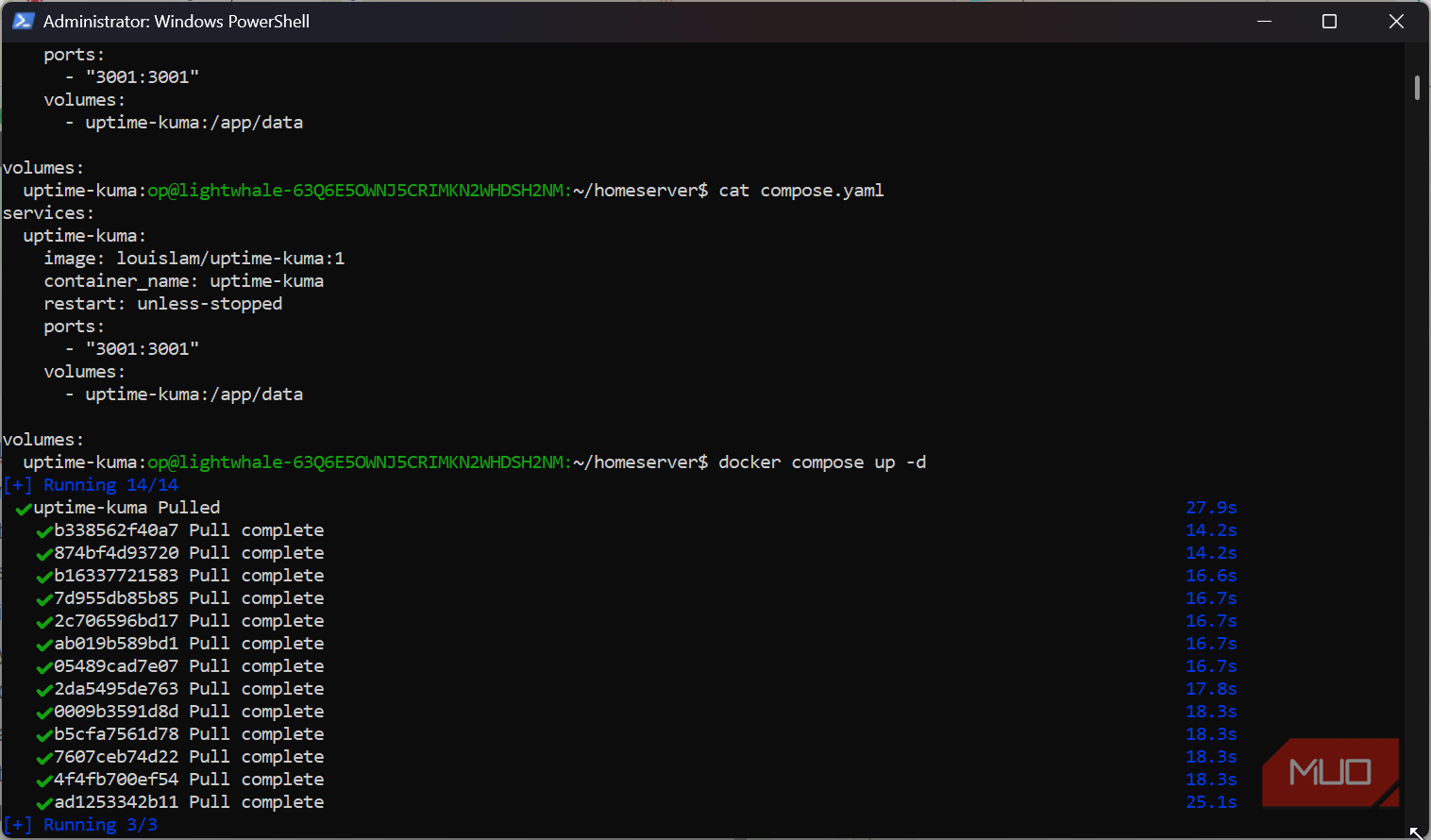
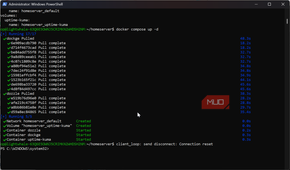
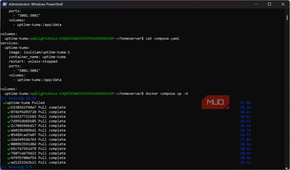
With this in place, my entire server goes online with a single command: docker compose up -d. It's a single command that allows Docker to download any missing images, create the required networks and volumes, and start the services. It works whether there's just one service or several.

Lightwhale
- OS
- Linux
- Price
- Free
Lightwhale is an immutable Linux operating system designed specifically to run Docker containers.
Rebuilding became easier than fixing
The host stopped being special

I used to dread the thought of restoring my configuration, especially since my old setup had a lot of tiny customizations baked in. It had a tweaked sysctl.conf, a cron job I'd added and then forgotten about, some packages I'd installed for one-off jobs and never thought about again. The only documentation that existed for any of these was in my head, one of the worst places to keep infrastructure.
Once I had everything in containers, restoring became less dreadful. I just needed the data volumes and the Compose file. More importantly, the way I thought about my server changed completely.
|
Before |
After |
|---|---|
|
Protect the OS |
Replace the OS |
|
Troubleshoot drift |
Redeploy |
|
Every server is unique |
Every server is reproducible |
|
Fear of breaking things |
Recover quickly |
Back up the blueprint
My new setup taught me one big lesson: backing up my home server no longer starts with the OS. This process now starts with my Compose file and data volumes. I may recreate the host in a few minutes, but these two elements are the true essence of the server.
My compose.yaml is backed up in my Git repository, and my apps stay backed up separately. I've repurposed my old computers as servers. If this hardware suddenly fails, I simply boot Lightwhale, restore my volumes, and after running docker compose up -d, I'm back where I left off. I don't have to remember how I configured the machine. This minimal container-first approach to running servers has made the entire process easier.