

NotebookLM works best when you give it carefully compiled resources. But after uploading a dozen PDFs, articles, and notes, it's easy to lose track of what's actually in our notebooks. More so when we return to a notebook after some time. The Sources side panel isn't designed for long-form reading.
That's why I rely on a simple prompt that forces NotebookLM to map out every source, its key themes, and how each one connects to the others. It's like an umbrella document that gives a bird's-eye view of the notebook. It takes thirty seconds and changes how you or any collaborator can work with the information in it. This technique is part of my 5-step NotebookLM workflow.

I used NotebookLM to explain my own project, and it was better than my notes
My scattered book notes made more sense after NotebookLM read them.
The prompt that maps your whole notebook
One question gives you a bird's-eye view
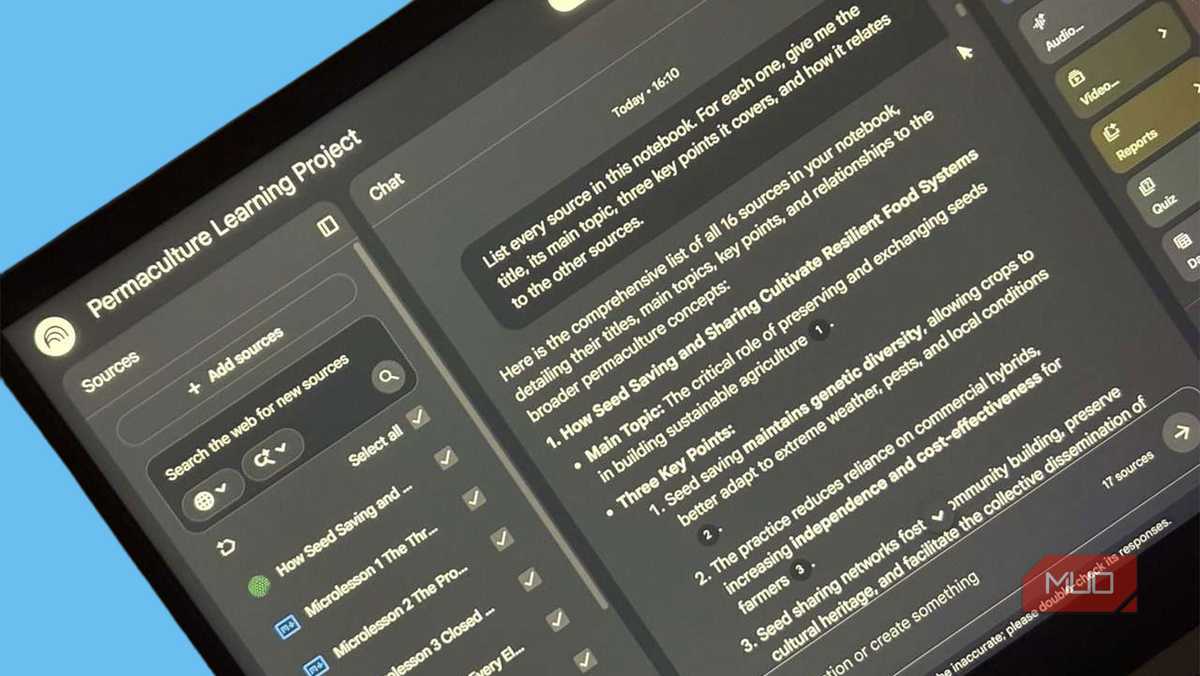
The Master Index prompt helps you go beyond the auto-generated summary from NotebookLM. Use this starter prompt before you do anything else:
List every source in this notebook. For each one, give me the title, its main topic, three key points it covers, and how it relates to the other sources.
NotebookLM will scan everything you've uploaded and return a structured breakdown. You can tweak it, but one entry per source is a better starting point, with cross-references included. It's an uncomplicated look at how each source is placed in the notebook.
I used to dive straight into the prompt questions the moment I finished uploading. Half the time, I'd get an answer while forgetting what it connected to. I realized the relevant source was sitting in the list, still unread by me.
Running the Master Index prompt is a little NotebookLM tweak to improve any project. It closes the gap between what you uploaded and what you actually know is there. NotebookLM does generate a few starter prompts. But it still can't tell you something matters if you didn't know to ask about it.
Source summaries don't tell the whole story
A master index prompt connects your notes family

You might assume the Sources panel on the left already does this job. It does show your source titles, and checking one while unchecking the rest displays an auto-generated summary.
That's useful, but it's not the same thing. The Sources panel shows you sources in isolation. The Master Index prompt is a synthesis as it tells you how sources relate to each other, where they overlap, and what gaps exist. That cross-source awareness is what makes it valuable.
With this cross-source awareness, your NotebookLM prompts can get better. NotebookLM saves chat sessions. But to make the good responses really stick, select Save to note to pin it as a note. That note stays in your notebook permanently and becomes a reference you can pull up anytime.
Run it again when your notebook grows
Don't let the index grow stale

The Master Index doesn't need to be a one-time prompt. Every time you add new sources, the old index becomes outdated. When you add three or more sources in one sitting, re-run a refreshed version of the prompt and save the updated output as a fresh note.
Re-index all sources, note any new themes, and flag any contradictions or overlaps with previously indexed material.
NotebookLM processes a full index response in under a minute, regardless of how many sources you have. Delete the old index note to avoid confusion. You don't need it anymore, and it can confuse you.
I have found that the index reveals nuances each time you run it. New sources change the relationship map. A paper you uploaded last week might directly contradict an earlier one. The index prompt and follow-up prompts will catch those.
Use sources selectively to build a focused index
Narrow the scope for sharper results

If your notebook is large, a full index can feel overwhelming. NotebookLM lets you deselect individual sources using the checkboxes in the Sources panel. Use this to run a targeted version of the prompt on a smaller cluster of related sources. I use this quite often when I use YouTube and NotebookLM to study a new topic.
Index only the currently selected sources. Summarize each one's main argument and identify where they agree or conflict.
This comes into its own during research sessions where you're working on one thread at a time. A notebook on economic policy, for instance, might have ten sources. Checking just the ones on investment policy and running the prompt gives you a focused index of that sub-topic.
Some users find checkbox management fiddly, especially with large source lists. It's an extra step before you can run the prompt. But the alternative of indexing everything and wading through a long output is slower. Selective indexing is also an excellent method to build focused reports, briefing docs, and even infographics.
Go further with a dedicated index notebook
One notebook to rule them all

Power users with multiple notebooks can take this a step further. Create a separate notebook called MASTER-INDEX. Inside it, paste a single text source that lists all your other notebooks — their names, what sources each contains, and their core themes. Then query it like this:
Which of my notebooks covers [topic]? List the most relevant ones and what each contains.
Instead of opening six notebooks one by one, you get an instant answer. That conversational search alone can help you stay aware of everything you save across all notebooks. You can take your master notebook and use the Studio Panel to generate high-quality Audio Overviews (podcasts) or complex briefing documents that span your entire body of work.
This might make manual maintenance of notebooks a lot easier if you have notebooks in double-digit numbers. The act of writing down what's in each notebook forces a clarity that passive accumulation never gives you. As you cannot chat between notebooks, directly link, or merge notebooks (using Gemini with NotebookLM is a workaround), the master notebook can be like a list of contents.

- OS
- Android, iOS, Web-based app
- Developer
- Pricing model
- Free
NotebookLM is Google’s AI-powered research notebook that reads what you upload and helps you transform it into structured summaries, explanations, and visuals.
Try it on your messiest notebook today
Pick the notebook where you've been dumping sources without a clear plan. Run the core Master Index prompt before you ask it anything else. When the index comes back, check if all the sources make sense. Does NotebookLM flag any sources that overlap or contradict each other? This is where the most useful research steps tend to start.