


The problem with notetaking isn't collecting information. It's not even organizing it in neat folders. The crux of taking notes and extracting value comes down to making sense of everything jotted down. I have combined Deep Research with Obsidian to dive deeper into my notes. That has now set me on other experiments, like pairing my Obsidian vault with Claude. Obsidian's openness allows us to plug the Claude chatbot with the notes and see if we can build something coherent from the pile.
I don't want to use Claude as a search engine but as a connective tissue between my existing notes. So far, the experiment has helped me think through projects and understand my own ideas better.

I paired Claude Code with Obsidian CLI and it finally organized five years of notes
An AI tool and Obsidian CLI combine forces to rescue a writer's overwhelmed vault.
Connecting Obsidian and Claude
Pick the method that matches your comfort level
You can connect Obsidian and Claude in three main ways. The simplest is the no-setup approach: copy notes from Obsidian and paste them directly into Claude.ai or point Claude to the Obsidian vault or folder on your desktop. The second method is the Obsidian Copilot plugin, which connects to Claude via your Anthropic API key and adds a chat sidebar inside the app itself. The third is an MCP server, which gives Claude Desktop direct read-and-write access to your vault files.
If you're not technical, start with the Copilot plugin. Install it from Obsidian's Community Plugins menu, open the settings, and paste in your Anthropic API key. You will have to buy credits from Anthropic to use this. Claude becomes available as a chat panel inside Obsidian, and you can immediately start referencing your notes by name.
The no-setup copy-paste method is quick and costs nothing beyond your Claude.ai subscription. The MCP server approach is the most powerful, as Claude can read and write notes autonomously. I am using this with the Claude Desktop and the Filesystem extension.

Claude
- Developer
- Anthropic PBC
- Price model
- Free, subscription available
Claude is an advanced artificial intelligence assistant developed by Anthropic. Built on Constitutional AI principles, it excels at complex reasoning, sophisticated writing, and professional-grade coding assistance.
Claude can see your notes
Save the bother of copy-pasting notes
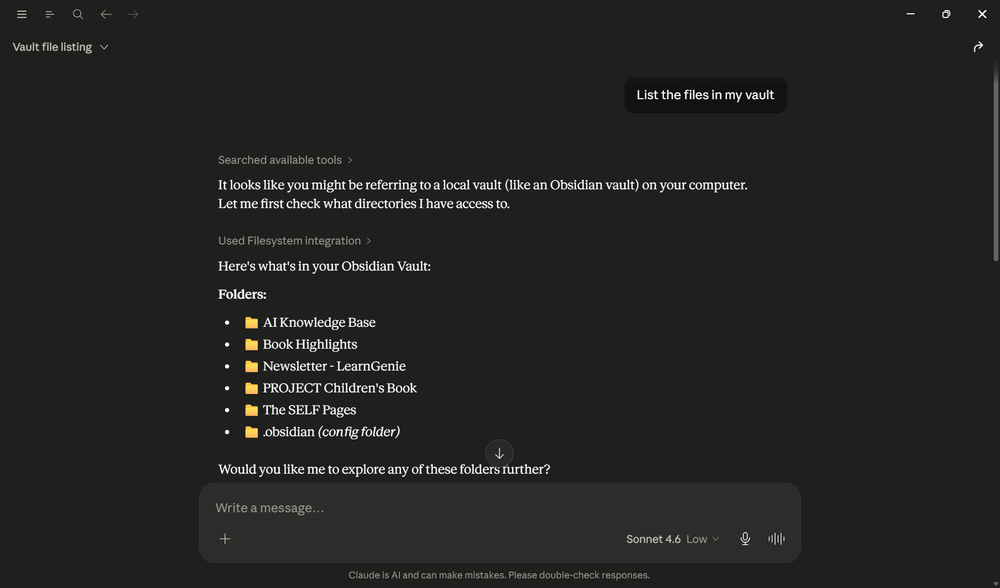
Claude Desktop can directly access your vault. With the Claude MCP Server and the Filesystem extension, Claude can search, read, and analyze your markdown notes without constant copy-pasting. That makes research feel much smoother.
Before I came across the MCP server setup, I wasted time moving notes between the two apps. Now Claude can look through my vault when I prompt it. Sometimes, I don't even need to rummage through my Obsidian notes. I also noticed Claude works best when my folders and note titles are clean and easy to understand.
The setup isn’t without risks, though. Giving Claude access to your vault means you need to stay mindful of your sensitive notes. Go to Settings -> Extensions -> Filesystem -> Configure. Then, go down the Tool permissions list to manage the depth of access you want Claude to have.
Power-users can prompt Claude Code to process their Obsidian folders. For instance, Claude Code, Anthropic's terminal-based coding agent, can read and write markdown files. It can summarize, tag, and link new notes to existing ones automatically. I am just using the chatbot for now. But tools like Claude Code can also completely organize massive dumps of notes.
Find hidden links in your notes
Let the AI spot connections you missed
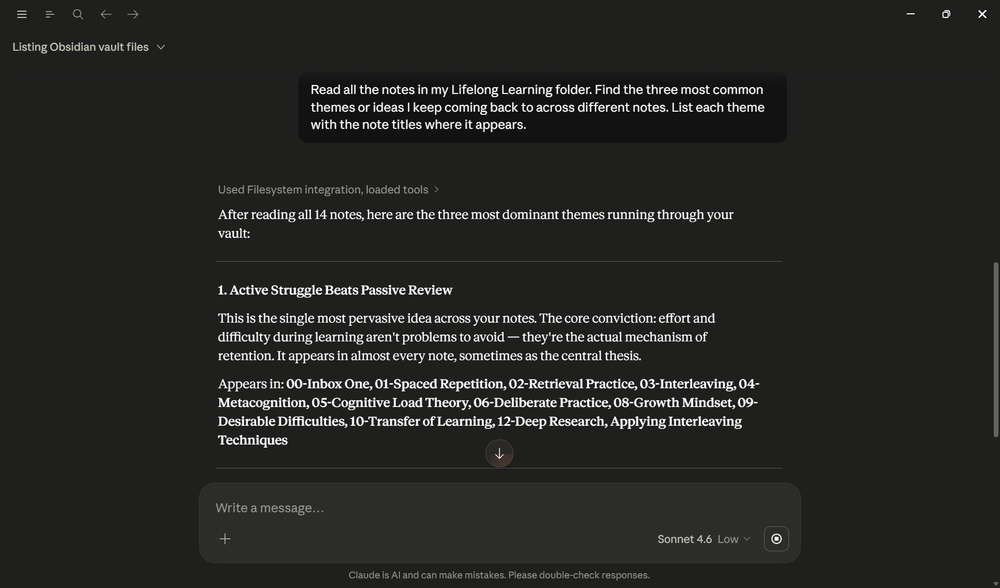
Claude can read multiple files at once and find common themes hiding deep inside your vault. You can ask it to scan your recent daily notes and pull out the main ideas so you don’t have to reread everything. It's a powerful partner for Obsidian's own Graph View that also identifies hidden connections and orphaned notes.
I used this to review my scattered notes on digital minimalism from last year. Claude quickly found three common rules I kept writing about across different notes, instantly giving me a solid outline for a brand new article.
This is great for fast brainstorming, but you shouldn’t blindly trust the AI’s summary. The benefit is that I can save time on research, while using my own instincts to add the nuances which an AI often misses.
Fix messy formatting instantly
Clean up your rough drafts in seconds
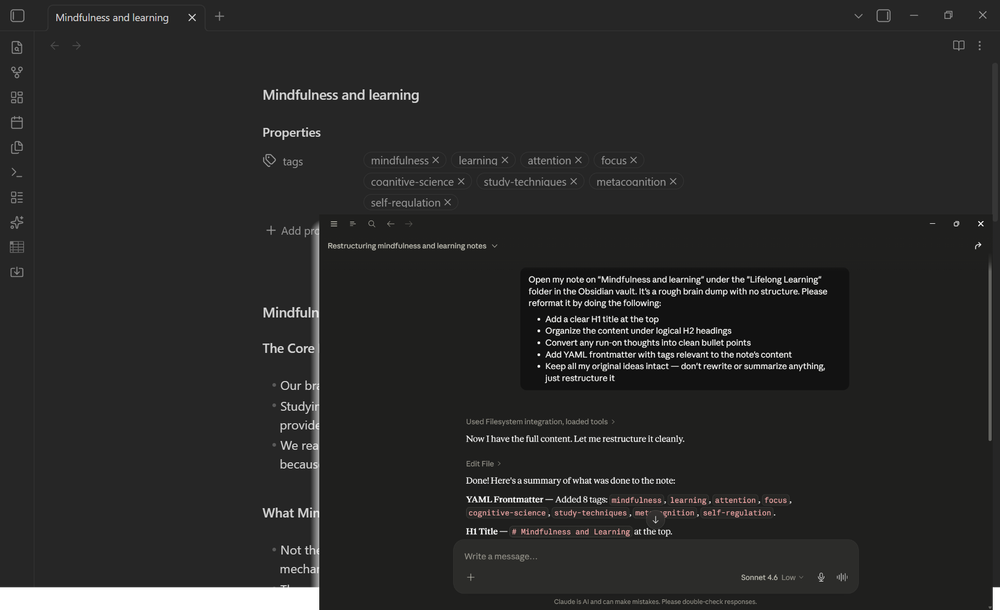
You can tell Claude to read a messy markdown file and apply a clean, organized structure to it without opening the file yourself. It easily adds proper headings, neat bullet points, and frontmatter tags to your rough brain dumps. As Claude is doing the heavy lifting, don't worry too much about building the perfect Obsidian vault. The Obsidian + Claude tango can handle messy.
After a chaotic brainstorming session, I asked Claude to format my raw text neatly and also add YAML frontmatter. It saved me fifteen minutes of tedious formatting, letting me get straight to the actual editing and learning process. Claude will search your vault by filename, so it helps to mention the exact filename of the note and the folder it's under.
This feature is a lifesaver for heavy writers, though it occasionally messes up custom formatting choices. It saves the bother of formatting every note by hand. It may not render perfectly in every case, but what kind of a writer would I be if I didn't double-check the final layout before hitting publish!
Build your own learning path
Turn random Obsidian notes into a study guide

Claude can scan a folder of fragmented notes and arrange them into a highly logical learning sequence. This easily converts a messy pile of isolated facts into a clear, step-by-step study guide for any subject you want to learn.
I had dozens of messy notes on personal learning techniques scattered across my entire vault. I asked Claude to organize them into a beginner-friendly guide. Then, I told it to deliver them to me as 15-minute micro-lessons every day.
This is amazing for students and self-learners. In some cases, I have found it grouping unrelated ideas together by mistake. But that's the risk we carry with our dependence on such LLMs.

- OS
- Windows, macOS, Linux, Android, iOS, iPadOS
- Developer
- Dynalist Inc.
- Pricing model
- Free
- Initial release
- March 30, 2020
Obsidian is a local-first, Markdown-based note-taking application that stores your notes as plain text files and lets you build interlinked “vaults” of knowledge. It supports plug-ins, graph visualisations, and full control of your data rather than locking you into a proprietary format.
Get fresh ideas from your own Obsidian notes
Using the Obsidian-Claude pairing allows you to give Claude as much context as you want. Most note-taking systems slowly turn into storage dumps. Obsidian already helps fight that with backlinks and graph views, but Claude adds another layer. Now, longer projects that take off from my own notes feel less stressful. Do remember that Claude can sometimes sound overly confident even when it misunderstands a note. So, I’ve learned to treat it like a research filter to reduce my own mental clutter.